It’s normal that CPU is slower. It should always be in Auto for best performances. I’m trying to reproduce on my end, but I can’t so far.
Doesn’t matter if its Auto or my GPU.
It should be on Auto, not the GPU, I am trying to see if we can find what’s causing this.
I did erase all models, did repair the app, did not help.
1 Like
- It’s not dependant on the source image, it happens every time with every image.
- Yes, there is a bug and it’s exactly the same as @TPX , @zelenooki87 , @plugsnpixels , @mikmod1 (and likely others) encounter: honeycomb like patterns/blotches that are apparent especially (but not only) in plain areas. There are multiple examples here from various users for this exact same issue
- The issue exists only for local rendering, Cloud rendering is OK (and thus shows what the output of the model actually should look like)
- Recover V2 (as well as all other models) works OK on those images for local and cloud rendering.
- AI processor is set to “Auto” (but doesn’t make a difference if set to GPU)
For the settings, nothing fancy:
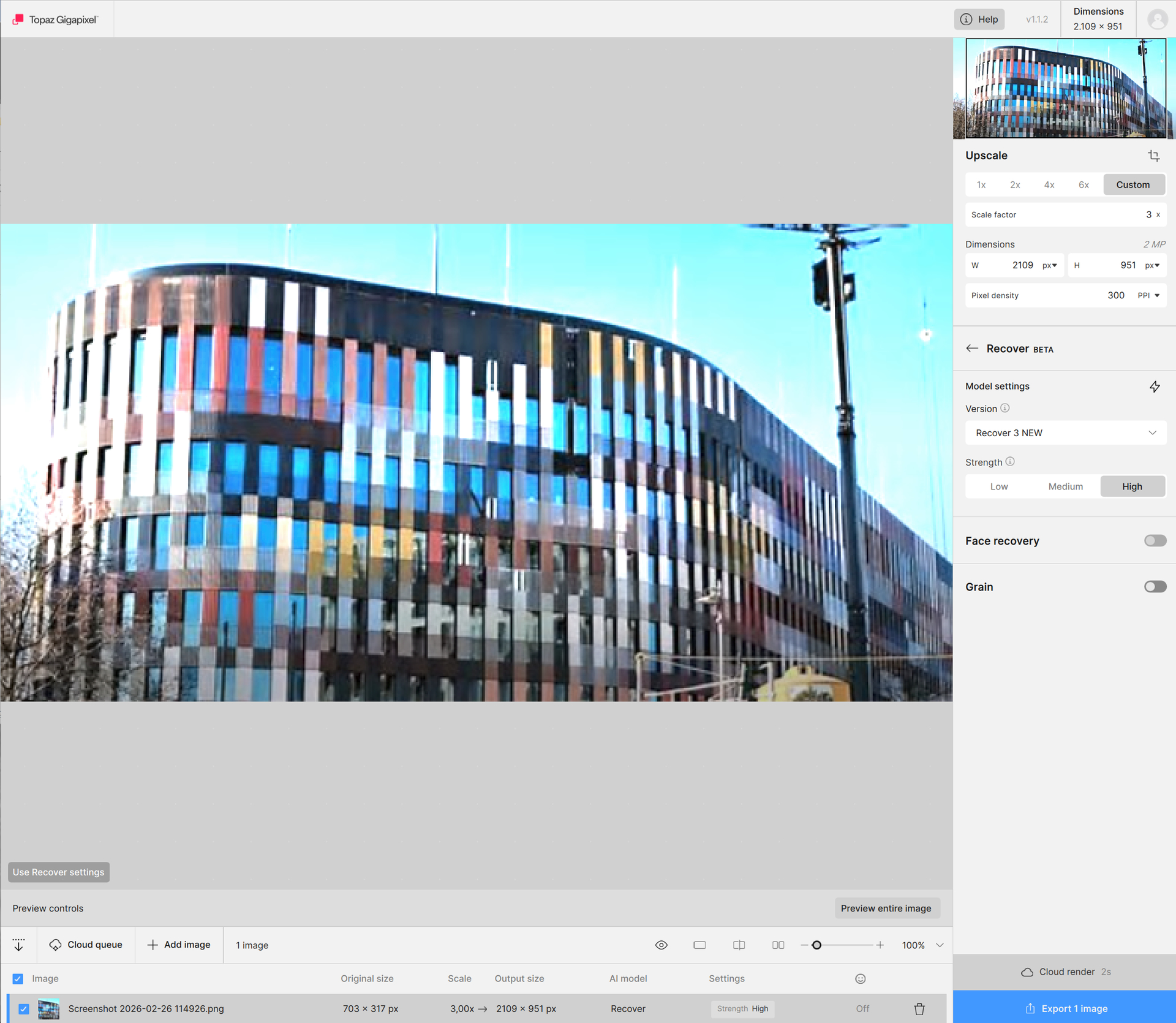
Preview whole image gives that:
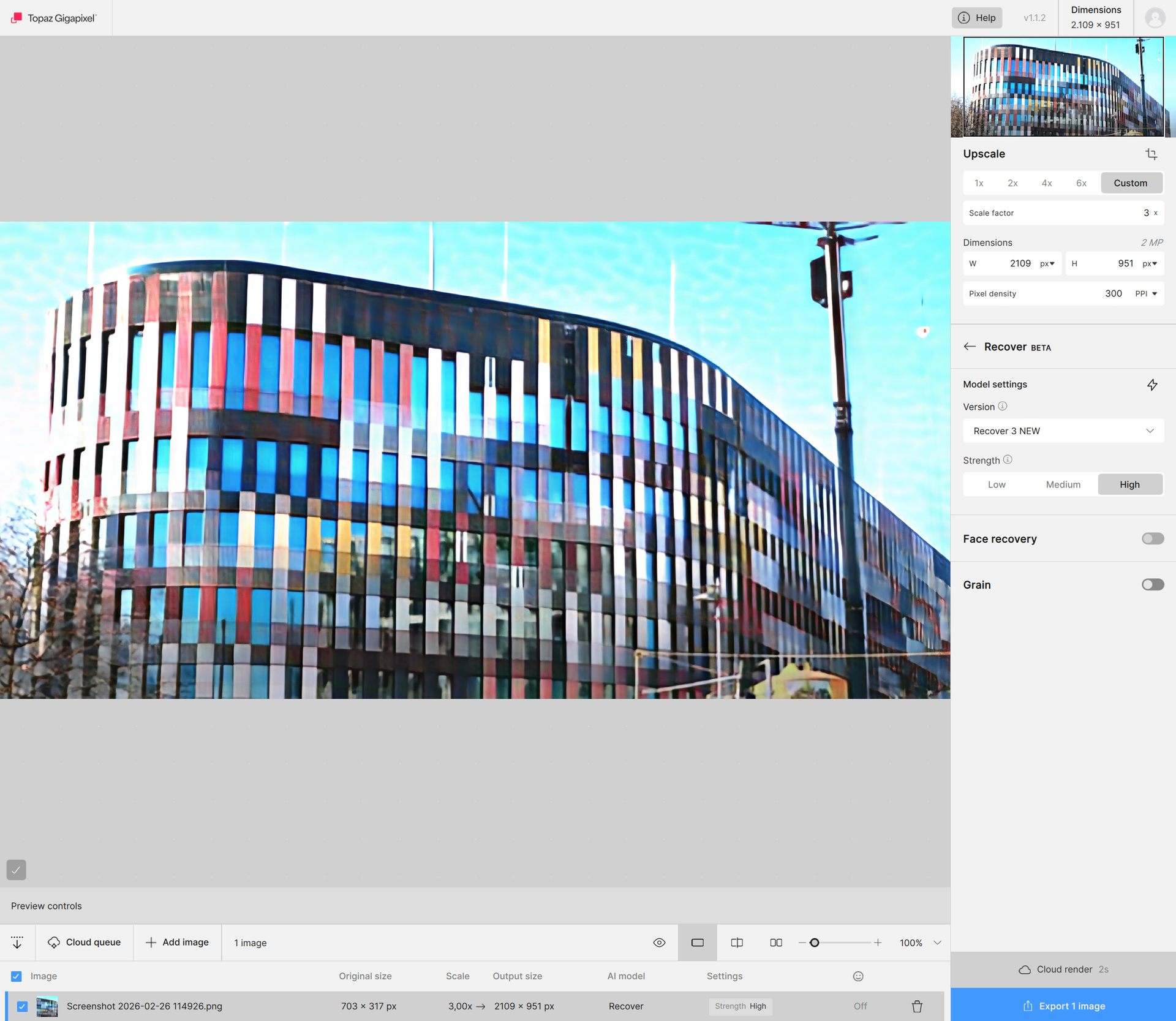
2 Likes
oui je peux faire ça.
Here is the 1K resolution from Gemini Nano Banana vs 6K, using Recover V2.
1 Like
I tried everything as suggested, and I can’t reproduce the issue. This is what I get from the preview:
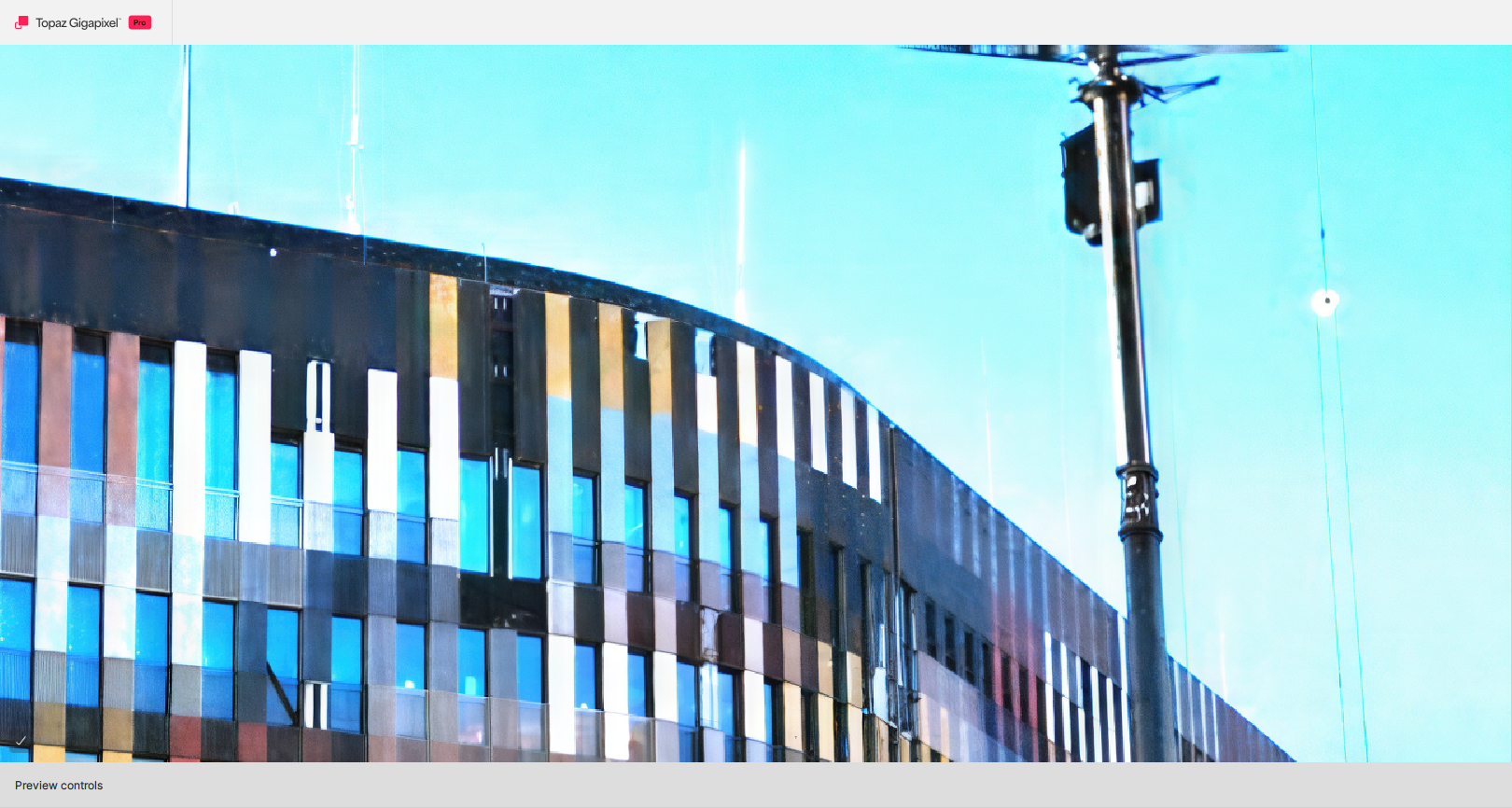
There might be a bug with certain graphics cards. Anyone with that issue, please message me privately, and I will gather the logs and other information we need to investigate.
1 Like
I tested your image. I don’t know which GPU you used, but with my MSI 3070 Ventus GPU with 8GB of VRAM, I get an absolutely disgusting rendering at x6 and default settings on medium.
2 Likes
My test using your original images.
It’s simply horrible. Recovery V3 is definitely unusable in its current state for me. Even at x2, x4, or x6 the result is awful. Whether it’s on “low,” “medium,” or “high.”
1 Like
You’re getting the same “honeycomb” or “paving stone” patterns / artifacts as many of us.
I just can’t believe they really cannot reproduce that at TL.
(In fact I’ve not yet seen one successful local Recover V3 render here in this forum apart from TL employees…)
1 Like
Yeah, it’s simply astounding. They should test with the same GPUs. Not everyone has super high-end, latest-generation GPUs like the 4090 Ti or 5090 Ti with 30 GB or 40 GB of VRAM.
1 Like
Something went wrong there, with Recover 3. According to the description, Recover 3 should be very useful for me for many various photos, but somehow it didn’t happen. I’m now just playing with the photo of a hoverfly and it gave me a typical popular honeycomb-like result, even though a hoverfly is neither a bee (and nor a wasp). 
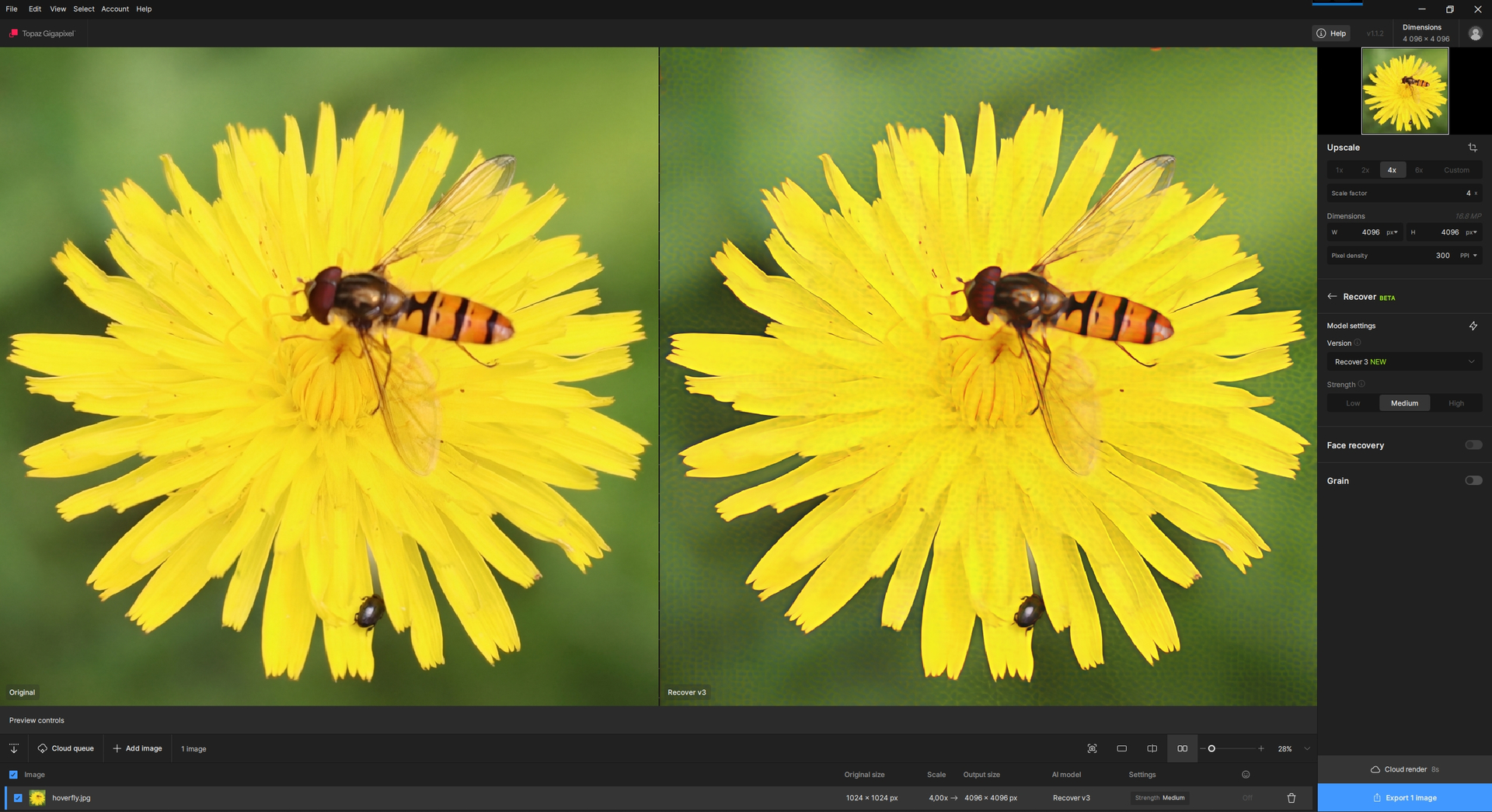
1 Like
Yeah, I don’t know why it always seems to work well at Topaz Labs and not at our place.
You seem to have ‘pro’ version of the Gigapixel application - is there a difference?
The Recover v3 not only fails for me locally in Gigapixel, but also within Topaz Photo.
1 Like
Which driver are you using?
Is there any important update in windows that could cause the software from running fine.
1 Like
Windows updates don’t seem to matter (though, February ones did a good job with RAM memory management, especially on Win10, but also on Win11, too).
If that were to influence GPU behavior during calculations, I wouldn’t be able to use my 3090 to upscale on ‘normal’ models, nor ‘legacy’ generative ones.
I also have the pro version. But that doesn’t change the final image quality with Recover V3.
3 Likes
Important information.
So, what do we share that does influence the result.
If there is anyone exept of @alexandre.topazlabs , that has good result with Recovery 3.
I don’t know anyone.
Using a GTX 1060 (with 576.88 driver), I haven’t had the blotchy artifacts at any time since Recover v3 was released (this is with processor set to “Auto” or “GPU”):

I just have to make sure vram is at minimal usage before runnning.
2 Likes
The 1060 has no tensor cores.
So i wonder if thats the case.
3 Likes
