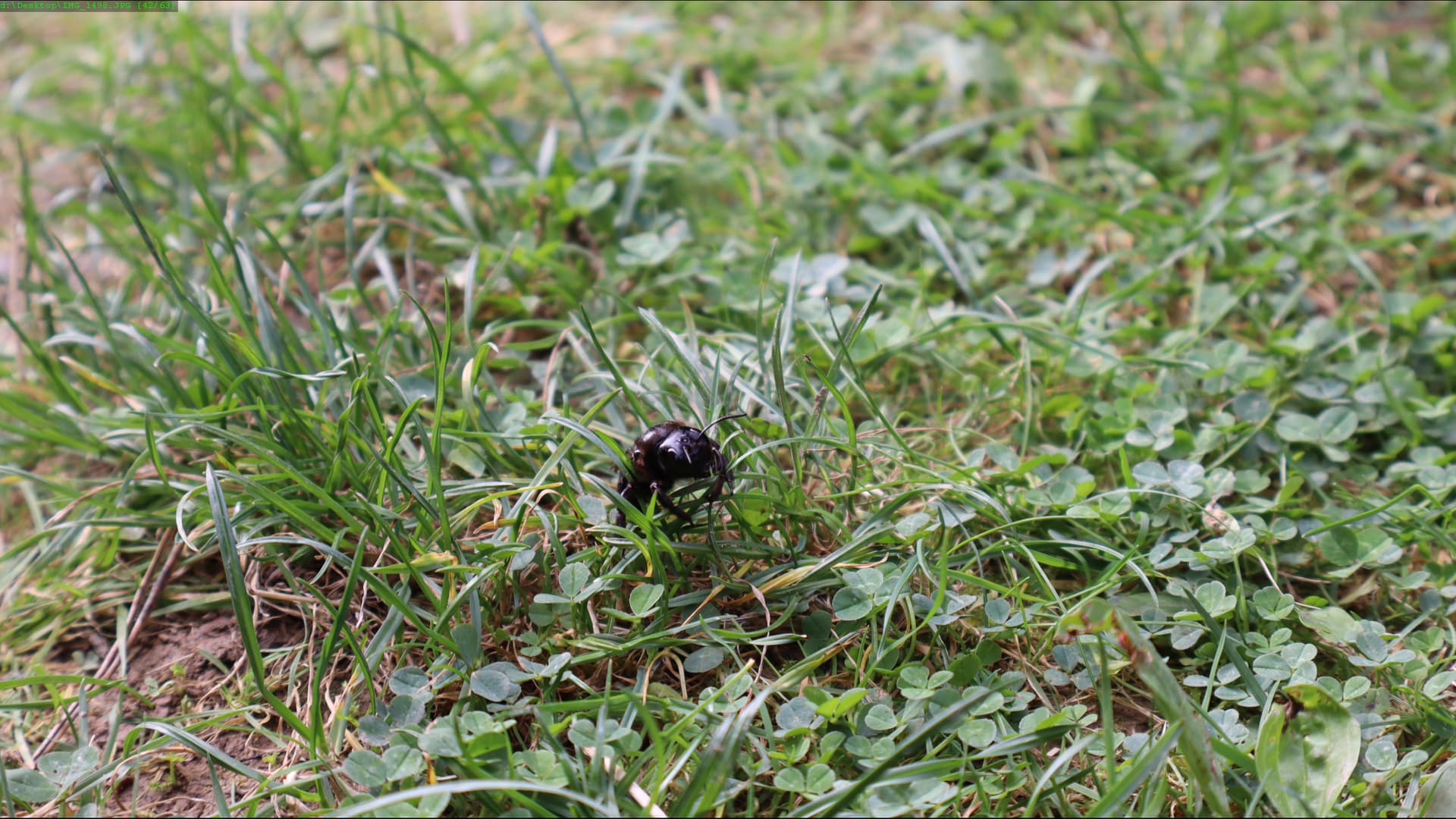
Maybe sticking Creativity to Gigapixel isn’t so strange. I often try to do something with a bird taken from a long distance, so I definitely need to inflate the resulting image/cutout, and Gigapixel works best for me (except for the artifacts). So far, I haven’t been thrilled with the results of Redefine (except for Topaz Girl, of course), so I’m using Recover, which isn’t bad. I haven’t managed to make a nice enlargement of the cutout with the beetle (see the image below, it’s not cutout), Creativity didn’t work very well (with level 6 it created a sharp image, but only something looking like a strange hedgehog, however, I want a beetle; I won’t bother with that, Topaz Girl wasn’t there). I’ll try Recovery and see if something reasonable comes out. I don’t even know the name of the beetle, just something common.
Win 11 Pro (desktop PC). GAI 8.0.2 - Ps (2024) Plugin via File > Automate. Intel i9 12th gen, AMD RX6800 XT. All drivers up-to-date.
Goal: See if either GAI non-basic Recover or reDefine models can salvage and improve an old .CR2 original photo with lots of motion blur (Navy recruits running in San Diego). Blurry tourists in background behind the moving Navy kids. Some signage text. Not especially noisy looking image. Snips/descriptions of my processing steps & outcomes below - labelled in filenames.
Original image = 5184 x 3456 px. [NOTE: Anything above < 1K px on both dimensions images cannot be processed locally on my system using either of the newer non-basic models; believe me I’ve tried]
Original photo: [BTW, this is not ‘fine art’ or even great street photog so I won’t ‘waste’ my credits sending to “Cloud” unless I get a bottomless wallet of credits to test with]
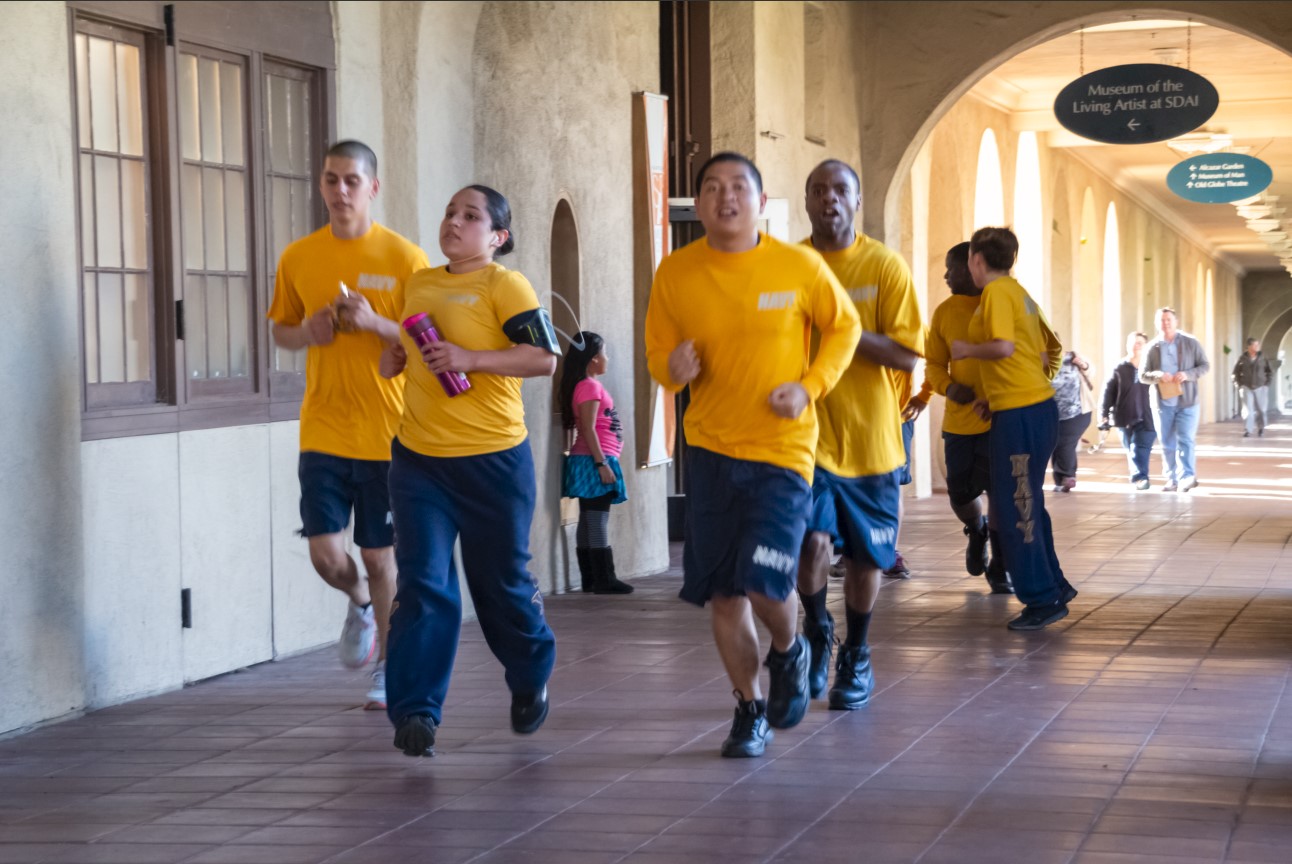
Original photo opens with no issues into GAI Ps Plugin (File > Automate):
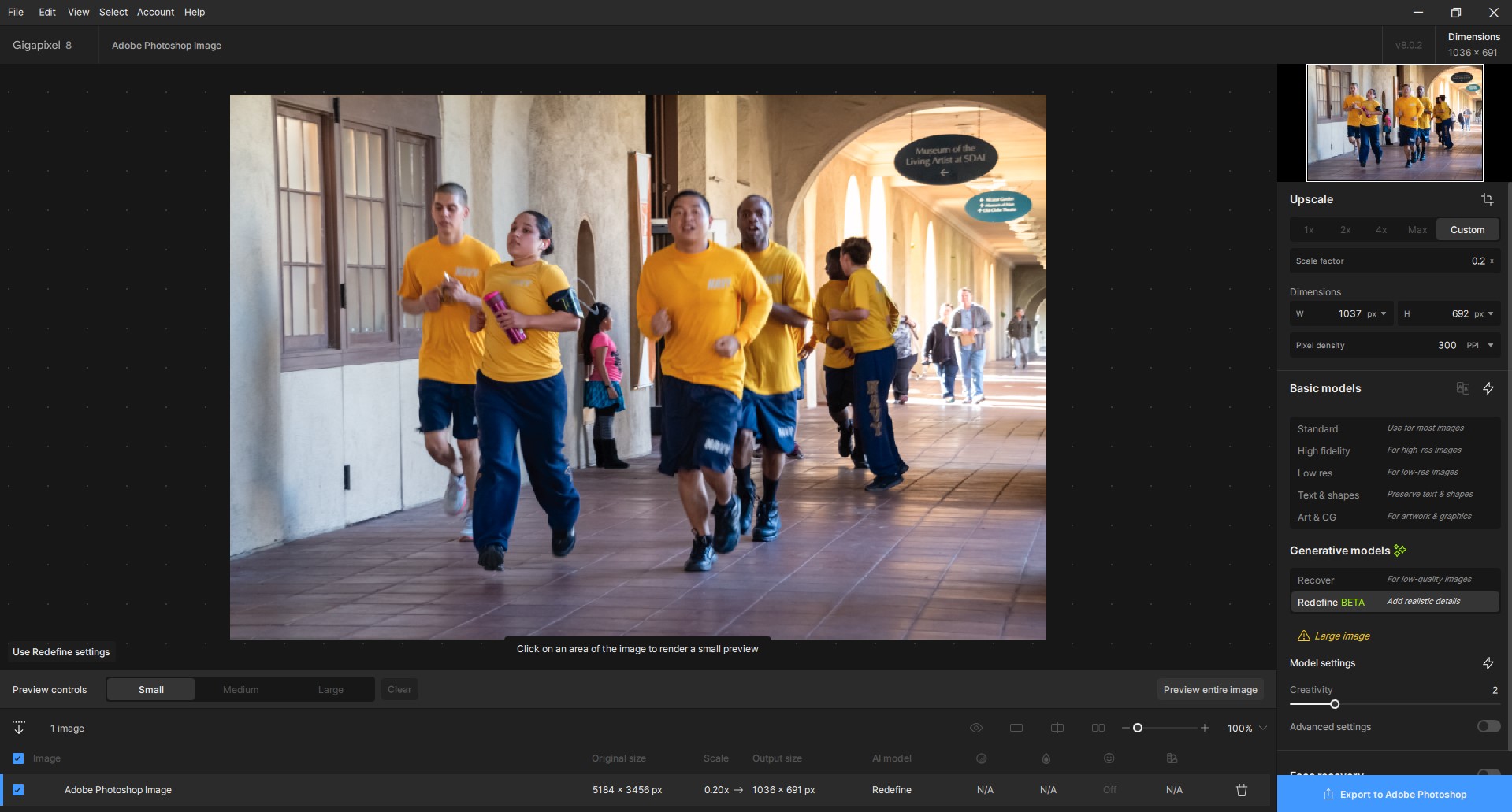
As 1st step (b/c of photo size processing limitations) my plan was to downsize the original image (above) at the Custom factor of 0.2 (to 1036 x 691 px). That is still too “large” to process locally, but my hope was it would enable GAI model Previews to gen in a more reasonable timeframe.
There was No Model I could get to visibly maintain the look of the original photo (just downsized) using either the Basic or newer AI model previews. I tried all of both categories of models. When I tried the Basic Models every single preview was significantly more pixelated in appearance than the original source photo. i.e… None of the models’ (Basic or newer AI) previews visibly corrected or improved the original, downsized image. The GAI UI previews made the photo content look worse than the original photo at the custom downsized scale factor.
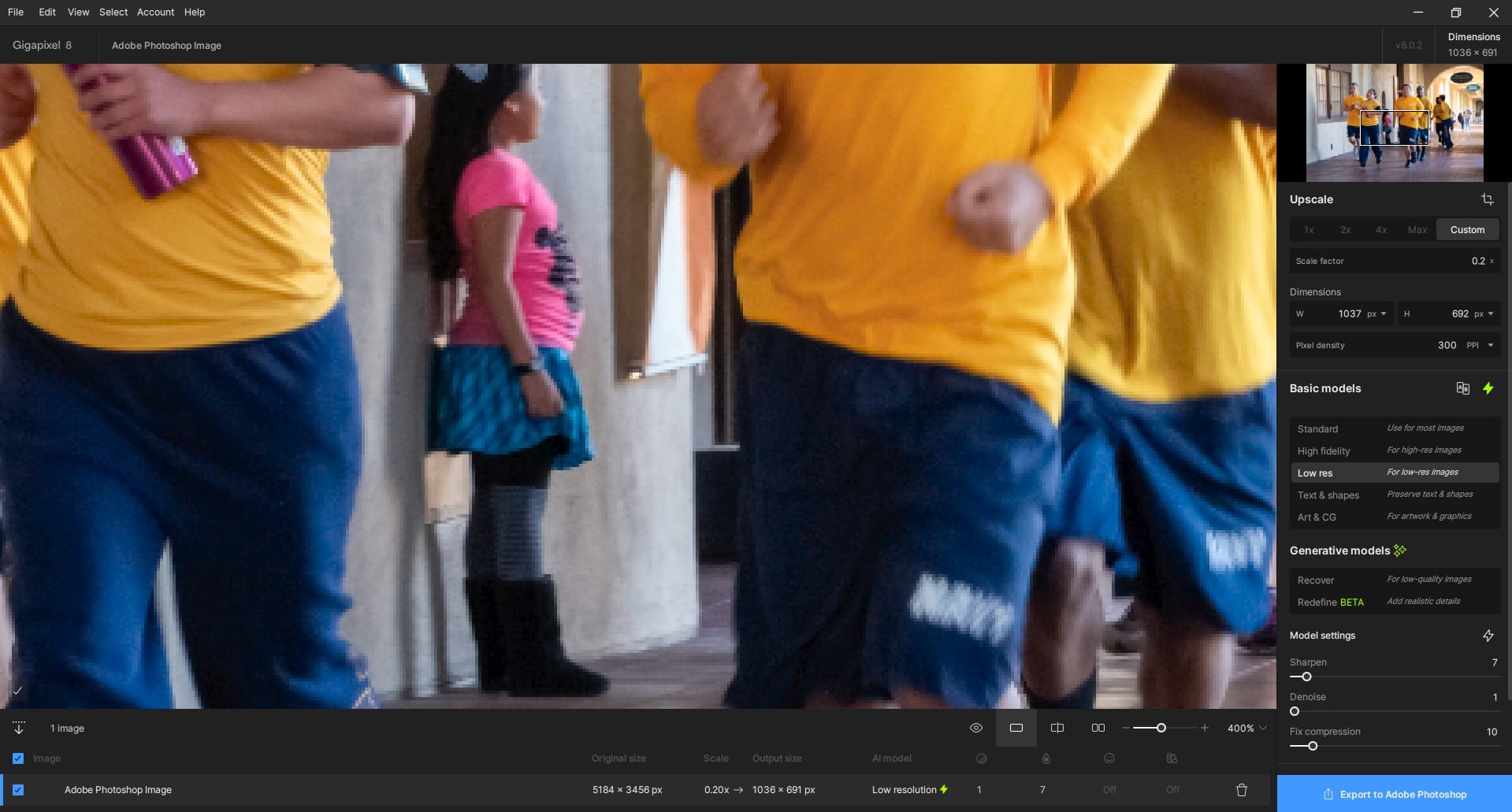
I felt frustrated that there didn’t seem to be a way to do a straight downsize (w/out modifs being applied in the GAI scaling product) from the original photo sizing in order for me to make smaller but true to the original so I could try the ‘sexy’ new non-Basic AI models.
I finally saved back to Ps from GAI using the Low Res Basic Model at my 0.2x scale factor (in spite of the hideous pixelation appearance I saw on my photo in the GAI UI). Interestingly, the downscaled image - back on the Ps layer stack - didn’t look as bad as it did in the GAI UI. It looked closer to a smaller version of the original. (Yes, I zoomed in to look at it - this snip is just to show the relative size once downscaled…):
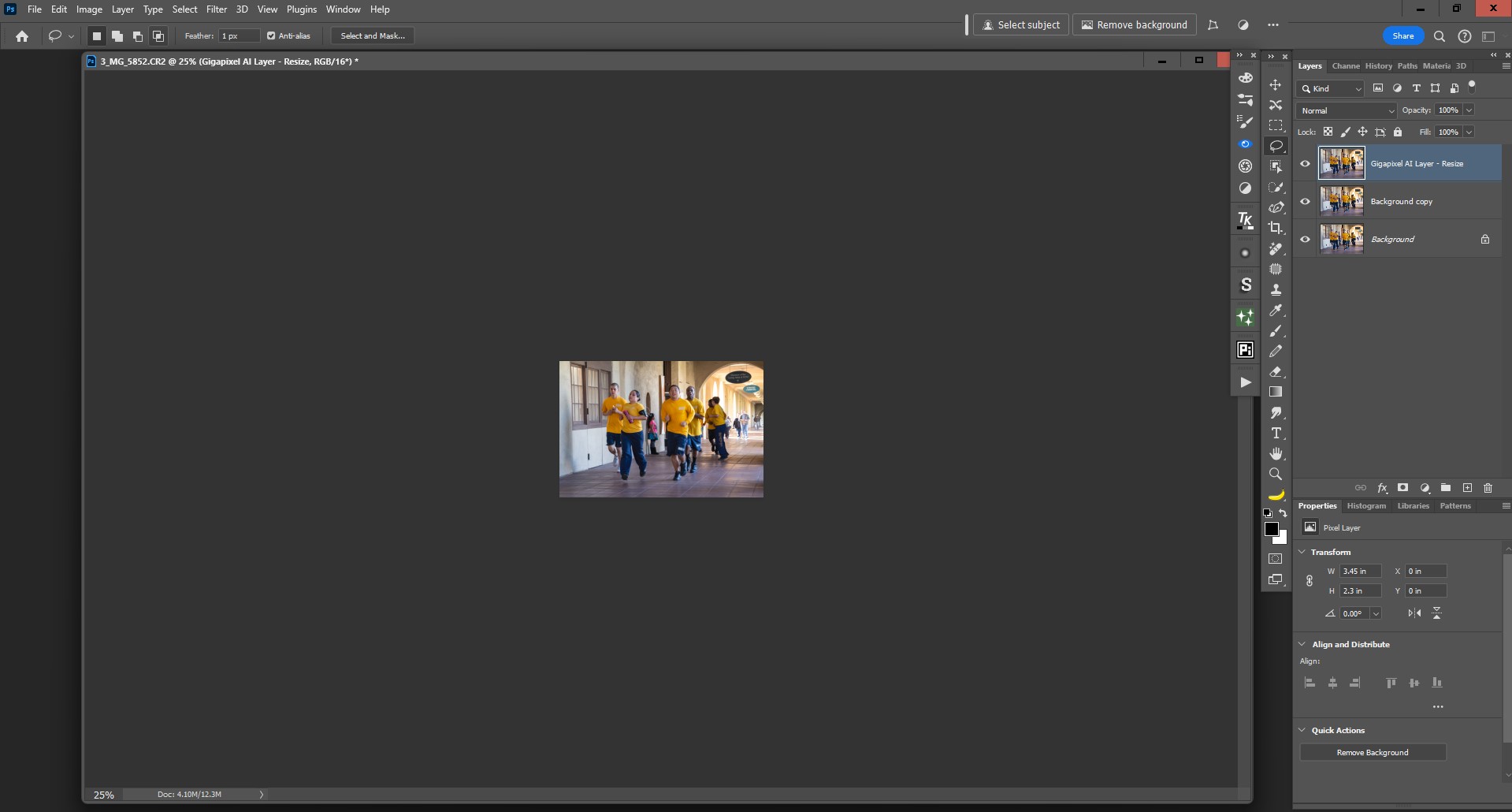
The bad part of that result (noted immediately above) is that if I wasn’t purposefully ‘kicking the tires’ for Topaz’s prod dev benefit I would have said “Yikes! That looks like crap” and wouldn’t have proceeded any further (other than to explore another 3rd party or Ps base option).
On to Part 2 of my testing process. Now with downscaled version of my original Canon photo back in Ps 2024 UI. Launched the 0.2x downscaled version of the photo back into GAI Ps plugin to see if it could be manipulated/processed in a desirable way in its smaller instantiation. I forget what scaling factor I used in this round … it may have been 2x.
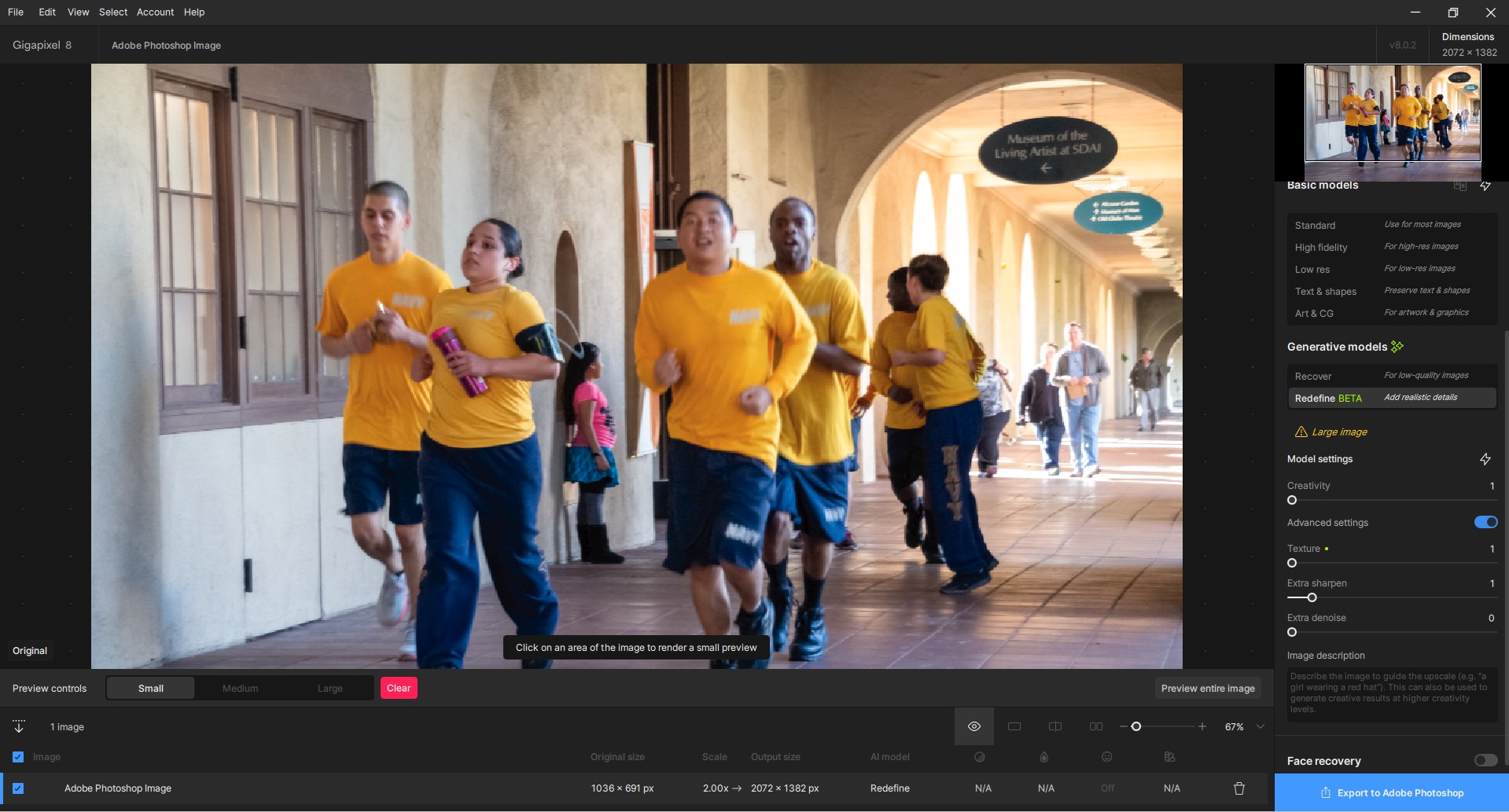
Part 2-A: Tried the Recover Model previews (since image is low quality). Set to 70. It didn’t produce preview results that motivated me to render a final image:
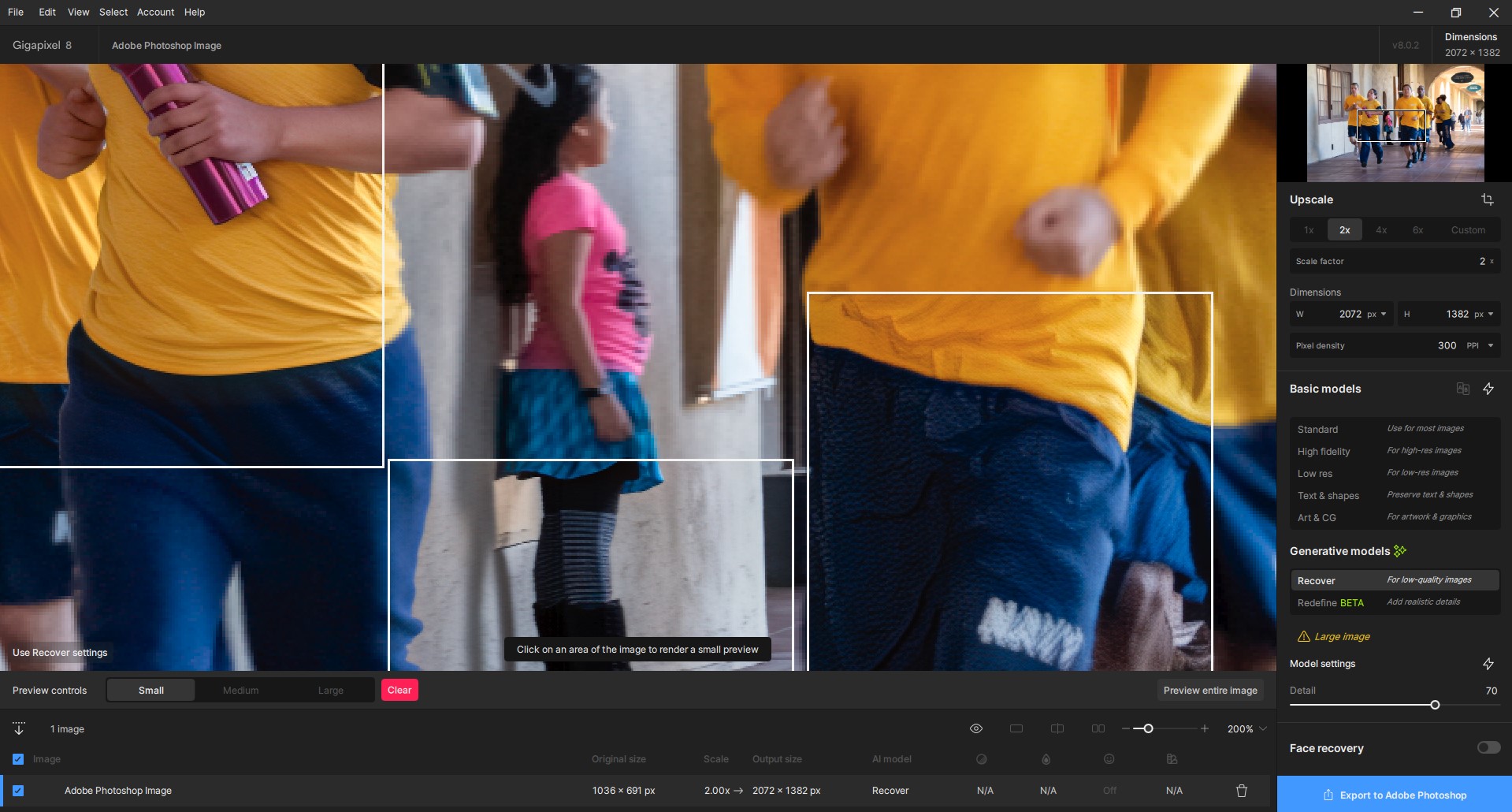
Part 2-B: Tried the reDefine Model previews for my Photo (noodled around with different Creative, Texture, More Sharpening settings - all under 2, but set at varying levels among them, not all at 2). I believe the Preview Box that I felt did the best job without reinventing people was Creative = 1, Texture = 1, Sharper = 1. I only worked with the Preview Boxes (b/c my attitude is, that’s what the final should look like & I didn’t want to waste my credits for this test of an image I can’t use for anything else but that has a mix of people, signage with text, geometric shapes in architectural details, etc.). Impressions: the reDefine Model previews seemed to significantly sharpen the test image but in trying to rework the runners faces (I didn’t use Face Recovery at all) it did slightly modify some of their facial elements - notably mouths, teeth, eyes. As I suggested in the previous release, we need finer interim gradations of settings for the non-Basic models; if they’ll be an ongoing feature.
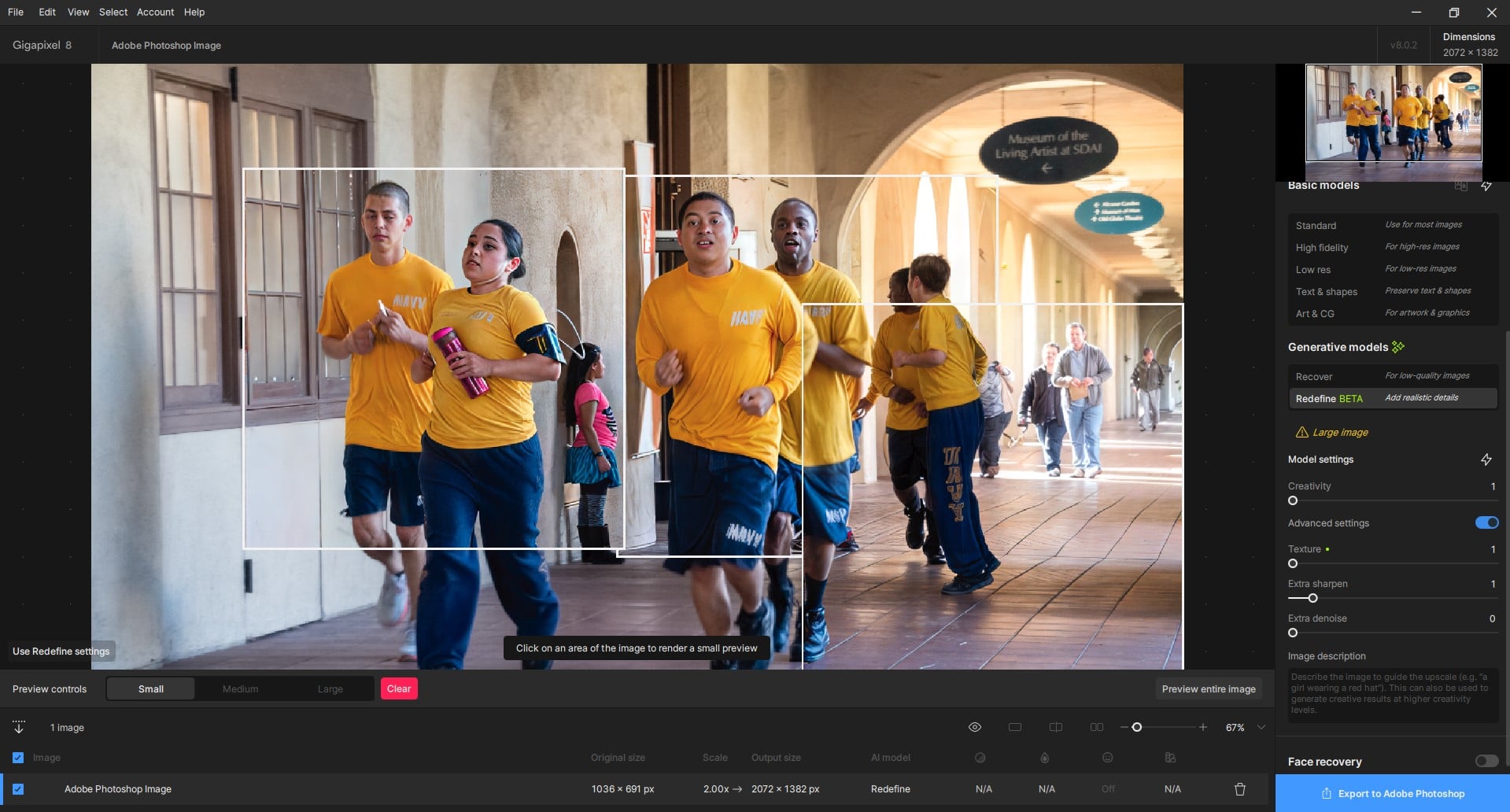
Anyway, that’s it for me and trying photos. Back to trying to develop tutorial content that I must pull together for the Nov. content release on my Ps ‘how to’ YouTube channel. Ciao.
What do you think of my idea of having the Redefine options merely as a continuation of the existing models? That way the Model settings sliders can just keep going rather than having the current “gap” in effects between the end of classic and the beginning of Redefine. The low end of Redefine is already making more changes than what you would expect to see at “1”, it really needs a “0”.
I completely agree. It also seems to me that the “1” is a pretty big jump from the classic to the Redefine. I would expect a more smooth continuity. And not such big discontinuous jumps from the “1” towards the dreaded “6”. Maybe at least with a step of 0.5 (or less) than 1. I’m curious about the further fate of Redefine. Good idea, so let’s not leave it halfway.
Thanks but the photos I actually care about are scanned old ones of my family and I sure as heck aren’t posting those on the Internet 
Which makes me think, GP really needs a descreening model for scanned images, it would be a lot more useful than redefine for me.
What would that do for you? I just don’t know… is it the moral equiv. of getting rid of Benday dots? I have no clue.
It’s Moiré patterns you get when scanning printed media, and trying to enhance images with it will usually just make them even worse. So they need to be de-screened first. There are a few products out there that can do it but it would be great to have it in GP.
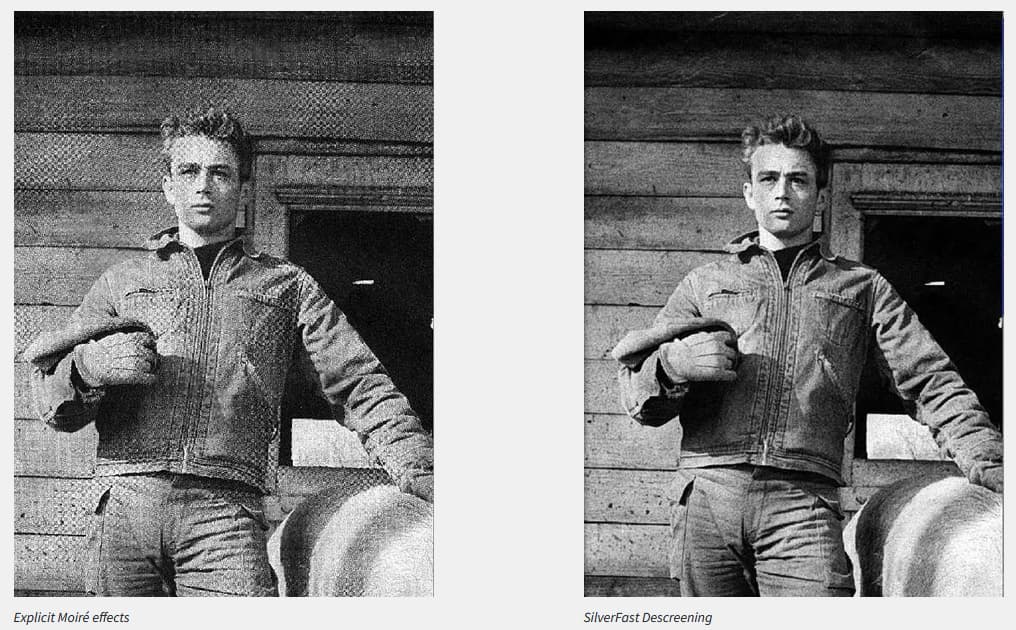
When you try and use recovery model on them, as you can see the pattern just gets ‘enhanced’ if not de-screened:
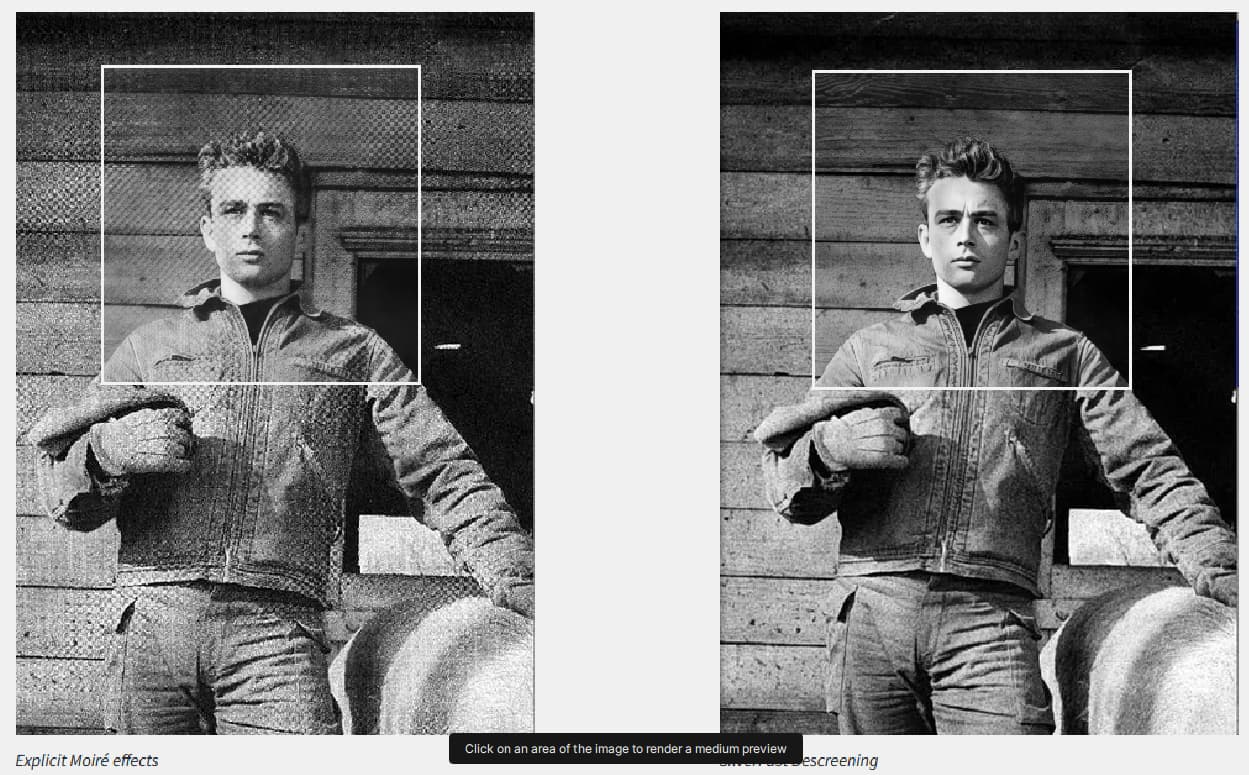
Looks like similar functionality was requested for PAI a while back now:
I would prefer a model that refines pixels without having to be trained so that it has no bias and generates something “suitable” at position xyz.
I am currently looking for two methods.
First upscale then superfocus or Redfine.
The model is creating alpha holes in the textures I’m generating, they aren’t perceptible on the image itself but when you view them in-game the textures have small alpha holes and gaps on them, this happens regardless whether the texture has an alpha on it or not, and only with this model.
Maybe this is because of the changes to the model with the last update on how this model handles alphas?
There is an old thread on this with examples. What we found as a work around was to down scale in Photoshop first, and then scale it back up with Topaz.
https://community.topazlabs.com/t/will-ai-denoise-and-sharpen-help-with-my-halftone-problem/14798/59
Yes indeed. It’s disappointing to have such a bug in 2024.
In fact, I didn’t change the final resolution of the image. I had already done so previously with the high-fidelity model.
Here, it’s mainly a matter of adding detail to give the impression that the image was made natively at its final resolution. Basically, the image was shot at 10 megapixels. I increased its resolution to 48 megapixels. In its 4/3 format, it’s 8064x6048. But there was some blurring and the details were too smooth. Hence the interest of “Redefine” to add the missing details.
Sounds nice. Having said that, I think your project is still very surreal, with a hint of HDR style.
As for the prompt, I put it in my comment with the original image. 
That makes sense!
And, prod spec wise that Descreening would make a lot more sense in GAI as a complement to Recover than Redefine (which dilutes the mandate of the product).
But if Studio was revived for 2025 (without messing with the classic features or UI and just adding an AI panel - in line with the others, not an awful sidecar panel - & models, then I definitely could see Redefine in there!).
Thx.
That’s what I did with the runners pic. But tried the downscale in the GAI Ps plugin…
Yes. It rang a bell when you re-suggested it but I couldn’t place why. That’s why.