No, not really… And call me ignorant but it’s been a while since I used anything but Windows defender. I used to be deep into protection and scanning and sh**and even made a few bucks sanitizing computers, but the little use we do have (I only fire up Windows for photo stuff every two weeks or so, and my daughter is only drawing in Painter) I never contemplated third party AV,being 90% Linux Mint myself.
Gigapixel may still log even when it doesn’t appear to launch, I would check the log files for any clues/failures:
C:\ProgramData\Topaz Labs LLC\Topaz Gigapixel AI\Logs
1 Like
Creative level one and two are unusable for me so far.
Something must have gone wrong with the scaling/fine-tuning/whatever creative slider.
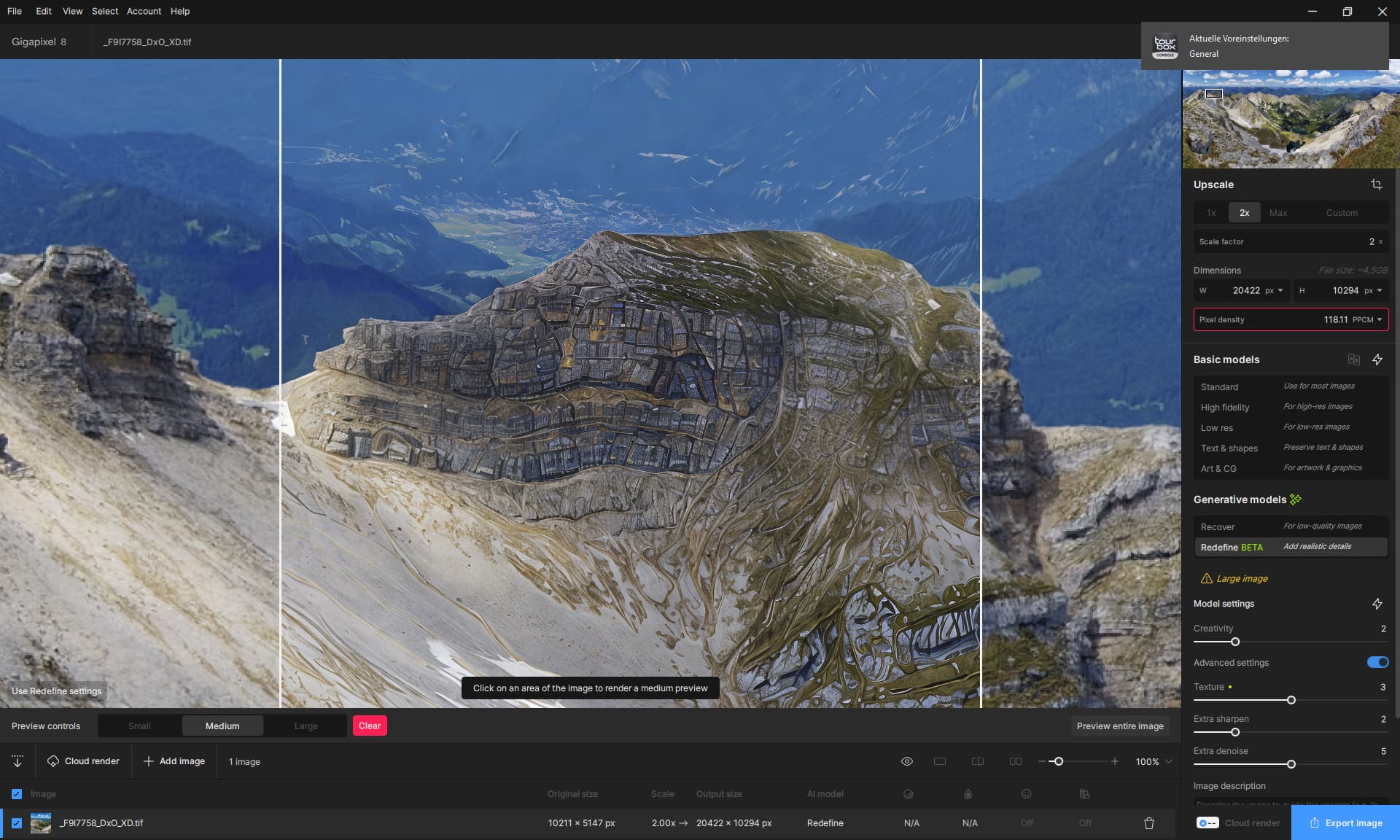
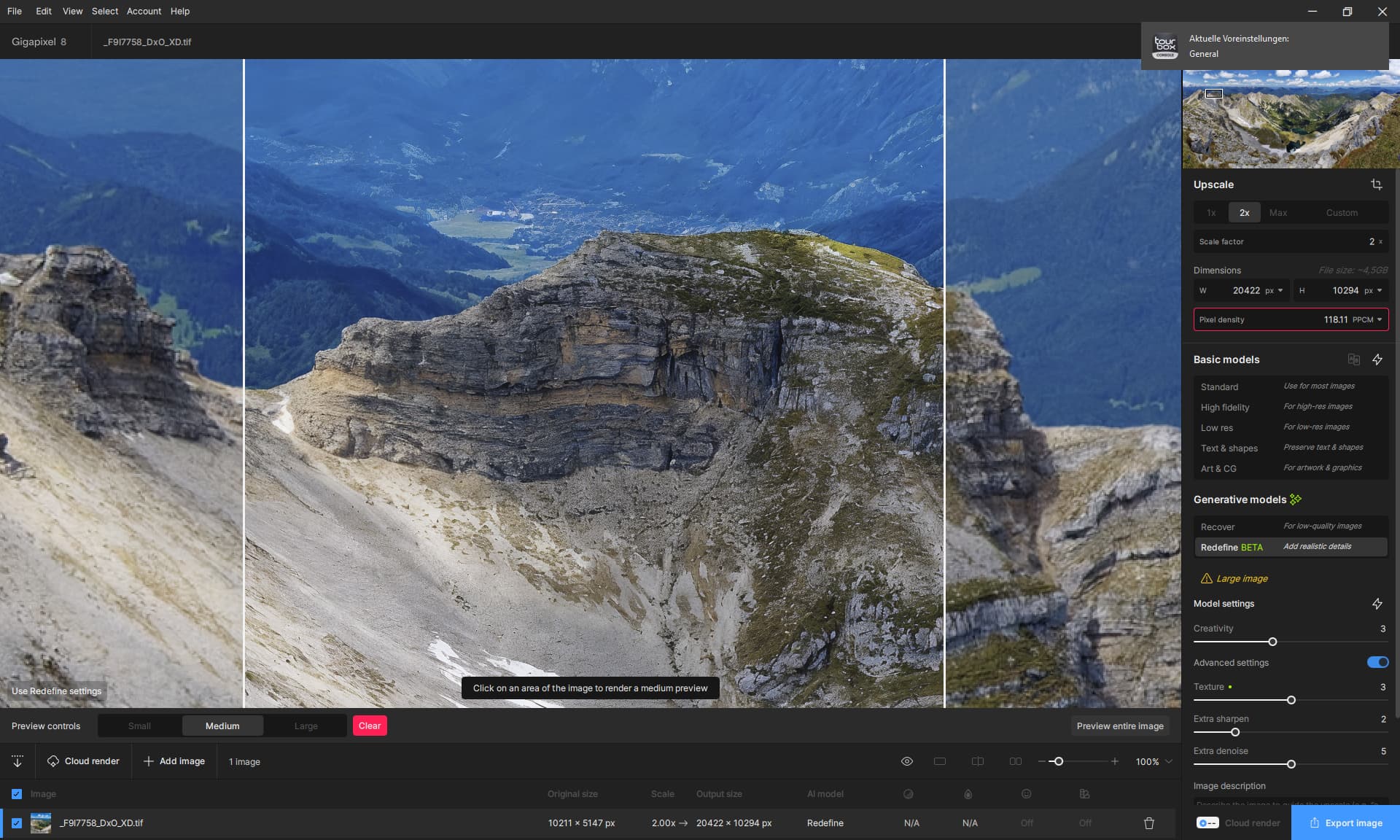
The positioning of many details doesn’t fit, but at least it doesn’t look like a “work of art”.
And it can’t cope with blurring (bokeh).
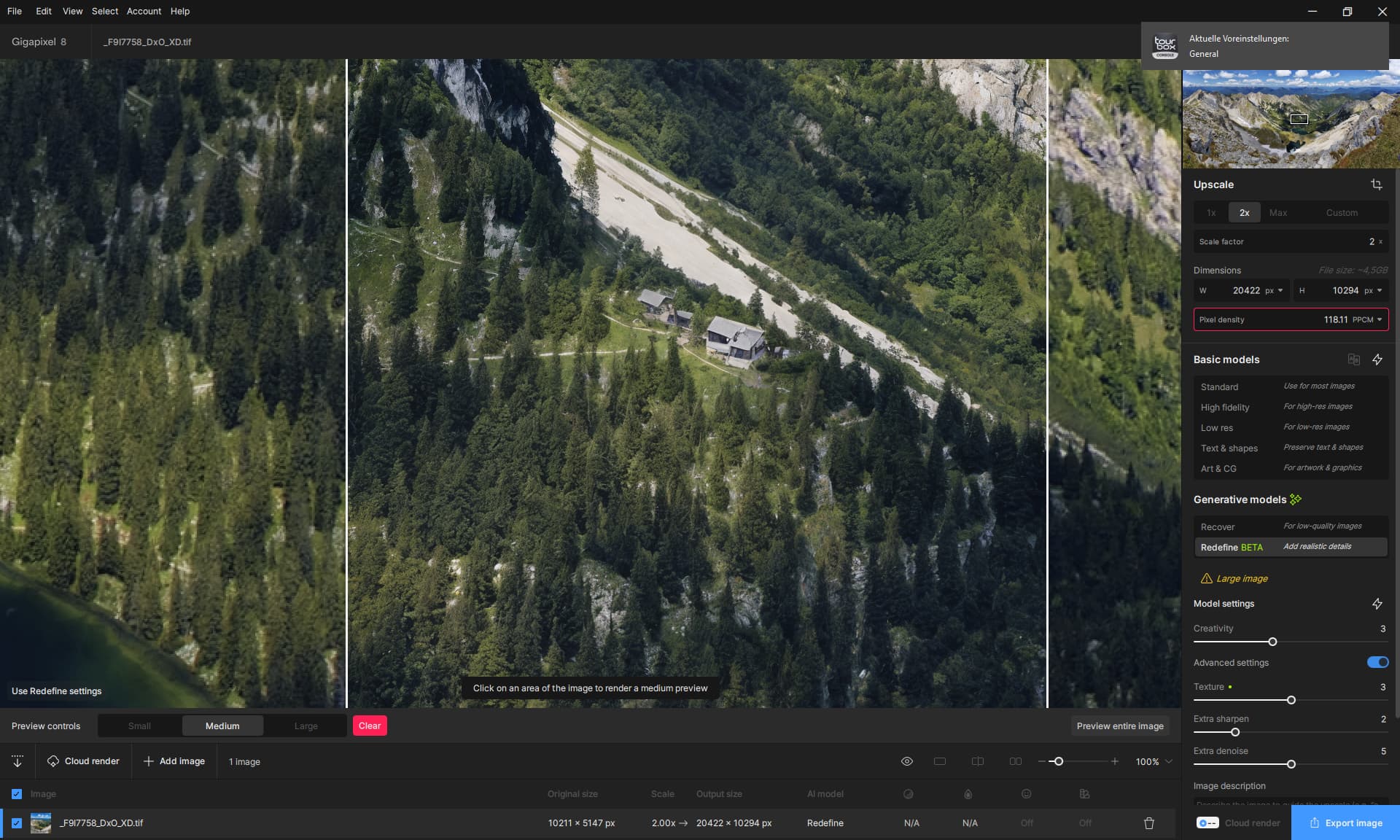
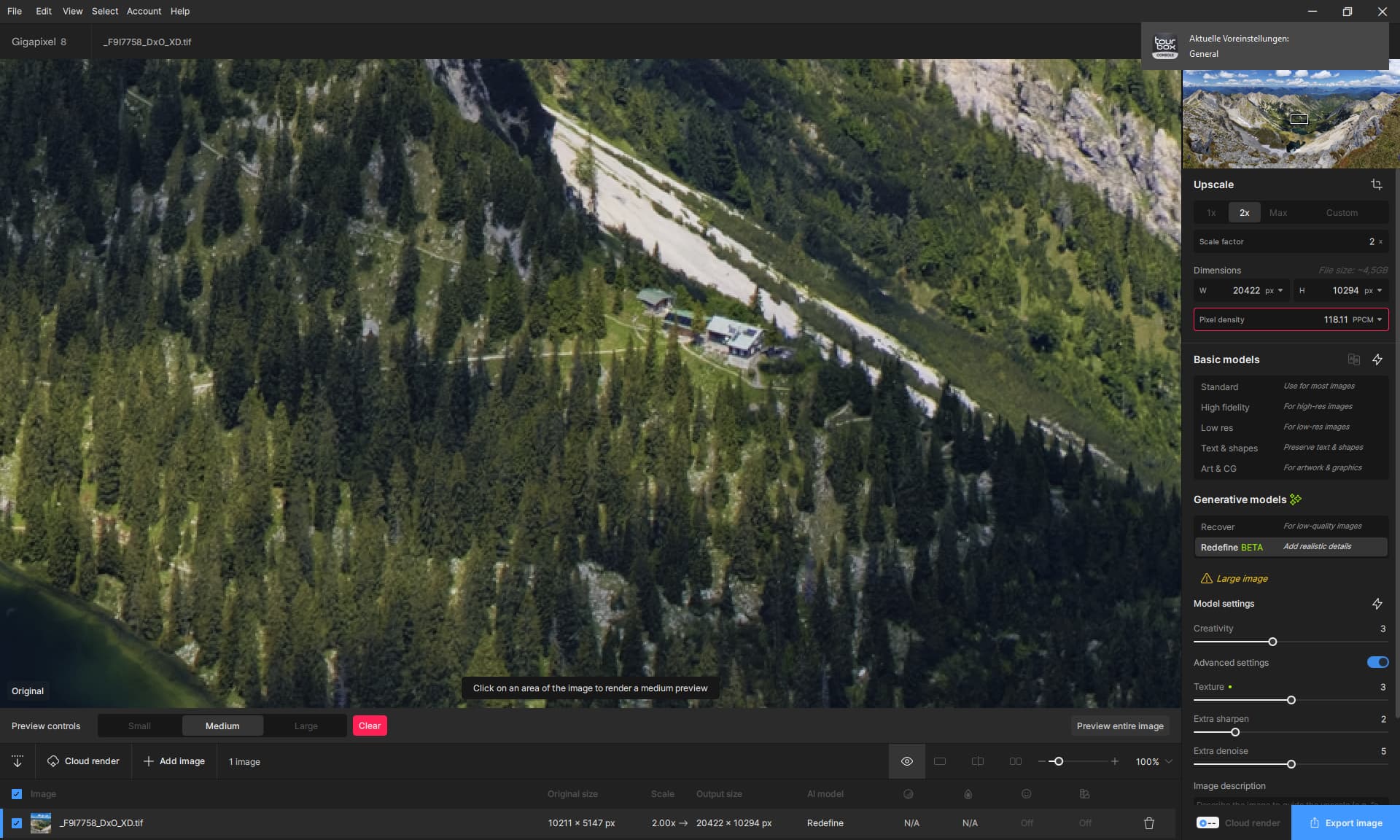
It would be sooooooo nice if the model wasn’t a pixelmixer.
And it would simply leave the house as it is.

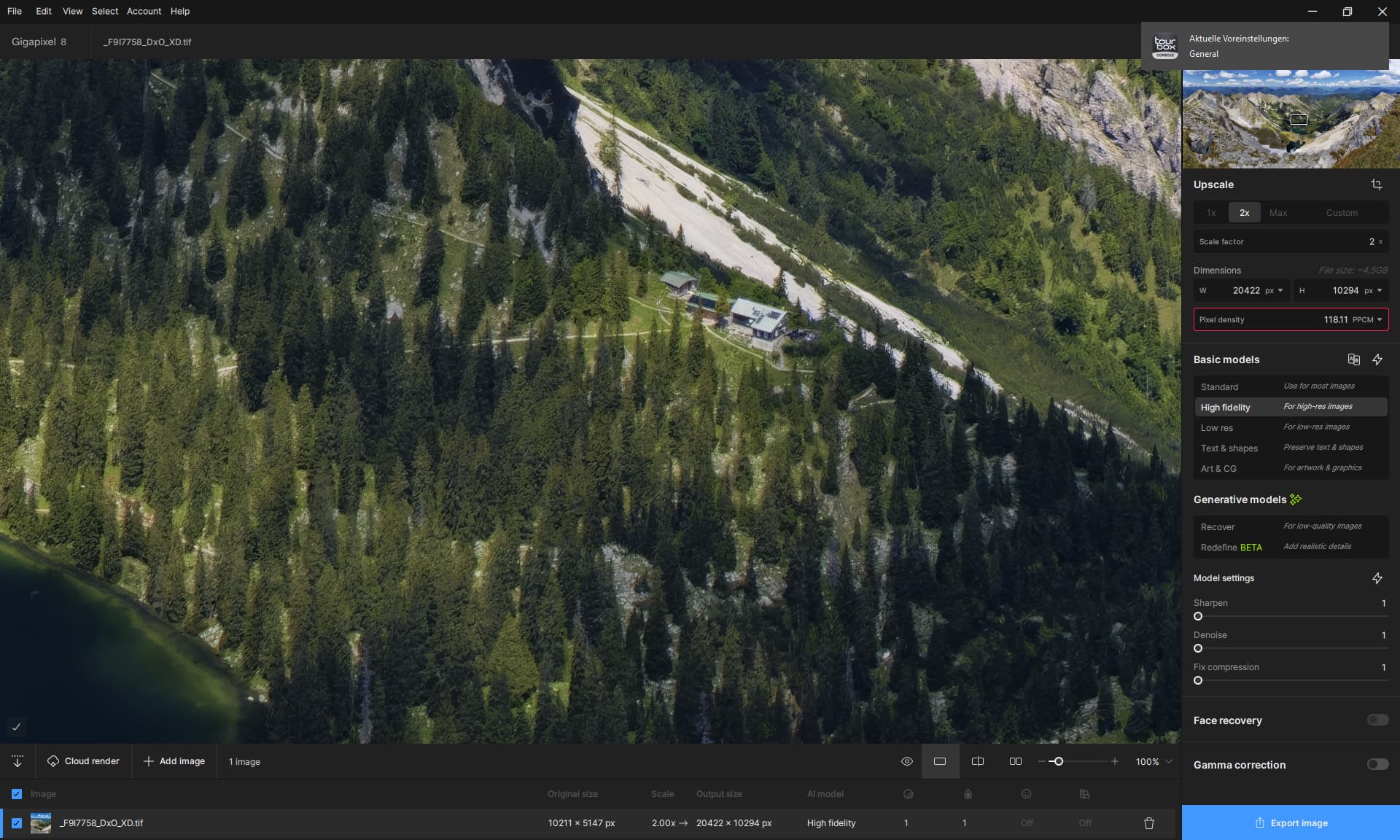
HiFi Model
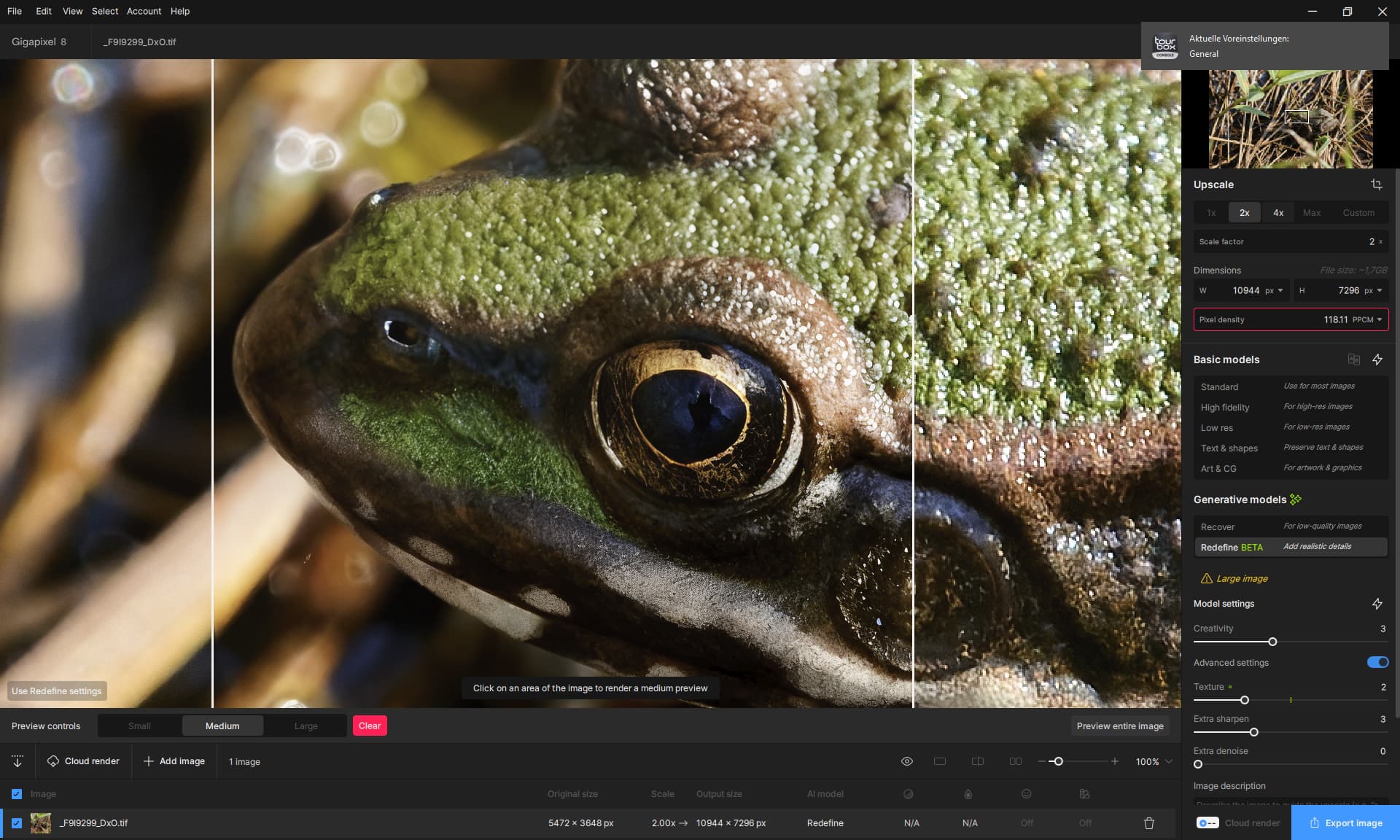
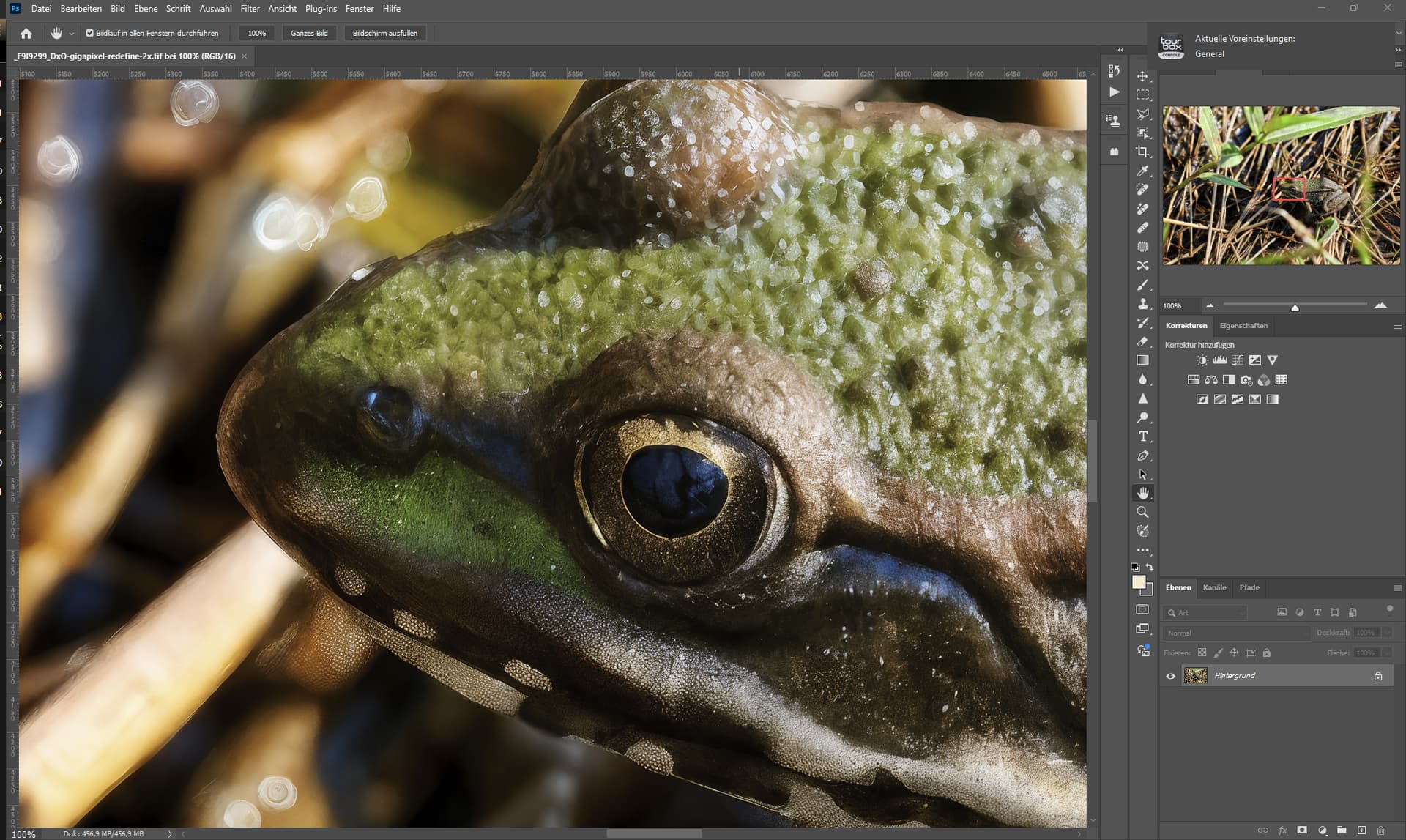
The export differs greatly from the preview.
3 Likes
New models and improvements make it happy.
Face recovery Gen. 2 Creative gives better results for low resolution.
But I discovered a bug, described in the issue section of the forum. In short - adding faces that have not been added automatically causes the function to practically turn off, even though it is supposedly turned on, and faces are generated as it is when it is turned off, which has a disastrous effect for low resolution.
And I’m disappointed that support for JXL files hasn’t been added to this release.
1 Like
You’re right (and thanks for the path btw) Gigapixel do log the failed start.
PAI does however not, and I’m just coming to terms with PAI being the same kind of PIA (sorry… couldn’t resist the “pun” - humor is about what I have left here) as Gigapixel. Can’t seem to launch neither Gigapixel AI nor Photo AI 3.3.0
I’m starting to think it’s something with Windows… I’ll try to post a ticket with support to see if they can point me in the right direction based on the log from Gigapixel.
2 Likes
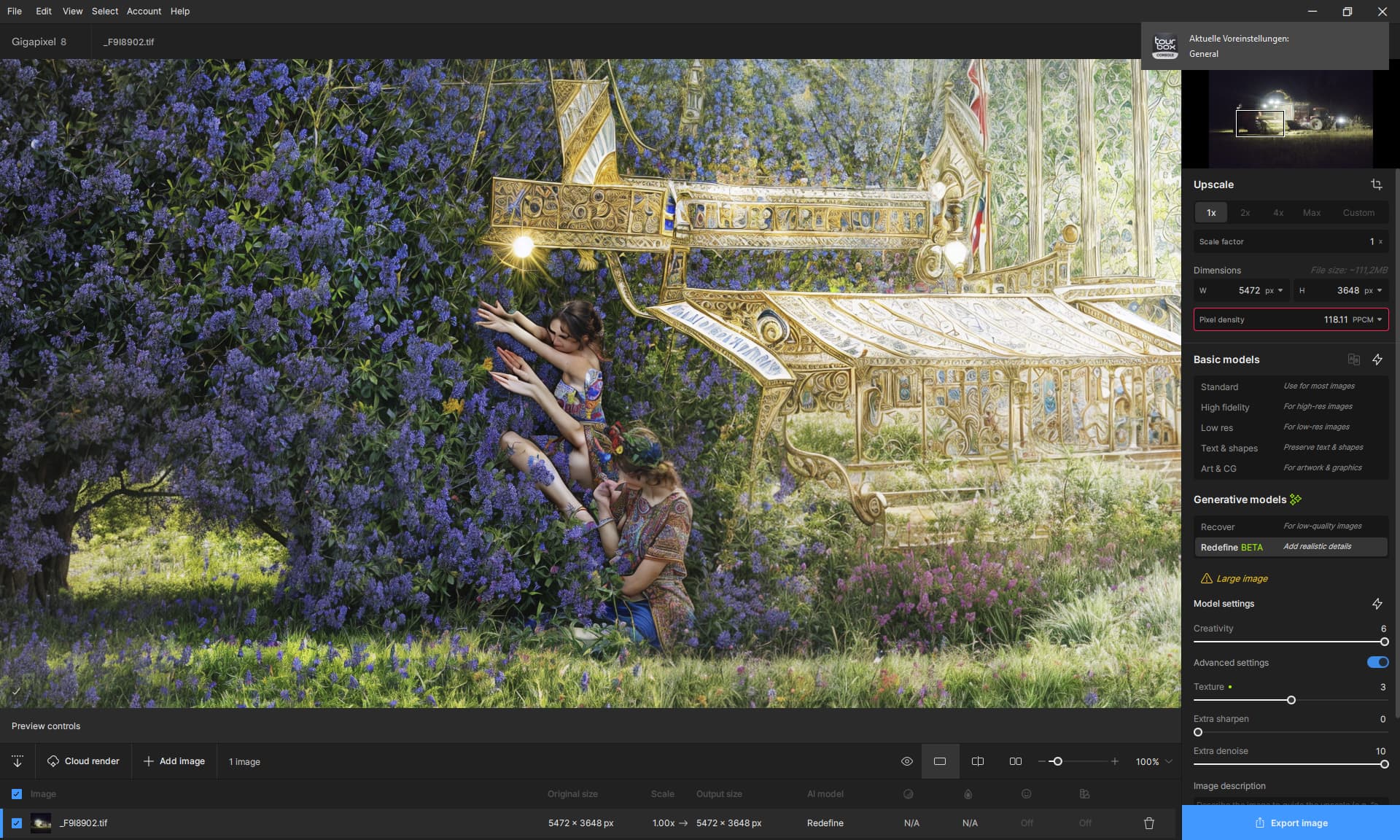
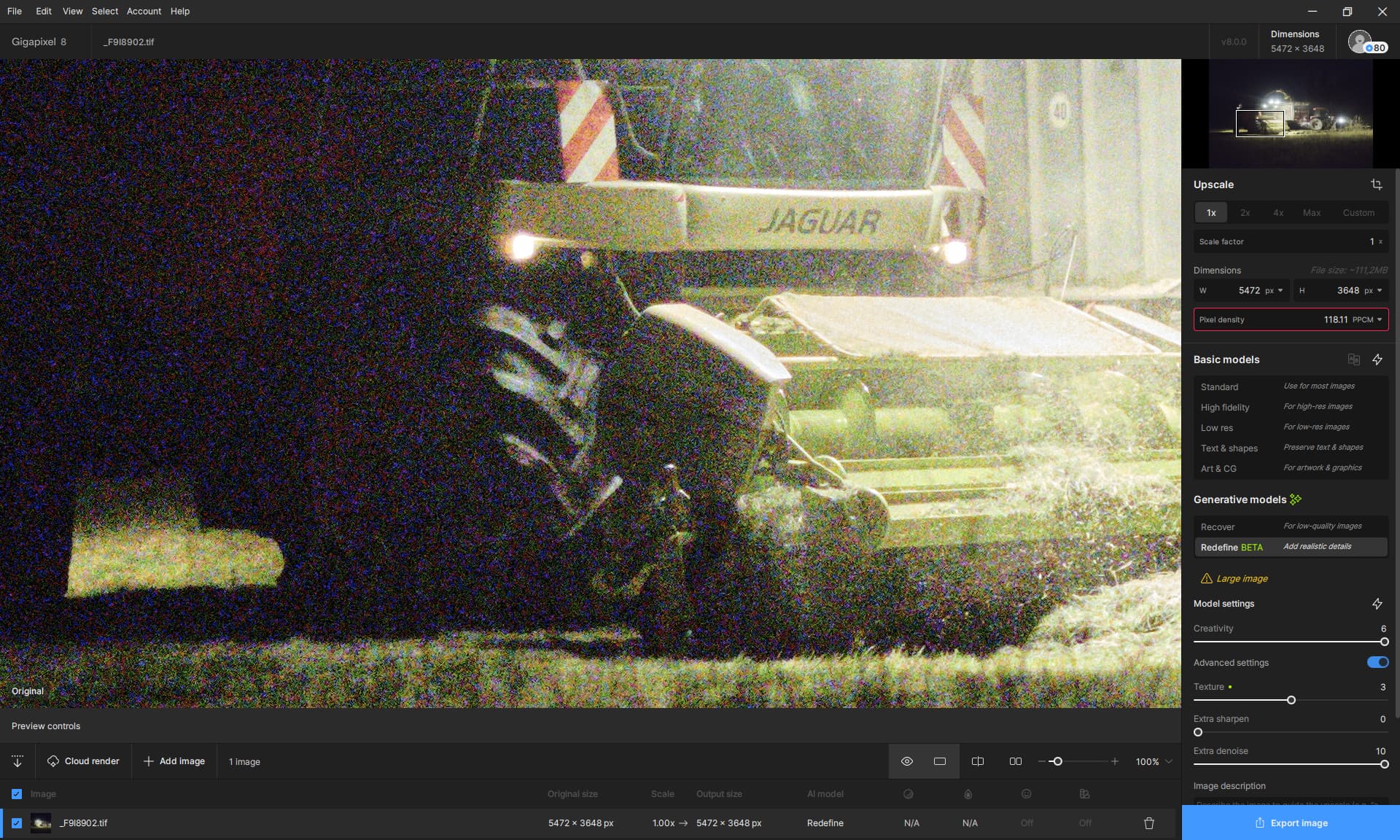
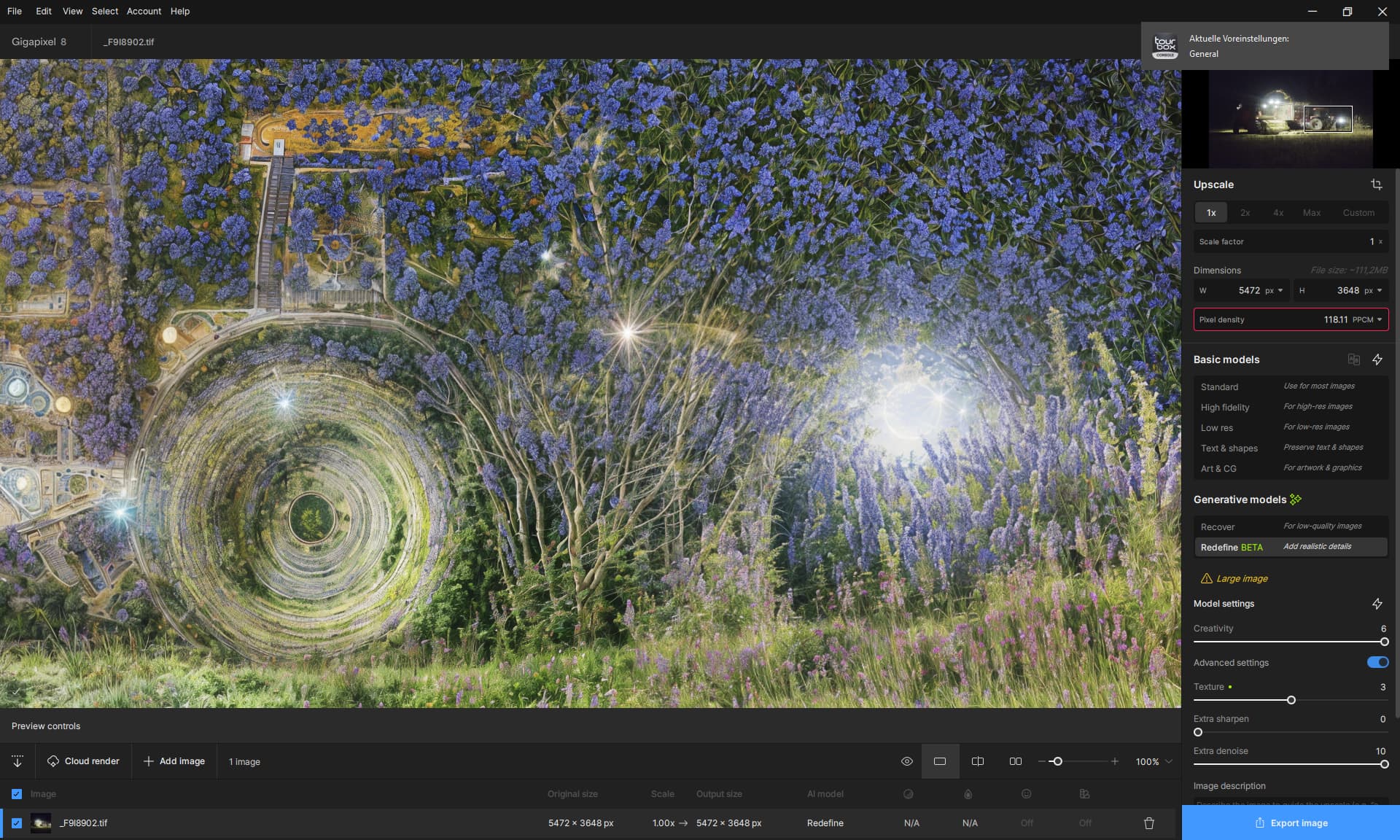
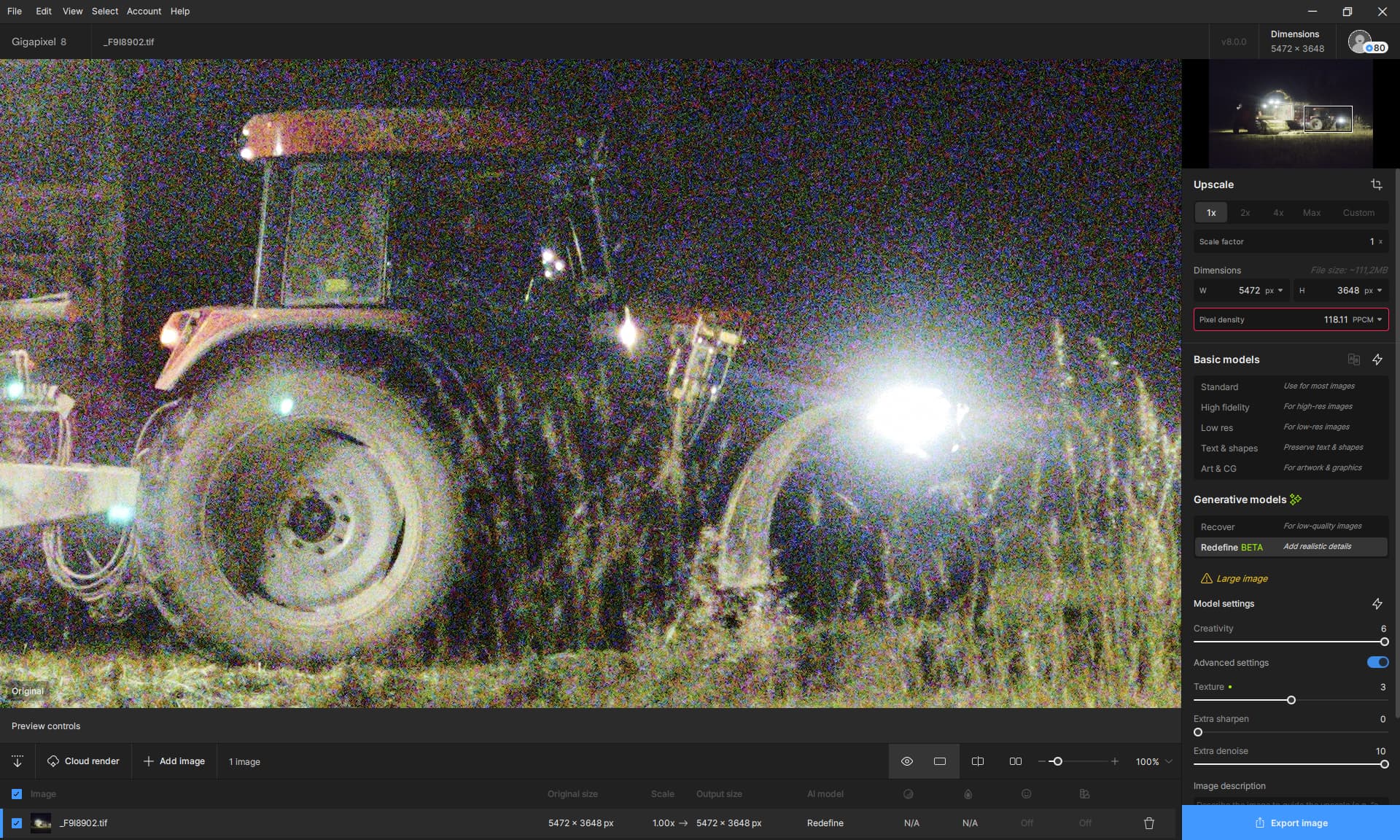
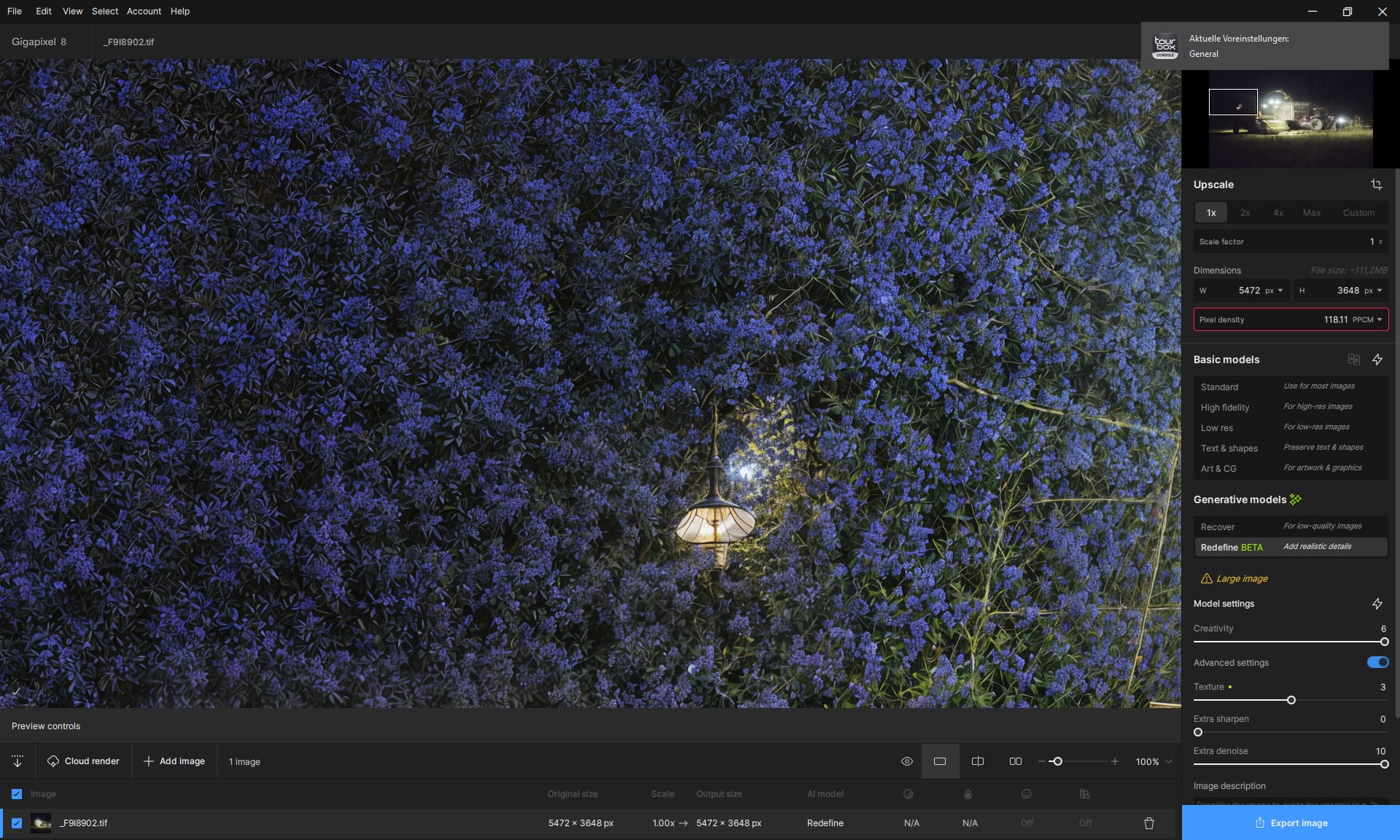
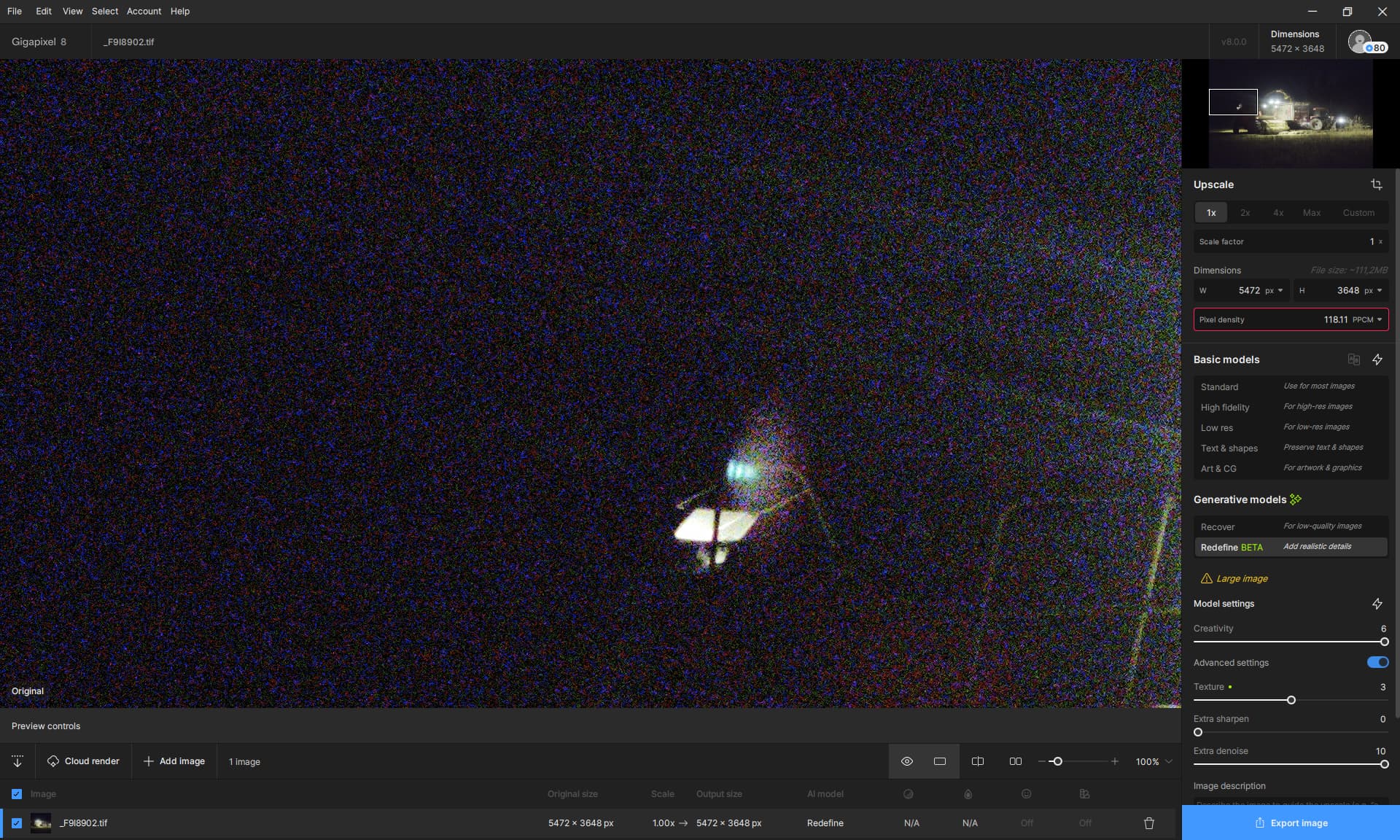
Same here. Was just about to post about this but saw your comment. Bumping this issue as a bug.
1 Like
I was beta testing in the office using a Dell 3660 with NVIDIA 4090 and having a great time, but back home today on my M2 Mac Mini, not so much 
I’ve been waiting some time for a preview but don’t know how much longer – the progress bar is not accurate (Creativity is set to max plus other sliders are bumped-up, probably doesn’t help, but nor did reducing them…):
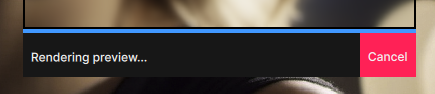
I gave up on that one. I’m finding that in general, Photo AI is more responsive on this particular Mac but of course the new features are different.
It does not look like normal creativity 1 and 2 outputs. Can you try set extra denoise and sharpen to 0. If it does not help, increase upscale factor a bit. It seems in the mountain case creativity 3 is much less creative than 2, which we have not seen before.
I’m on windows 10 and I’m struggling with Version 8.
7.4.4 was fine, if I selected Recover, I could select my option and then I would have a button telling me how long it would take and was kept up to date. After it has finished, I could preview before and after etc. Now this new version, I just get the option Export Image? I click that and it says processing and no info whatsoever on how long its going to take. Just a little whirling wheel going around and around and when its finished, then what, no preview of before and after? It all just feels like its gone forward in terms of results, but backwards in terms of being user friendly.
I just posted a long blog showcasing the new Gigapixel 8 features with tons of examples!
3 Likes
Interesting. The Recover feature is definitely useful. It seems to be the GP version of VAI’s Proteus v4. Enhances details a bit, but mostly acts as a noise suppressor. The Redefine variant is much more hit-and miss, like VAI’s Iris MQ, which for small features completely “hallucinates” them to the degree they become entirely unrecognizable.
However, in contrast to video, one can actually in-paint the best parts of each rendition, so I think I’ll use Proteus, ahm, I mean Recover as the main model, and if I have time, render a version of Redefine from the source image and another with Recover followed by Redefine, since Recover denoises and surfaces more faint image detail for Recover to work on.
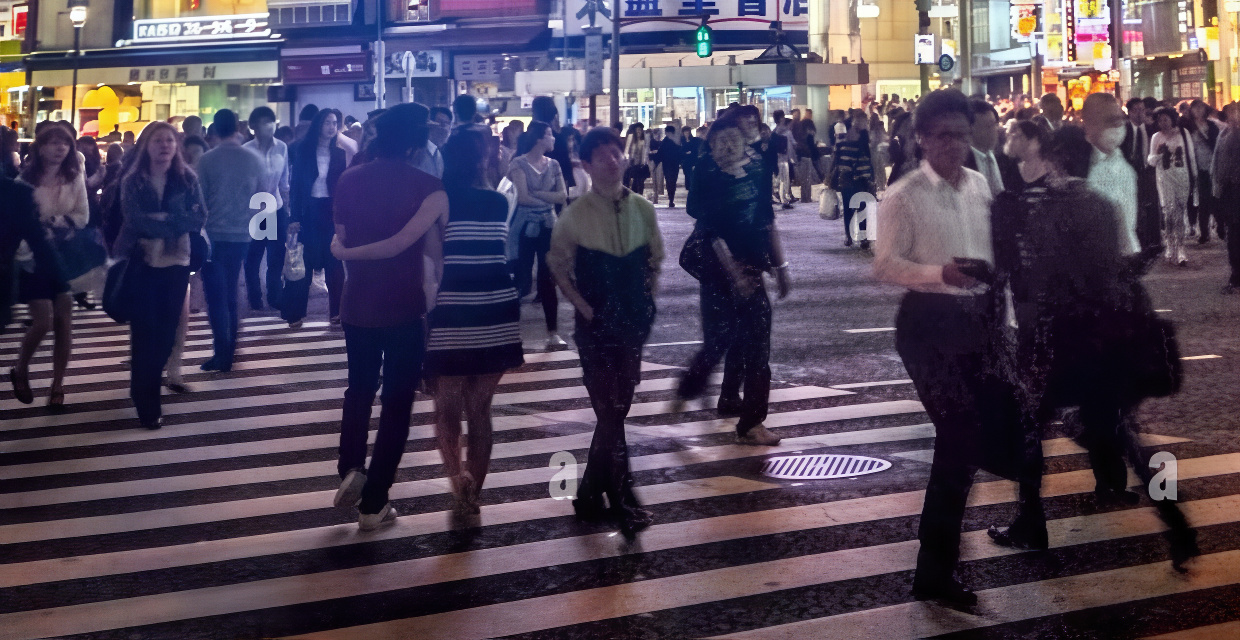
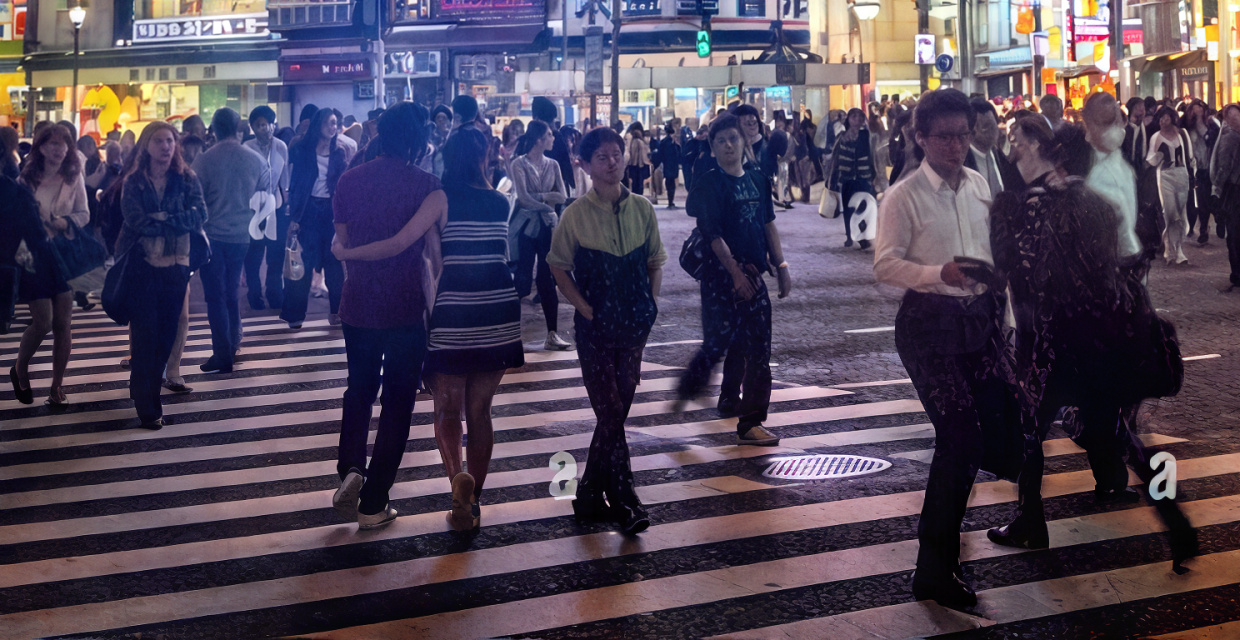
Below is a small but very varied stock-image with the three renditions mentioned produced.
Original
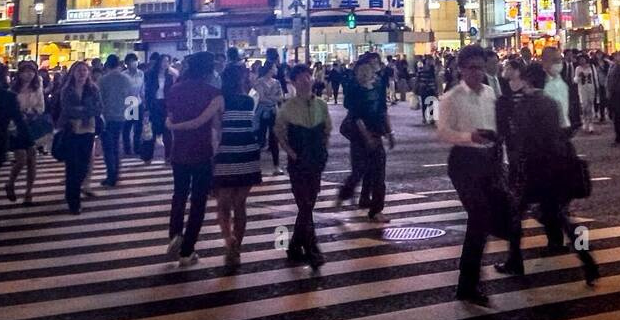
Recover x2 enlarge
Recover x2 enlarge + Redefine x1
Redefine x2 (directly from original)
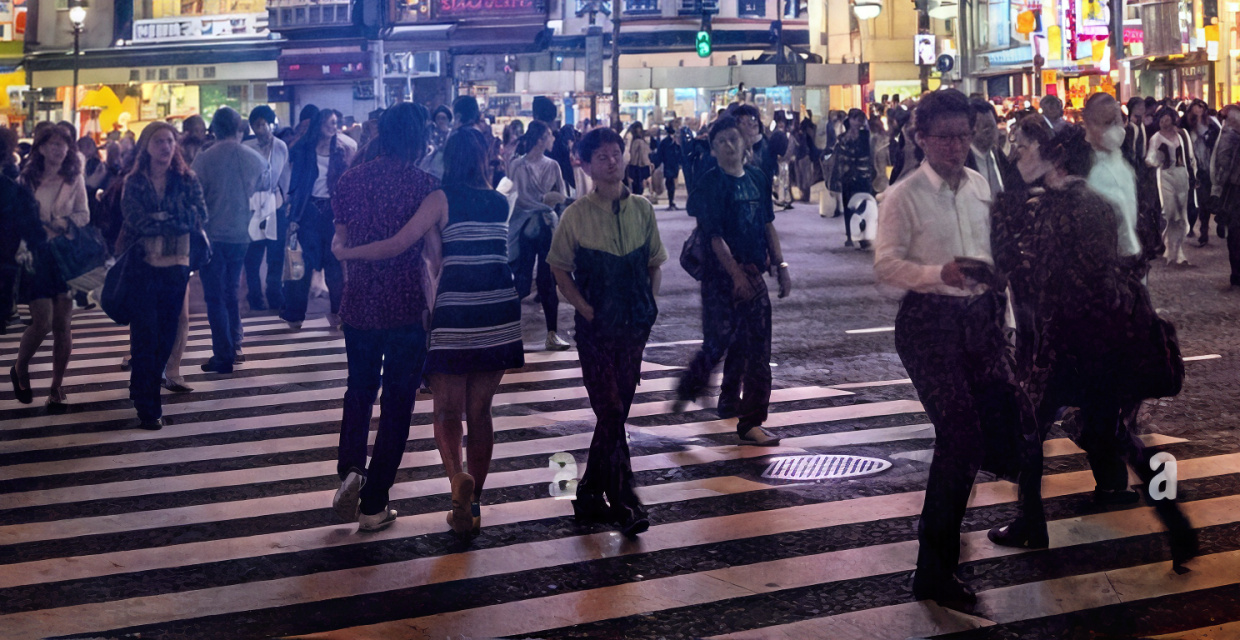
Redefine has huge problems with simple geometry, such as stripes on clothes, lamps, letters etc. It also apparently likes to put diapers on faces
But it does shine on certain common objects have very common and well known textures, like shirts.
Recover is much more suitable for all kinds of objects, but can (like proteus) sometimes mistake noise for features to sharpen. So it is a “filter” that needs some oversight and photo shopping afterward. Still, much less so than Redefine.
I think the above images show pretty clearly the failure modes of each model, and hopefully give people a good intuition of when you’d use one or the other.
I have the same problems with you with Windows 11. I have to return to 7.4.3 and wait for new usable version.
I really enjoy the unpredictable mysteries of Redefine!
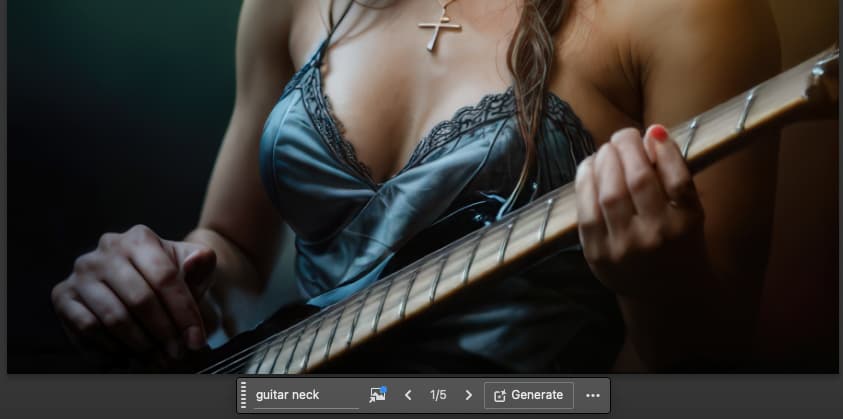
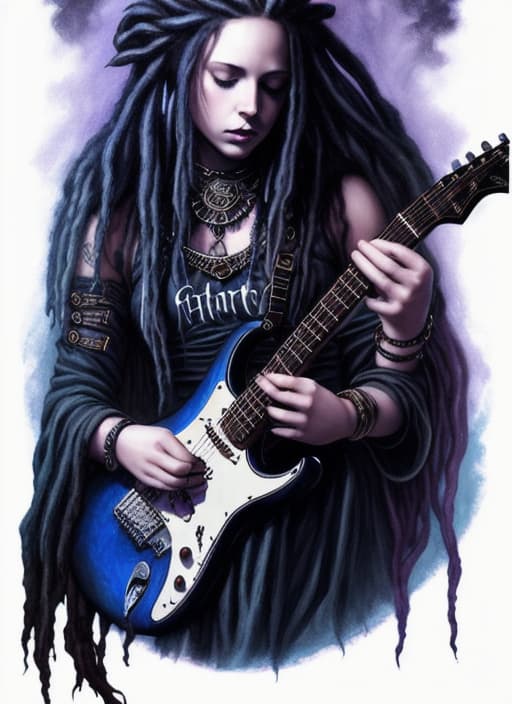
Although I knew better than to do this on my home M2 Mac Mini 500/16 (I had been beta testing the feature with an NVIDIA 4090 at work), I took one of my existing DiffusionBee AI renders (text-to-image random result with additional processing afterwards) and ran it through as such:
Original, scaled down a bit before processing in GP to ease the pain (actual size here @ 72ppi):
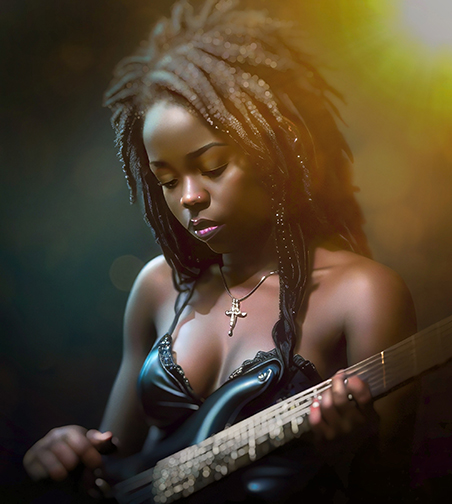
The first and only preview in Gigapixel, owww, took a super long time so I grabbed a screenshot just in case. I guess this is Miley Cyrus? I just slid some sliders and got what I got ;-). On the PC I could experiment more fluidly but not here:
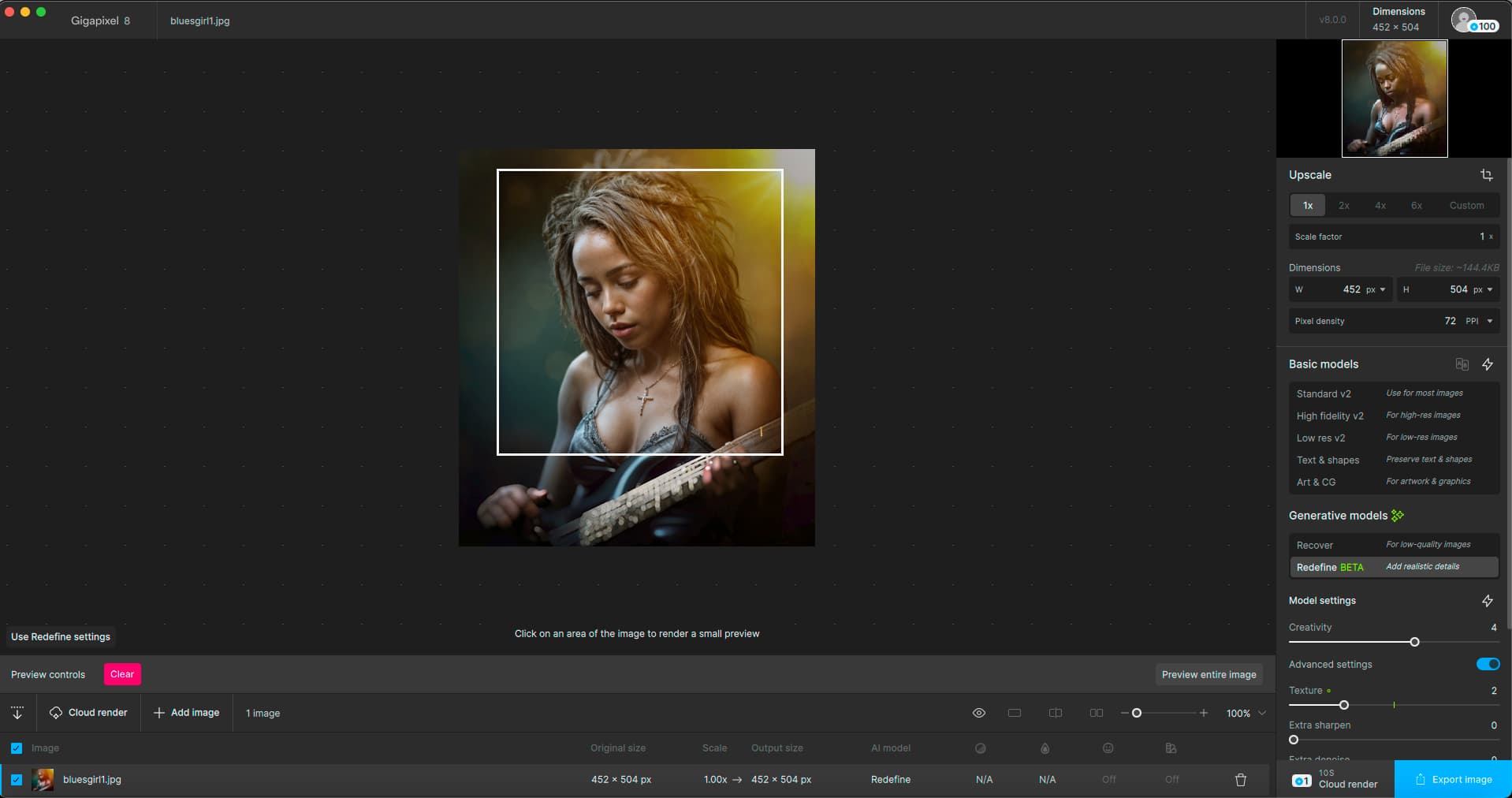
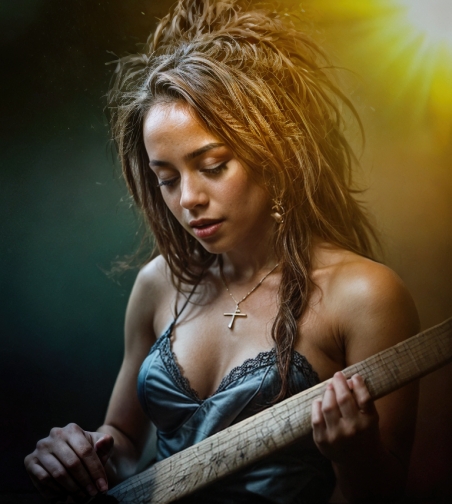
The export at 1X finished before bedtime so I got to see it! The guitar is a total loss but the hands are greatly improved
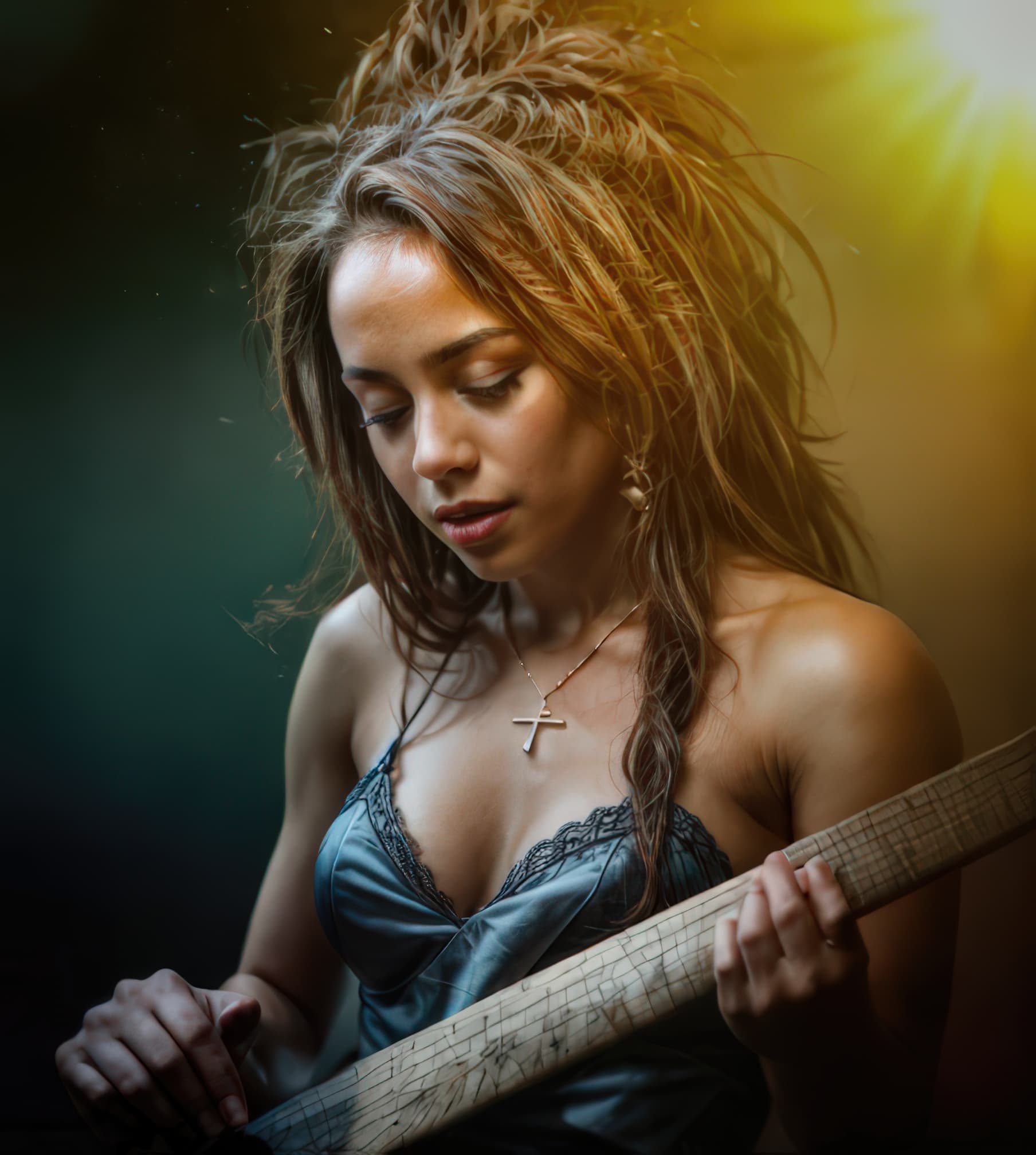
Upscaled afterwards in Gigapixel (no Face recovery):
Any chance Mac users might see some more usable speeds as we go forward? Results are similar slow even on an M1 Ultra Mac Studio.
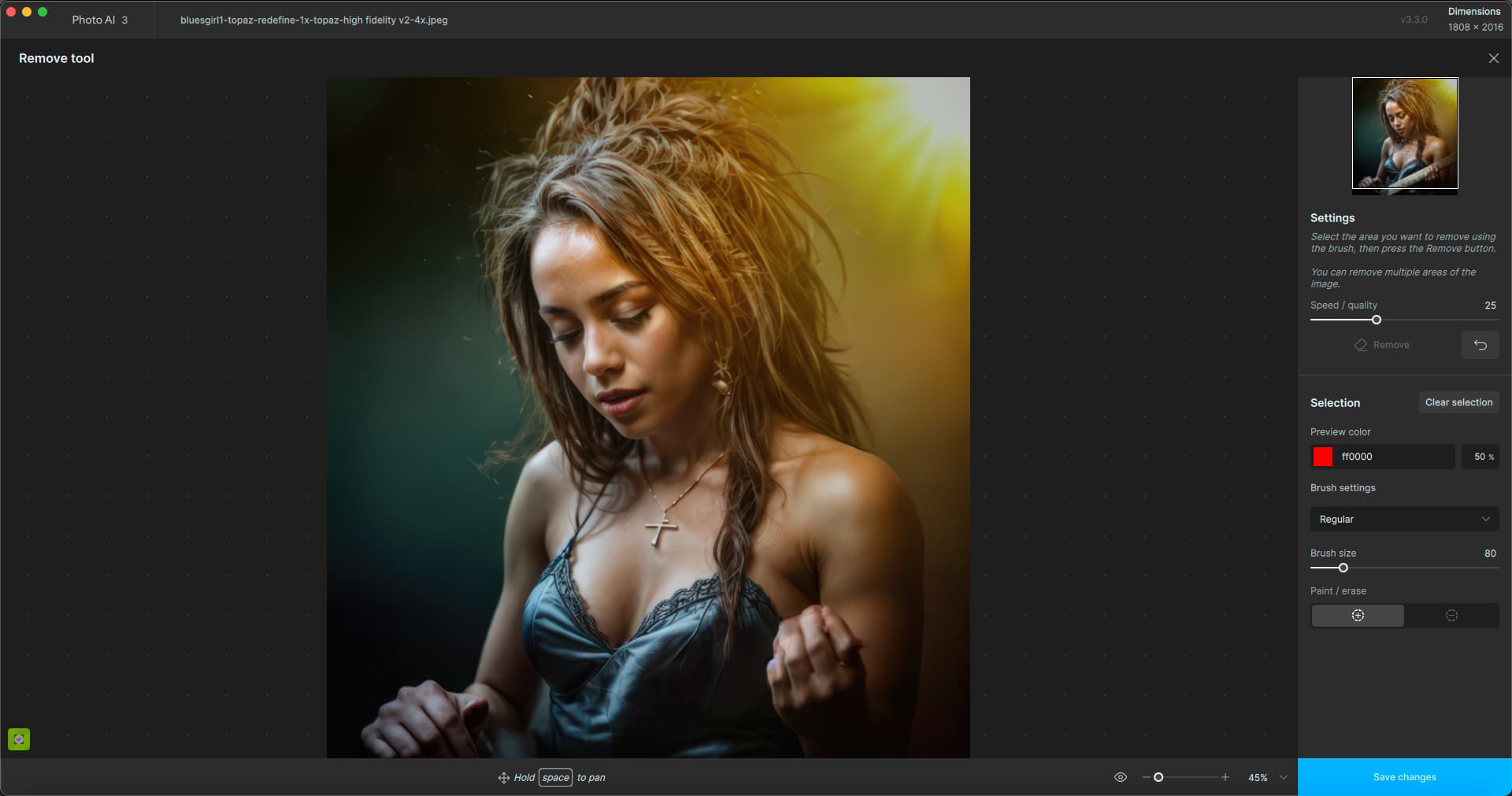
I gave Photo AI a chance to do something about the guitar using Remove, and remove it did!
Photoshop Generative Fill (one of several more usable options):
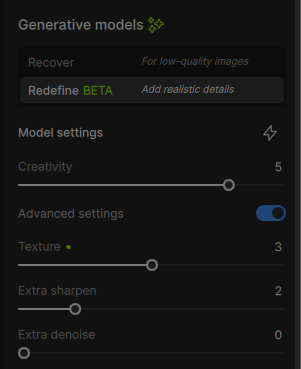
I created this image in less than a minute in DiffusionBee tonight (text-to-image) and am running it straight to Export in Gigapixel overnight with the settings below. Should be interesting! (Yes, she’s quite the player!)
2 Likes
Both do not change the behavior.
I noticed that the models were not removed during the beta uninstall process.
Did clean everything of GP - Reinstalling now.
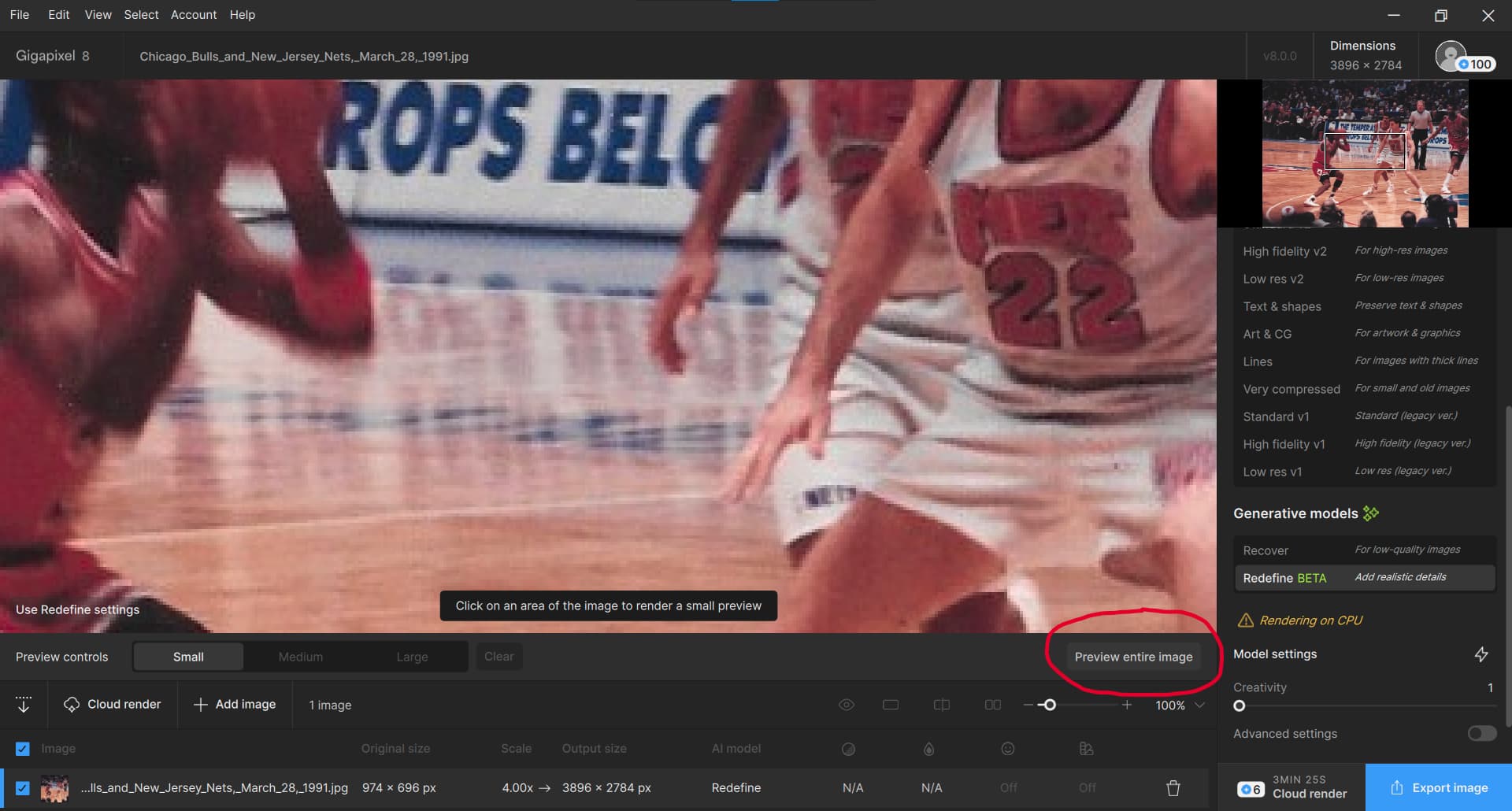
The previewing options have been moved to under the image preview.
Thanks, but there isn’t a preview whole image option. I get I can click the square onto the picture to preview a part of the image, but that’s not what I’m talking about.
I’ll give you before and after scenario:
7.4.4
I would Click Recover, set settings. I had option of Quick or Quality. Each would have there own timings. I would click the button, not leave the screen I’m on and when it finished, I had a button that I could toggle the before and after results. This is important in photo editing world, as you can roughly work out what kind of a job its done taking in the whole of the image. Also after it had finished, you could toggle been creative and realistic, to see if one was better than the other.
8.0.0
I load the image, no button showing how long its going to take. I then have to click export image, where I am only given the option to save the file. It says processing, but no idea how long I’m going to be sitting there. I don’t get it, how am I supposed to see the before and after results toggle now, how can I toggle between creative and realistic when I need to see the overall result, not just a small preview window. Its ok toggling parts of the screen for a small preview, but I need to see the overall effect, not just a small box.
The whole thing has just gone non user friendly. The export image option, should have stayed as it was before, because it was there purely for saving your results. As it is now, After its finishing exporting and processing the image, you get nothing other than the file it created, it just seems weird to me.
Appreciate your time anyway.
1 Like
I have exactly the same (bad) experience with version 8.0 as you describe. I had the impression that I was doing something wrong, but I see that it behaves (badly) not only towards me. I don’t understand why they changed it like that. To me it is user unfriendly (UU).
1 Like
Cosmetic issue: all three Topaz apps are “flash-banging” on Windows 11 24H2.
• Dark theme, window flashes bright white on launch.
• Light theme, window renders as dark mode then changes to light mode.
1 Like