I have a feeling that GAI 5.2.1 got faster with preview creation, at least on OpenVINO CPU mode. I currently only use that mode, since Taylor says the GPU engine is going to be pushed early next year, and current one is artifacting.
Will there be beta access to try the new engine either in VAI or GAI? Though currently I only have GAI bought out of these two, so trying VAI beta is out of the question… 
Thanks, now we know how long to wait before paying for the annual update license to maximize our coverage time.
1 Like
Please check this as I have found the behavior is the same as 5.2.0 The GPU toggle and OpenVINO are both enabled on launch. I turn off GPU. Close the preferences. Reopen the preferences and GPU is shown as on. I can tell when they are both on - my cursor movements are erratic until I can turn off GPU. Thank you.
There are many comments on this above in the thread, if the “Allowed graphics memory consumption” button is greyed out in the Preferences then you’re using CPU mode.
Hmmm, after some meddling with this small image file in Photoshop 2020 (latest), I see that GAI likes to crash (just shuts down, without any message or Windows crash management) after some panning and switching AI options within GAI. I’m using OpenVINO CPU mode. After two crashes of GAI plugin, it doesn’t want to start anymore…

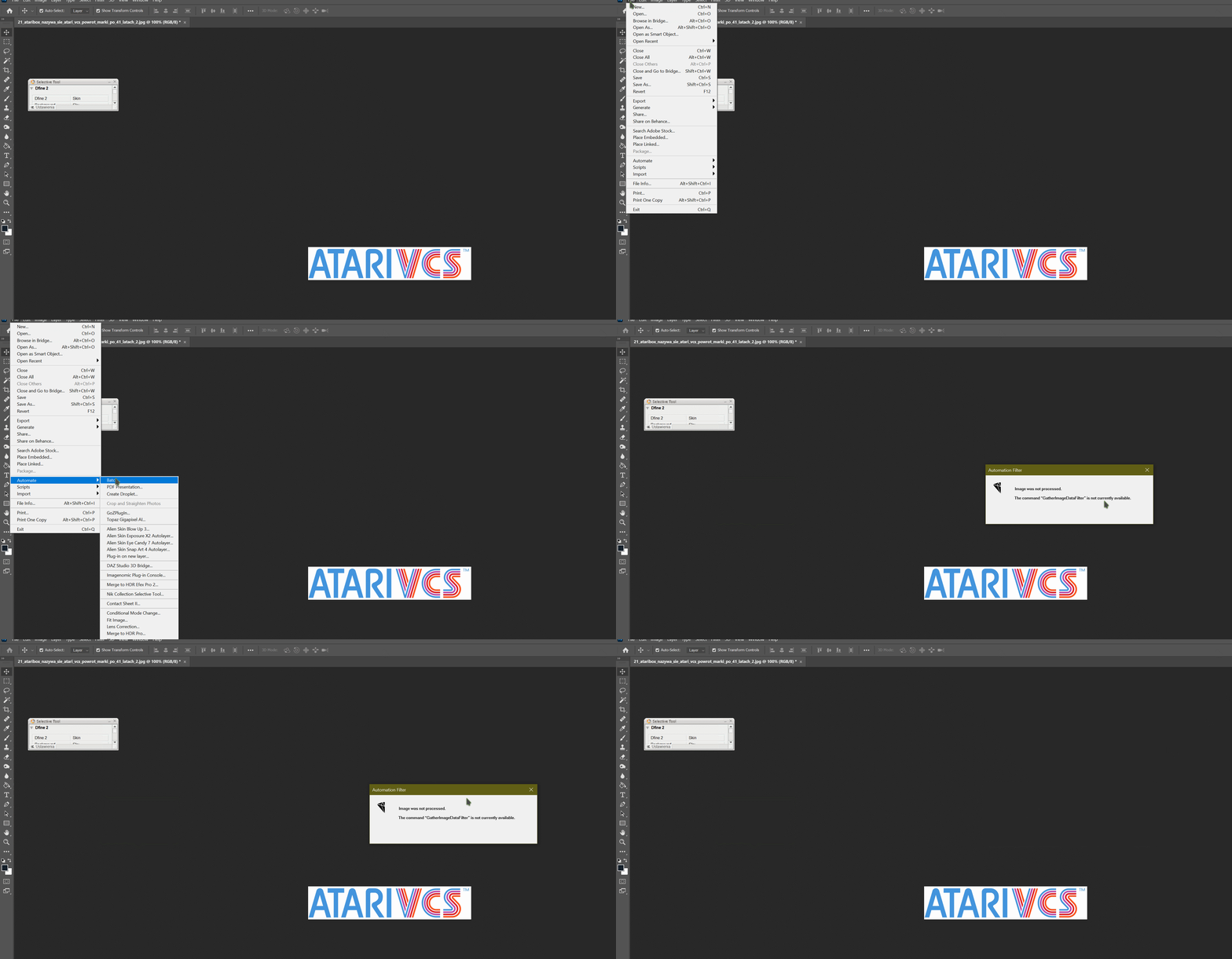
PS needs to be restarted then for GAI plugin to work again.
I noticed similar crashing with standalone GAI - I think OpenVINO doesn’t play nicely with my i9 7940X, 64GB of RAM, RTX 2080 with latest Studio driver (456.71) and updated Windows 10 2004.
Sometimes crash happens after pressing “Save Image” in the plugin
Logs: 27.5 KB file on MEGA
Tried it and it brings up more problems. When you save photos back to their source, they don’t overwrite the old photos so I’d still have to search for each photo, delete the old one and rename the new one.
It looks like it’ll be a long task however I do it.
I have been batching to upscale for 4k slideshows. I use On1 as my main editor so export them to a new folder as the highest quality JPGs (you can also export as TIF). Once I have them in a new folder I batch upscale and GP AI adds its own suffix to identify them. It won’t do that if you export them direct from your main editing programme: just calls them “copy”. Of course, I sometimes need to go through the originals to decide the mode for conversion. With really old scans of slides, and newer scans of prints, I mostly use the new “Compressed” mode, although faces can look grotesque!
It shouldn’t be so difficult. 1) Select all images 600px wide and move them out of the folder to a new folder. 2) Select all those moved images and drag to Gigapixel window. 3) Set preferences in Gigapixel to save all to your original folder. Note, make sure Gigapixel doesn’t rename the files or they won’t work for your website. 4) Done!
1 Like
Good review.
- GPU image quality has artifacts not present when processing with just OpenVINO or CPU. We’re currently working on this, and will have a fix out soon.
Only Standard Mode and Compressed Mode has this stripes bug.
And Gigapixel AI can’t handle with the eyes quality.
The default for the uprez ‘other’ size is 2.00. Why not make the default, say, 3.00 instead as 2.00 is already an option. I find myself regularly setting this to 3.00. Also, how do the new Standard, Architectural and Compressed setting differ from the previous defaults?
Aside the actual issues, I have a request that I really need because I think that it could improve the results a lot. I don’t know if it was already requested, I’m not here since a long time.
It would be great that GAI handles hair, and more generally fur and fibers. For the moment, the main issues after upscale are :
- The program does not handle each hair, so in the end the result can be ugly with stange shapes and colors, especially if it’s ‘tangled’ at the ends of the hair.
- When a single hair is upscaled, you finish with a straw, with central color that is lighter than the edges, that is not correct.
I pretty sure that it’s not an easy task (thanks captain obvious), but with the 32 bits floating points calculation for more precise colors (more subtle gradient), it’s the only improvements I really want to see (along improving the AI model of course).
1 Like
Sadly no because there are thousands of photos in hundreds of folders. If I load them into Gigapixel and select a custom source, they will all be saved in that 1 folder, not split up as they were.
Unless there is an option to overwrite original files, I don’t think it can be done in bulk.
I agree and often use 3.0 scaling. However if they just made the …x scale sticky that would do it almost as well. That custom scale should not change when selecting a preset scale.
Too bad about that. This might be a job for the Automator application?? Record actions for one folder, then repeat automatically for every other folder. Sorry, but it seems I never give up  .
.
I have a problem with the installation, the setup tells me i have to close programs to install it but the list is empty. I also completely uninstalled Gigapixel too before downloading the new installer.
update: Had to close Photoshop, only problem is that I couldn’t see because everything was blank
Turning on “Face Refinement” with v5.2.1 completely crashes the app.
Also I don’t know if I just have bad eyes, but it seems like with v5.2.1 the image output is half-assed in terms of the auto-update preview and remains the same upon outputting the result.
I was looking forward to using this new version. But now it looks like I’ll have to downgrade until it’s fixed.

1 Like
I’m outputting to the original source location.
So I solved it by creating a script that finds the file named “-gigapixel” under a particular directory, removes it, and renames the enlarged file to its original name.
1 Like
I agree with you… Hair upscaling or sharpening is not good across Topaz products like Gigapixel AI, Sharpen AI & Denoise AI
