Thanks for your response, I’m not looking to remove all of the texture, but if it can as you can see it removed it from the half of the face that has been processed, I see no reason why I can’t improve the hair and her neck if I could just enlarge the area that facial recognition sees. Brush it in as though making a mask layer.
1 Like
I see what you mean, but the face detection algorithm doesn’t quite work like that for the rest of the image unfortunately. Try actually turning down the strength of the slider and upscaling so there isn’t as stark of a contrast. However, it won’t get a perfect result due to the systemic limitations of the software.
Thanks. It’s more just messing around with a friend’s mother on Facebook. I love what it accomplished with her actual face. So maybe my request is for some future method of dealing with textured photos and also with newsprint dot patterns while I’m at it!
1 Like
Got it, that could be something we explore down the line but our current focus is on digital images rather than scans!
2 Likes
As was discussed before, when faces are enhanced, the neck is usually left a mess.
A couple ideas on correcting that deficiency;
- If possible extend the facial recognition to include area below face that has same or similar skin tone/color. If it can smooth the face it can smooth the neck.
- Add the option to physically select the face area so the user can include the neck area. This would allow for different neck lines created by different clothing types.
- Perhaps include a body recognition, based on skin color/tone matching face color/tone. This could prevent arms/legs from being left a noisy mess after the face has been corrected. If not auto recognition, at least an area selection for clean up. Use a tool to outline the arms/legs and such for clean up. Maybe at a later date include recognition and a way to clean up fingers and toes without turning them into eagle talons.
is there a way to change the size of the face window, sometimes it does not cover the whole face??
Very often the app does not recognize a face when its very obvious… so perhaps just allow to drag a box around each manually would help… or even better allow to specify eyes, mouth, nose, ears, etc… sometimes to specify a side profile as well when a full face is not shown
Thanks for the idea and suggestion! Make sure that you do not forget to vote for your idea 
This is not currently a feature in Topaz Photo AI; however, we appreciate the idea and suggestion! Please make sure that you do not forget to vote for your idea
How to vote? seems only logical to train the AI where the face items are
You can vote for your idea at the top of this Forum thread by clicking the Vote button
So i’ve seen some great ideas to add to the face recovery feature and I wanted to also add this, the ability to choose where the recovery is used. I’ve seen my fair amount of photos where the image is quite blurry and then you see these perfectly sharp and restored boxes around the face, a clear sign of upscaling when the idea is it to look as natural as possible. Sometimes I’m restoring an image where the hair is completely blurred and a small boxed portion of the hair is now sharp. I would love the ability to select how much of the hair and face I want restored, on top of all the other things people have talked about, like animal face recognition, gender/age specific tools when it comes to the amount of smoothing used, etc. Sometimes I’m satisfied with the face but feel the lack of restored hair ruins it. Maybe we can have a specific hair recovery tool?
Neck is left out always, makes the batch editing a hassle. development has to fix this issue. AI should be able to recognize all the skin on subject so it can enhance it or recover it. Development team please take care of this . Thank you.
Does it do that even though you have the Edit > Preferences set to recognize Neck?
We are at release 3.1.0 and the problems with face recovery continue to be unresolved. It would at least be appreciated to know if Topaz intends to find a solution, and in what timeframe, or persist in continuing to pretend to ignore that such problems exist 
Hi. Have you tried deselecting Hair and Neck from the Face Recovery option within the preferences menu.
So, obviously only the face is detected then, applying Denoise to the whole image or just to the Neck and Hair area with a mask to achieve the desired effect.
I know it’s a bit of a workaround however, you will achieve better results.
Hope this helps
No, unfortunately it doesn’t give satisfactory results: you get a beautiful face with horrible hair. The annoying fact is that the part of the hair that is managed by face recovery gives an excellent result, too bad you don’t have all the hair. Honestly, this behavior is not true for all faces: in some cases even the hair is entirely treated with good results, in some they are not all managed by face recovery but it is not very noticeable and finally the cases reported, many, in which the difference it is remarkable with unpresentable results
1 Like
I wish there was a control comparable to Crop, that we could freely (not locked aspect ratio) pull the edges of the box that’s placed around an ID’d face(s) out in multiple, custom directions to include more hair or neck down to chest for processing with the Face Recovery enhancement. It would transition better that way to rest of image.
1 Like
Your face recognition is too small it should be adjustable in size.
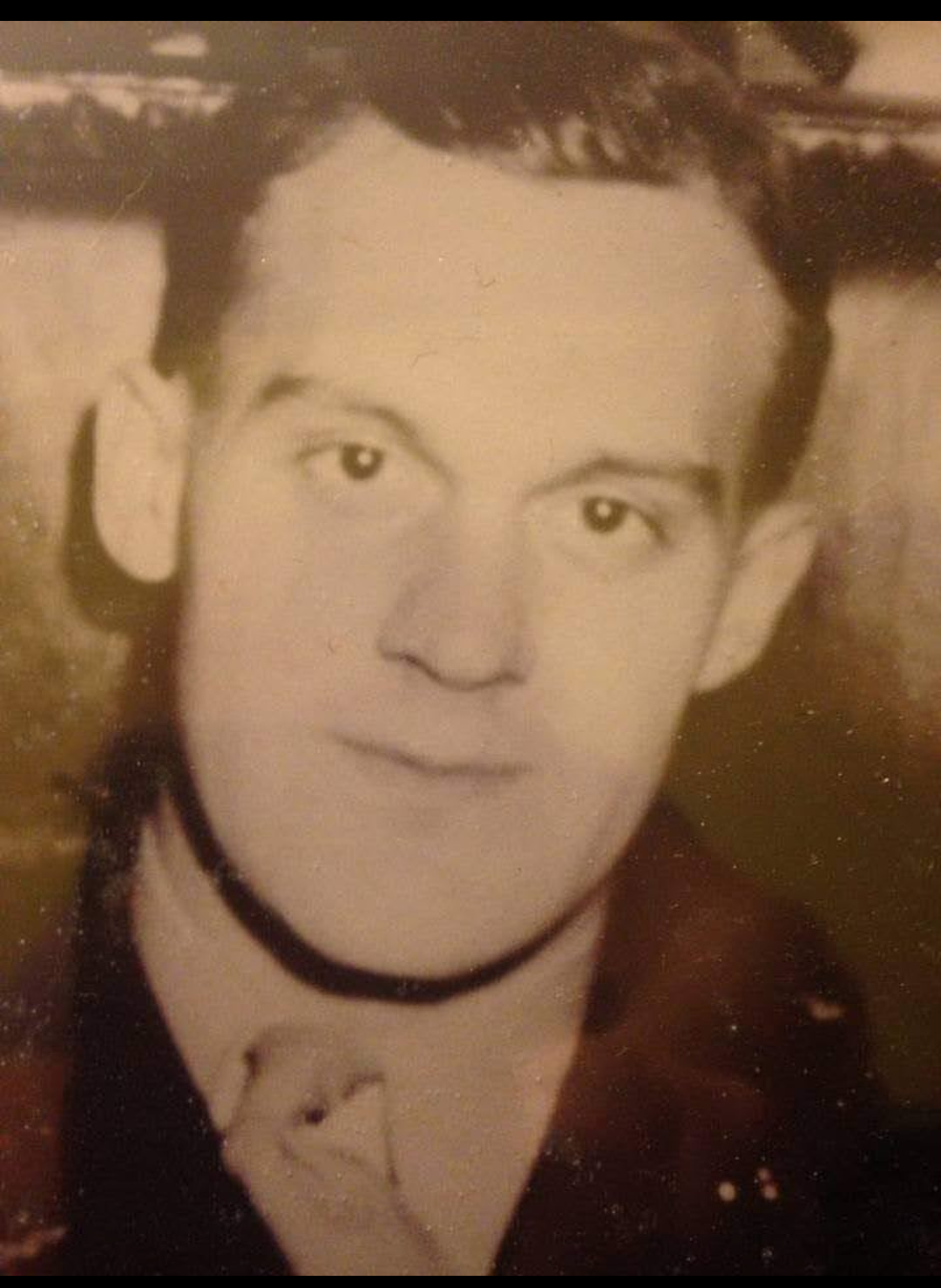
4 Likes
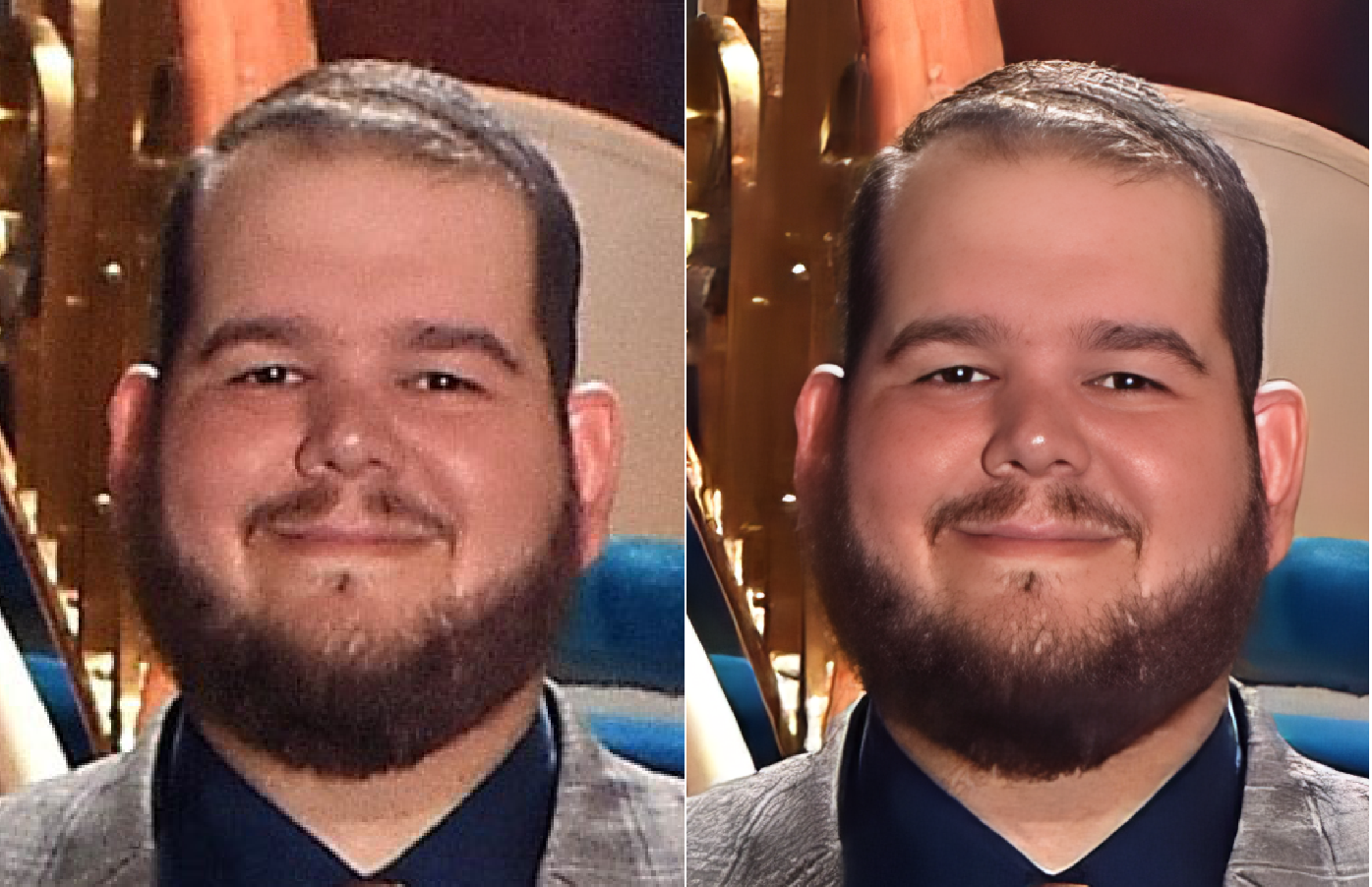
I have been a customer for over a year. It’s surprising to me that there isn’t any engagement from the topaz developers in a place where their paying customers go to discuss issues for resolution. After reading this entire page, I feel like I’ll just be shouting into the wind.
I have been endlessly frustrated with the face recovery tool, and many times I just give up. I am so tired of having a smaller than wanted square box over the face. This example isn’t too bad, but I’ll still have to do some cloning in photoshop for his beard. WHY is a box used for face selection in the first place?? We’re not minecraft characters! As many have stated, ovals are the best option. Also, I don’t think it would be hard to feather in the result. This would at least help alleviate the very clear boundary between restored and not restored. I love what the AI does with the face, but I hate that you can so obviously see the border and you don’t even get to adjust where that border falls.
