I agree that more control of the box or face area would be very valuable but, I would also like the ability to manually select faces that the AI does not recognize. I have scans of old photos that required a great deal of effort to restore only to discover that my most powerful tool won’t recognize a face in the photo.
2 Likes
Wow, thanks so much for your incredible work in detailing the process you used. Sorry for replying so late as I was expecting the forum to send me an email whenever a new post occured but I was wrong… I just logged to the forum and saw your post.
I will try to replicate your work and see it this may apply to other pictures with similar problems. It would be great to be able to improve these photos as the originals are either lost or unavailable.
Bob, I really appreciate your help! I will also do as you suggest and save these posts in case they get deleted!
Dan
1 Like
Hello Dan.
No problems with the delay in your reply.
Let me know how you get on with your pictures using my method. If you need any further help with other pictures then send me a personal message. I like helping people if I can. I check the forums daily.
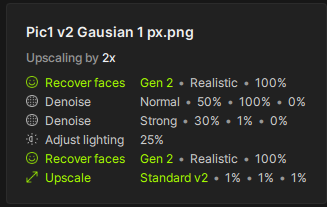
It is possible to upscale your picture 4 times if you add two extra models to the bottom of the stack.
See attached.
Ignore the The Upscaling by 2x at the top. I’ve tested 4x and it works. The extra Face recovery at the bottom of the stack gives more warmth to the eyes in the 4x Upscale
Best regards Bob.
2 Likes
Hi everyone,
I find the Recover Faces feature in Topaz Photo AI very useful, but I’ve encountered a limitation that affects its usability. Since it’s not possible to manually select a specific area of the face to apply the enhancement, the function sometimes distorts surrounding details.
For example, in a recent case, the enhancement worked well on the face but caused issues with fine details like an earring chain, which became blurred or even disappeared. In some instances, it even altered the earlobe, which may not necessarily need to be processed by the generative system.
It would be really beneficial if Recover Faces could include an option to manually select the exact area to enhance, similar to how other tools in Topaz allow precise adjustments. This would prevent unwanted modifications to delicate details while still improving facial clarity.
I’d love to see this implemented in a future update! What do you think?
Thanks!e describe your idea and how it would be useful to you in your workflow.
The face recovery function works excellent but because it does not apply to other skin areas I am unable to use it for bulk editing of wedding photos. Combined with the sharpening effect it makes people, especially women, have turkey necks. We need a skin recovery option please!
You can exclude the neck (as well as hair) being processed in face recovery in the preferences.
Maybe this helps with your issue?
Hi.
Jo.vo is absolutely right you can choose to exclude both Hair and Neck from your selection.
In addition to that, if you process your image using a combination of Super Focus and Recover Faces, Super Focus does an excellent job of recovering the whole image including Hair & Neck and you already know how good Recover Faces works
If you have access to Gigapixel then again a combination of Redefine is also excellent
Hope this helps
1 Like
Love the recover faces but as others have mentioned, the box around the recovered portion of the recovery is an issue. That said, what would be a HUGE help would be to add the ability to add grain to the recovered area. This would go a long way in smoothly integrating the recovered area into the rest of the image.
Hi.
The Bounding Box around the face doesn’t represent the recovered area
It actually only represents the selectable area so, the user can select or deselect faces that Photo AI’s Recover Faces has detected
At this present time, Photo AI’s Recover Faces/Facial Recognition software only detects faces, >FACE< being the optimum word here.
Having said that, you do have the option of selecting Hair and Neck within the Preferences Menu if you so desire
Besides, this behaviour isn’t a trait isolated to Topaz you’ll find this to be true with all facial recognition software
My previous reply above yours about using a combination of Super Focus and Recover Faces which, dose an excellent job of not only recovering faces but also, the hair and neck
More about that above
Hope this helps
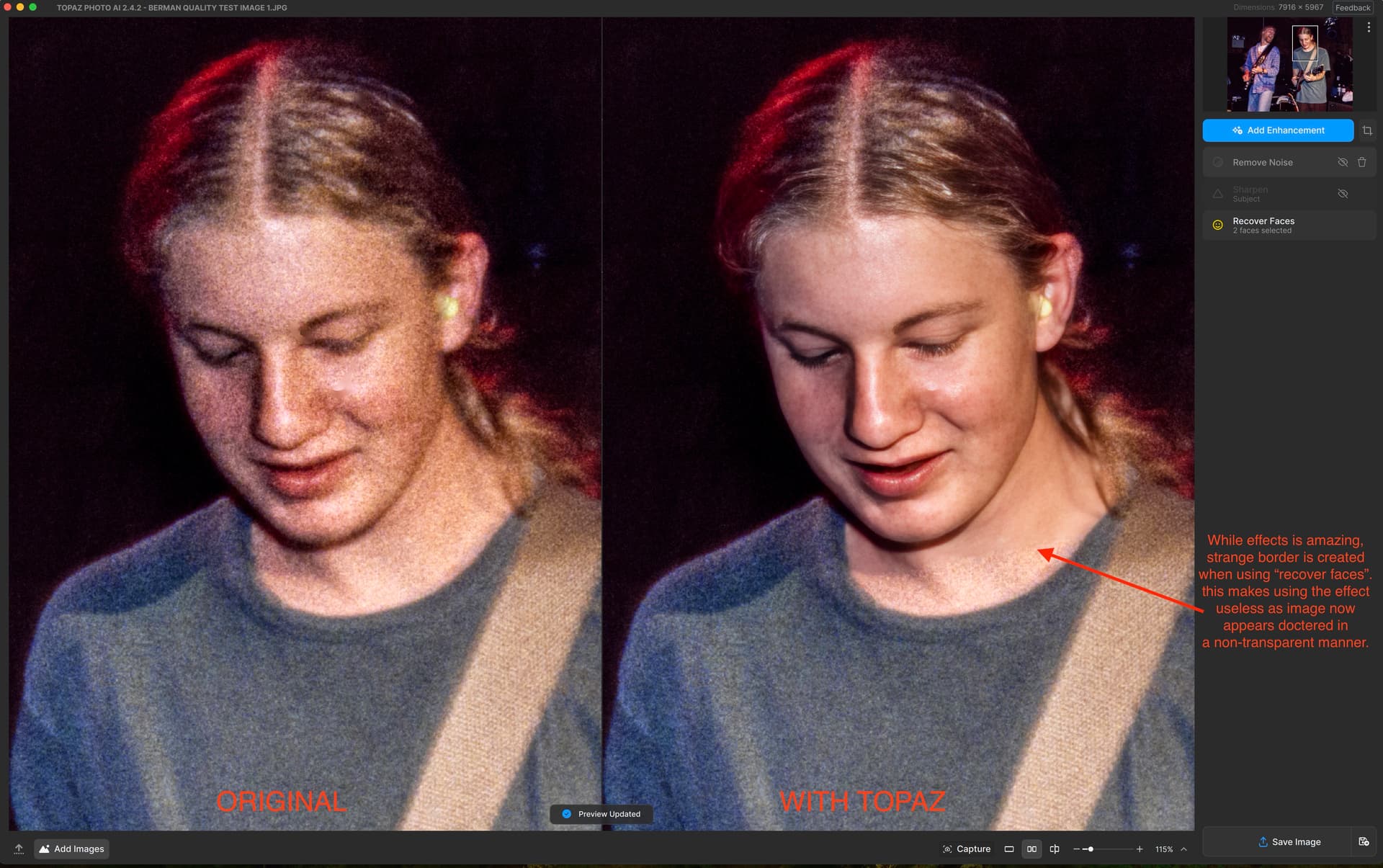
Thanks so much for your reply & I appreciate your input! That said, maybe I wasn’t clear enough with what I was saying. When referring to the box around the recovered faces, I’m not referring to the selection box (I’m well aware of how the feature works in this respect). What I’m referring to is the crisp line that is created around the area that is recovered which does not blend well with the un recovered areas. Please see attached screen grab which will explain better. I’ve shared this with tech support several times but have not received a usefull resolution or answer to this observation. Yes, this was generated with an older version of Photo AI but the same is true with the latest. As I mentioned, a “grain add” component would go a long way to help, as well as a way to feather the edge of the effect.
2 Likes
I absolutely here you
Please allow me to digress for a minute, creating a Film Grain Layer in Photoshop or indeed using the Add Noise Filter itself is one of the most efficient ways of blending different elements together also, giving the appearance of extra sharpening and creating a cohesive image.
This is true for Retouchers adding texture, Photo Restoration adding that authentic look and for helping Compositors seamlessly blending different images.
So I understand, and appreciate what you’re saying and I can certainly see how adding grain to your sample image would help blend the two together.
Even if Topaz implemented adding Grain as an option within Preferences for the advanced user I would welcome it for that reason and the reasons I mentioned above.
However, looking at this from the point of view of Topaz (I’m not associated with Topaz in anyway) who are all about Image Enhancements this could be perceived as adding an element of degrading the image basically, two steps forward and one step back.
In relation to that, did you get a chance to read my reply about using a combination of the incredible Super Focus and Recover Faces
Here’s an abbreviation for you
(In addition to that, if you process your image using a combination of Super Focus and Recover Faces, Super Focus does an excellent job of recovering the whole image including Hair & Neck and you already know how good Recover Faces works
If you have access to Gigapixel then again a combination of Redefine and Recover Faces is equally excellent)
Give it a try it’ll do an incredible job of cleaning your grainy image then apply Recover Faces as a finishing touch
Also, with Gigapixel you have the advanced option for typing in prompts for more precise control for cleaning the image and I would have fault it’s only a matter of time before you can use a reference image similar to Adobe.
Andy
1 Like
Once again, I thank you for your suggestions/perspective etc. Good info & topic for debate!
Yes, I’ve tried the super focus in combo or complement to recover faces. Challenge with that is that I find it rather hit or miss…Sometimes it’s amazing and bridges the gap with regard to creating a cohesive final image.. Other times, it generates more unwanted artifacts than it’s worth (lots of mask adjustment to eliminate problem areas etc.). So I frequently find myself just really needing the recover faces feature…But need the blending tools I’ve since mentioned, to make the enhancement invisible to the viewer.
With regard to Topaz’s perspective of image enhancement, I don’t really think that enhancing their amazing tools with grain & feather features is a step back…More a step forward in making their really powerful tools more invisible to the viewer, and big picture a “better” enhancement product. I think that as more folks use these tools to add new life & repair deficiencies in older images, images shot on various film types/grain structures etc. the ability to match & blend with that grain better becomes critical. (the sample image I sent you originated on film).
Again, thank you for the info/techniques/discussion etc. Hopefully these thoughts make it to Topaz!
Now I’m testing PhotoAI on old scanned prints: face recognition is generally ok and the result is often excellent. Several times however parts of the hair are not included in the face as well as part of the neck. It would be nice to be able to refine the faces with a brush as you do for the selection to be sharpened.
Two examples


Yes, would be good if - as part of the features of a maual vs AI Masking Brush - hair, neck, ears or any desired head parts could be manually selected to be sharpened & a pixel range transition to softening could be specified (real-time preview visible slider).
1 Like
When using the facial recovery process, it frequently does not cover things like a neckline into the clothing. This leaves a very obvious quality difference in the skin which can be rather unpleasant.
I have also thought about this, retouching software such as PortraitPro Studio Max for example allow adjusting, it would be nice to have this.
1 Like
We’re working on improving the Face Recovery models to not have such a stark contrast with the rest of the body. In the meantime, try turning down the strength of the model and turn on/up the Upscale model which will enhance the resolution of the entire image.
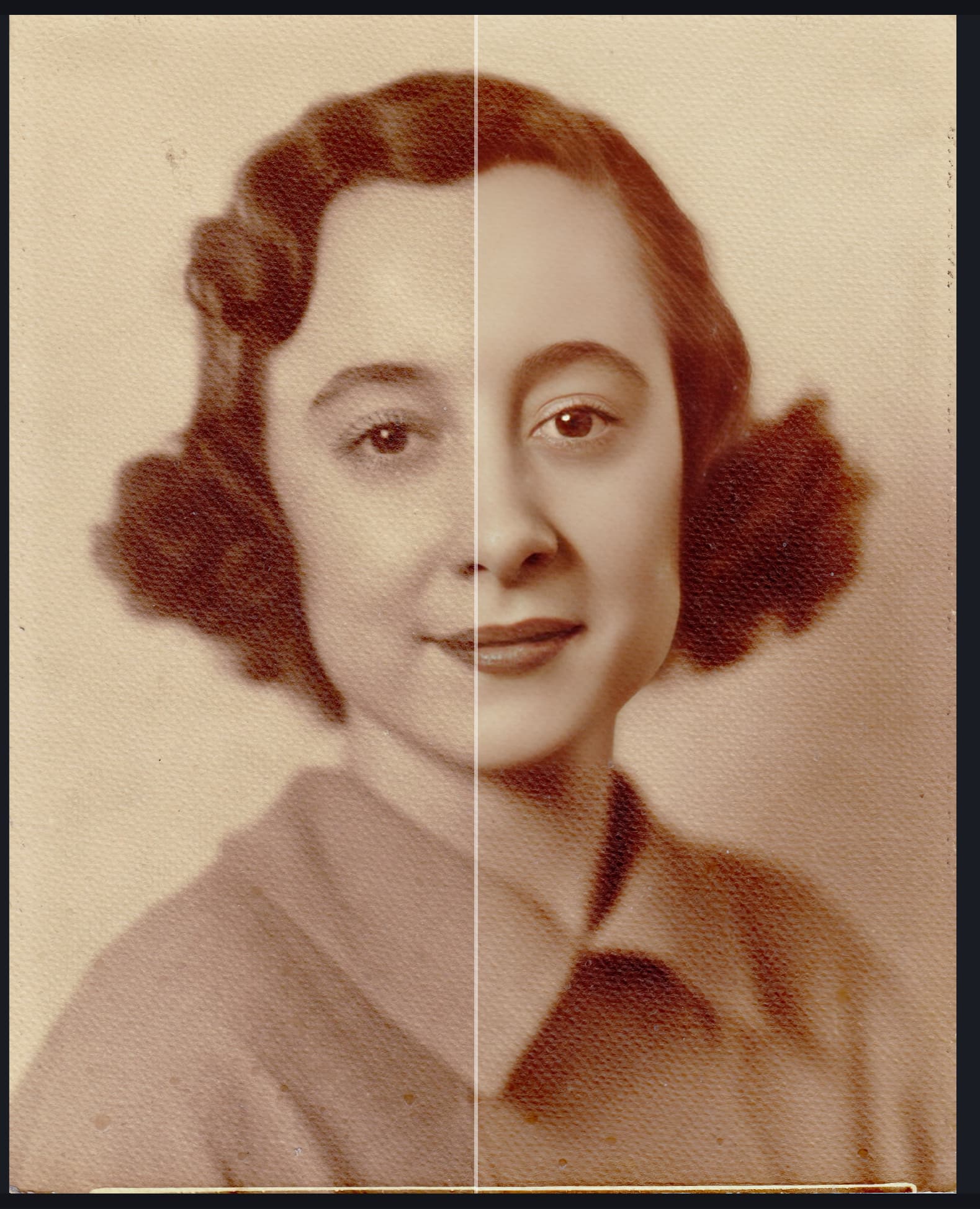
I’m trying to restore a 1940’s portrait that has a photo texture to it. The face recovery looks beautiful on the woman’s face but does not include all of her hair or her neck where the texture remains highly visible. I’d like to be able to enlarge the area that is recovered under face recovery. Would be great if I could expand the face selection square or draw in the area with a masking brush.
2 Likes
Try this:
I use this regularly. It won’t be easy, it’s worth watching a few videos about it.
2 Likes
We’re working on improving our Face Recovery models to blend better with the area immediately around the face. In the meantime, try using the Upscale filter to enhance the resolution of the entire image. There isn’t much we can do about the texture seen in the scan since it isn’t necessarily a digital imperfection.
2 Likes
