Have you tried using the Wonder Model for this or Bloom if you have access for it
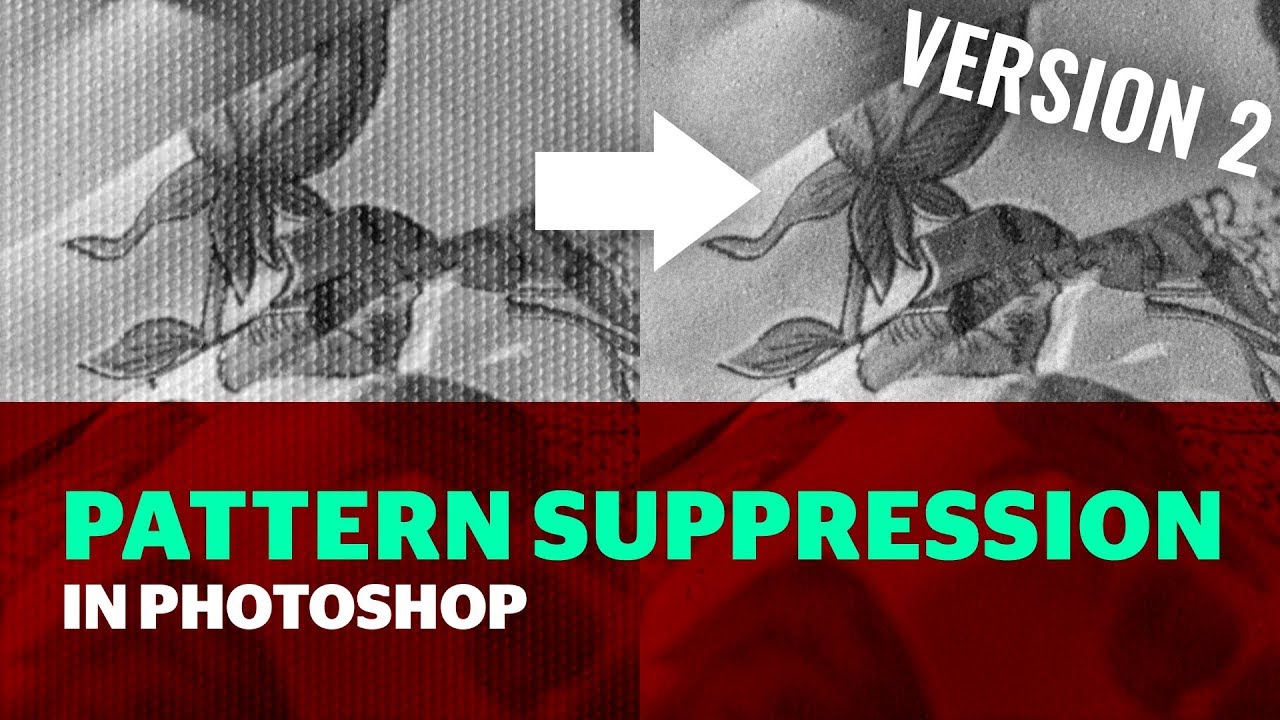
Here’s a handy FREE Plugin to do exactly that and an excellent YouTube tutorial which explains how
Pattern Suppressor tutorial v2
This tutorial demonstrates how to remove periodically repeating patterns in Photoshop using the FT-plugins by Ronald Chambers, and the accompanying Photoshop actions.
This tutorial demonstrates how to remove periodically repeating patterns in Photoshop using the FT-plugins by Ronald Chambers, and the accompanying Photoshop actions
Alternatively, if you don’t have Photoshop you can Download Affinity Photo for free which has a FFT filter within the application
You have heard of Topaz Bloom haven’t you and it’s Realism feature for doing just that plus Hair, Fabrics and Upscaling all at the same time.
The only caveat to this is Topaz does say it’s for CGI images only but, if you have plastic looking portraits as you say it can currently add back imperfections within photographs and graphics
Bloom: Realism
Instantly remove the artificial feel of AI-generated images with this new, advanced creative upscaler. Skin, fabrics, metal, plastic, hair, and everything in between. See AI faces completely transformed into real people.
Here’s the link so, you can check it out yourself plus other resent updates
It’s the Topaz Magic with a little touch of Rock ‘n’ Roll
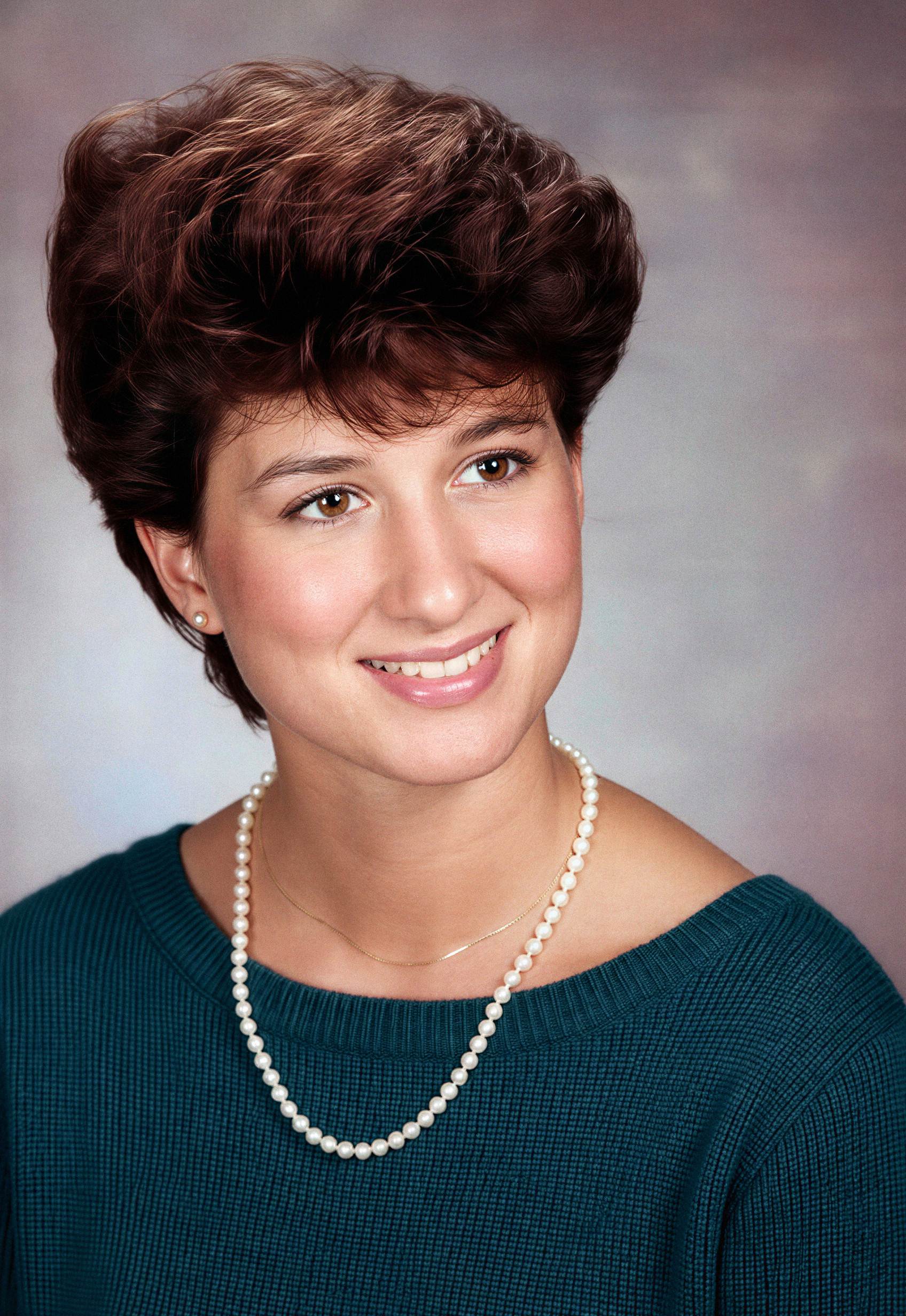
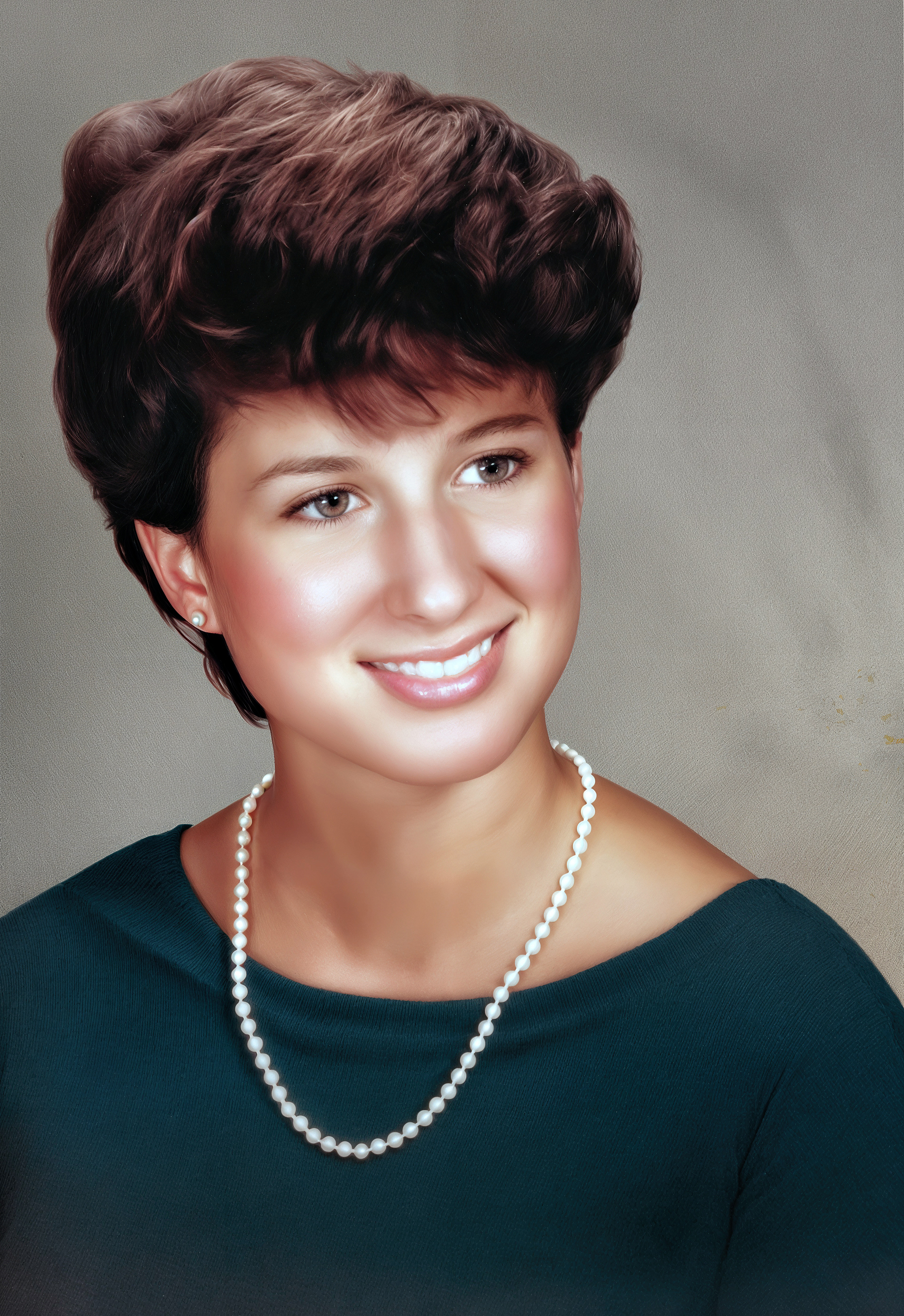
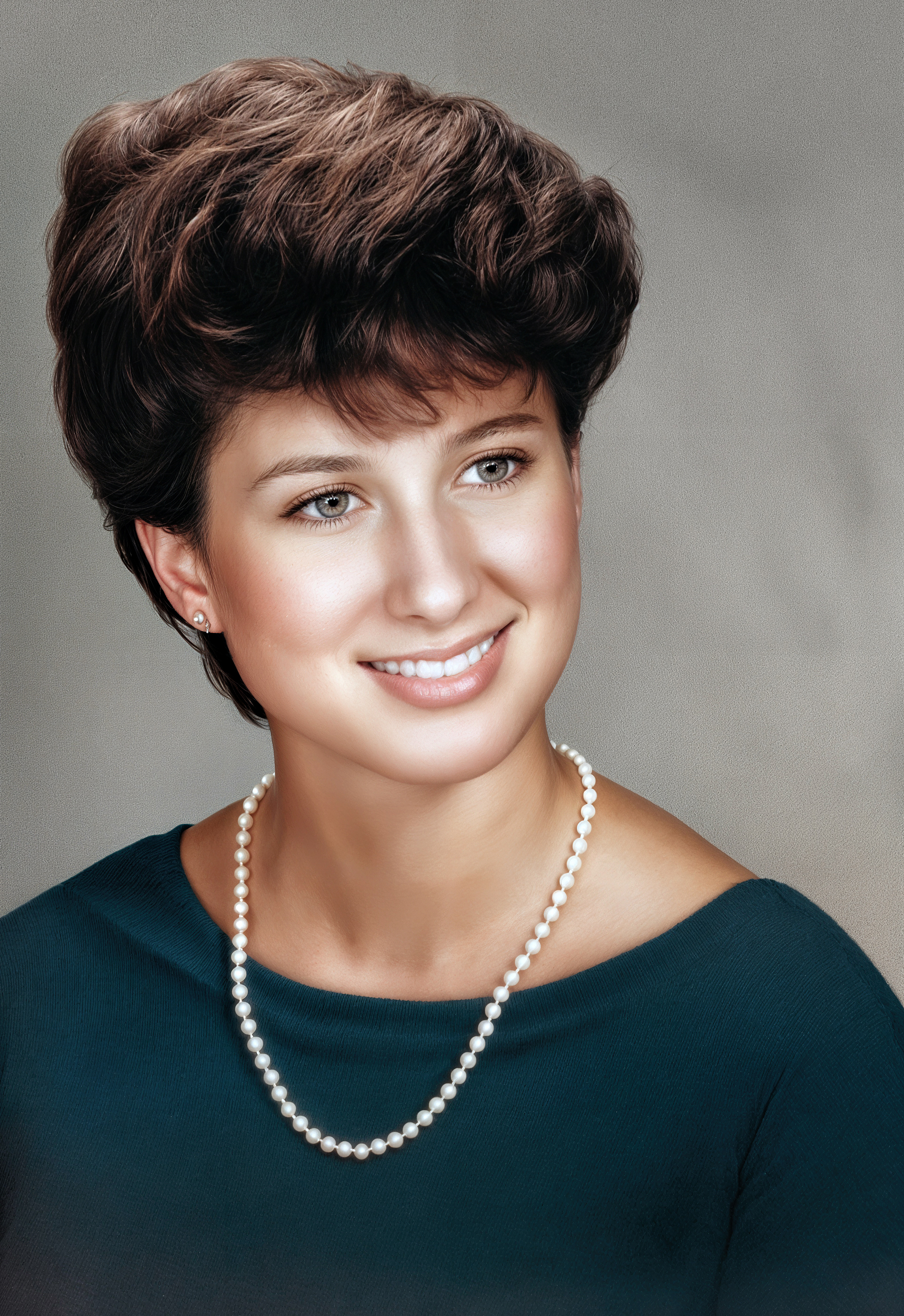
Hope you don’t mind but I couldn’t resist taking a crack at this one. I ended up with two versions, one of them slightly more creative than the other. This is the more faithful version:
The trick was starting off with Neat Image denoising - this did a great job of removing the patterning (not entirely, but enough for Topaz to handle the rest). I then just played around with the various options in Photo and Gigapixel to enhance what was left.
Had to remove the gold necklace, unfortunately - its incompleteness on the right side was pretty jarring in the cleaned-up version of the image!
I have had some success removing moiré patterns using both Gemini/NanoBanana with an appropriate prompt and the new photo restoration tool in Luminar Neo.
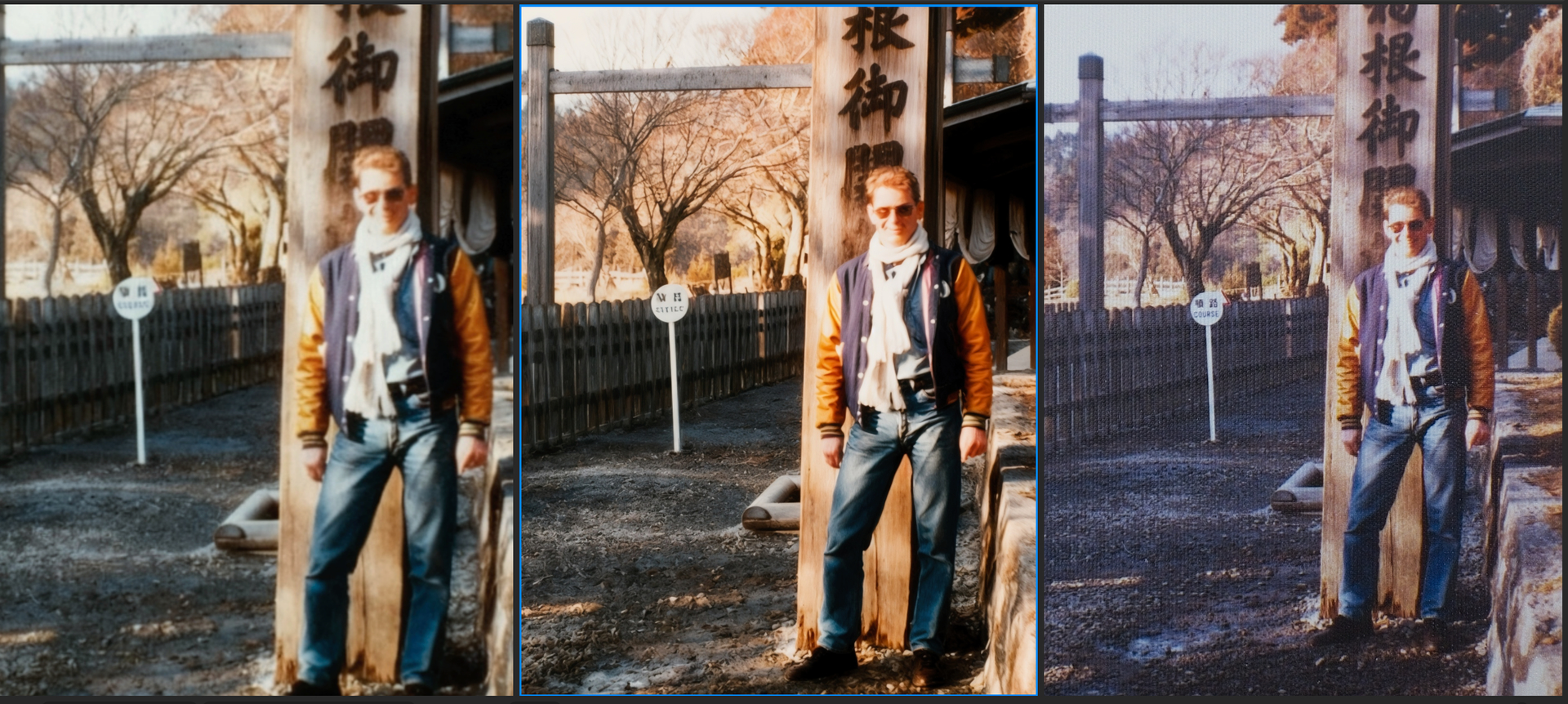
This was originally a 4x3 inch print. I scanned it as a raw file (right) and restored it in Luminar Neo (left). I then tried various AI upscaling options to try to bring out some detail. In the centre is one using Gigapixel-Redefine-Realistic, which is about as good as I could get. None of the upscale tools in either Gigapixel or On1 gave a particularly effective face.
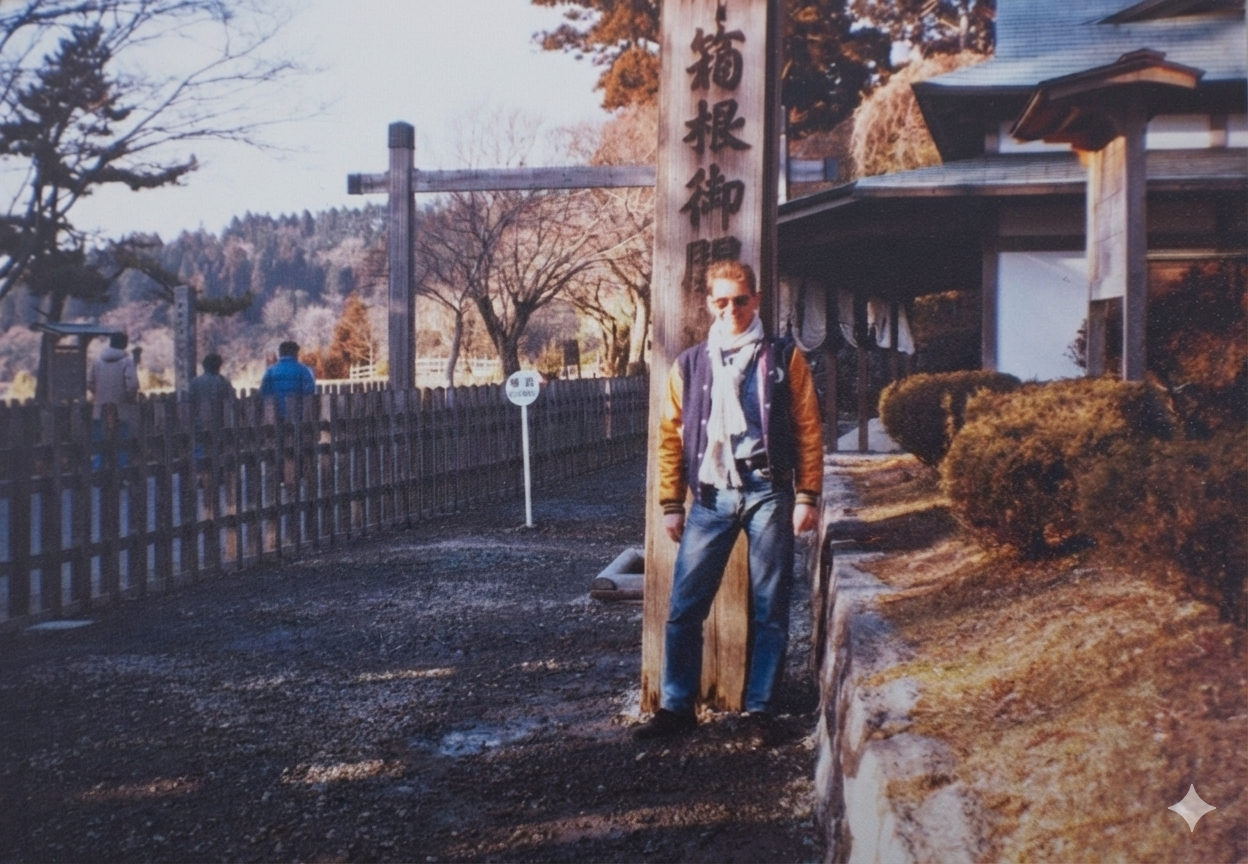
And here is what was achieved by Gemini. Since the free version only allows one to download a fairly low-res PNG, upscaling would no doubt improve the image further!
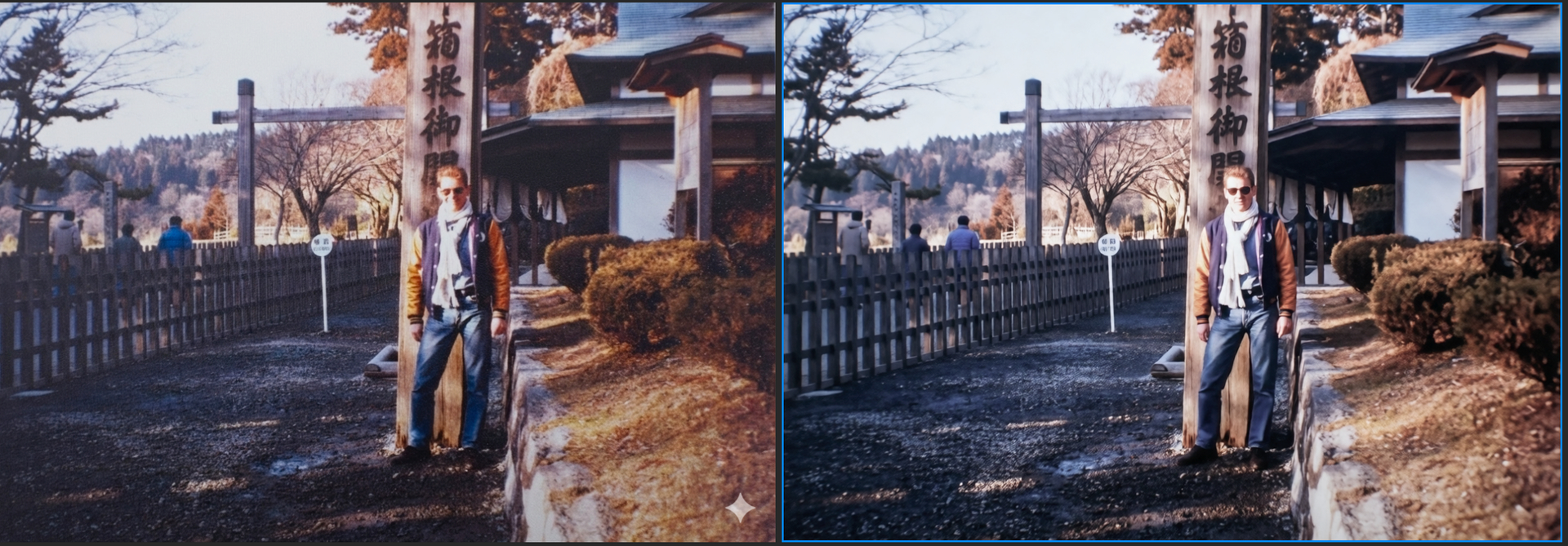
In the past, I used Photoshop’s Pattern Suppressor to eliminate unwanted print patterns from scanned images. Nowadays, advanced AI tools make this much easier and more seamless . You can simply use Qwen Edit or Flux Kontext for pattern removal while preserving the rest of the image naturally. Both of them can process locally on your computer without sending the image to a cloud service.
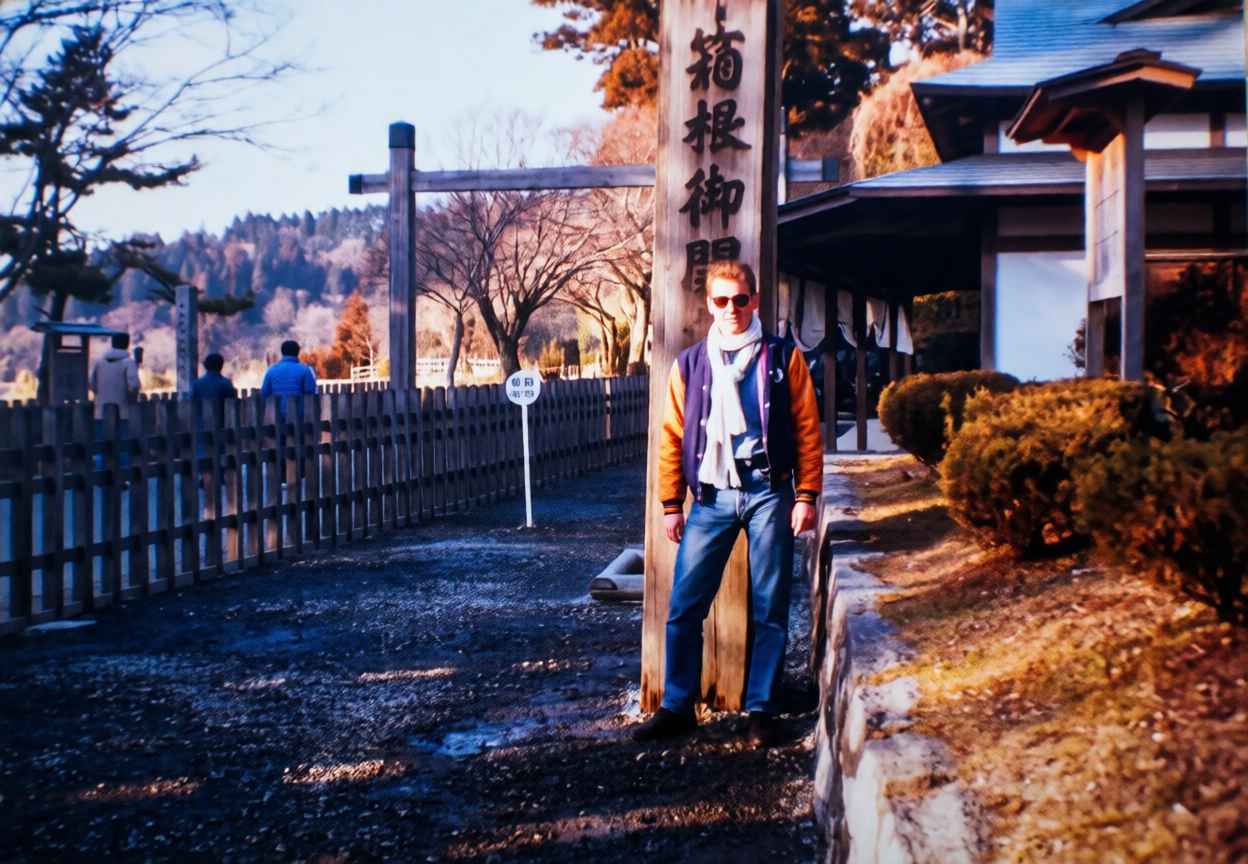
The example above uses the latest Qwen Edit 2511, which was released a few days ago. I simply told it to “Remove the print pattern and restore the image to its fresh state.”
Here are some official prompt examples for restoring old photos using the Qwen Edit 2509.
Thanks for that. QwenEdit certainly produced a better image for me than Gemini, especially the face, It was over-saturated and very contrasty, so I had to do some post-processing. Note that it only appears to produce low res images, as does Gemini (1248x864 in this case)
Bloom is a Web offering. If you got the ‘Founders’ subscription you should have access included as part of your sub.
As Andy suggested, don’t feel limited to use it only with AI-generated imagery.
I use the Phot “Wildlife” model for images with fine details but no hint of wildlife! Don’t be constrained by the descriptions or names. See what does what with personal tests; for any of the products.
 . You can simply use Qwen Edit or Flux Kontext for pattern removal while preserving the rest of the image naturally. Both of them can process locally on your computer without sending the image to a cloud service.