Chromaster v2.x : The ultimate companion Topaz Video / Video AI deserves

Chromaster — Bare-metal SVT-AV1 encoder built for Topaz Video AI users

Tired of losing HDR metadata. Tired of guessing scaling algorithms. Tired of bloated GUIs hiding what matters.

So I built my own. This also should be your BEST companion for Video AI or Topaz Video, because, I mainly first coded it to polish and fine tune the final video file to get a full ITU-R compatible file.

Chromaster — a native Windows SVT-AV1 frontend. Written from scratch in C + Direct3D 11 + Direct2D.

  • No Electron, no QT : No hungry framework
  • No runtime dependency beyond Windows SDK
  • Raw Win32, GPU-accelerated pipeline, screen vsync fps, zero per-frame allocation

Designed specifically to re-encode Topaz Video AI output with surgical precision.


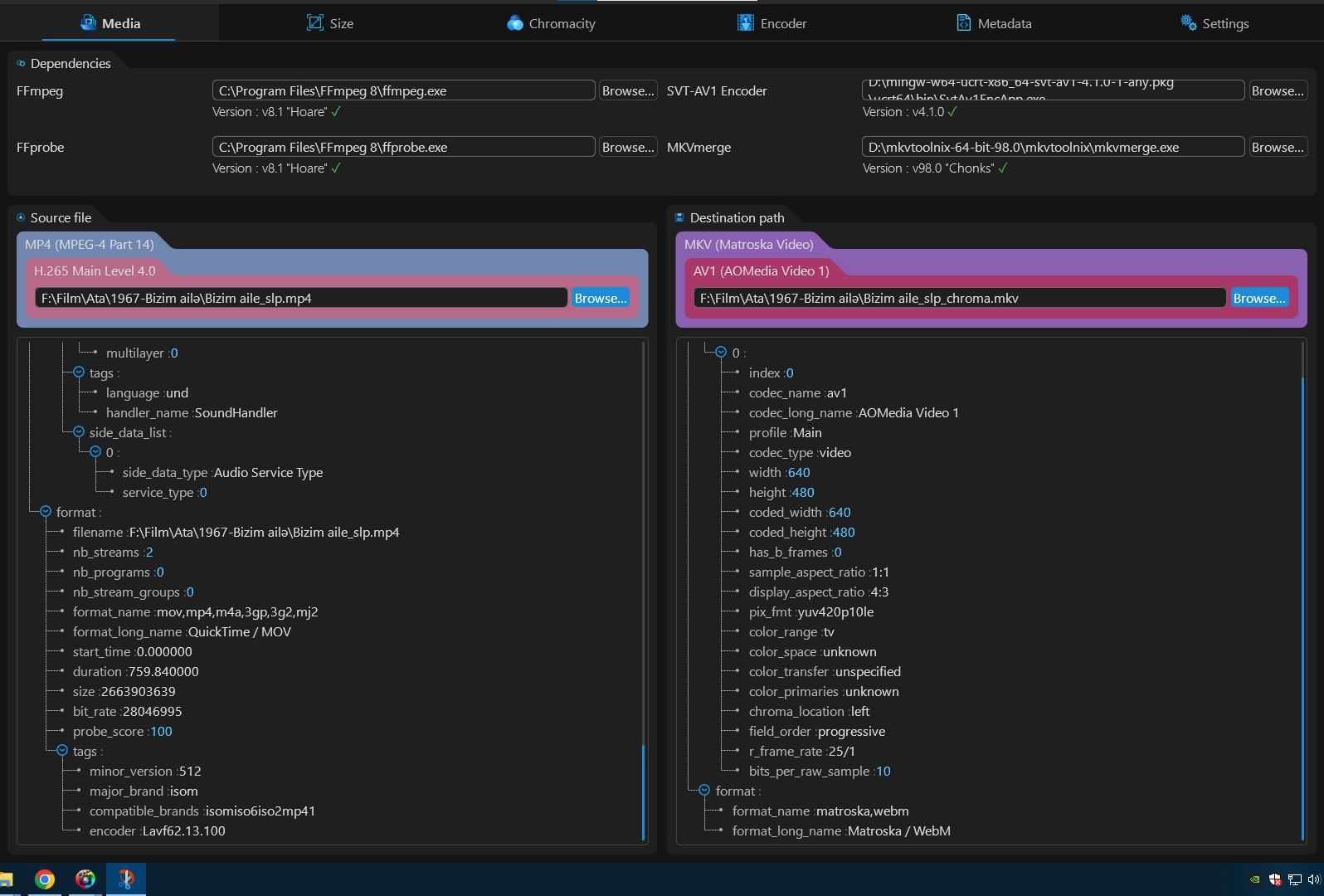
1. Media — Full transparency on your streams
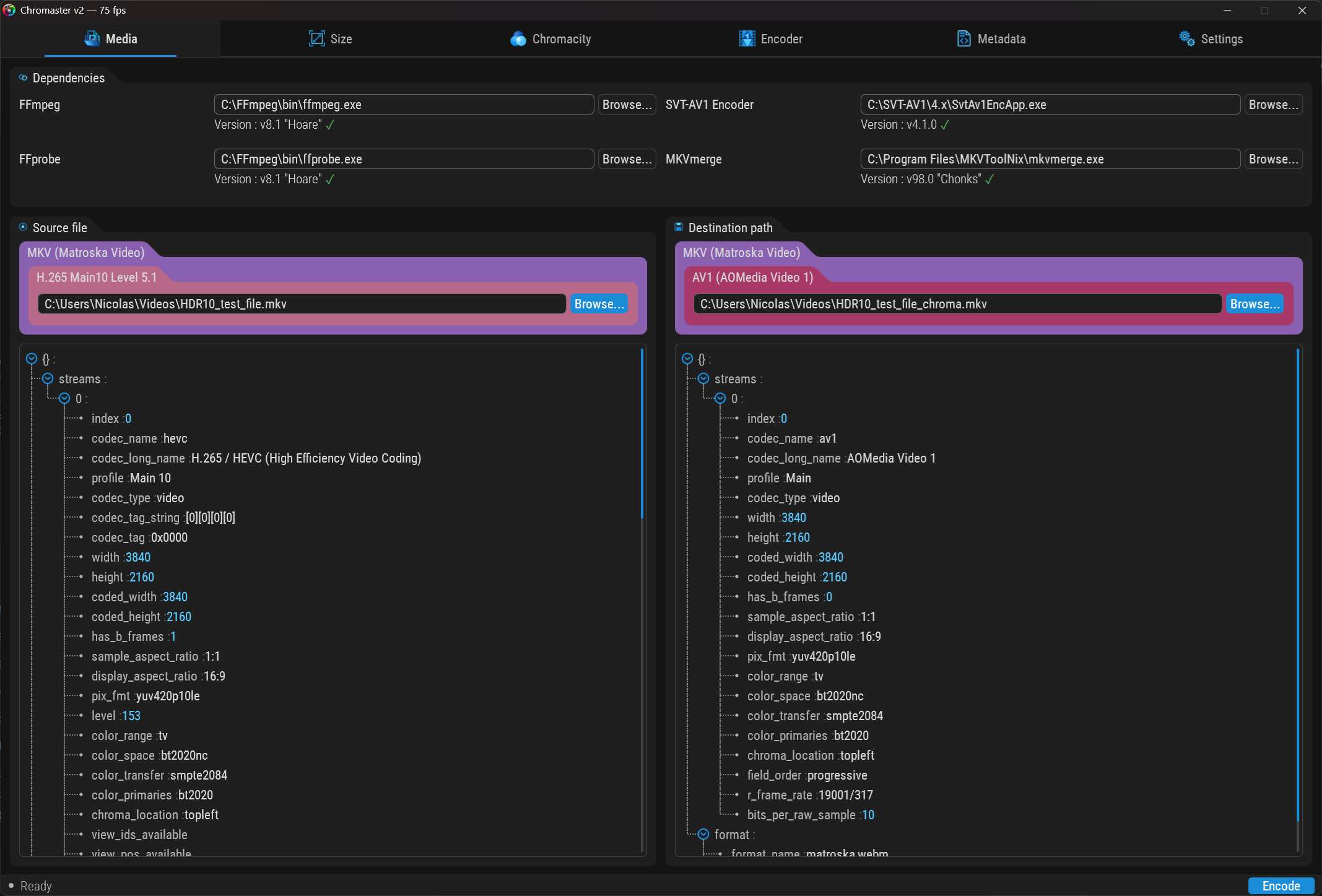
  • This tab is the equivalent of MediaInfo on steroids : Full JSON tree view of source & destination streams — every field, every flag, nothing hidden
  • Source codec, profile, resolution, pixel format, color space, transfer, primaries, frame rate, field order — all visible at a glance
  • Destination shows the actual AV1 output with all encoding parameters
  • Dependencies version-checked at startup: FFmpeg, SVT-AV1, FFprobe, MKVmerge
  • Update notifications when a newer version is available
  • Color-coded container & codec badges : MKV, MP4, WebM, IVF, and so ono each have their own color. Same for codecs (H.265, AV1, HEVC…). Spot your format instantly without reading a single label.

2. Crop — Detect, trim, visualize

Not just a rectangle overlay. A perspective trapezoid showing each edge being trimmed, with directional controls and x2–x32 zoom.

Black bar detection

  • Automatic detection — pixel-level scan on source thumbnails
  • Configurable black threshold slider (how dark is “black”)
  • Aspect ratio presets — Native, 16:9, 21:9, 2.39:1, 4:3, 1:1
  • Symmetric crop toggle — lock left/right and top/bottom margins together
  • Input vs Output resolution displayed — see the exact dimensions before and after cropping
  • Status bar reports detection result in real-time

Three visualization methods

  • Chunk — zoomed source image, pixel by pixel. See the actual content being removed.
  • Average — average color per row/column. Instantly reveals banding or color shifts at edges.
  • Peak — brightest pixel per row/column. Catches hot pixels and encoding artifacts at frame borders.

3. Smart Algorithm Selection — Tell it what you want, not what to use
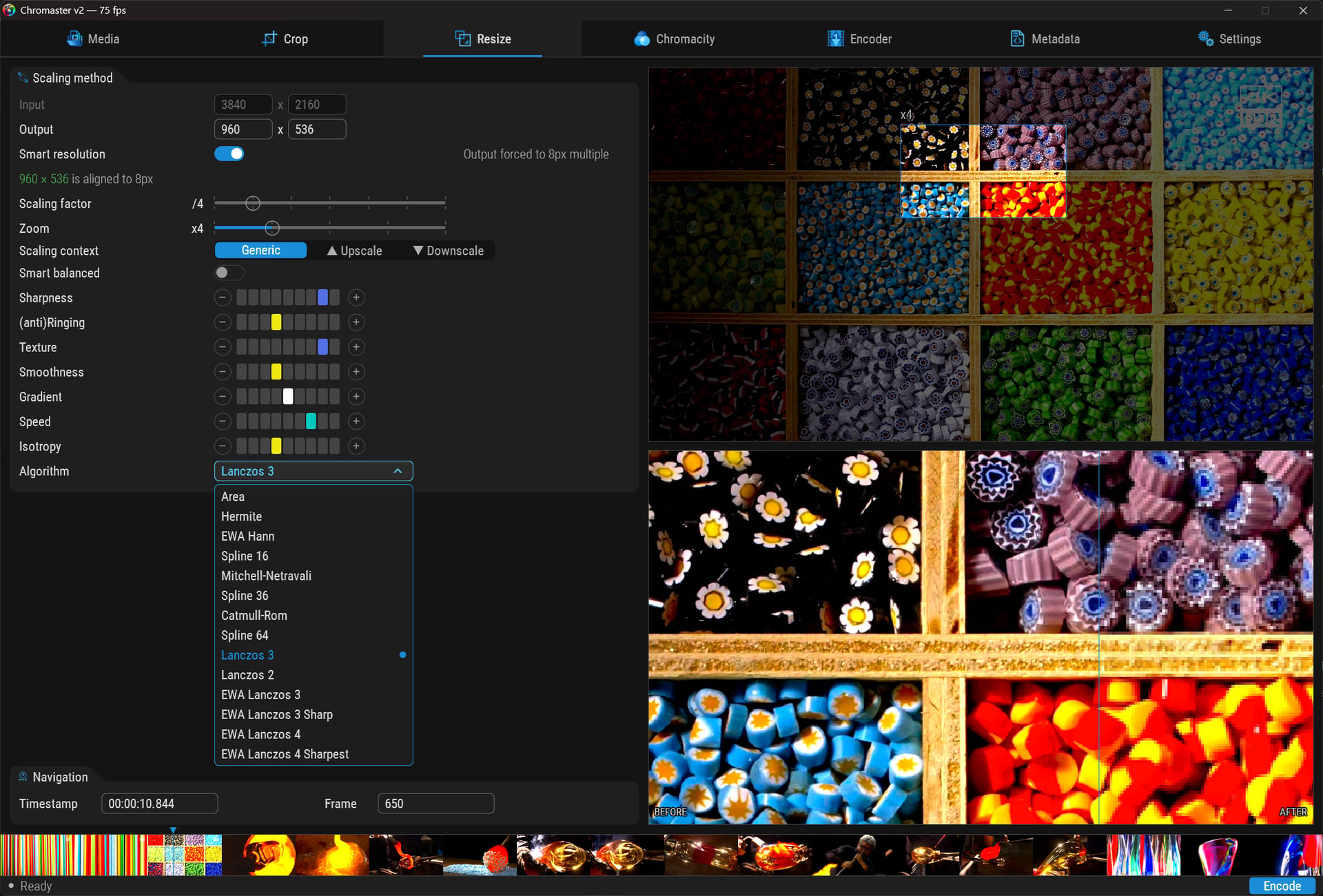
This one doesn’t exist anywhere else.

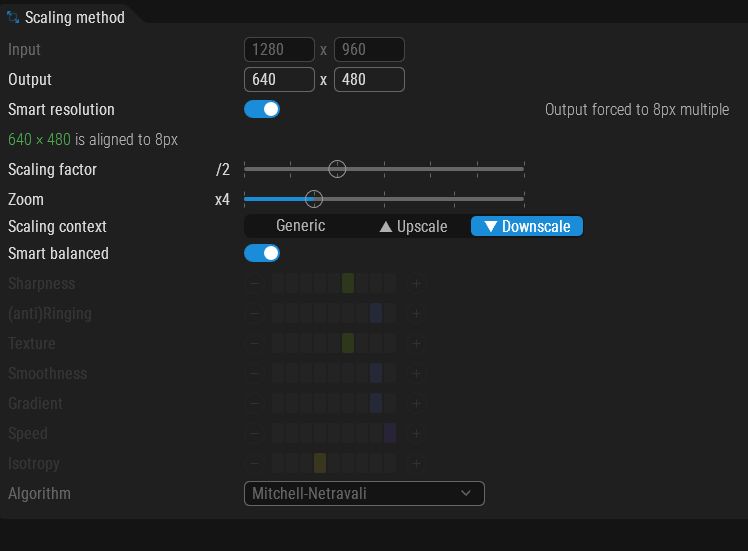
The idea: stop reading academic papers to figure out Lanczos vs Spline36 vs EWA. Instead, describe what you care about using 7 visual score bars:

  • Sharpness
  • Anti-ringing
  • Texture preservation
  • Smoothness
  • Gradient handling
  • Speed
  • Isotropy

Chromaster cross-references your priorities against 14 scaling algorithms — from Area and Hermite all the way to EWA Lanczos 4 Sharpest — across 3 context modes:

  • Generic — general purpose
  • Upscale — optimized for enlargement
  • Downscale — optimized for reduction

Result: automatic best-match recommendation. No guesswork.

Smart Resolution

  • 8px alignment enforcement — output dimensions automatically adjusted to codec-compatible multiples
  • Visual validation: “960 x 536 is aligned to 8px”
  • Prevents encoding failures from misaligned resolutions

Zoom Preview + Before/After

  • Draggable selection rectangle on source frame
  • x2 to x32 magnification
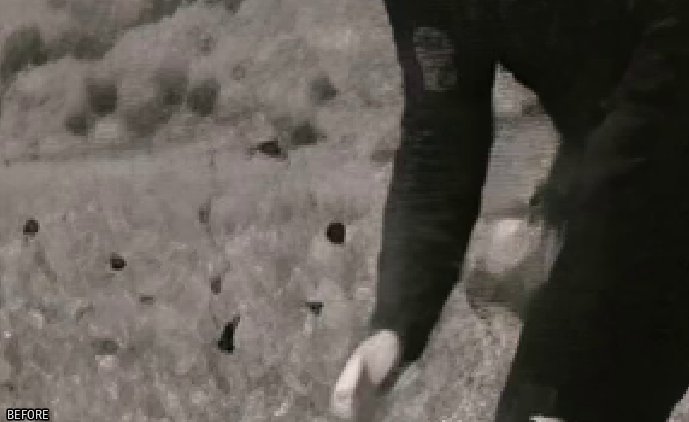
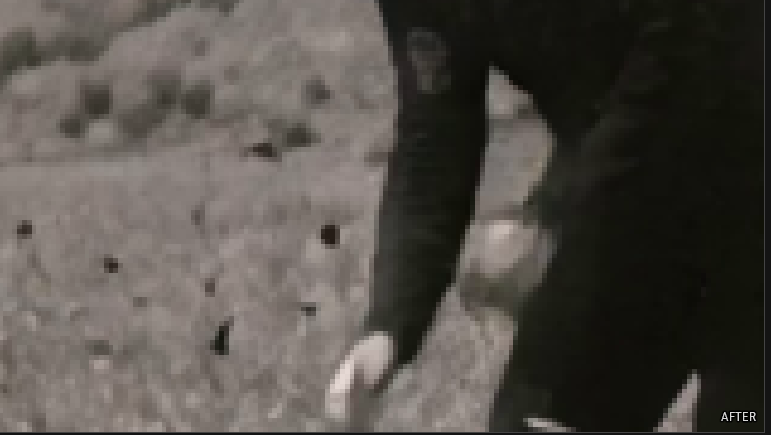
  • Live BEFORE/AFTER split — left = source (nearest-neighbor), right = processed (linear interpolation)
  • Pixel-level comparison in real-time

Thumbnail Strip

  • Dynamic thumbnail generation across the full timeline
  • Click any thumbnail to jump to that frame instantly
  • Timestamp + frame number navigation bar
  • All of this in a 750 KB application. No preloaded cache, no bloated asset pipeline.

4. HDR Chromaticity — CIE 1931, live, interactive

CIE 1931 Gamut Diagram

  • Real spectral locus, drawn pixel-perfect on CPU framebuffer
  • Source & destination gamut triangles (BT.709 / BT.2020) with labeled primaries
  • Multi-pass diffuse glow on labels
  • Not a static image — rendered in real-time every frame

Saturation Graph

  • Full-timeline saturation analysis
  • Spot chroma clipping or gamut excursions before encoding

Colorimetry Panel

Every HDR parameter exposed and editable:

  • Primaries, transfer function (with human-readable description: “SMPTE ST 2084 (PQ/HDR10)”), matrix coefficients
  • Color format, color range (“Limited 16-235” / “Full 0-255”), bit depth, chroma position
  • Mastering display metadata — R, G, B, White Point, Luminance with parsed color-coded coordinates (x=0.64 y=0.33 etc.)
  • Mismatch warnings — source says BT.2020 but transfer is BT.709? Flagged immediately.

5. Luminance & Scene Intelligence
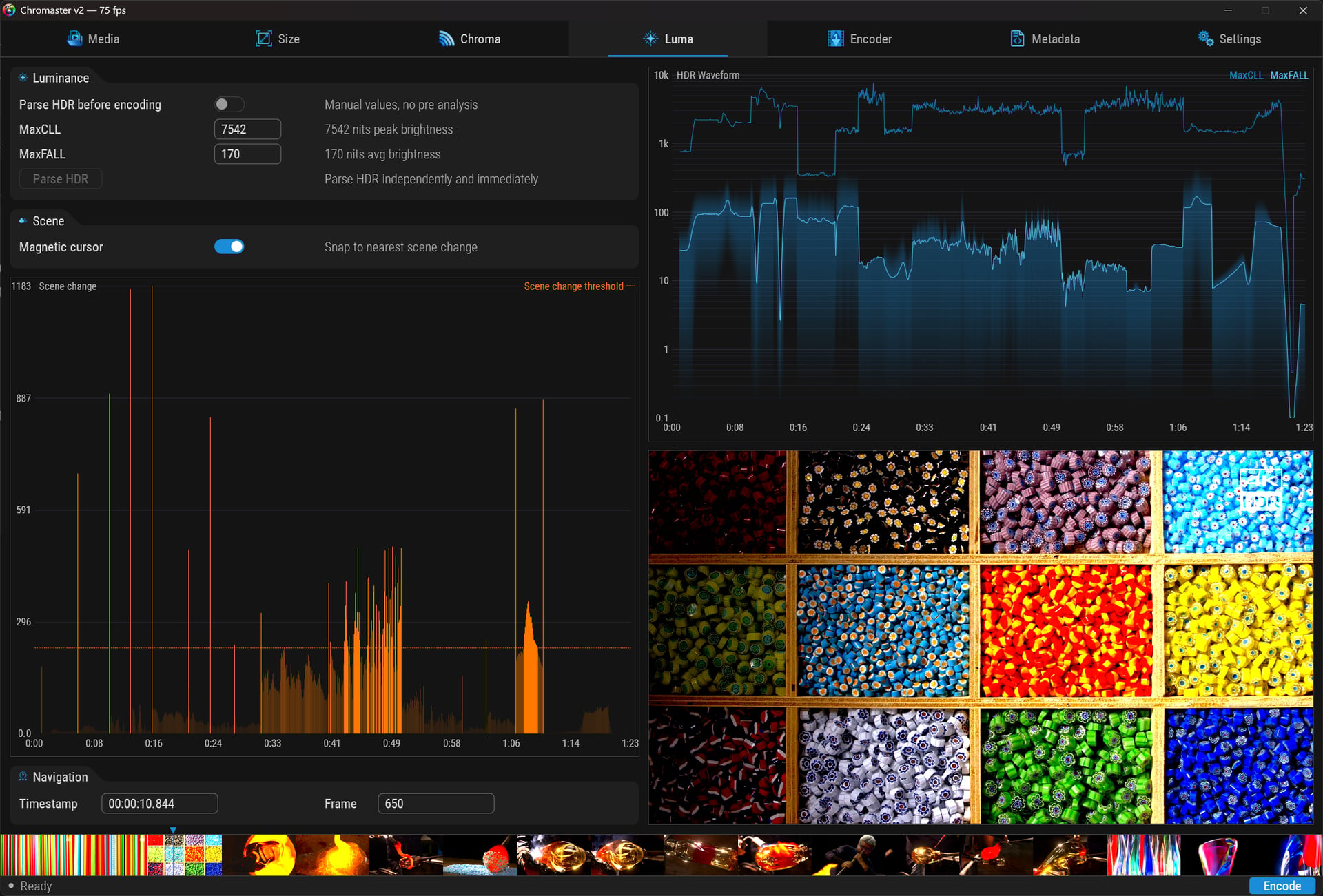
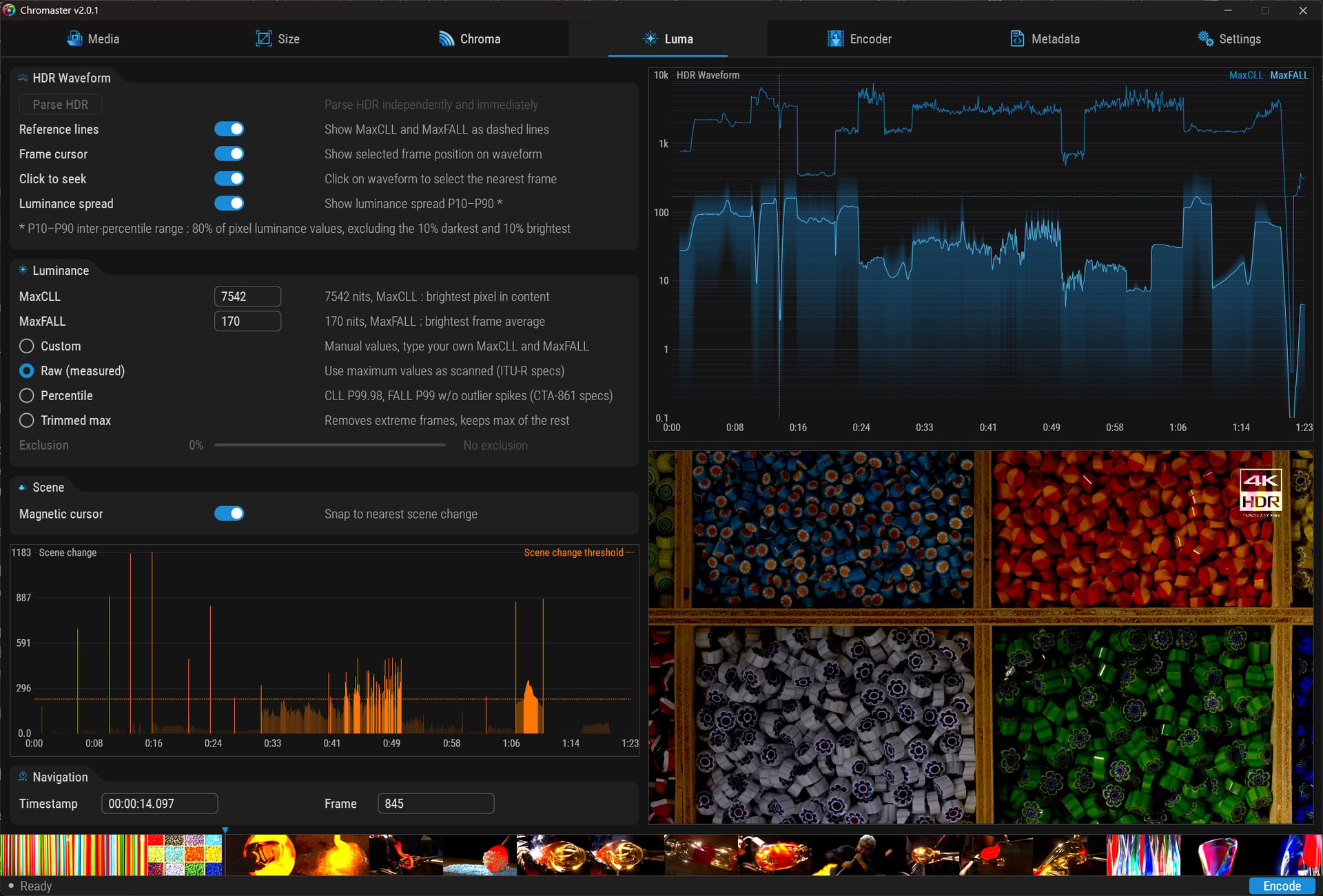
HDR Waveform

  • Logarithmic scale, 0.1 to 10,000 nits
  • Per-frame luminance map across full timeline
  • MaxCLL and MaxFALL reference lines
  • Rasterized scanline-by-scanline on CPU framebuffer — not a simple histogram

HDR Parsing

  • Parse HDR before encoding toggle — automatic pre-analysis or manual values
  • Parse HDR button — trigger analysis independently and immediately, no need to start an encode
  • Human-readable descriptions: “7542 nits peak brightness”, “170 nits avg brightness”

Scene Change Detection

  • Frame-level granularity across full timeline
  • Scene change threshold reference line
  • Magnetic cursor — snaps to nearest detected scene boundary
  • Essential for tuning lookahead, temporal filtering, keyframe placement

6. Full SVT-AV1 Encoder Control

Every SVT-AV1 parameter, organized into logical groups with human-readable annotations:

  • Rate control — CRF / VBR / CBR / CQP with adaptive quantization
  • Encoding target — preset (14 levels from “Slowest, uber quality” to “Fastest”), CRF, QP, max bitrate, target bitrate, MBR overshoot
  • Motion — scene change detection (“Adaptive keyframe insertion”), lookahead, temporal filter, hierarchical levels, startup MG size
  • Variance — variance boost (“Boost complex regions”), strength, octile, alternate boost curve
  • Psychovisual enhancement — tune (VQ/PSNR/SSIM/IQ/MS-SSIM), QP scale compression, AC bias (“Moderate HF preservation”), max TX size, adaptive film grain
  • In-loop filtering — CDEF (“Edge ringing reduction”), restoration (“Adaptive detail recovery”), deblocking, sharpness
  • Quantisation matrix — perceptual weighting with min/max luma & chroma controls

Every slider: current value + description. “Temporal filter strength: 3 — Strong.” No documentation lookup needed.


7. Metadata — Total traceability
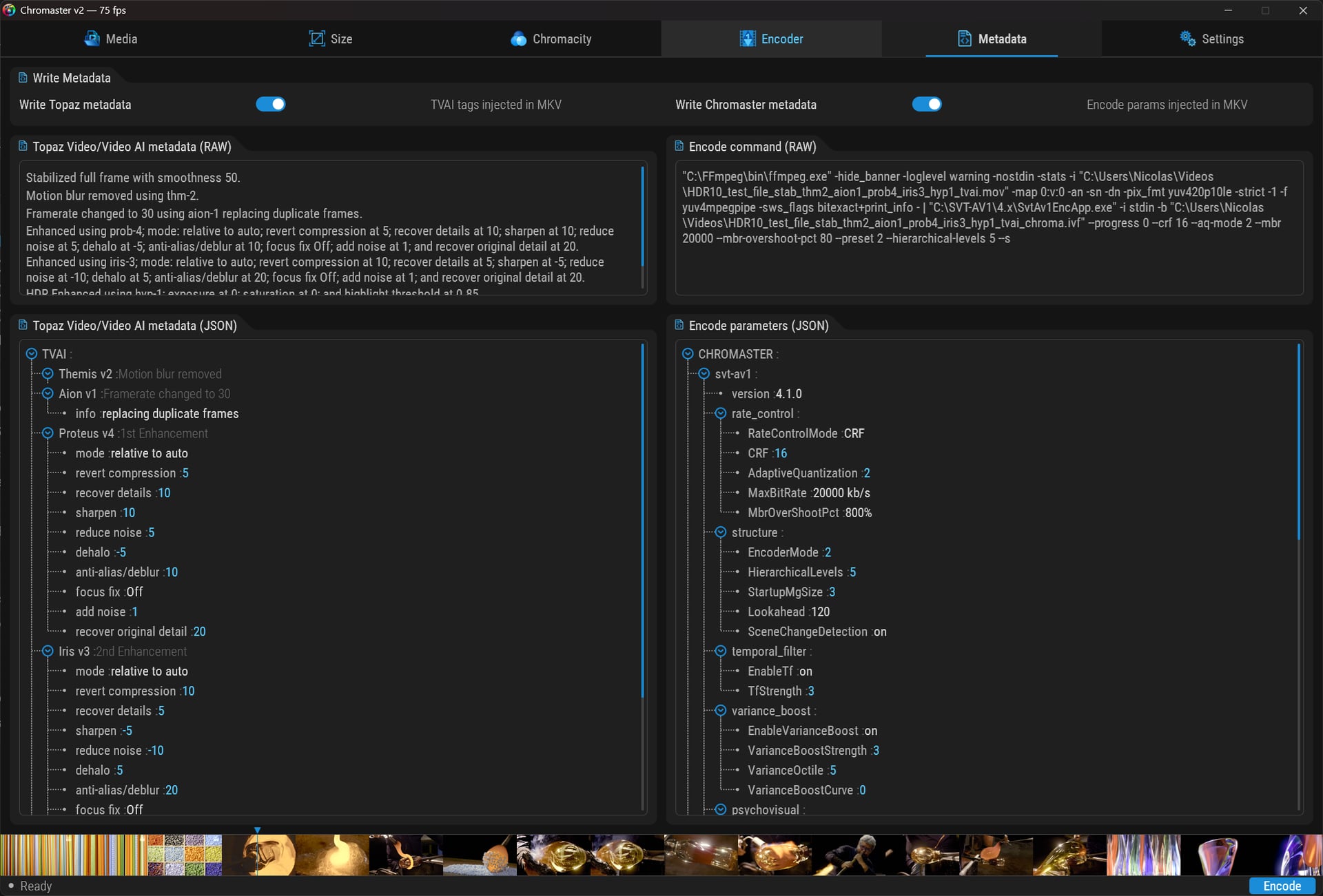
This is where Chromaster becomes a forensic tool.

Write Metadata

  • Write Topaz metadata toggle — TVAI processing tags injected directly into MKV
  • Write Chromaster metadata toggle — all encoding parameters injected into MKV

Four panels of truth

  • TVAI metadata (RAW) — the exact processing pipeline in plain text: models used, every parameter, every enhancement pass
  • TVAI metadata (JSON) — structured tree view: Themis v2, Aion v1, Proteus v4, Iris v3… each with full parameter breakdown (mode, revert compression, recover details, sharpen, reduce noise, dehalo, anti-alias, focus fix, add noise, recover original detail)
  • Encode command (RAW) — the full FFmpeg command line that will be executed. Nothing hidden.
  • Encode parameters (JSON) — structured tree of every Chromaster/SVT-AV1 parameter: version, rate control, structure, temporal filter, variance boost, psychovisual…

Bitrate in stream name — the output video stream is titled “AV1 20000”, so you can identify encodes at a glance in any media player.


8. Settings — CPU topology & application control

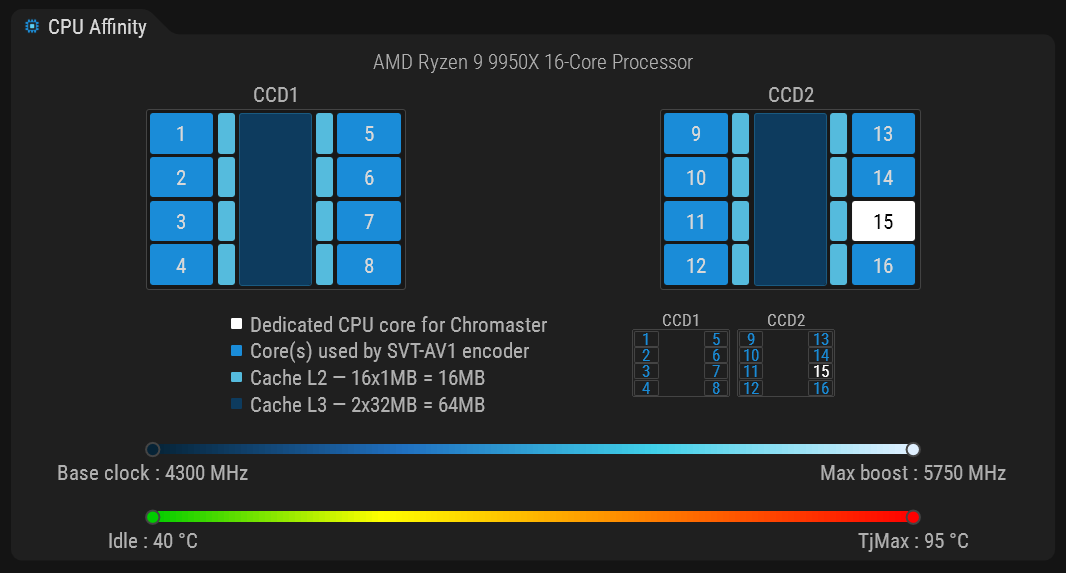
CPU Affinity

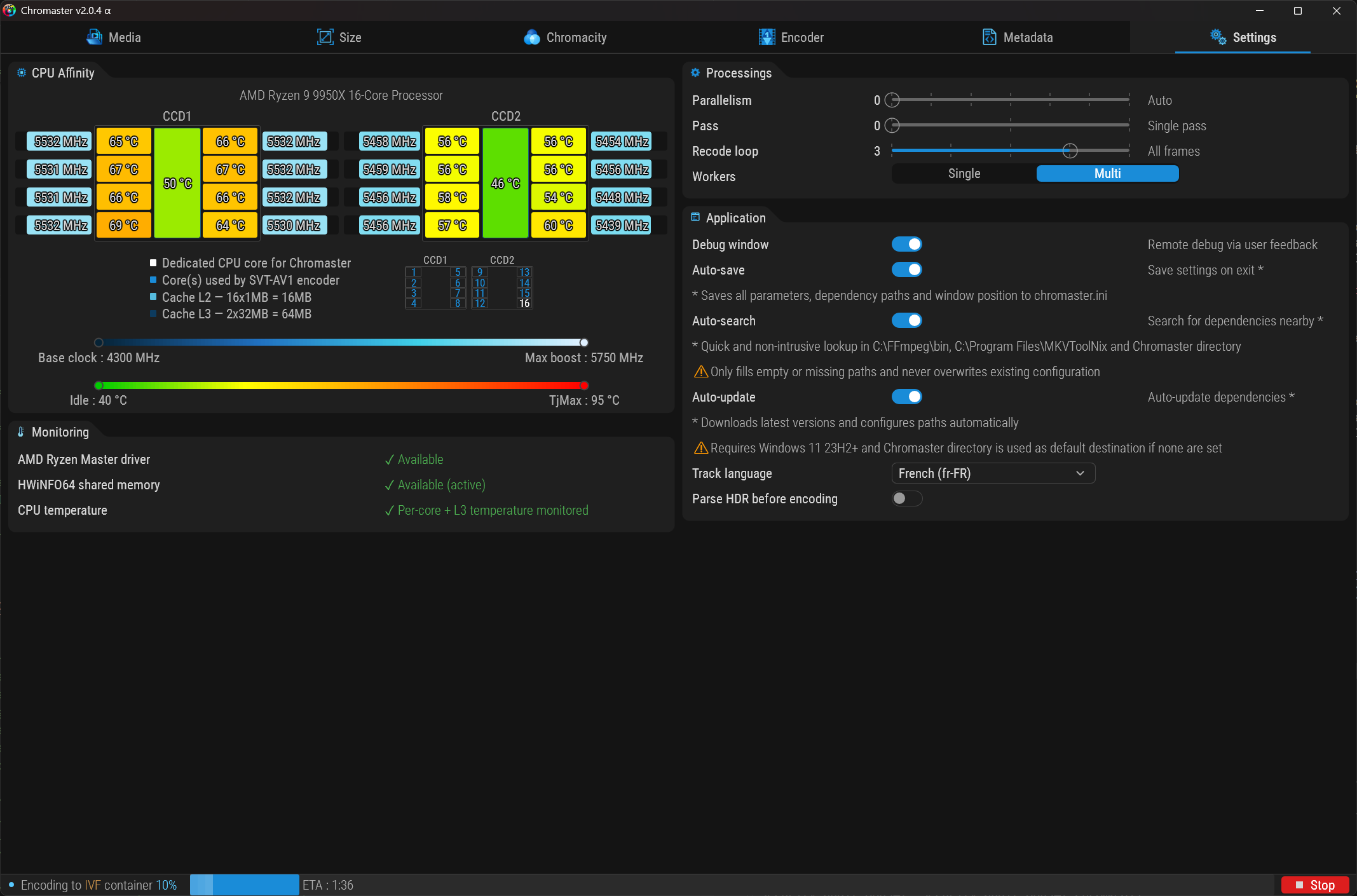
  • Visual AMD Ryzen topology — CCD1/CCD2 layout with individual core numbering and L3 cache sizes
  • Per-core assignment: click a core to assign Chromaster, remaining cores become workers
  • Workers mode: Single / Multi
  • Automatic CPU detection (AMD Ryzen 9 9950X 16-Core shown)

Processings

  • Parallelism — auto or manual thread control
  • Pass — single-pass or multi-pass encoding
  • Recode loop — from off to all frames

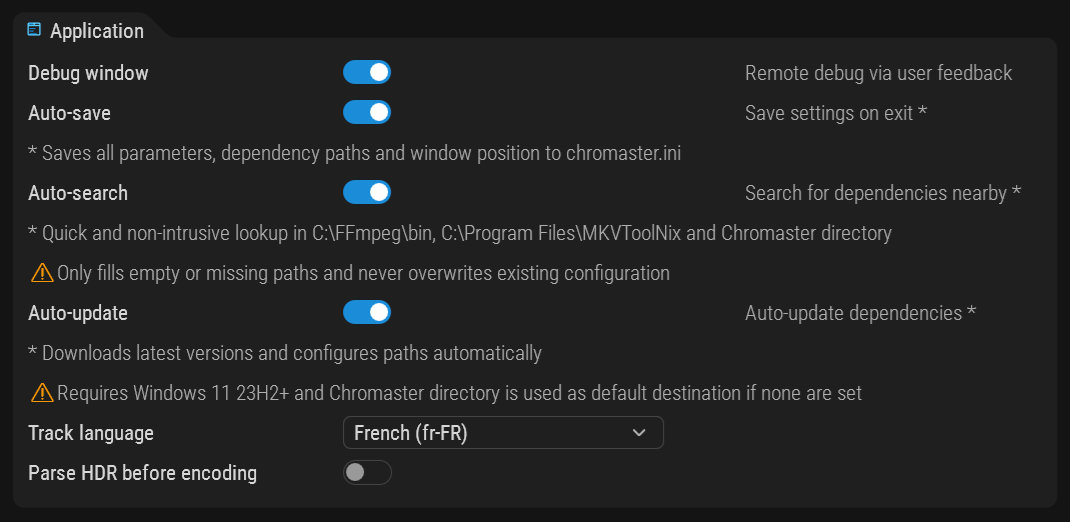
Application

  • Debug window — remote debug via user feedback
  • Auto-update — update dependencies automatically
  • Auto-search — search for dependencies nearby
  • Track language selector — set output track language (French, English, etc.)

9. Expandable Tab Bar

One more thing. The tab bar uses expandable parent tabs — “Size” expands into Crop + Resize, “Chromacity” expands into Chroma + Luma. Animated transitions, dynamic width reallocation, zero layout jank. Clean navigation across 8 content tabs in 6 visual slots.


10. Under the hood

Render engine

  • Plain C — gcc MinGW-w64 x64
  • Direct3D 11 — swap chain, texture upload, present
  • Direct2D — anti-aliased widgets, rounded corners, native AA
  • DirectWrite — subpixel text rendering
  • CPU framebuffer BGRA8 — graphs rasterized column by column, pixel-perfect, zero API overhead
  • Per-monitor DPI aware — adapts to any display scaling (100%, 125%, 150%…), positions and dimensions scale, stroke widths stay crisp

Zero GDI+. Zero garbage collection. Zero magic numbers in the entire codebase.

Built for TVAI workflows

  • Human-readable JSON model files — clean, documented, diffable, version-controllable. No binary blobs.
  • ITU-R BT.2100 HDR10 compliant output — correct SMPTE ST 2086 mastering display metadata, MaxCLL/MaxFALL, BT.2020 primaries, PQ transfer. No more broken HDR flags.
  • Full metadata injection — both TVAI processing history and Chromaster encoding parameters embedded in the output MKV.
  • Bitrate in stream name — identify encodes at a glance in any media player or inspection tool.

Code quality

  • Automated review passes on every change
  • Sanity checks and security audits
  • Optimization passes before release
  • Built-in debug window with real-time telemetry
  • 22+ custom widgets, each validated individually before integration

11. What’s coming next

  • Intel CPU widget — hybrid architecture aware, exploiting P-cores and E-cores separately for optimal worker distribution
  • HDR10+ and Dolby Vision output construction — dynamic metadata, not just static HDR10
  • Additional codecs:
    • H.266 / VVC via VVenC — the successor to HEVC. Half the bitrate, same quality. You read that right.
    • AV2 — next-gen AOMedia codec, day-one support planned
    • Apple ProRes — intermediate mastering format
    • FFV1 — lossless archival codec for intermediate mastering workflows


12. Download & requirements

Platform

  • Windows 10/11 x64

Dependencies (bundled separately)

Chromaster auto-detects installed tools and checks versions at startup. Enable Auto-search in Settings to locate them automatically.

Download

Chromaster v2.0.0 — single portable .exe, ~540 KB. No installer.

Status

Chromaster v2.0 — active development. Render engine, all widgets, full tab layout: functional. Working toward first public release.

One developer. No team.
Built because the tool I needed didn’t exist.
Now, the human at the keyboard.

If you want to download pre-compiled SVT AV1 directly, use this link or this page:

The same goes for FFmpeg; I use the gyanDev build, which is always the most up-to-date.

https://www.gyan.dev/ffmpeg/builds/ffmpeg-git-full.7z

The application requires FFmpeg 8.1 or later, as Claude Mythos discovered vulnerabilities in the previous version.

Regarding MKVmerge: it needs no introduction.

This is an alpha release: With so many features and no beta testers other than myself, it’s inevitable that some bugs will remain. Any feedback will be greatly appreciated.

All feedback is welcome, whether it concerns the GUI, features YOU’VE dreamed of, etc. I can add them if necessary.

Published only here! This application aims to be the ultimate power tool to use with Topaz Video or Video AI.

Also, please note that the application has undergone rigorous vulnerability testing with multiple AI models and advanced expertise.

I am not publishing the code at this stage to further minimize any potential attack surface.

that sounds amazing. will look at it once i have some spare time!!

That’s great! I’ll give it a shot.


Luma Tab — Redesigned leading to Chromaster 2.0.1

The Luma tab has been significantly redesigned. Here’s what’s new.

HDR Waveform — Now Fully Interactive

  • Click to Move: Click anywhere on the waveform to jump to the corresponding image. Click on the band: the waveform cursor follows you. The waveform and band are now perfectly synchronized: two entry points, same timeline.

  • Image Cursor: Displays the position of the selected image directly on the waveform graph.

  • Reference Lines: Toggle the display of MaxCLL and MaxFALL as dotted lines on the waveform.

  • P10–P90 Luminance Distribution: View the interpercentile range of 80% of pixel luminance, excluding the darkest and brightest 10%. Instantly see your luminance distribution, not just the extreme values.

HDR Attenuation — Four Modes for MaxCLL/MaxFALL

Instead of a single button, Chromaster now offers four strategies for calculating your HDR metadata:

  • Custom — Manual values: Enter your own MaxCLL and MaxFALL values.

  • Raw (Measured) — Uses the maximum values ​​from the scan, according to ITU-R specifications.

  • Percentile — CLL P99, 98, FALL P99 without outliers, according to CTA-861 specifications.

  • Trunculated Maximum — removes extreme images and retains the maximum of the others.

Custom leads to an exclusion slider to control the degree to which outliers are removed (0% = no exclusions).

This is important because raw MaxCLL values ​​are often inflated by a few extraneous images. The Percentile and Truncated Maximum modes allow you to generate compliant HDR10 metadata that accurately reflects your content, not noise.

This provides you with better guidance for your choices, with the added bonus of the option to follow CTA-861, more specifically used by studios, or ITU-R for rigorous mathematical accuracy.

Hello and thank you for your app which I struggle to use.

I’m stuck at the SvtAv1EncApp.exe downloading, can’t find precompiled one.

Found one here, but not sure if is this the right one:

Hi,

This is a fork. I can’t claim it’s better or worse, but I’ve focused this project on the main branch. There are so many forks of SVT-AV1 around that it’s impossible to keep up with each one.

Moreover, thanks to their success, the main branch adopts all the functionality brought by these forks much more quickly.

Download SVT-AV1 main branch

Browse the TAR.ZST to \ucrt64\bin and catch the EXE SvtAv1Enc.exe

Thank you!

Knowing that downloading or searching for dependencies is a pain (I’m the first to hate doing it), I’m coding the auto-update part right now. :grin:

Chromaster v2.0.2 — Zero-config dependency management

No more manual downloads. Toggles in Settings are now fully operationnal and handle everything:

Auto-save

  • Saves all parameters, dependency paths and window position to chromaster.ini on exit
  • Turn it off and your changes are discarded when you close — useful for experimenting without consequences
  • The toggle state itself is always preserved, so Chromaster remembers your choice either way

Auto-search

  • Scans C:\FFmpeg\bin, C:\Program Files\MKVToolNix and Chromaster current directory
  • Only fills empty paths, never overwrites existing config
  • Non-invasive search across your entire PC! Therefore, it may be incomplete.
  • If several valid paths are discovered, the one with the newest dependency is used.

Auto-update

  • SVT-AV1 from MSYS2 ucrt64 (a repository known to be reliable and kept up to date)
  • FFmpeg / FFprobe from gyan.dev release builds (the most complete and perfectly maintained build)
  • MKVmerge from MKVtoolnix download portable (official page, no alt.)
  • Downloads, extracts and configures paths at startup
  • Requires Windows 11 23H2+

Status bar feedback

The status bar keeps you informed at every step:

  • Lists exactly which dependencies are missing by name
  • Suggests enabling Auto-search and Auto-update if they’re off
  • Shows live progress during dependencies downloads (“Downloading latest version of FFmpeg”)
  • Green confirmation when a dependency is successfully updated
  • Red alert if a download fails
  • Automatically switches to the Settings tab at startup when dependencies are missing

First launch or early adopter ? Enable these toggles and let Chromaster do the rest.
You are totally free to fine tune them later

NOTE If not said : All StatusBar messages have a display expiration duration tied to their reading length, then disappear — except for critical ones.
BTW I can stack several messages or queue them for best experience.

NOTE2 : I noticed Defender tagged as usual this EXE as maybe harmfull for your PC. This is as an evidence absolutely wrong. I didn’t used yet any certificate to validate my work : this is a costy process, reason one Defender panics as usual …
I put security, memory leaks, vulnerabilties and confidentiality on my TOP priorities.

Download Chromaster v2.0.2

Chromaster v2.0.3 — Real-time CPU monitoring during encode

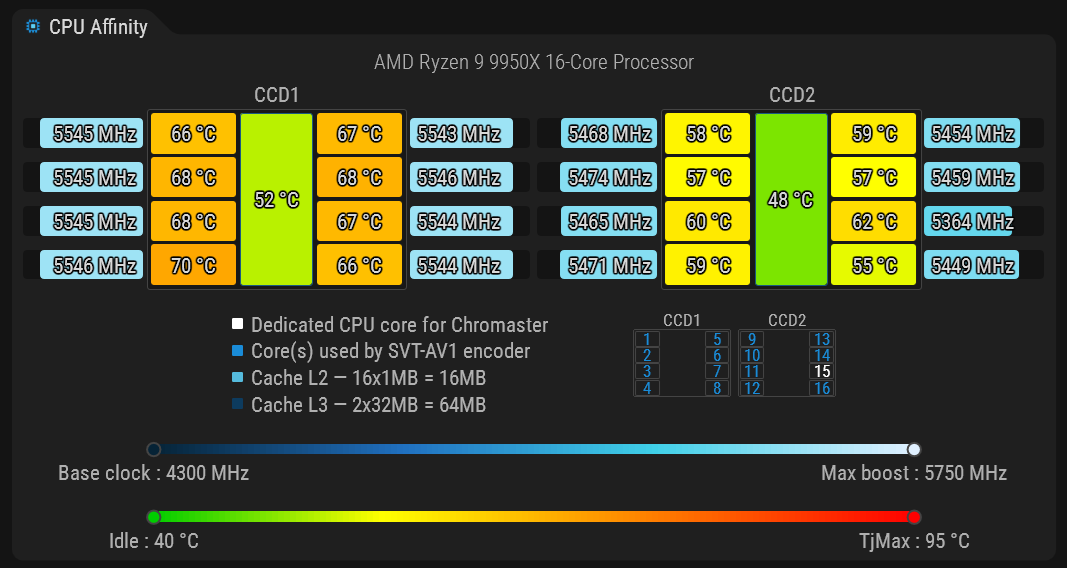
The Settings tab now features a full per-core CPU widget that comes alive during encoding

Widget while not encoding, to set your preferences

Widget while encoding, showing per core frequency and temperature

Frequency monitoring

  • Per-core MHz readout in real time via native Windows API
  • Gradient from base clock to max boost, calibrated automatically from your BIOS settings via SMBIOS
  • No guesswork : the scale adapts to your actual silicon, whether stock or overclocked

Temperature monitoring

  • Per-core and per-L3 cache temperature via HWiNFO64 shared memory
  • Gradient from idle (40 °C) to TjMax (95 °C) with balanced color stops to keep yellow visible
  • HWiNFO integration is fully automatic : Chromaster detects and enables shared memory on its own
    NOTE : Shared memory Support" is 12 hour active on free version, perm. on licensed

CCD layout

  • Physical die topology with CCD1/CCD2 separation
  • Cores dedicated to Chromaster vs cores used by SVT-AV1 clearly identified
  • Mini die reference map for core numbering
  • Cache hierarchy shown: L2 per core, L3 per CCD

This widget will therefore allow you to better understand your CPU’s capabilities during encoding, assign the worst core to Chromaster and DWM (which are not very demanding) and leave the best ones for encoding, control the thermal envelope for a maximal core boost and thus reduced encoding time, and visualize the strain on cores or L3 cache depending on your presets.

Download Chromaster v2.0.3

Thank you for the helpful application, but it doesn’t fit on a 1080p screen, so the encode button isn’t visible. It seems you designed it according to your own screen dimensions; we won’t be able to use it unless you fix this. It would also be better if you placed the encode button at the top.

No, I specifically designed it to be suitable for at least a 1080p screen.

I also (supposedly) took DPI scaling into account.

Since I don’t have a screen of that type, I had to work from a theoretical perspective, but obviously my proportions were wrong, and I admit I haven’t set up a virtual machine. :confused:

I’ll fix that immediately.

Regarding the button, I imagine that if the application fits on your screen, the problem becomes less of an issue, right?

I positioned the button so that it’s accessible regardless of the tab being viewed, for easy launching.

I also see a bug with the dependency path, it should be truncated with […] inside the string chain

As specified, this is alpha stage and I am cleraly ready to ear any bad experience :slight_smile:

I would be very grateful if you could add another setting, lossless (placebo). It doesn’t matter if it’s slow, what matters is that it performs the process without loss. So, instead of having to adjust these settings, it would be easier if you could do it all without loss using a single setting.

Thx.

It’s set to 1080p full screen, but unfortunately the encode button isn’t visible because it’s hidden under the start bar. Therefore, you need to resize the screen. Also, it would be better if you didn’t disable the screen resize option; we could have changed the dimensions ourselves.

Thanks for the suggestion!

Lossless encoding is technically possible with SVT-AV1 — it’s a native feature of the codec using --qp 0 --lossless 1. Be aware though that output files will be significantly larger since every pixel is preserved mathematically.

When lossless is enabled, SVT-AV1 automatically disables everything related to perceptual optimization: (about everything in right column)

  • Rate control (CRF, VBR, CBR — all bypassed)
  • Adaptive quantisation
  • Variance boost
  • Temporal filtering
  • Adaptive film grain
  • In-loop filtering (CDEF, Restoration)
  • Quantisation matrices

Only structural and speed parameters remain active: preset, parallelism, GOP structure, lookahead, scene change detection, and of course HDR metadata passthrough.

I’m planning to add an encoding profiles group in the Encoder tab — a set of presets covering common use cases like quality, speed, format-specific, and Placebo (lossless). This way you’ll be able to switch to lossless with a single click without worrying about which parameters to adjust manually.

Don’t forget to add a “no sound” feature. For example, I upscale videos without sound, and after all the processing is finished (I clean the sound separately), I combine the sound with the video in the video editor and render it during editing. Therefore, a “no sound” button would be useful; lossless, sound-free output is very important for me and many people. Also, another setting would be very helpful: output the video as a full file and divided into 1, 2, or 3-minute segments. For example, I divide videos into 3-minute, 15-fps segments. If this feature were also included in the output, it would be ideal, allowing for lossless output and sound selection based on both minutes and fps.

Thanks for the detailed feedback!

No sound — Good news, Chromaster already encodes video only. Audio is handled separately during the final merge step (via MKVmerge). I’ll add a simple toggle to skip audio merging entirely, so you get a clean video-only output without any extra steps.

Lossless — Already on the roadmap. I’m working on encoding profiles (quality, speed, lossless/placebo) that will let you switch to lossless with a single click.

Segment splitting and FPS changes — I can integrate a start/stop point selection (trim) to encode a specific portion of your source. Splitting into multiple segments and framerate conversion could be considered down the road, but honestly can’t prioritize it — these are tasks better handled by dedicated editing tools like LosslessCut or your NLE. Chromaster’s focus is on fine-tuning the SVT-AV1 encoding pipeline — getting the perfect balance between quality, file size and visual precision for your specific needs.

Stay tuned for the next release very soon !

Chromaster v2.0.4 α — Update


Encoding Templates

  • New “Template” group in the Encoder tab
  • Three segmented controls: Display, Content, Priority
  • Display: OLED, LCD/LED, Proj. LCD, SXRD, Monitor
  • Content: Live action, CGI/Digital, Animation, Film grain, Archive
  • Priority: Extreme, High quality, Balanced, File size
  • Every combination auto-calculates CRF, preset, variance boost, grain, motion, QM and applies to all sliders in real time
  • Color-coded score matrix: 7 columns, green = optimal, red = compromise — instant visual feedback
  • Save/load custom profiles with name, add/delete buttons
  • Detailed description next to each option explaining the tradeoffs
  • Archive forces preset 0 regardless of priority — maximum fidelity ~placebo, encode time is irrelevant

CPU Temperature Monitoring

  • Per-core temperature displayed live on the CPU Affinity widget
  • Green-to-red gradient: idle (40°C) to TjMax (95°C)
  • Two sources, auto-detected:
    • HWiNFO64 shared memory — per-core + L3 cache + CCD Tdie, no admin needed
    • AMD Ryzen Master driver — per-core via official AMD SDK, requires admin
  • L3 cache temperature shown between the two CCDs
  • New “Monitoring” group in Settings: shows AMD driver status, HWiNFO status, and active temperature source
  • One-click “Restart as admin” when AMD driver is available but admin rights are missing

Auto-Update Dependencies

  • Automatic download and setup of FFmpeg, FFprobe, SVT-AV1, MKVmerge
  • Official sources: gyan.dev, MSYS2 ucrt64, mkvtoolnix.download
  • Startup check for missing dependencies with setup recommendation
  • Toggle in Settings: Auto-search + Auto-update

Encode Button & Safety

  • Red record icon on idle, red “Stop” button during encode
  • Out of memory detection: clear guidance to adjust Parallelism
  • Input clamping: lookahead ≤ 120, bitrate ≤ 100,000, crop within source bounds
  • Status bar feedback on every clamp

Windowed & Expanded Mode

  • F11 or maximize button toggles between 1600×1032 (Windows 11 @ DPI 100%) and expanded
  • Expanded: full screen height, aspect ratio preserved, centered
  • State saved in .ini, restored at startup

Alpha Expiration

  • 40-day expiration to encourage staying current ★
  • Popup with link to GitHub when expired
  • Will be removed in stable release

Download v2.0.4 α

★ Why the alpha expires ?

Chromaster is under heavy active development. Encoder parameters, safety checks, and dependency handling change frequently. Running an outdated alpha means running with known bugs, potential data loss, and missing safety guards. The 40-day window ensures everyone benefits from the latest fixes without manual version tracking. This mechanism will be removed once Chromaster reaches stable release. STILL FREE, still same location.

Thanks for the quick work.
The F11 key really worked, but it would be better if you made the GUI size 10% smaller; currently, it still goes to the edge of the screen when not in full screen at 1080p.

In the old version, when I selected 50% reduction in full quality, it showed almost lossless quality, but now when I select Archive and Extreme quality, there is a noticeable loss in the preview for some reason.