My preview always gets to 99% and then just ‘hangs’, every time.
So far, after 3 years, I have not been able to get even a single video reproduced into any acceptable form. Even when something works, the results are always full of ‘artifacts’ that make the video ‘worse’ than the original.
However, with the photo app, the results are very good, except for conversion and improvements to photos that were taken in poorly lit conditions.
For videos, I have to say that the results don’t come even close to the expected results based on the advertised literature and samples, which are greatly ‘hyped up’
Can you send the logs from the Video app to the support team for review as to what is causing the files to not complete? help@topazlabs.com
To gather logs, please select Help > Logging > Get Logs for Support and attach the zip file to your reply.
Hi and thanks for offering help. (the details further down… your request for my Topaz video log files
…
I’ve had this software for 3 years now and want to simply update/improve my Sony Mini cam videos, from Ireland and perhaps my ‘already digitally’ converted 8mm silent films that my dad took years ago (they were digitized by Hollywood professionals only to 60%, at best quality). I want to see if I can improve them.
[ All else is fine for video requirements. My modern Panasonic video camera does very high quality 4K level videos… only the sound quality with wind (despite a built-in wind filter) is sometimes a problem, such as at Hawaii beaches… I recently purchased a discrete microphone, but it hasn’t been tested yet. ]
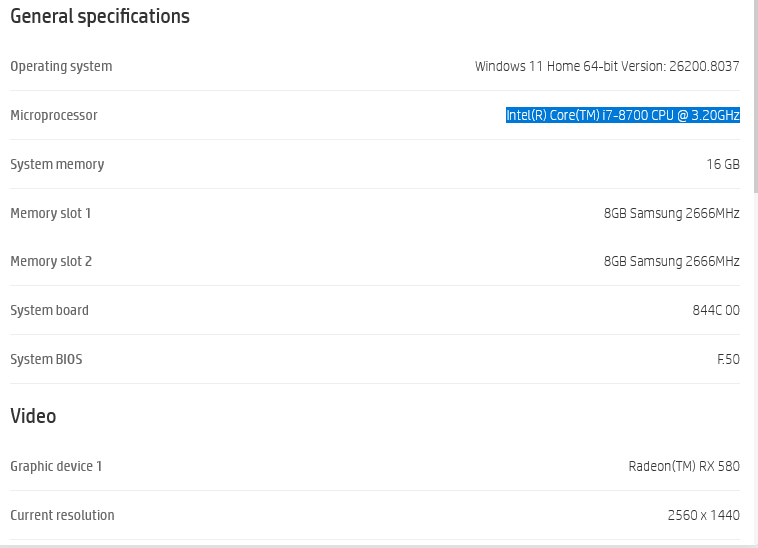
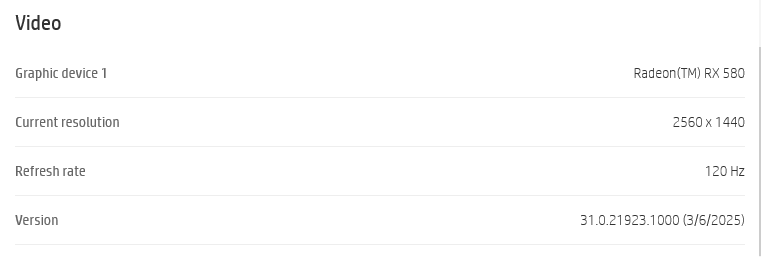
I may be suspecting that my video card needs more power (currently AMD RX580 with 8 Gbit onboard memory… and CPU is an i7 with 16bit memory …
…both included on my purchase of an HP Envy desktop computer, running windows 11;
…
SPECS
As follows:
(attachments)
logsForSupport.zip (35.1 KB)
Thanks for the logs, it looks like an issue with the Stabilization model and the file being written out .
Let’s try creating a new project and bringing the source file into there and then applying just the stabilization model for a pass on it.
Your system having that GPU card is getting overwhelmed when running multiple models in one pass.
Open the Preferences Panel and let’s change the following settings to see if we can help it out.
File>Preferences>Processing
-
Ensure that your GPU is selected for the AI Processor
-
Set the max memory to 80%
-
Set max processes to 1
-
Save the settings and close the panel.
-
Re-run your clip through the process that you were trying.
If you run into an issue again, please send me the updated logs for further review.