I would not be surprised if there’s a line of code in the crop tool that erroneously does not take into account the fact that 720 is the full expanded width.
No conflicts. TVAI only ever uses its own install path. If you open the command prompt from within TVAI, it automatically sets some required session variables.
1 Like
Here are my comments/opinion/findings regarding these updates starting v6.0. I didn’t say anything so far because I didn’t install and kept the updates starting with v5.3.6 due to the VFR issue. I might be the latest but probably not the last one who has something to say about it.
PERFORMANCE
- Speed - While testing v6.0.3b for the VFR bug I discovered that v6.0.3 is way slower than v5.3.6 using exactly the same video with exactly the same settings. A video of 15min2sec was processed by v5.3.6 in 24min54s with 2 enhancements, custom settings, in a single pass (Iris & Proteus). Same video, with the same settings, was processed in v6.0.3 in 34min29sec. That is a huge difference. On the interpolation pass the speed difference is negligible.
- Quality - Zooming in at 200% on one random frame made me notice some almost imperceptible differences in outputs between the 2 versions of the app. Maybe others can do the same test to see if it applies to them too. That is not a deal breaker but it might be worth to mention since I used exactly the same models and I don’t think those have been altered for v6.
GUI
- Preview - I understand the logic of the new preview & tabs reconfiguration, it proves to be quite useful since you have the rendered parts side-by-side.
- Loop - This is a part that I miss, just like others do. Re-implementing that would be great.
- Queue - Accessing that seems to take too long, too many clicks and it doesn’t provide all the information that I would like to see and got used to.
In v5.3.6 and way prior you could hover with the mouse over the input file tile and see the name.
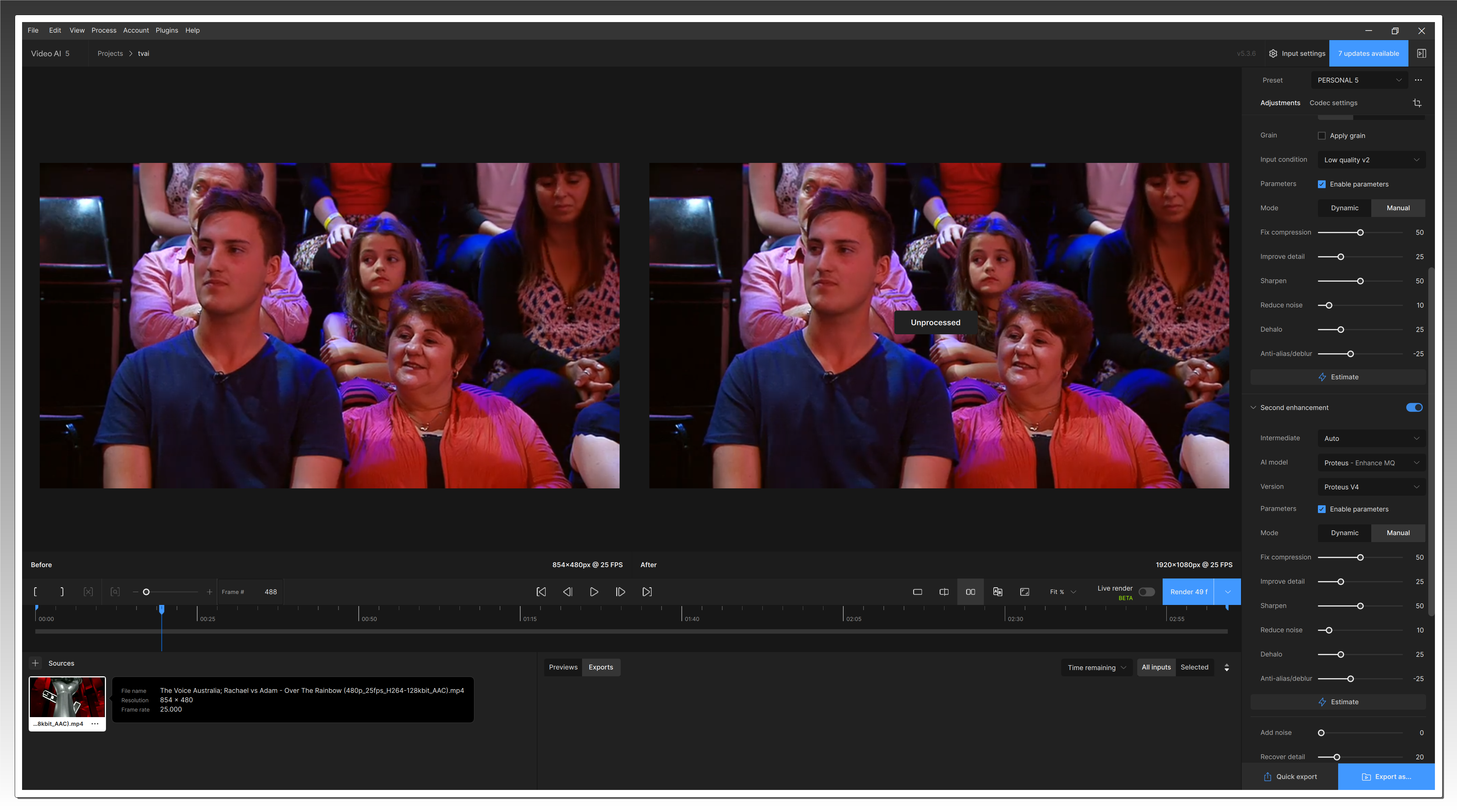
Hovering over the exports in queue pending or finished would give you the output filename.
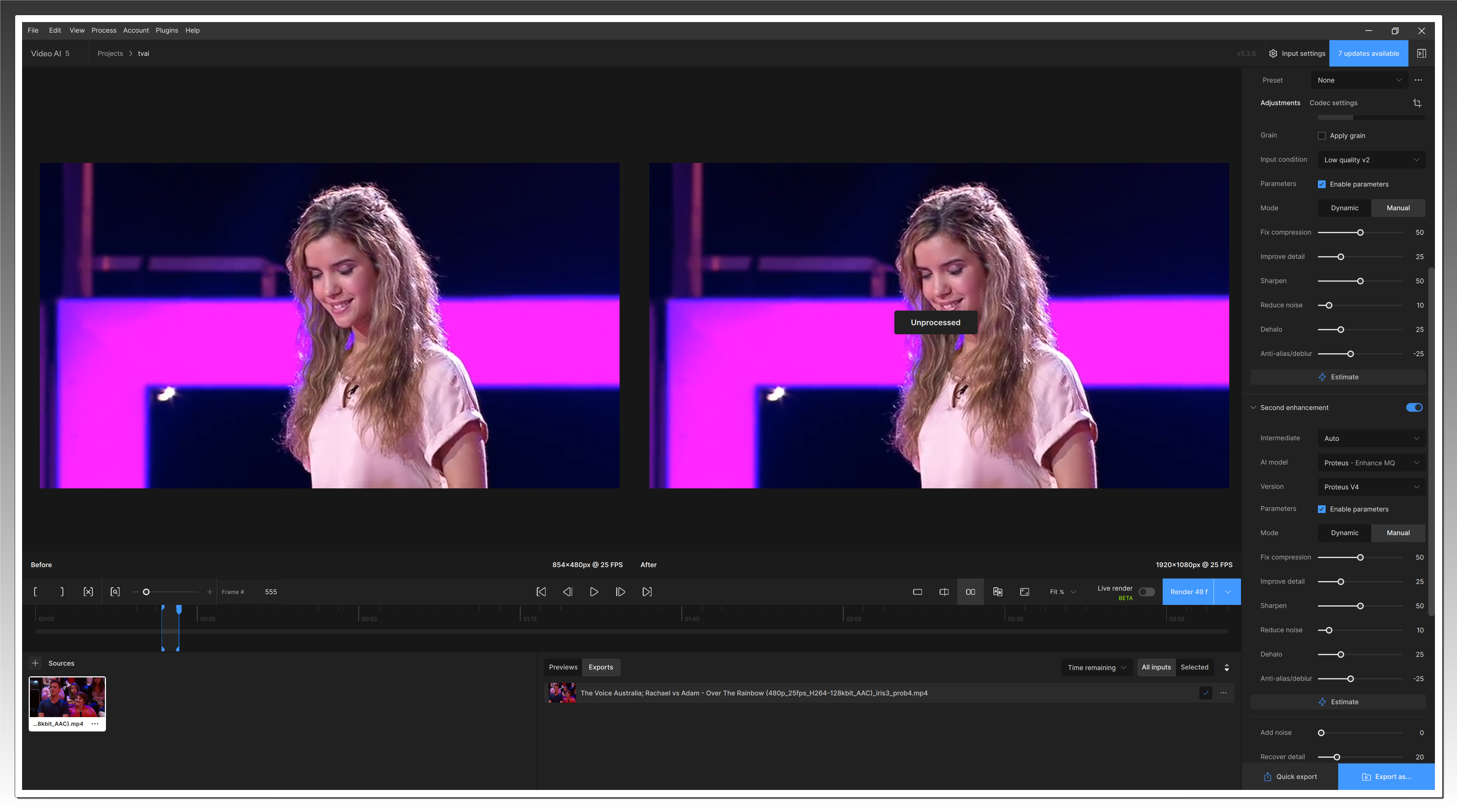
The only thing that you see now in the queue window is the export’s name, which for some weird reason has the name of the preset, instead of the input’s file name. Next to it you have the “Properties” which include the adjustments (but only a brief description) and the file path which is shortened out and incomplete if the filename and filepath are long. Hovering over those doesn’t show you anything extra.
But the biggest thing for me is this: if I have the queue window raised up I can’t see all the values from my enhancements. If I lower it down I don’t know what file I was processing. And that is very important to me because I take screenshots of all exports and include them in the final .mkv container. This helps me to track down previous settings used in case a new model comes up and I am not fully satisfied with the the final output. This proved to be extremely useful for me because a couple of years ago my MacPro with an RX 580 wouldn’t allow me to use Iris, only Artemis and Proteus. Now my new rig with an RTX 4090 can do everything.
There are multiple ways these little things can be re-implemented, even in the current GUI. The easiest one that I can think of is to have the values used in custom presets copied and reported somehow in the “Properties” section of the Queue, as an addition to the “Adjustments”, before File Path, which should be either the filename only or the full filepath. Maybe a simplified version of the export command.
There is also an issue for me with the way frame rate is reported in v6.0.3 according to MediaInfo. The exported .mp4 shows a weird VFR which “disappears” after the file is repacked in .mkv, then CFR is reported. I talked about this a little more in detail in the beta section.
All these being said, personally I don’t see any reason to upgrade to v6 at this moment since v5.3.6 does everything that I need and it’s faster. I spent the last few days testing and I am done doing that for a while, unless I see some improvements worth the effort.
10 Likes
A couple of other things I forgot to mention:
- I don’t know why the “Force CFR” option still exists in the GUI if the VFR issue was solved.
- The GUI shows the major version of the app (“Topaz Video 6”) but not the minor and patches (“Topaz Video AI 6.0.3”). I like to know which one I used when I decide to “re-visit” certain files.
2 Likes
I tested 6.01 and 6.03… when i encode a complete video on 6.01 the audio in “copy” mode is perfect… its when i select a small segment and encode, its “off sync”
So 6.01 works fine… I have yet to test 6.03 but from my first test of the segment its off sync in the segment, i have yet to try a complete video, but im assuming it will be “in sync”
so just let you know… seems like the copy audio is working on the final result…
segmented result… no…
IIRC the audio syncing has been reported by others too. That’s one of the reasons I never allow TVAI to deal with audio.
Also the VFR issue is present when processing a full video vs a segment. The partial processing reports sometimes (in my case) a CFR while the same video processed entirely reports a VFR.
A lot of weird situations.
yeah i just tested a full video and no audio issues… vs partial one…
your still correct though, this is unacceptable… but just to let people know that 6.01 vs 6.03 not gonna have any difference.
thanks though for everyone reply…
i use it mostly to encode 2 hour videos… lol… thats all ill say… so as long as i get a good result, i dont care
I had a idea the comunity could design a new UI on the paper, what the desired in our eyes perfect UI should look like. We could simply do this purely optical with an image editing program in “fullsize”
The question is, of course, whether Topaz will implement any of this. What I simply see is that nobody is happy with the V6 UI, but instead of complaining we could make a suggestion as to how it should be. What you think?
2 Likes
When I closed the TVAI 6.0.2, there were two films in the sources. When I opened 6.0.3, the last one processed after clicking on the tab, had properly set processing of Proteus V3, but incorrectly set Frame interpolation, it had the original FPS instead of 50. The FPS processing model was correct.
I won’t say much more here because I’ve already been blocked in other topics because of this.
The only thing I’ll say is that: VERSION 6.0.3 IS STILL FULL OF BUGS, THE LAST VERSION THAT WORKED CORRECTLY WAS v5.3.6
5 Likes
For me it’s this version: 3.3.5 
1 Like
VFR not completely fixed for me, 29,97 → 60 fps results in 59,94 fps videos after encoding to x265 with MeGUI even though the output video of TVAI 6.0.3 says it’s 60 fps.
Back to 5.3.6.
Would have been nice with a link to the source.
Looks like a performance regression here. I guess that’s because Topaz Video AI has no support for Blackwell yet.
Update: NVIDIA confirmed to us that apps using Tensor RT need an update to see optimal performance on Blackwell.
I take the above to mean that RTX 5000x is using onnx and not testorrt models (engines).
If someone who has a RTX 5090 could run the following command and tell us what the model name is in the output, it would help bring a definite answer whether the performance numbers are due to not using TRT (onnx instead) or if the TRT fit for the current models is just translating poorly to the blackwell architecture.
ffmpeg -v verbose -f lavfi -i testsrc=duration=10 -pix_fmt yuv420p -filter_complex "tvai_up=model=prob-4:scale=2" -f null -
Look for the line that says Loading time for model file: <model name>
and tell us what the model name is.
Site-note: I compiled my own TRT version of prob-3 for my specific graphics card (3090) and saw hardly any uplift compared to the Topaz compiled one (for 2000 series/sm80 afaik, given previous statements from TL). May very well be that the now ancient TRT version 8.5.0.12 that TL is using does not even dare attempt deserializing for that hardware, which would be no surprise since TRT is incredibly finicky when it comes to exact matches of everything (every frigging library version down to patch level, the specific GPU used to compile the model (“build the engine”) on, and the specific OS as well). They need to get to at least 8.6 where some degree of forward compatibility is offered by nvidia.
What? If anything, we need better support for TRT. Dropping support would mean a 2-3x performance loss.
Just a little tip on this one. TVAI does actually add that information directly to your encoded clips.
If you look at the ffmpeg command for one of your previews or exports, you will find a flag like this in the very long command string.
-metadata "videoai=Enhanced using prob-4; mode: manual; revert compression at 71.3972; recover details at 14.091999999999999; sharpen at 18.0078; reduce noise at 16.2195; dehalo at 16.6574; anti-alias/deblur at -0.952576; focus fix Off; and recover original detail at 20. Enhanced using iris-2; mode: manual; revert compression at 71.3972; recover details at 14.091999999999999; sharpen at 18.0078; reduce noise at 16.2195; dehalo at 16.6574; anti-alias/deblur at -0.952576; focus fix Off; and recover original detail at 20. Changed resolution to 1704x960"
This tells ffmpeg to embed your encoding information into the clip itself. It’s added as a metadata tag. You can then extract all that information from any of your exported clips later on using either ffmpeg itself or some other tool.
Example:
$ ffprobe -v error -show_format sample_2_prob4_iris2.mkv | grep VIDEOAI

TAG:VIDEOAI=Enhanced using prob-4; mode: manual; revert compression at 71.3972; recover details at 14.091999999999999; sharpen at 18.0078; reduce noise at 16.2195; dehalo at 16.6574; anti-alias/deblur at -0.952576; focus fix Off; and recover original detail at 20. Enhanced using iris-2; mode: manual; revert compression at 71.3972; recover details at 14.091999999999999; sharpen at 18.0078; reduce noise at 16.2195; dehalo at 16.6574; anti-alias/deblur at -0.952576; focus fix Off; and recover original detail at 20. Changed resolution to 1704x960
or
$ mediainfo sample_2_prob4_iris2.mkv | findstr VIDEOAI

VIDEOAI: Enhanced using prob-4; mode: manual; revert compression at 71.3972; recover details at 14.091999999999999; sharpen at 18.0078; reduce noise at 16.2195; dehalo at 16.6574; anti-alias/deblur at -0.952576; focus fix Off; and recover original detail at 20. Enhanced using iris-2; mode: manual; revert compression at 71.3972; recover details at 14.091999999999999; sharpen at 18.0078; reduce noise at 16.2195; dehalo at 16.6574; anti-alias/deblur at -0.952576; focus fix Off; and recover original detail at 20. Changed resolution to 1704x960
The latter of course also works with the GUI version of mediainfo, as it shows the same information.
In short, perhaps you don’t need to take the screenshots any more since TVAI basically does this automatically for you.
(Kudos to the person on the TL team who came up with the idea of adding the settings as metadata to all generated clips. Very useful)
My workflow just calls for a very simply UI, one that is streamlined on the effect of the models and their settings, and nothing else.
TVAI fits into my pipeline as an enhancement step. Not an NLE.
I do.
- Rough cut a clip in a real NLE.
- Export cut timecodes.
- Losslessly cut the segment that needs enhancement.
- Load the cut segment into TVAI.
- Use the TVAI UI to play with the models and their settings for that one scene, until I’m happy.
- Render output as highest possible bitrate.
- Replace the original segment in the rough cut with the “enhanced” variant.
- Repeat as necessary until I’m happy with the edit, then just export from the NLE (no TVAI involved).
This is for bespoke projects. For just getting “viewable” quality of batches of old clips, I just do a rough whole-clip tuning in TVAI instead of per scene, which is often sufficient unless there’s a paying customer for the output at the end of the day
Still, step 5 is identical to both cases. I always process a complete source, so have zero need for any NLE related stuff.
Now, as to your question what a “better” UI would be. It depends on the use case, so that’s why I outline my use case first. For that use case, something simple like this would be perfect.
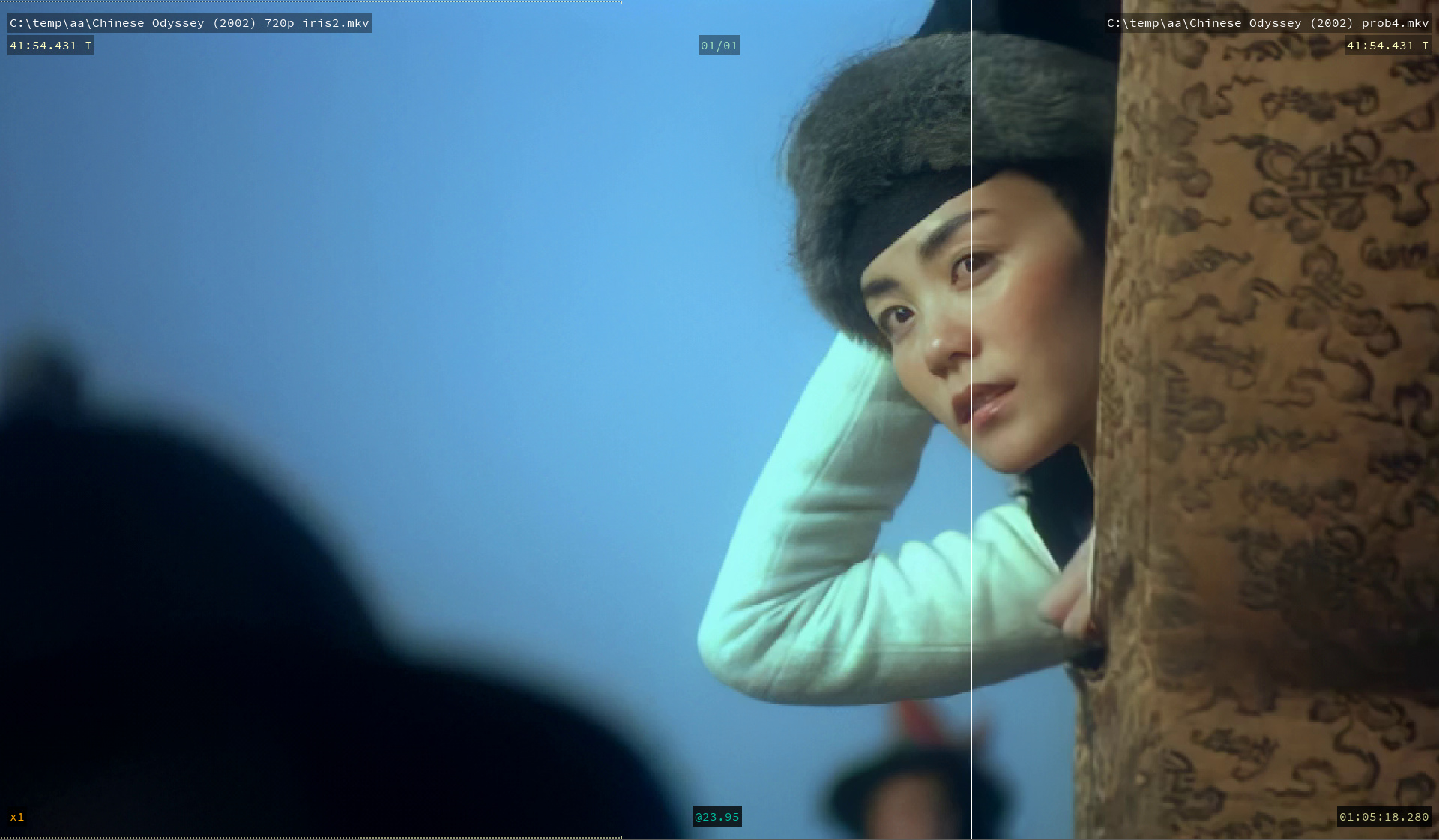
Press a key (H for instance to get a shortcut cheat-sheet)
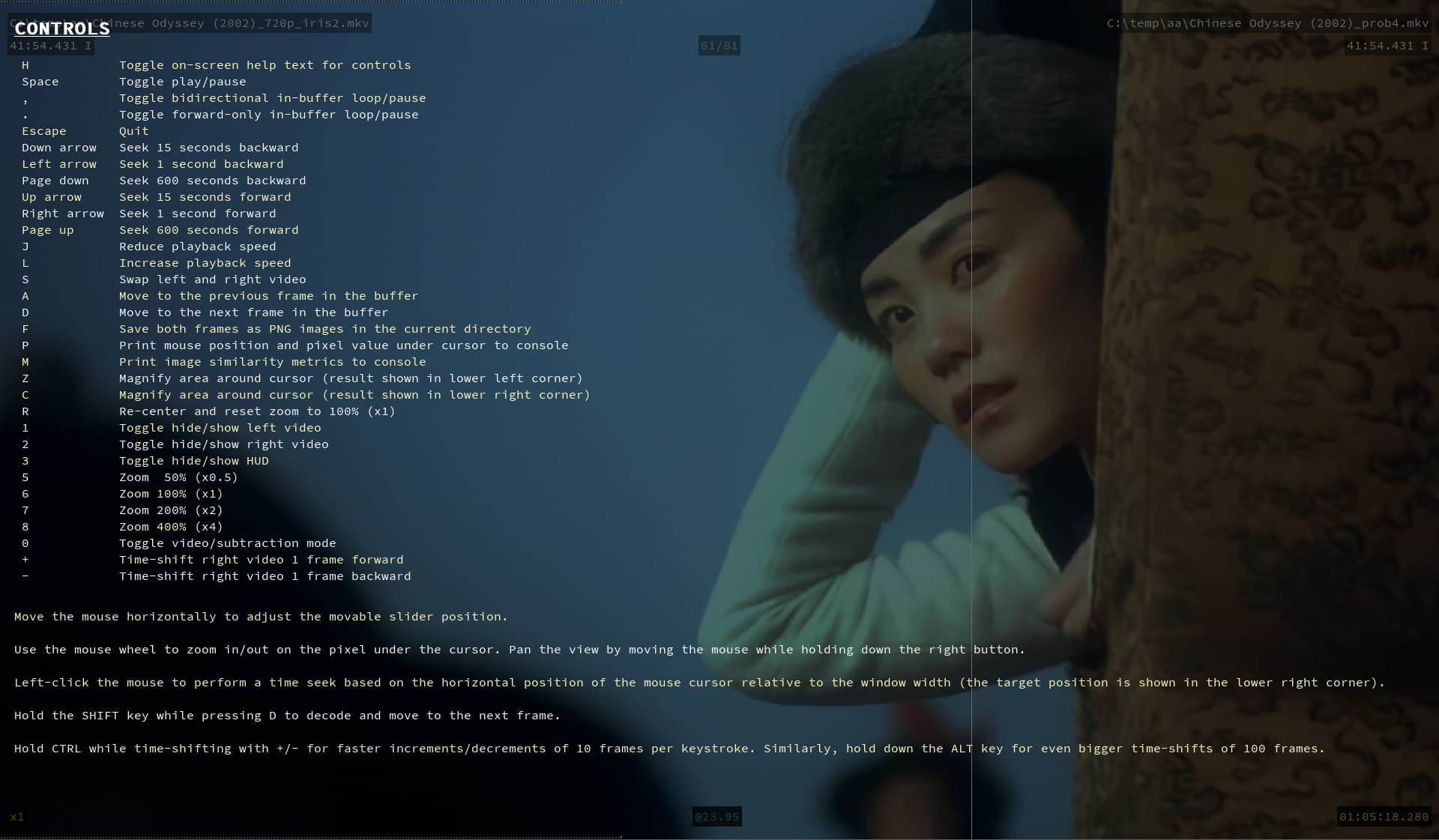
Detect the differences between the different TVAI renditions, and against the source, at will.
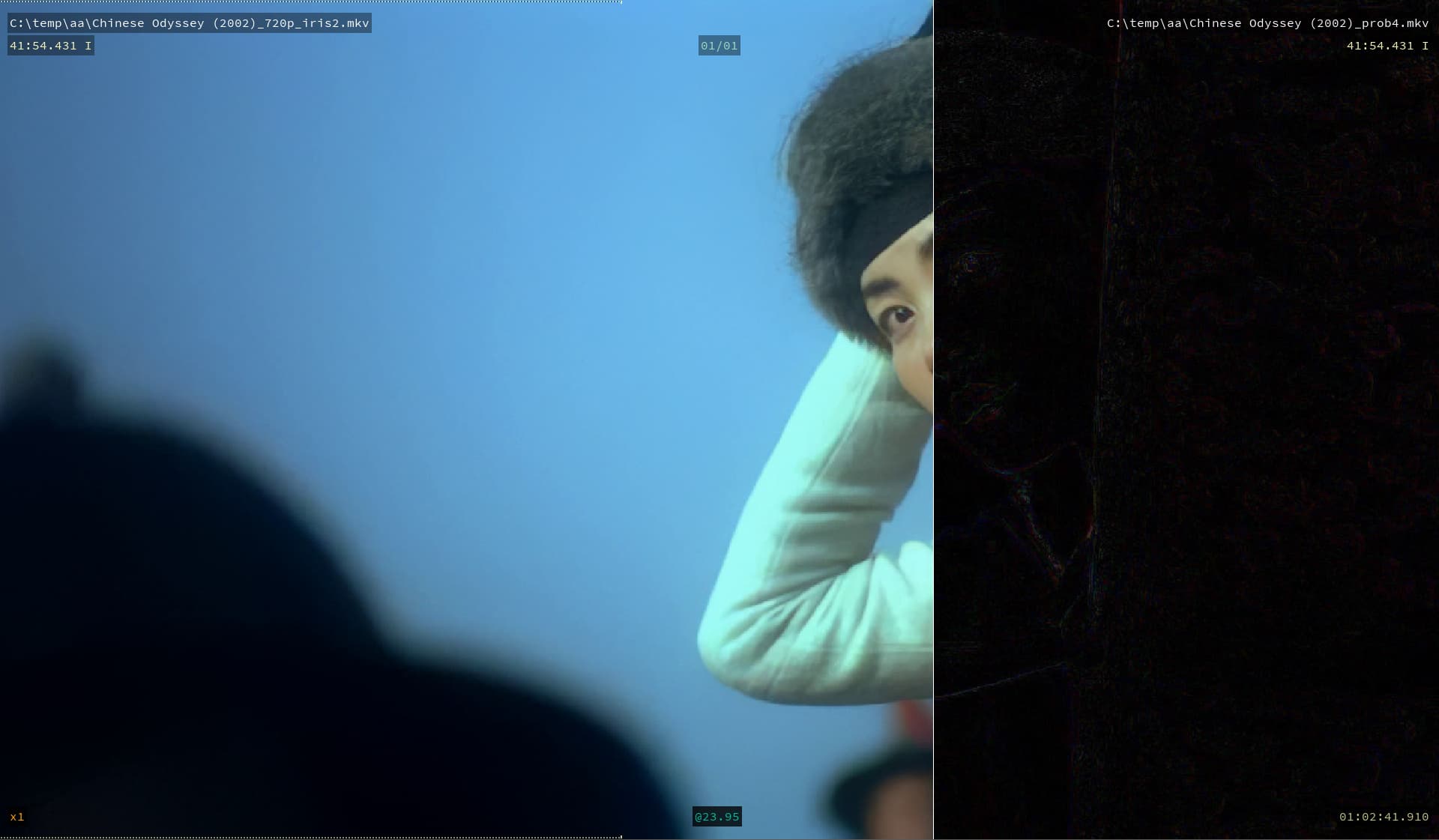
One hotkey and the current v4/5 right pane would appear to the right for the settings, since I think that part of the TVAI UI is actually pretty well designed for the use case; of tweaking the enhancement filters.
This sort of UI would make it a snap to tweak and view the effect of filter adjustments, as well as seeing the impact at different points in the clip without excessive clicking around in the UI (as is currently the case).
The enhancement workflow would then be as simple as Right-click a clip, open in VAI-GUI+, press E to toggle the viewing of the TVAI model settings, tweak the settings, press enter for a render at the current point in the viewer. Use mouse wheel to move frame back or forward one at a time. Space to play, Alt/Opt + scroll-wheel to zoom in and out, R for reset view. Shift E to queue an export.
Domain model
Now, the most important element of a GUI for this use case is the application (domain) model itself, and how well the UI is aligned to that model.
While fiddling with the setting it’s crucial to be able to constantly A/B test the effect of changes, both against the source but also against each other. The simplest way to achieve this that I can think of is a very simple model of just having two virtual clips (A and B respectively) and a settings history stack where settings in that history can be bound to either A or B.
The most streamlined way to work with this simple model is to have the last 10 settings accessible using the number keys 1-0 at the top of the keyboard, and consistently have references to the settings be pulled into either the A or B clip for viewing using dedicated shortcuts (e.g. SHIFT-# and # respectively)
Example workflow:
- Open clip
- Edit model settings, press enter to trigger a preview render, which pushes the render settings and preview on top of the stack. Let’s call this rendition 1 (R1)
- Compare the original (in A) with modified (in B)
- Tweak the settings, press enter to render the effect of the changes. This pushes the new setting to the top of the history stack and assigns it to virtual clip B. Let’s call this rendition 2 (R2).
- Now I want to compare both R1 and R2 against the source, so I just press the keys 1 and 2 to surface R2 and R1 respectively as clip B, which allows me to compare each of those against the source. (Not only that, it gives me pixel accurate delta information that the visual system catches when the pixels of R1 is swapped with R2 and vice versa in the exact same region of the screen).
- Perhaps I can’t still decide which of them was better by just comparing against the source, so I need to compare them against each other. So I press
SHIFT-1to bind R2 to A and2to bind R1 to B, which means now I have R1 and R2 as the two comparison views. - Still on the fence, I want to compare R2 against the original again, so I press SHIFT-O to bind the original to A and then key 1 to bind R2 to B.
This is a very simple and logical model that would handle all my comparison needs. Having a “history” of the last 10 settings would be sufficient for me since I seldom need more than 5-6 tweaks at most. And if I were to need more, then most of those tweaks would be dead-ends anyway, so I’d only ever be interested in 1-2 “checkpoints” of forward progress as I search the “parameter space” of good options for a given scene. To ensure I can create such checkpoints, I’d just bring up “the best setting” during some wild exploration and press enter again, which would place that setting on the top of the stack. No new functionality needed to cater for this need. The simple stack based model already caters for this.
To summarize, the application’s model would be.
- Composed of two views: A and B (just like TVAI and the app I showed in the screenshots)
- Be tailored for quickly binding settings to A and B.
- Have a stack based model that is easy to remember and reason about, just like “photoshop’s” command history.
- Have the top N entries in the stack be accessible with a single and unique key-press.
- Treat the original source as a snowflake since that always has to be referenced several times during comparison. Thus warranting it’s own key binding.
Nothing more fancy than this would be needed I think.
TVAI has the ingredients for this already, but it’s not leveraging them in a consistent model, nor offer any shortcuts to work with such an application model. The latter is a must-have for power users.
Feasibility
Totally feasible. The heart of TVAI is actually the ffmpeg program (with the topaz aiengine filter added) and not the GUI itself. It has no dependency on the GUI other than requiring something else to have placed the software entitlement (license file) in a certain place. That’s all.
As such there is no hindrance to creating a completely different UI on top of the TL ffmpeg bundle. It’s just a matter of how lacking you find the current GUI experience. It’d take a few weeks to code up a replacement GUI for TVAI like the one I described (assuming a team of 2-3 [*] and for an initial alpha), which could well be worth it in a studio setting. But I’m not working in a studio, and the TVAI 4/5 GUI serves me sufficiently for the few times I need to enhance clips, so I’m hardly motivated to invest that effort.
[*] I did create a similar UI for a different foundation using Qt (same as Topaz) but python instead of cpp, and it took me about 2 weeks. Most of that time was spent nailing the usability ergonomics. For a product that is intended to be distributed to others (org externals), the cost goes up with a factor of at least 3. More likely 5x.

I mean enable.
(drop like a bomb). 
1 Like
My ideal UI would be one that starts with a fullscreen window of the video with some side pane controls for different functions that can be opened or closed, arranged as desired or dragged off the main window to float, for example on a second monitor. I definitely would not want to have to open and close different dialogs or tabs to switch my attention from one function to another.
1 Like
jojje posted some very interesting ideas, later more. For me simillar as you @gene-8240 wrote, fullscreen, or let’s say maximized source & preview screens, is one of my main wishes. Get rid of all the space-wasting bars, that can be packed into one and the side panel could also be designed more efficiently. I like when all is on one page, and for more informations or settings you can left or right click one something
And there are many details that can be improved. For example, it makes no sense having a output progress bar that runs over the entire screen width, but the rest is blanc and then they chosse font size 6 - 8? Then give us control again for our generates previews and the ability to cancel running previews
1 Like
This is a very inefficient workflow. I wish to be able to hit play on a preview, and then the preview, and only the preview, will loop forever until I stop it.
I still mainly use Topaz 3, even with the other advances since, because the gui is the most usable for me, overall.
5 Likes
I have set the default frames per second to 60, however, after clicking export, it bounces back to 25. The videos in the queue have kept the 60 setting however I’m just curious why it keeps bouncing back to 25 on the UI.
Don’t expect any wonders in performance below rtx 5090.
From pure numbers, almost nothing changed for 5080 and below.
Rtx 5080 will be 15% faster in TVAI as 4080, if i read it right.
1 Like
