Constant Frame Fate is an attempt from Topaz to fix variable framerate output bug.
Constant Rate Factor is a quality metric of the encoder.
4 Likes
Exactly. CRF is typically used in the x264/x265 tools. Totally unrelated.
And it’s still beyond belief to me, that apparently they lost so much staff over the last years (as someone astutely reported here earlier), that there’s currently literally no one present to figure out what line causes the VFR. The instant that guy mentioned their lack of personnel, I knew it had the ring of truth to it, and canceled my supscription the next day.
It’s probably a stray line of code, copy & pasted from the wrong place (from a bit of frame interpolation code), and put into something generic. Annoying, for sure, but downright embarrassing nobody over there can spot it, after several months (Sic!). And the devs then deciding to patch over it, at the end, with a bit of CFR straightening out (which is absolutely not the same as fixing it)… I’m just flabbergasted.
13 Likes
You will laugh, but the best result in video processing was given by Rhea with manual settings set to “0”. After processing, the quality improved slightly, but almost without distortion. All other settings produced inevitable distortions in different places.
Still getting drop Frames with 6.0.1. I just did an upscale Default Preset of FHD. It’s not as bad as previous 6.0.0. but still happening with 6.0.1 version. Not as often but often enough to notice and it’s annoying. back to 5.3.6 where it works fine and the interface is easier to use.
6 Likes
Maybe it is time to start looking for other alternatives to Topaz, if they do not want to solve the problem it means that development has come to an end, no further upgrades of any other mglioria are needed if VFR is not solved.
9 Likes
New feature: Included a “force CFR” (Constant Frame Rate)
Known bugs: force CFR doesn’t work properly!
11 Likes
I got no dropped or duplicated frames at all (in 5.5.1, and 6.0.0) even when i use Deinterlacing.
- Open Vob File in AviDemux.
Save Audio Track to File
Set Aspect Ratio Flag, Range and Color Flags.
Save as mkv File without Audio.
-
Process MKV File in Video AI
-
Open Processed Output File from Video AI in AviDemux, add the
Audio File from Step 1
Set Format, Range and Color Flags.
Save as mkv File.
- Have Fun

My Test Results.
Last Frame in VDub is NOT the Gray Frame ! The Gray
Frame in VDub is only used by VDub for Copy & Paste Operations.

So when i Write "Last Frame = Frame XXXX" it's the last
Frame before the Gray Frame !

--Inside VirtualDub2

Input File Container: MKV ! No Audio.

Input >Interlaced<
Last Frame = Frame 1814 (0:01:00.527) [P]

Output  >Progressive - Double FPS<
Last Frame = Frame 3629 (0:01:00.544) [P]


Topaz Output from Interlaced Input File

Opened in VirtualDub2

Last Frame = Frame 3629 (0:01:00.544) [P]

FPS in VirtualDub2 59.940
FPS in SMPlayer 59.940060
FPS in MPC-HD 59.94
FPS in VLC 59.941257
FPS in Media Info - Frame rate mode : Constant
                    Frame rate : 59.880 fps

Now Opened in AviDemux, and added AC3 File.
Saved as MKV

Opened in VirtualDub2

Last Frame = Frame 3629 (0:01:00.544) [P]

FPS in VirtualDub2 59.940
FPS in SMPlayer 59.940060
FPS in MPC-HD 59.94
FPS in VLC 59.941257

All the same ! Just MediaInfo counts Wrong or to Precious because
Audio Data is not Counted in Frames, it's counted in Samples !

Frame rate mode                : Constant
Frame rate                     : 60.000 fps
Compared first 69^^ Frames from Topaz Output with VDub2 Output, no Dropped Frames or Dupes.
Compared Frame 3617 to 3629 from Topaz Output with VDub2 Output, no Dropped Frames or Dupes.
Watched both, both run fluid.
EDIT: Codec in Interlaced Source File was MPEG 2 !
So when it got no Problems with MPEG2 and Interlaced, then all other things should be no Problem.
1 Like
When I started using Rhea I was setting all the values at 70. After a while I realized that using 30 as value produces better results. Then on some cases I even use 10. And, yes, you’re right even 0 it’s a good option. But most of the times (90%) for me 10 & 30 work best.
Friends, I’m shocked! I used two passes all the time. One for Proteus, the second for Ayion’s 60fps. And all the time some artifacts appeared. But when I tried to combine these two models in one pass, the result was much better. Can someone explain why this is so?
Looping over a preview can be done by setting an in/out point on the timeline with the keys
Applying both models in a single export will use lossless output from the first model when running the second model. This avoids an additional level of compression when comparing the original input to the final output.
1 Like
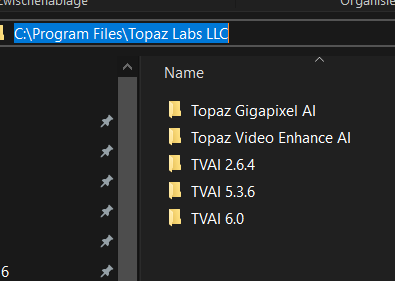
You can install more than one, I use it without problems. You must rename root folder of existing version BEFORE you install an other, then make shortcuts of the exes and place it on your desktop.
3 Likes
That’s good but why not more? I have made a suggestion It’s just a small but smart thing and I think that would be very easy and quick to realize, it’s just a flag for the encoder. Many use ProRes but not all third party programs can read the format and ProRes is not lossless either, and so we would have an alternative for the output
Looks like the Priority settings are not working any more. At least “Low” and “Very Low” return to “Normal” whenever I tried.
1 Like
I’m really surprised! I saved the first pass in FFV1. After the first pass, artifacts were already visible, which were transferred to the second pass for frame interpolation. And now that I’ve made the Proteus with minimal settings together and the Iyon in one pass, the picture is perfect! It’s good that I discovered it. Now I will do this all the time…
If you set such values in Rhea on video, where there are a lot of close-up and medium shots of the body, you will get plastic dolls. It seems to me so.
I think because the Second Model get’s enough Data what was filtered Out, from the First Model, so it knows what has to be ignored, and doesnt try to Re Create it, so less Risk of Artefacts.
Just a guess.
If Second Enhancement is used, there are no PNG Files created, between the first and Second Enhancement. Output from one Model goes directly to next Model, after that, PNG Files for Preview are created.
PNG Files are nesscesary for Preview ! (Because Versions over 2.6.4 dont create the Images in Video Memory. Has Advantages and Disadvantages)
Why ?
Because otherwise you had to wait until the complette Video Preview File
is created, before you can seek (with Cursor Key) or play (Space Key)
Why ?
Video AI Opens File → Writes Data, you click on the first Frame to watch it.
But Video File was >not< created with the #Shared Read Flag (i know for shure that
this Flag exist in Windows, but maybe not for Mac/Apple.
The Coding Language that i use, can compile for Windows,Linux and Mac. But Shared Read is only aviable for Windows)
So if another Application ((FFMpeg or MPV)
tries to Read Data from the File, it wont work, because the File is still Open !
So when you press Play or the Space Key, Video AI shows PNG Files until the Preview is finished. Then it deletes the Temp PNG Files, and next Time when you press Play, it will show the Content from the Video.
Like with so many stuff, the Idea itself was good, but not good executed and finished till excellence.
d:\Topaz4Work\Popp\previews\55555_1_alq13_amq13.mp4 ← No Frame Range and ID in Filename !
Video AI must hold in a Internal List, which Entry from the Tree List, is for which Output File (which is not Bad ! Bad is just that stupid visible Tree List from Video AI 5. A normal List is better !)
This can only work in a secure and clean way, if ID’s are internaly used and used in the Filename itself.
If you create in Video AI 5, a Preview from Frame 200 to 300, and then with the same Settings, a Preview from Frame 100 to 400
Then Topaz will skip Frame 200 to 300, and will create only Frame 100 to 199 and 301 to 400, and will create 2 new Entrys (and >not< sort them After Frames ! which is very bad !) under the Group in the Tree List.
Group | Artemis bla
200-300 | First Created
100-199 | New
301-400 | New
Now if you set “Looping” inside a that Group it will just play, the Frame
Range from the Active Entry and then again.
If you set “Loop” it will play Frame Range 100 to 400 and then Loop again from
100 to 400.
The Loop/Looping states are Set for all Entrys inside a Group ! so if you set ID1 to “Loop” it will change ID0 and ID2 to “Loop” too.
Now i see one Bug ! and one Problem with that System.
Bug)
23.970 fps Progressive Input
->Make 120 Frames Preview - Start Point Frame 200
200 - 320 → OK !
->Make 448 Frames Preview - Start Point Frame 100 (EDITED → Before i wrote 200)
---------------Result-----------
F200-F320 | Let’s call it ID0 | Ok !
F100-F201 ← Wrong ! it must be 100 to 199 | Let’s call it ID 1
F319-550 ← Wrong it must be 321 to 550 (EDIT 2: 321 to 548) | Let’s call it ID 2
Now if i set “Loop” and click ID1 and then use >Cursor Right< Key
and seek, Topaz will switch at Frame Num 200, to ID0 ! Ok that’s right !
Now if i seek further with >Cursor Right< Topaz will switch @ Frame Num 320 to
ID2 ! 320 is Wrong ! (319 too) it must be 321.
Does it Drop or Duplicate Frames when i seek with >Cursor Right< From 200 to 550 ? No
But the Internal Backbone (HashList with SubList/SubArray) has Wrong Frame Boundaries, and this is what we see in the Tree View.
So if the Internal Backbone has Wrong Values, you get sometimes strange behavior
in the Preview (and take the Problem with you at other Parts from the Code !)
and get another Problem.
If the Filenames in
d:\TopazXWork<Insert Project Name here>\previews\
got Names like
“55555_11_alq13.mkv”
“55555_12_alq13.mkv”
“55555_13_alq13.mkv”
it is harder as Coder (and for the User too) to see, that Wrong Frame Boundaries
are inside the Internal Backbone (and Preview File Names are created from Data inside the Backbone)
If Files were created after this Name Scheme.
000000200-000000320 ID0000.mkv
000000100-000000201 ID0001.mkv
000000319-000000550 ID0002.mkv
It would be Sorted by the Filesystem like this.
000000100-000000201 ID0001.mkv
000000200-000000320 ID0000.mkv
000000319-000000550 ID0002.mkv
it would be obvious that something is Wrong !
By the way, i’m Hobby Coder. But i use different and good Coding Language ^^
EDIT 1:
EDIT 1 was wrong ^^ so i corrected my self to Wrong 
EDIT 2:
What i wrote First was right ^^ (deleted the Stuff from EDIT 1)
FStart 100 FStop 548 (448 Frames)
FStart 200 FStop 320 (120 Frames)
So Borders must be
100 - 199
200 - 320
321 - 548
Most Video Tools use Frame >Number< 0 for the First Frame in a Video File.
I did make my point ^^ that it is very easy to make a ±1 Mistake ^^ and take
it to another parts from the Code ^^
2 Likes
Downgraded back to 5.3.6. (again). The output is still stuttering and jittery due to issues with the frame interpolation. Very disappointing. How many versions do we have now where this issue hasn’t been fixed?
9 Likes
I did the same thing. Still stuttering and jittery. I’m just using Default Presets of Proteus or Artemis for an MKV file. I even did a M4V or MOV or MP4. I’m no pro and I only use those two and default the settings. Not looking for 4K just improvement and before this version they did a great job with no stuttering or jittering of the video. 5.3.6 has no problem doing that.
3 Likes
I truly wonder what the issue is, and why 5.3.6 works flawlessly regarding constant framerate while later versions do not.
I haven’t owned TVAi long enough to know when post 5.3.6 versions were released, and cba to check right now.
EDIT* Just checked. 5.3.6 was released mid november.
Do you know if there are any benefits of running more recent versions than 5.3.6, other than a revamped GUI?
The AI models are still updated in 5.3.6 with the most recent ones you get in 6.0.x, correct?
EDIT* 5.3.6 does not have AI models SDR to HDR or Rhea XL. Currently processing a video. Will update regarding the models available in 5.3.6 vs 6.0.1.0.b models with the “Enable previous models” feature in a bit.
EDIT 2* All models available in 5.3.6 are the exact same as the latest models in the most recent beta v6.0.1.0.b. Difference between the two versions is revamped interface and you won’t have the AI models Rhea XL or SDR to HDR. Checked version and file sizes between the other models and they match down to the exact byte in size. Correct me if I’m wrong.
No noticeable difference in ffmpeg commands between 5.3.6 and v6 beta other than -fps_mode which i assume was just added in the most recent TVAi release to enable the choice of Force CFR. Can only guess at the TVAi compiled ffmpeg build in versions post v5.3.6 is what’s messing with framerate?
For anyone who don’t know where to download older versions, here’s a link to 5.3.6: Topaz Video AI 5.3.5 - 5.3.6 - Topaz Video AI / Releases - Topaz Community
3 Likes
