@Left_The_Building - Presets are additive yes, as they are meant to apply a recipe or multiple recipes, that you know are right for this file.
There is currently no way to clear all enhancements on a file, other than closing and reimporting it, you can add the Idea/Feature request here, for other users to vote on: Ideas Forum. I would suggest to tweak Auto-Pilot settings in your Preferences to your liking and use Auto-Pilot instead!
If you show me where in preferences I can set that I want a very light sharpening added by default and the option to chose the model for it I’d be more than happy to. But wait - You actually removed that one not many versions ago!
The preffered AI Model can be chosen as new Default in Preferences yes, but because of the personalization introduced, yes, the strengths were removed. If you consistently lower the sharpen the AI will apply this into future edits of yours. You can create a Light Sharpen Preset and once recipe found for a file, then can apply to all other similar files in your batch!
Not sue if this is the right place to ask…
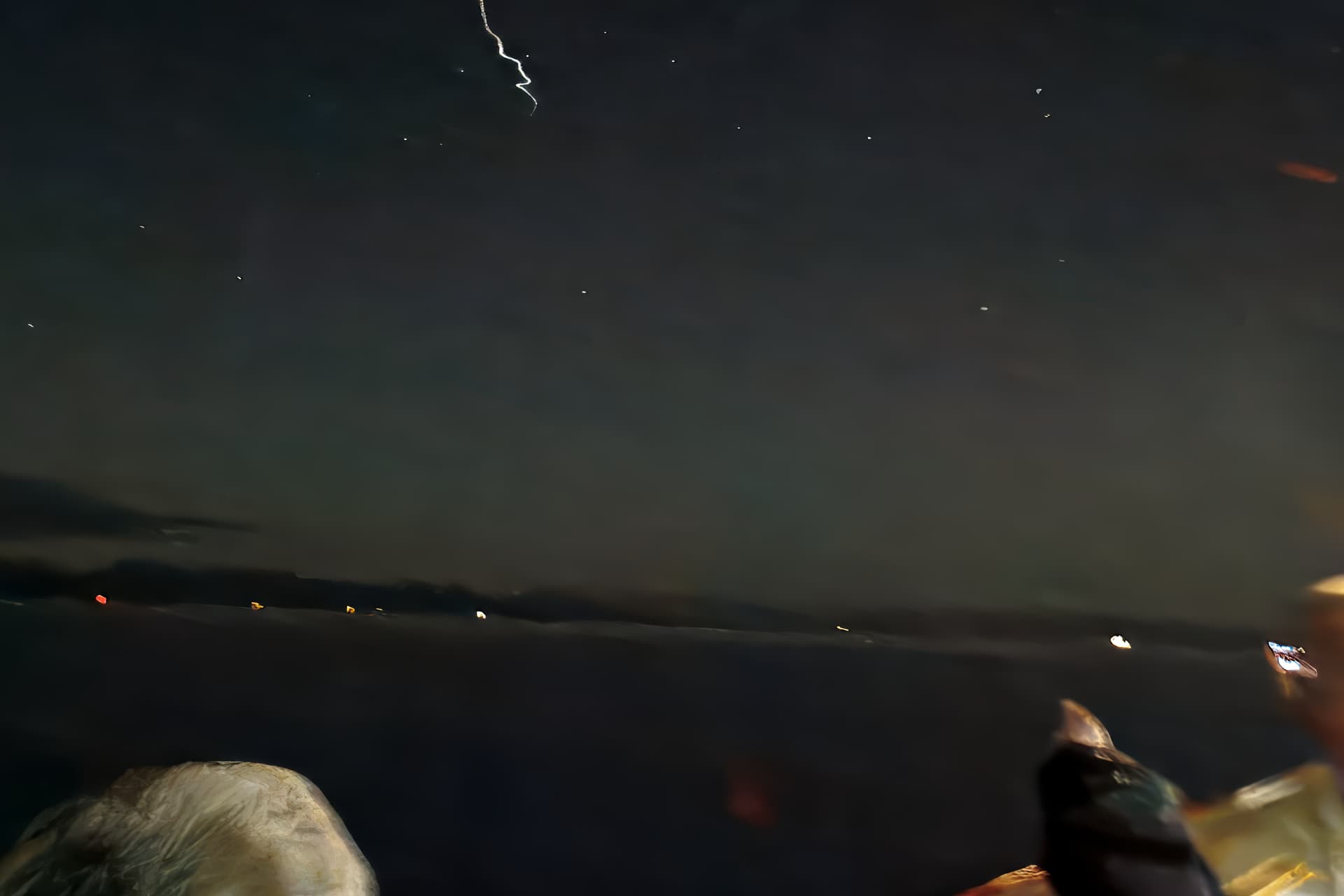
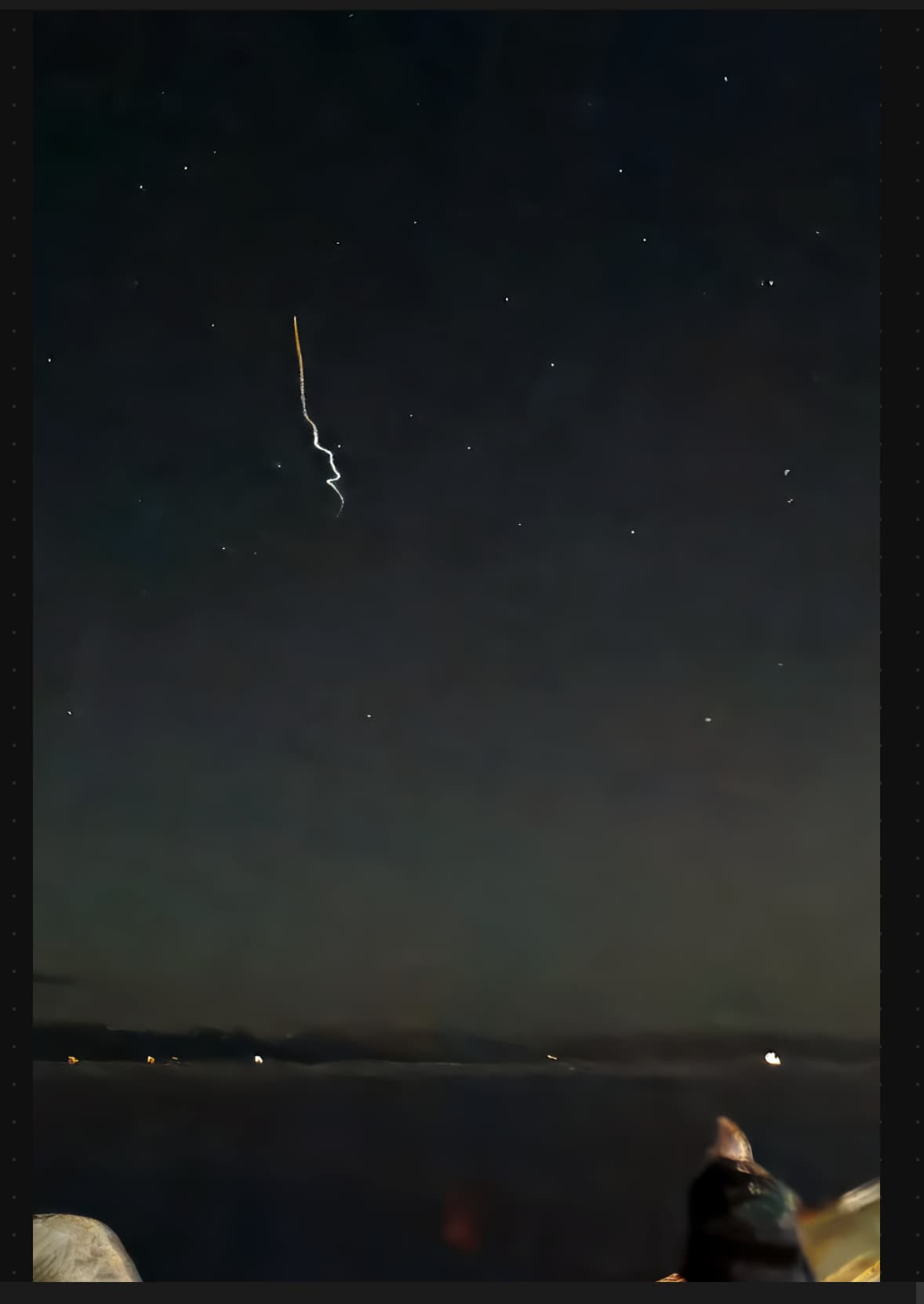
I am using PhotoAI stand alone and processing Canon .CR3 files from Canon R6 like this one portrait orientation taken at ISO102400 1/4 second. C48A1375.CR3 (32.7 MB)
I am using rawdenoise - sharpen - upscale 2x and crop to straighten and crop, all works fine but when I export the image as jpeg it crops the image to landscape and chops the top part of the image off like this.
@ra.ny - we have an open ticket for issues occuring with th crop/rotate part on some files, and it seems to be related to a auto-rotate feature in the camera. Can you confirm if you had that on in camera? Can you also test to export with all your settings, then with only a crop, no rotate, then no crop/no rotate and let me knnow the results? If that is the issue you have I can add your contact information on the development team ticket we have for this and contact you once a fix has been found and released.
Hi Ange,
Yes I use auto-rotate feature in the camera.
crop, no rotate, saves as portrait
no crop, no rotate, saves as portrait
no crop, rotate, saves landscape
@ra.ny - thanks for the test result, then this confirms it’s the issue with auto rotate in camera feature. I added your contact info on the open ticket and we can circle back once a fix has been found. For future shoots, you can toggle off that feature in camera, and for files shot already, make sure to do rotate in the file explorer after the file is saved from Photo AI to avoid the crop issue!
Ange, thanks thought I was doing something wrong, will wait to hear when a fix is found. I have a work around as I still use Topaz Studio 2 to correct other things in my images like saturation, contrast and brightness and can my rotation there.
Topaz AI works great at recovering faces when it works. It is a little frustrating when it only renders part of an area and there are no controls to guide TAI.
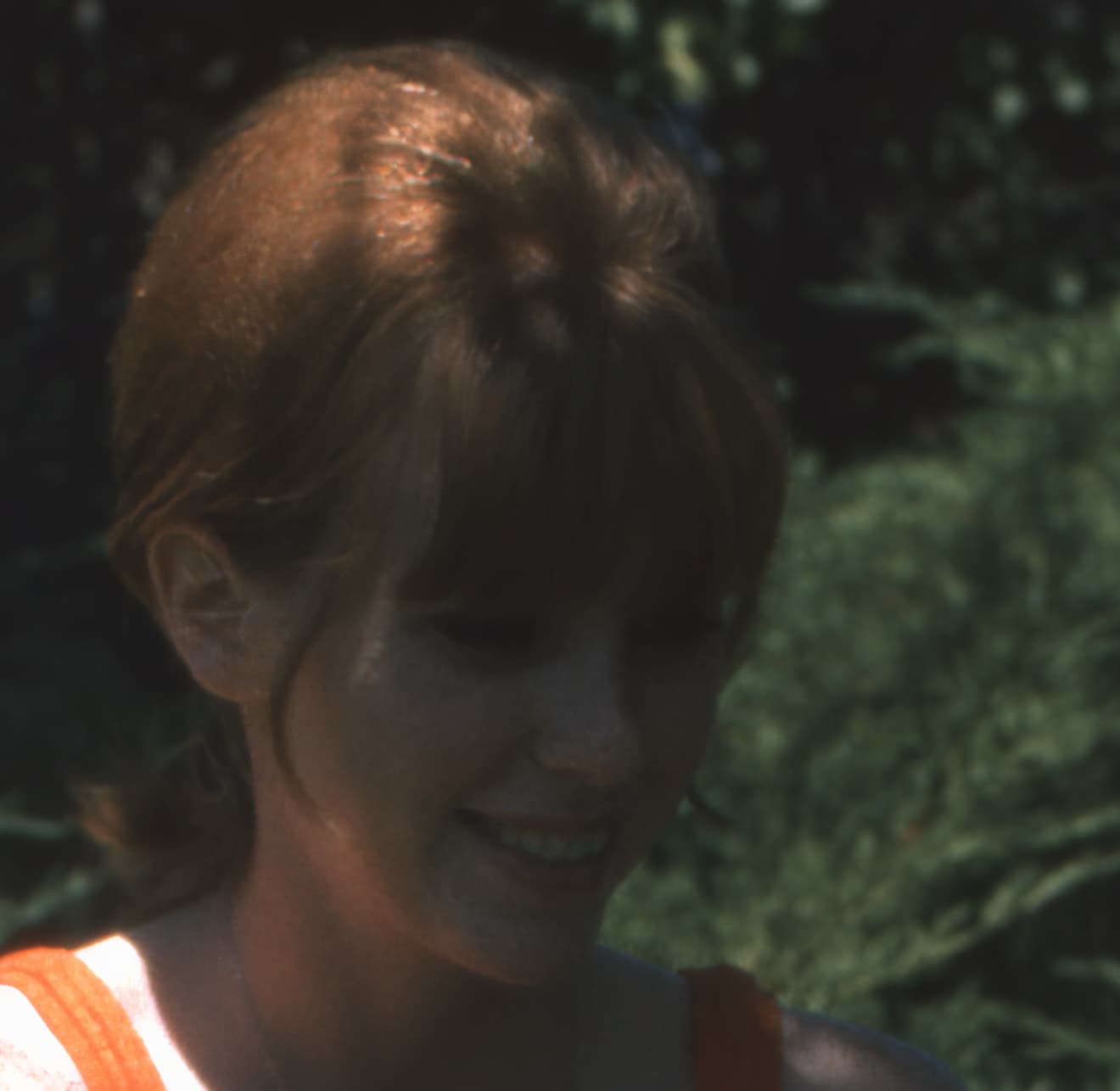
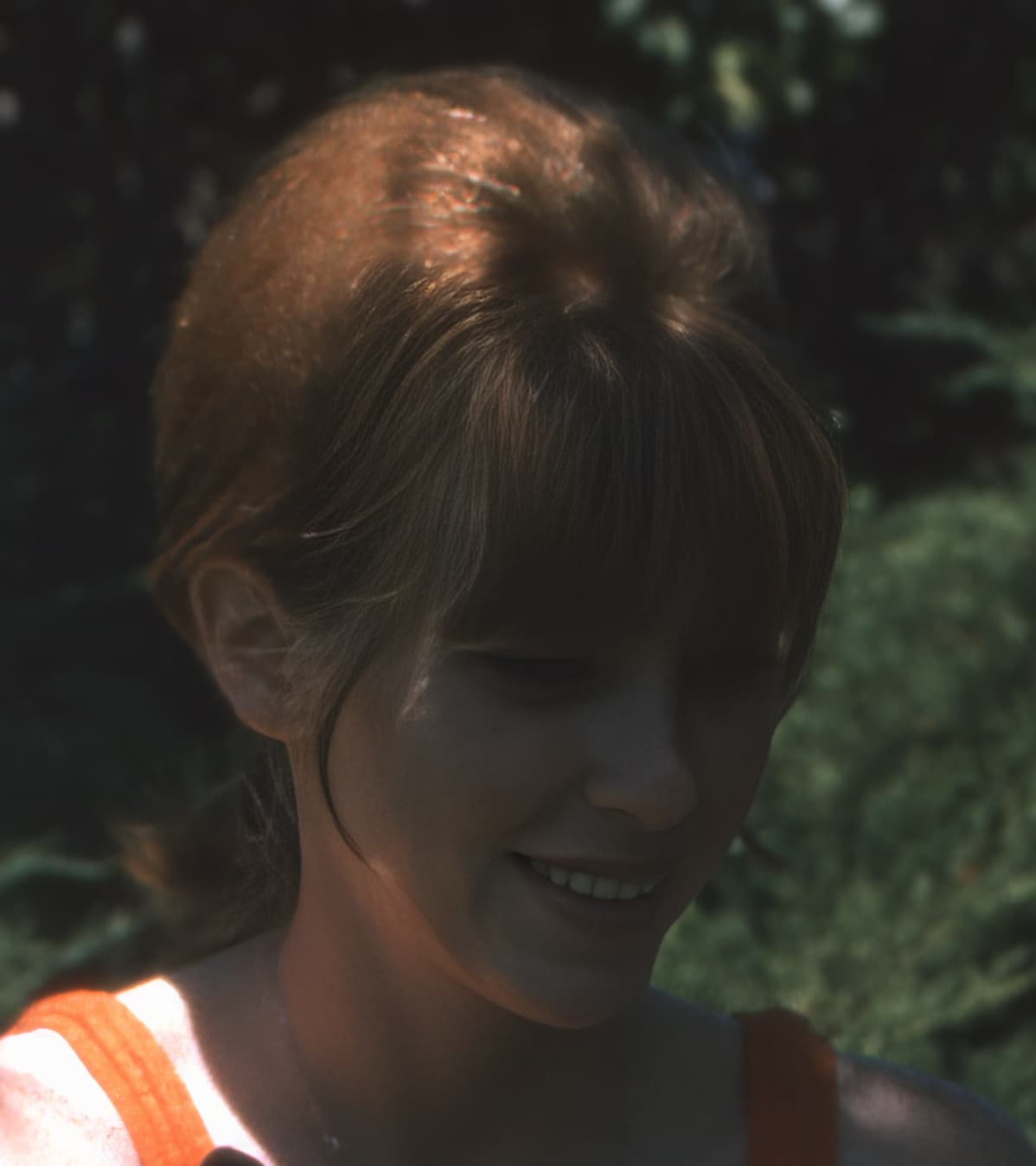
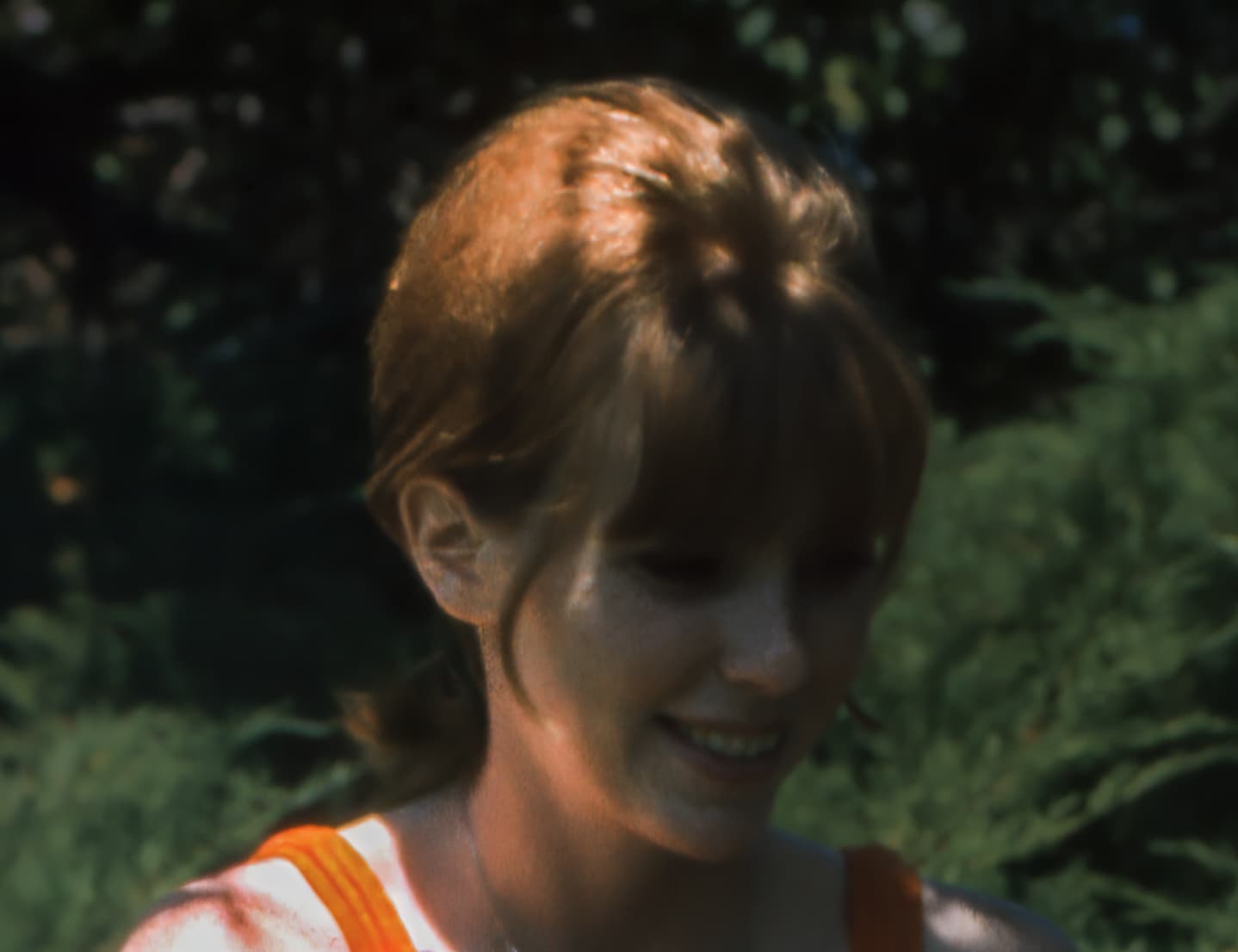
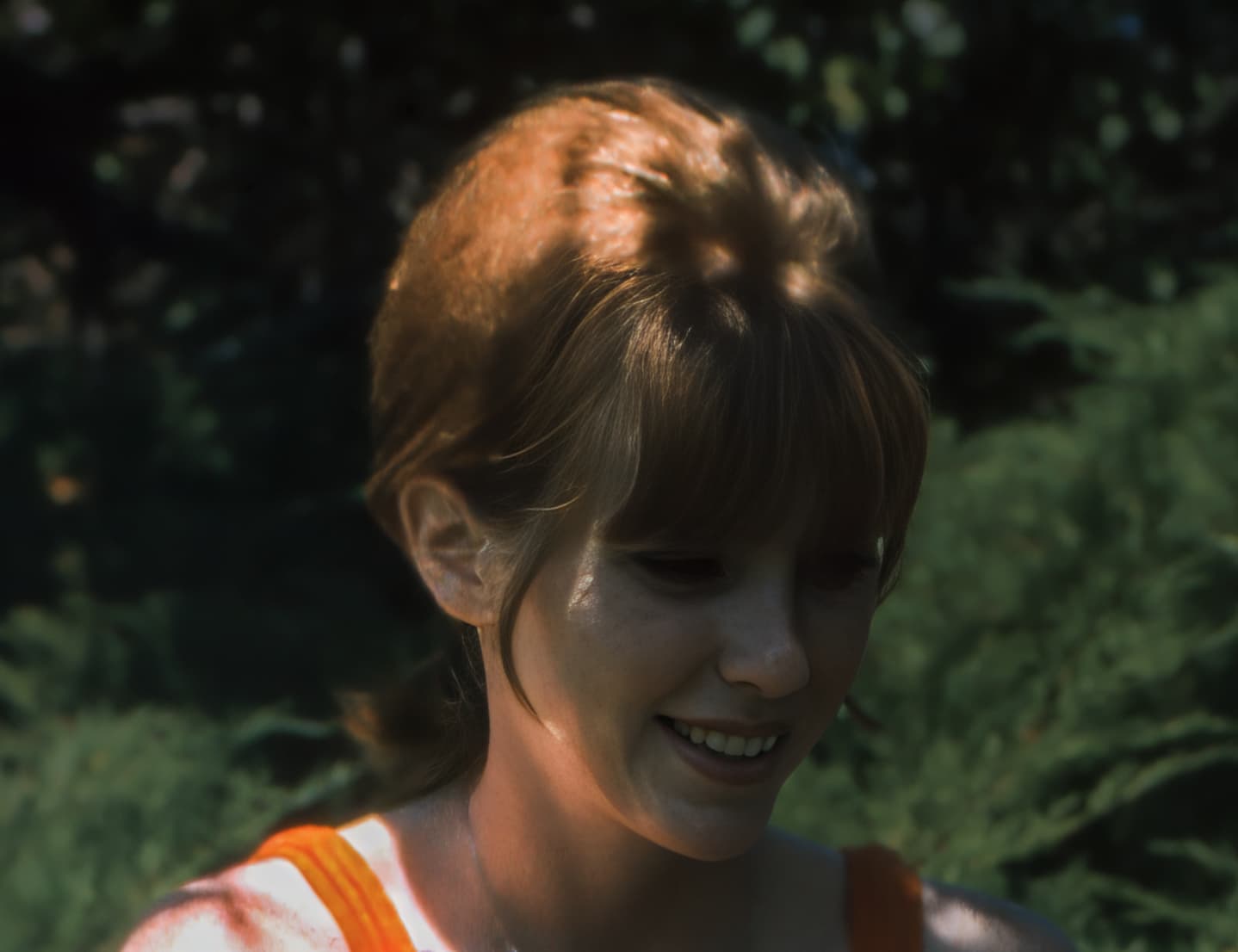
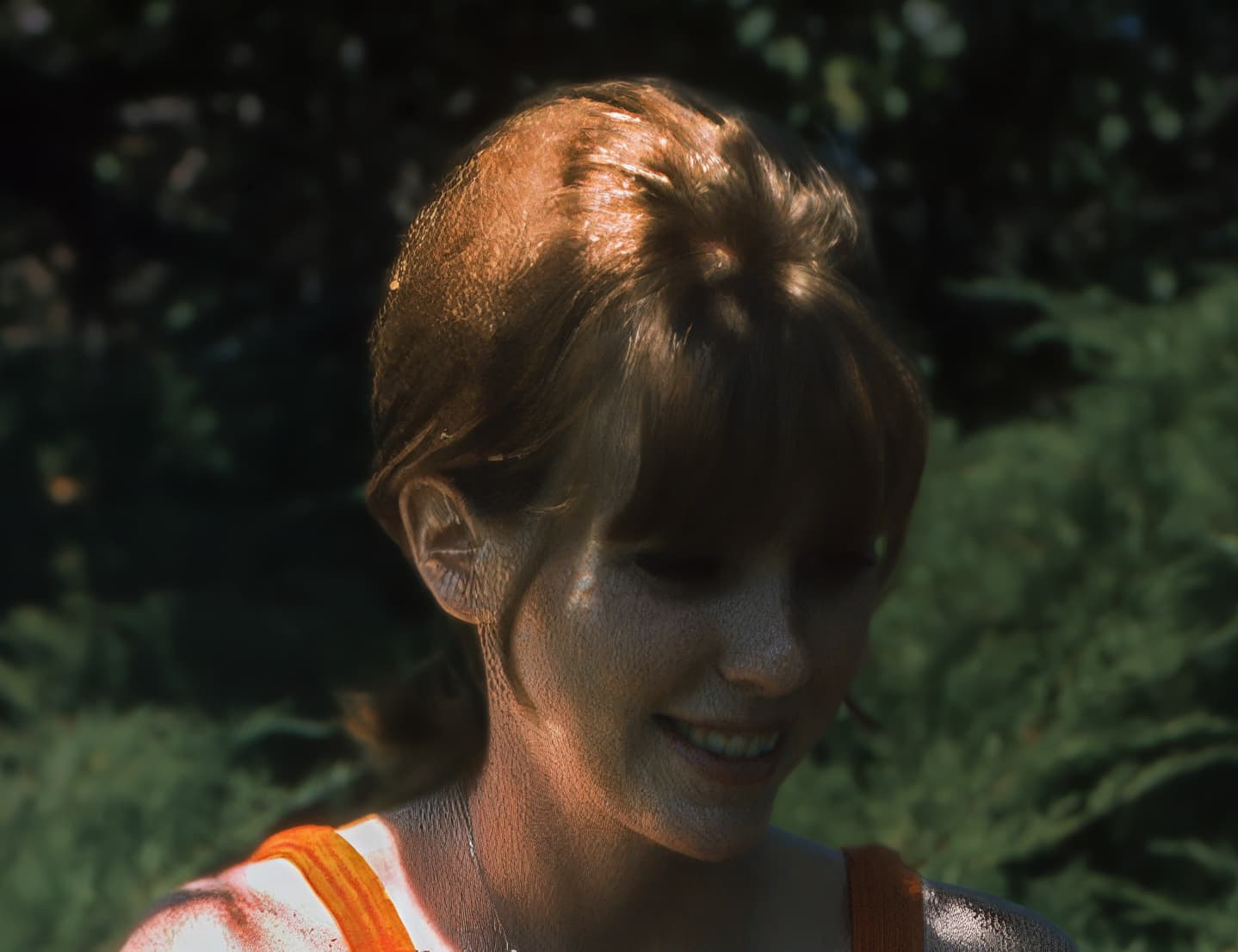
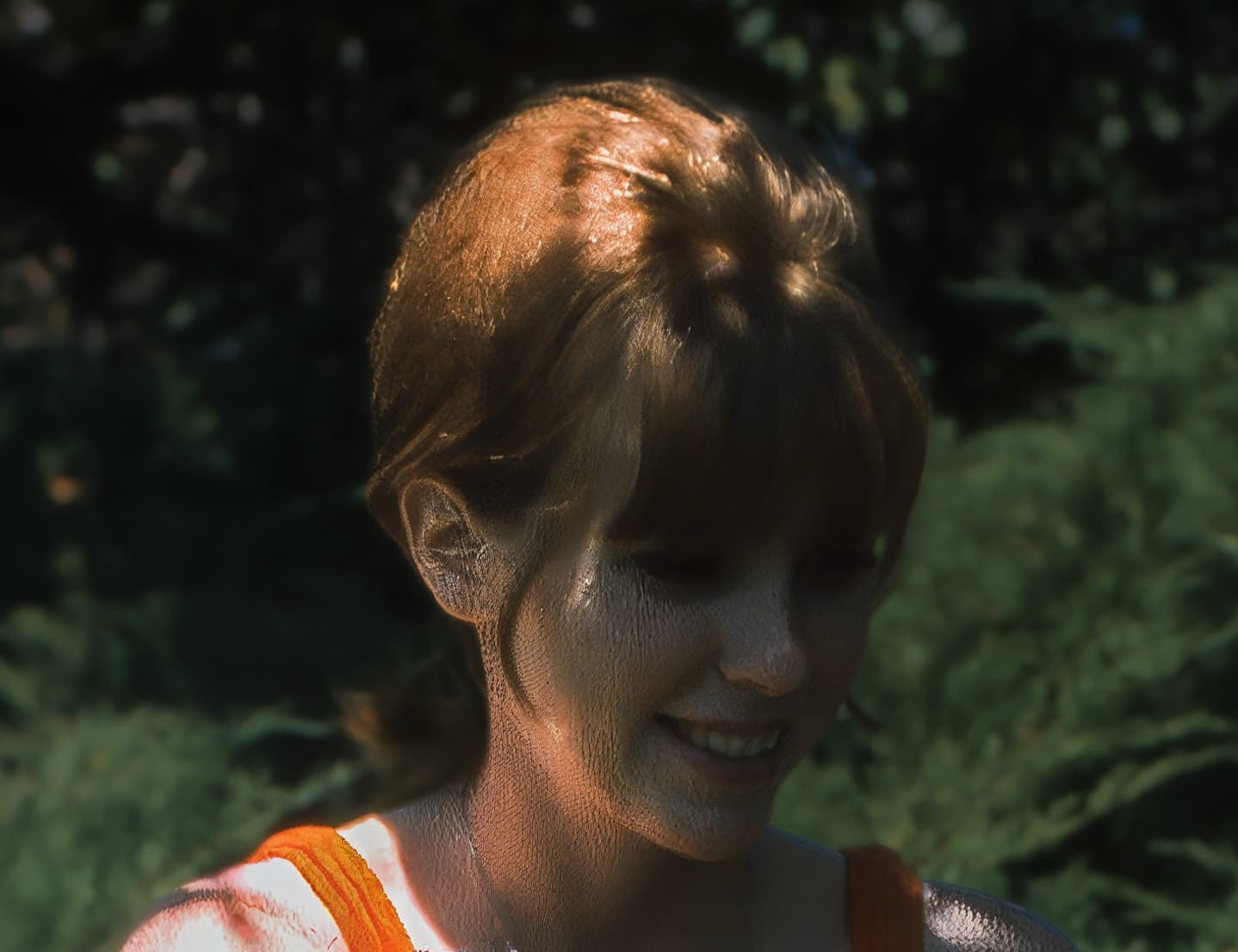
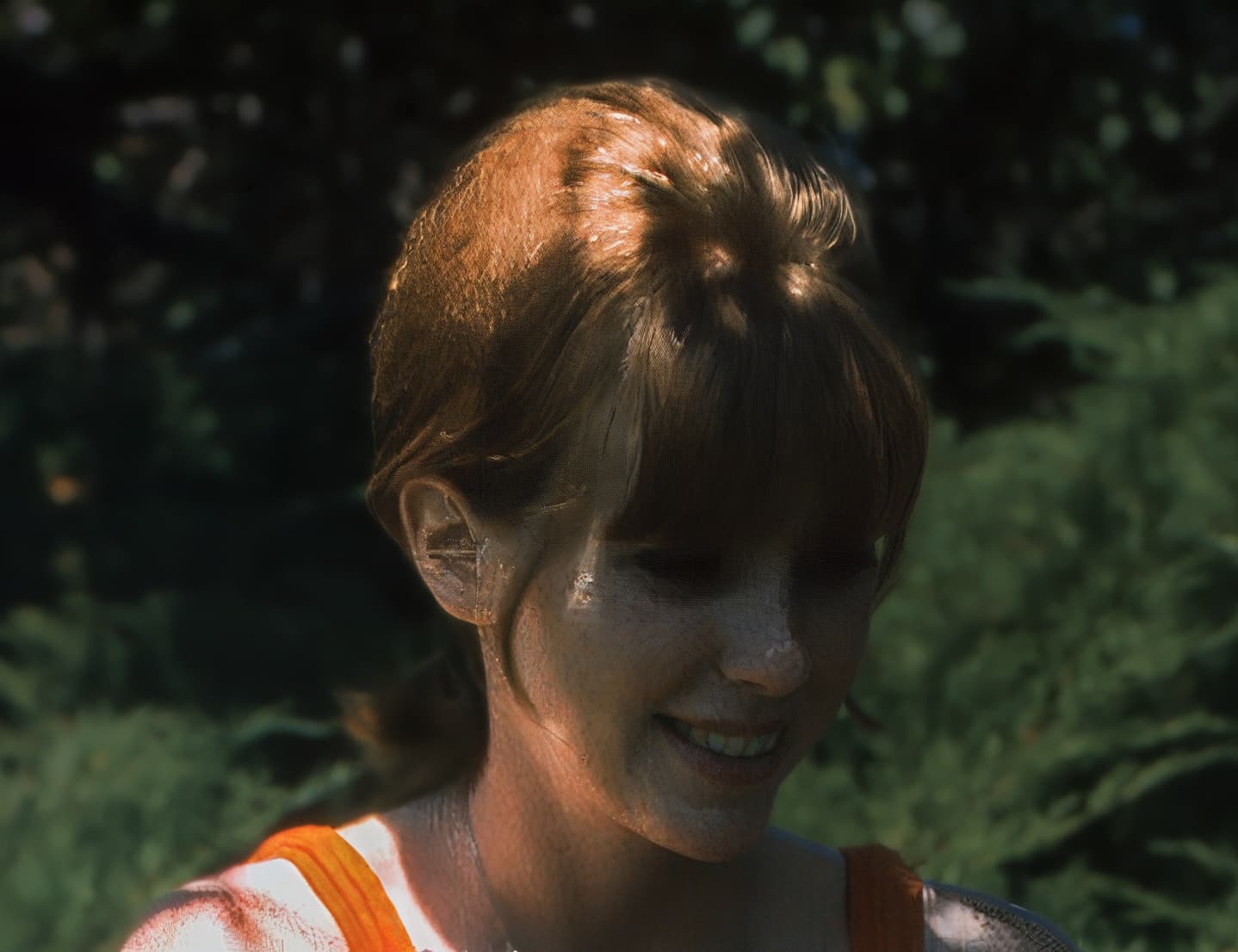
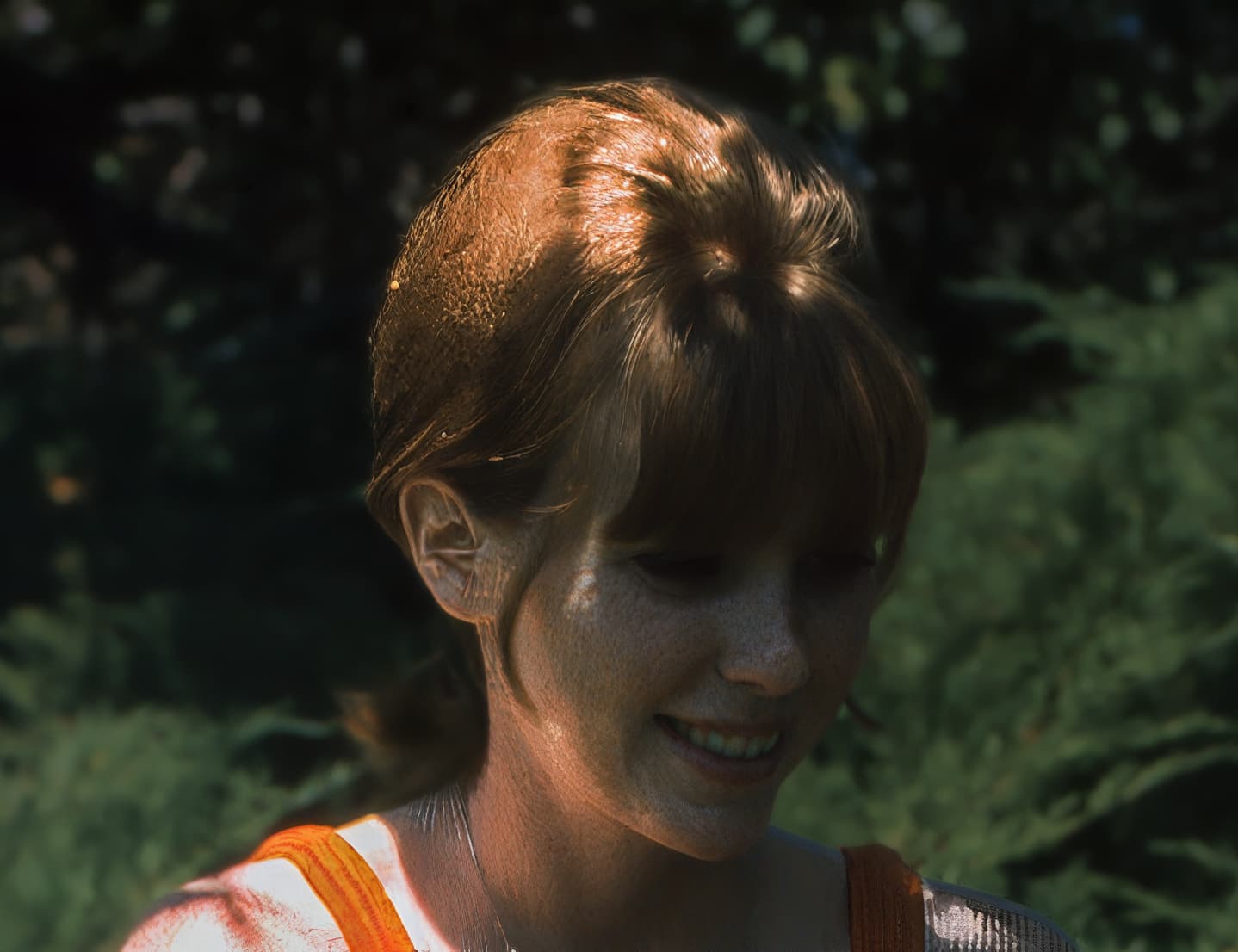
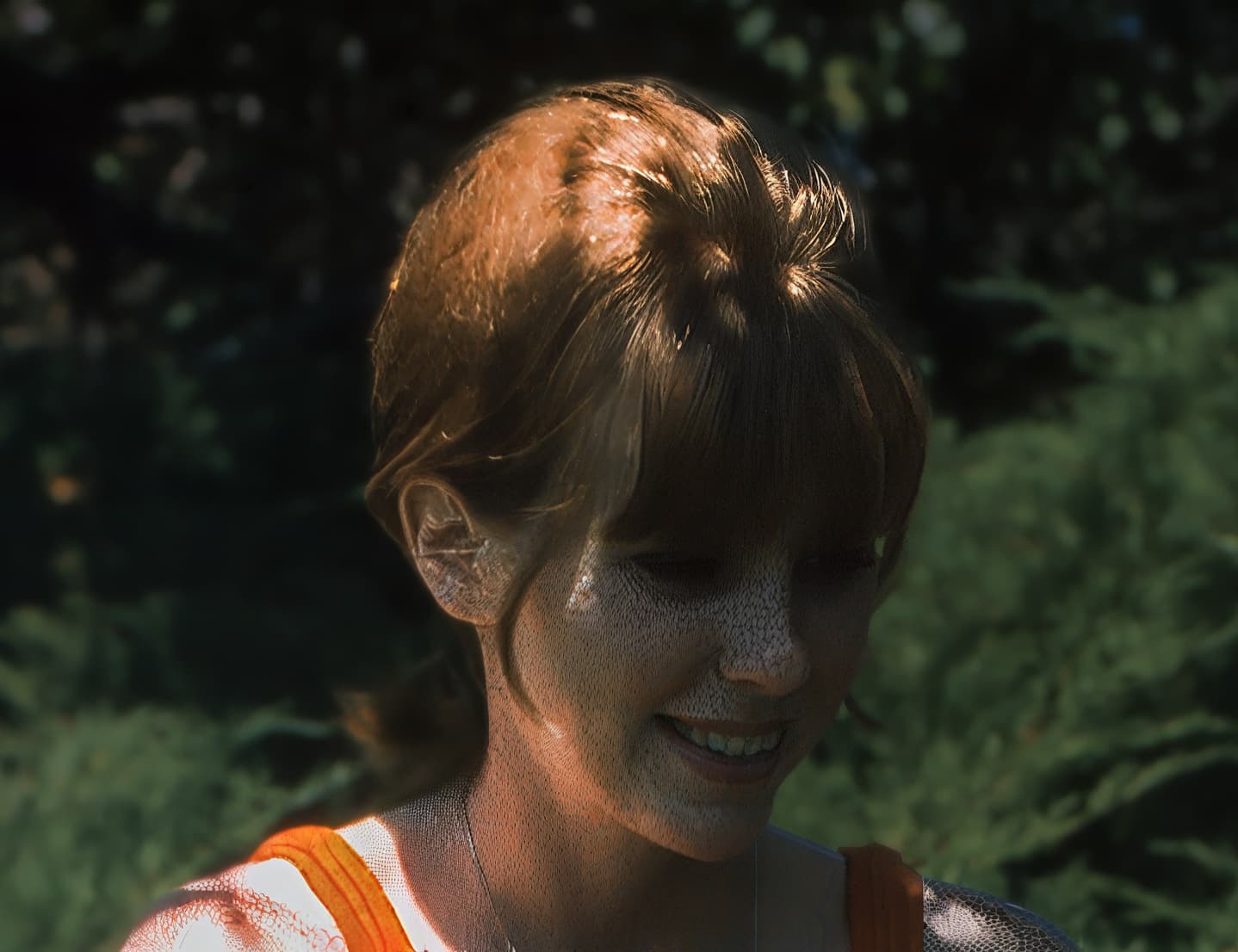
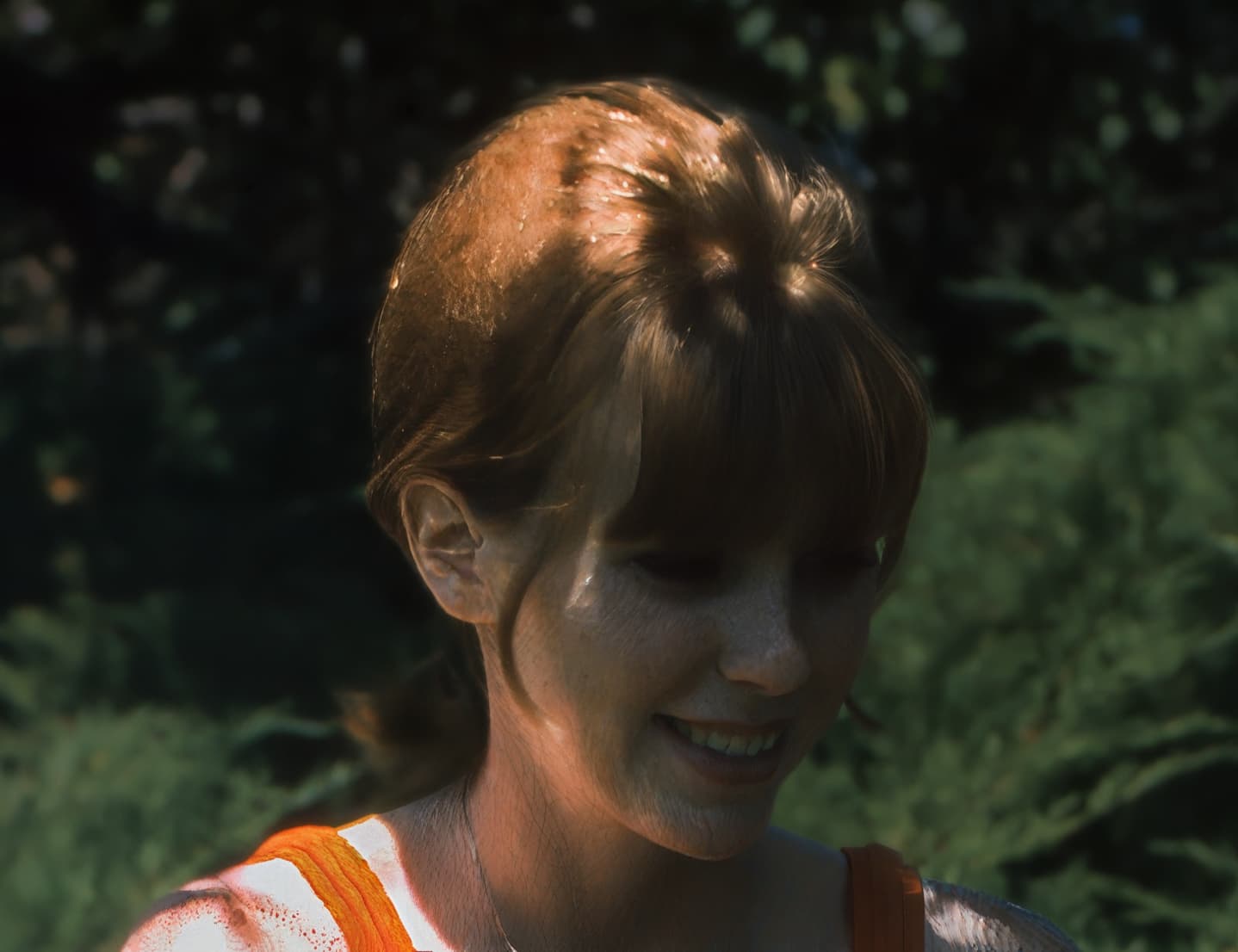
The attached images are the original, the face recovery preview and the final render. You can see that the top half and the left side of the model’s hair is blurry while TAI perfectly rendered a square just larger than the model’s face. Hmm, that won’t do.
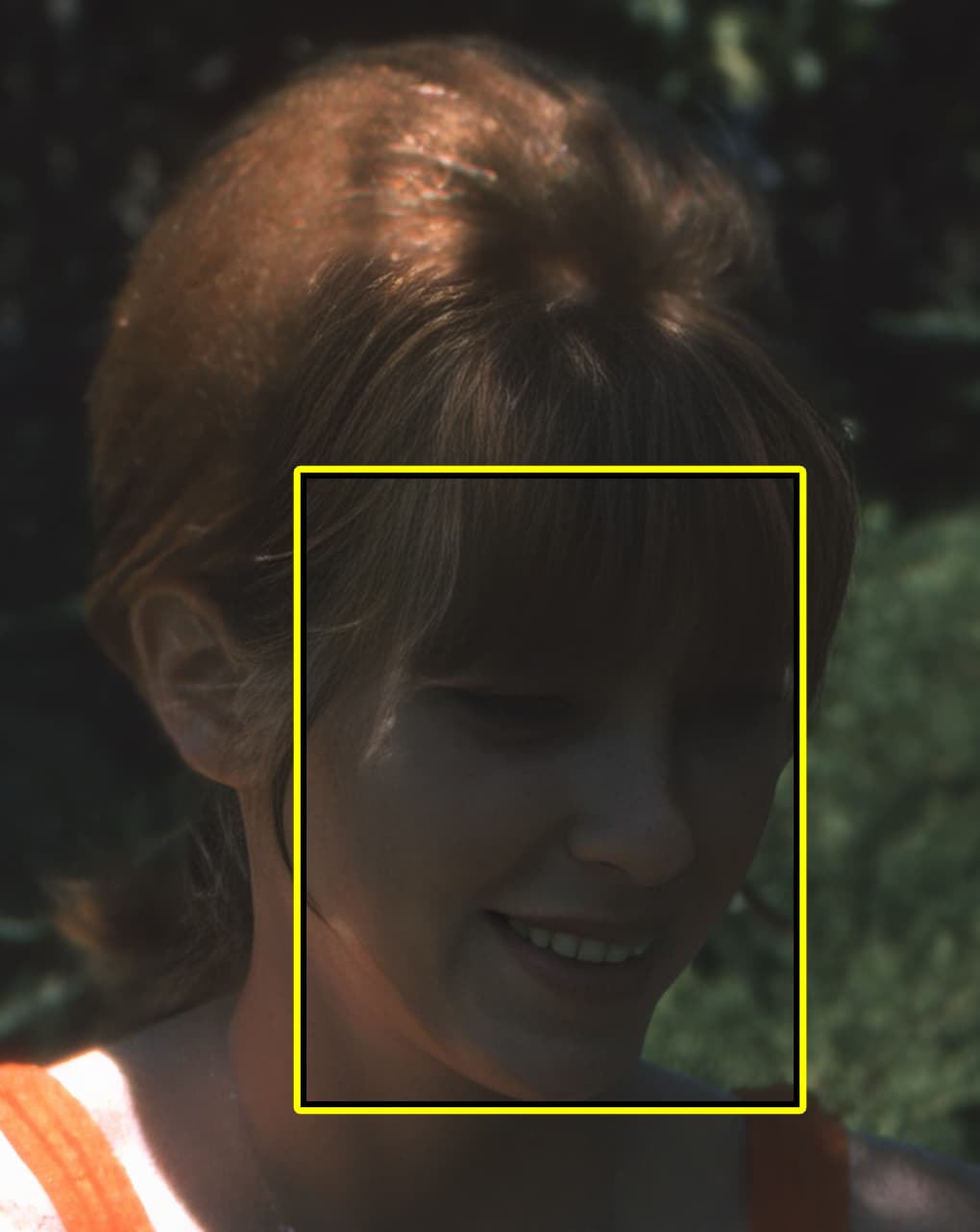
In the preview TAI automatically selects faces. This is OK but it often misses faces. TAI also automatically determines what area is a face. There are no controls to select nor add to what is considered the face. Of course, the limitation is in the name of the tool, “Recover Faces”, not head, right?
OK. Got that. Bummer. Still, I would really like the ability to recover all of her hair.
TAI did a fantastic job at recovering the face and part of the hair. The ability to render the hair is definitely somewhere in this app. You can see it did a great job on her bangs. There seems to be no way to tell the app where and how to apply its ability. I’m completely at the mercy of whatever TAI decides.
I’ve tried all the focus models as well as super focus. Super focus has the worst results on this image. Still no luck.
Different shaped face recognition boxes have appeal but assume that the box shows the area that is improved, rather than the faces identified - I see changes/improvements outside of the square so I’m not sure, with how recover faces is actually implemented, that a box, oval, or even an X would change results.
This is a ridiculously low-pixel count image and might not be representative, but there are visible improvements outside of the box:
@scott.k - The rectangle area is not a representation on the affected area, it’s only to mark what faces are selected. @david.horita - what you mentioned, that is correct!
Make sure in Preferences you uncheck the Hair and Neck areas on this file. There is also on the Ideas forums - Feature requests you can add your vote on for additional features on the Recover Faces tool, and the development team looks at the most popular ones to consider implementing!
This will be a hard picture to recover, with the light conditions in the shade and no details on the whole left part of the hair. That leaves nothing to recover on the hair as there is no details there to recover.
Right!? There is nothing more frustrating than spending money on a tool that has the ability to do what I want but I am completely at the mercy of the tool to make all the decisions. Oval would be great. Unless the tool decided to use a small oval.
@scott.k - @plugsnpixels
The shape of the selection rectangle has no effect on the area affected, it’s only to show in the Selection Panel which faces are to be affected by the tool or not. You can see in @david.horita screenshot that the face is edited outside of the rectangle. Since it’s only for a selection, changing it to an oval would not change anything!
For Scott:
Make sure to add your votes on the Ideas Forum for features you want to see added in for Recover Faces! This includes one for area to be expanded if the AI misses parts like your hair here.
Also make sure you have seen this reply as it will be important to uncheck the Preferences Hair/neck to avoid the line on this file:
Make sure in Preferences you uncheck the Hair and Neck areas on this file. There is also on the Ideas forums - Feature requests you can add your vote on for additional features on the Recover Faces tool, and the development team looks at the most popular ones to consider implementing!
This will be a hard picture to recover, with the light conditions in the shade and no details on the whole left part of the hair. That leaves nothing to recover on the hair as there is no details there to recover.
The oval would still give the same issue here, and give a oval harsh line in the hair here. This occurs also on the necks that have a V shaped in the shirt, there is a line when not a tshirt type delimitation. Faces with hair and hats etc wwouldn’t benefit from oval processing area. Votes can be added to the Ideas thread for ability to select the areas to be processed by the tool! What could be beneficial is a feather, and ability to mask in/off parts.
TAI seems to not “recover” but based on the information available it reconstructs. Is this accurate? It also gets creative and sometimes adds objects, like a cat where there should never be a cat.
TAI just recognizes what it recognizes and that’s that. It recognized a portion of her hair and determined that was what it would render. Cool, but useless in this scenario. Sadly, I run into this kind of thing with TAI a lot. This is why I have moved to using other tools instead. I only use TAI for hard things like this when I actually need AI.
The square marker is understood to be only a marker. Still, TAI rendered a square like area of her hair and that is completely out of my control. If you look closely at the image I posted you can see that TAI rendered up to a straight line above her bangs and to the left. It is like TAI said I will only go this far.
That’s why some user controls and input to assist the AI model would be useful here. Clearly, the AI model has the ability to render this. It just makes all the decisions for me and will only go so far.
I would love to help Topaz AI out with suggestions, but not for free. I have my time limits. I have a day job and 1000s of photos to edit. I worked as a product owner and tester before. It’s a lot of work.
I would rather have a tool that can allow me to select an area or apply a mask, like how Super Focus works. Then maybe tell the tool this is a person, head, leaf, tree or whatever. Then render.
Super Focus was also not able to improve this photo unless I was wanting to turn the model into a lizard.
@scott.k - Super Focus and remove are generative models and yes will create details as they are generative. Sharpen and Denoise and Recover Faces aren’t generative, and there needs to be information to recover. The whole left part of the hair has no details, to recover.
For the lizard skin, the settings are pushed much too high. There is no missed focus on this file, it is a bit soft because its an older picture and pushing Super Focus too high will not give good results as you are asking the tool to keep and sharpen all the noise that is present. Test recovering the lighting on this file first, then remove noise, then test Super Focus. I wouldn’t use Super Focus at all here, just Denoise with Original Details slider up, Recover Faces with Neck/Hair unchecked in Preferences, and a Sharpen on Subject.
The development team will look at the most popular ideas on the Ideas forum!