Even if I wasn’t upscaling & was only denoising and sharpening (which was most instances) text got distorted prior to Text Preserve being intro’d. Maybe my installation results were an outlier…
I’ve only seen text distortion (when not upscaling) with inappropriately used denoising (Auto Pilot could be to blame for that).
Hmmm. I never use AP.
And, only very low denoise. Most of my images aren’t noisy…
Anyone having an issue with Photo AI crashing when launching from within photoshop?
I just put V3.1 of Photo AI on my desktop, and the problem of having DNG files turned into TIF files is still happening. This WAS A PROBLEM AGES AGO with the EARLY VERSIONS OF Photo AI 2 BUT TOPAZ FIXED IT.
It hasn’t worked for me using the same export process I’ve been using, and it STILL doesn’t work.
When I call Photo AI, it gets called from a Lightroom export. The Export creates the DNG file and sends it to Topaz. Topaz IS STILL turning the DNG it SHOULD be into a TIF. I need Topaz to STOP turning the DNG in to a TIF - same way they did whatever they did in V2 so it STOPPED turning the DNG files into TIFs.
This is preventing me from moving to V3. If Topaz is going to permanently refuse to fix this, would they please say so, so I can stop wasting time on V3 “updates” that aren’t going to work.
I’ve put over 60 RAW files from Lightroom through PhotoAI 3.1 (beta and release) in the last few weeks and they have all been saved as DNGs.
I use the Plug-In Extras > Process with Topaz Photo AI. I don’t do any Export from Lightroom.
In PhotoAI they appear as RAW Files. At this point there is no DNG file in the folder
I do my Denoising etc, and then click Export to Adobe LrC.
Now the DNG is created, and this appears in Lightroom stacked along side the RAW photo.
I have never tried exporting from Lightroom as DNG, and then opening this DNG in Photo AI. What is the benefit of doing it this way?
Edit - I did just try Exporting as DNG from Lightroom, editing in Photo AI, and it let me save it as a DNG
1 Like
Hi Paul,
I just launched PAI 3.1.0 via the Ps (2024 production rel. not beta) Filter menu and it didn’t crash. Just quickly tried with File > Automate. No crash there either. Even though it takes close to 10 yrs (okay, 20-30 secs.) to open into the PAI UI.
However, (hey there @dakota.wixom & @anthony.lawn !) oddly while I tried it to see what would happen, I was offered the ‘Suggestion’ to “Upscale” (which I decided to click on for kicks) and at no time did it mention that Upscale is not an option to perform from the PAI Filter menu … could swear I’d mentioned that in my beta test rpts. 
Has that changed? Can we now upsize using the Filter menu PAI?
1 Like
Nessuno sa come risolvere questo problema?
Nessuno sa come risolvere questo problema? Neanche lo staff di Topaz?
I see. But the vast majority don’t have this problem. Perhaps an updated video driver will help if you have not tried it.
No, the PS filter plugin cannot upscale. If you click the suggestion it should add the upscale enhancement but at 1x, which you can also do through the add enhancements list.
1 Like
Yes. I clicked on that PAI Ps Filter Suggestion yesterday b/c I was curious to see if it would Upscale from that menu. Since it was listed.
It didn’t say it would/could only maintain the current sizing (which, to me, isn’t an ‘upscale’) but it did suggest it did some kind of processing - to be honest, I wasn’t sure what. That’s why I was curious.
Thx for your note!
Hi all.
I had a similar problem like the one described by Vladimiro.
I was using photoAI v3.0.4 without issues till today, and after the update to v3.1.0 I got a similar window of photoAI.
I even wasn’t able to access to any option in the toolbar, nor maximize-minimize-close the window.
Tried control panel/programs and characteristics/repair, with no success.
I uninstalled it, and reinstalled v3.0.4 and I’m working again.
Please, find attached screenshots of the issue.
Perhaps it is due to the “very basic” nature of my PC.
Regards
Carlos Romero
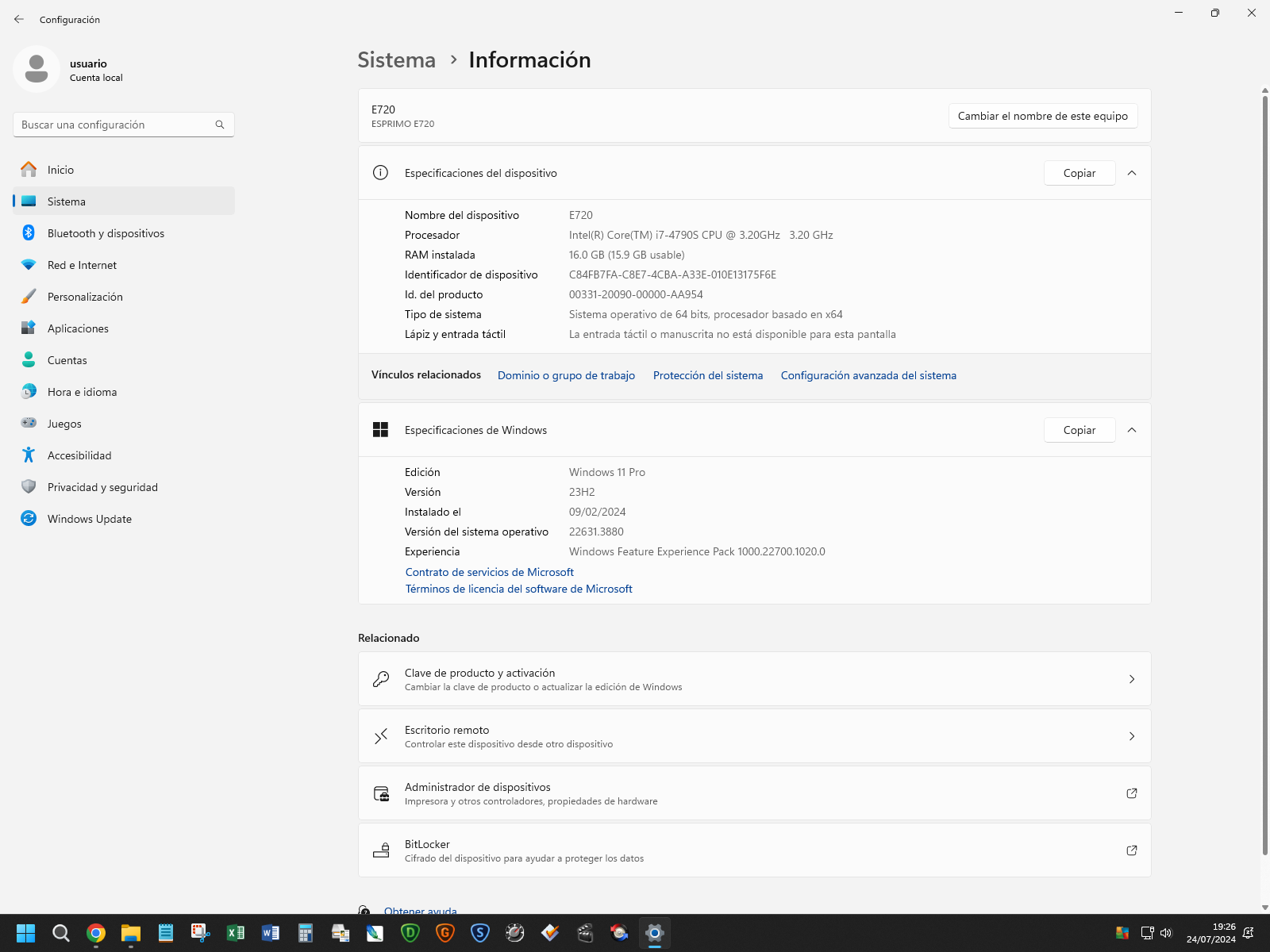
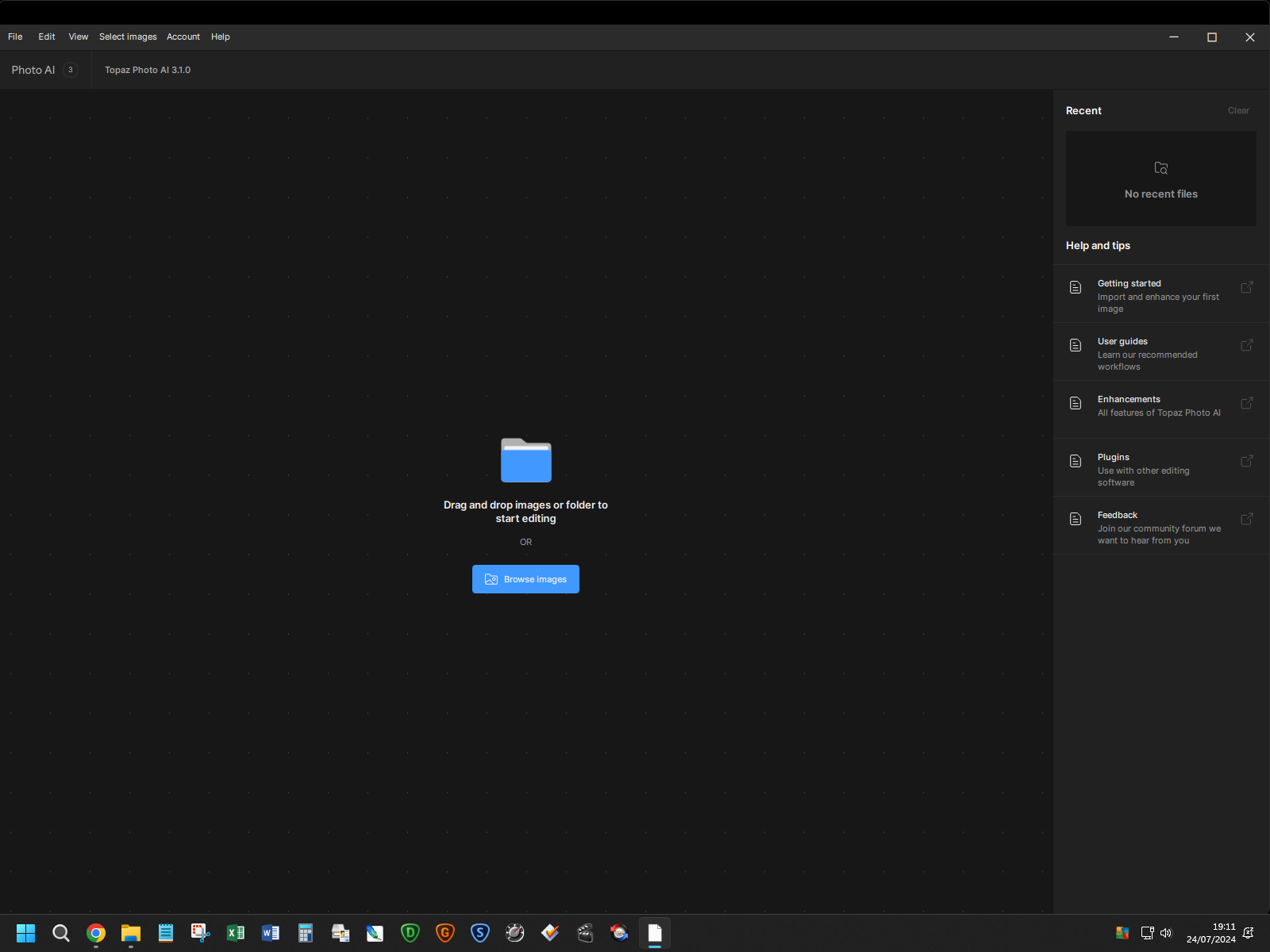
Since you have Windows 11 it is probably not connected to the operating system. Neither you nor Vladamiro said what GPU you are using. Maybe there is some connection there. If you have not contacted support, you should do that but be sure to include info on OS, GPU, RAM and CPU.
Does Photo AI do the processing steps in the optimal order (determined by Topaz) or does it do them in the order you use them?
For example, if I select Sharpen, Denoise, Face Recovery, and Upscale in some random order does Photo AI process them in the order I selected or does it know the best and proper order to do the actual processing and do that?
Lightroom Classic processes adjustments in the proper optimal order so it doesn’t matter the order you as a user make adjustments.
1 Like
Please, please, please fix this. I am stuck on 2.3.2. Kinda not fair to drag this out so long. Thanks!
That’s a great question! Especially b/c it used to appear as though the products stepped through the processing linearly in a set order.
I know that, like you, I sometimes like to buck the typical workflow order so as to achieve different outcomes.
To your point, it is helpful to know if we can either go free range or (if we want coaching to an “ideal” - whatever that means - order) we can tap on the ‘Suggestions’ in the order that they appear to get a recommended processing approach.
1 Like
Terrific. What does your export look like? In the Lightroom Classic export, how are you setting the rename parameters, file settings, and post-processing settings - particularly the text of the post-processing application? 'Cause I’ve been unsuccessful getting back a DNG for any Lightroom Export.
1 Like
Ok. I think I see what you are getting at.
If you Export as DNG, and in the export Post-Processing section you specify PhotoAI as the application, it will create the DNG and automatically open PhotoAI.
But then when you have finished in PhotoAI, and click Export to Adobe LrC, it gets changed to a TIFF, and you can’t change this. You can’t even save as anything but a TIFF.
Which is a bit silly, because if you export the DNG, but don’t specify any Post Processing, and then you manually open Photo AI and edit, you can save as a DNG. (That is what I did yesterday.)
I have never done it this way before. The only advantage I can see is that you have some control over the filename, and then you could perhaps filter on processed photos? (Topaz do update the Software tag in the EXIF, but I can’t see a way of filtering on this in the Library.) Or maybe to change the location? Are there other advantages to doing it this way?
I’ve always just done one of the following, always starting from a RAW photo:
- Right-click > Edit In > Topaz Photo AI (which has always been TIFF or JPG)
- File > Plug-In Extras > Process with Topaz Photo AI (which used to be DNG, then was changed to TIFF, and in a recent release was changed back to DNG for Lightroom only)
- Open the photo directly in Photo AI
You could do the following (in Windows - no idea about Mac)
- Create a DOS CMD file that contains the following
“C:\Program Files\Topaz Labs LLC\Topaz Photo AI\Topaz Photo AI.exe” %*
(Obviously you will need to make sure this is the correct location for the Topaz AI executable)
-
I saved my CMD on the desktop at C:\Users\david\Desktop\PhotoAIRunner.cmd
-
Then you can specify this CMD file in the Post Processing.
When you export, it will open Photo AI as if you had done it manually, and you can save as DNG. Hiding it in a CMD file appears to stop PhotoAI from thinking it is being called from Lightroom. But you would then have to manually import or update the photo in Lightroom
You forgot to mention in your euphoria that ‘just download the new version’ will cost 99 Dollars for an upgrade. This is actually a very expensive ‘update’ for which the key reasons for using the software - noise, sharpening and enlarging do not in themselves have quality improvements.
The color and lighting options don’t seem any better than they were at the Beta stage.
