My Face detection crashed has been fixed by installing the latest nVidia driver.
I went from v536.40 to v536.99
Now it’s working.
I love the new lightning and color balancing features. Thank you. 
Hope that continues to work for you and not just a fluke. I was alerady on 536.99 and crashing all over the place. Haven’t even gotten to convert any images yet just on the settings screen.
1.5.3 (left image) AP did a better job the 2.0 release on this image. Even dialing back noise reduction did not help. Selecting the old Raw strong model in 2.0 at reduced levels gave better results/similar.
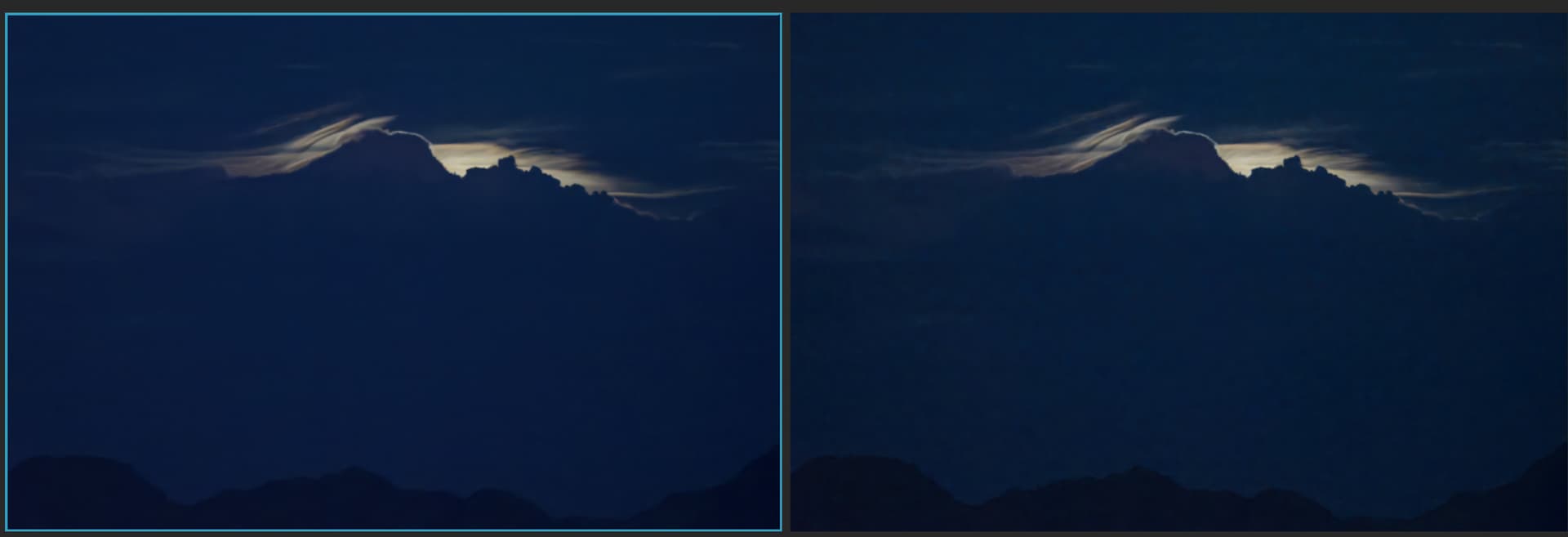
Any further efforts to address this issue?
https://community.topazlabs.com/t/exif-data-being-stripped-nef-dng/
I have determined that the new 2.0.0 version of Photo AI is still stripping data out of my images.
On further examination, I am finding that the excuses that have been made for this are complete bullsh••. There simply is no valid reason at all, that I can seem, why any of these data should be stripped out.
At the very least, please give me a selectable DO NOT STRIP ANY EXIF DATA OUT OF INPUT” option that I can set.
1 Like
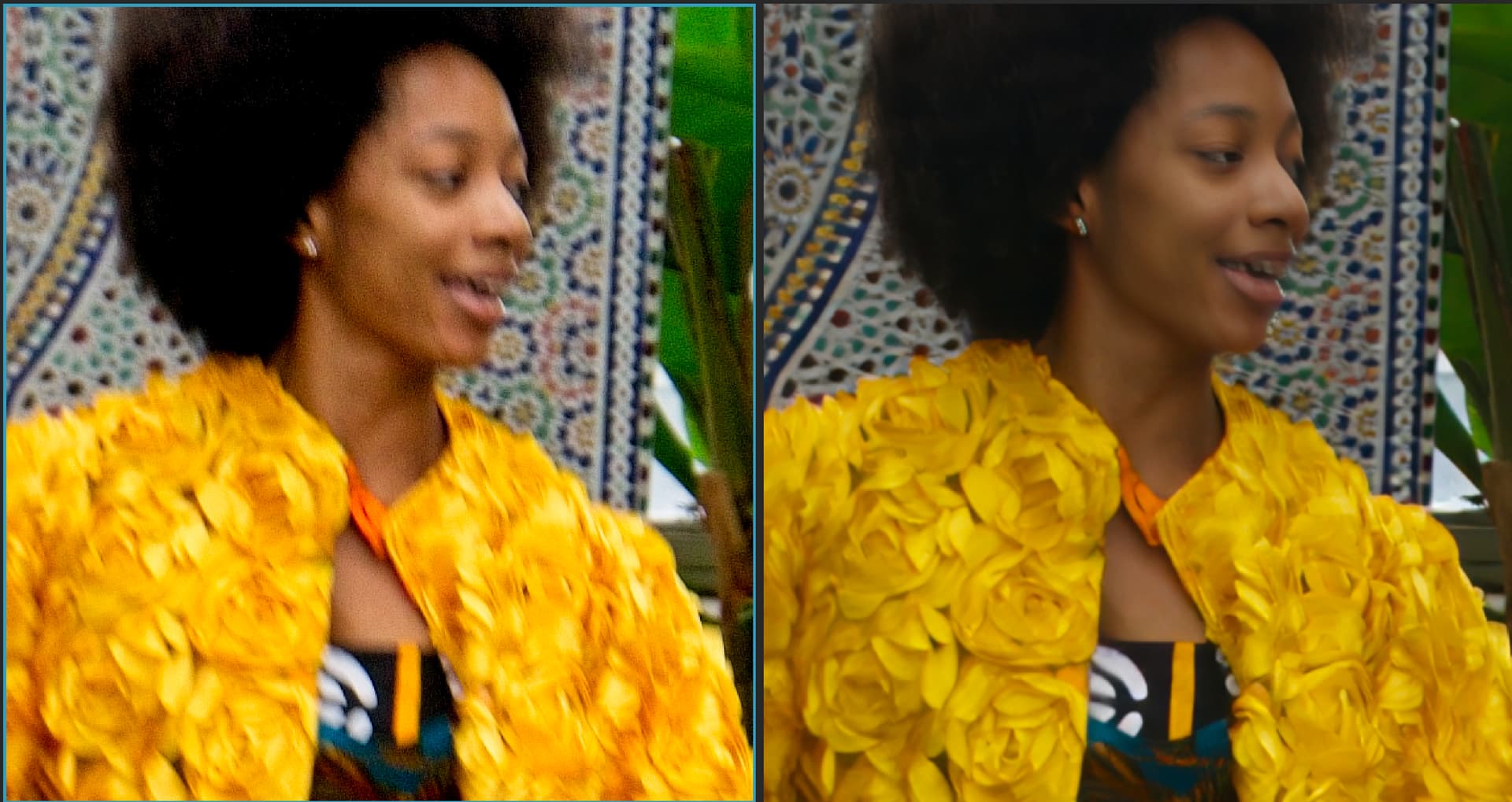
I tried a batch export of 140 images on autopilot…crashes after 5 files 
Same here. Topaz Photo AI closed three times when I clicked “recover faces”. There were only two faces in the photo.
The interface to Lightroom Classic is still broken with respect to Collections. It does not put the resulting photo in the collection if you use the Plug-in extra route. ON1 gets this right so I know it is possible. I reported this several weeks ago and hoped it was fixed in 2.0. No such luck it appears…
Just for fun I tried to upscale an image 2x using PAI as a plugin to PS on my Windows 10 PC. It all seemed to work very well but on returning to PS I got the following error message:
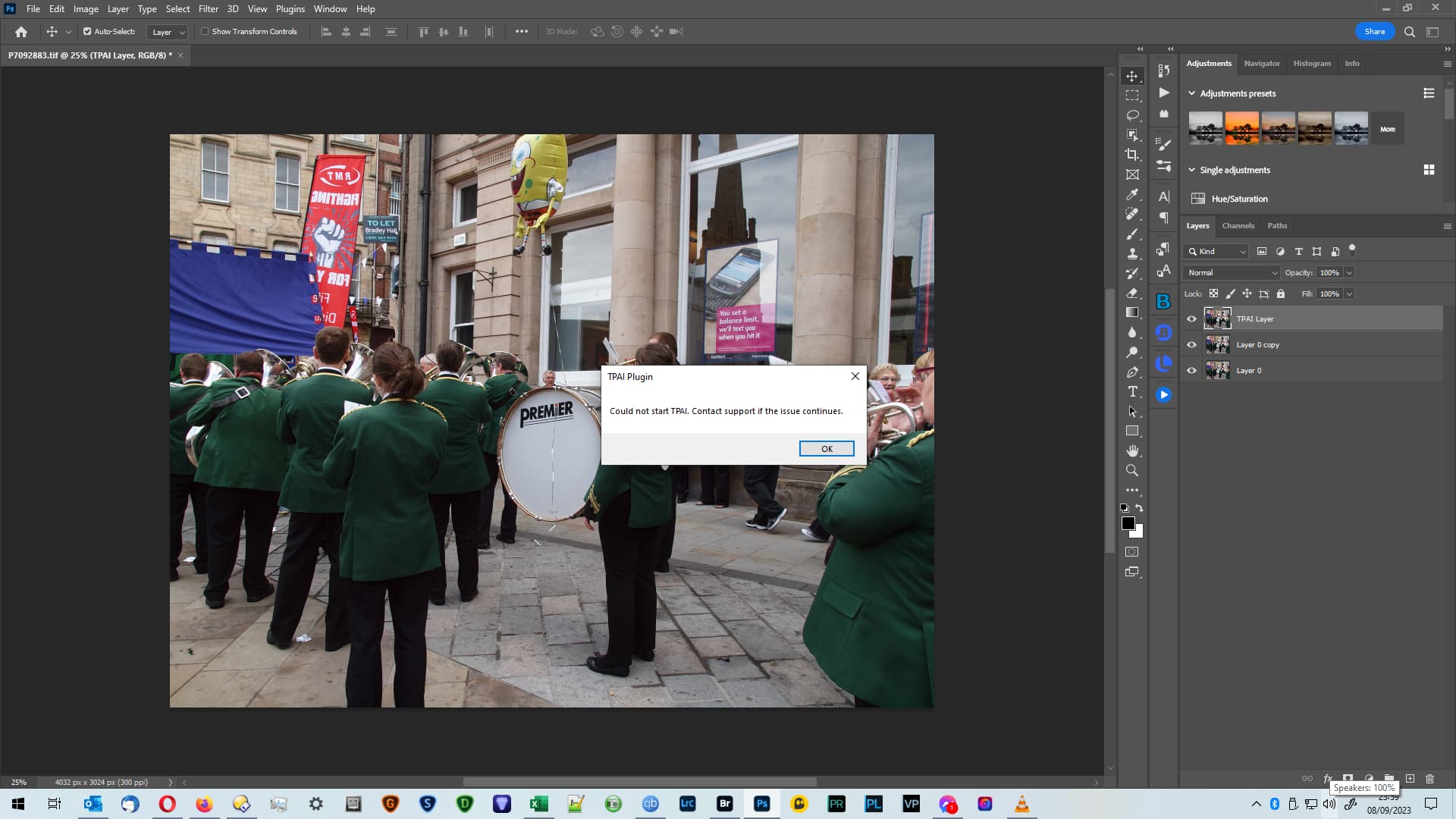
When I clicked on OK the message box and the TPAI Layer (clearly visible in the screenshot) both disappeared.
Infinitely repeatable.
2 Likes
Win 11 Pro desktop PC. PAI 2.0. Ps 2023 Plugin. Processor = AMD RX6800 XT.
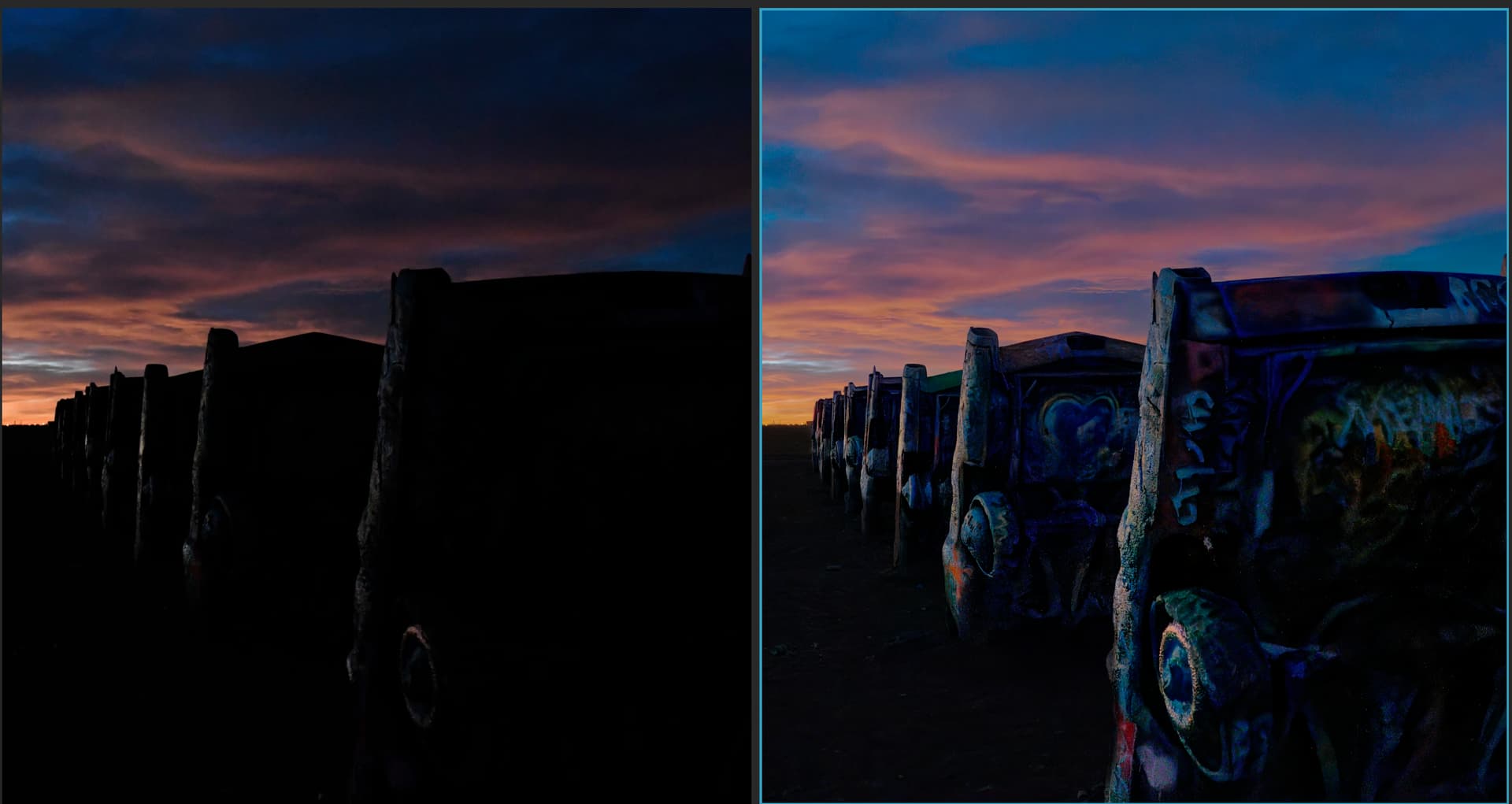
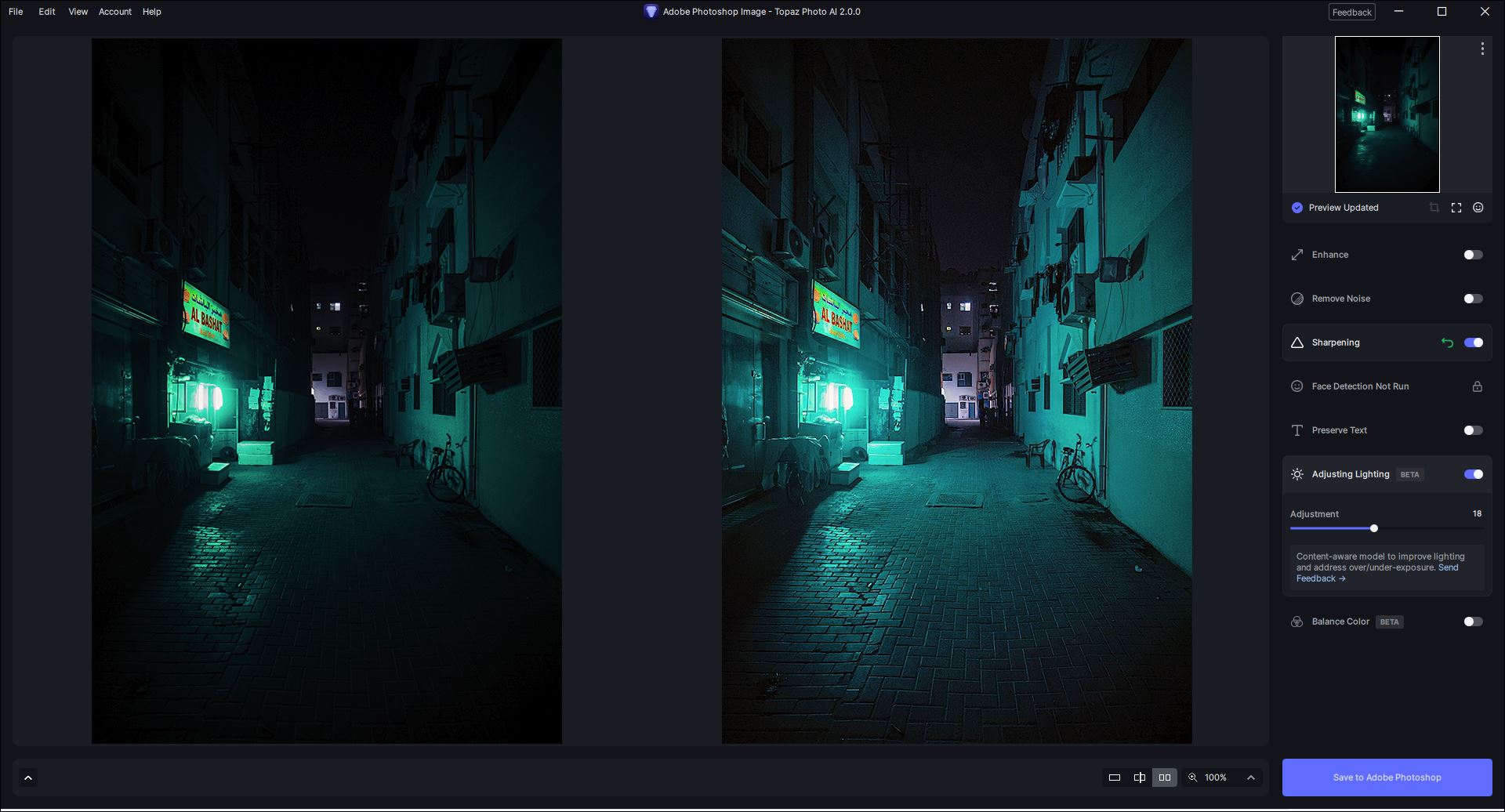
Very dark (blocked up shadows) nighttime JPEG image opened into Ps.
In PAI Ps Plugin, I used Sharpening & Adjusting Lighting (AL) initially. (Labelled in filename snip below). AL opened up a lot of the shadows & restored image detail missing in the original. BUT, it definitely changed the greenish hues in the image & made them more of a turquoise (a diff. color family).
I added Balance Color to the prior settings - with trial & error I brought the opened up image’s hues closer to a brighter shade of the original image’s hues (at least to my eyes…). Snip below - labelled in filename.
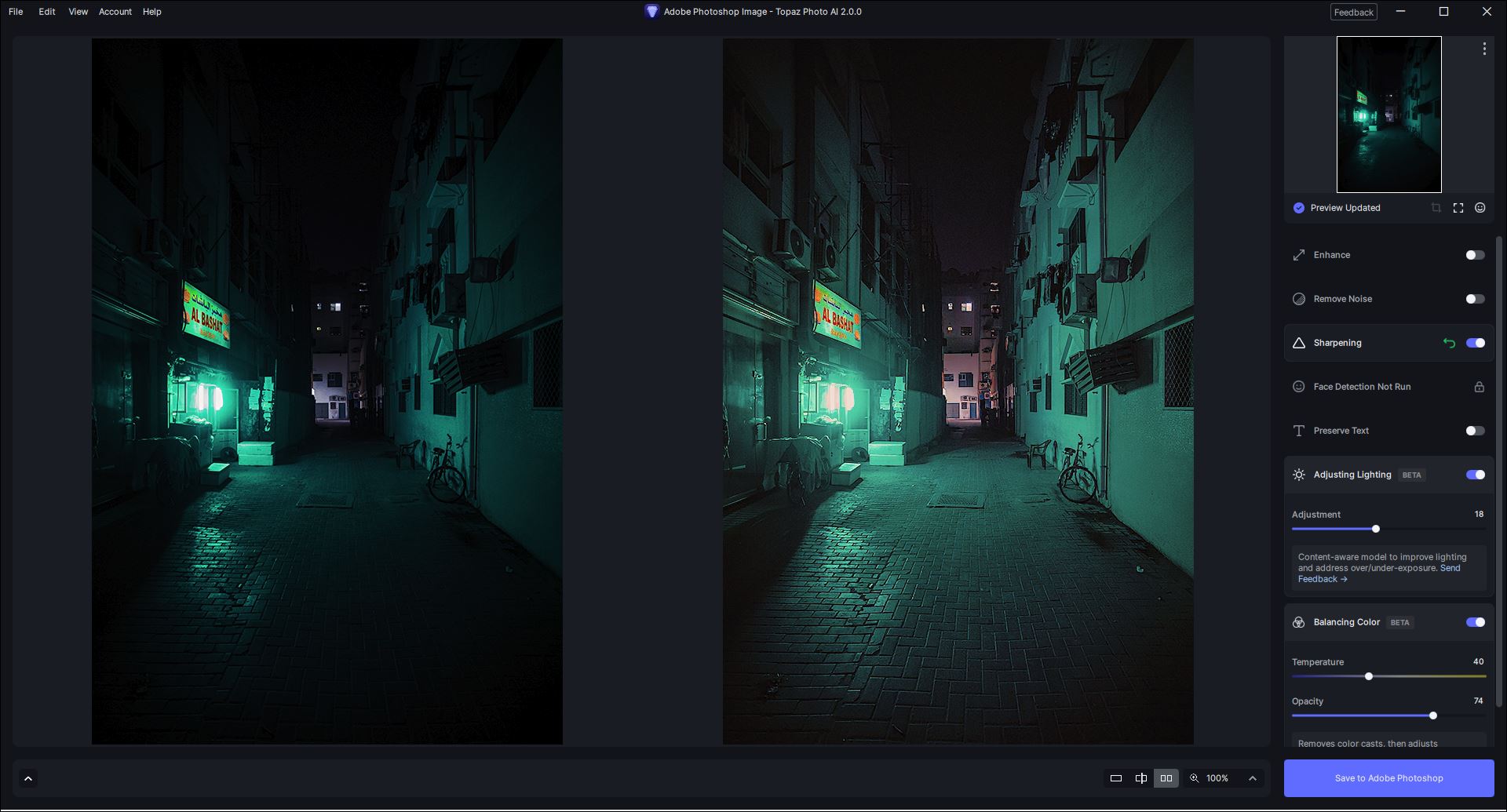
Accepted back to my Ps Layer. I wanted to correct a few things with Ps layer masking - [1] Lessen the amt of overly bright haze/glare around the lights at left in the alley shop, [2] Fix some of the logic incongruities (given where the lighting was coming from the shop, parts of some objects in the scene should be in more shadow than the opened up image retained)…I masked to put those areas back into some shadow. Both modifs. to the PAI output helped - for my taste.

-
The PAI 2.0 lighting feature was able to open up/recover more details (& do so more quickly) from the shadows than I was able to do using a mix of ACR filter (Adobe Camera Raw filter), Curves and Image > Adjustments > Shadows/Highlights (as a smart obj.).
-
BTW, I was able to re-run the outputted image back through PAI plugin and brighten more details w/out image degradation.
-
My personal photo style tends toward low-key. Because my PAI output is sent back to a Ps layer, I could also have lowered the PAI output Opacity and/or used a Luminosity Blend Mode if I wanted to throttle the results back a bit more than shown in the snip. Another way to say it is that PAI gave me a base of useful lighting & color/tint adjustments (using a mix of the 2 newest features) that I could modify to suit my own creative taste by working with it as a Ps Plugin vs using PAI as a standalone.
-
Small details - that are nitpicks - not critical to performance. I prefer ‘action’ words be used in the PAI righthand Settings panel (& consistently across all tools in that panel). There’s a mix of active & passively named features now. In an ideal world, “Sharpening” would become “Sharpen”. “Adjusting Lighting” would become “Adjust Lighting”. And, there’s an inconsistency of how the final newest feature appears. It says “Balance Color” (which is good!) when minimized…but “Balancing Color” (not as good) when expanded. See my snips above. But that’s minor relative to the performance issues.
2 Likes
confirmed here also crashing again is back on Nvidia a4000
I’m running okay on 537.13 drivers.
New Autopilot Preferences
Driver version 536.99 did not solve the face detection issue for me. So far, the most stable driver I’ve found for my RTX 3090 is the 535.98 Studio Driver. It lets me process more than 70 photos with 2 faces before crashing. Testing a photo with 20 faces crashed immediately. Newer driver versions either crash immediately or after 1-2 photos.
For the 535.98 driver, Google: nvidia studio driver 535.98
For my 20 faces Top Gun test photo, Google: CinUIp_U4AABkHP
2 Likes
Same here. If I disable face enhancement, the program seems stable. This is the first version where I have encountered this issue.
1 Like
This is good news if your license has expired.
If not expired yet one can renew for $99, as I have just done - out to 2025 
2 Likes
It would be best to have an option to choose preferred extension to be used, but 3 letter extensions are both impractical and obsolete these days. There are so many more file types: programs which keep on insisting on using 3 letters now collide with several other programs that do the same, using the same 3 letter file extensions for wildly different file types, which makes accessing files directly from the File Explorer endlessly frustrating.
Well you might be thrilled, but I’m not. Here are the first two things I noticed when just installing and launching the app.
NO MODEL FOLDER LOCATION
Your installer, without asking, downloaded and installed all the PhotoAI models onto my drive C. This is a VERY expensive EXTREME performance drive connected directly to the CPU. In all other Topaz products (e.g. Gigapixel, VideoAI) I have the models located on a different (high but not extreme performance) drive via the main bus.
I do NOT want the model files on Drive C. They also clutter Gb of my multiple Drive C image backups, which is totally unnecessary as they are downloadable after all. Grrr.
This is another example of Devs presuming their bit of software is the centre of the universe and client computers should and can be bent to the Devs will. Give a bit of consideration for people using other stuff and managing their own systems, please.
VERY HIGH PRIORITY → Put model flie location support in Prefs.
YOU’VE TAKEN OVER THE PRIMARY MONITOR – AGAIN
When PhotoAI is full screen on the primary monitor, it prevents Windows’ (10 Pro) Task Bar from popping up. I’ve complained about this in various Topaz apps MULTIPLE TIMES in the past. Please add to your pre-release checklist testing that your app does NOT take over the primary screen and prevent normal OS behaviour.
VERY HIGH PRIORITY → Stop your app hogging the primary monitor when full screen, and allow the Task Bar to appear.
.
At some stage I will try out the model improvements. In the meantime, please improve your pre-release processes. I’ve complained about this MULTIPLE times in the past.
PLEASE LISTEN AND IMPLEMENT. Sorry to sound cross, but these problems keep appearing again and again because there is obviously an inadequate pre-release checklist. Who is responsible for it?
If your product release processes were as good as the restoration capabilities of the software, you’d get 9.9/10. As it is, you get 5.5/10.
4 Likes
