Store and recall settings Looks mandatory and we also need to recover the settings for a previously processed photo
The new “Preserve Text” feature is fantastic! I’ve already used it successfully on a few images. Unfortunately, I’m also getting a lot of crashes when using it. After a few changes or when panning in the image, PAI will crash to desktop. I’m still thankful for it even if it’s not 100% stable yet.
4 Likes
after updating, I get a window with the button “Activate”. Clicking it opens Chrome where I am logged in Topazlabs.
But nothing further happens. The window is still there but no longer clickable, I don’t get into Topaz Photo. Using M2 Mac. The previous version worked and was able to authenticate opening the browser in the background.
What happens if you close the window then launch PAI? Is it activated & are you able to use it? Or, reboot your computer then try again?
A few of us are getting the preserve text then pan crash. Thanks for reporting!
This should be what happens when using PAI as a Photoshop plugin - if converting to a Smart Object before sending into the plugin. But, unfortunately, that isn’t what’s happening. It doesn’t behave like a Ps smart object should and save the settings at this point…
It seems to be something that needs more development b/c of how images are sent & returned b/wn Ps and the PAI plugin. At present, the returned, processed PAI outputs seem to be rasterized; which negates the point of converting to a smart object before sending to the plugin.
That’s a long-winded way of me saying I agree. And, b/c I’m almost solely a Ps Plugin user, I’d like the option to have a Ps Smart Object retain the PAI settings I used (in case I want to “tweak” them either while in a single workflow session or come back to the image if I’ve saved it as a .PSD).
(Knock on wood…) I haven’t experienced the Text - Pan - Crash.
But what I do see is that after manually ID’ing text, panning around to be sure I’ve ID’d all the text, then hitting Apply for the Text Preserve to be used on my images — the wht Nav Box gets plunked into the far upper left corner after that process when Text Preserve returns me to the main PAI UI (Ps Plugin - Win 11).
1 Like
I would often use enhance at lower than 2x. Please restore this feature.
3 Likes
You can type in the 1 over the 2…but 1 should be the default, and if you want, you can type in a 2X 3X etc…
1 Like
Agree!
And, the settings category should be called “Scale” vs “Upscale”. [Or, Enhance & Scale]
There needs to be a “Custom” blank box in which users can type in “.5” (for ex.) if we want to reduce the size of an image & not be limited to upscaling. If we want to downscale and retain image quality that should be possible in this type of program. IMO.
3 Likes
That’s fine but the problem is that there is already a system pref for this in macOS which PAI is flat out overriding. Regardless of whether the Recent pane is good or not, this conflict in behaviors between the app and the OS is either an implementation hole or a bug.
Are you talking about the scaling? That was the last discussion topic. If not, hard to know with an out of context reply…
I don’t believe there’s a pref to downscale. I don’t remember one.
Or, are you talking about the great display of recent images on the splash page?
I’m a Win user, not a Mac. So don’t know how Mac prefs operate or what they govern. Are you trying to fake your Mac into hiding recent images via your Finder or did you disable your Spotlight?
I find Photo AI can not recognize human’s face in my Macbook Pro 16’ 2021 with M1 Pro chip. I hope this bug can be fixed quickly.
I’m finding the latest version painfully slow on my M1 MBP Max
No, I’m responding to the Recent Images pane feedback. If you follow the “Load parent post” breadcrumbs at the top of each comment, you can follow the threads.
1 Like
I think that fix may not have made the changelog, but smart objects were failing to save the changes made to some specific enhancements, but 1.3.12 and up should once again save all changed settings.
1 Like
I am not sure if I can compare with earlier versions as I am not using the software as much as TSAI or DxOPR these days.
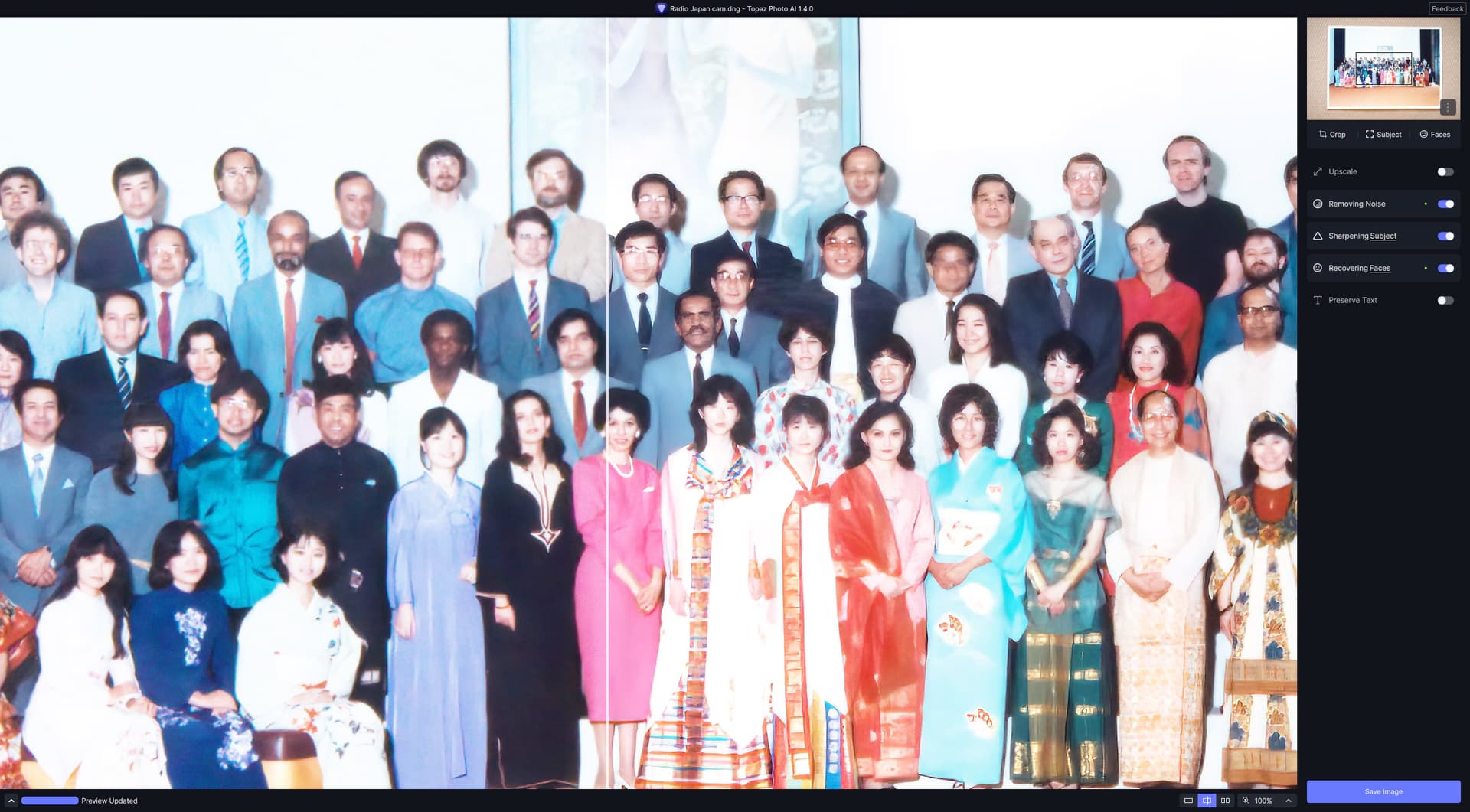
However, I just ran a scan of a very low res colour print with around 100 faces in it. It did take a minute or so but that’s hardly surprising. I also had to manually specify some sharpening of the entire image. The FaceAI was in my view acceptable given what I was working with.
Running a recent ARW file that required denoising took just a few seconds, quicker than DxOPR, although I prefer the latter result.
Mac mini M1 16GB, Ventura 13.5
Tested it today: first time that one of your programs crushed. And this every time i use Preserve Text (if it is not crashing → next time you move the preview by the mouse cause a crash)
Changing the strength → crash chance 50/50
Texted with several images from low to higher res (1…4 MP source)
Changing AI-Model → Crash
Zooming in while Preserve Text activated → Crash
EDIT:
I’ve crashes in 1.4 also sometimes now when NOT using the Preserve Text function. Mostly when moving/zooming. Crash without a message. App disappears.
1 Like
I mentioned this in my post 113. I often use X1 since most digital cameras have enough resolution so having to type in 1 is not efficient. I want enhance more than upscale.
2 Likes
Hi Anthony! Thx for your note.
Just tried it using the Ps 2023 Plugin. Win 11.
The Smart Obj did retain the Sharpen settings when relaunched from the smart obj on the Ps layer (which is a fix!). But it didn’t retain the Text Preserve as on & with its setting. The switch for Text Preserve was on Off when relaunched. Do some ‘hooks’ to that new text feature need to be added?
Here’s snips of the image I tested with & how my Ps UI looked with the originally returned Smart Obj for that image:
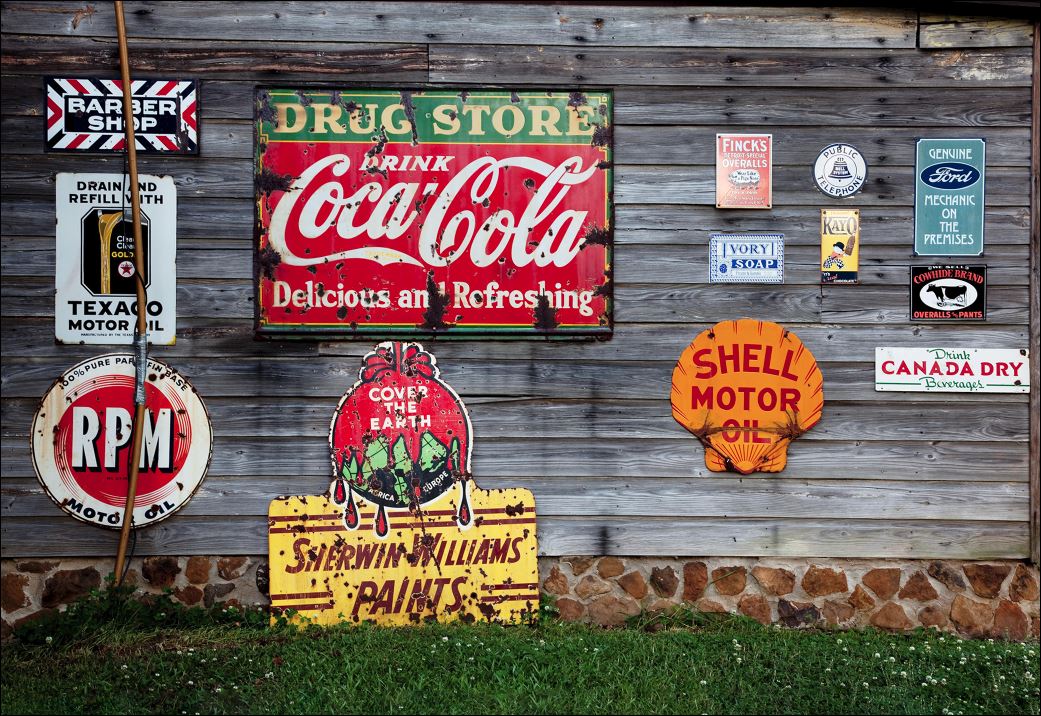
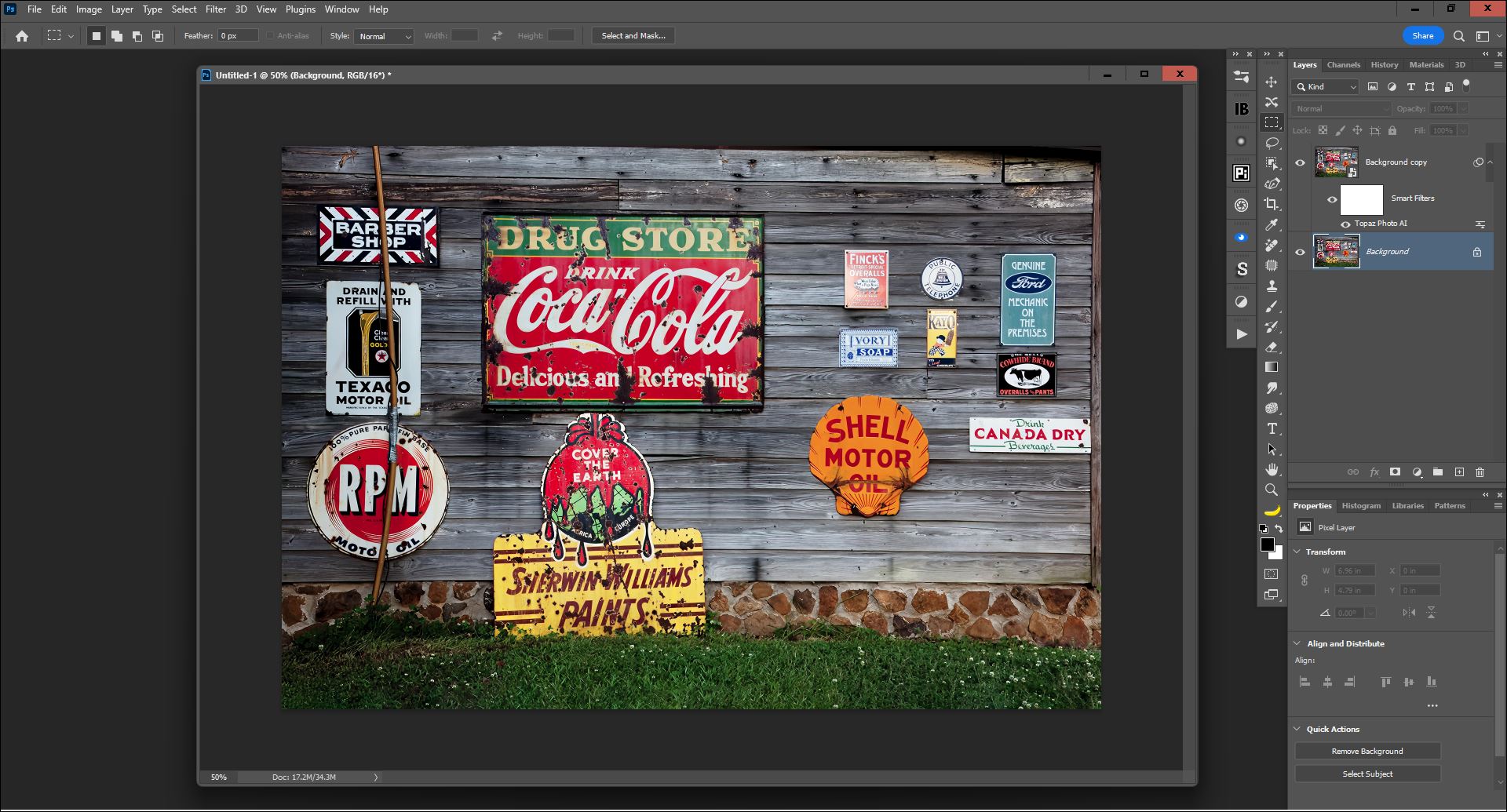
BTW, I manually selected each instance of text individually with the masking brush & pushed the strength up to roughly 33% on the text slider & had used Low Res.
