We are thrilled to introduce Topaz Image Web — a brand new platform that combines the power of our best cloud models into intelligent workflows that do the heavy lifting for you. No more guessing. No more back and forth. Just upload your images and get the results you’ve always wanted, easier than ever before.
What is Topaz Image Web?
Topaz Image Web is a professional image enhancement platform built for photographers, AI graphic creators, and anyone who needs high quality results without the complexity. It runs entirely in the cloud, meaning your output quality is never limited by your device or hardware. Whether you are working on a single image or hundreds at once, Topaz Image Web is built to handle it at a professional level. Visit the app at app.topazlabs.com.
Plans & Access
Whether you’re just getting started or need full professional output, there’s a plan for you.
-
Personal — $19/mo ( 50% launch discount available) — Unlimited rendering, 2 concurrent jobs, up to 32 MP, personal and light commercial use
-
Pro — $59/mo ( 50% launch discount available) — Unlimited rendering, 8 concurrent jobs, max MP limit per image, full commercial use
-
Topaz Studio — $69/mo — Everything, all apps, including Topaz Image Web
If you had previous access to Express or are already on a Topaz Studio subscription, you’re ready to go right now — just head to app.topazlabs.com and start enhancing.
What are Workflows?
Workflows are task-based presets designed around a specific enhancement goal. Some workflows are single model-based — like Creative Upscale, where you simply choose which model to use. Others automatically combine multiple models and steps behind the scenes to get the best result for your image. Select the workflow that matches what you want to achieve and Topaz Image Web handles the rest.
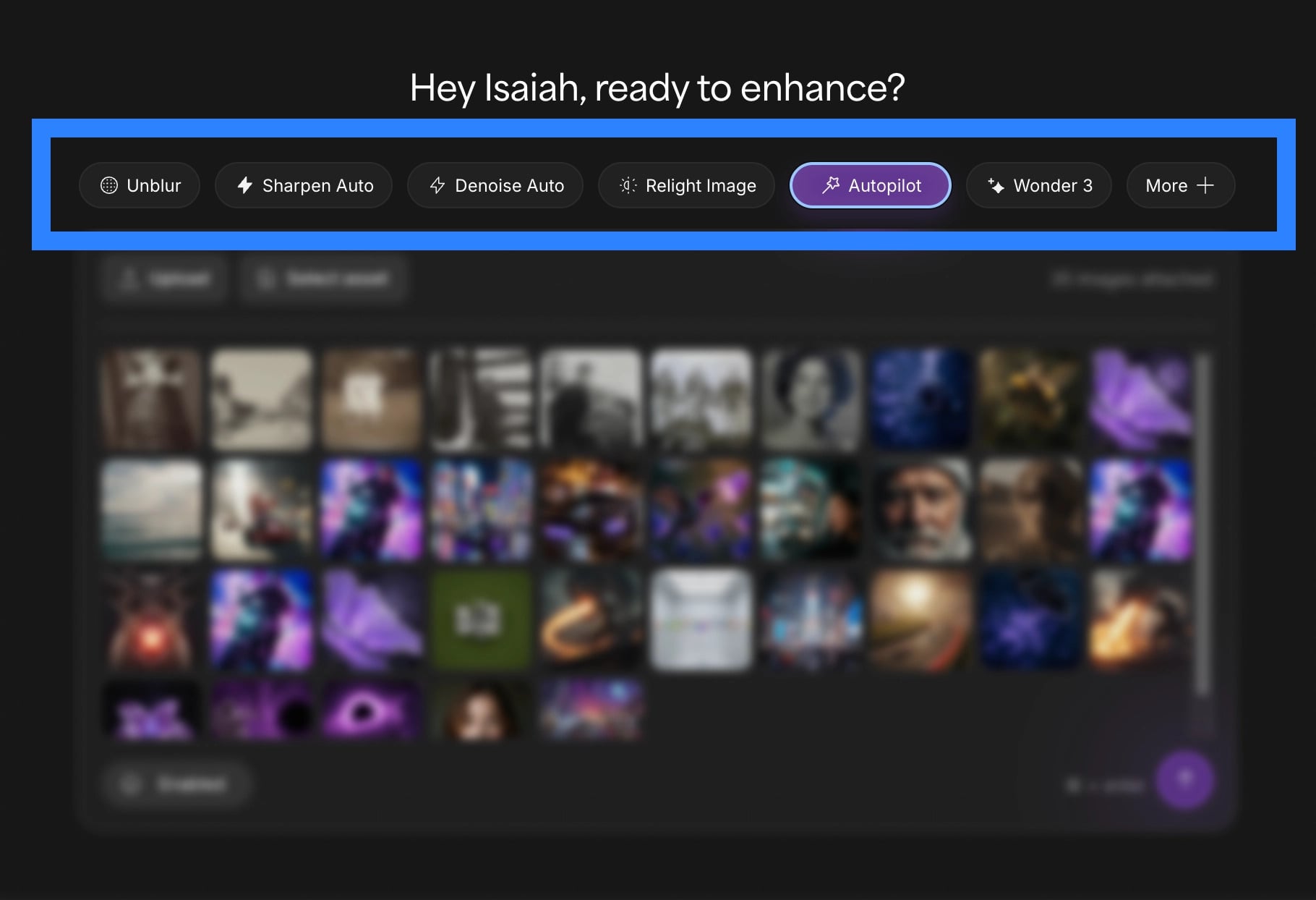
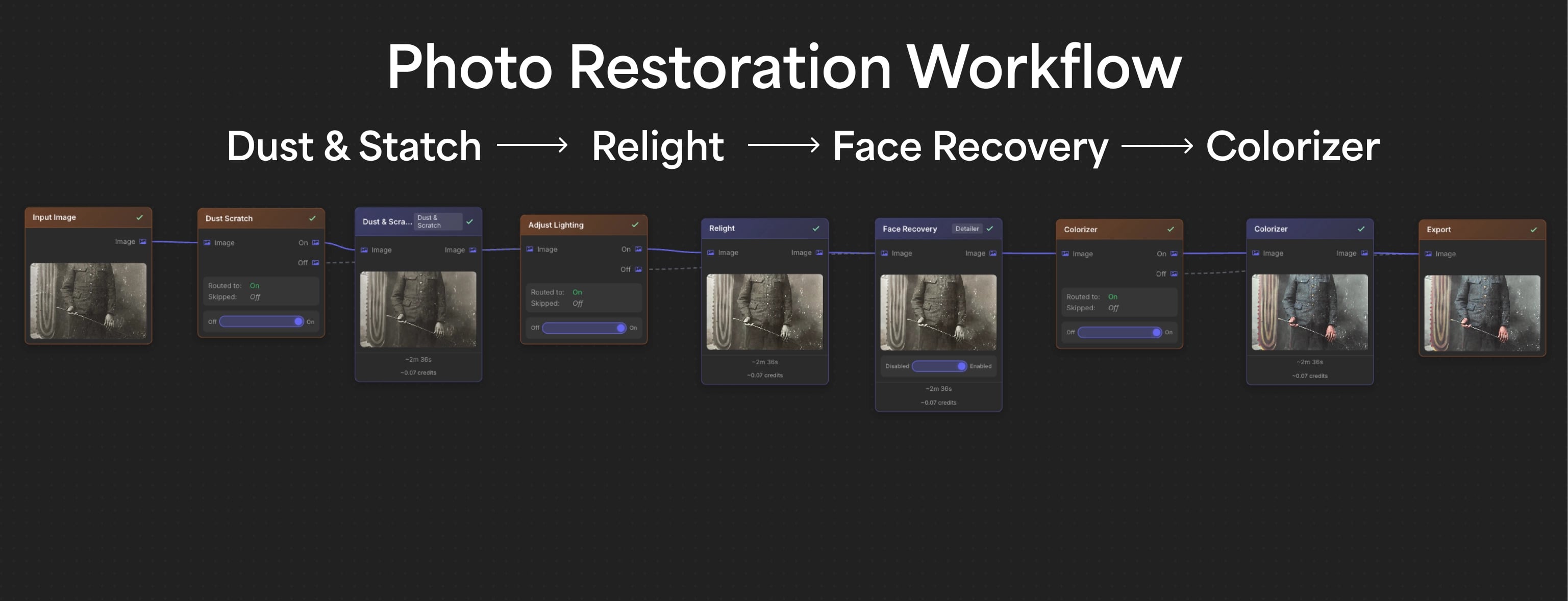
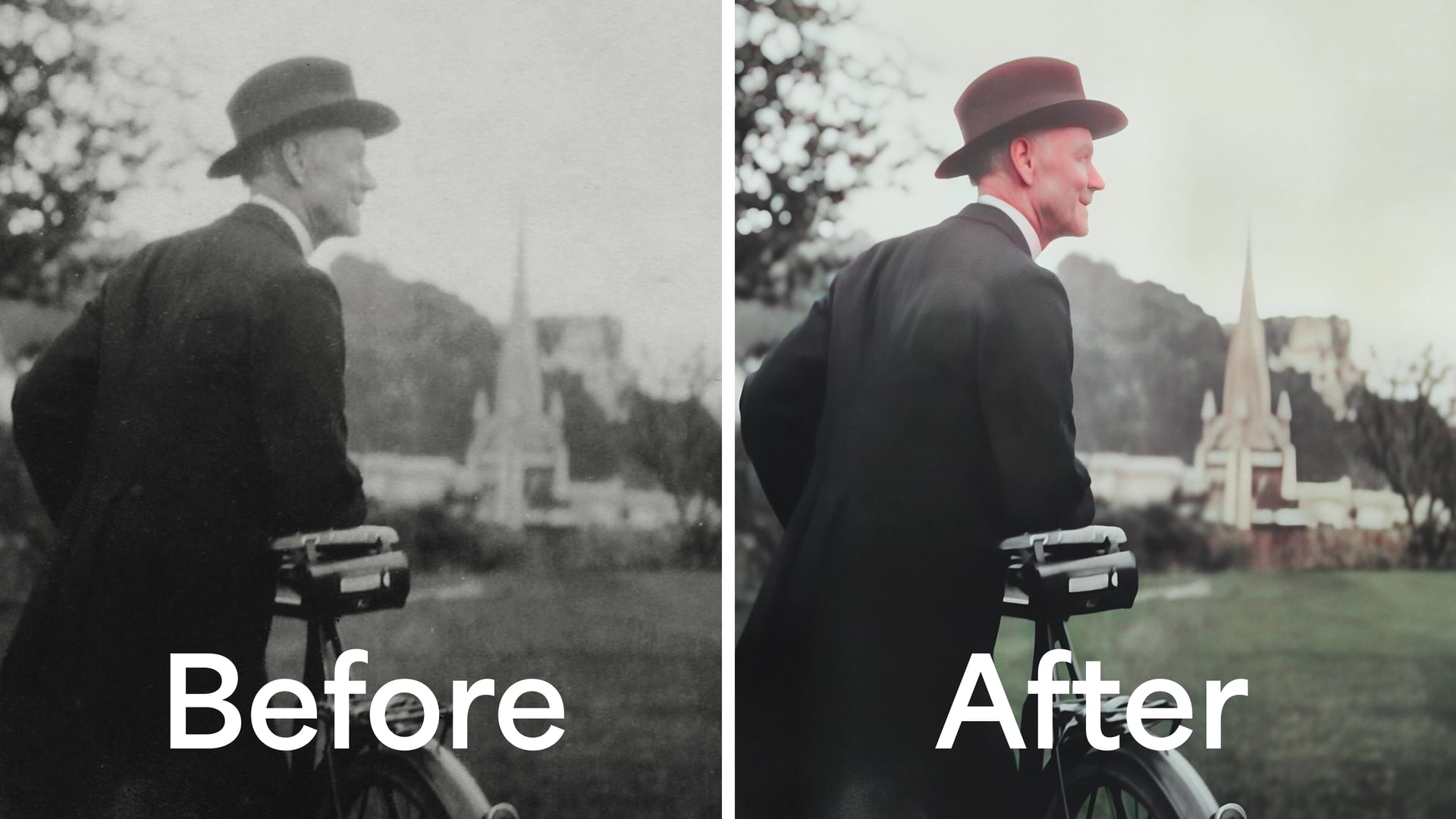
Photo Restoration Workflow Example
What can it do?
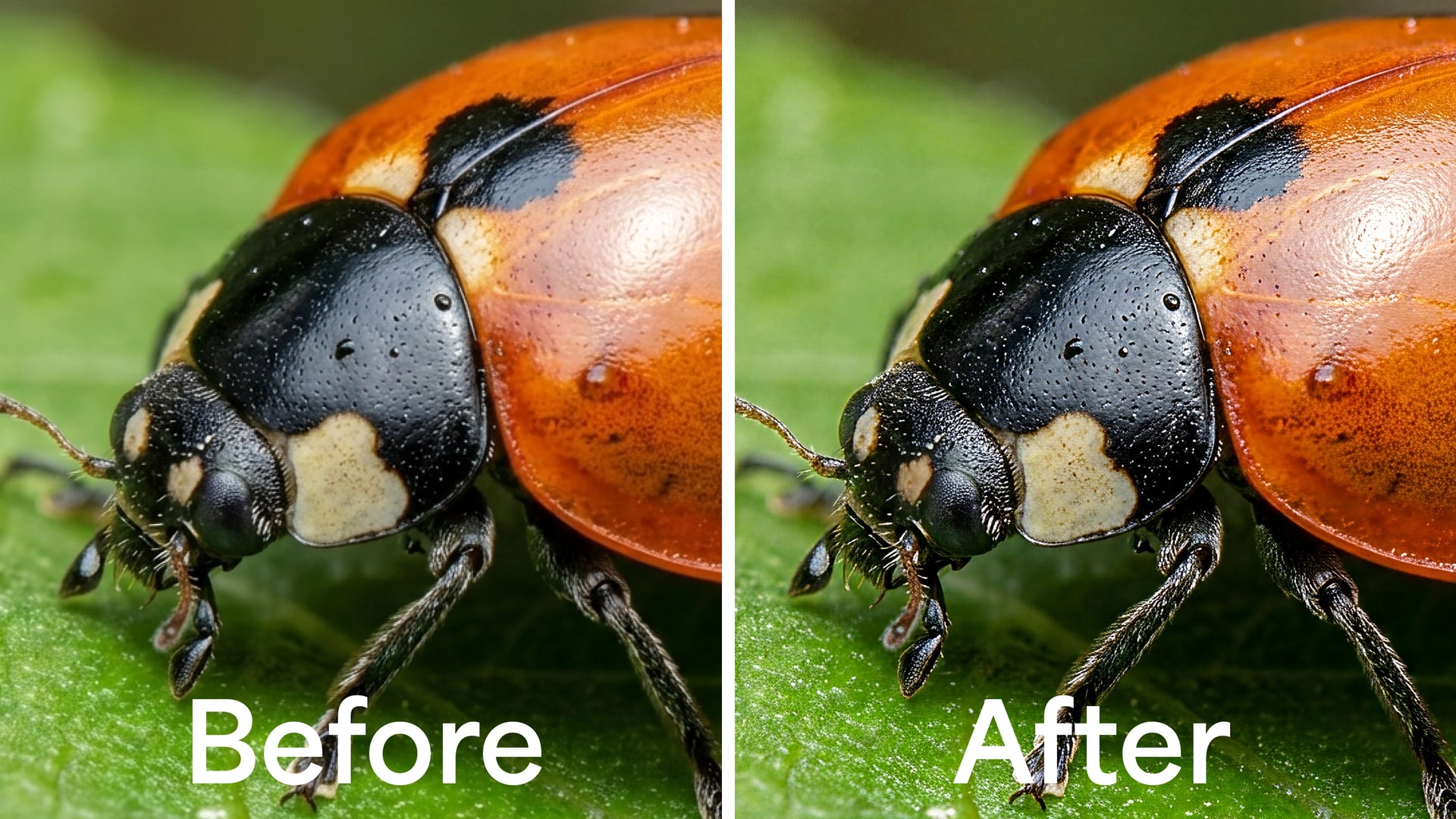
Topaz Image Web launches with a full suite of enhancement workflows covering everything from upscaling and sharpening to noise reduction, restoration, and creative enhancement. You can find a full breakdown of every available workflow in our Workflow Document.
-
Autopilot — The ultimate “set it and forget it” workflow. Automatically analyzes your image and applies the perfect combination of enhancement, noise reduction, sharpening, and upscaling in a single run.

- Photo Restoration — Bring old and damaged photos back to life. Toggle on dust and scratch removal, lighting correction, face recovery, and colorization depending on what your photo needs
- Creative Upscale — Enlarge and transform AI-generated images and artwork with generative models that add new detail, texture, and visual complexity.

Features
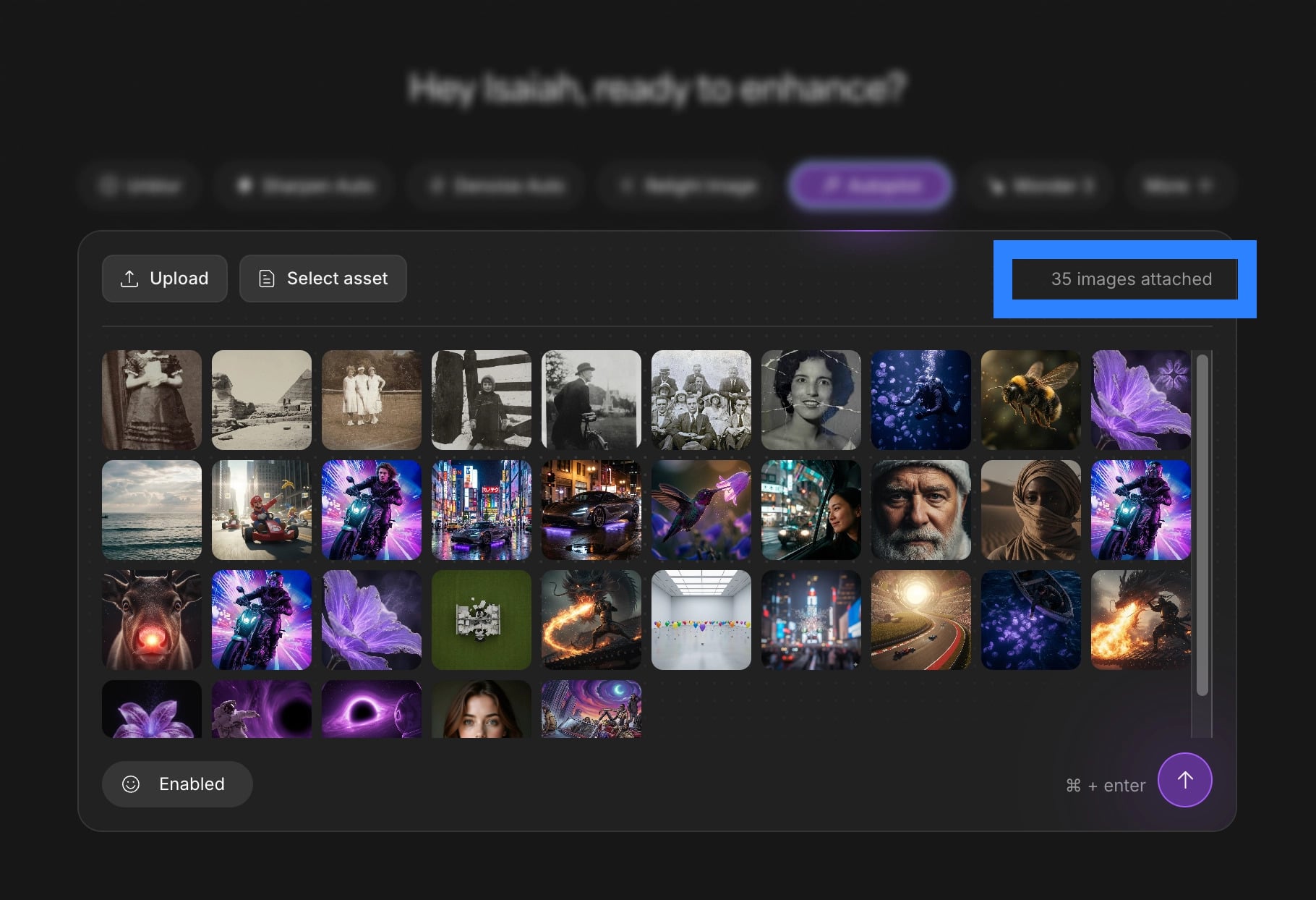
- Batch Processing — Upload and process multiple images at once. Set your workflow and settings once and let Topaz Image Web handle the rest in the background while you keep working.
-
My Files — Every processed image is saved to your My Files page. Download individual assets or entire batches, delete files you no longer need, rename image files, and revisit previous jobs at any time. For more information on the My Files page click here.

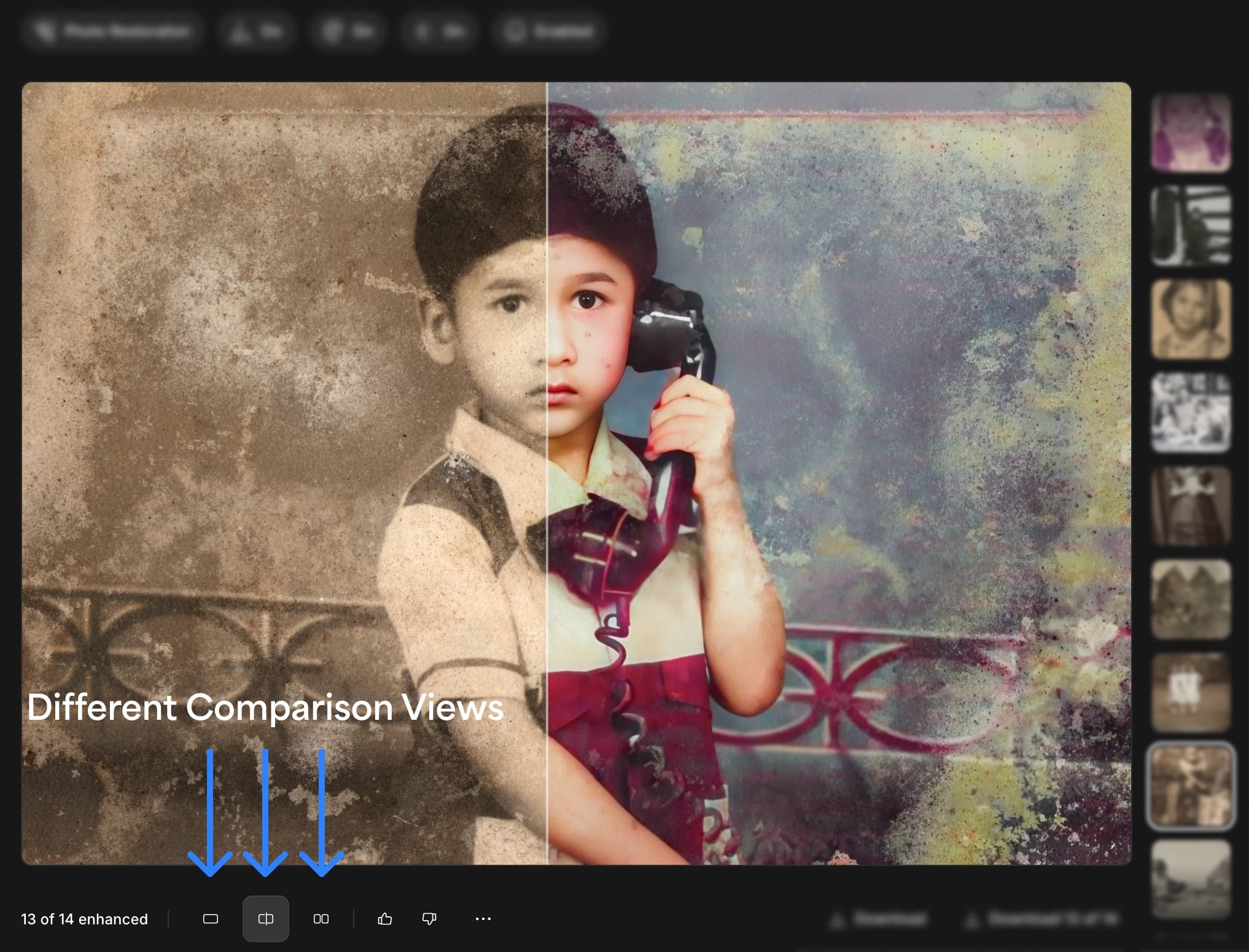
- Compare View — Review your results with three comparison modes. Use the Slider to drag between before and after, Side by Side to view both at once, or Enhanced Only to see just the result.
-
Background Processing — Once your upload is complete you are free to close your browser. Your images will continue processing in the cloud and will be waiting for you in My Files when you return. Do not close or exit out of the window until the upload has been completed.
-
No Download Required — Topaz Image Web runs entirely in your browser. No app, no installation, no hardware requirements.
-
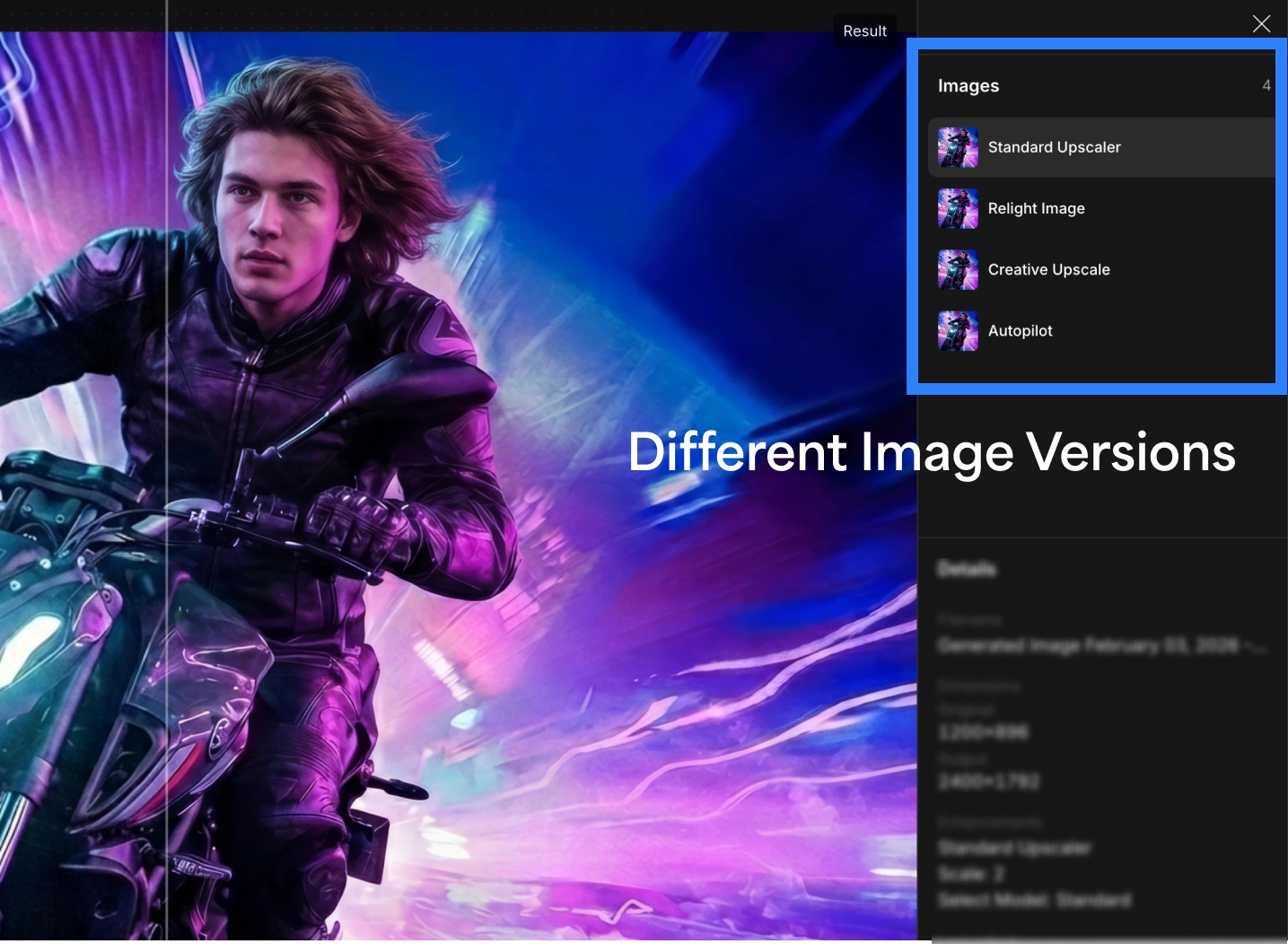
Compare Across Workflows — Run the same image through multiple workflows and compare every result side by side directly from the My Files page.
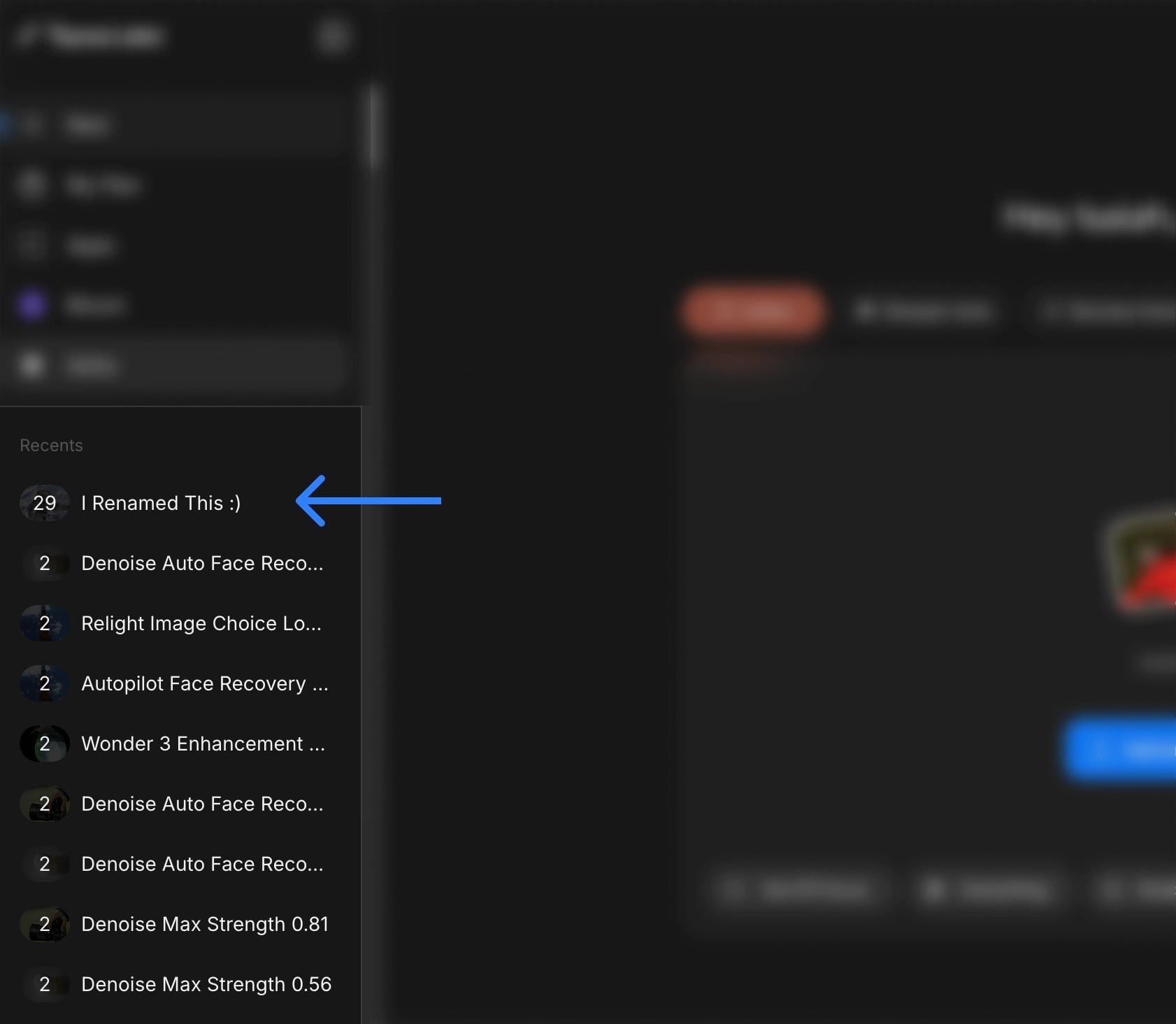
- Batch Organization — Rename and or delete any batch directly from the sidebar to keep your work organized across projects and workflows.
Supported Formats
Topaz Image Web supports PNG, JPEG, WEBP, TIF, and HEIC.
Export : WEBP, TIF, and HEIC files are automatically converted and exported as PNG.
Learn More
For guides, workflow breakdowns, and support visit our documentation at Topaz Image Web | Cloud Apps . For any questions or issues click the Support button in the bottom right corner of the docs page.
Get started today at app.topazlabs.com.
We can’t wait to see what you create.
— The Topaz Team
 - Face Recovery V3 & Super Focus V3 is now in Topaz Image Web!
 - Select Assets now have the most recent enhanced images at the top of the page, and if you would like enhance any batches further - try out the new Rerun Batch feature to rerun already enhanced images with a new workflow!