If you are on Mac, and you are getting any error or crash while using the app when invoking the plugin from LrC (Lightroom Classic) or PS (Photoshop). or any other plugin - see the steps below to fix the issue.
Step 1 - Reset your temp models folder:
-
Delete the folder here: Applications > Topaz Photo (Right Click + Show Package Contents) > Contents > Resources > models > coreMLCache
-
Once deleted, reboot the computer and then retest the app.
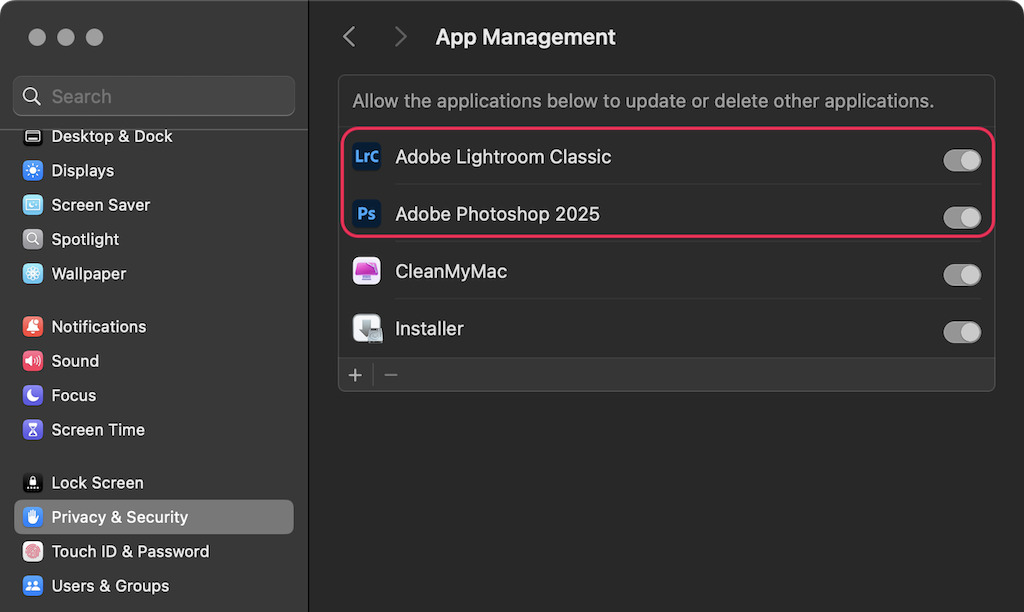
Step 2 - Enable the host programin App Management*:
-
Make sure all editing programs are closed. (Adobe, Topaz, etc.)
-
Go to the Apple menu > System Settings (or System Preferences) > Privacy & Security > App Management*
-
(If applicable, Click the padlock icon
 to unlock) - Then click the
 +button, find the Adobe Lightroom Classic, Adobe Photoshop, Affinity or Capture One program in the Applications folder, click Open, and make sure the toggle for the app is turned on. -
You may need to enter your administrator password for the changes to take effect.
-
Then retest the plugin
*Doing App Management or the Full Disk access section will do the same behavior and fix the issue.
If any issues remain:
- Mention the steps you have done and send an email to support@topazlabs.com
- Confirm the app and version you are using
- Confirm details on your workflow
- Include your logs/system profile and we can troubleshoot with you
