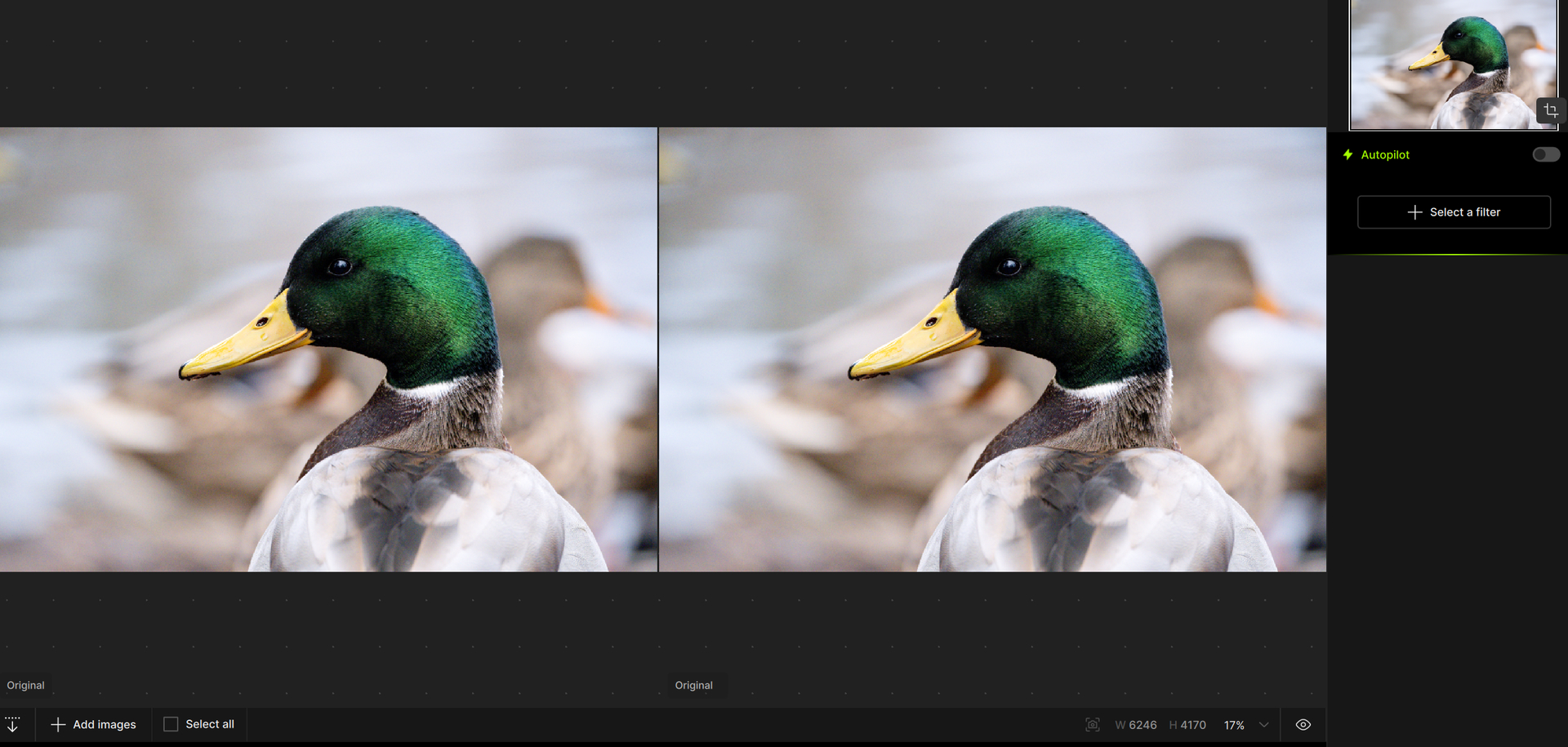
when importing raw photos from a fuji xt3 they appear over exposed in topaz and i dont understand why
Hi there and welcome you to the community a great resource and friendly place.
I don’t have a Fuji myself so, may I ask do your images still appear over exposed after exporting from Topaz Photo
While searching the forum for this issue I believe I have found a simple fix for you.
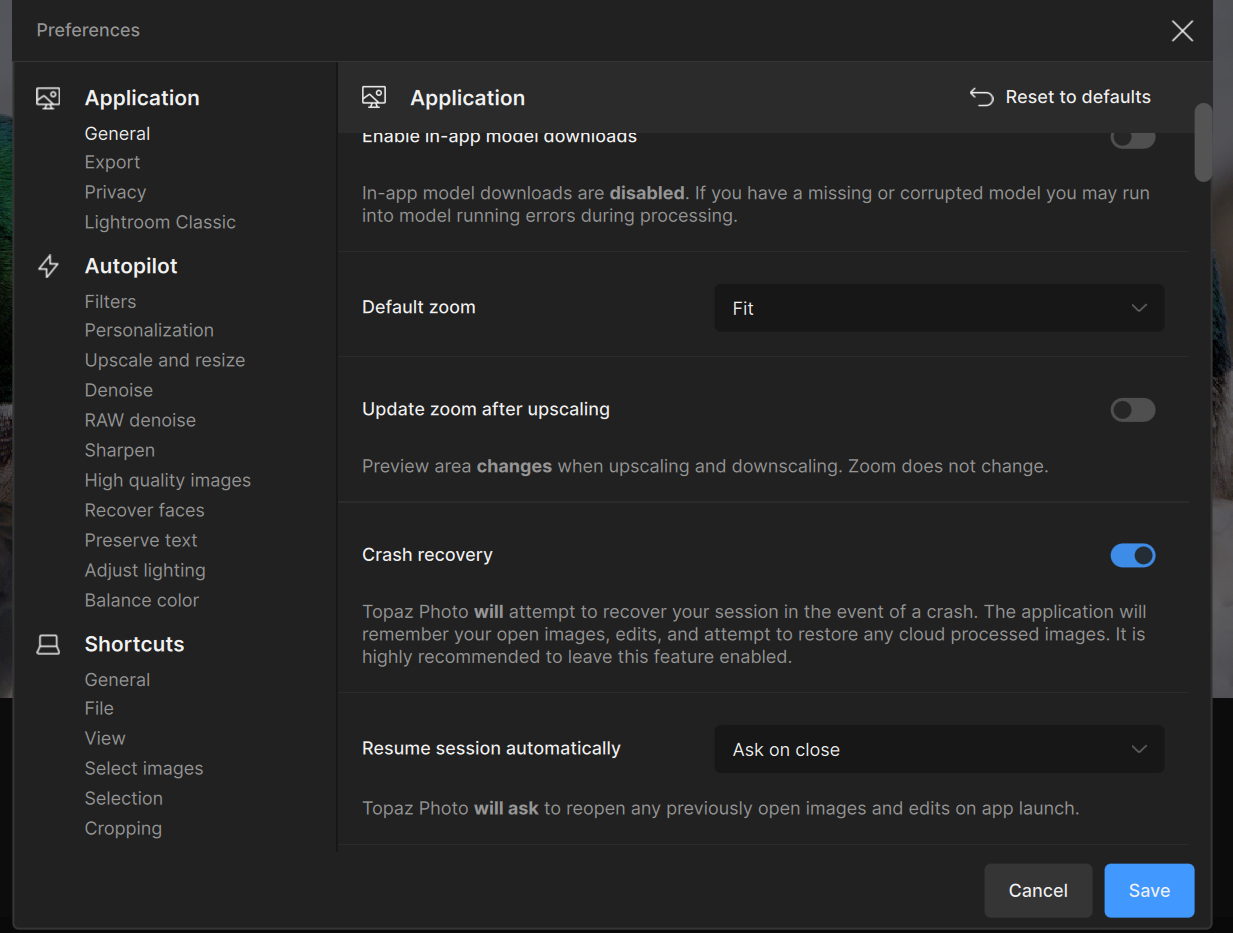
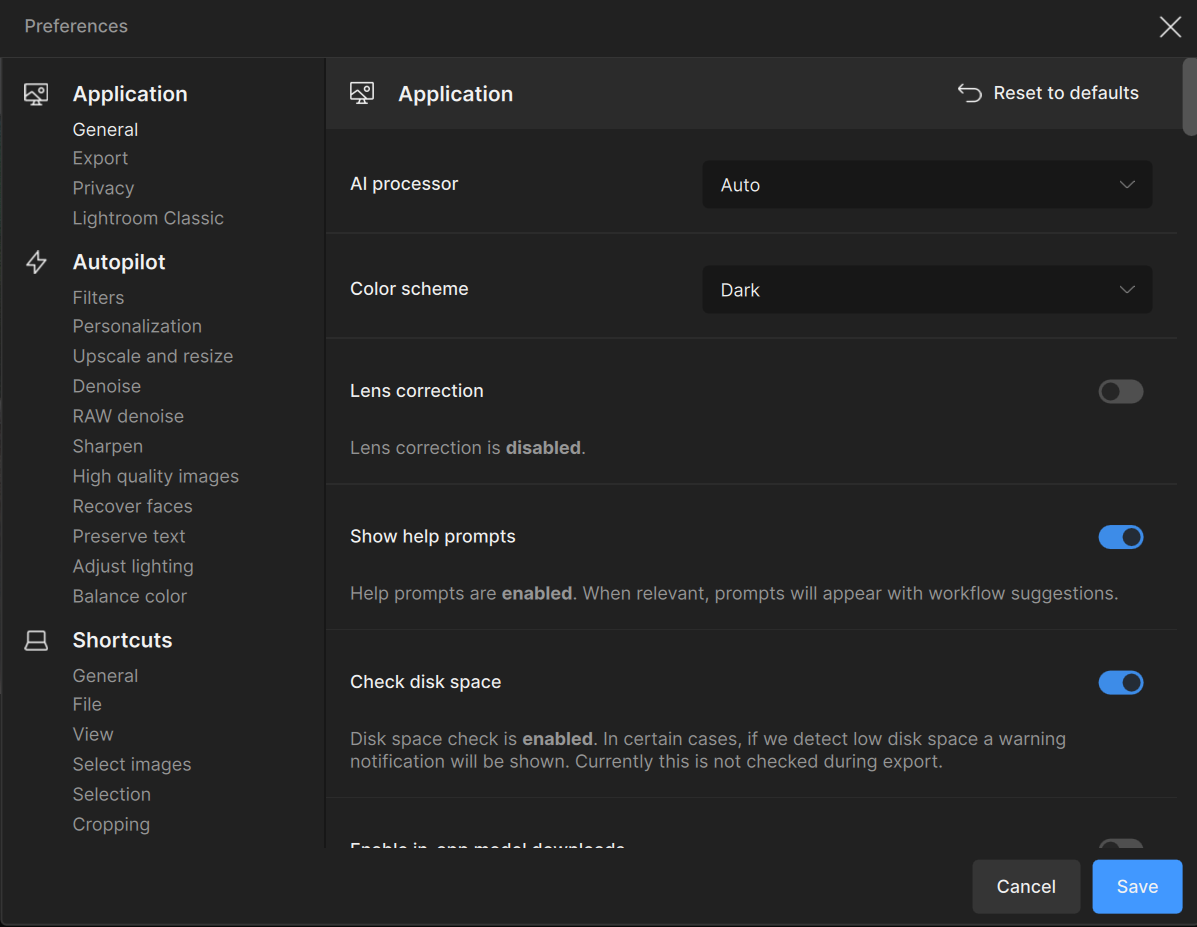
- Open the Preferences Menu or Press Command/Control plus the Comma Key to open Preferences
- On the left you will see three Categories Application, Autopilot and Shortcut and under them are subsections the one you want is Application General

- Once you have Clicked on General the Options will appear on the right then either select or scroll down the list until you see Enable sRGB Fallback and Click on the Toggle Switch to the right

Hope this helps
@guillaumeplourde3 - when you can, make sure to post examples of this exposure shoft and we can have a look!
1 Like

I see, please reply to the incredible Ange, from Topaz Support who much more capable at resolving your issue then me
Thank you
Andy
Perfect, thank you for your help I really appreciate you taking your time to help!
@guillaumeplourde3 - very strange! can you send in details on:
- What format this image was shot, RAW or non-RAW?
- The darker output, where is that from and where are you looking at it from?
- Ensure your graphic card driver is up to date, you can open the NVIDIA app and update to latest studio driver then reboot machine
Let us know details if issues remain and confirmation the driver is to the latest and we can have a look!
