My system:
HP Z6 G4 workstation
Windows 10 Pro for Workstation 64-bit
Processor: Intel Xeon Scalable 2nd gen.: W-3235, Gold 6253CL, 6268CL
Memory: 192GB/2933MHz RAM
Card name: NVIDIA A2000 6GB
Problems about recovery models:
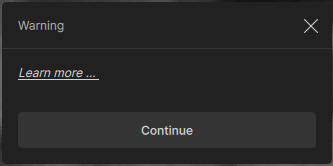
GPU: Gigapixel said, it’s need a videocard with min. 6GB of RAM. My GPU fulfill this requirement, but still can’t use it, warning messagebox appears!
Ok, I have strong CPUs, try to use CPU for calculations. During the calculation processes both my GPU and CPU utilize only a few percent of their total power. It is really not OK!
I try it with my old HP Z440 workstation with a good CPU (E5-2687W v4 with 64GB of RAM), the CPU utilization much better: ~40-45%. But still not on full power.
Would you please try to investigate why this happens?
I tried the 7.1.3 version. Like previous versions, I’d like to use Gigapixel to make images smaller as well as larger. The best I can do with Gigapixel is to reduce the size without getting the “jaggies” is to approximately 4" x 4" inches or so. I’d decrease the size of some images to as small as 1" x 1" or smaller to use in macro composites.
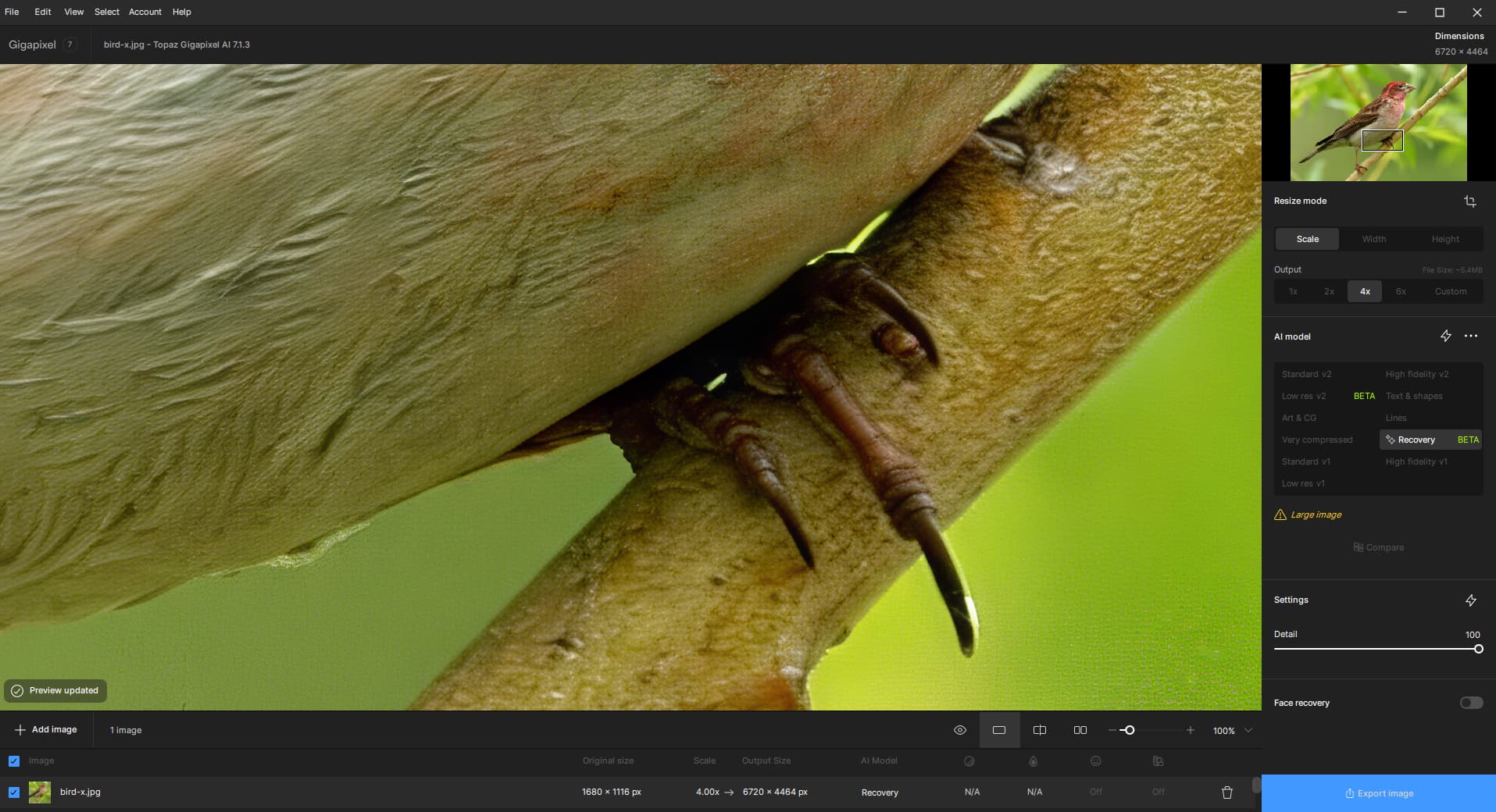
Still not entirely sure what to make of the new Recovery function. Did some more tests with my favorite actress and the results were (after approx one hour) better than I anticipated…
The software did an amazing job on particularly the trousers and the sweater as well on the face. So to me, this would be worth waiting for an hour… Still have my doubts with other images with less results.
But, let’s stay positive. Keep it up Topaz. I’m a big fan!
Hello. I’ve been trialling Gigapixel and was concerned about the high temperatures, fan speeds and high resource usage, frequent crashes and have held back purchasing it because of. But Iast night I looked into it further and hit upon a work around. I can’t say that it will sort your problem out but it’s worth trying while Recovery is in Beta. Recovery is not available on my Trial version of Gigapixel so I can’t attest to its effeciveness on your system. My laptop specification is a lot lower than yours but I’ve found that temperatures, fan speed and resources are quite a bit lower, though it is a little slower. Anyhow cut to the quick and read this article. It can explain it better than I can.
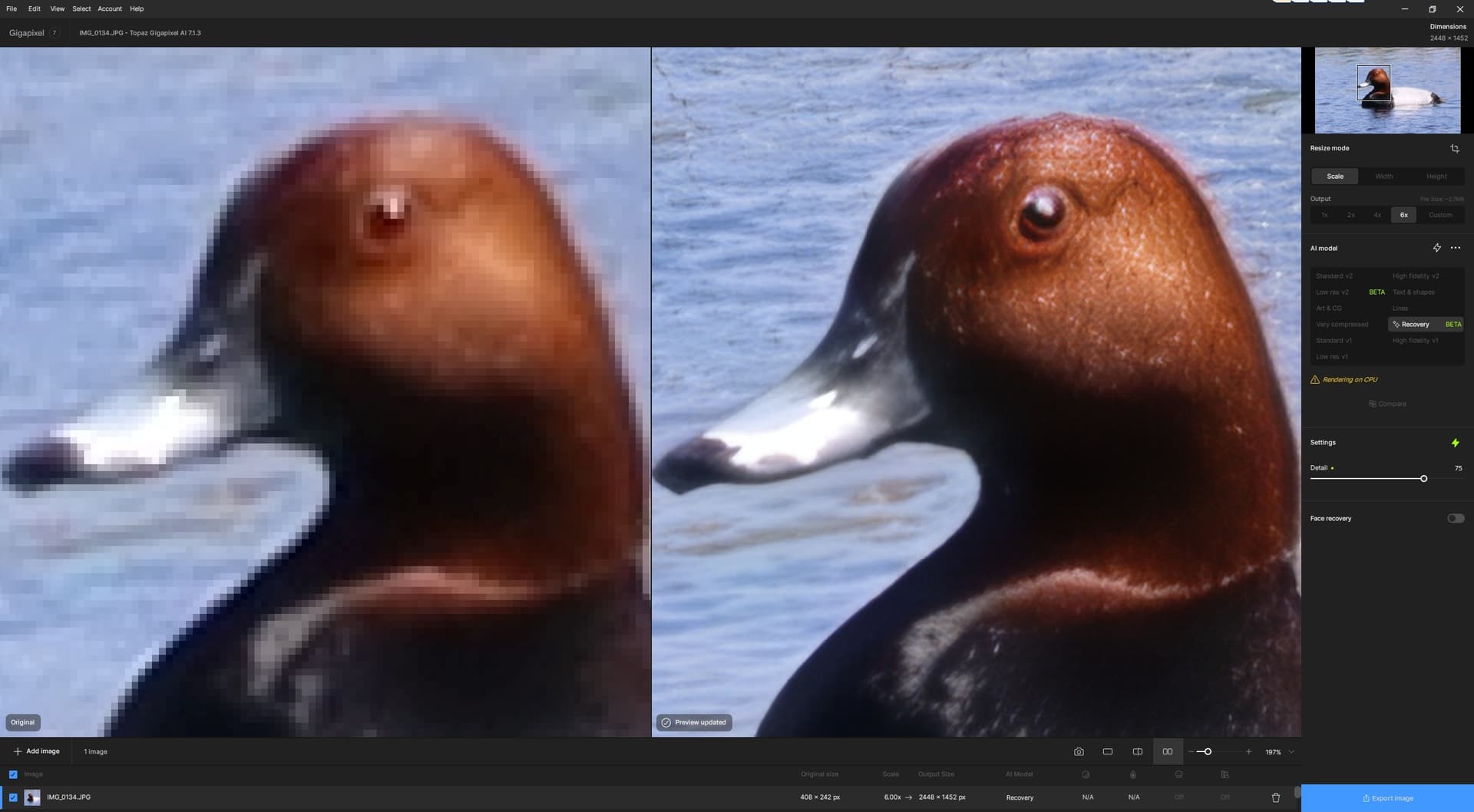
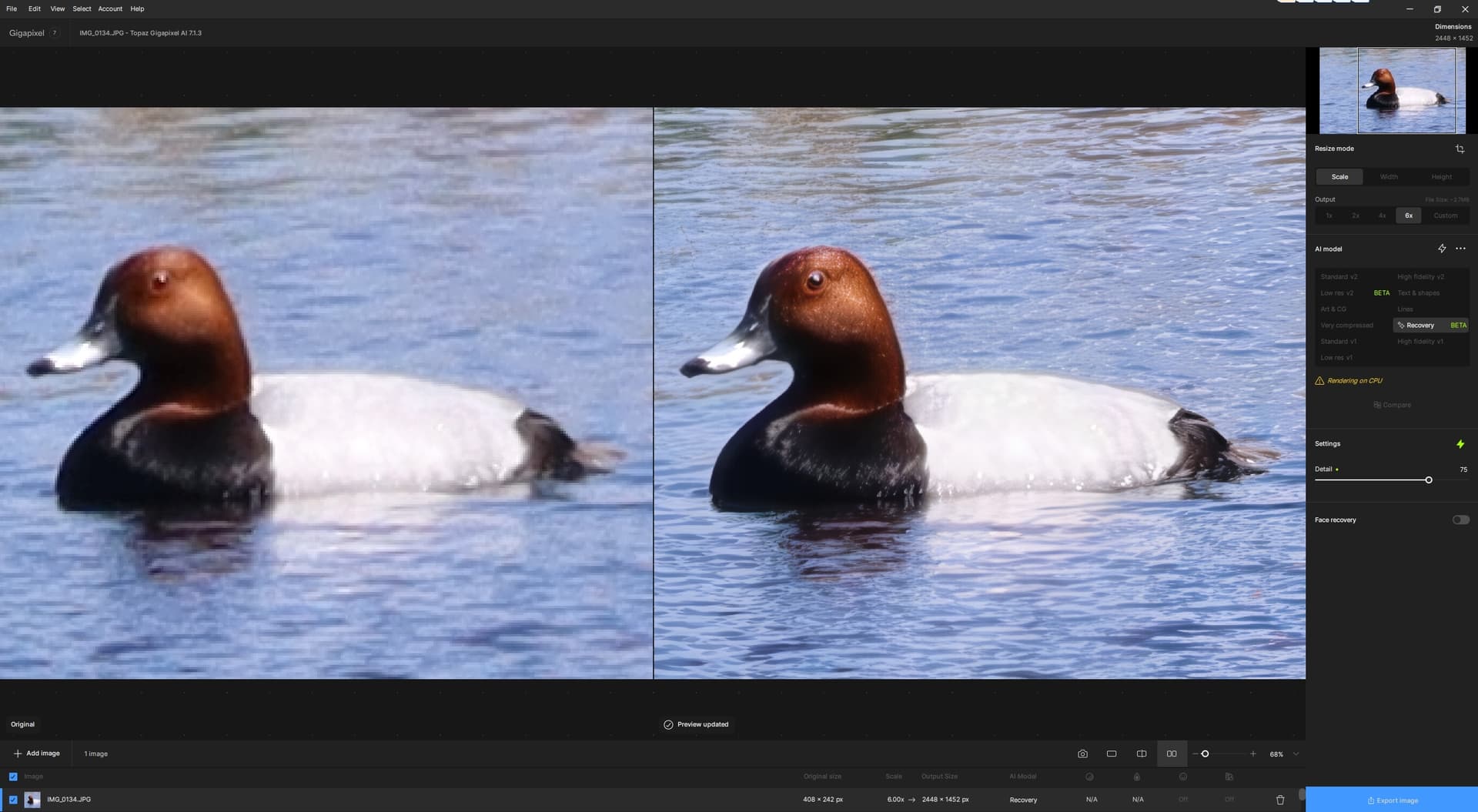
AI model Recovery (Beta) looks very promising! I did a quick test to see how it works and it’s not bad at all. From the photo – part of the pond with ducks, distance approx. 200-250 meters, Canon EOS R100, 6000x3368 pixels/24 bit, format *.jpg – I cropped one duck (408x242 pixels). Technically, the cropping content is of course very poor in terms of quality. Then I passed it to Gigapixel AI 7.1.3, chose Recovery (Beta), scale 6x, detail left 75. It showed me a “Rendering on CPU” warning, probably because I only have an NVIDIA GeForce GTX 1660 TI GPU in my laptop (no a miracle, but there are even worse types :-). After a few minutes, it produced (for me) an unexpectedly good result of 2448x1452, which I attach for illustration (without further adjustments such as denoising or sharpening; printscreen). Professionals could certainly do better, but I am very satisfied. Even some feathers appeared there.
As the Gigapixel description tells, it really is for blowing up and focusing low-quality small images. Big data will certainly take a long time, especially when the GPU is not used. So I hope that Recovery will continue to develop successfully (and not only for ultra-fast computers with powerful parallel GPUs).
Recovery (Beta) model is the best model I have ever come across, and I have used many different upscale for the past 3 years or so. I cant wait for the next version.
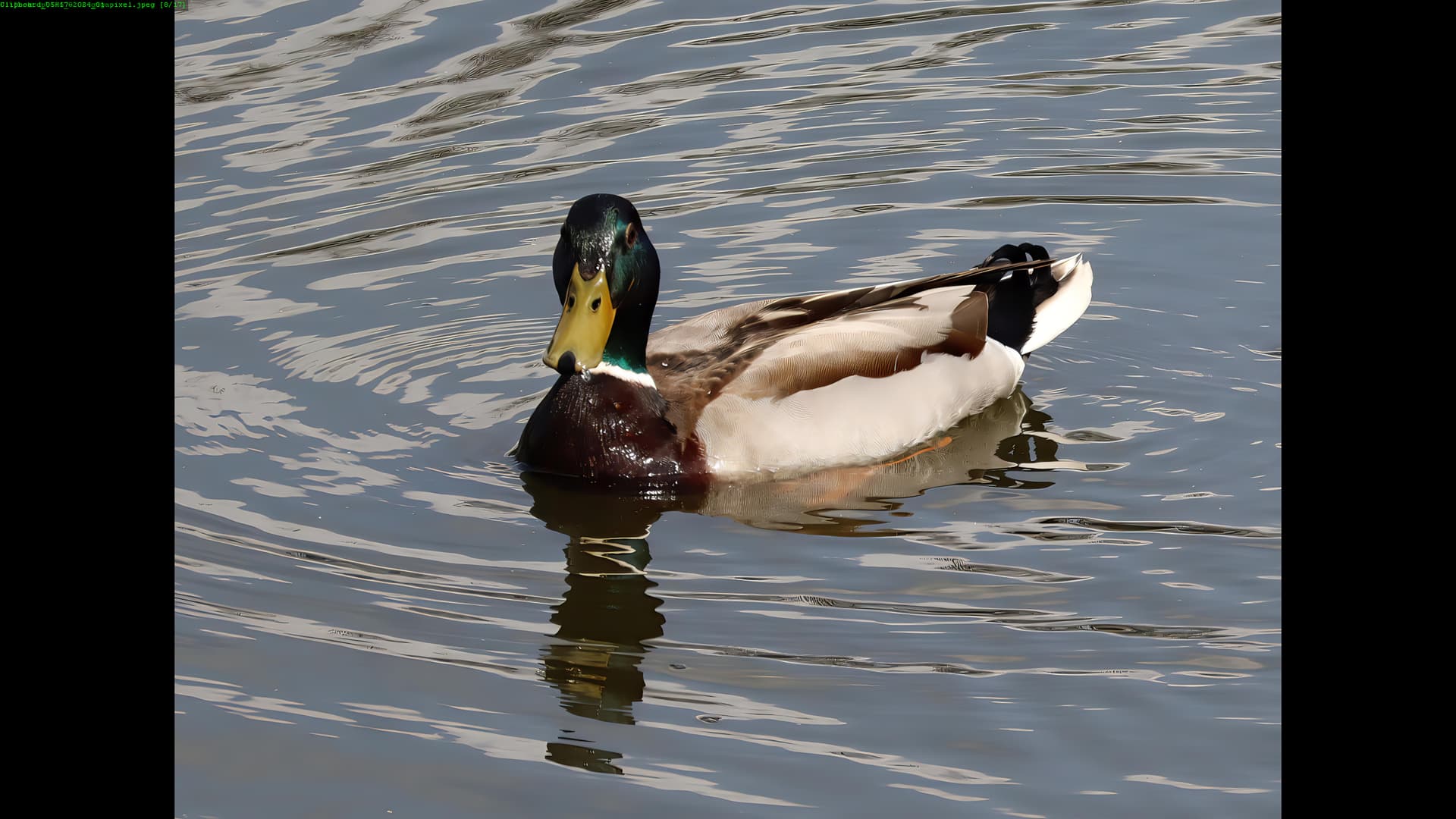
Another example of what I managed with Gigapixel. It can definitely be improved, but I’m still satisfied. For example, the duck’s orange leg underwater, a drop of water on its bill, such pleasant details. Animals are beautiful, even if it’s just an ordinary duck. Well, it’s not only me who needs to improve – this applies especially to Gigapixel!
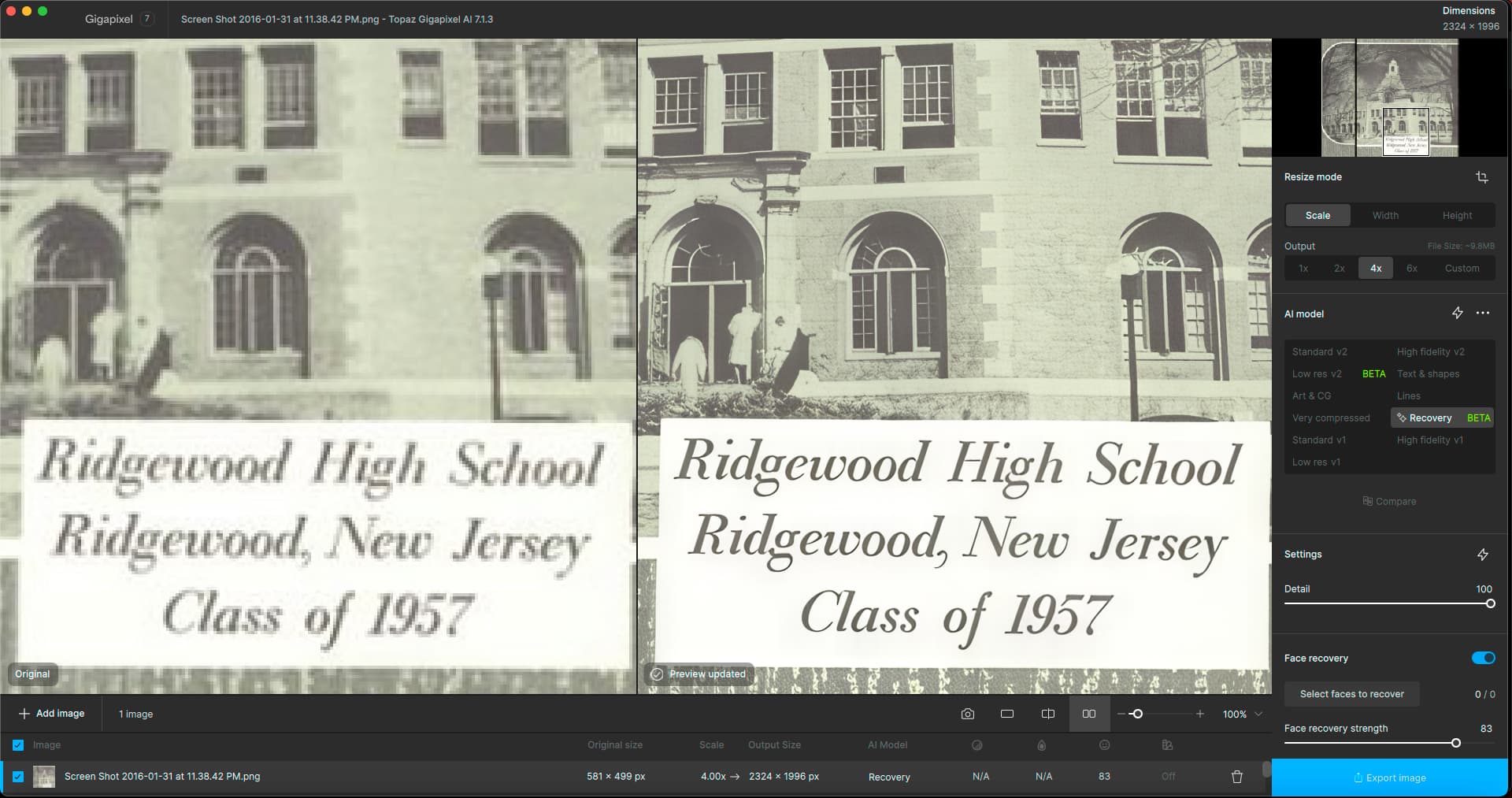
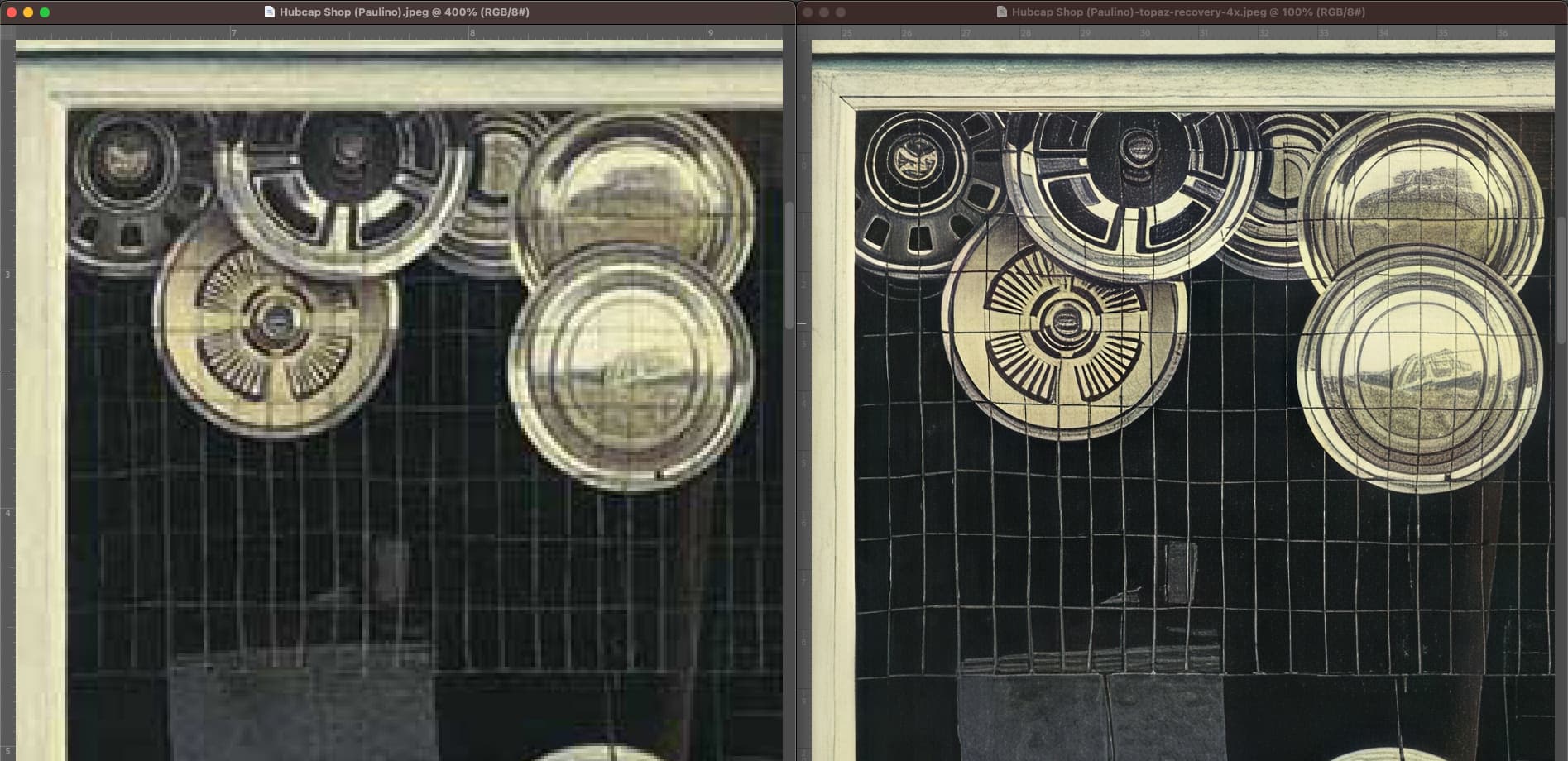
A quick upscale of a web-quality image via screenshot using Recovery, not bad! – except for the faces, but I was using PS yesterday and getting pretty much the same thing with other faces:
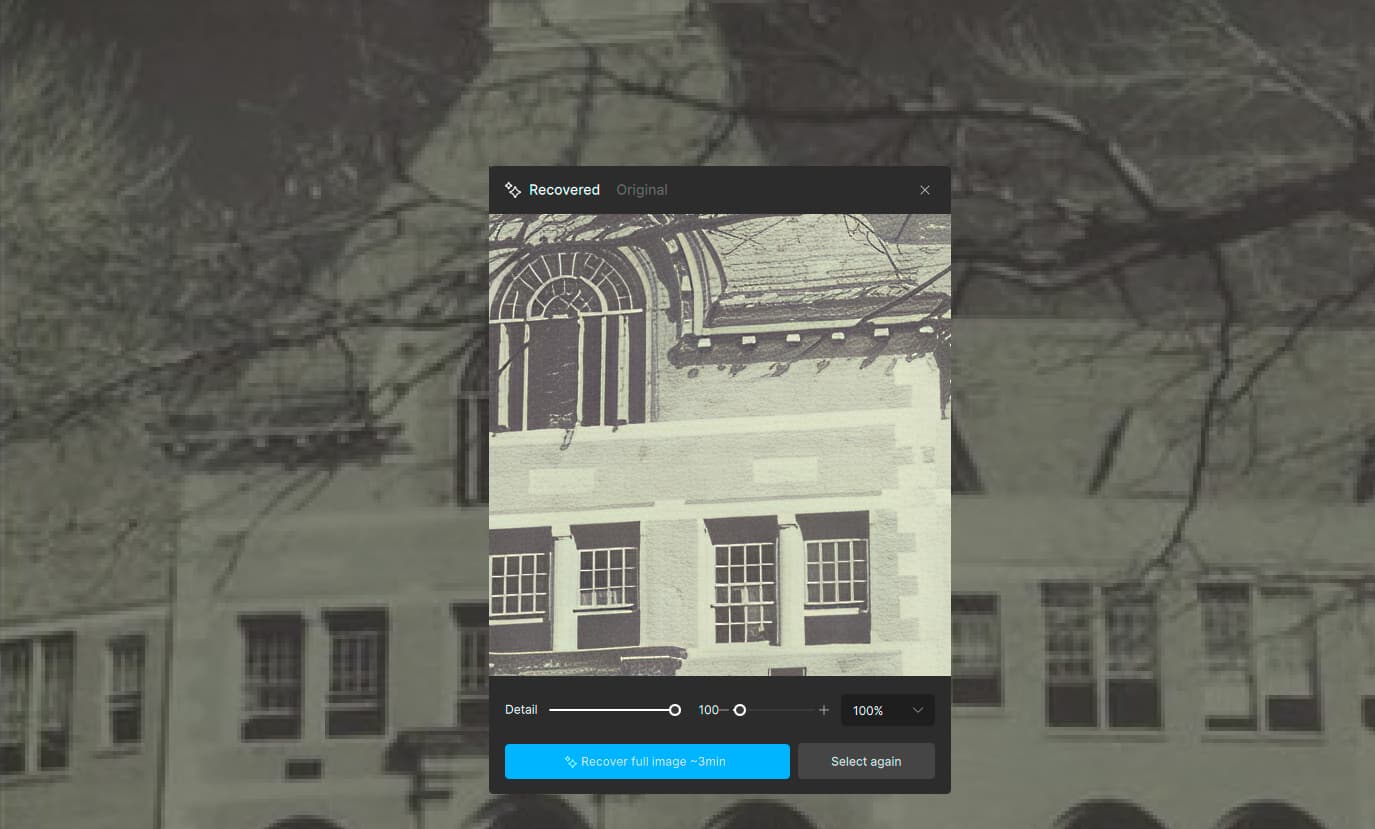
Further random experimentation with Recovery. I thought I had made an image small enough to process, but this! The dialog took me to the Topaz website to explain… Bit of a round trip:
GP says this:
But Apple Preview says this:
And PS says this:
!!! Somebody’s off…
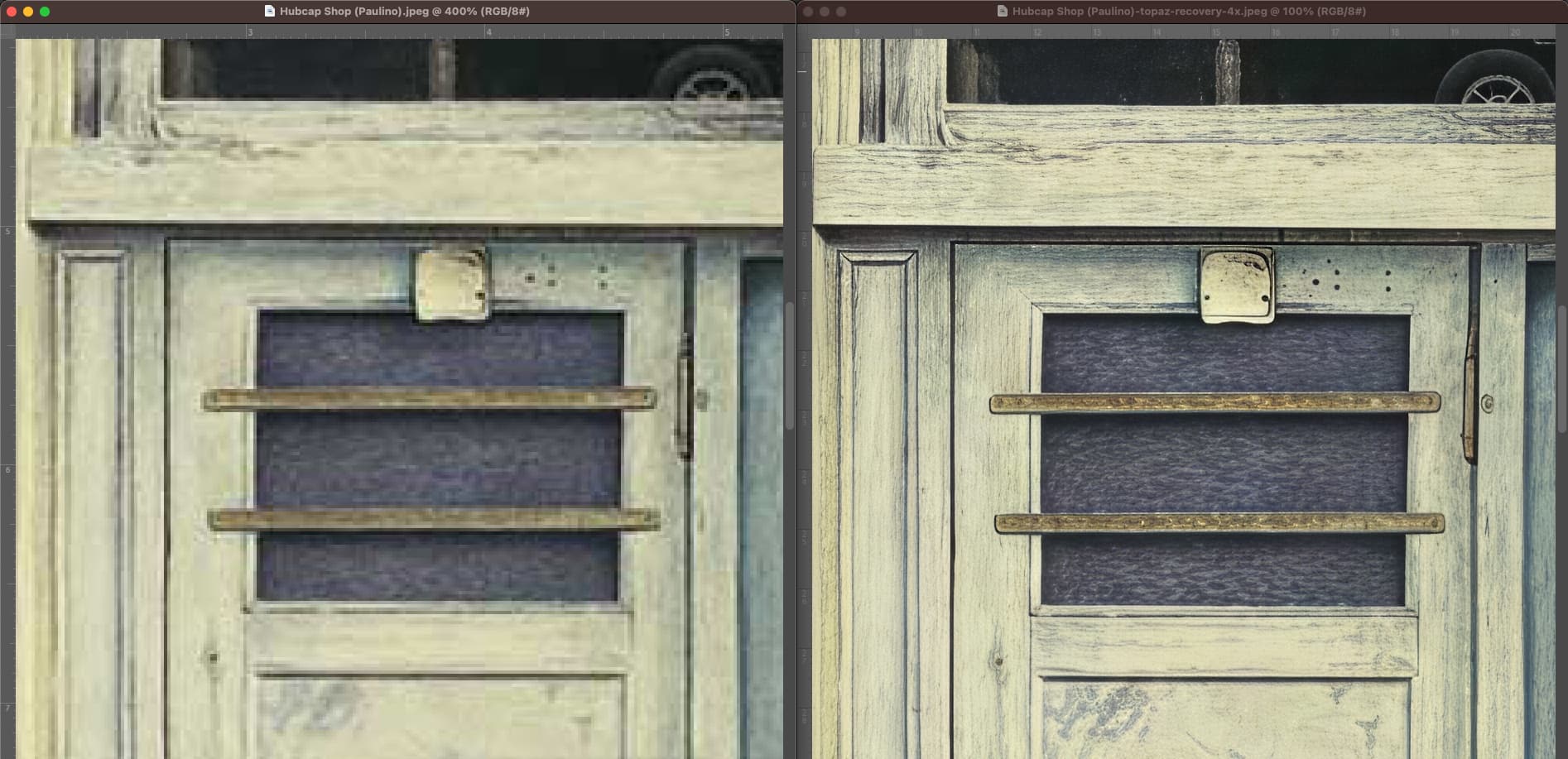
Waiting for the results from another random image, looks promising (but why does the preview default to 90%? I have to keep popping it up to 100):
Sharpen and Denoise haven’t been updated for some time and I believe their development has stopped. I have all the apps and for day to day work happily use Photo AI. (I shoot a lot of wildlife at high ISO). But if you’re happy with existing Sharpen and Denoise, no need to change.
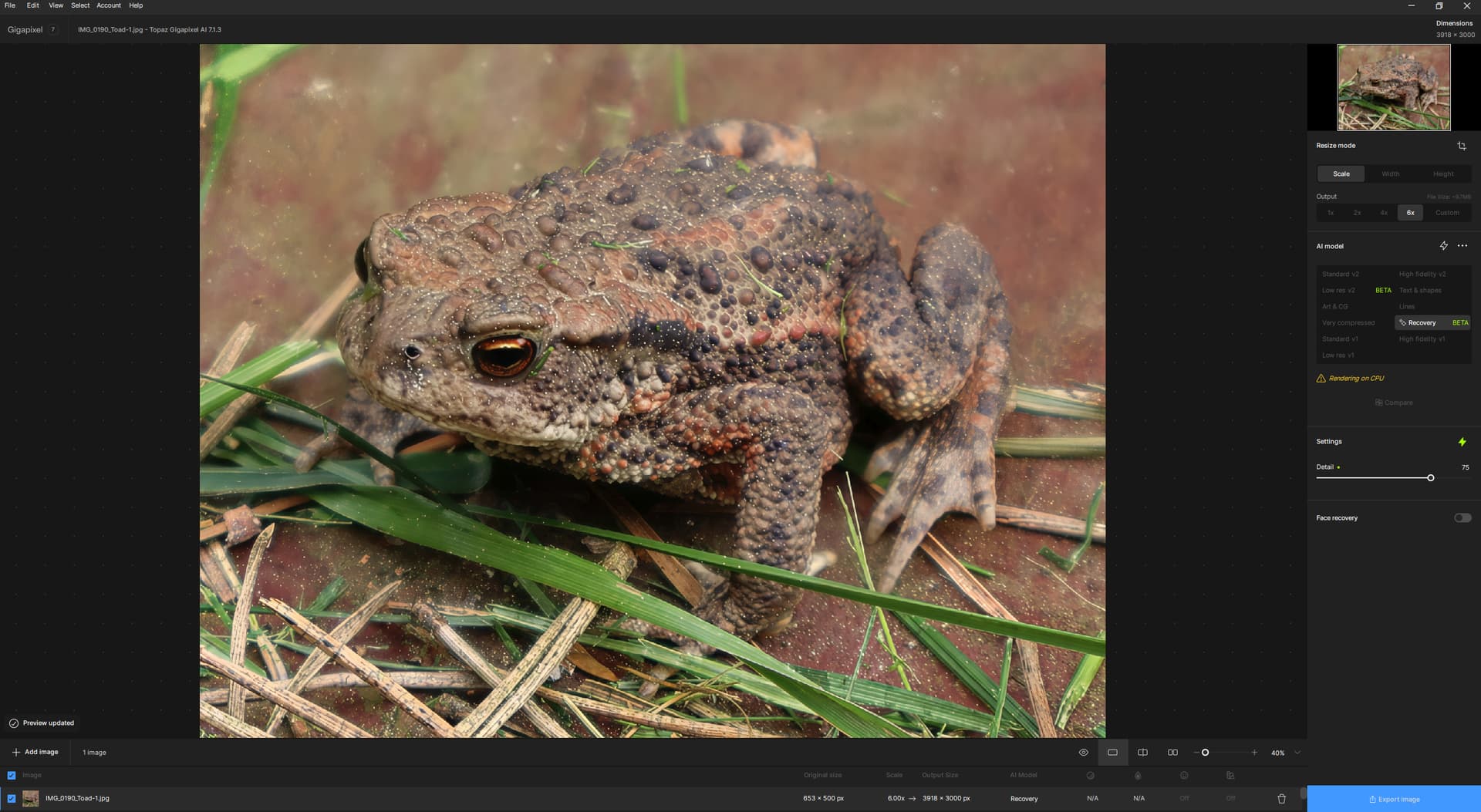
Perhaps another interesting example of using Recovery (Beta) to enlarge a photo of 653x500 pixels six times to 3918x3000. An ordinary harmless little toad (less than 5 cm or two inches), a nice useful animal, it was shy and ran away when taking pictures. The camera finally caught it. The white dots everywhere are pollen from plants, typical of spring.
Gigapixel slightly changes the ratio when upscaling
Hi, I do have an image of 1792 x 2533 for an A5. i want the width to be 7016px. Changing the width to that, should produce an height of 9933px, instead it becomes 9922px.
I know it’s just 11px, but how come this is happening?
One user on youtube experimented with Gigapixel AI and Photo AI (only upscaling). For same models, both produced exact same output, however, Photo AI seems 40-50% faster. Developers are requested to optimize GPAI to make it faster.
Also, it seems the app is not fully utilizing the graphics card. And sometimes the graphics card has little effects on the processing speed.
I guess this would likely fall on deaf ears, but I continue to request the developers to make the app much faster.
I’m not seeing the speed difference you mentioned. I just ran my own test. For most of the models they’re about the same or GAI was a smidge faster. For Standard v1 PAI was particularly slower (3x).
I suppose this type of comparison is somewhat image, and system dependent. The App revision level may be relevant as well (I’m on GAI @ 7.1.3, and PAI @ 3.0.2 here). Does the YouTuber mention which versions they were using?