Sure, I’ll DM you now.
Well, I don’t think I can DM you actually ah!
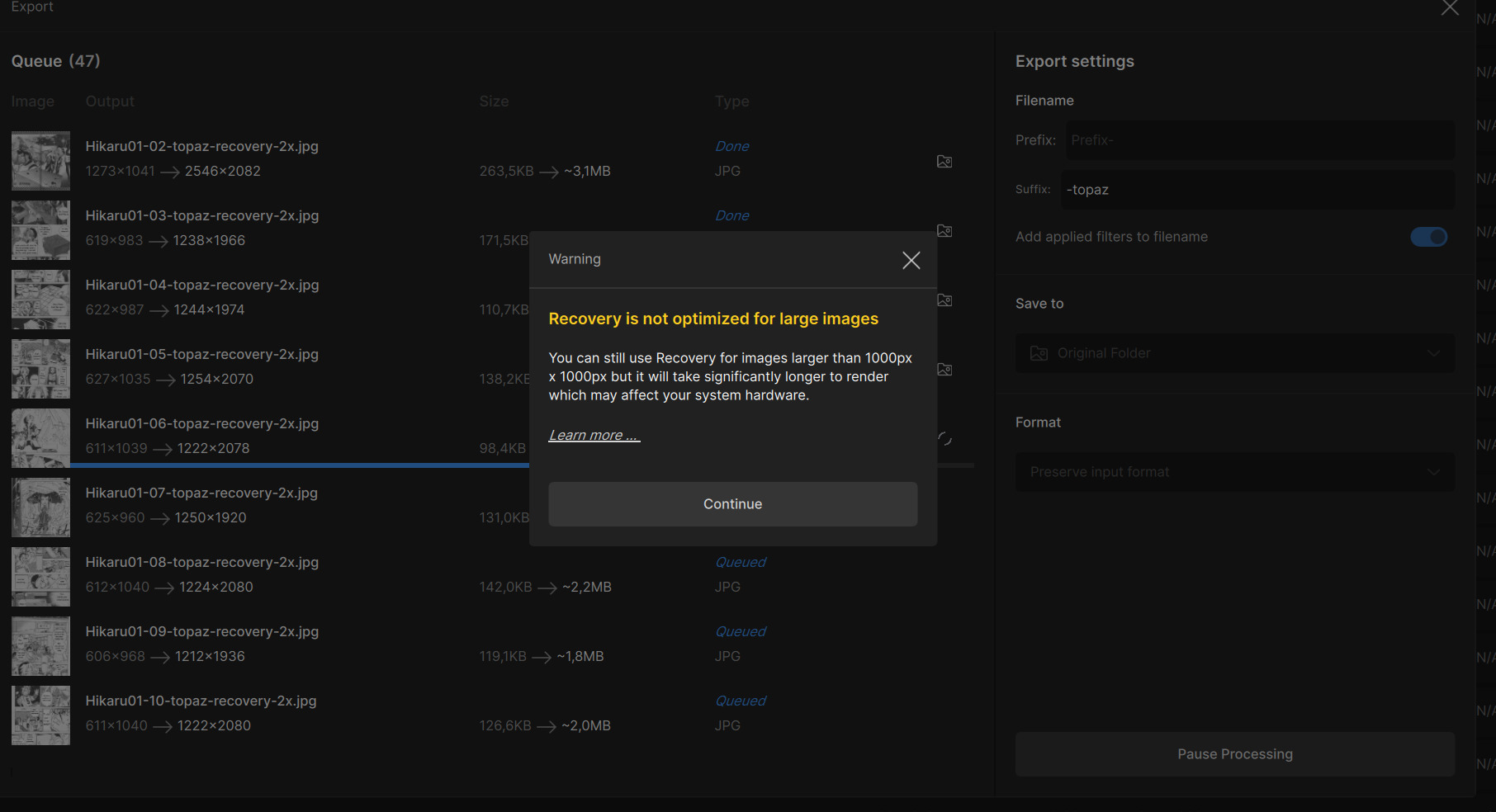
I’m still testing the Recovery beta model, I don’t mind this warning, there’s even one cautioning me against overheating/stability issues (on webpage, the warning is vague), which I like - it’s important! 
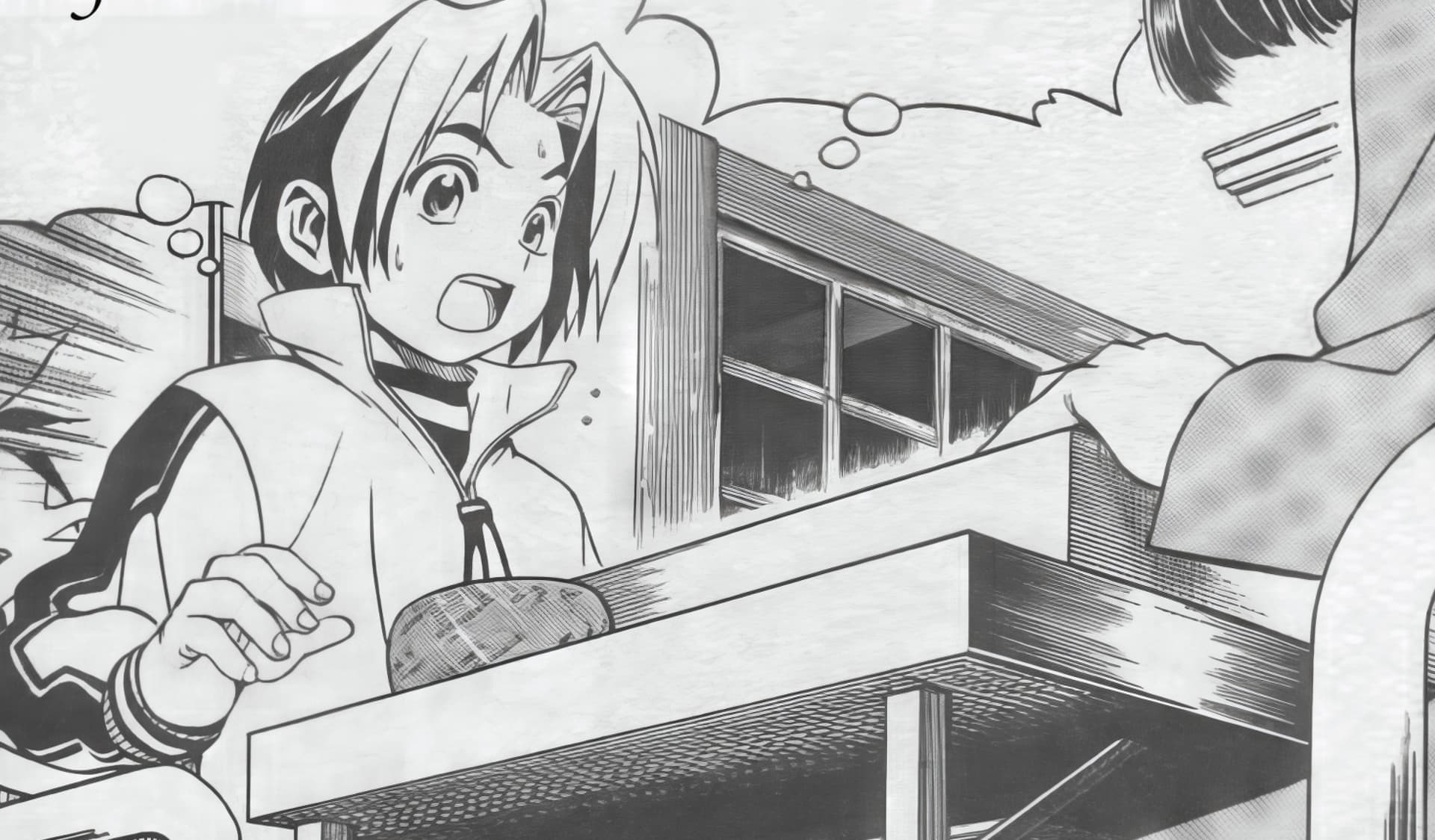
Old scanlation of Hikaru no Go manga - original and 2x:
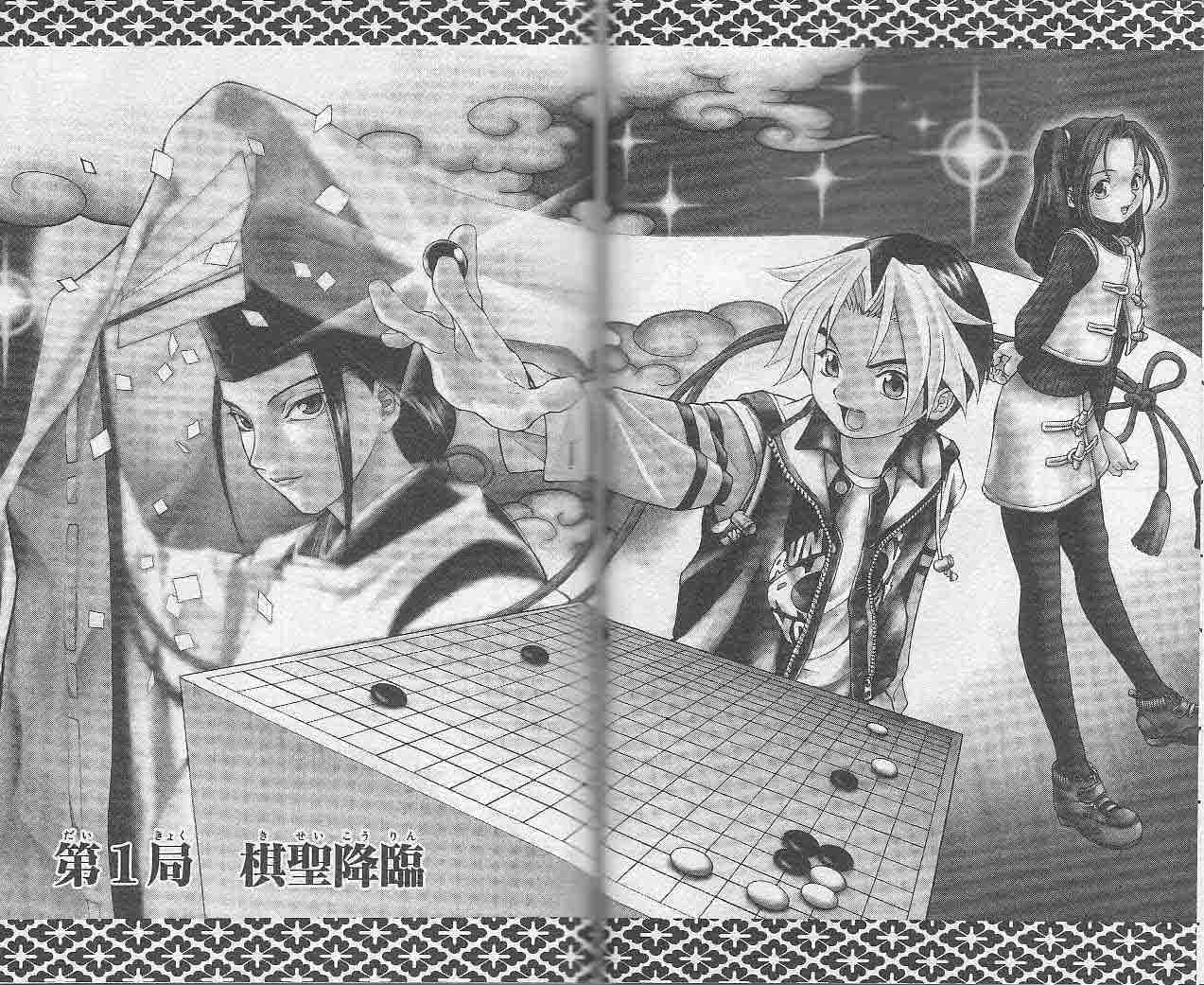
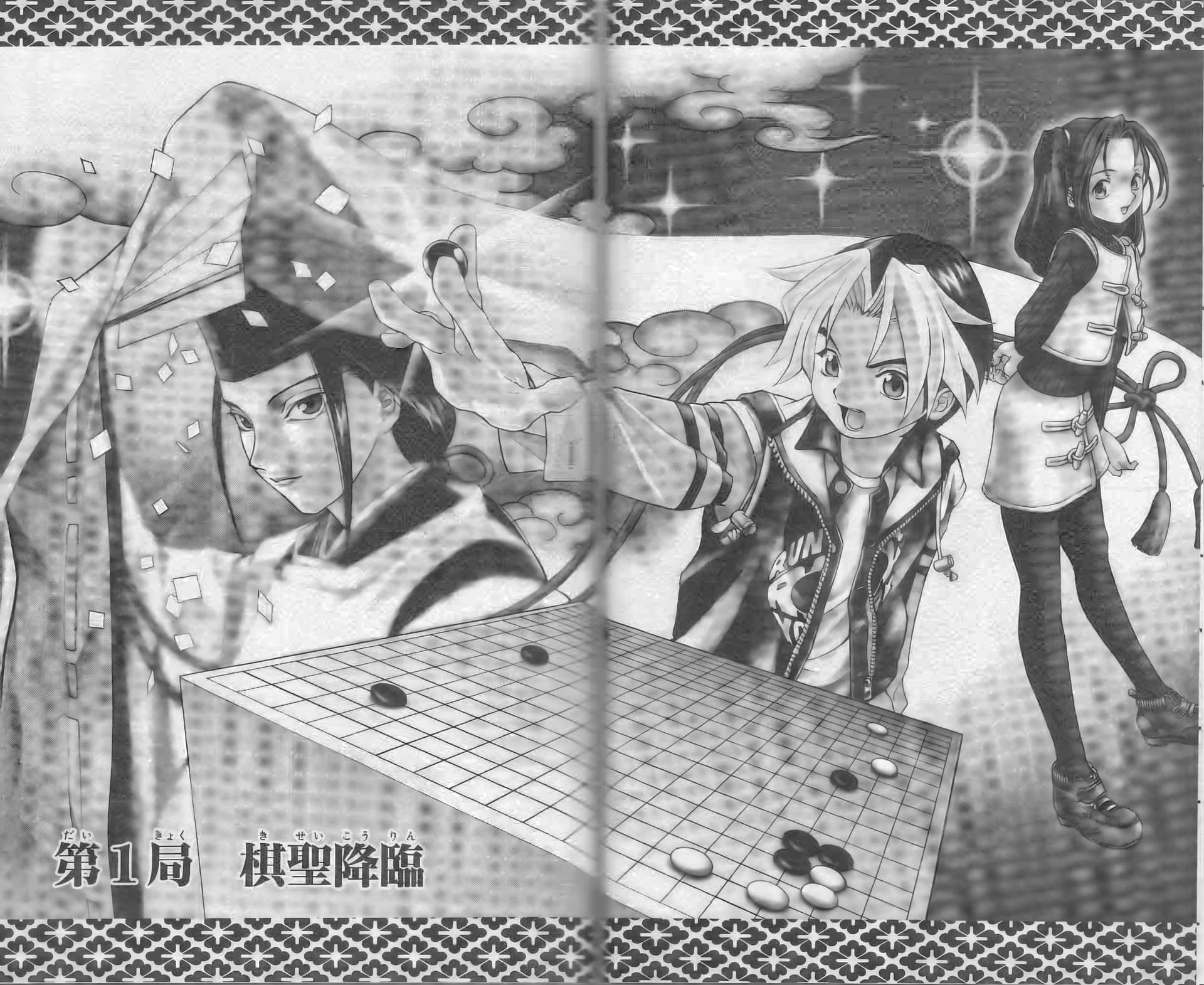
The model works great, it seems to ‘save’ quite a bit of JPEG compression artifacts though. The scanlation itself is very ‘dirty’ with JPEG compression, even on white space, so I consider this result fairly satisfactory.
I’ll upload the first scans as ZIP here, for testing purposes (Comic Sans was used at the time…
 )
)Hikaru no Go - Volume 01.zip (20.9 MB)
LowRes v2 beta model totally mutilates the fine details of the grain patterns used here, but deals with the compression artifacts very well:

Edit:
Wow, the Recovery beta model doesn’t stop surprising me! These lines - perfectly restored!
6 Likes
Woah, the Recovery output looks great!
By the way - if you are in the side-by-side mode, you can click the Camera icon for a before/after screenshot of the preview window:
1 Like
BTW I just did the survey about gpai they sent me (presumably many others too) and I thought I’d repeat my “what I’d like to see changed” comment here in case of interest (plus will help me remember what I forgot to say):
I think as of 7.1.2 it’s back to having the latest version being the best version (as per 5.4.5 and 6.2.0).
I’d really like to be able to have multiple versions installed so if the latest one does something iffy you can check it wasn’t present in the previous one before all the uninstalling/reinstalling…
Also the option for how many models you get in the compare window (2,4,6,8 say), how large the compare window is - I have a 4k monitor - and to change models shown while inside it (the latter I think is coming).
Oh and in the main window original vs current comparison I’d like to have the left side as a choice of: (i) Original, (ii) An image from disk you specify (e.g. for comparing between versions) or (iii) being able to load the current right-side image there and keep it there until you choose to change it.
1 Like
Great ideas jml, and thank you for answering the survey, we really appreciate it!
“7.1.2 it’s back to having the latest version being the best version”
Honored to hear that’s the case for you. Gigapixel is getting better every day.
“option for how many models you get in the compare window (2,4,6,8 say)”
^ Great idea - since you’re a Beta tester, you’ll get to see some improvements to comparison view shortly, but right now it is still a 4-up view.
Re main window comparison – I really like that idea as well. I haven’t seen anyone mention loading a file of your choice from the disk - that’s a great take on this.
Thanks for the feedback!
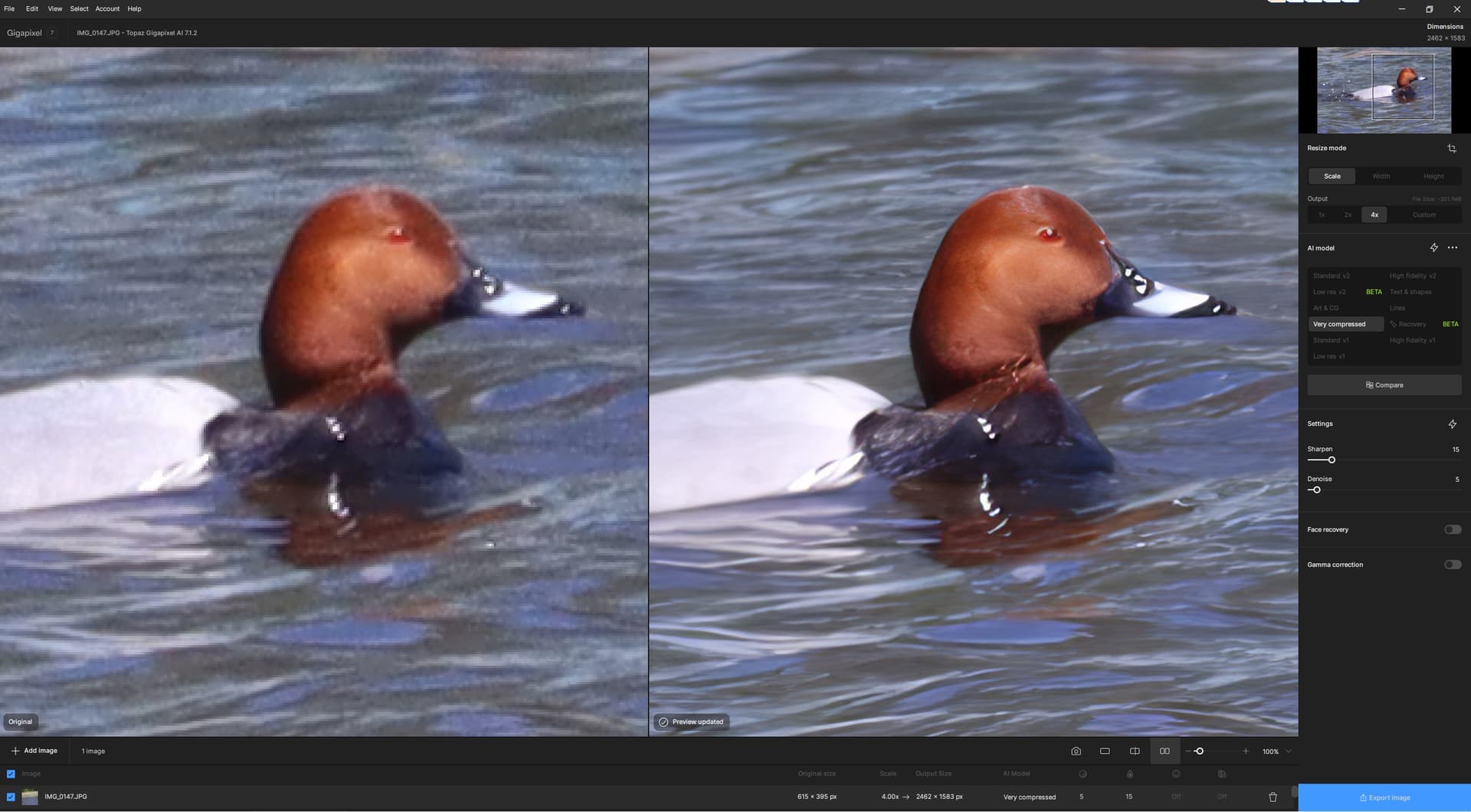
For me the latest Gigapixel 7.1.2 is the best so I’d say it’s moving in the right direction. Which made me very happy. On the subject of “wild ducks”, where last year (and before) I didn’t have great results because the ducks were always far away and tiny, I tried different models. Nothing particularly interesting (but for me, yes). This year the red-headed ducks (Pochard, or Aythia Ferina) appeared, so I tried it (plus with a better camera, Canon EOS 100). The default resolution of the photos is 6000 x 3368 pixels, but after cropping the duck, only 615 x 395 remained. I used Gigapixel with 4x magnification (the result was 2462 x 1588) and looked for a suitable model. But even Low res (both versions) did not give good results. Surprisingly, the Very compressed model performed exceptionally well again. I am attaching a printscreen for illustration. I’m not sure about some of the details in the photo, but I’m very happy to be able to get usable images for my enjoyment. I look forward to the next installment of the Gigapixel series!
2 Likes
Video AI Beta not GPAI… sorry…
Perhaps I have one modest wish. When I open the original photo in Gigapixel, I set Fit (overall view) and then select the appropriate part of the photo to Crop. However, after performing Crop, I do not see Fit, but a very enlarged result from Crop (100%). But I would like to continue to have Fit (after finishing Crop) and only then decide how to set the relative display size (reduce or enlarge as needed for further processing). Before the details, I want to have an overview of the whole. Just to be able to set Fit as the default value (at least for a given episode of processing a selected group of photos – OK for one photo, but for 10 it bothers me to keep repeatedly resetting Crop results back to Fit). Thanks for possibly considering my wish.
1 Like
