Photoshop does have a tool for that, it’s what I used to do it myself.
Here’s a tutorial: How to Stitch Multiple Photos Together Automatically with Photomerge in Photoshop - YouTube
To make it work I would extend the edges of the sliced pieces a bit so you have portions that coincide with others, that way the tool can detect which ones go together. Took me a while to get it to work as well.
Damn that sucks, I really liked @profiwork’s solution and concept (The program working kinda like 3D rendering where they split the image and render each section).
I think the last commit on Gigapixel was on 2019, not much has been changed.
Hopefully they come out with an update.
The detail issue may be in some pictures but I just did a test using an 800 x 600 px photo and enlarged it by 4X In gigapixel 4.6.0 . The results are outstanding as shown below.
This picture is the original in Affinity Photo zoomed to 388% vs the preview picture in Gigapixel at 4X:
This is what Gigapixel had to work with.
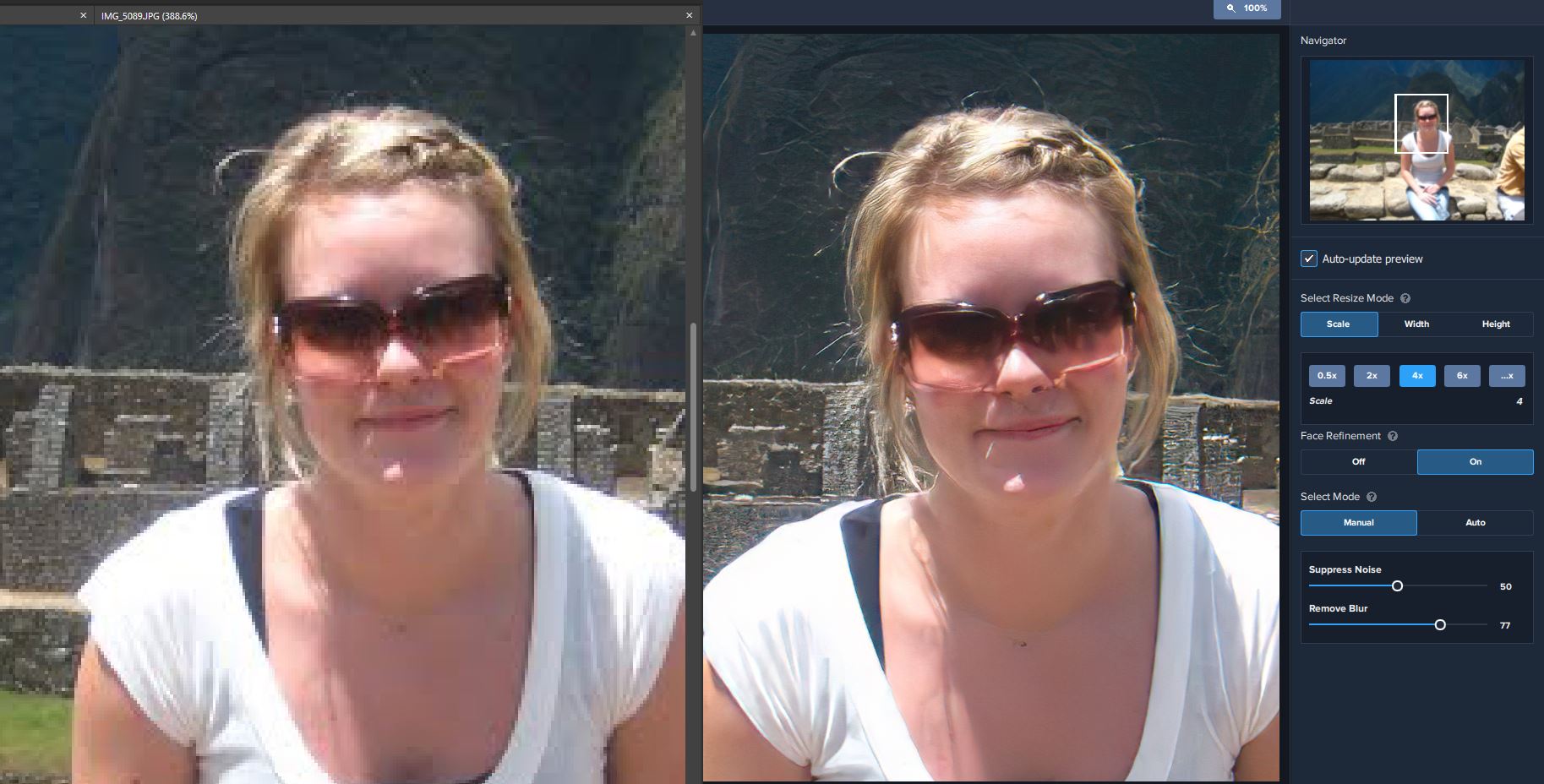
The picture below is the 4X saved version in Affinity Photo vs the preview in Gigapixel. Note, there is almost no difference in the two.

When you move the preview original a bit it must generate a new upscaled preview so its normal for it to go blurry. On rare occasion I see that it doesn’t trigger a new preview and this can be fixed by slightly moving the original a bit more.
I find that setting the Maximum Quality setting in preferences to Off not only is faster but will produce a sharper image. I show an example below with areas circled in white. I’m have both GPU and Open Vino set to yes.

1 Like
For any issues like this you should raise a support request at the main website.
When you raise the support request it is recommended that you supply at least the following:
- copy of the affected image
- information provided from the Help, Graphics info menu
- copy of the settings used to process the image
- screenshot of the preferences panel
