I am using 1.0.4. Using cloud render with the Wonder model when I export it takes a very long time and my M2 Pro 12/19 GPU is maxed out. Did this really run on the cloud or are you faking it and still running it on my computer?
And when it finally finished it was not 4000x2757 like it was set. It was exported as 3450x2378. But the file names ends with gigapixel-wonder-4000w.
I’ve got a similar phenomenon with Bloom - if you have access maybe you can check for yourself. Although it’s a cloud-app, whenever I start rendering the secondary IGP of my Intel CPU is at 100% instead of 1-4%. I did post in the forum to get some insights but my post was quickly moved into a private conversation by the mods. As to why the IGP is stressed with Bloom Topaz support could only guess. But they assured me that no local resources would be used with cloud rendering.
Then why is the GPU at 100% for several minutes when I export an image that was processed on the cloud and it takes a very long time to export? Other cloud functions don’t behave that way.
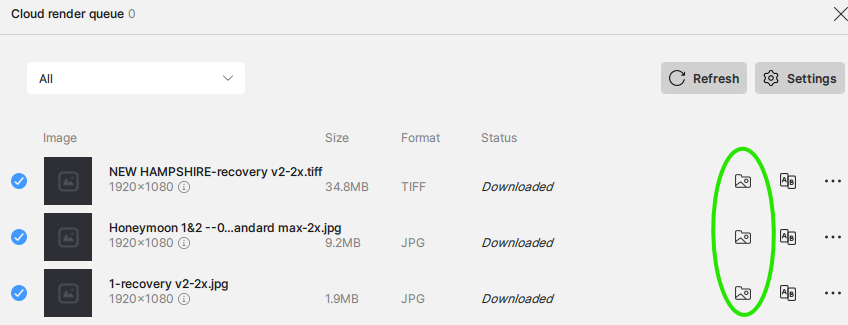
I am confused, how do you export the image after it was processed on the cloud in Gigapixel? It’s in the list of cloud renders, and already saved on your computer where you chose to. There is no “export” function.
Okay, I found the output files in my Downloads folder. I guess long ago I set Gigapixel to save it there instead of the same folder where the original was located. Since I couldn’t find a saved file I thought I then had to click on the Export button to get it saved.
After the cloud render the onscreen image still has the old, small image displayed. It is not updated with the new cloud render. That also confused me and made me think nothing had happened in the cloud.
At the bottom of the screen it looks different than your screenshot though.
Loaded photo, but before clicking on Cloud render button:
The blue “Export” button is exclusively a local processing button and does not download results from the Cloud queue.
Clicking the blue “Export” button at any time will open the export popup and if “Save” is clicked, will begin using local hardware to process the image.