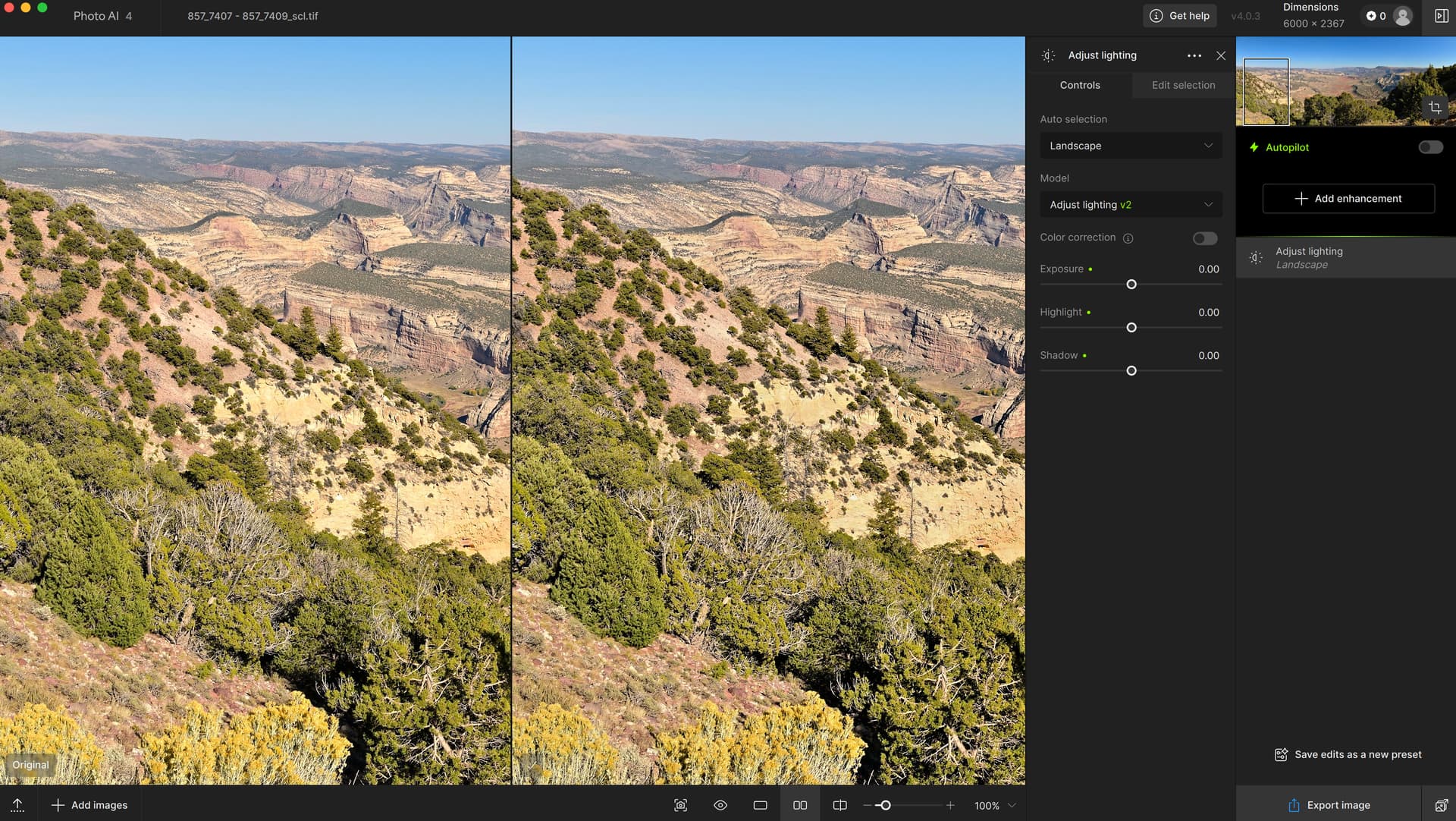
Open an image –> Add enhancement –> Adjust lighting. Using the “Landscape” setting under Auto selection to apply adjustments - this detects and selects the scene very well (no sky).
BUT why are there changes applied to the image when the sliders are all set to zero? There seems to be some sharpening applied, which is quite aggressive and there is no option to reduce it. The image is already sharp enough. Putting in negative values for Highlights and Shadows only darkens the scene, but the over-the-top sharpening is still there. It could be that the sharpening effect is changing the local contrast and giving the appearance of changing the lighting (so maybe zero IS zero), but there is no control over this.
There are no other adjustments applied. Autopilot is OFF. Colour correction is OFF.
I’ve had a quick search but this does not seem to be coming up as a topic anywhere. Wondering if anyone else has this issue or is there a simple fix?
The sliders are for extra adjustments separate from what the model itself applies. There is no zero level for the model itself. You can only remove the effect from areas by customizing the selection.
The model doesn’t sharpen the image, but it does adjust the brightness of elements in the image by varying amounts, which can increase local contrast, and can make the image appear sharper.
OK thanks. This isn’t really what’s advertised “on the box” for an Adjust lighting model. Local increase of pixel/pixel adjacent contrast essentially IS sharpening. Some other apps (I have a few!) provide effect radius options for control over this issue.
Removing areas of the image from the selection is not a viable option, as it would need to be done manually and take too long - and potentially remove the area where actual lighting adjustment is needed.
For this to be useful, IMO we need more control over the default settings and/or at least some understanding of that the model is doing.