I’m a bit late for this post but maybe other forum members can benefit from my idea.
First of all Topaz Photo AI isn’t designed to work on scanned images. Least of all these types of pictures:
Scanned newsprint images.
Scanned Photos with textured paper.
And some scanned images with moire patterns.
But with a little preparation on these types of pictures beforehand, very good results can be achieved. By preparation I mean the use of a GAUSSIAN FILTER. I believe gaussian filters are available in most photo editing programs and I’m not suggesting that Topaz includes one in Photo AI.
In this instance I’m using AFFINITY PHOTO2 to demonstrate how to prepare one of the previously listed types of pictures before opening it in Photo AI.
I’m using a picture posted by gingraspierre, of a baby to show the steps taken.
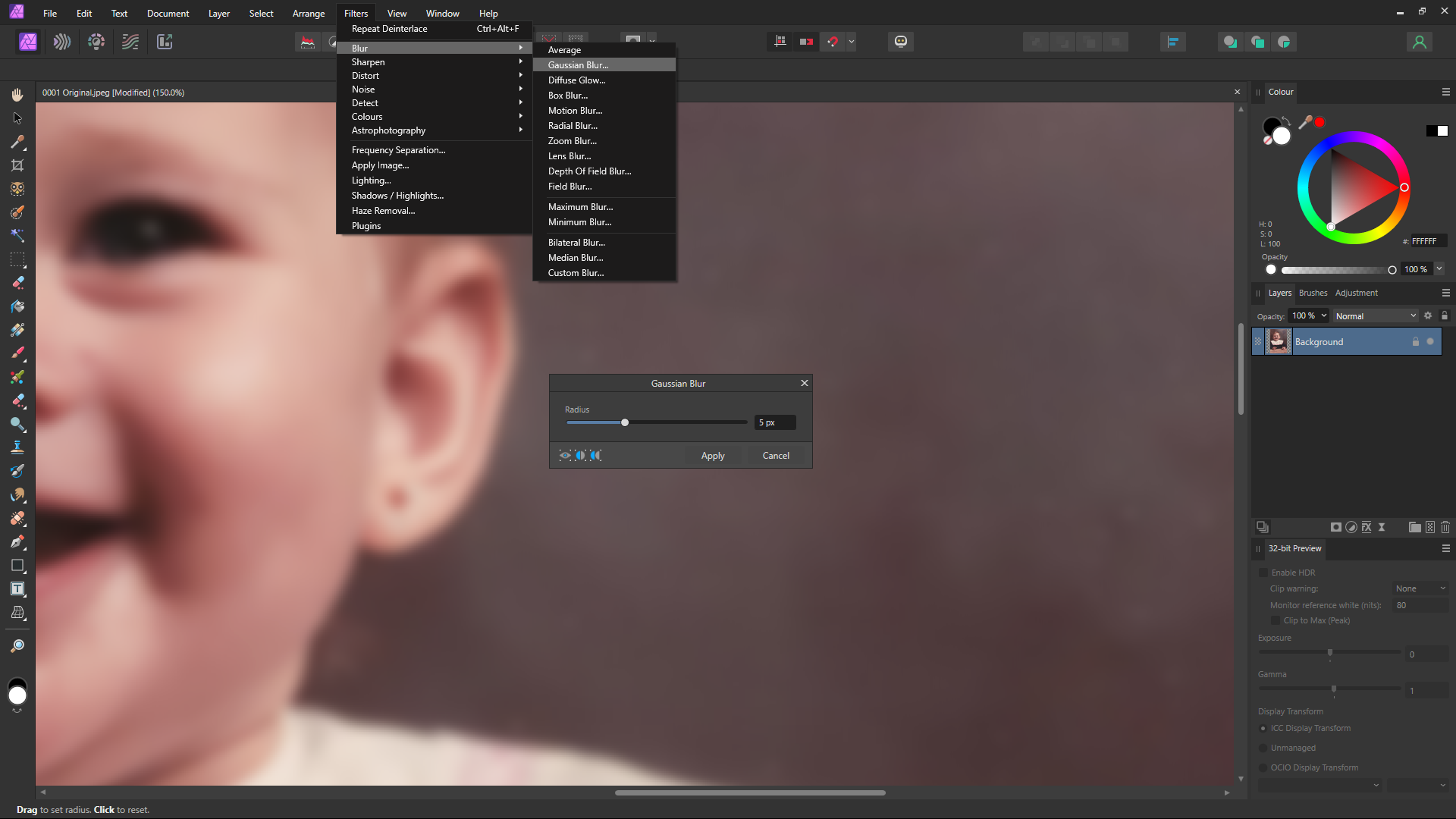
1st: Open the picture of the baby in AFFINITY PHOTO2 and zoom in 150% so that the picture texture is easily visible.
2nd: Under FILTERS select BLUR, GUASSIAN BLUR and advance the slider until the texture pattern is blurred out. I chose 5px. The picture will look very soft and blurred but Photo AI will soon do its magic. Apply the setting and EXPORT the picture as a COPY. NOTE: ALWAYS WORK ON THE COPY.
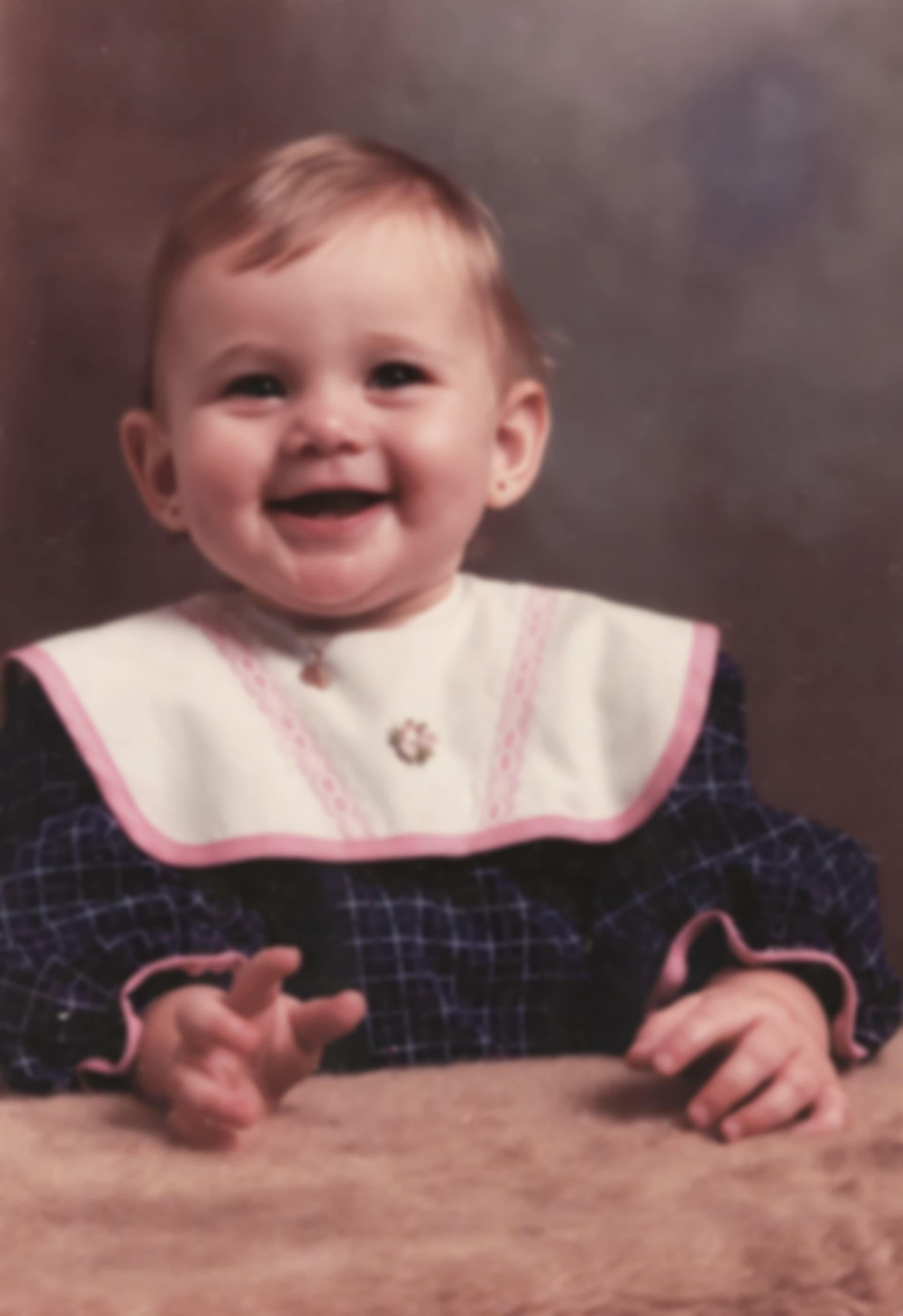
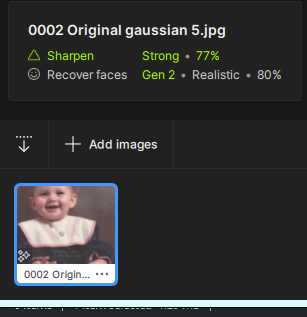
3RD: Open the COPY of the picture in PHOTO AI and in this case it should do the rest of the work for you. In my case I also selected select FACE RECOVERY and EXPORTED the picture and reopened it and applied another FACE RECOVERY just to give a tad more detail.
And that’s all there is to it. Simple, pimple. Easy, peasy.
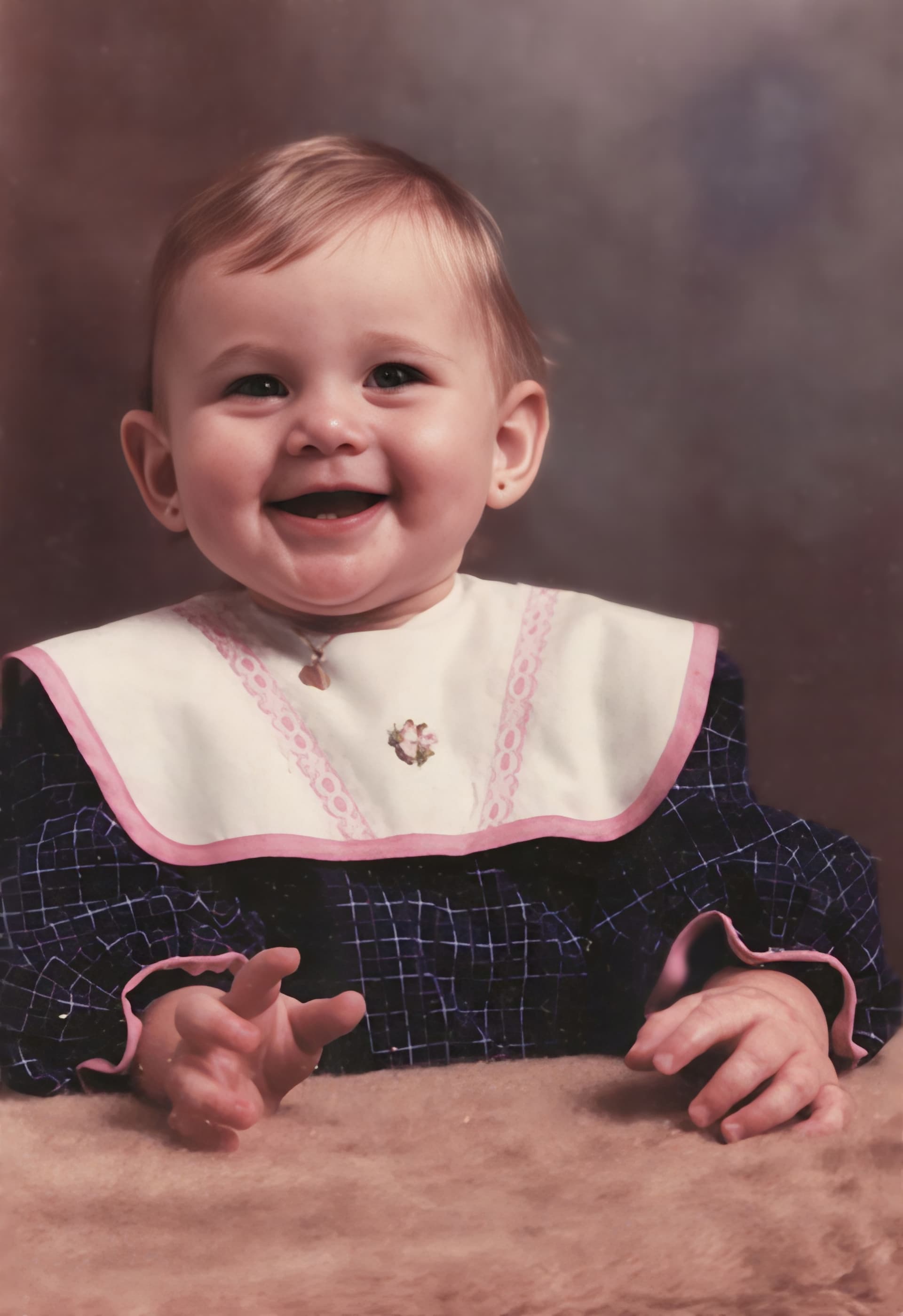
See also my posts in the IDEAS section for more examples of what can be achieved using this method.
POSTS 37 and 63
POSTS 33 and 35
AND this POST 1 and 3
