And if I may express one more wish: Please go back to your roots.
The models “Wonder,” “Dust & Scratch,” or “Super Focus” are all fantastic, but only for single images. The processes take way too long in the cloud and especially locally to edit larger quantities of photos. That’s why I hardly use them (Time is money.).
Therefore, my wish is that the previous, faster models are expanded and further improved.
In particular, “Sharpen” needs better models in my opinion. I almost always turn it off because it interferes too much with the photo.
We introduced multiple new Sharpen models in latest versions, Sharpen Portrait, Sharpen Wildlife, and Super Focus for cases that Sharpen cannot quite recover.
What Sharpen model is missing in your workflow? Add details here and add your vote and we can share to the development team.
That’s true—it’s great that new models are being added—but the results from the standard models aren’t as good as they used to be with Topaz Sharpen AI, which is why I use the latter quite often. And the auto mode in Topaz Photo for Sharpen is often off the mark.
I’ll have to upload some examples sometime to show the difference.
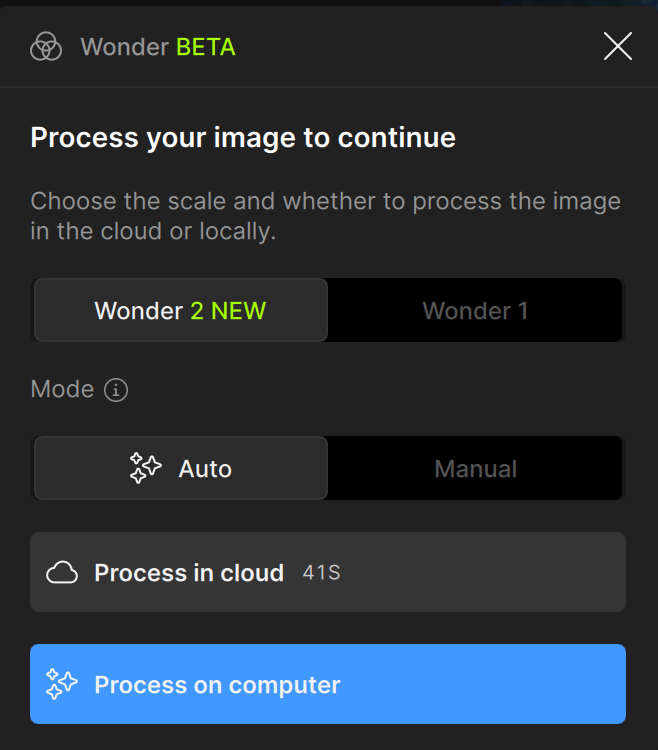
And the new models are useless to me if—like right now—I have to wait 26 minutes (!) with Wonder Beta 2 for an image to be processed in the cloud. A 3.4 MB JPG! With these wait times, this model is unusable. And locally, it takes even longer and makes the fan spin—it’s the only program on my MacBook M3 Max with 64 GB of RAM that does that. I have no idea what Topaz hopes to achieve with this.
I would be interested in knowing more so, please could you Upload some comparison images between Topaz Sharpen AI and Topaz Photo using the same Models and please include the settings you used for each Application plus a brief description to why you believe one is better then the other.
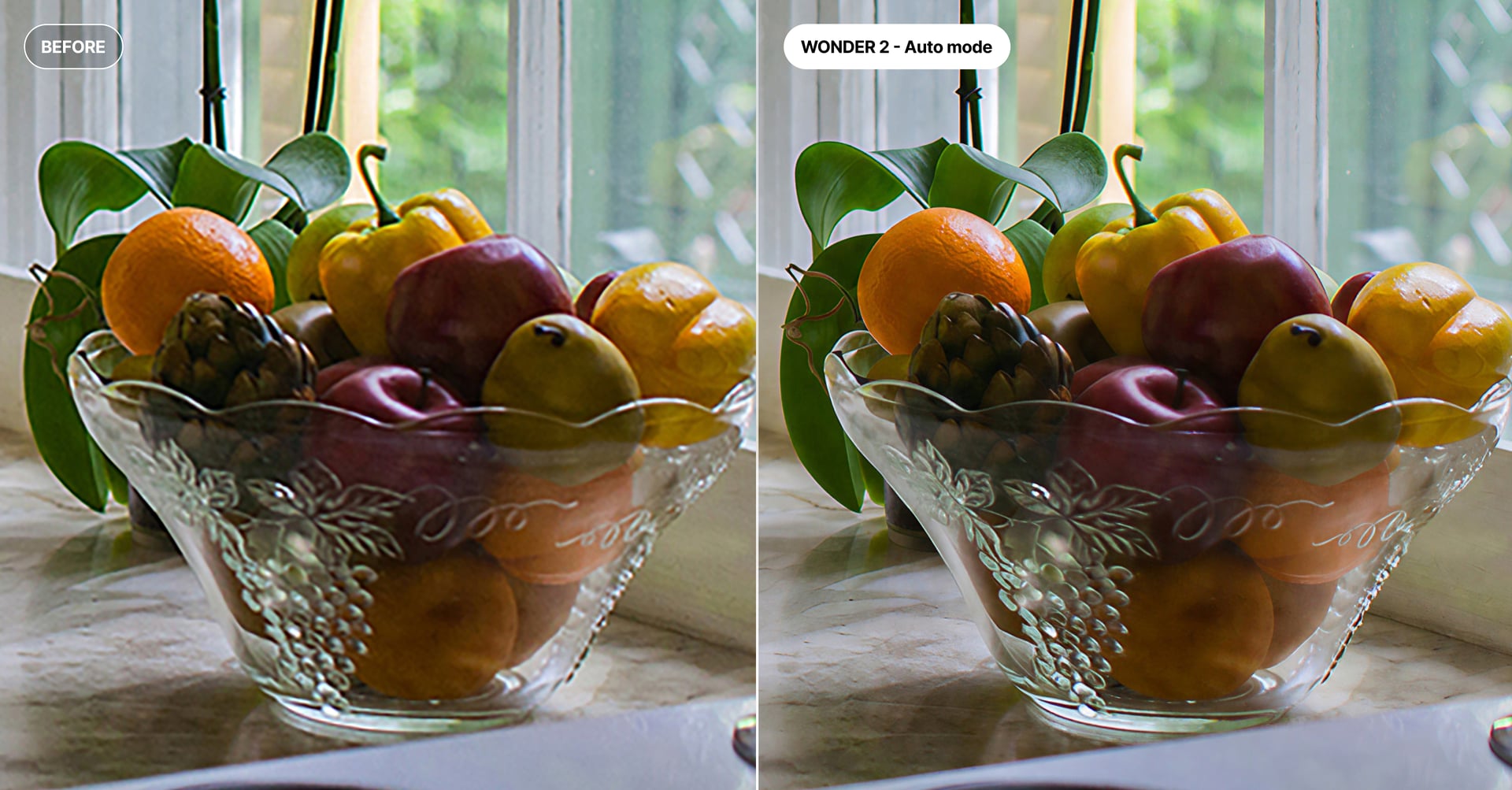
As a side note have you tried the new Wonder Auto Mode in the latest version Topaz Photo 1.4.0 it’s a big improvement because, Wonder 2 determines the appropriate output size based on the actual recoverable detail in the image rather than its nominal pixel dimensions.
Auto Mode for Wonder 2 — Fix False Resolution and Low Detail
One of the trickier image problems to solve is false resolution, where an image has been upscaled or resampled to a larger pixel size but the actual detail doesn’t match those dimensions. Standard upscaling models tend to produce poor results on these images, and until now Autopilot had no way to detect the issue or point you toward a better option. The same applies to images that are heavily blurred or simply low in recoverable detail.
Wonder 2 is great for low and medium resolution images. It does not handle false resolution images with normal scale and size controls.
We’ve added a new analysis model to Autopilot Analysis that looks for these conditions. When low detail or false resolution is detected, using Wonder 2 will automatically select its Auto mode.
In Auto mode, Wonder 2 determines the appropriate output size based on the actual recoverable detail in the image rather than its nominal pixel dimensions. When Autopilot selects this recommendation, the output size is set automatically with no manual configuration needed.