What does “1 filter Flattened” mean, for those of us that use English and not techno BS?
Hi David.
Where are you seeing this is it on export if so then, it means the filter or filters have been burnt into the image for example, when saving a JPEG File
It means the one filter you’ve used has been hidden to save space in the right hand column - there’s a video demonstration in the release notes for Photo v1.0.0
Trouble is it is AUTOMATIC face recovery, and if it comes out wrong there is no way to access it and change the settings, in other words bloody stupid.
Hello,
If you remove the enhancement above it, it will unlock the flattened one. It’s never locked. Some enhancements, like Upscale, need to flatten the ones below before they are applied. For Upscale, this is also an advantage, as you can now put it in a specific order, like Lingyu explains in the video.
2 Likes
I’ve been using Topaz stuff for a number of years, and I have to say that the UI gets less and less intuitive with each release. The “flatten” thing, particularly, is confusing, and as far as I can tell, not even addressed in the documentation. If you have to “undo” the filter above, then re-do each one in the stack, that seems like a lot of rework.
What i would LIKE to be able to do is select only the filters I want to have applied, and let the Autopilot have a run at it using ONLY those filters - Or using a preset I define, but in batch. Specifically, I want to EXCLUDE face recovery which I think is pretty terrible still. Is there a way to do this? Selecting all images doesn’t appear to apply a preset to them as a batch.
Hi Andy.
Here’s the information you require from Topaz
Flatten Layers
We’re introducing an important update to the editing workflow: Flattening—a concept many of you are already familiar with from working with generative enhancements. This feature is designed to bring more clarity and control when combining multiple enhancements, especially those that are dependent on the state of previous edits.
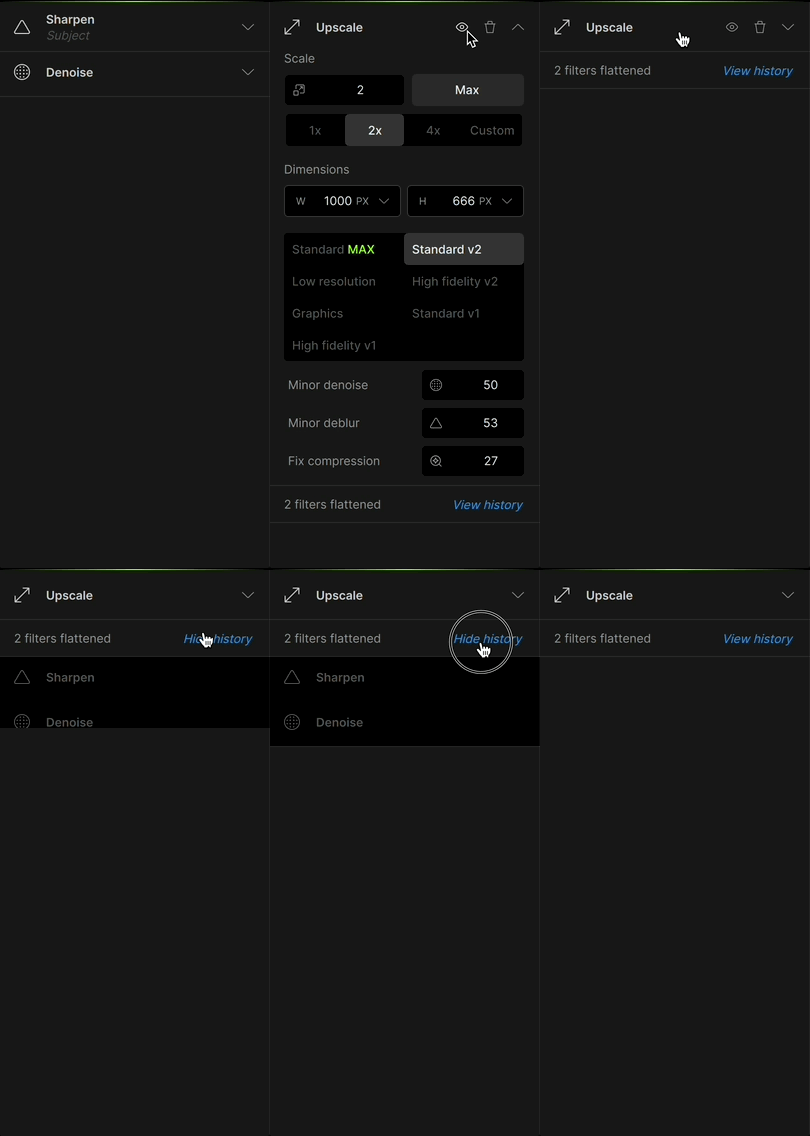
Previously, generative enhancements would automatically flatten your existing edits to ensure stable results and avoid reprocessing demanding enhancements. However, this behavior wasn’t clearly communicated, often leading to confusion about why some layers couldn’t be modified after applying a generative enhancement.
With this update, we’re adding a cleaner visual design to indicate when layers are being flattened. Flattening will be automatically triggered by Remove, Spot Healing, Super Focus, Dust & Scratch, and Upscale.
Hope this helps
Thanks. I ended up going back to Photo AI because then I could see what had been applied, and go directly to a layer if I felt it was in need of adjustment. Yes, that causes reprocessing, but it’s far easier to deal with than the new version, IMHO. With the new interface, you have to undo everything to make a change, and then remember what you wanted to add. I don’t mind the reprocessing of Photo AI’s interface.
Watching this animation/video - how are you getting Sharpen and Denoise to show up? I can only get the greyed out list after hitting View History? I see you drag the cursor down but nothing happens when I do that?
Hi Andrew.
No problem, as the information states Flattening will be automatically triggered by these Enhancements
Remove Object
Spot Healing,
Super Focus,
Dust & Scratch,
Upscale & Resize
Which means if you apply one of the above Enhancements then the Layers below them will automatically be Flattened and the only way to retrieve those Enhancements is to Delete which ever one of the above Enhancements you applied.
So, you’ve applied for example; Denoising plus Sharpening and then, you apply Dust & Scratches and the Layers below have been automatically Flattened then, you decide you want to change the settings in the Sharpening Enhancement but, you can’t because, you have applied Dust & Scratches Enhancement.
If you look to at the right hand Panel to where the Layers are stacked you’ll see to the right of the Layers name there are three Icons an Eye Ball, a Dust Bin/Trash Can and a Down Arrow
Simply Clicking the Dust Bin/Trash Can will Delete that Layer and you will be able to access the other Enhancements again.
Hope this helps
I’m working on restoring an old set of photos. What’s happening in the new version is that the Autopilot is generating the faces then applying upscaling (like other’s have stated), but the result is a really nice upscale that retains the old photo aesthetic… then a really sharp, clean face that I can’t adjust and looks very uncanny.
It kind of makes Autopilot worthless unfortunately, since I need to delete everything and then apply upscaling first before the face recovery.
Popping in to also say that there needs to be a way to either delete the flattened adjustments (and let it regenerate), turn off this flattening feature, or give face recovery top most priority. I’m not sure why I’d really ever want to generate a sharp face on a soft edge photo and then upscale. It’s easier to blend with older photos when it is the last function.
Hi Anthony.
Firstly, don’t “PANIC” this is Going to be simple to rectify.
You have must told Topaz Photo at some point to either automatically upscale an image to a predetermined size or you have Enhance Small Images enabled whereby, Autopilot will upscale small images from 1.5x to 4x to a maximum of 12 megapixels.
Which is why you can’t access Recover Faces after the image has been Upscaled
Simply, goto your Preferences Menu or Press Command/Control plus the Comma Key , then, a Window will appear within the Window on the left you’ll see a list with three Categories under Autopilot select Upscale and Resize and some options will appear in the larger Window next to the Categories now, within this Window you’ll see Resize Type and a box below that with a Down Arrow
Simply, Click on the Down Arrow and select None then Click on the Save in the bottom right hand corner.
Now, when you import an image Autopilot won’t automatically Resize the image for you and you’ll be able to Upscale your image and apply Recover Faces.
Hope this helps
The “Filter Flattened” message appears when using one of our generative AI models or Upscale enhancement, such as:
-
Remove
-
Dust & Scratches
-
Super Focus
-
Upscale
These models work by modifying the image’s actual structure, so once applied, they lock in any previous edits to ensure accurate processing. That’s what the “flattening” refers to; it essentially bakes in prior adjustments up to that point.
To maintain flexibility with your edits, it’s best to apply generative AI models / Upscale first , and then make final adjustments like Sharpen , Denoise , or Recover faces afterwards.
1 Like
This is a new feature and honestly, I could do without it. I apply a filter, then I go to a second filter and now I can’t access the first one to make adjustments any longer because it’s flattened? Double clicking it doesn’t change anything, there is nothing in settings about this.
I tried creating a saved preset with two things, then select 11 images, apply new preset. it hung on the first image. I have a powerful computer, it’s not on this end. the last version before I just updated never struggled or had issues.
this is for topaz photo v 1.1.0
Hi James.
Basically, Flattering was introduced because, certain Enhancements interact with one another when for example; Upscaling was applied therefore, by flattening the Enhancements preventing this behaviour from happening
Here’s some information about Flattering from Topaz
Flattering Layers
We’re introducing an important update to the editing workflow: Flattening—a concept many of you are already familiar with from working with generative enhancements. This feature is designed to bring more clarity and control when combining multiple enhancements, especially those that are dependent on the state of previous edits.
Previously, generative enhancements would automatically flatten your existing edits to ensure stable results and avoid reprocessing demanding enhancements. However, this behavior wasn’t clearly communicated, often leading to confusion about why some layers couldn’t be modified after applying a generative enhancement.
With this update, we’re adding a cleaner visual design to indicate when layers are being flattened.
Flattening will be automatically triggered by Remove, Spot Healing, Super Focus, Dust & Scratch, and Upscale.
As mentioned Flattening is triggered by applying one of the Enhancements above which inturn prevents you from adjusting the previous Layers however, if you do wish to adjust one of the previous Layers you still can by simply deleting one of the above for example; the Upscaling Enhancedment then, the previous locked Layers will become editable once again
Hope this helps
