New to using Astra, meant to render a clip scene, but ended up rendering the whole video and its costing me a ton of tokens. Can’t figure out how to cancel the rest of the render, or if that’s even an option? If not, that seriosly needs to be added!
You can cancel Astra renders by clicking on the 3 dot menu item and choosing cancel render. That said, it will cancel the entire render and will only refund unused credits. There will not be a partial file delivered.
So if you ran a 150 credit export and canceled it about halfway through, you’ll receive about 75 credits back to your account since only half the video processing credits were used.
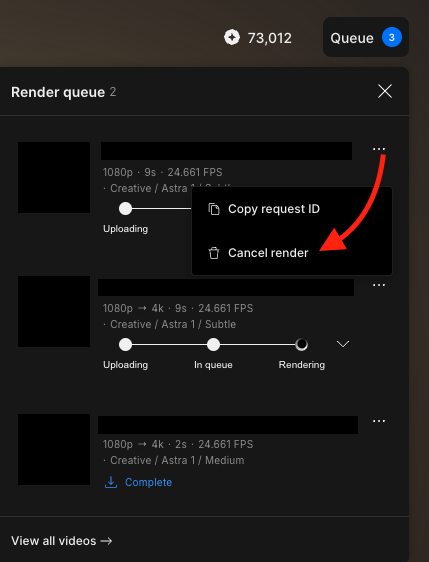
It only gives me the option to copy request ID. No option to cancel render. It did this during both the “In queue” phase and the “Rendering” phases.
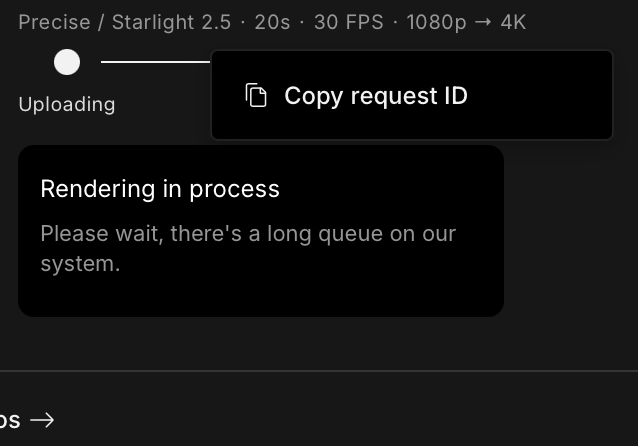
I set settings to Starlight Precise 2.5, 4K, FPS 120, when I uploaded the video, it only reverted FPS down to 30. I’ve since noticed it does this same thing every time. I accidentally clicked render and can’t cancel it. So I immediately redid it with the correct settings. As you can see, the low FPS version is rendering with no ability to cancel it. The high FPS version is waiting it queue. I’m just going to trash the low FPS version, but it’d be better if I could cancel it. It’s going to waste almost 50 of my credits and Topaz’s processing power as well.
Thanks for the detailed report — once an Astra job moves into “Rendering” state, it currently can’t be canceled from the UI, which is why the cancel option disappears.
For anything like this (including unexpected settings changes or potential credit concerns), please reach out to support@topazlabs.com with your request ID so the team can review the job on the backend and assist further.
