If there is any text in the image Photo AI Focus distorts, reshapes, canot read, even at the lowest settings. The app becomes unusable as text is everwhere for example street photography, There is no workaround unless you assign a Smart Object to a layer in Photoshop and go back and erase the refocus which defeats the purpose of using the app.
Can you confirm if you use Preserve Text? If so can you post examples showing all the enhancements used, as well as the before/after results and we can have a look!
I have been using Topaz software, as a plug-in to Lightroom Classic, for several years. I have the same problem with Topaz Photo AI as does “Oneshot Raymond Grzan.” If there is any text when I heavily crop (therefore resulting in low resolution) Canon RAW images (R1 and R3), either the text becomes horribly contorted and distorted, or I have no choice but to try to use the “Preserve Text” tool in Topaz Photo AI to exclude the text from editing that I do to the rest of the photo. That only serves to produce decent-looking photos that unfortunately are ruined with low res text. Is it not possible to fix the text too?
My workflow with Lightroom Classic is as follows:
- Usually I shoot full frame (Canon R1 and R3) but if, like this past weekend, I need to zoom in more than the lens (Canon RF 100-500mm) is designed for, then I use 1.6 crop factor. I do this in-camera — as opposed to back on my computer in Lightroom Classic, so that I maximize the size of the image in the frame. That helps the camera get the exposure and autofocus right. When shooting things like air shows, I am constantly zooming in and out to follow the action. If I do not leave my camera set at the 1.6 crop factor, than when the subject is far away, there is mostly just sky in my shot. The planes would be tiny dots if I left the camera at its full frame, uncropped setting. The camera would try to expose for the light of the sky, and perhaps something also that is in the frame besides my intended subject. That would result in the wrong exposure and focusing on something other than my intended subject (the far-away airplane, race car or speedboat).
- I transfer my Canon RAW images directly from the memory cards using Lightroom Classic’s “Import” functionality .
- I try to edit my photos entirely using Lightroom Classic. Only when that is not sufficient, do I resort to using Photoshop and/or Topaz Photo AI, which are plug-ins to my Lightroom Classic. In Lightroom Classic, I apply that program’s excellent “Denoise” tool from the “Detail” drop-down menu in the Develop module. Topaz’ denoise distorts the text in my photos, whereas Lightroom’s does not. I also crop, adjust exposure and other basic adjustments in Lightroom Classic. If I want to more, from Lightroom Classic’s toolbar, I select Photo → Edit in → Topaz Photo AI → Edit a Copy with Lightroom Adjustments (Copy File Format: TIFF, Color Space: ProPhoto RGB, Bit Depth: 16 bits/component, Resolution: 300, Compression: None). Once I am in Topaz Photo AI, here is what I do. For an already heavily cropped photo, I tend to choose “Upscale.” I rarely use “Sharpen” and “Denoise” in Topaz Photo AI because they tend to mess up the text. Tools that I really like using in Topaz Photo AI are “Recover Faces” and “Adjust Lighting.” “Adjust Lighting” tends to brighten my photos. I change the setting from “Subject” to “All.” which brightens my entire image.
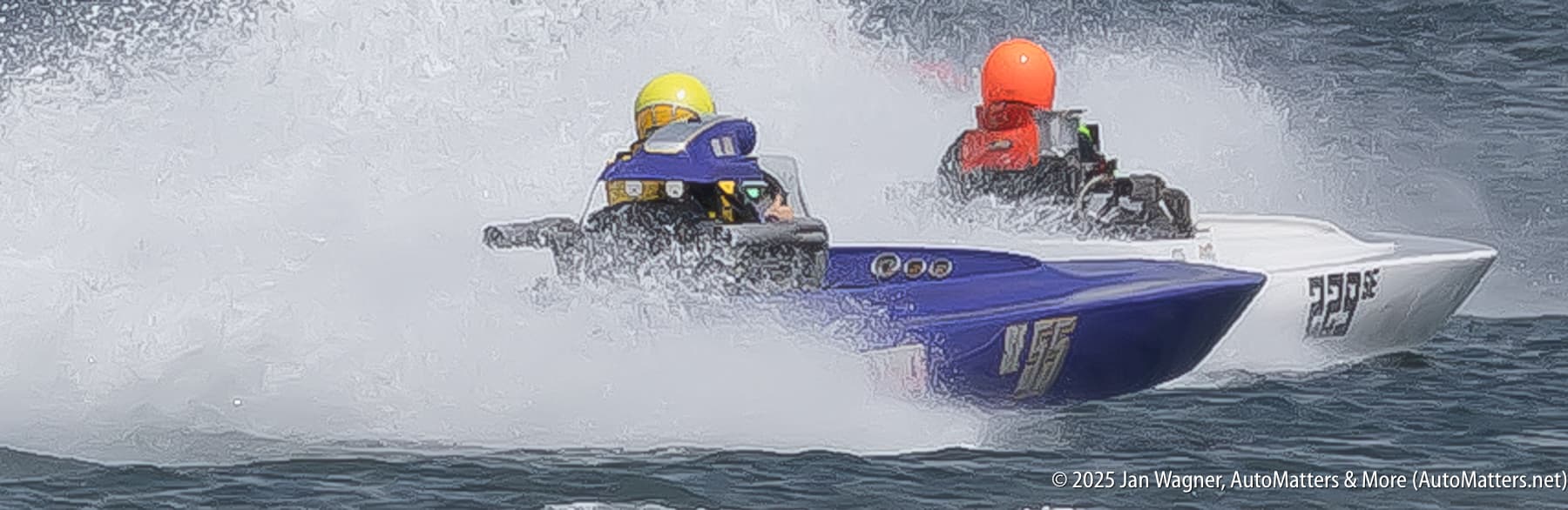
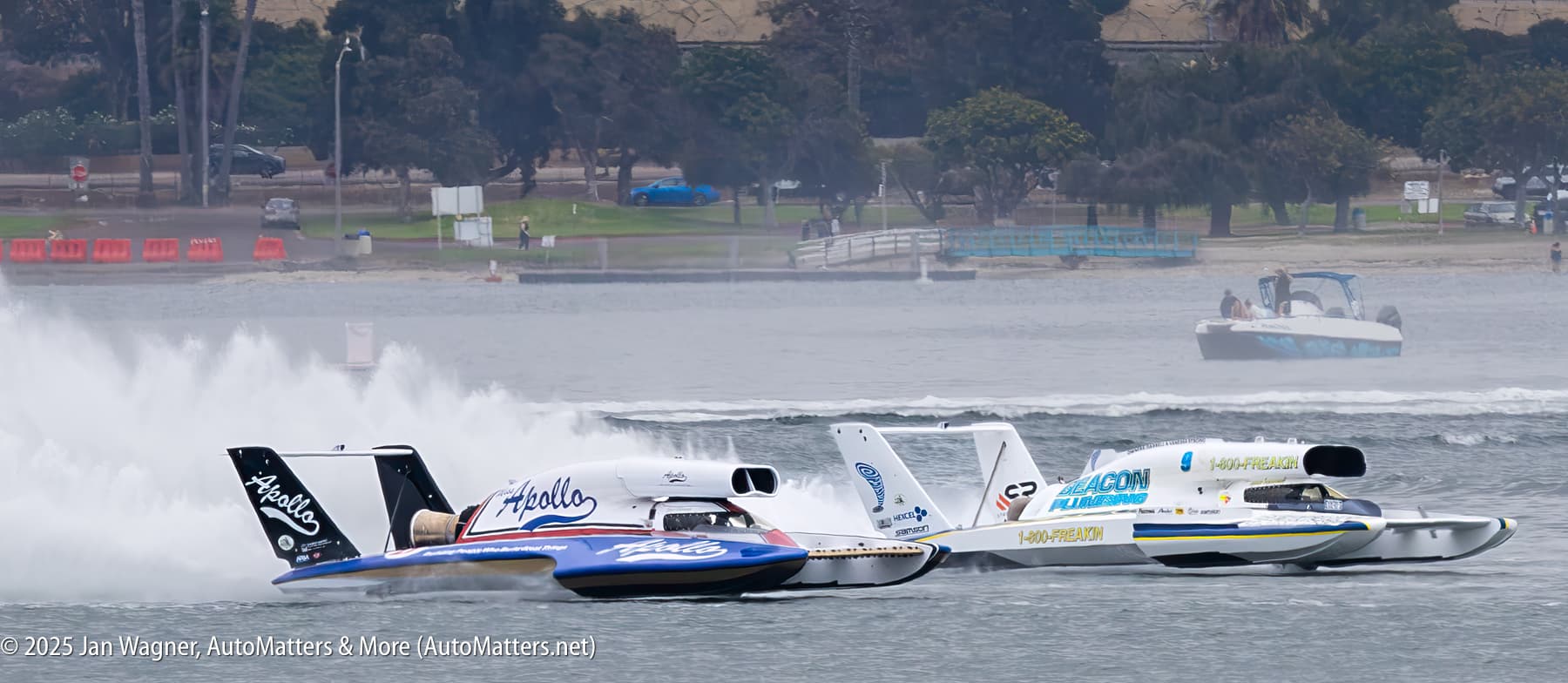
- Many of my photos have text. In airshows, planes have numbers and logos. The same applies to auto racing and boat racing, I am uploading a photo (1/2000 sec., f/11, Canon R1 and RF 100-500mm with 1.6 crop factor: 1977x860, hand-held, Auto ISO of 1000, 400mm, 9.3 MP, Canon CR3 RAW) that shows my best efforts at getting the text to look right. Nevertheless, look at the distorted text in the SAMSON logo on the right-side tail wing of the Beacon Plumbing #9 H1 Unlimited Hydroplane. It has become illegible. That is the same boat that flipped shortly after I took this photo, at San Diego Bayfair 2025 (in case you’re curious, yes, I did get photos of the boat flipping, as well. I will post them on my website soon). I mostly edited this photo in Lightroom Classic, and did finishing touches using Topaz Photo AI. I have been editing photos of Bayfair for four days already. That is why I try to do most of my photo editing using only one program (Lightroom Classic). I’ve attached two more photos to show really bad, colorful distortion of fine details in the Topaz AI version (using “Preserve Text” to avoid distorting the text), versus what I was able to accomplish just using additional tools (maximum “Luminance Smoothing” and maximum “Denoise”) in the “Detail” dropdown menu in the Develop module in Lightroom Classic (less sharp than the Topaz AI version, but no colorful artifacts).