Why does Wonder Beta take expotentially longer to process than the same edits done individually? Individually less than a minute, includes sharpening, denoise, color and upscaling. However, via Wonder so long I can take a short trip! over an hour and somethimes languises for hours where I just shut it down. I’m running latest Mac OS, M1 MacBook Pro 32GB.
Note: I read a similar question with a PC but the reply stated that processing times vary depending of the image size etc. Additionally that upscaling is performed where that would increase processessing time. Regarding the upscaling, I did not find any option within Wonder that allows for custom processing at all. So by default, includes an unknown level of upscaling but also no option to set the level of upscale or not to upscale. I do not upscale many photos and when I do in Photo Studio, it only takes seconds and does a satisfactory job. I’m seeing a deal breaker with Wonder but also “wonder” what real purpose it serves when I can select the individual edits I need and see them processes in seconds not hours. Something is very strange here.
Wonder was Designed to work with Small to Medium Low Resolution Images it’s primary purpose is for repair Soft and Blurry images not High Resolution Images taken with a Modern Camera so, if you attempt to Upscale High Quality and Detailed Images then Wonder will need sometime to Process that Image or Images.
When, you Select Wonder from the Menu it Automatically Defaults to Auto Upscaling depending on the Resolution of the Source Image however, if you look you see a Manual Tab to the Left of the Auto one simply, Click on this Tab and you will the option to change the Upscaling by a factor of 1×, 2×, 4× and MAX
Here’s the official information about the Wonder Models
Wonder
Wonder is an enhancement designed for professionals who want a simple, reliable way to improve small or medium sized low-resolution images that have compression artifacts, without stacking multiple tools. Traditional workflows can over-process or introduce artifacts when several enhancements are combined. Wonder is an automatic image repair tool to deliver very high-quality, artifact-free results on medium and low-quality images. It’s able to generate clean outputs, especially with fine details that other models may struggle with.
Important: This model is for small or medium low-resolution images that are soft, noisy, compressed, for example, and where you want clean, realistic detail without artifacts.
It is not for images shot on modern cameras, or RAW files. Using the model on images that are not meant for the model will have issues, inconsistent behavior and results, and editing images that fall outside its intended use is not supported. For RAW images or images from modern cameras, you can use other enhancements meant for these files such as RAW Denoise, Denoise, Sharpen, Recover Faces, Upscale, etc.
The maximum output for this Wonder generative model is 128MP (megapixels). If you have issues rendering your image, test a smaller starting file or contact us at Support and we can troubleshoot. Make sure to send to Support the file you are working with for us to see what model is meant for the image.
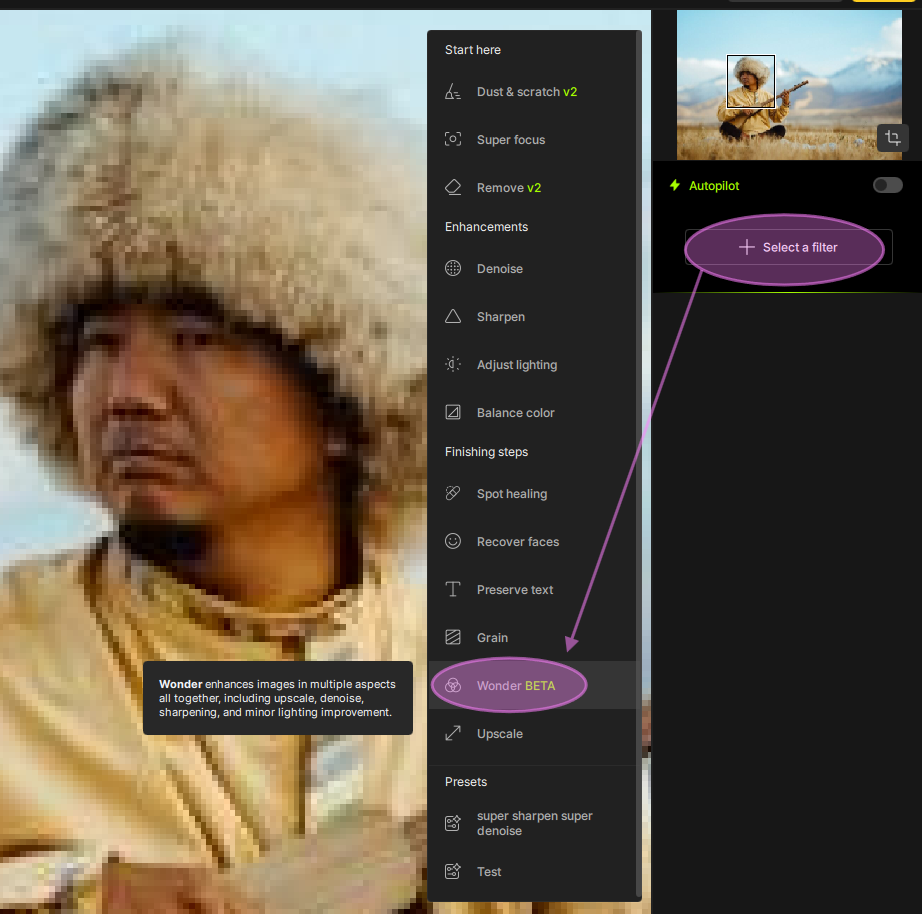
How to Access Wonder from the “Select a Filter” button:
Note: if Auto-Pilot is on, this “Select a Filter” button will be named “Choose something else”
*
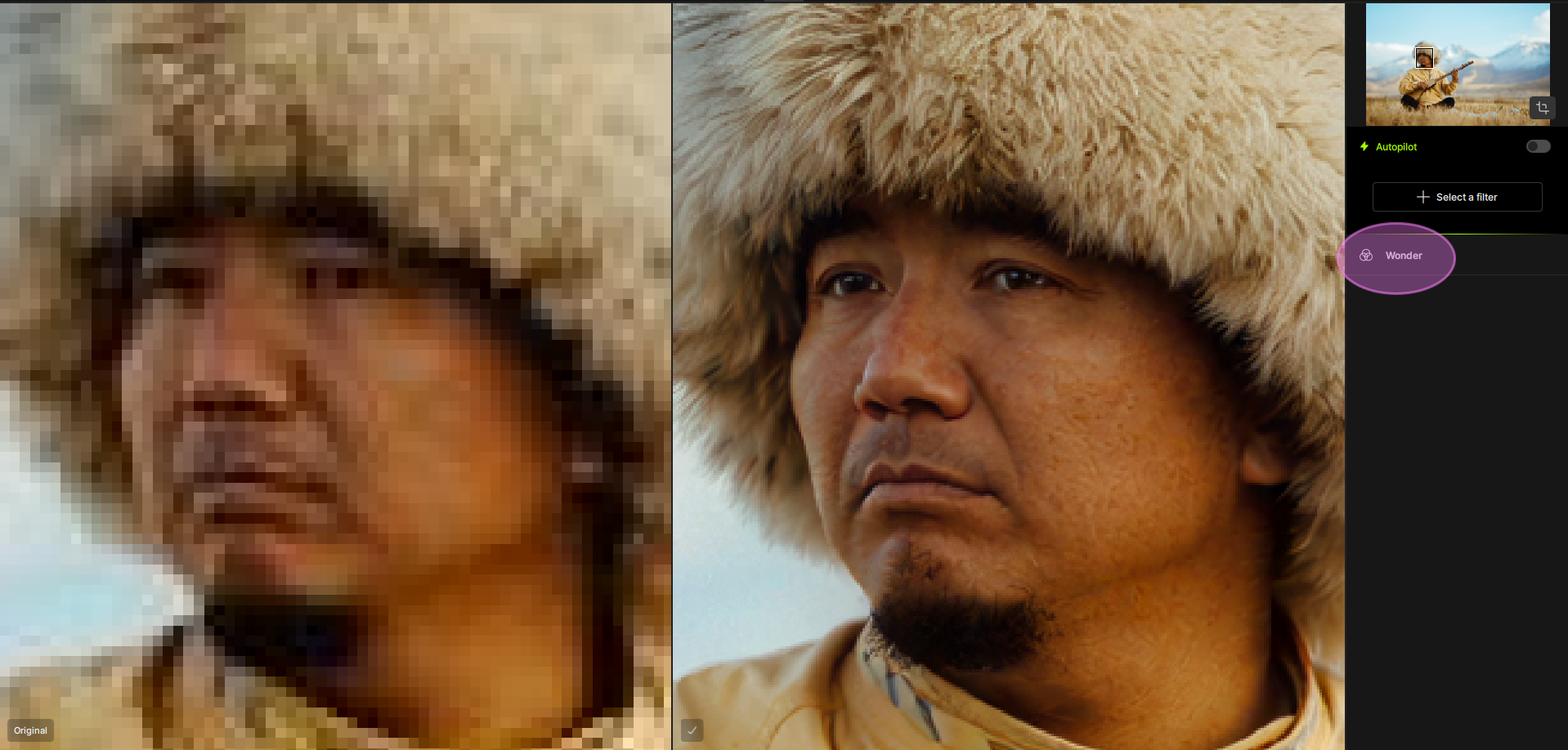
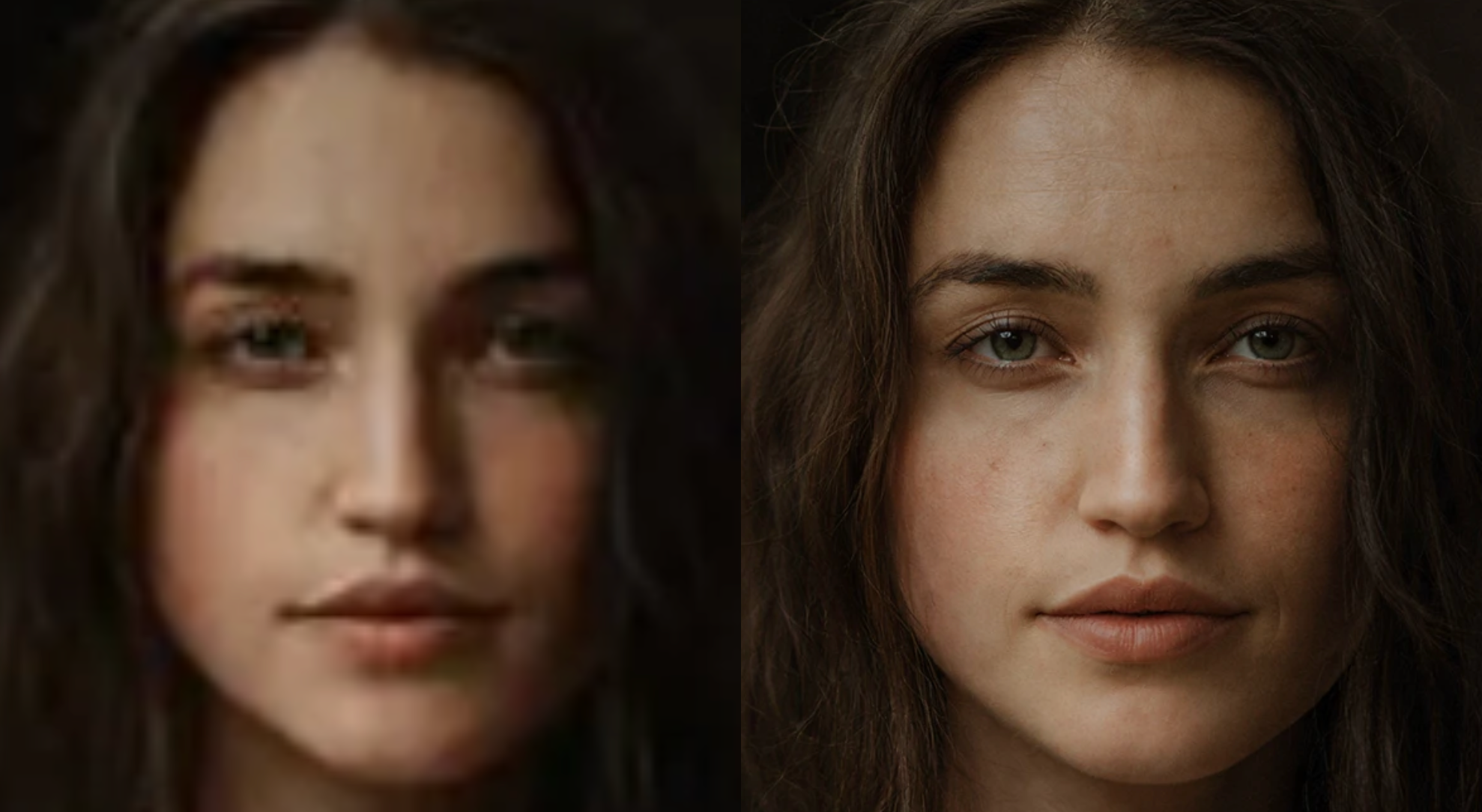
Results examples on this heavily compressed file:*
Wonder v2 release
The Wonder v2 model was released in Topaz Photo v1.2.0. It is our most impressive all-in-one realism model so far. It’s built to handle extremely difficult images and produce outputs that look clean, natural, and professional. Wonder 2 is a great choice when realism is the top priority and you want a safe model for professional work.
If Wonder v1 felt too stylized for certain images, Wonder v2 is designed to feel more restrained and natural.
Key things to know
Wonder v2 will work best when Cloud Processing: Because of the computational resources required to run this model, Wonder v2 will give best results on the Cloud.
Single-step model with no preview controls
Best results when upscaling 4x
Not recommended for low-light phone images with heavy noise
Wonder v1 and v2 models are for low-resolution or challenging source images that need strong cleanup and enhancement and that have compression artifacts to fix. It is not to be used for high-resolution images, or for imags shot on modern cameras, and is not for images that are already sharp. images
When these conditions are met, Wonder v1 can run locally on your machine.
** Wonder v2**
Introduced in Topaz Photo v1.3.1, Wonder v2 Local is a smaller version of the Wonder v2 cloud model designed for local processing.
Local Wonder v2 requires:
Windows: NVIDIA or AMD Graphic card with 8GB VRAM or more
Mac:Apple Silicon (M-series) machines
Not supported on:
Intel Macs
Windows ARM / Snapdragon systems
For faster processing and the highest quality results, we recommend using Cloud Processing, which runs the full Wonder v2 model.
Cloud Rendering
You can run Wonder v1 or Wonder v2 using Cloud Processing.
Uses the full model for Wonder v2 vs local
Provides faster processing
Produces more detailed results for Wonder v2 vs Local
Contact Support
If you have issues using the model, contact us at Support and we can troubleshoot. When you write in, make sure to provide:
The image you are trying to upscale. Make sure it’s a low-resolution or compressed file, which will be a case for the Wonder model.
Details on the issue: Local or cloud processing? Details on the behavior and screenshots of the error you get, if any.
Your app’s logs: Help menu > Open Logs folder > Attach all the logs you see in the email to Support.
Here’s the Original link
Here’s the Gigapixel information about Wonder
Wonder
Wonder 1 is designed for low-resolution photos that include small faces, heavy noise, or blurred backgrounds. It can produce clean, natural results, with fewer artifacts and less oversharpening. It’s especially effective on old images, social media, or pixelated images. While it can sometimes smooth out fine textures or struggle with dark areas, Wonder balances sharpness and realism to deliver a true upscale rather than an artificial interpretation.
Wonder 2 enhances your low-res images without producing over-sharpened, plastic outputs. Get high-accuracy results for intricate features in faces, textiles, and more. The one-step model upscales, denoises, sharpens, and improves lighting without stacking different enhancements.
Use Wonder 2 if your goal is to:
Restore fine facial and texture detail
Recover text, logos, and signage
Reduce artificial-looking patterns
Minimize generative artifacts
Do not use Wonder 2 if your image suffers from false resolution, noise & grain, or is low-light with artifacts.
Wonder 2 is only available through Cloud render and cannot be access through the plugin
Thanks for taking your time to enlighten me as that explains a lot. I’ll have to dig up a low resolution photo to see how it handles. I suppose “low resolution” can be relative in my mind.
Yes that sounds good in addition, if you have access to Topaz Bloom which also includes the new Wonder Model and the incredible Realism AI Model.
I mentioned this because, if I need to use Wonder on larger images or I know I’m going to be waiting a while then I would use Topaz Bloom to Render a copy of my Image in the Background while I can get on with other things using Topaz Photo
Thanks, I was curios what you used. I’m using a MacBook Pro 16” M1 32GB (unified Ram) Video Integrated Apple Designed GPU. I use this laptop primarily as a desktop with a 32” 4K external display. It runs Capture One without issues, with Topaz its fine except for Gigipixel, Wonder (when I was running through it images perhaps a larger than appropiate) I have used Bloom in for some time but I vaugly remember it may have struggled.Also I use Affinity (Photo).Overall the M1 runs most photo apps with ease which is not bad for a computer released in 2019. I also have an I9 MacBook Pro which runs most of my photo apps well but struggles with AI enhancements like Gigipixels etc. How does your I9 handle Gigipixel and similar heavy demand apps?
If you have issues with Gigapixel, please write to us at help@topazlabs.com, and we will have a look at your logs. While the M1 is a good computer, Wonder requires a lot of memory, and depending on your settings, it could be too much for your computer. This model is generative and doesn’t compare to any enhancements available in Capture One and Affinity. I am assuming that you are trying to use Wonder locally in Gigapixel, you could always use cloud rendering.
Alexandre, Thanks for your reply. I do realize that my M1 Mac is very likely underpowered for Wonder or Gigipixel. As I mentioned that my M1 handles upscaling very well in Photo Studio or Photo AI, it does struggles to a point of diminishing results when using Wonder & Gigipixel. I did some research and found that my issue may be exasserbated because I’m using a 4K external display on my MacBook Pro. I’ll try to see if using only the MacBook’s built in display makes a difference. That said, I havent had much need in upscaling but the results I get from Photo Studio is fine. Furthermore, I’ll be updating my computer in the near furture so any issues I’m having now should be resolved. I will, however, contact you via the help link so you can look at my log.
If the same model is working well in Topaz Photo with similar settings, then Gigapixel could have issues. I’ll have a look at the logs to eliminate installation or model issues. The new M5 computers are really good with AI processing; you won’t regret updating
When we talk about PC with an Intel Core i9 Chip and Apple’s with an Intel Core i9 Chip I’m afraid it’s the same thing but different and sadly Macs are letdown by the Apple Architecture.
The Intel Core i9 Mac vs. an Intel Core i9 PC
Is a basically a Conundrum, a confusing, difficult problem
When people talk about Powerful PCs, they are rarely talking about the CPU Intel Core i9 Chip alone
They are usually referring to an i9 paired with a Powerful NVIDIA GeForce RTX GPU because, the NVIDIA cards has Thousands of Tensor Cores and plenty of Video RAM mine has 24GB of VRAM designed specifically for tasks like AI and the i9 is just the Manager, while the NVIDIA GPU does all the work
However, on an Intel Mac Apple unwisely didn’t use NVIDIA, they used either Intel’s Integrated Graphics or AMD Radeon Chips although, AMD are good, AI software like Stable Diffusion, ChatGPT and yes Topaz Genaitive Models and other AI was built primarily to run best on NVIDIA’s software platform, called CUDA.
Power and Cooling Limits
In addition, Intel i9 chips are like High-Performance Race Car Engines they produce a massive amount of heat.
Desktop PCs Have huge Cases, with either Massive Fans, Liquid Cooling or both and they let the i9 draw 250+ Watts of Power to crunch AI Data without slowing down.
Intel Macs on the other hand, Apple again unwisely prioritized making the MacBook Pro Thin, Quiet and Sexy.
Therefore, to keep the Laptop from Melting, they strictly limited how much power the i9 could use and when you try to run a Powerful AI Applications or Models the Mac will Throttle the Chip basically, Slow the Chip, down by cutting its speed by at least Half or more to stay cool.
Hence, one reason why Apple made the jump to their own M Series Silicon with the Neural Engine
Intel i9 PCs currently are the best because, they use NVIDIA Graphics Cards, which are the gold standard for AI.
Apple Silicon Macs are next because, they have the Neural Engine built directly into the Chip.
Intel Macs are stuck in the middle because, they don’t have the NVIDIA cards and they don’t have the Neural Engine. They’re basically using 2019 tools to run 2026 AI Applications.
In answer to your other question I don’t have any issues with AI on any of the Topaz Studio Applications in fact If I want I can leave my PC running all day and night Rendering Video and have no issues
I realized that using that laptop would eventually hold me back, especially as AI technology has become more prevalent since I got is almost 8 years ago. I used to work on Mac desktops—pro versions with massive memory, fast video cards, plenty of expansion options, and top-tier cooling systems. With those setups, I could run FCP without ever slowing down the system. Back then, I could run just about anything on my MacBook Pros and I’m sure that a cureent M5 would handle mosmost anything.
You’re right, PCs have become well-equipped to handle AI. While AI is delivering incredible results, it’s also putting a strain on the systems using it. I travel at least half the year, and I’m heavily involved in wildlife and nature photography. Editing on the road is essential, so a laptop became my go-to choice.
I could make the switch to a PC, as I’ve always admired their strengths, and I’ve owned a few over the years. Some ran software that wasn’t available in the Apple ecosystem. However, at this point, I’m 76 y/o and heavily vested in Mac apps I’ll consider Apple options. The M5 MacBooks will solve all of my processing issues, and they could help me stay ahead of the curve with obsolescence. Alternatively, I could consider a desktop Mac with a higher-end configuration (Pro or Max versions) for better memory and performance. That setup, which I miss, would work when not traveling but otherwise it would be impractical on the road.
In the meantime, my M1 is still a powerful machine. Aside from a few heavy hitters like Gigapixels and Blooms, it’s lightning fast in almost every other regard.
That all sounds good Peter, I understand with traveling it’s a case of convenience over necessity in addition, we now have Cloud Rendering which I mentioned before I use for Rendering images in the background with Bloom and with the advantage of using any device to send your images.
Good luck with your endeavours hope it works out for you


 *
*