I’m utterly happy with Topaz Photo, but its B-side is that it’s taking almost 80 GB of my SSD!. That’s insane!. I don’t want to uninstall it and then reinstall it in a secondary drive. It’s always recommended to have it in the system’s SSD. In order to fix this critical issue, would it be feasible to have a comprehensive version that encompasses all models in the cloud? I am of the opinion that a solution for this important glitch is imperative.
Hi Pesky.
I’m utterly happy with Topaz Photo, but its B-side is that it’s taking almost 80 GB of my SSD!. That’s insane!. I don’t want to uninstall it and then reinstall it in a secondary drive. It’s always recommended to have it in the system’s SSD.
Absolutely, correct don’t move the Files from one drive to another although, some people have done this sooner rather than later you will run into difficulty.
The reason the Models are Downloaded to your Computer is so, you can run complex AI Models Locally on your Computer unlike other companies who only offer Cloud Rendering and the trade-off is they take up a lot of room on your SSD Drive
In order to fix this critical issue, would it be feasible to have a comprehensive version that encompasses all models in the cloud?
Actually, similar to what you are asking is already available and there’s two methods on how to do this
Method One: Recommended & On-Demand Model Downloads
Firstly, Uninstall Topaz Photo then, simply reinstall it again and Topaz Photo will stop and offer you two Download Options basically, either Recommended or All Models.

Recommend Models includes all the analysis and core GAN models: everything you need for Denoise, Sharpen, Upscale, Face Recovery, Lighting, and Color.
All Models includes Remove, Super Focus, Dust & Scratch, Wonder, Upscale - Recover v3, and Standard MAX.
Choose Recommended for the smaller Download and select the Cloud Rendering only option for the others if available here’s some more information about this option
Recommended & On-Demand Model Downloads
Installing Topaz Photo has always meant downloading every model upfront, including large specialized models that most people use rarely. This made the installation very slow and storage-heavy before you could even open an image.
The reason comes down to model size. The core editing models covering Denoise, Sharpen, Upscale, Face Recovery, Lighting, and Color are compact and cover the vast majority of workflows. The generative models are significantly larger and produce strong results, but they are designed for rarer and more specific image situations. Bundling everything together meant new users were waiting through a long download for models that are less commonly used in their workflow.
The installer now allows you to decide which models to download.
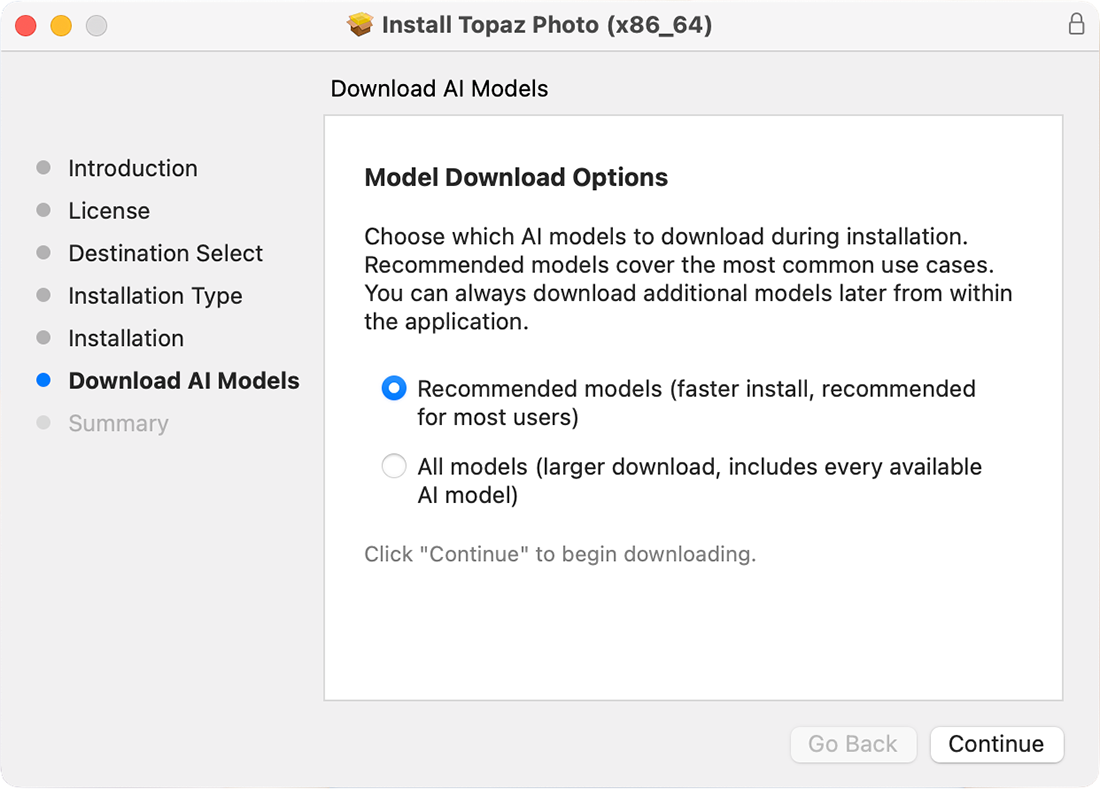
Recommended models includes all the analysis and core GAN models: everything you need for Denoise, Sharpen, Upscale, Face Recovery, Lighting, and Color. Download is fast and the full standard editing experience is available immediately.
All models includes Remove, Super Focus, Dust & Scratch, Wonder, Upscale - Recover v3, and Upscale - Standard MAX.
If you choose recommended models and later use a feature that requires a model you don’t have, the application will download it automatically on demand. No need to reinstall or manually manage anything.
NOTE: the processing ETA for generative models on the first use will be inaccurate due to the models downloading.
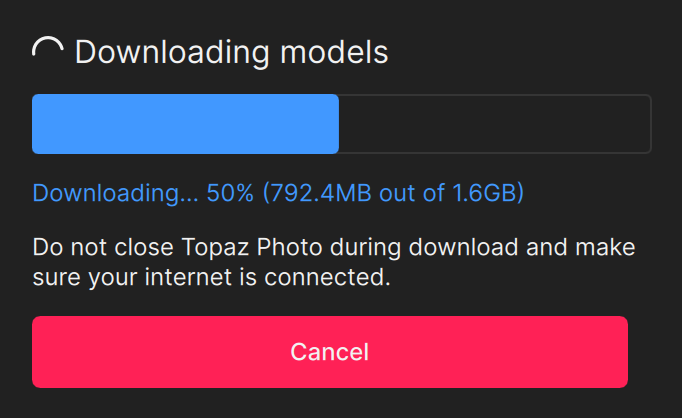
If you plan to use the app offline or know you will need the generative models regularly, we recommend selecting all models at install.
Method Two: Cloud Apps only
The second method again involves Uninstalling Topaz Photo and Then simply use only the Cloud Apps
Hope this helps
Thank you, And-E, for such a clear and logical solution! Plus, thank you for such a quick response. You made my day!!
Regards.
Alfredo Knudsen
Thank you Alfredo, for replying that’s very gracious of you and if there’s anything in the future you think I can help with please don’t hesitate always here to help
Andy
Hello again, Andy. Yesterday I followed your directions on fixing Topaz Photo storage, and now everything is working like a charm. I recovered almost 80 GB of my SSD!
I cannot be happier!.
My last question: Can Topaz perform the same procedure of downloading with Choices with T. Gigapixel? I know that Gigapixel isn’t as heavy as T.Photo, but when it comes to saving SSD space, I’m first in line.
Thank you again for your great job helping me.
Regards,
Alfredo Knudsen
Hello again Alfredo.
No sorry this option is only available for Topaz Photo don’t panic all is not lost, as you know many of the same features are available in both Topaz Photo and Gigapixel the only real exception is Redefine however, have you tried the Topaz Cloud Apps Bloom which is very comparable to Redefine.
So, you could if you wanted to Uninstall Gigapixel and use a combination of both Topaz Photo and Bloom or indeed any of the three imaging Cloud App Topaz Image Web, Bloom or Mosaic.
Hope this helps
Andy
Hi Andy. Many thanks for another “golden tip” that you gave me. I will try your great idea of uninstalling Gigapixel and trying “Redefine”. However, I can’t imagine having my photographic stuff without Gigapixel, that’s a masterpiece that changed at all my way of upscaling and processing.
By the last, about Topaz Photo, I followed your instructions about reinstalling partially. Now everything is working like a charm, and I saved almost 80 GB from my SSD!!. I can’t be happier!
Bless you!
Alfredo
Hi Alfredo, glad everything is working for you and yes very true about Gigapixel it’s a shame even that is to large for your SSD but, the good thing now is we have options plus, with the Cloud Apps you can take them anywhere and use them on any device and it doesn’t cost you extra money or wear and tear on your hardwear to use them.
Perhaps in the future when it’s time for you to upgrade your Computer you’ll be able to use the full Desktop versions again.
Take care my friend and if you think I can help in the future please ask
Andy
@Pesky and @AND-E - all great tips above!
Adding few things:
- We are looking to bring in the Recommended vs All models to Topaz Gigapixel as well
- The web apps will have a lot of the models as well, to access them, go in your Apps page: Log in | Topaz Labs - Test Topaz Image Web, Mosaic and Bloom depending on which model is needed
2 Likes
My PC is partitioned into C: and D: drives. C: drive is nearly full. Can I install Topaz on my D: drive? D: is twice the size and has little on it.
While it may technically be possible to install the app on a secondary drive, we currently only officially support installing Topaz applications to the default location on the C: drive. Installing elsewhere can sometimes lead to plugin conflicts, model path issues, or other behavior that we’re unable to properly support or troubleshoot.
If space is becoming an issue on your C: drive, one option would be to free up space there first before installation, since the app and AI models can require a significant amount of storage over time.
1 Like
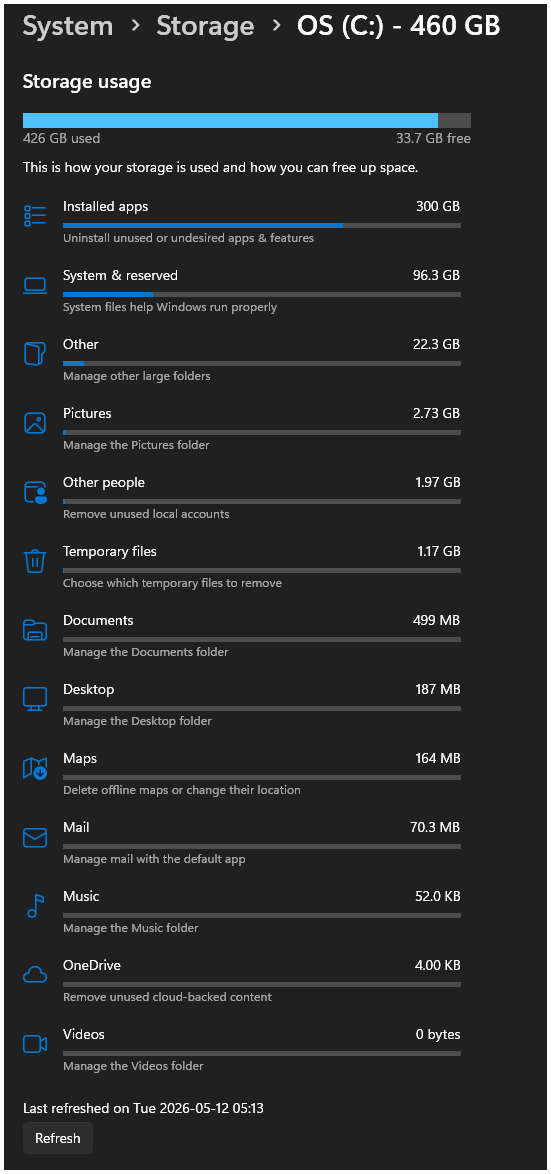
Please reconsider this. Just as Topaz Labs has added AI models to its applications, so have other products. I’m running Gigapixel and Photo in addition to Photoshop and CyberLink video editor. As far as I know, I can charge Topaz Labs AI models with ~150 GB of storage space on my C: system drive.
I have a terabyte of available space on a fast SATA internal D: drive. It won’t load AI models as quickly as C:, but I believe I’m willing to take the hit.
I feel like I’m going to have to start making choices that I don’t want to make.
DxDiag.txt (132.5 KB)
Yes, I have noticed other applications including large models.
Regarding Topaz, I deleted Photo and Video, then reinstalled them with the program itself running on the C: drive, but the models stored on the (also) internal D: drive. It works so far! I haven’t done that with Gigapixel (yet - as of now, not necessary).
Separating the program from the models seems to be the key.
Thanks to all who have helped!
Paul
Thanks!
I can certainly uninstall, say Topaz Labs Photo, and reinstall. That’s easy-peasy.
Is choosing an AI model storage location now included as part of the reinstall process?
Yes. I should have put that in my reply.
Pay closer attention when installing that the installer will now ask separately where to install the program, then where to install the models. For the program, I went with what was pre-populated under “Program Files”. But for the models, I clicked on the option to change the location and simply typed “D:”. I now have a folder D:\Models in which the models for both Photo and Video are located. In retrospect, I probably would have chosen to first create a D:\Topaz folder and then selected that as the location to add the Models folder. But I am sure it won’t be a problem for me to leave it as it is.
Got it! Thanks for the fast response. This solves all my problems.
I’ve had Gigapixel & Photo installed long before Topaz rolled out the current “Studio” versions. The transition period got a little confusing for everyone.

I was running out of storage where Topaz Photo was installed. I have a C and D partitions but it is on the smaller C partition. I either need to thin out the models, which seem to be the main storage issue or move the models over to another drive.
Hi Bill.
I answered this same question from another person
I’m utterly happy with Topaz Photo, but its B-side is that it’s taking almost 80 GB of my SSD!. That’s insane!. I don’t want to uninstall it and then reinstall it in a secondary drive. It’s always recommended to have it in the system’s SSD.
Absolutely, correct don’t move the Files from one drive to another although, some people have done this sooner rather than later you will run into difficulty.
The reason the Models are Downloaded to your Computer is so, you can run complex AI Models Locally on your Computer unlike other companies who only offer Cloud Rendering and the trade-off is they take up a lot of room on your SSD Drive
In order to fix this critical issue, would it be feasible to have a comprehensive version that encompasses all models in the cloud?
Actually, similar to what you are asking is already available and there’s two methods on how to do this
Method One: Recommended & On-Demand Model Downloads
Firstly, Uninstall Topaz Photo then, simply reinstall it again and Topaz Photo will stop and offer you two Download Options basically, either Recommended or All Models.
Recommend Models includes all the analysis and core GAN models: everything you need for Denoise, Sharpen, Upscale, Face Recovery, Lighting, and Color.
All Models includes Remove, Super Focus, Dust & Scratch, Wonder, Upscale - Recover v3, and Standard MAX.
Choose Recommended for the smaller Download and select the Cloud Rendering only option for the others if available here’s some more information about this option
Recommended & On-Demand Model Downloads
Installing Topaz Photo has always meant downloading every model upfront, including large specialized models that most people use rarely. This made the installation very slow and storage-heavy before you could even open an image.
The reason comes down to model size. The core editing models covering Denoise, Sharpen, Upscale, Face Recovery, Lighting, and Color are compact and cover the vast majority of workflows. The generative models are significantly larger and produce strong results, but they are designed for rarer and more specific image situations. Bundling everything together meant new users were waiting through a long download for models that are less commonly used in their workflow.
The installer now allows you to decide which models to download.
Recommended models includes all the analysis and core GAN models: everything you need for Denoise, Sharpen, Upscale, Face Recovery, Lighting, and Color. Download is fast and the full standard editing experience is available immediately.
All models includes Remove, Super Focus, Dust & Scratch, Wonder, Upscale - Recover v3, and Upscale - Standard MAX.
If you choose recommended models and later use a feature that requires a model you don’t have, the application will download it automatically on demand. No need to reinstall or manually manage anything.
NOTE: the processing ETA for generative models on the first use will be inaccurate due to the models downloading.
If you plan to use the app offline or know you will need the generative models regularly, we recommend selecting all models at install.
Method Two: Cloud Apps only
The second method again involves Uninstalling Topaz Photo and Then simply use only the Cloud Apps
Hope this helps
I had Photo AI installed on my C drive and due to space limitations, uninstalled it and tried reinstalling it on a larger external hard drive. Now I cannot get it to work at all. How can I reinstall it on another external drive?
