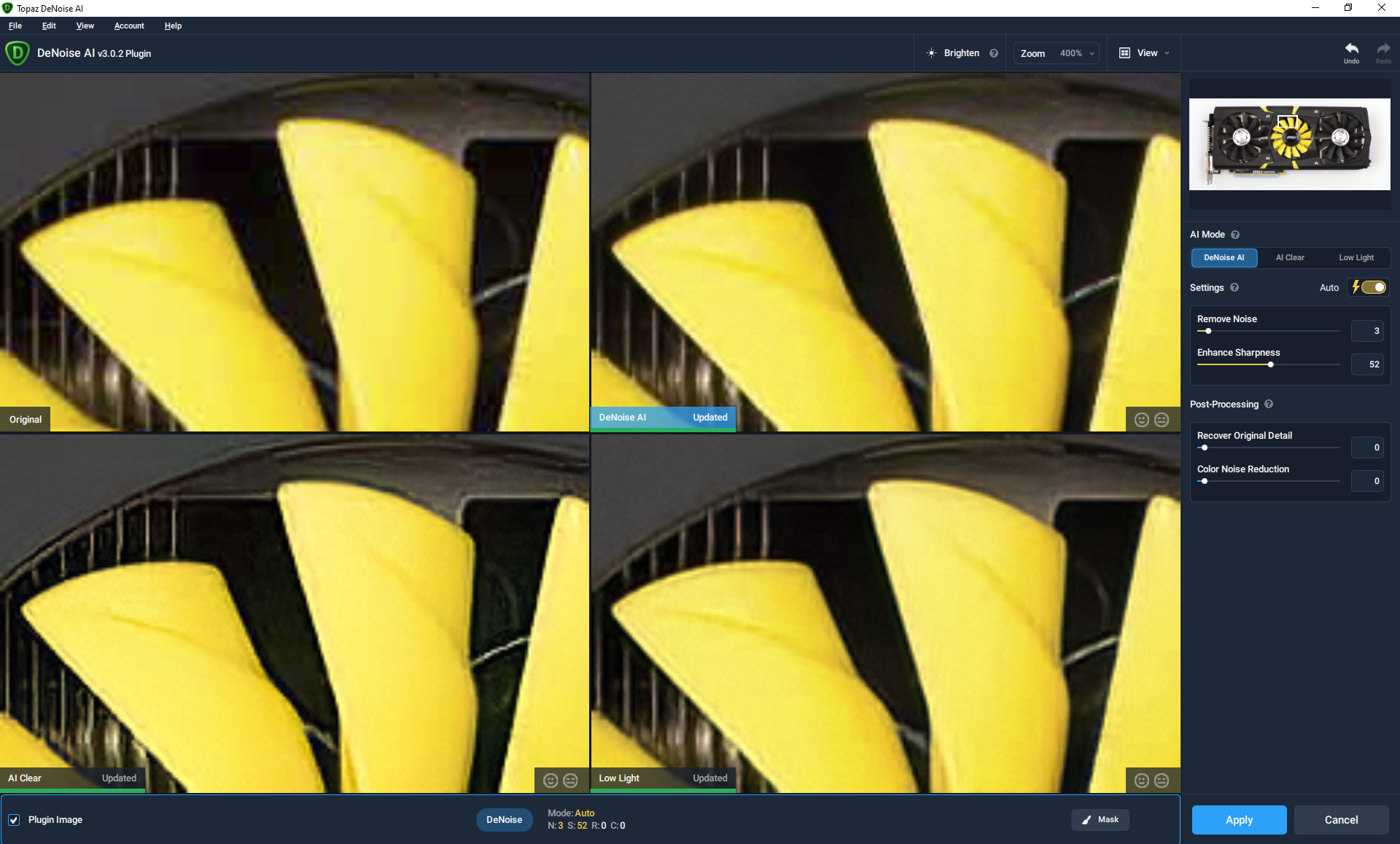
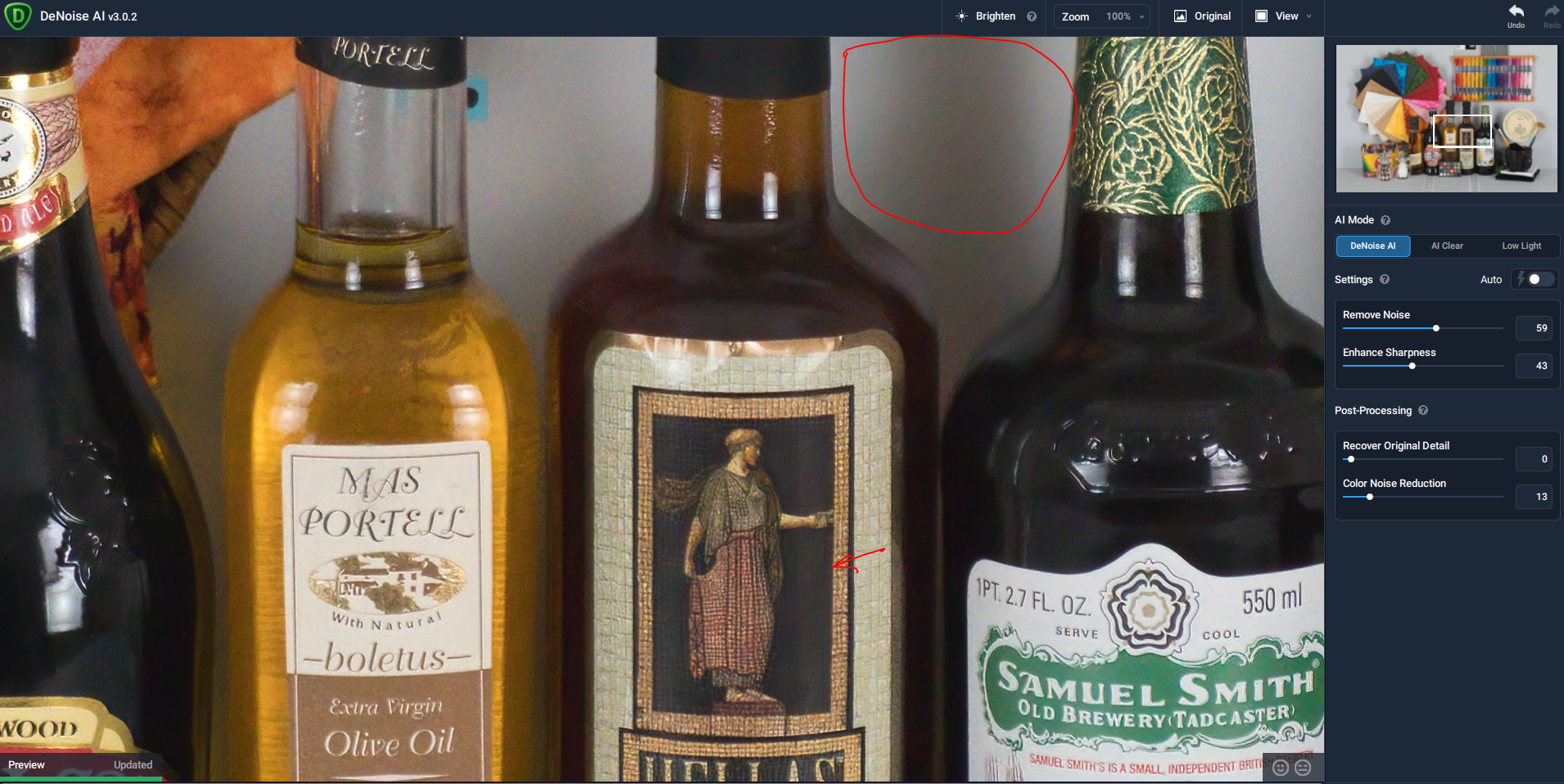
Does this only happen when you’re zoomed in 400+%? Is it still pixelated at 100-200%? Trying to figure out if this is a zoom issue or a general preview issue.
These are compression blocks that are reinforced by denoise, since they form lines on slanted edges denoise thinks they belong together.
At the top left of the original image you can already see a lot of blocks.
The image is compressed too much.
I was able to create a similar effect.
Blocks that look like this start at about 50% in Photoshop (up from 100% if 100% is the best) when you export jpegs.
In addition, the processing of the camera also adds artifacts when shooting in jpeg.
I would be interested to see how it looks at 100% instead of 424%.
I think if you add noise with photoshop or a comparable software, about 2% - 5% and then de-noise it, the problem “should” be solved.
Otherwise, if you have it, you could still throw it in gigapixel, that can fix something like that.
Grrrrr 
I’m still on v3.0.2 but I want to compare the results of the three models. I doubt the models have changed with a minor update. I’m using a Radeon RX5600 XT GPU with 6GB of GDDR6 VRAM. The original is an ISO 3200 Cannon jpeg.
The first is Low Light: Notice circled area loses some detail but otherwise the results are very good. This is the slowest model.
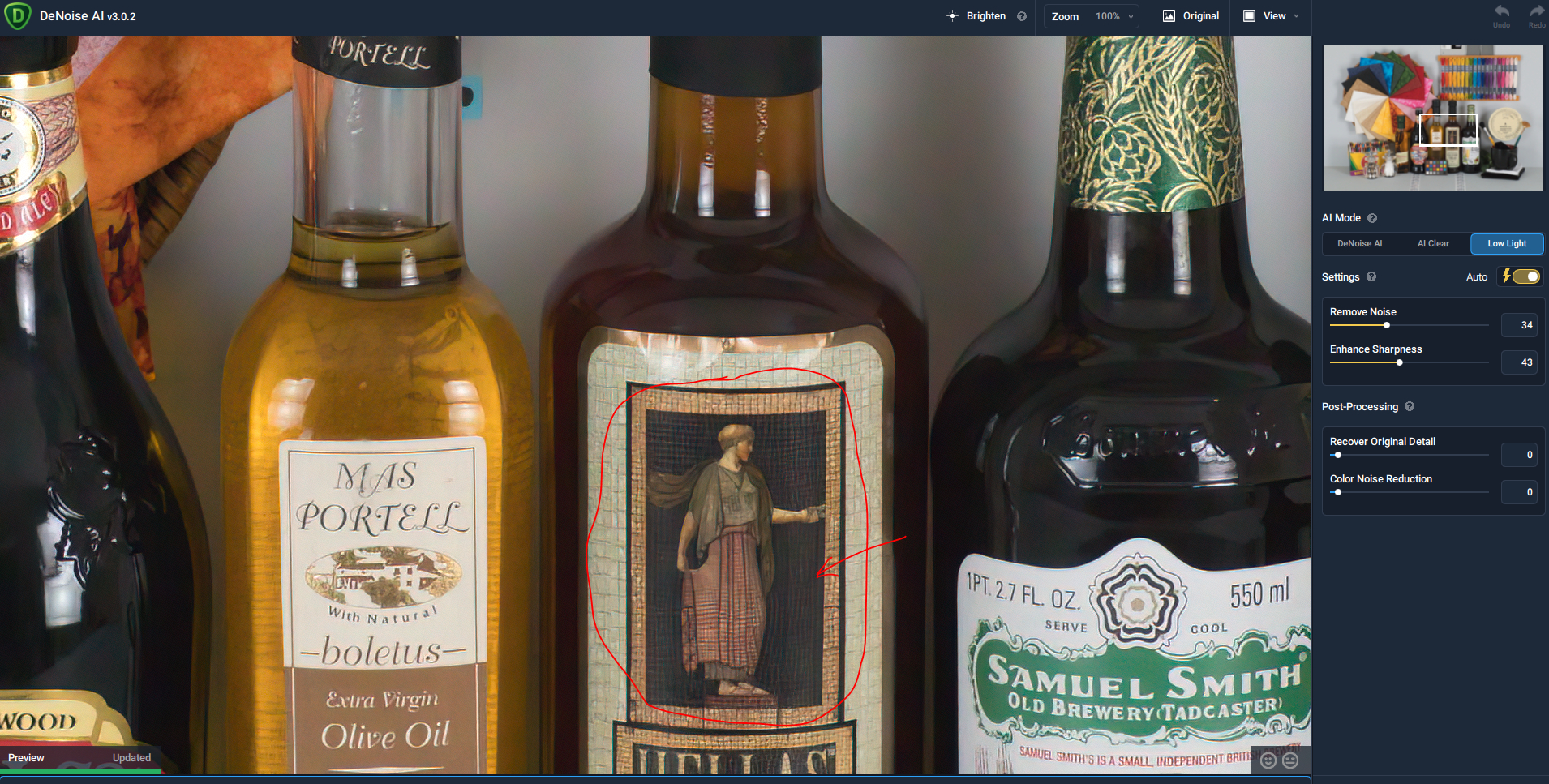
The second is AI Clear which is the clear winner for result and speed:
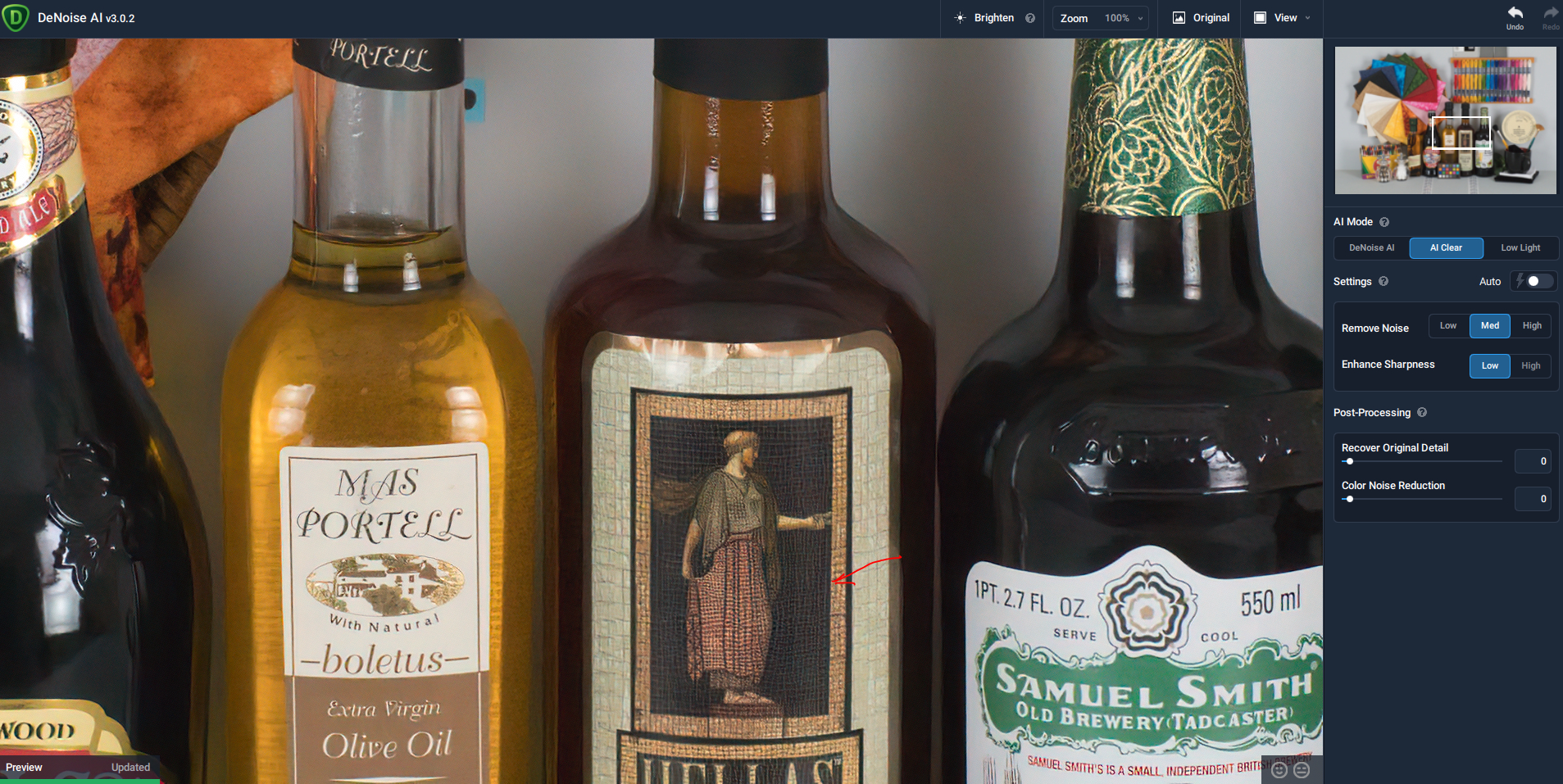
The third is Denoise AI which did a fair job on noise (with a manual setting) but blurred the detail the most:
Thank you!
I take issue with busse.oliver’s comments. I ran speed and quality tests with Denoise 2.42 and 3.03 on the same image with the same settings and the 3.03 results were disappointing.
Yes the 3.03 GPU render was marginally faster (2 - 3sec vs 2.5 - 3.5sec) but the quality was noticeably worse.
And using GPU in low light mode still hangs the program on my win 10 system.
The CPU (which works in all modes) rendered quality was not degraded but slightly slower (10 - 11sec vs 8 - 9sec).
Finally, move the auto update toggle back to main window. What was Topaz thinking?
1 Like
As a recent user of DeNoise AI (currently have v2.3.6) I believe the Online download is for users who currently have the software installed and Full download is for first time installations. Is this correct?
Thanks,
Mike
Nothing big, but a small inconsistency that I would be happy to see fixed.
When Auto Settings is enabled in Denoise, a value entered for Remove Noise or Enhance Sharpness is not accepted. You can type, but as soon as you press ENTER the auto value comes back.
In Sharpen, user input for Remove Blur and Suppress Noise are accepted and at the same time the Auto Settings is disabled. Which in terms of UI is the more logical way to handle this, IMO.
Would be great if Denoise could adopt this behaviour as well.
2 Likes
Either one will work even if you have a previous version installed. The full installer will overwrite the installed version.
On the current release for some reason the Denoise model desaturates the image with the red in the beak most notable. It doesn’t seen to matter which output format or CPU/GPU and other models are better.
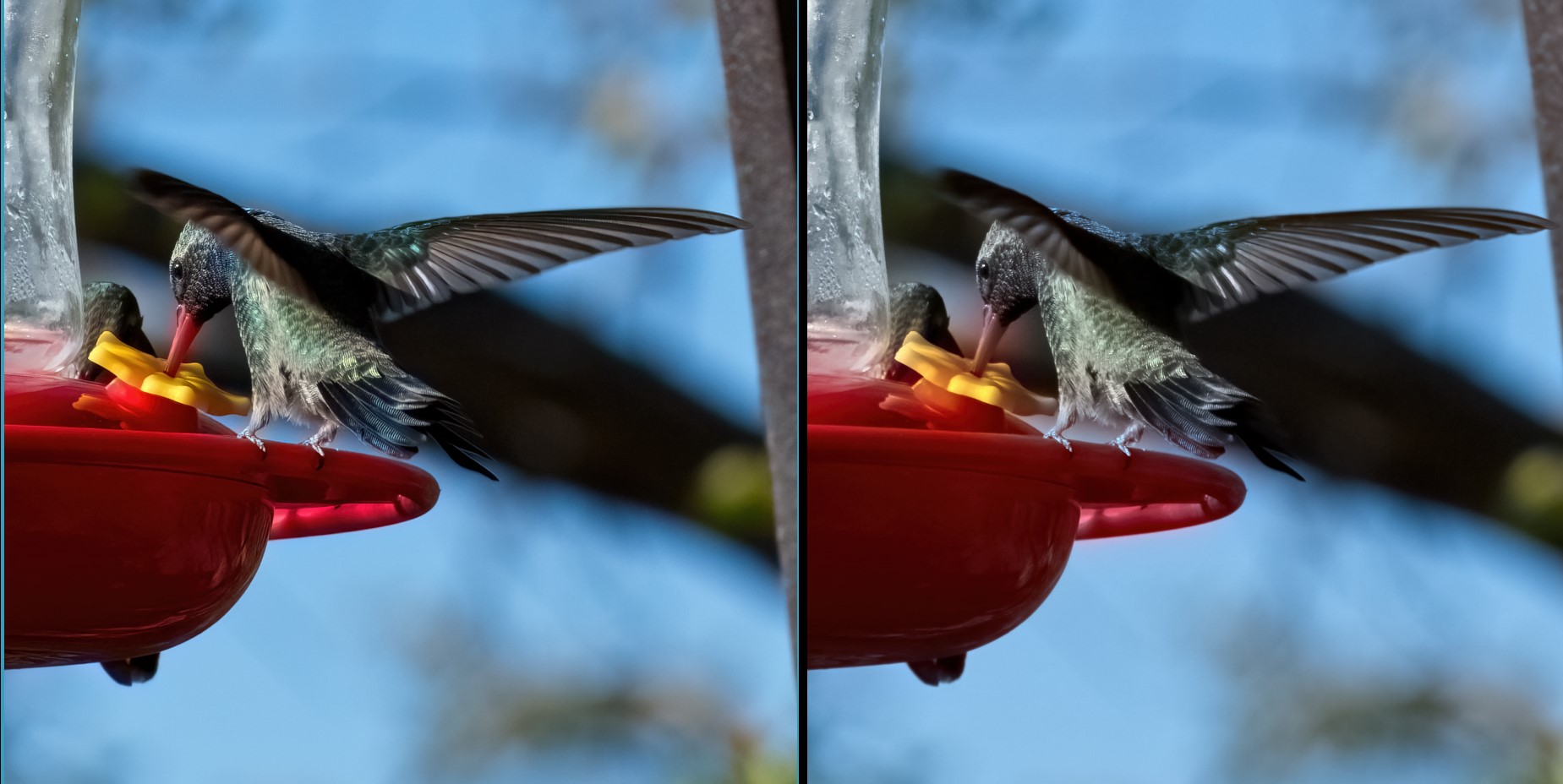
seems like you put the color denoise slider too high.
OK I’ll check it out, I generally don’t use the color noise reduction except in worst case. It’s possible it was left over. I wish setting reverted to defaults for new images.
Thanks
I may be wrong, but I think masking issues came up during beta. Someone just posted a new thread about the problems he was having and, out of curiosity, I took a look at masking. It seems to be totally erratic and extremely slow. I am on the top-end MacBook Pro 2019 running Big Sur. Has anyone else been looking into this? It’s not something I really want to spend time on myself, since I’ve never found the need to use masking in Denoise. I use it in Sharpen AI quite a bit and I’ve never had any issues there.
Should have mentioned it does not show up in the preview if it is a slider issue.
Now that I have updates sharpen to 3.03 and denoise to the latest verion on my loaded up 2019 iMac when I run the filter in PS or LR it says processsing and the blue bar goes back and forth but it will do that for a half an hour but never process the image. I have re-installed, entered password, made sure I am the admin with read and wright clicked on the graphics card and tried CPU but they will not process and imagine now.
Just checking to see if you had any success. Possibly you noticed that Wine currently has a problem, in trying to improve it, they (Wine development team) broke it, so it is currently inoperable.
They know what they did, fix is coming in about a month.
Meantime, I am looking over their scripting language, I think I see how to implement graphics card drivers, they don’t load by default, except for the Mesa Intel drivers for Intel’s embedded GPU’s, weak though they are…
Thanks for checking back. No, I haven’t yet. I will wait until I update my Linux Mint to 20.1 and I need to rework part of my Birds In Flight presentation to the photo club. But I most certainly will work on it! I hope I can call upon you if I get stuck.
Regards,
GEWB
1 Like
Following - have same issue and it’s actually taking 7 minutes from start to finish when going from LR to DeNoise and back
System info Wind 10 64 bit
Intel(R) Core™ i5-4460 CPU @ 3.20GHz 3.20 GHz
32.0 GB (31.9 GB usable)