Every time I take any action on Topaz Photo, it presents me with a new dialog box asking me if I’m sure I want to apply Auto-Pilot. This despite the Auto-Pilot slider being on. On the first photo, it doesn’t ask. If I open subsequent photos, it asks, then asks again after I export or do any other action. This bug cannot be mitigated with any Preferences option. Please release a corrected version, as this becomes very annoying and time-wasting over hundreds of photos.
Thanks for flagging @spam-755178
We have 1 other user that flagged this to the Support team as well in an email.
We are gathering behavior details on what triggers this for the development team to fix.
If you can share details on your workflow for us to compare with the other case, for us to find what is triggering this, it would help: Is the app used as plugin or standalone? What file types are you editing? Is Auto-Pilot adding anything on the files or are you manually adding edits only?
Also: Until a fix is found, make sure to test turning off Auto-Pilot in the app Preferences prior to importing a batch.
Hi Mike.
Flatten Filters is only applied when the following Enhancements are selected.
- Upscale (any of the upscaling models)
- Remove (Generative AI object removal)
- Spot Healing
- Super Focus
- Dust & Scratch
However, in your case Autopilot is automatically Flattening your Enhancements therefore, you are unable to change your settings after the fact.
Firstly, don’t panic my friend this is an easy fix and the reason this is happening is because, within Preferences you have Auto Upscale set to 2x,4x,6x or Enhance Small Images and that why your Enhancements are being Flattened.
Simply, go to the Preferences Menu or Press Command/Control plus the Comma Key to open the Preferences Menu
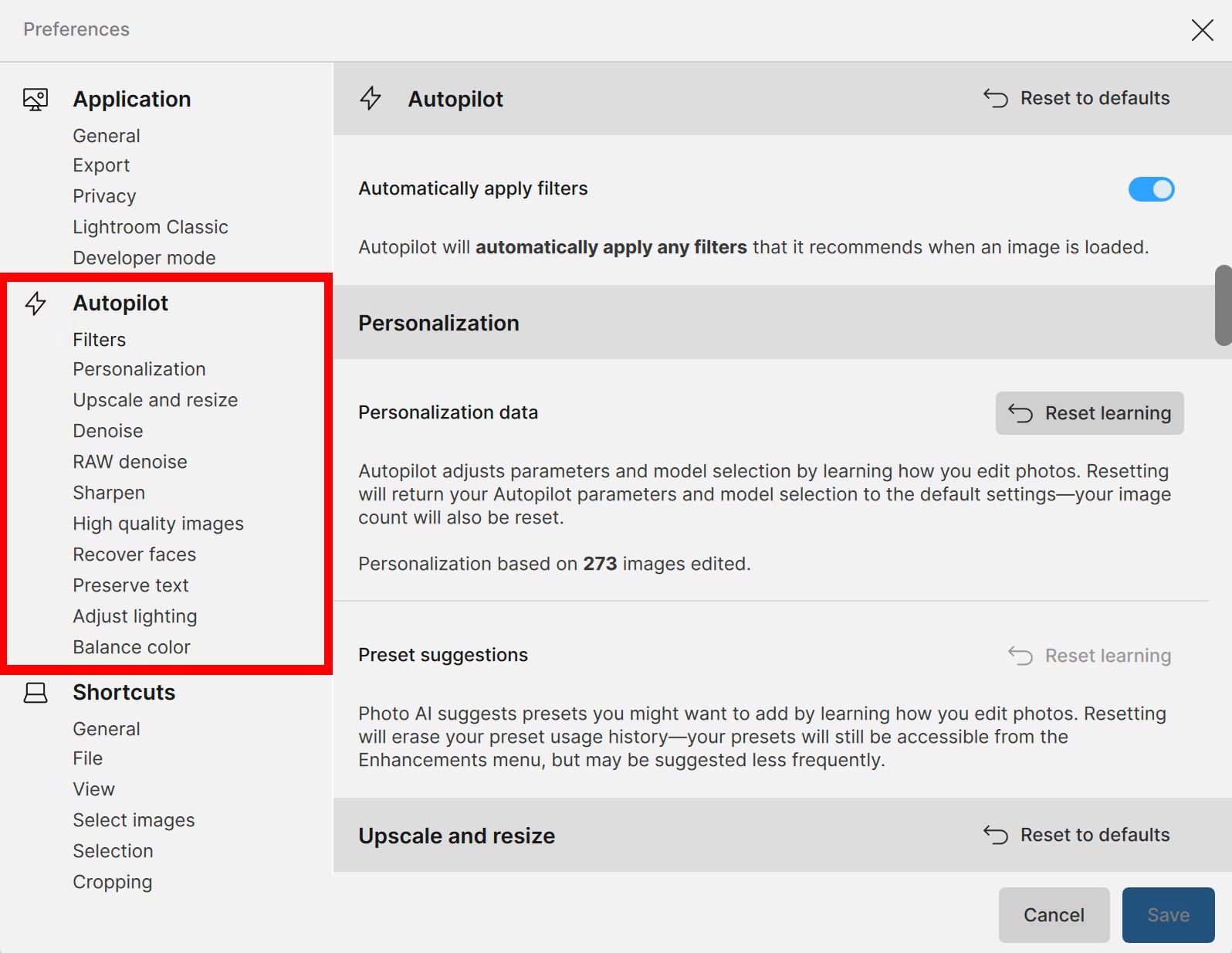
On the left you will see three options Application, Autopilot and Shortcuts the one you want to Click on is Autopilot > Upscale and Resize and your options will appear on the Right
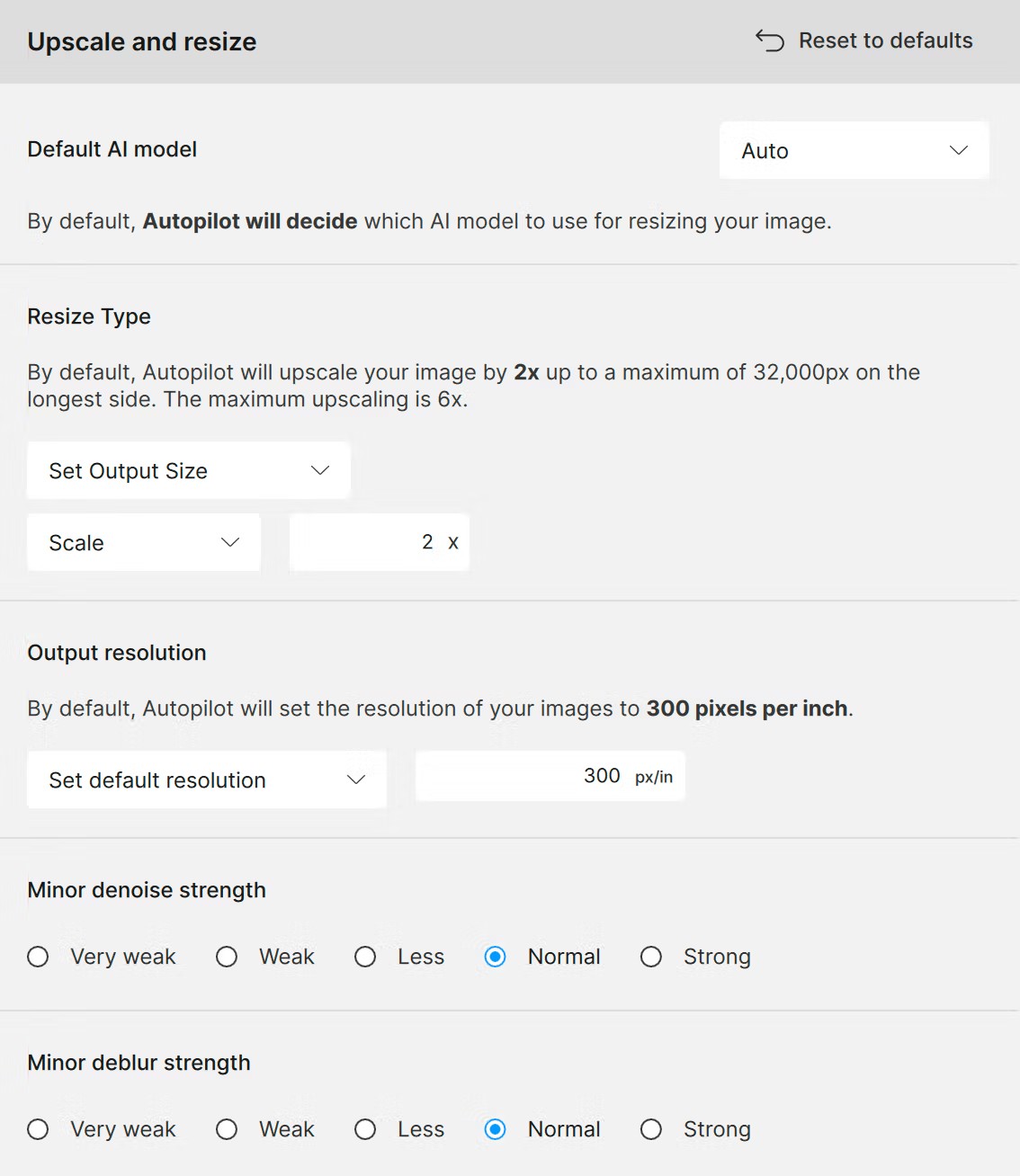
Here’s a brief description of the options
Set Output Size - Set the height, width, long edge, short edge, or scale factor (2x, 4x, 6x) for all images on Autopilot. Images are upscaled to reach the selected dimension. Images larger than the selected output size are not upscaled.
Enhance Small Images - The default setting, automatically upscales small images to 12 megapixels or a maximum of 6x the original size. Images larger than 12 megapixels are not upscaled.
None - Autopilot does not upscale.
Simply, select None and save your options
As I mentioned previously Flatten Filters is only applied when the following Enhancements are selected.
- Upscale (any of the upscaling models)
- Remove (Generative AI object removal)
- Spot Healing
- Super Focus
- Dust & Scratch
Alternatively, If, you select one of the above in future and your Enhancements are Flattened so, you are unable to edit them.
You can actually reverse the Flattening process because, to the right of each Enhancement Layer’s name is an Eyeball  and Trashcan
  within the right hand Panel simply, Click on the Trash and delete that Enhancement then you will be able to edit the settings once more
Hope this helps
Work flow is as simple as possible.
- Open application with Autopilot enabled by default. Drag a RAW file (currently .ORF, but it could be .NEF or anything) to the application. Edit by accepting or adjusting autopilot-recommended adjustments and export, close the export dialog. Ctrl-W.
- Drag another RAW file to the application without having changed anything. Bug triggers and popup dialog asks me to accept autopilot. It should not be asking me to accept an enabled feature. I accept, edit, export. After it exports, bug triggers again and it asks me to confirm autopilot on the already-edited and already-exported file. I cancel and ctrl-W.
- Repeat #2 for every subsequent RAW file.
Thanks, Ive relayed to the development team. Make sure, as workarounds to test turning off Auto-Pilot in the settings prior to importing the file.
