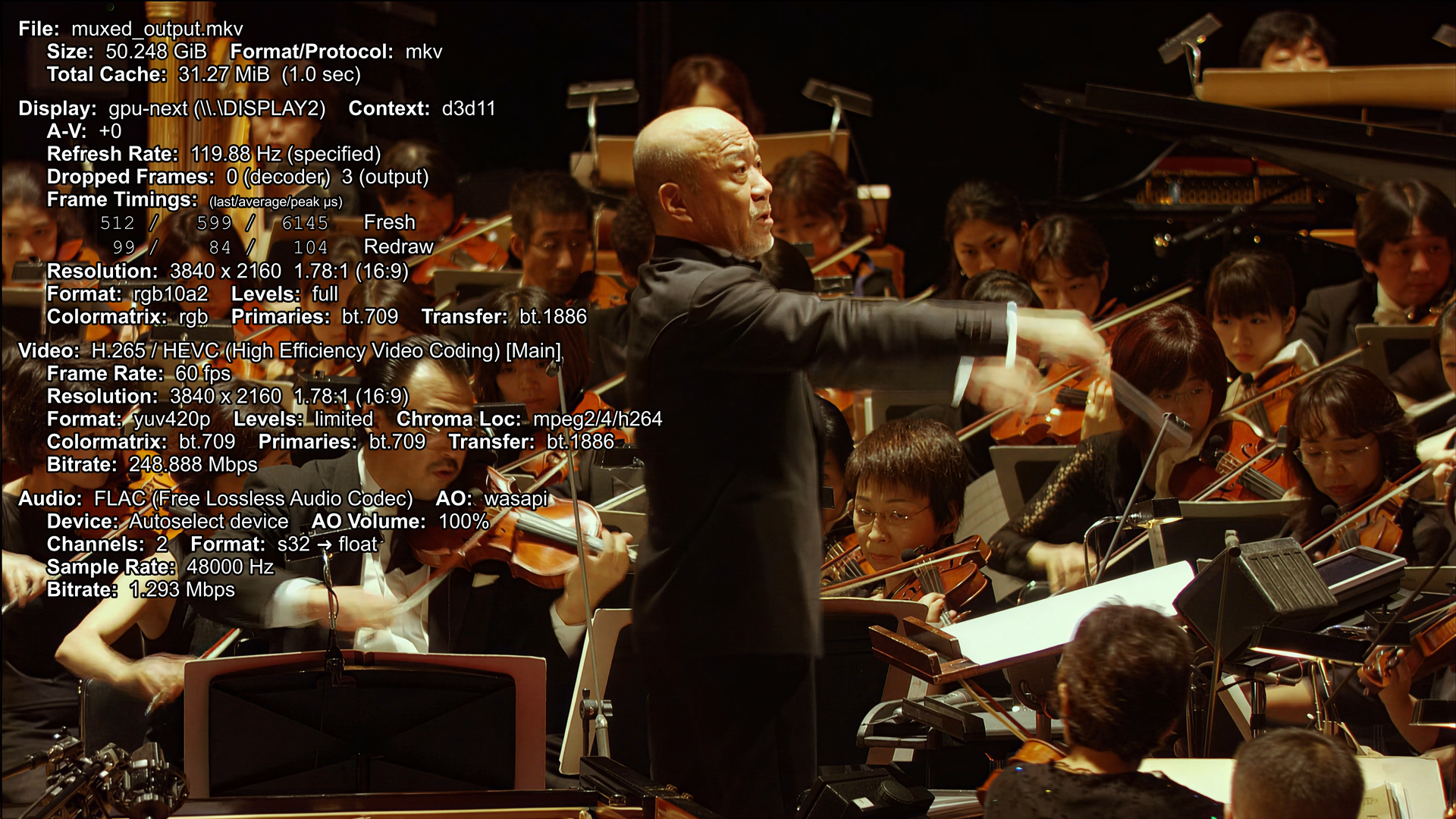
4K AI Upscale of Joe Hisaishi's 2008 Budokan Concert on YouTube — Looking for Feedback

4K AI Upscale of Joe Hisaishi’s 2008 Budokan Concert — Looking for Feedback

Hi all,

I’ve been working on a labor-of-love restoration of one of my favorite concerts: Joe Hisaishi at the Nippon Budokan in 2008, performing the music he composed for Miyazaki’s Ghibli films. Over 120 hours of render time and counting.

The pipeline so far:

  • 1080i 29.97 38Mbps source from the original Blu-ray

  • Deinterlaced with FFmpeg, and set to CFR

  • Run through Rhea, then Aion, for a 4K / 60 fps output

I’ve also got a Precise 2.5 render of the same source running in parallel — it’s been running about 10 days, with about 7 days left on that one. If it looks better, I’ll post replacements.

The channel is here: https://www.youtube.com/@TheFNGee

It’s non-monetized, I’m not chasing views, and the Ghibli/Hisaishi rights holders aren’t enforcing hard restrictions on the Budokan material — so I’m in a good spot to do this purely for the music, and to make it look as good as possible.

What I’d appreciate from this group: a critical second set of eyes. At one point I thought I caught a faint herringbone pattern in a singer’s hair, and that’s exactly the kind of artifact I want others to flag. Whatever you spot — good, bad, or “you should try X instead” — I’d love to hear it.

Thanks in advance.

Steve (TheFNGee)

generally, regular rhea is something i wouldn’t use because the danger of imaginary faces popping up somewhere for a split second is really high… xl doesn’t seem to have that problem.

plus it also has a problem with fine textures, like iris.

it’s been running about 10 days, with about 7 days left on that one.

That’s very bold if it’s just 1 file — aren’t you afraid something might go wrong / crash?

Hi @sdfgsdgssdgdt363fg

Crashing hasn’t been the issue for me — my 5070 Ti just chugs along happily. The real problem is holding off Windows Update. I’m on the Windows Insider program, so I have to manually defer updates, and that doesn’t always hold as long as I’d like.

That said, Topaz Video seems to have a recovery process in place. The last time WU rebooted my machine mid-render, I went back to Topaz Video and found the job marked “recoverable” in red. I selected it, rendering picked back up, and it finished cleanly.

Poking around in the program’s process files, I found one called Project.tvai — looks like an XML blueprint of sorts. I noticed the word “concatenate” and a list of variables referencing multiple files. That might be the mechanism: Topaz keeps the partial outputs (because it knows exactly which frames completed in each pass) and stitches them back together at the end.

If someone from Topaz could chime in about how the recovery process actually works under the hood, I’d love to know. The fact that it survives a hard reboot is impressive.
Thanks,
Steve

Yes, the program has some protection against crashes, but an error may still occur after which it deletes files. This has been discussed multiple times. I still strongly recommend that you take care of making backups. If you’re exporting to a video file, you can periodically copy it to another location.

Also, I don’t understand why you need to do such a long render in one single go? Video files can be split and joined without any re-encoding. If I understood correctly, you haven’t even tested the model quality beforehand on a short fragment?

Starlight Precise 2.5 performs well on SD video, but on HD it might disappoint you.

Thanks so much for the heads-up. I had split files before, but didn’t pursue it because the render took so long. Now with the combi Rhea/Aion renders, they don’t look half-bad. And after analysis, I find YouTube isn’t degrading the content much at all.

Surprisingly, YouTube is streaming at full 4K/60 with 0.03% frame drops; we have a healthy buffer of over 20 seconds and correct colorspace (BT.709) and codec selection (HEVC). The only “issue” is that my audio was mastered 2.5 dB below YouTube’s loudness target, which in this case, actually helps to preserve the orchestral dynamics rather than hurting anything.

So far, the Precise render is still in preview mode, and with the file in contention, I’m hesitant to open it in an external player to see what it really looks like.

Thanks so much,
Steve

Yeah, nowadays YouTube often keeps even the original non-standard resolution. I haven’t tested it, but I wouldn’t be surprised if it already supports variable frame rate as well. As for the output file, you just need to copy it (not move it) to another folder. Then you’ll be able to open it in a media player, and it will contain all the data processed up to that point. The original file will keep receiving new data from the program, so nothing bad will happen.

Took your suggestion. Muxed the output so far with my custom edited audio FLAC. NOW I’m excited. Wow. To avoid confirmation bias, I’ll have to setup an A/B comparison between the Rhea/Aion combi and the Precise 2.5. The bitrate at this frame shocks me though - > 240 Mbps!!

Getting a closer look at the Precise 2.5 render - the best example of it is from the really wide, 100ft or more feet away from the orchestra/chorus members. Under Rhea’s interpolation and Aion’s enhancement, they’re blocky and much noisier (random video noise). Precise makes a better effort (it’d had better for as long as it takes).
I don’t have a screen capture process above 1080P yet, so it’s difficult to do an accurate screen compare. The player (open source) MPV allows me to layer multiple instances over one another, and I can just highlight the taskbar icon and switch back and forth rapidly between the two 4K frames, and Precise’s precision is obvious.

Thanks,

Steve

The backgrounds in Precise 2.5 frames have always pleasantly surprised me too. One of my main issues with pixel-based upscalers was that they heavily distorted people and their faces if they were far back in the frame and lacked detail—a person or their face would turn into a poorly rendered 3D texture. While the introduction of Starlight generative models doesn’t fully restore them, it at least makes them look like a natural, lifelike lack of detail for distant objects. In your case, though, it’s actual restoration, since the video quality is good and the faces aren’t that far away.

I looked over a 1080p source clip and it was already very clean and fairly detailed. I would personally throw it through Artemis Medium or Atremis High with a 2X upscale and a source blend of 75% or more instead of something as taxing as Rhea or Starlight. I looked over the samples you uploaded and it produced textured, leather like faces on occasion and some of the background choir picked up some eerie, halucinated faces.

Thanks for taking the time to help and offer valuable opinions, guys. Last night, “Windows Update” forced a reboot on me. When I came back up, Topaz Video actually autostarted, and it looked as though it was going to resume processing. The timeline on Export1 had “Estimating”, and after a few minutes, it went to “ERROR”
So much for the recovery process. I’ve sent the logs to Topaz Support.

TheFNGee

Hi Folks- The Precise 2.5 render looks very good on my editing monitor, and outstanding on the 83" S95 in the living room - so this recovery attempt is a must-do. I was able to put Windows Update on hold until July 10th.

I’m sharing how I’m recovering a long Precise 2.5 render that died partway through — posting the approach for scrutiny before I commit another multi-day render, because my first plan had a flaw I only caught after looking at the actual keyframe data.

The situation: ~33 minutes of finished Precise 2.5 output before the forced Windows reboot killed the render. The recovery option didn’t resume (Topaz support just confirmed diffusion models can’t reliably resume mid-render). Rather than redo everything, I’m salvaging the partial and splitting the job into two.

Step 1 — find where the good content ends. Mapped the partial render’s keyframes:

ffprobe -v error -select_streams v:0 -skip_frame nokey -show_entries frame=pts_time -of csv=print_section=0 “partial.mp4” > keyframes.txt

The decode threw an “Invalid NAL unit size” error right after the last keyframe (1982.32s) — that’s the interrupted write. So the render’s last clean keyframe is 1982.32.

Step 2 — Here’s where my first plan broke down. I’d intended to splice at a scene-change keyframe present in both the render and the source. Then I mapped the source’s keyframes and found the problem: the source (an Aion/Rhea 60fps export) has a rigid, fixed GOP — a keyframe every 2.0167s, dead regular, with zero scene-change keyframes anywhere in the whole 116-minute file. So I don’t have a scene-cut keyframe to align to. The two files also don’t share a keyframe grid at all — render is ~0.5s GOP with scene cuts, source is ~2.0167s GOP with no scene cuts.

Step 3 — what actually works given those limitations. Stream-copy trimming can only cut at each file’s own keyframes, so:

Segment 2’s source can only start cleanly at a source keyframe. Nearest one past the corruption is 1982.40s.

For the join to have no gap or overlap, segment 1 (the render) must end at the exact same timestamp: 1982.40.

But the render’s keyframes are at 1982.32 and ~1982.82 — neither is at 1982.40. A stream-copy -t 1982.40 on the render would actually stop at 1982.32, leaving an 83ms gap.

So segment 1 needs a frame-accurate re-encode to land exactly on 1982.40, while segment 2’s source gets a clean stream copy:

Segment 1 — re-encode to hit the exact frame (negligible quality loss at qp16, minutes on my 5070ti)

ffmpeg -i “partial.mp4” -t 1982.400000 -c:v hevc_nvenc -preset p7 -rc constqp -qp 16 “segment1.mkv”

Segment 2 source — stream copy, lands exactly on a source keyframe

ffmpeg -ss 1982.400000 -i “source.mkv” -c copy “source_segment2.mkv”

source_segment2.mkv then goes back through Precise 2.5 as its own job. When it’s done, I concatenate segment 1 + segment 2.

What I’m still uncertain about:

The splice point (1982.40) is not a verified scene change — the source simply doesn’t have any. So the join’s seamlessness depends entirely on Precise 2.5’s ‘temporal’ consistency at that frame between two separate render sessions. I’ll eyeball it frame-by-frame in mpv after.

Diffusion “warm-up” at the very start of segment 2 is a possible artifact I haven’t tested. If the first few frames of segment 2 look off, I may need to start its render a bit earlier and trim the rendered output back.

If anyone’s spliced diffusion-model output across separate render sessions and hit (or avoided) consistency drift / warm-up artifacts at the join, I’d genuinely like to hear it before I burn the render.

Lessons for me are already locked in (from experience and advice here): pre-split the source into ~30-min chunks up front — and split on a real scene cut if your source encoder produced any.

Lose a chunk, not the whole thing.

Thanks,
TheFNGee
You need to split both your corrupted and original files into .png frames. Then, identify the last frame in the corrupted file, and trim the already processed frames from the original video (I assume the frame numbers will match). Once the new file finishes processing, you will also need to split it into frames. Rename these new frames so that the sequence matches up perfectly between the corrupted file and the new one. Finally, compile these frames into a finished video file.

Regarding the ‘warmup’—trim the frames so that the very first frame starts on a new scene (a camera cut, focus change, etc.).

Thanks — the PNG-sequence approach is the bulletproof method, and I kept it in my back pocket as the fallback. I ended up using a lighter variant of the same idea that worked because of one lucky break in the footage:

Instead of extracting every frame, I mapped the keyframes from the failed render using ffprobe and found where the corruption started (an “Invalid NAL unit size” error immediately after the last good keyframe). Then I frame-stepped backward from there in MPV and found the last hard cut before the failure — a clean camera change. The rest to the failed render’s end were L O N G fades.

Since my render and source are both 60fps CFR and time-aligned, the same timestamp is the same frame in both files, so I didn’t need to convert to frame numbers — I just used the hard cut’s timestamp (32:36.817) as the boundary for both: trim segment 1 to end there, trim the source to start there, both via a quick NVENC re-encode for frame accuracy. The splice lands on the camera cut, so the seam should be invisible without any warm-up trimming.

Your scene-cut tip was exactly right and is what made it work — landing on the hard cut is what lets me skip the PNG round-trip. If the seam shows any glitch when I concatenate, I’ll fall back to your full frame-extraction method for surgical control.

I appreciate it.
Steve (TheFNGee)

I’m a huge Ghibli/Hisaishi fan, so this is awesome. Two things I noticed in the Town with an Ocean View video:

  • Some slight banding on the anime scenes (e.g., Kiki’s face at 0:12 as well as the bread in the background). Not really noticeable at any distance, but I’ve been doing color grading recently and have gotten sensitive to it.
  • Textures on faces are a little off, and that’s more noticeable. The flutist at 1:07, the violinist at 2:16 and the sax player at 3:50. Perhaps you could try running another model on the Precise output to see if it cleans it up (the fastest route). If that doesn’t work, either re-encoding those shots with a little less detail or pre-running another model on those clips only and then splice them in.

Also, I’ve become a huge fan of Davinci for splicing work because the free version has more than enough capabilities to match up the shots frame-by-frame.

Thanks for the great work!

Thanks for the feedback, it’s valuable. To be clear, the current uploads are the result of a combination of Rhea’s interpolation and Aion’s enhancement. OTOH, Precise 2.5 completed the first 31 minutes before the forced reboot (after 16 days, with me using my PC normally), and then me finding out from Topaz that “diffusion” models can’t “resume,” even though the UI offered.

However, that first 31 minutes on the S95 are breathtaking. We all know the fake details in Precise (zoom in - we also see similar in Topaz Photo), but there are heads and shoulders, with little line smiles, and eyes/nose in those false details, but nothing blocky as with the previous combination. As one of our group members said (paraphrasing), “a natural look of low detail.”

After using PowerDirector since version 13 in 2015, I’m finally graduating to my installation of DaVinci Resolve 21 and dealing with its learning curve. With the bitrates hitting astronomical values (in my 4K limited world), some as high as 230 Mbps, PD has just fallen out of the picture - DaVinci? Not a whiff of complaint. I can do LosslessCut and split the first 30 minutes into Nausicaä, Mononoke, and Kiki’s, then mebe replacing what’s up there now. I’m so excited!

Thanks,
TheFNGee

P.S. Check out the 29.97fps Futatabi, and let me know what you think.

Yeah, I’ve started slicing my vids up into 60-second chunks (with one extra frame, so from 1:00:00 to 2:00:00), queuing them up in Topaz, then reattaching them in Davinci. The new HDR models all output in ProRes, and with the huge file sizes it also is much easier to work with in smaller chunks.

So far the slight “Topaz offset” hasn’t been an issue because the behavior seems to be consistent between the clips, so If everything is done via Topaz you can line them up on the Timeline. The alternative, syncing the clips them via sub-frame adjustments by nudging the clips on the Fairlight page, is pretty tedious.

Also, as I’m learning, Davinci is all about the hot keys. For clip matching, the Disable key (“D”) is your friend, and “,” and “.” (nudge one frame left and right) are its sidekicks.

OK. I’ve confused Topaz support. After they told me that diffusion models cannot recover, I accepted it and went on with my plan above. One day into it, neuroserver.exe (which had a 23 GB memory heap) crashed. I grabbed the debug data I generated and sent it to them. When I reopened TV, ready to start over again, there was another “RECOVERABLE” message in the Export1 queue. Not having much hope, I clicked it, and 2 hours later the model had reloaded and was now telling me I had 6d22h… left on the render.
Go figure.
I sent that note to support again, 2nd today, telling them of the “continuation” - needless to say, they were puzzled.

However, I found something my beast cannot do. With only a 5070ti, I cannot run TV and DaVinci simultaneously. Oh, they’ll run, but not effectively; there’s apparently contention for VRAM and GPU compute, I would think. So no editing of the first 32:04 of the Precise 2.5 render to post.

Thanks All

ADDENDUM: The recoverable was a fib. I thought I’d have a look at the preview after it ran for some hours - Black. No video. Restarting.

60 seconds? I misread that at first. So how many do you end up stitching? Any audio muxing issues?

TheFNGee