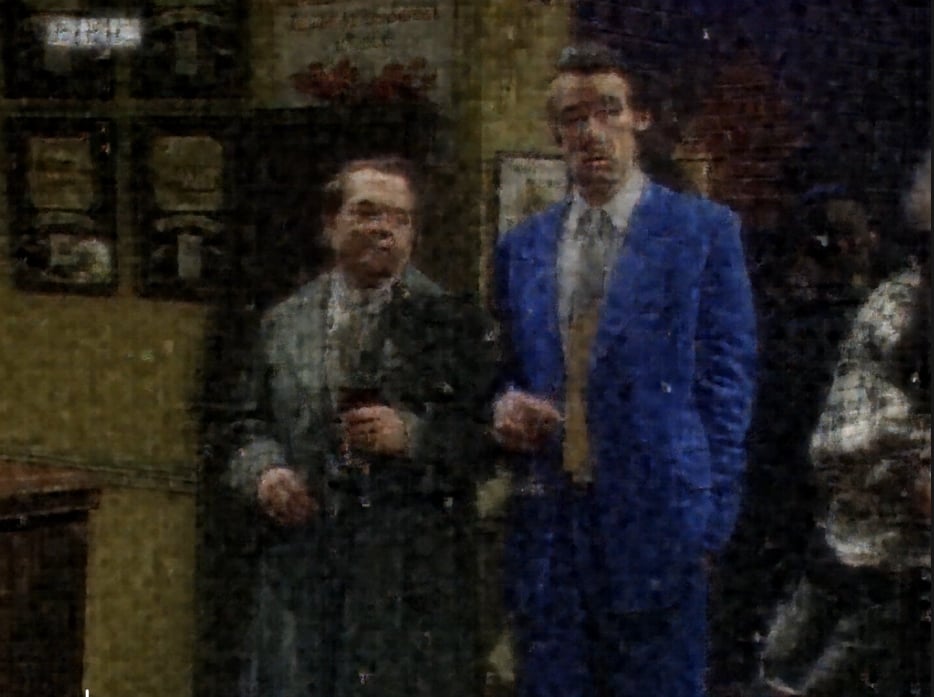
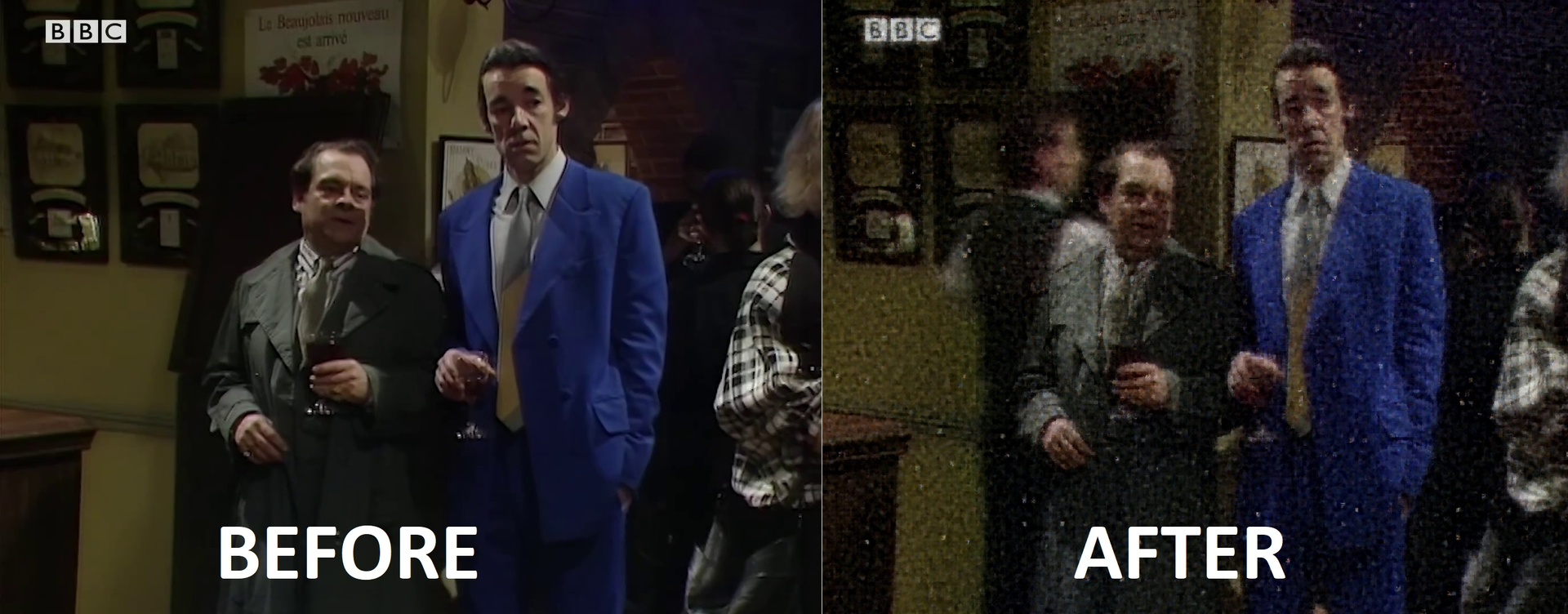
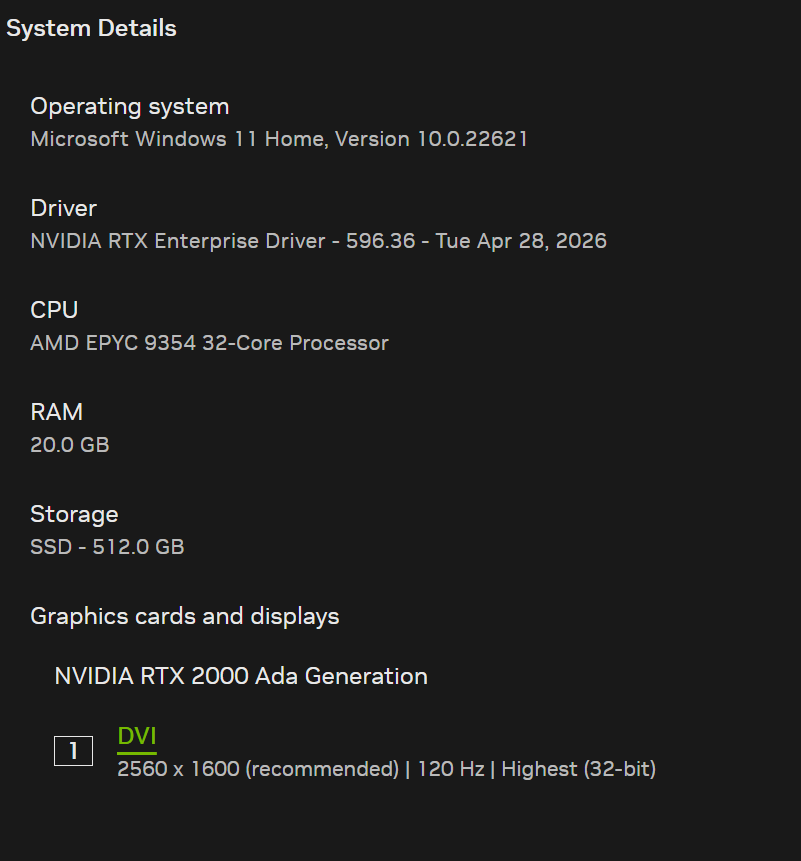
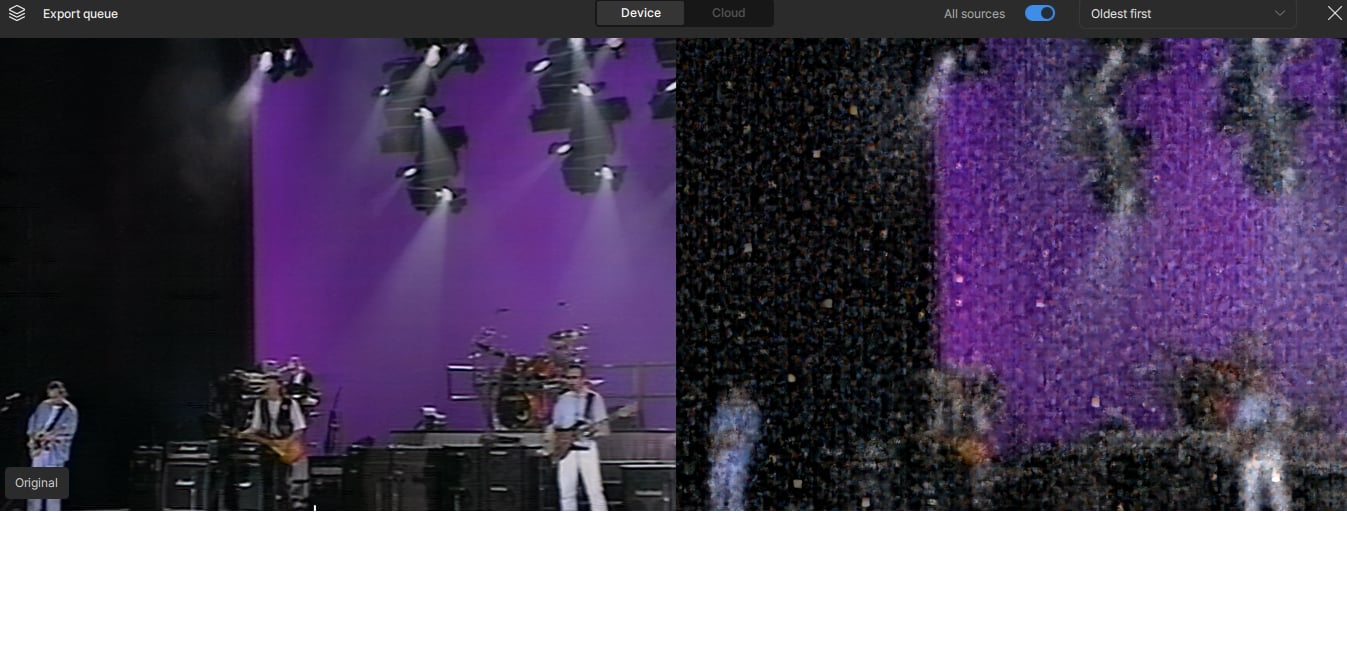
So I’ve managed to get a RTX2000 ADA which has a cuda compute of 8.9 to run starlight 2.5.
Unfortunately it only renders at 0.1fps. a 5 second clip took almost 1 hour to render and the picture quality is messed up.
Rendering the same 5 second clip in the cloud took 8 minutes and the picture quality was mint.
This is a fresh install of Topaz on a fresh windows install using the latest NVIDIA drivers. I’ve tried lowered the memory to 80%, the GPU is selected as the renderer.
It’s been 5 days since i paid for the Topaz membership and I’m still yet to successfully render 1 file
2026-05-14 19:07:57 940 INFO: 0 Device Id: 0 Name: NVIDIA RTX 2000 Ada Generation VRAM: 14.782 GB DataType: 2 Serial: 0000000000007b4f Visible: 1 Index: 0
2026-05-14 19:07:57 940 INFO: 1 Memory Info 5095399936009922364416
2026-05-14 19:07:57 940 INFO: 1 Device Id: 1 Name: Microsoft Basic Render Driver VRAM: 0 GB DataType: 2 Serial: 0000000000008c27 Visible: 0 Index: 0
2026-05-14 19:07:57 940 INFO: === System Information ===
2026-05-14 19:07:57 940 INFO: OS Windows Version 11.22
2026-05-14 19:07:57 940 INFO: CPU AMD EPYC 9354 32-Core Processor Threads 8 AVX 1 AVX2 1 VNNI 1
2026-05-14 19:07:57 940 INFO: Is Apple Processor 0
2026-05-14 19:07:57 940 INFO: RAM 19.9809 GB Total / 2.99399 Free/Used
It seems the GPU is 16gb tier, which meets our minimal requirements of 12GB running the model. However, RAM is of 24GB tier, which is lower than 32GB as we mentioned in the release. This can lead to the slowness of processing.
Regarding the corrupted output, it might be input format related, but I am not very sure. @kyle.topazlabs can you help suggest the media converting method? Please start from shorter videos so that we can confirm solutions in short time.
Can you share a sample of the video for testing and we can try and replicate the situation to see what is going on?
You can securely submit your file(s) to our Dropbox using the link below. Please be sure to send me a note to let me know you sent something and include the file name.
64 GB Corsair Dominator Platinum DDR5 6400MHz System RAM
My process time is about 0.7 fps running a 540 to 1080 upscale using Starlight Precise (also without “texturizing” the entire image, as your result did).
Starlight Sharp runs at about 0.6 fps doing a similar process.
On the other hand, Proteus runs at about 12 fps when doing a 1080 to 2160 upscale.
Bottom line, the Starlight models are way slower because they use a different type of AI than the other models.
As a final note: I have been using Topaz since Topaz Video Enhance AI version 2.6. Back then Artemis ran at about the same speed as Starlight does now (it also frequently crashed after hours of processing). A combination of programming advances and hardware improvements have made most things very quick, relatively speaking.
Thank you for detailing real world rendering time, that has helped manage (shatter) my expectations.
I’ve just had a look at how long it would take to render a 30 minute TV episode which is DVD resolution up to 4K and its saying its going to take 3 days 17hours
Really need to understand why the output image is corrupt?
Beats me, unless the original is VERY noisy i can’t imagine a reason for the model to do that. Here is a Starlight Precise upscale currently running on my PC:
I just recently finished upscaling all of Star Trek Deep Space Nine. I started by ripping all the episodes from DVD. My process involved upscaling from 480 to 540 while converting the VFR original into CFR using FFmpeg. I then upscaled each episode from 540 to 1080 using Starlight Sharp, followed by upscale from 1080 to 2160 using Proteus. I started Season 1 Episode 1 on the 27th of December 2025 and finished on May 8th, 2026. Each episode took ~41 hours to process from 540 to 1080 and ~2 hours to go from 1080 to 2160.
SL Precise 2.5 often turns noise into textures, but I’ve never seen anything like that before. What is the format of the original (dimensions, codec and container)?
Alright, I ran some tests with both files, but neither showed the same static, textured effect that you were seeing. Check your GPU card and see if there is an issue with the cables, seating in the system, thermal paste and try downloading a clean Studio Driver to rule out any issues as you should be seeing similar results as to the screenshots below.
The shorter file took 7 minutes to process on my 5060 Ti.
These were both run with Starlight Precise 2.5, it runs on auto settings and they were exported out as H264 MP4 files. I try not to run things with too crazy of settings or custom options unless needed for tricky files.
BTW, it looks like the brighter band at the bottom of the frame at 1080 resolution is fixed…at least I’m not seeing it in my current Starlight processing.
I’m experiencing the exact same problem. I was so impressed with Starlight Precise that I just bought a new PC with an RTX-5090, and I think my initial tests were successful. While processing video from an external USB disk, my PC would crash unexpectedly, so I thought the app might be broken. I tried deleting and reinstalling the app, reverting to version 1.5.0, and redownloading Starlight Precise, but nothing changed. Of course, a clean install of the GPU drivers didn’t help either. Sometimes the USB disk would disappear, and resetting Windows settings didn’t help either. Since switching to processing from the internal disk, the crashes have stopped. I’m at a loss as to what the problem is. Strangely, Starlight Mini works fine. So I don’t think the card is broken.
AMD Ryzen 7 9700X 8-Core Processor (3.80 GHz)
RAM 16.0 GB
NVIDIA GeForce RTX 5090 (32 GB)
Studio Driver 596.36 - Tue Apr 28, 2026
Windows 11 Home 10.0.26200
How much system RAM did your test system have? I ask because both users with the corrupted output are under 32GB of system RAM (20GB and 16GB, respectively).