Switch bitrate mode to “Dynamic” for CRF options that are, in my opinion, perfectly optimized.
If you want a lossless video, the most efficient option is FFV1. However, Topaz should include a “Lossless” option for H.264/5. This would set the CRF to 0 which, using the AVC/HEVC spec, instructs the encoder to perfectly preserve each pixel.
VFR forced to CFR is a patchwork, that just killed my encodes, so V6 is a no go for me, I need frame accurate outputs. Interestingly Rhea is not affected by this. Please finally find the error! onur.ucula wrote an interesting approach as to why this might be the case.
Except CRF=0 doesn’t produce lossless files. You would need to encode with a quantizer instead, that’s set to 0 (qp=0).
Except neither produces a lossless file.  Newer x265 versions come with a true –losslesss parameter (probably present in lib265.dll, but very likely not in Topaz’ idea of doing H265). FFV1, in this case (what I do), is a better alternative for intermediate files, IMHO.
2 Likes
You’re correct and I wasn’t entirely specific in my post - I referred to x264 only. For AVC only setting quantizer to 0 would provide a lossless file.
1 Like
Just out of curiosity, why would anyone still use x264 these days? There’s not a media player out there that cannot play h265/HEVC. Same reason I don’t get why Topaz included it even.
Among lossy codecs, H.264 still provides the best visual fidelity and for this reason alone will remain relevant for a long time. Starting with H.265 and followed by AV1, the newer codecs tend to remove fine details, in other words make picture slightly blurrier compared to source (I haven’t tested VVC yet, so can’t comment on that one). Some people can spot the loss of details easily, some don’t really care - it depends on actual requirements and they vary per person.
8 Likes
If you save the processing result in H264, then the video has a more natural look.
H265 and AV1 simply lick micro parts. They are only suitable for high-quality 4K video, where the loss of small details does not matter. But the size is smaller…
But, if you are processing a video of average or poor quality, saving the result in H265 or AV1 is suicide. And so in a compressed video, these codecs will make the most doll-like look.
I checked many times. For example, when the image of a woman’s face is enlarged in H264, micropores and small hairs on the cheek are visible. H265 and AV1 just have a colored surface.
I also used to believe in the myth that a more modern compression algorithm is of higher quality, but it is not about image quality, but about the ability to compress a larger amount of data into a smaller size with more or less good quality. If you need to maintain maximum quality, I advise you to save the video in H264 at a bitrate of at least 60 Mbs.
10 Likes
Nothing beats Huffyuv when it comes to Decoding Speed !
Nothing beats Huffyuv when it comes to Realtime Recording Speed !
When Filesize doesnt matter or Speed is very important (because File must be Filtered after Topaz) then old Huffyuv is still the King !
My Tests:
Test in VirtualDub2 - 64 Bit - Fast Recompress enabled !
4 Minutes 21 Seconds
Input: HUFFYUV 4:2:0 | 60fps 640x480 | Out: Same !
-------------SPEEEEED
Huffyuv
29 Sec - Setting: Left
29 Sec - Setting: Plane
29 Sec - Setting: Median
Huffyuv Encoding is so fast, it doesnt matter which Encoding Setting !
Lagarith (Lags) 1.3
37 Sec - Multithreaded
49 Sec - Single
FFV 1.3
59sec range
range - Slice 4 → Forgot to test, but possibly 59
63sec range - Context
63sec range - Context - Slice 4
43sec golomb
43sec golomb - Slice 4
47sec golomb - Context
47sec golomb - Context - Slice 4
HUFFF - Left.avi 3.168 GB
HUFFF - Plane.avi 2.857 GB
HUFFF - Median.avi 2.789 GB (Median beats Plane, like expected)
Lags.avi - Multi 2.455 GB
Lags.avi - Single 2.455 GB
Range.avi 2.105 GB
Range - Slice 4 → Forgot to test
Range - Context.avi 2.152 GB
Range - Context - Slice 4.avi 2.152 GB
Golomb.avi 2.184 GB
Golomb - Slice 4.avi 2.184 GB
Golomb - Context.avi 2.184 GB
Golomb - Context - Slice 4.avi 2.185 GB
Context with Range → +47MB !
Context with Golomb → +1MB
→ Size difference is not soooooooooooo Big, and Huffyuv is
clearly faster ! Especialy if a File with Huffyuv is processed
with AviSythn !
FFV makes just sense with “Golomb” !
If used with “Range” , Lags is the better Choice !
Now lets do the Test with 3 x Resolution
Input File is allready 2160x1440 !
1 Minute 1 Second
Input HUFFYUV 4:2:0 | 60fps 2160x1440 | Out: Same !
-------------SPEEEEED
Huffyuv
59 Sec - Left
59 Sec - Median
59 Sec - Plane
Huffyuv is so fast, it doesnt matter which Encoding Setting !
Lagarith (Lags) 1.3
66 Sec | Multi (15,5% CPU ???)
83 Sec | Single (12%)
FFV 1.3
82 Sec | FFV - Range
71 Sec | FFV - Golomb
HUFF - LEFT.avi 5.638 GB
HUFF - Plane.avi 4.597 GB (Strange ! Plane beats Median ?)
HUFF - Median.avi 4.803 GB
Lags - Single.avi 2.701 GB
Lags - Multi.avi 2.701 GB
FFV - Golomb.avi 2.108 GB
FFV - Range.avi 1.801 GB
Now the Size difference is enormous ! and the Speed Difference
is not that big.
Lags Multi is here the best for me.
Huffyuv is still the only good choice if File has
to used with AviSynth afterwards.
Why ?
Playback - Ressource Usage
Huff - Left | 12% Peak CPU, 17% Peak GPU
Huff - Median | 12% Peak CPU, 17% Peak GPU
Huff - Plane | 13.5% Peak CPU, 18.1% Peak GPU
Lags | 10.5% Peak CPU, 10% Peak GPU
FFV - Golomb | Never under 27% ! Peak 29% CPU, 16% GPU
FFV - Range | Same !
-------Now the same Test, but GPU Acceleration Disabled-----
FFV1 still same CPU usage ! But runs with around 20fps !
Lags still same CPU usage ! But runs with around 20fps !
Huffyuv - Left | still same CPU usage ! But runs mostly with 60fps !
Huffyuv - Plane | still same CPU usage ! But runs with around 50fps !
Huffyuv - Median | still same CPU usage ! But runs with around 20fps !
Nearly any AviSynth & VirtualDub Filter use only the CPU !
What can we learn from this ?
- Newer doesnt always mean better !
- Older Codecs are relative efficient for around 720p !
The newer stuff makes Sense…when it comes to Filesize ! - FFV is overrated !
Because x264 can keep grain better !
The Higher the Bitrate, the smaller the visual difference between lossy Codecs, until a Specific Resolution is reached.
Some Codecs need, less, more (surcharge ? what a strange Word) Bitrate to keep grain as other.
XVid needs less Bitrate “surcharge” (that’s how Google Translates the German Word “Aufschlag”) to keep Grain as x264.
Because XVid doesnt wash out stuff by nature like X264/h264 (XVid is dirty !)
Before H264 shows something “ugly” it deblocks and even if deblocking is disabled.
H264 will create always a smoother * looking Block (it has it reasons why x264 has all that Psy & and AQ Mode stuff ! AQ Mode makes the Picture more Dirty ! more XVid like. So that grain and fine Detail is kept better) as H263/XVid at the same Total Quantisizer and I Frame !
X264 need less Bitrate surcharge to keep grain, as H265 !
__* Now if we let out that H264 uses Cabac, BiDirectional BFrames etc etc
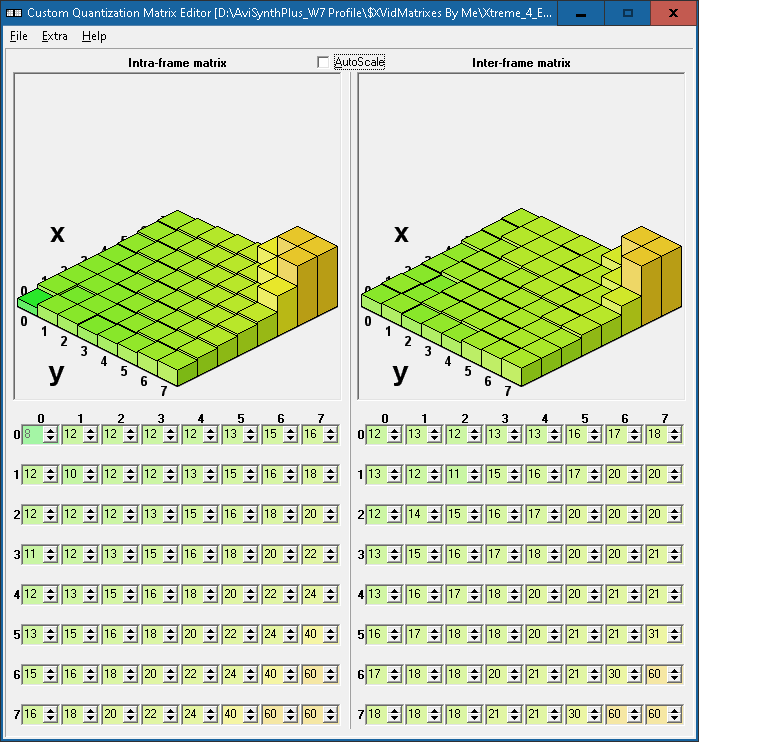
and just look at pure I Frame Output (so, no P,B Frames ! Nothing ! Pure I Frame Action !) and how H263/XVid, H264/X264 and H265/X265 threat Frequencys, then it’s clear that H264 & H265 both cheat !
They compress High Frequency Detail (example fine wood grain pattern, highly detailed skin section) stronger by nature ! (and if something with High Detail is compressed stronger, it’s not so obvious. Mid and Low Frequency suffer faster from higher Quantisizers)
So even if a “High Frequency” Block with Quanzisizer 2 is processed, it will look more flat (compared to XVid with Quantisizer 2) and will take less space.
That Space is used for Mid Frequenys, and Deblocking does the rest for Low Frequencys.
That’s why Gradients look smoother (no Trick, if fine pixels are eaten up) with x264, and Edges Cleaner, but the Form and Detail in Dark Areas can suffer.
H264 & 265 doesnt thread them as Important, because Dark Area ← People possibly dont look to that Area…But i do, especialy when the Main Action^^ is there.
XVid can cheat to !
2 Likes
I have clear click It makes from my 32 year old VHS tapes Mp4 but instead of a framerate of 25 Pal it Generates 59,49 or something now it comes…
I know this is totally wrong I want 25 frames
Ok here we go use interlaced to progressive 3th tab
Choose iris lq v2 second ehancement Choose Gaia v5
Most important use Aionv1 to make the jump from 49,49 to 25 frames
Aionv1 is slow but not made for slowmotion works for framerate conversion and set duplicate elimination to 10 percent
Why this is absolute the best model to ensure you get the best results for your 30 years old hardware but wrong generated tapes.
ffmpeg “-hide_banner” “-i” “C:/Betaoutput/20210101_044553B.mp4” “-sws_flags” “spline+accurate_rnd+full_chroma_int” “-filter_complex” “tvai_fi=model=aion-1:slowmo=1:rdt=0.01:fps=25:device=-2:vram=1:instances=0,tvai_up=model=iris-3:scale=1:preblur=0.55:noise=0:details=0.3:halo=0:blur=0:compression=0.49:estimate=8:device=-2:vram=1:instances=1,tvai_up=model=ghq-5:scale=0:w=720:h=576:device=-2:vram=1:instances=1,scale=w=720:h=576:flags=lanczos:threads=0” “-c:v” “hevc_nvenc” “-profile:v” “main” “-pix_fmt” “yuv420p” “-b_ref_mode” “disabled” “-tag:v” “hvc1” “-g” “30” “-preset” “p7” “-tune” “hq” “-rc” “constqp” “-qp” “17” “-rc-lookahead” “20” “-spatial_aq” “1” “-aq-strength” “15” “-b:v” “0” “-map” “0:a?” “-map_metadata:s:a:0” “0:s:a:0” “-c:a” “copy” “-bsf:a:0” “aac_adtstoasc” “-map_metadata” “0” “-map_metadata:s:v” “0:s:v” “-movflags” “frag_keyframe+empty_moov+delay_moov+use_metadata_tags+write_colr” “-bf” “0” “-metadata” “videoai=Framerate changed to 25 using aion-1 replacing duplicate frames. Enhanced using iris-3; mode: relative to auto; revert compression at 49; recover details at 30; sharpen at 0; reduce noise at 0; dehalo at 0; anti-alias/deblur at 55; and focus fix Off. Enhanced using ghq-5” “C:\Betaoutput/20210101_044553B_449013232.mp4”
then treat this already good output as a normal mp4 use iris lq v2 but now X2 yes again to eliminate more blurring but fast because the frames are 25 progresive with moderate recover details blur
ffmpeg “-hide_banner” “-i” “C:/Betaoutput/20210101_044553B.mp4” “-sws_flags” “spline+accurate_rnd+full_chroma_int” “-filter_complex” “tvai_fi=model=aion-1:slowmo=1:rdt=0.01:fps=25:device=-2:vram=1:instances=0,tvai_up=model=iris-3:scale=1:preblur=0.55:noise=0:details=0.3:halo=0:blur=0:compression=0.49:estimate=8:device=-2:vram=1:instances=1,tvai_up=model=ghq-5:scale=0:w=720:h=576:device=-2:vram=1:instances=1,scale=w=720:h=576:flags=lanczos:threads=0” “-c:v” “hevc_nvenc” “-profile:v” “main” “-pix_fmt” “yuv420p” “-b_ref_mode” “disabled” “-tag:v” “hvc1” “-g” “30” “-preset” “p7” “-tune” “hq” “-rc” “constqp” “-qp” “17” “-rc-lookahead” “20” “-spatial_aq” “1” “-aq-strength” “15” “-b:v” “0” “-map” “0:a?” “-map_metadata:s:a:0” “0:s:a:0” “-c:a” “copy” “-bsf:a:0” “aac_adtstoasc” “-map_metadata” “0” “-map_metadata:s:v” “0:s:v” “-movflags” “frag_keyframe+empty_moov+delay_moov+use_metadata_tags+write_colr” “-bf” “0” “-metadata” “videoai=Framerate changed to 25 using aion-1 replacing duplicate frames. Enhanced using iris-3; mode: relative to auto; revert compression at 49; recover details at 30; sharpen at 0; reduce noise at 0; dehalo at 0; anti-alias/deblur at 55; and focus fix Off. Enhanced using ghq-5” “C:\Betaoutput/20210101_044553B_449013232.mp4”
now the video mp4 looks good
Thanks for that great expose!
I usually encode with x265, and a base of CRF=13, at which point very little is ‘eaten.’ But your data was very impressive nonetheless.
1 Like
I think the crop feature is broken again. When importing a video and applying a 4K model, without any further edit, it works perfectly. But when I tried to crop something or override a Color space input, apply the Upscale model, the image gets distorted in a 2:1 ratio (horizontally) and when going back to crop, the guidelines aren’t even aligned with the image… what a mess.
I’ve only just started exploring this, but I believe there is a solution. (Onur may have been providing a solution too but I couldn’t make sense of his wording, so here is my try.)
The shift from red to orange occurs when the colors in an old color space known as BT.601 are remapped to the modern color space known as BT.709. The remapping always gets reds wrong (and it is no fault of Topaz - every application that remaps BT.601 to BT.709 gets it wrong in exactly the same way). To avoid having “rosy” hues becoming more of a “golden suntan”, you need to tell the application not to remap the colors when it goes from BT.601 to BT.709.
Best way to do that is to LIE to the application - by telling it that the source footage is already BT.709 and therefore the colors do not need to be remapped. In Topaz Video AI, click on Sources, click the 3 dots on your source file to edit a panel in which you can manually declare that the colors are already BT.709 (even though they are not). There’s actually three color settings - set them all to BT.709.
That should be all you need to do. In reality, at this moment, there’s more. When you exit the Source panel and return to Adjustments, you will find that your project will announce an error when you try to do something as simple as previewing a Render of an adjustment, and other things like cropping will also be broken. But these errors are just bugs in version 6.0.1 that haven’t yet been noticed, and they can be worked around: Remember your adjustments, close Topaz, start it up, and start a new project just to be safe. Load the source video. When you load that source video again, Topaz will still remember that it is 709 (even though that is a lie) (double check to be sure), and for some reason it won’t throw errors anymore. Proceed. Pinks stay pink, reds stay red, greens stay green, both in previews and in the exported files (which will of course be authentically BT.709).
4 Likes
TEST THE FORCE CFR OPTION LIKE THIS, tell me your results.
For some weird reason a simple upscale is dropping frames and returning a variable frame rate file. A constant 30 FPS x264 keeps returning a 28.621 VFR with missing frames. Now there is a force CFR option. To check the source and result are what they should be, you should run the following test on both files.
ffmpeg.exe -i filename -vf mpdecimate -fps_mode cfr -f null -
Compare the duplicate and dropped frames from both files. If they are not similar then we still have a problem.
2 Likes
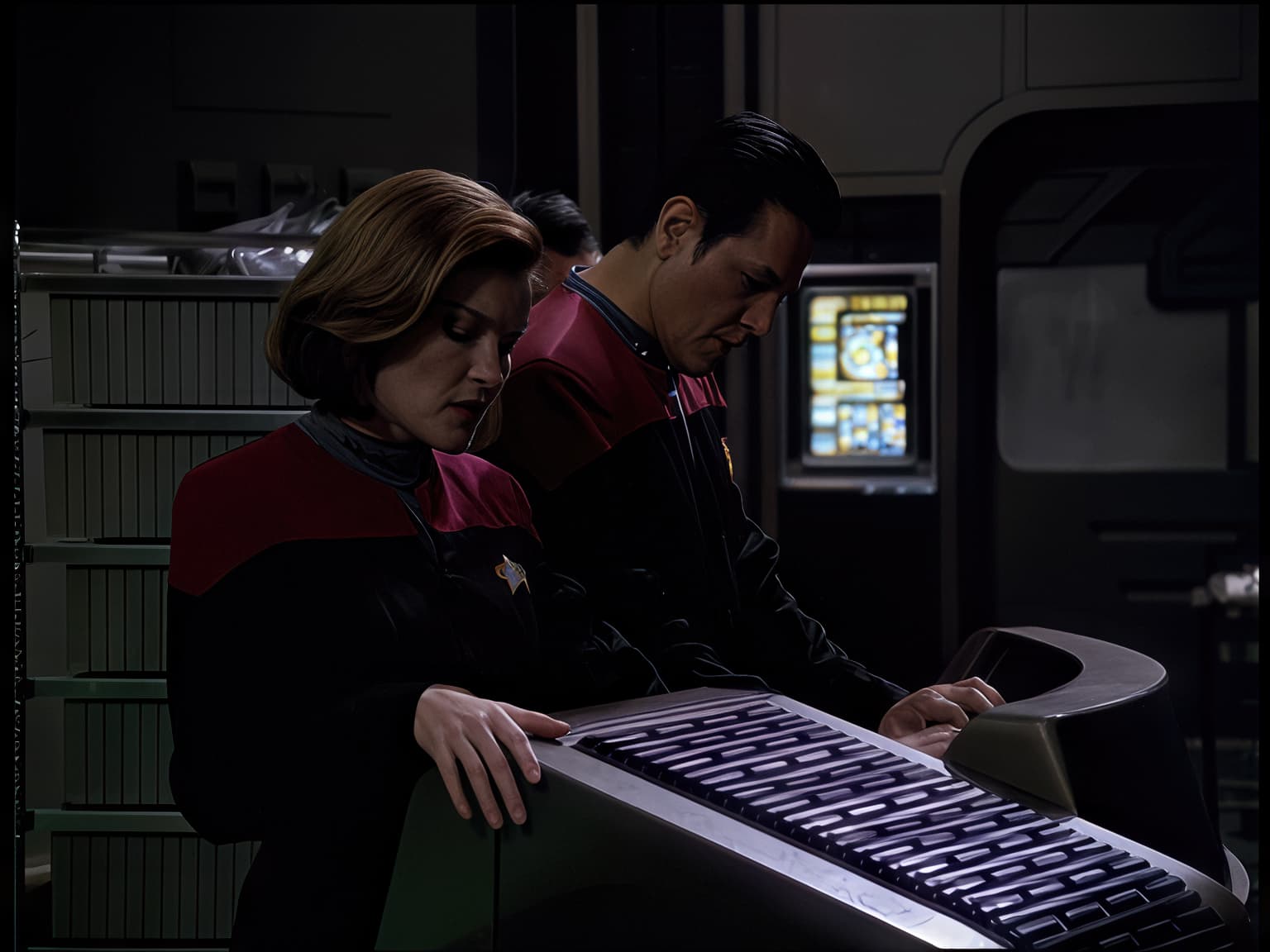
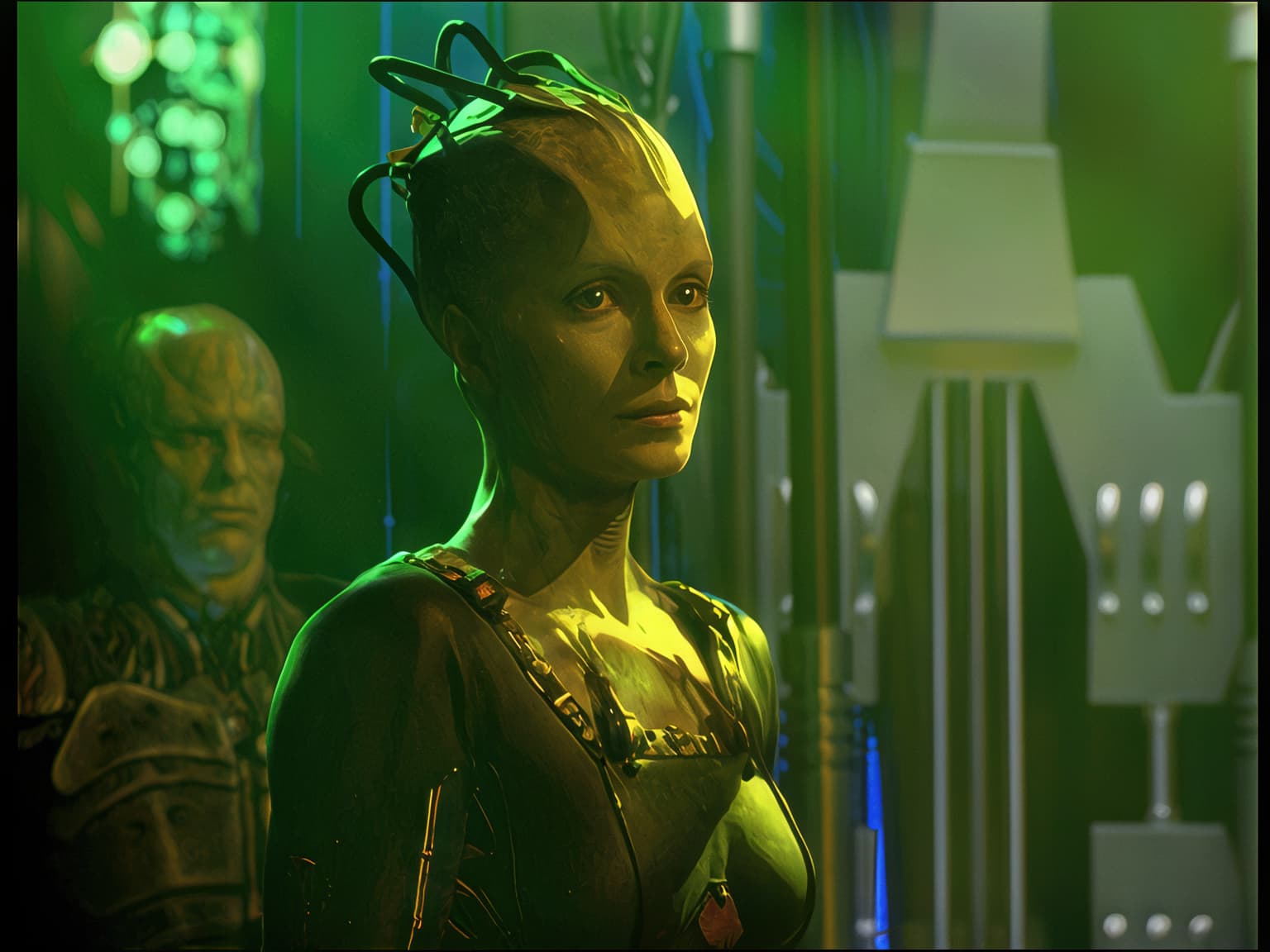
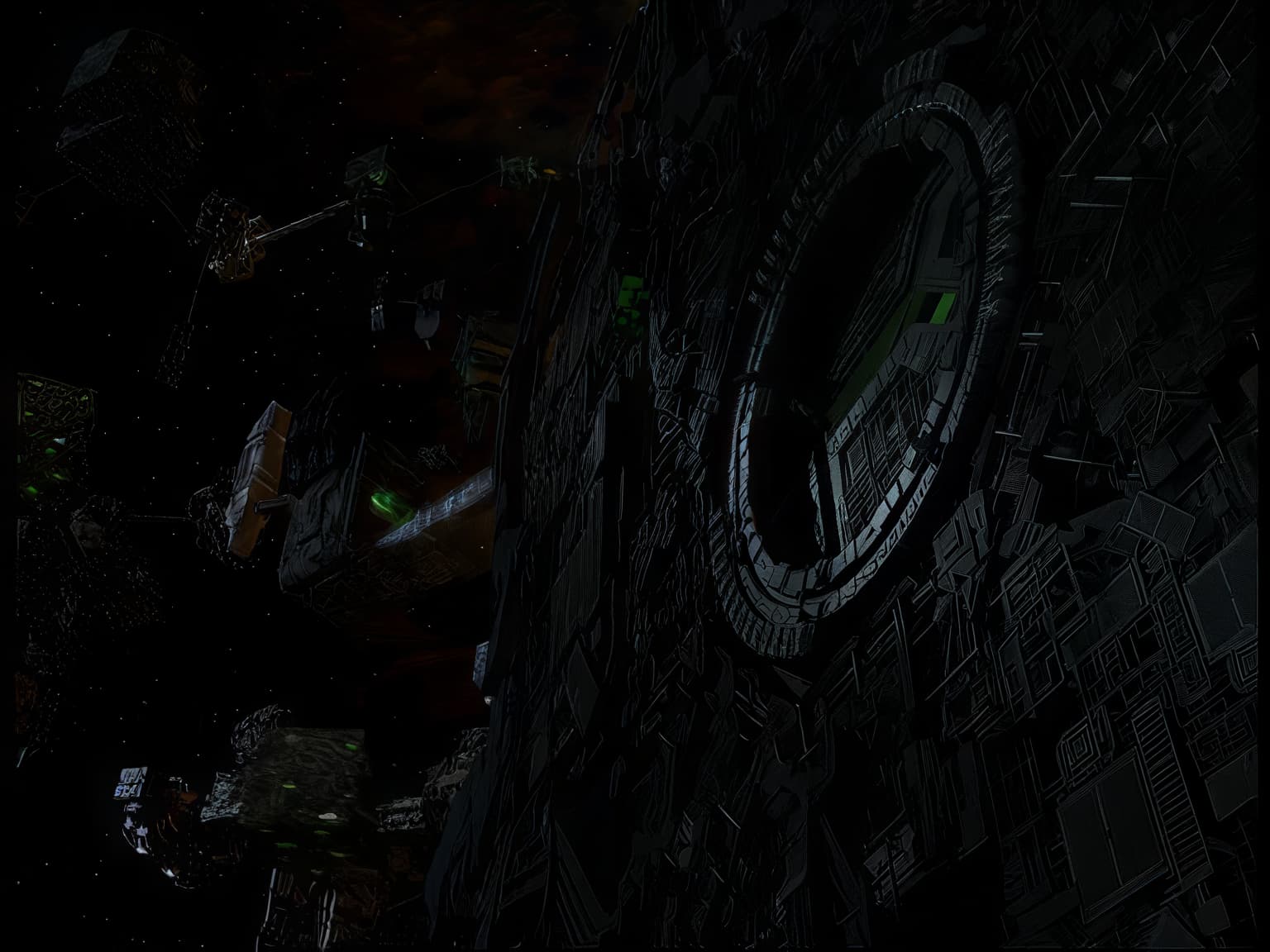
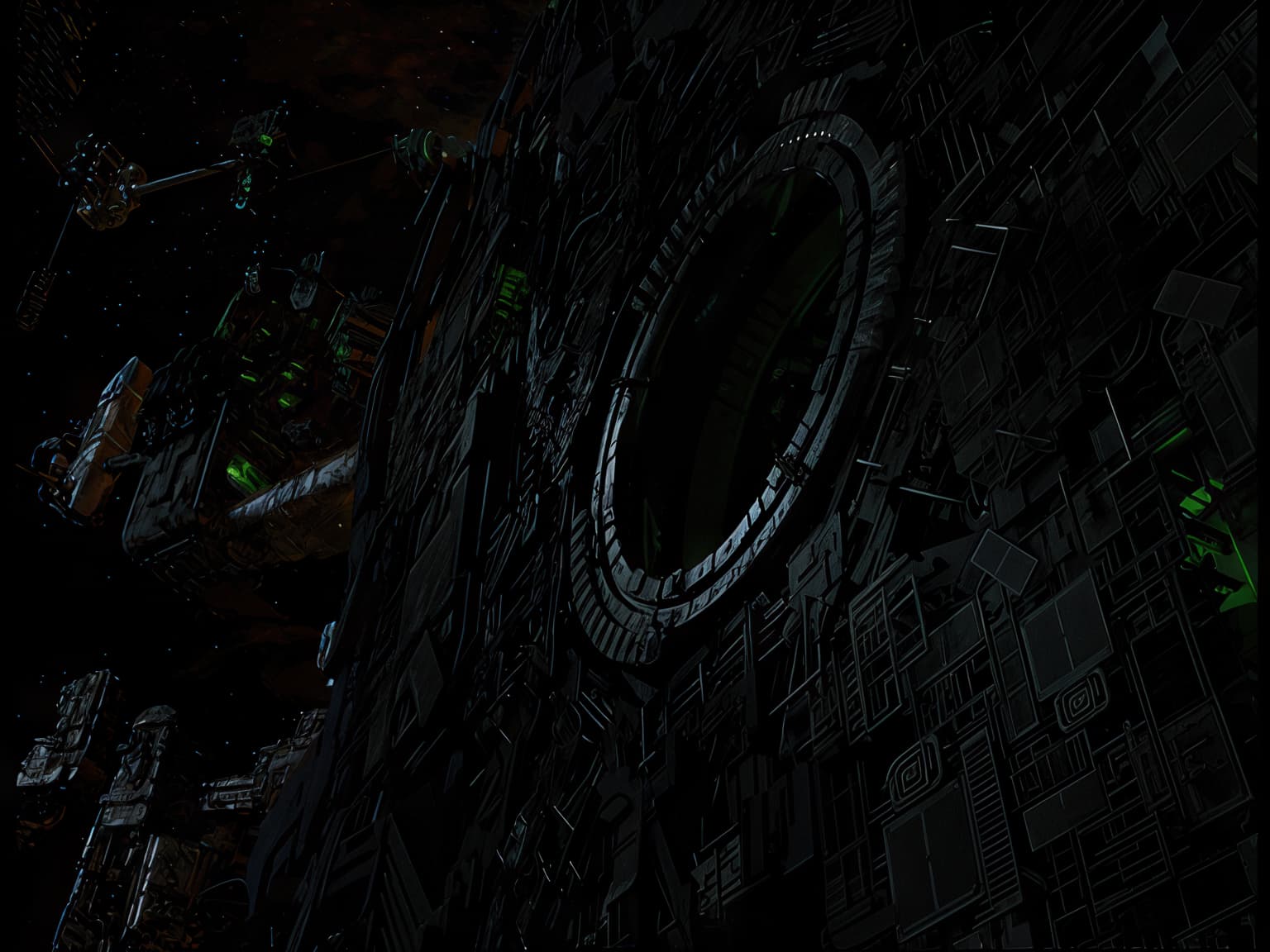
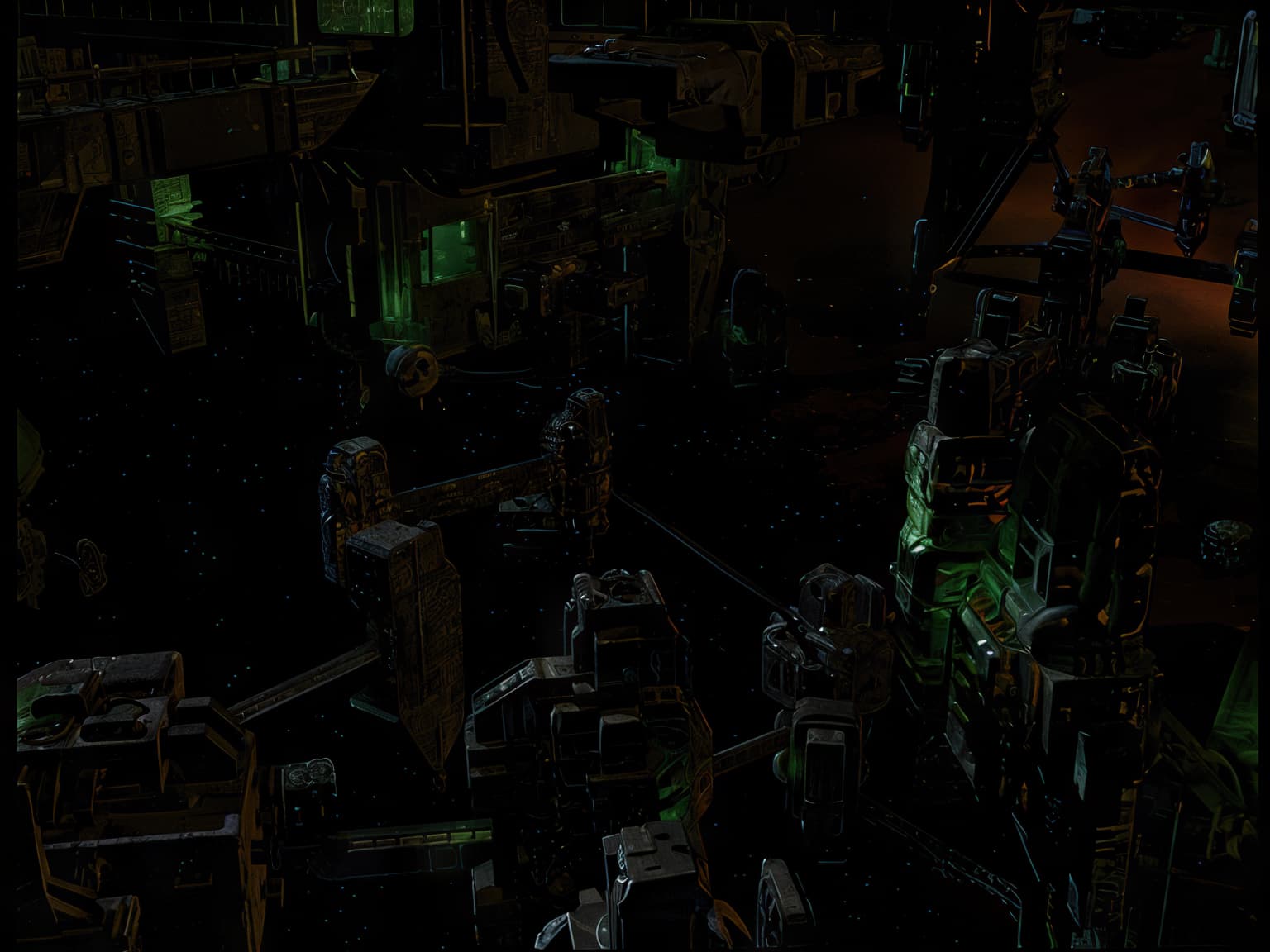
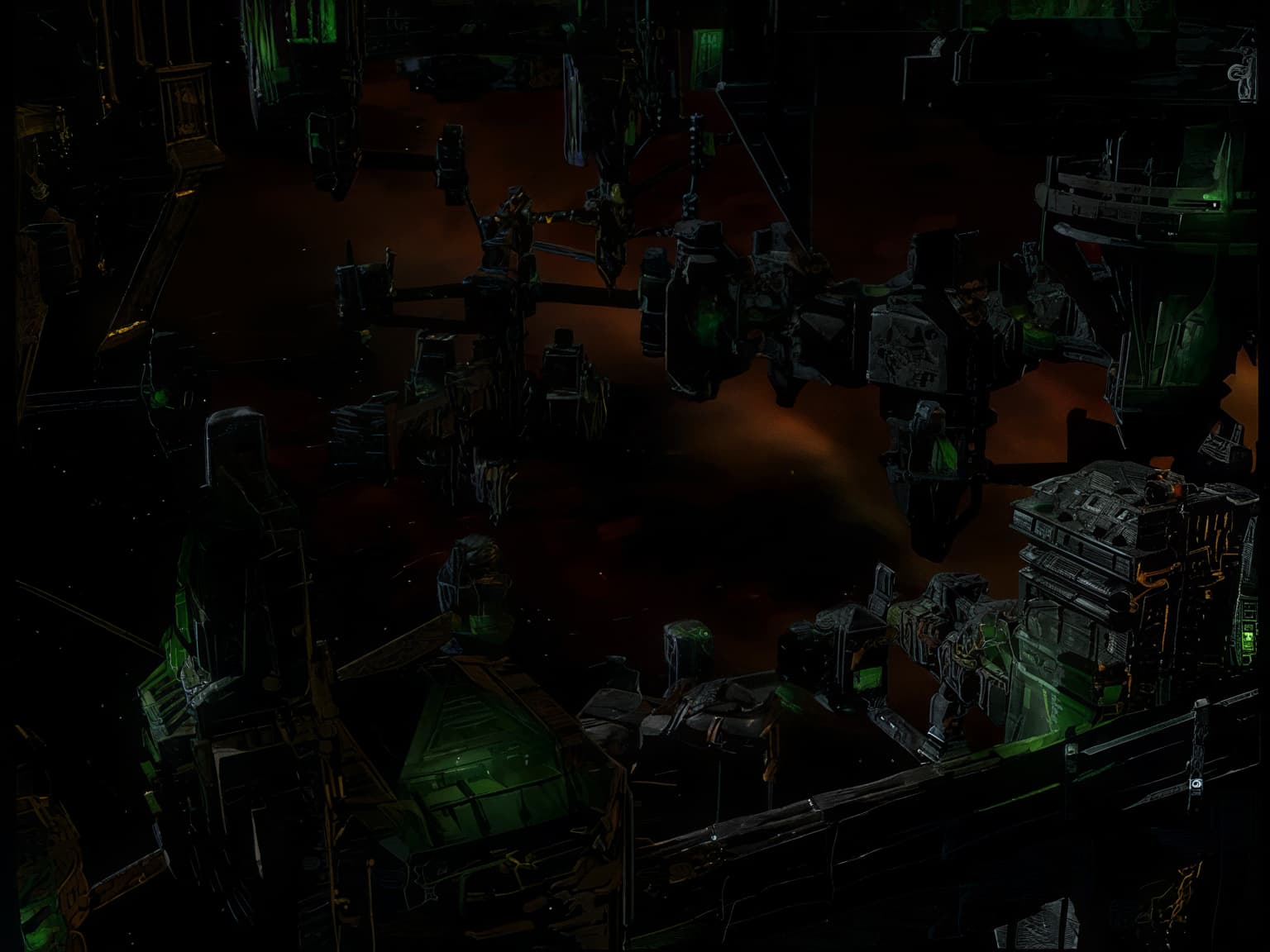
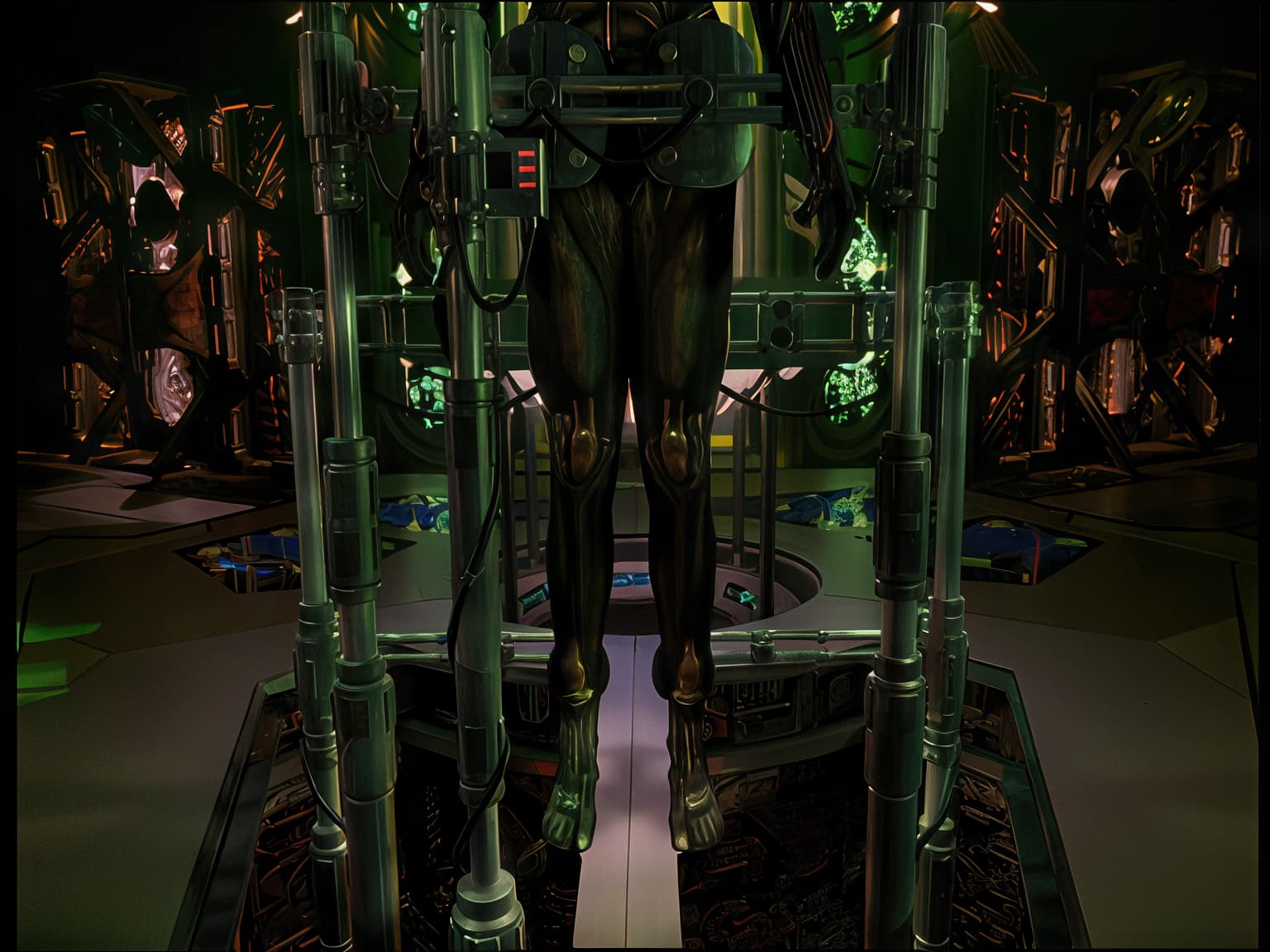
I just tested something. With Photo AI’s Redefine or Super Focus, I can greatly enhance images captured from certain scenes in the Star Trek Voyager series. Well, I’m not going to improve every episode with these programs. That would take far too long, and there’s still the problem of inconsistency between each generated image. But that’s just to say that if there were a similar model in super-optimized Video AI with excellent consistency between each image, the quality would be even better.
Here are a few examples of images enhanced by Gigapixel and Photo AI from a source I’ve already greatly improved with Video AI.

![vlcsnap-2025-01-04-10h23m42s140-gigapixel-redefine-1x|850x637
(upload://bHrjlBwr8Qg9zqHowrZbciRmCf6.jpeg)
![vlcsnap-2025-01-04-10h23m42s140-topaz-focus|850x637]
(upload://r0Apfo6Ioq88AjTLL0QSo53iNjz.jpeg)
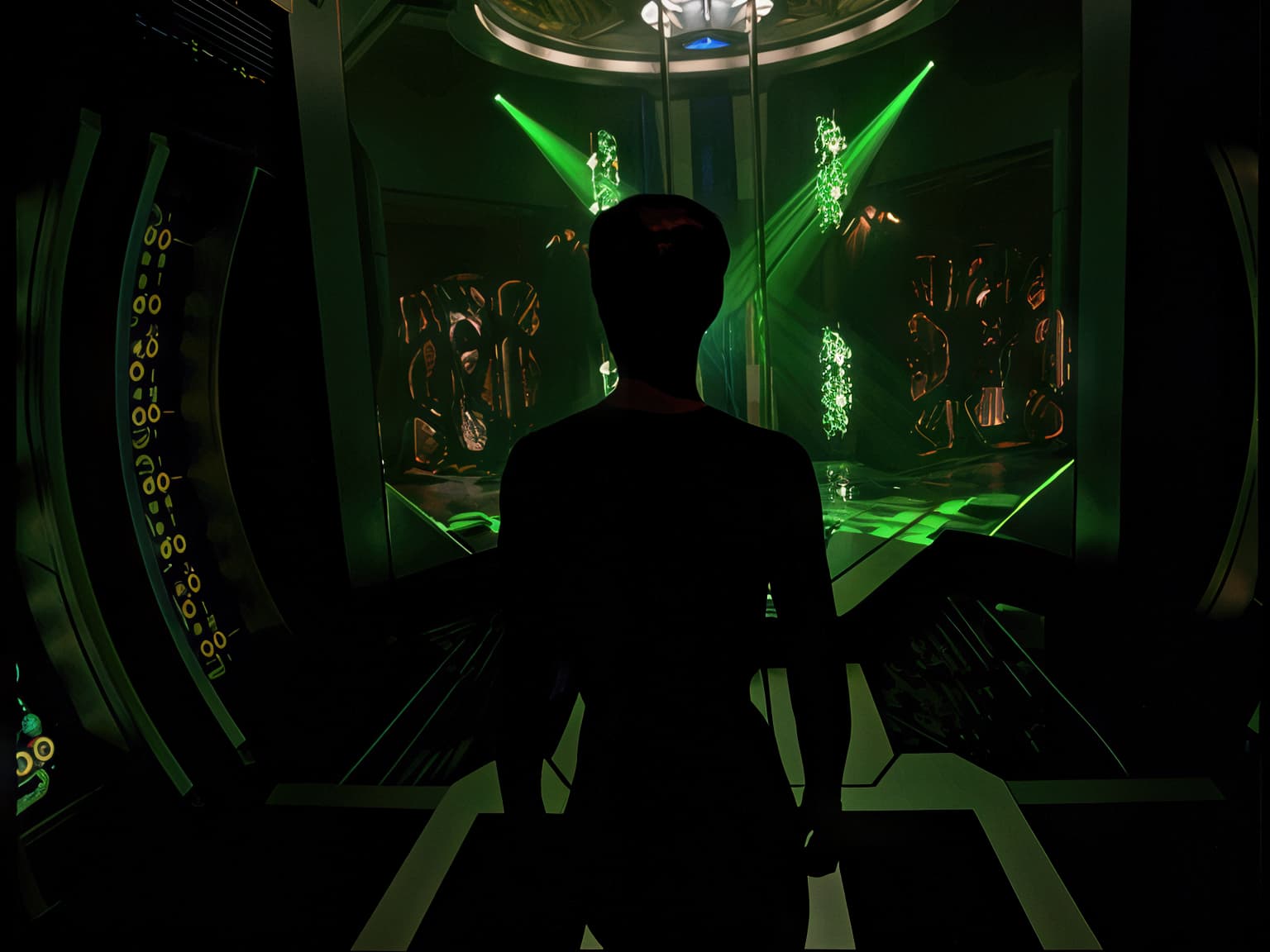
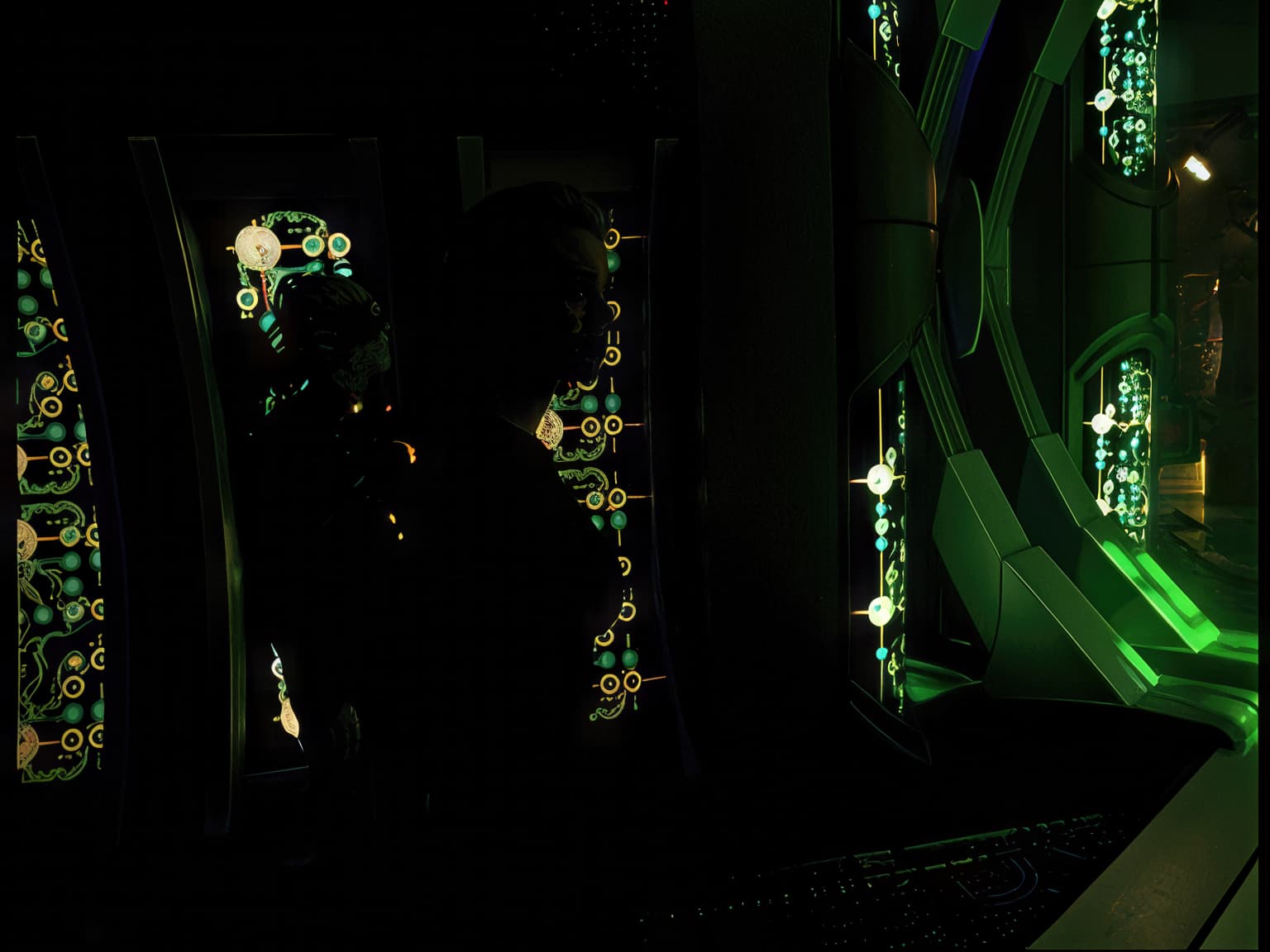
Here I’ve made a comparison between Gigapixel Redefine and Photo AI super Focus
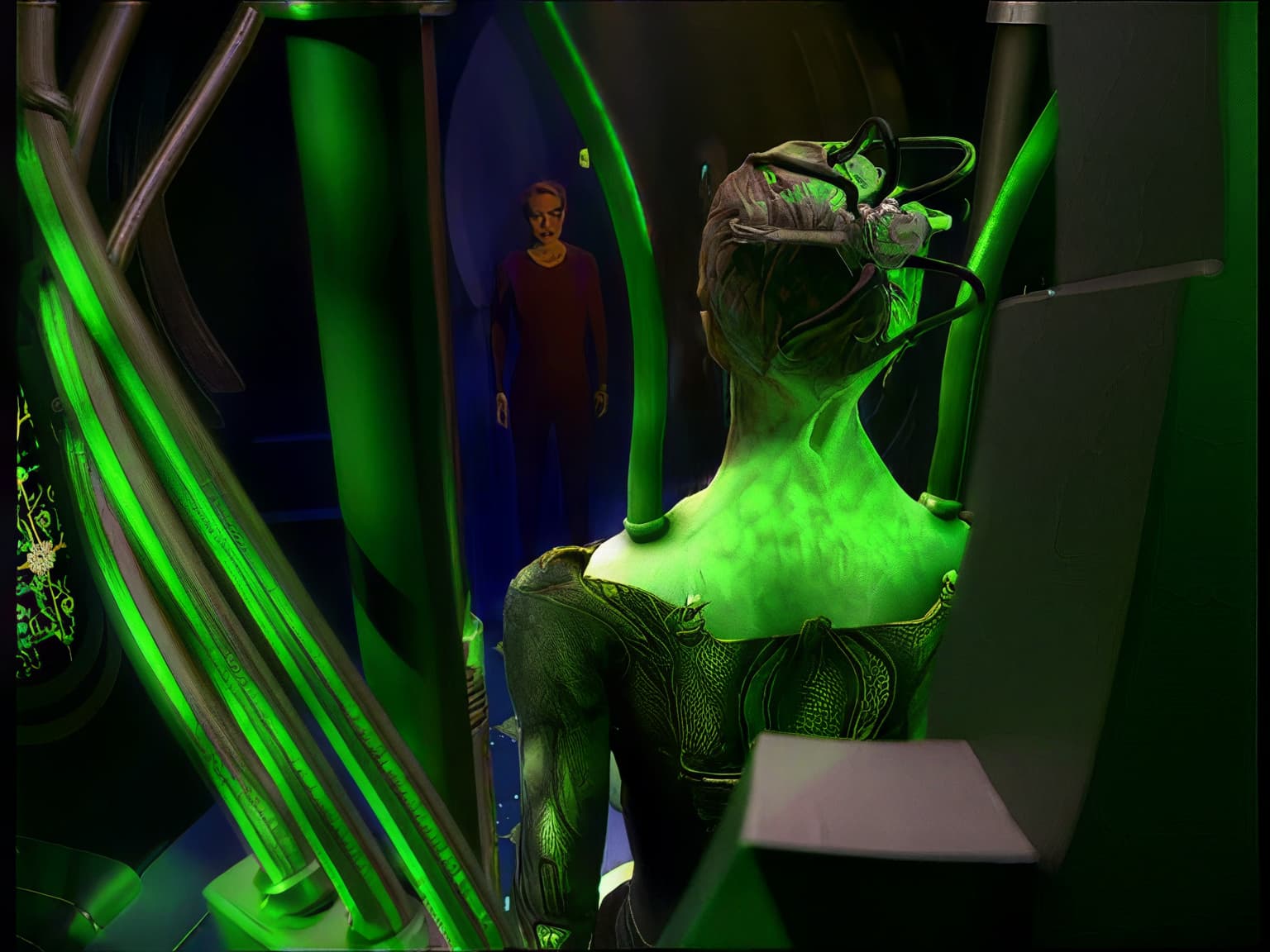
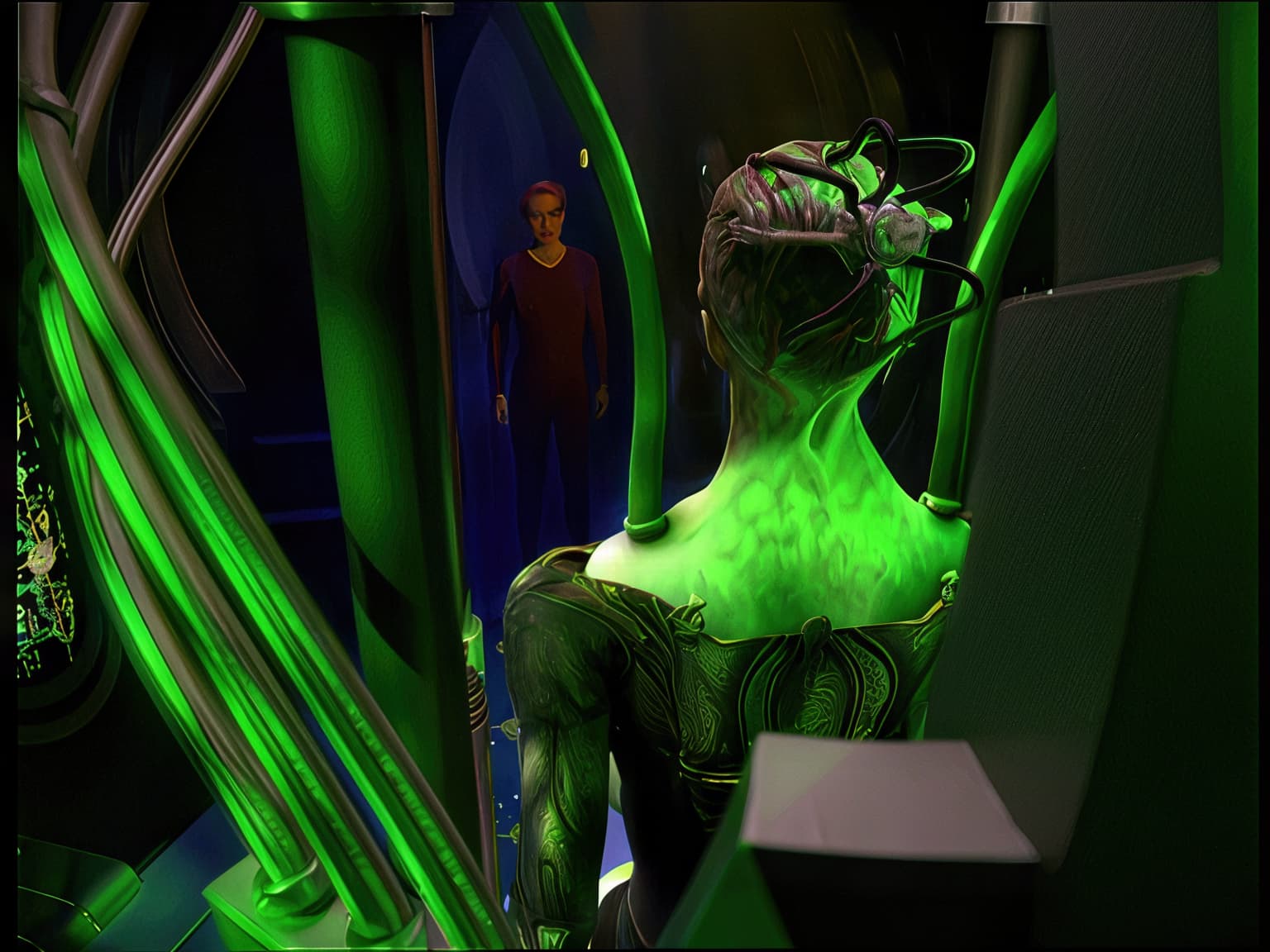
Another comparison between Gigapixel Redefine and Photo AI super Focus
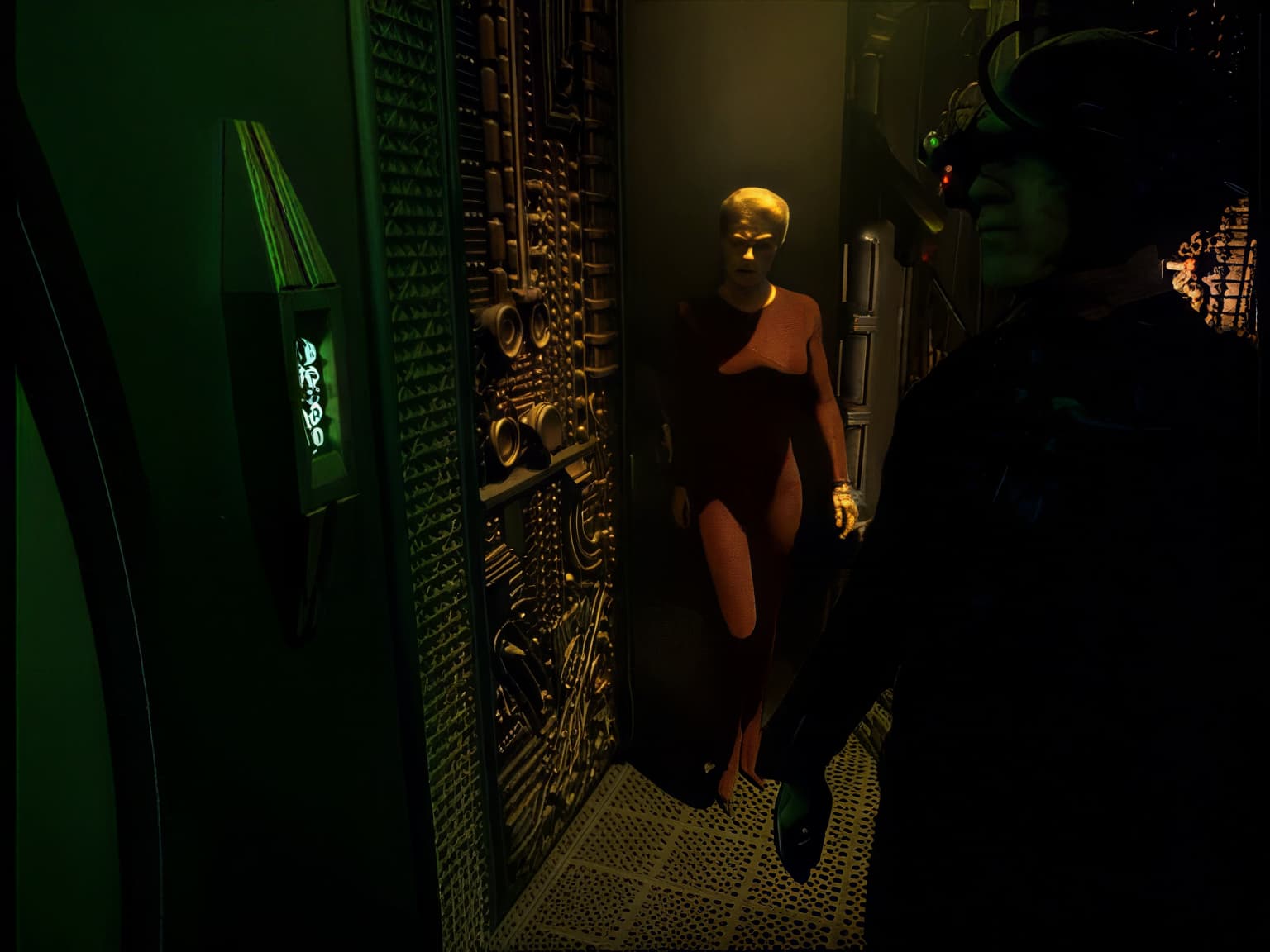
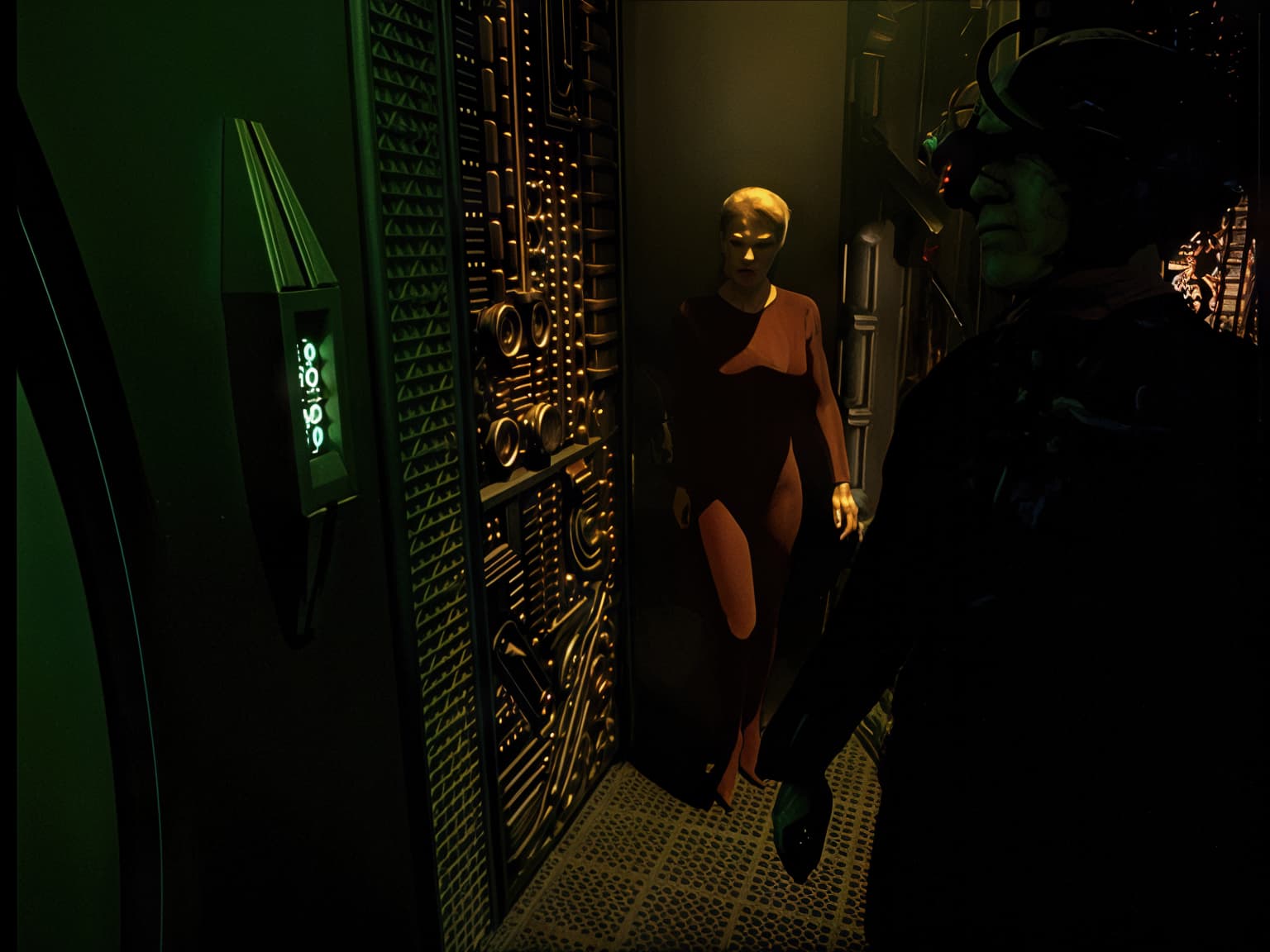
Even so, the 2 models modify some of the details of the source images. But this was just a test to see the output quality.
6 Likes
currently 5.3.6
2 Likes
Oh my god, please shut up. Can somebody stop this unqualified postings?
4 Likes
Topaz Video AI 6.0.2 is already available, what’s new and improved?
Where did you see a 6.0.2? The highest version in the version list of this forum is 6.0.1.
