Selecting a batch of photos in Lightroom Classic (latest version)
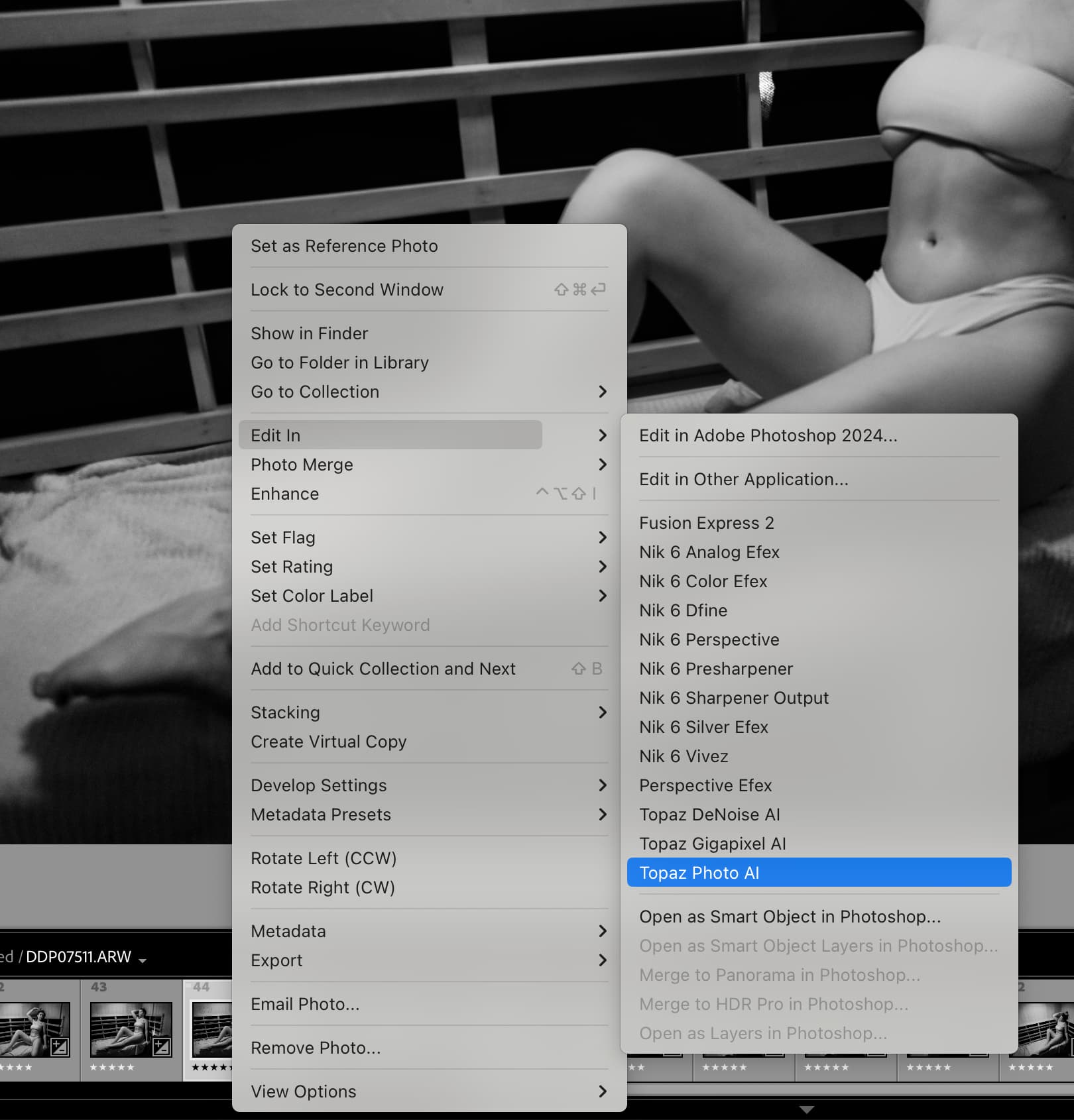
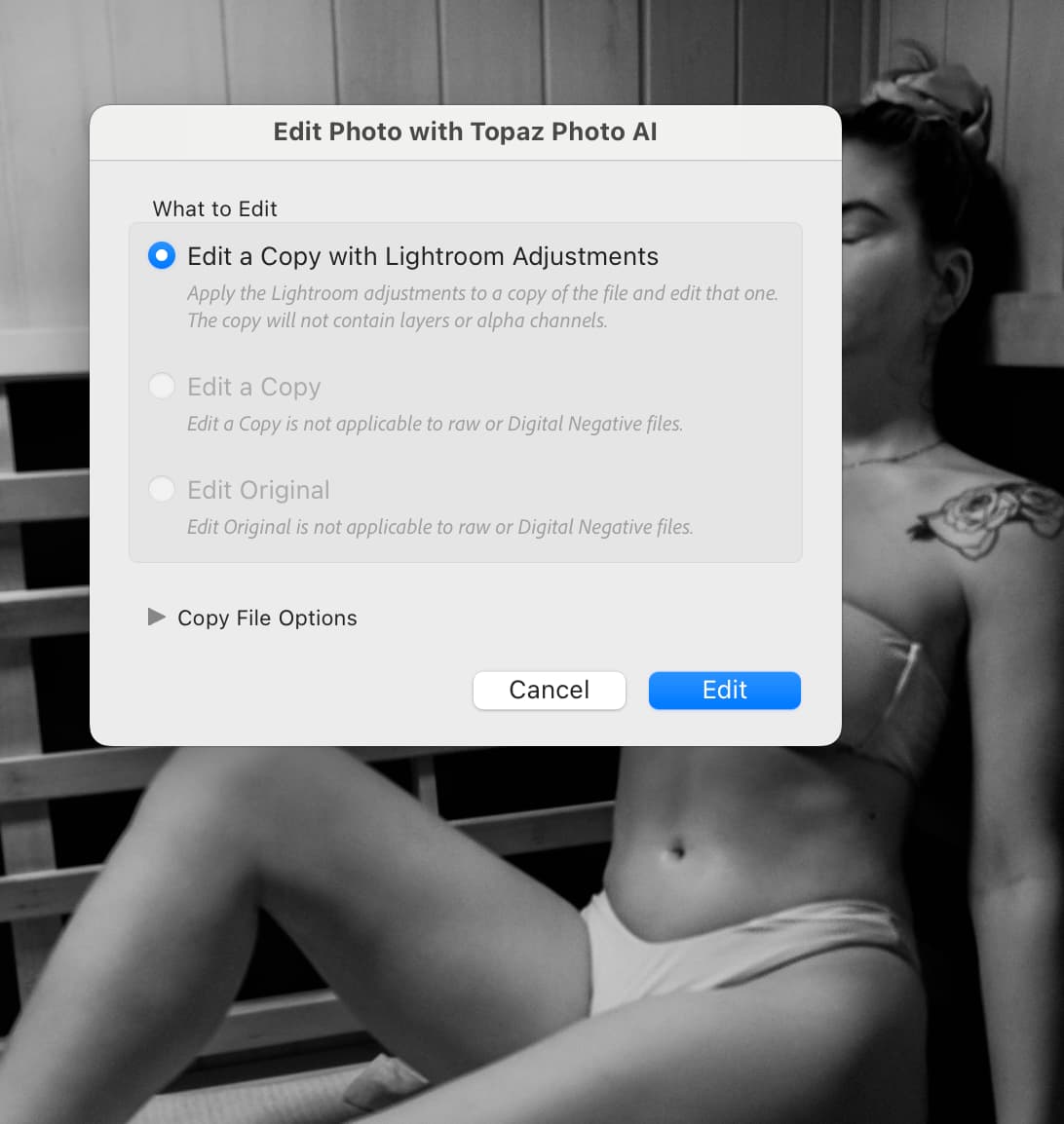
Then Edit In - Topaz Photo AI using Original photos …
In TPAI - When I select image height in pixels on my first photo in a batch of portrait and landscape images I then click the “Select” box and then the “Edit” “Apply settings to all images” and finally “Save to Lightroom”
Occasionally it does process all selected images at the same chosen pixel height but mostly after the last version 2.3.2 it usually screws up the scaling and seems to apply the chosen pixel height as a longest edge.
Am I missing some setting or do I have to process portrait and landscape aspect images separately?
What do you mean by “at your own risk”?
Could it damage the PC? Or could something stop working?
Because I know that Vidéo AI v4 required the AVX2 to be installed and work. But I have 4.1.2 installed and it works. So why can’t I update to the latest version of Photo Ai and Gigapixel?
Go figure.
Quite a bit of work for your team. Your responsiveness to feedback and support system is one of the reasons that I continue to use and subscribe to your program. Sincere thanks. Peter
5 Likes
Upscale is performed after all other filters in every version of Topaz Photo AI released thus far.
6 Likes
Upgraded from within the app, so far so good. Changing the buttons from “Done” to “Close” is a good clarification.
2 Likes
I wanted to emphasise that I have not checked the tip and am not a Windows expert. As with all tips from the Internet, you should proceed with a certain amount of caution. You write that another programme that requires AVX2 works. But this is a different command set extension. Perhaps there are Windows experts in this forum who can help. Best wishes and good luck!
I’ve noticed a problem which I don’t think has been picked up on yet and have posted 6 screenshots to show the problem.
I’m using a picture from the Topaz DeNoise AI purchase page as I think it shows the problem distinctly. The photo was taken by Brian Matiash and I complement him on his work and hope he doesn’t mind my using it. If it helps to the betterment of the software then alls good.
Picture 01 Original picture
Picture 02 Topaz selects REMOVE NOISE, AI Model NORMAL. Result is not very good.
Picture 03 I select STRONG with the same settings and there is little difference.
Picture 04 I select EXTREME and there is no difference
Picture 05 I select EXTREME and reduce the STRENGTH by 1% and look at the difference.
Picture 06 I go back and select NORMAL with no changes to previous and its the same as EXTREME.
If I then reduce the STRENGTH on NORMAL by -1% it reverts back to Picture 02.
I think there is a lag when you change AI model which is only over ridden when you alter the strength on the new model. The erotic results don’t inspire confidence though.
I hope this makes sense. Regards Bob.
By the by I still don’t like this interface and 2.4.1 is slow and it crashes a lot.
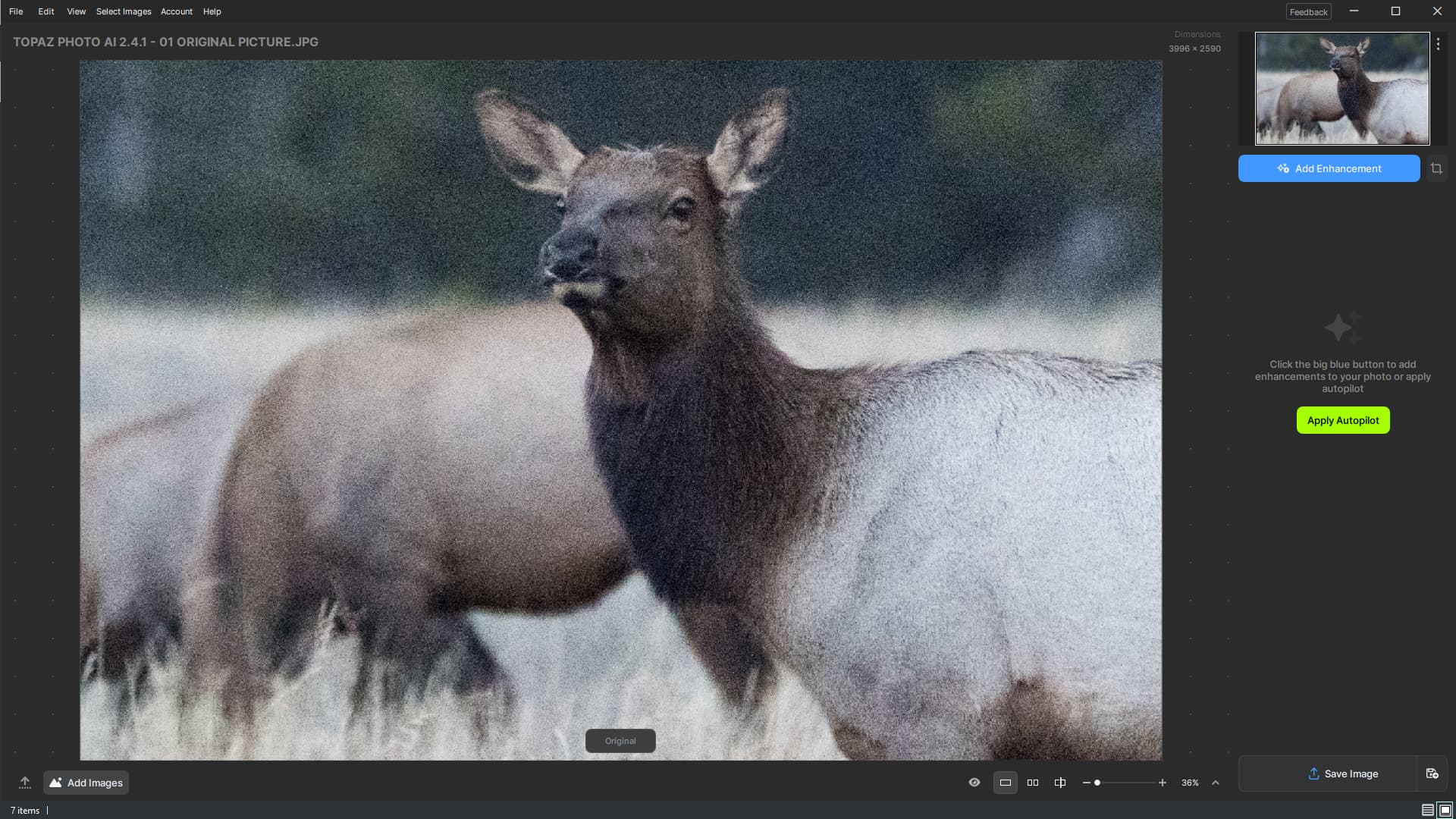

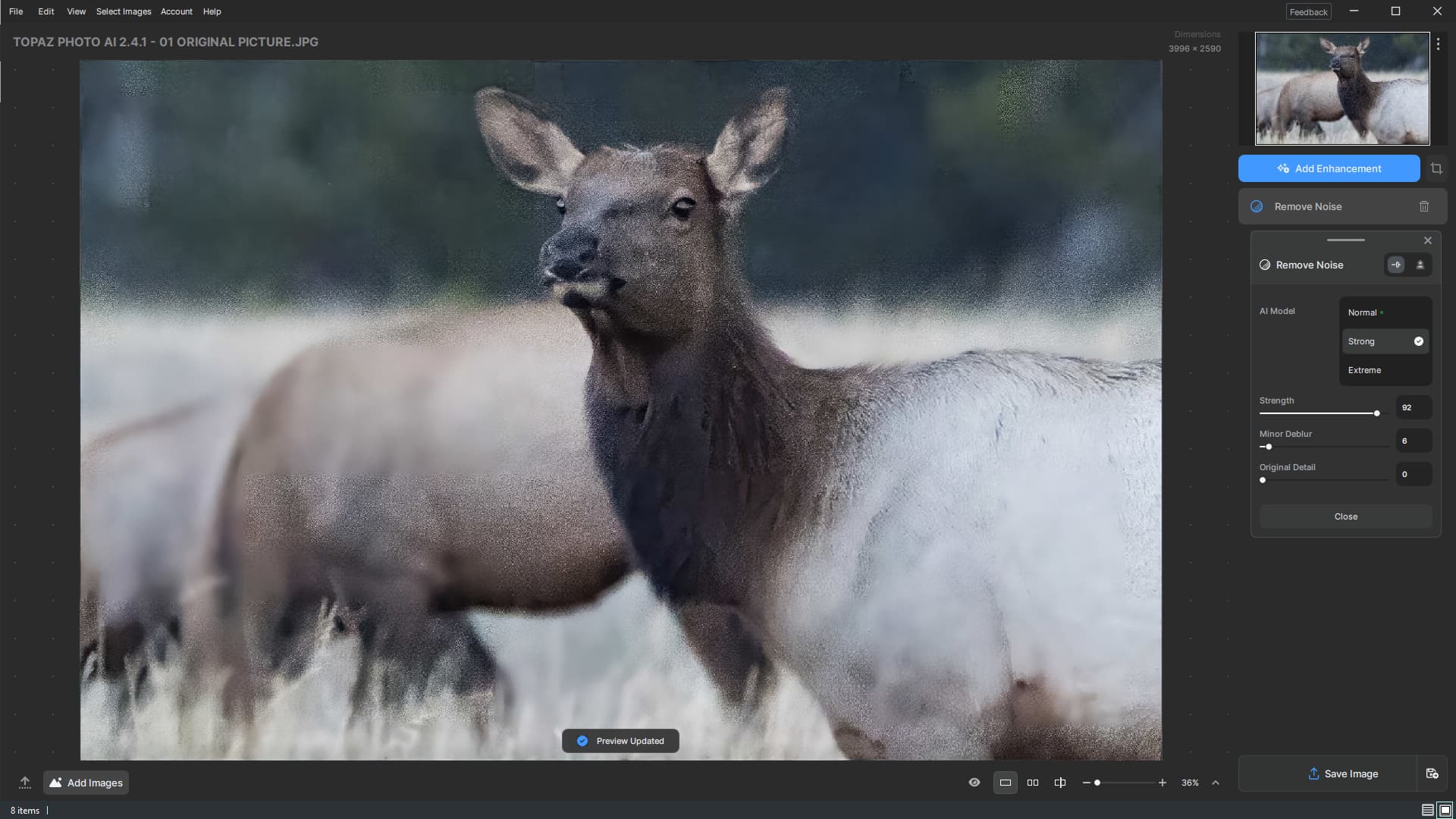

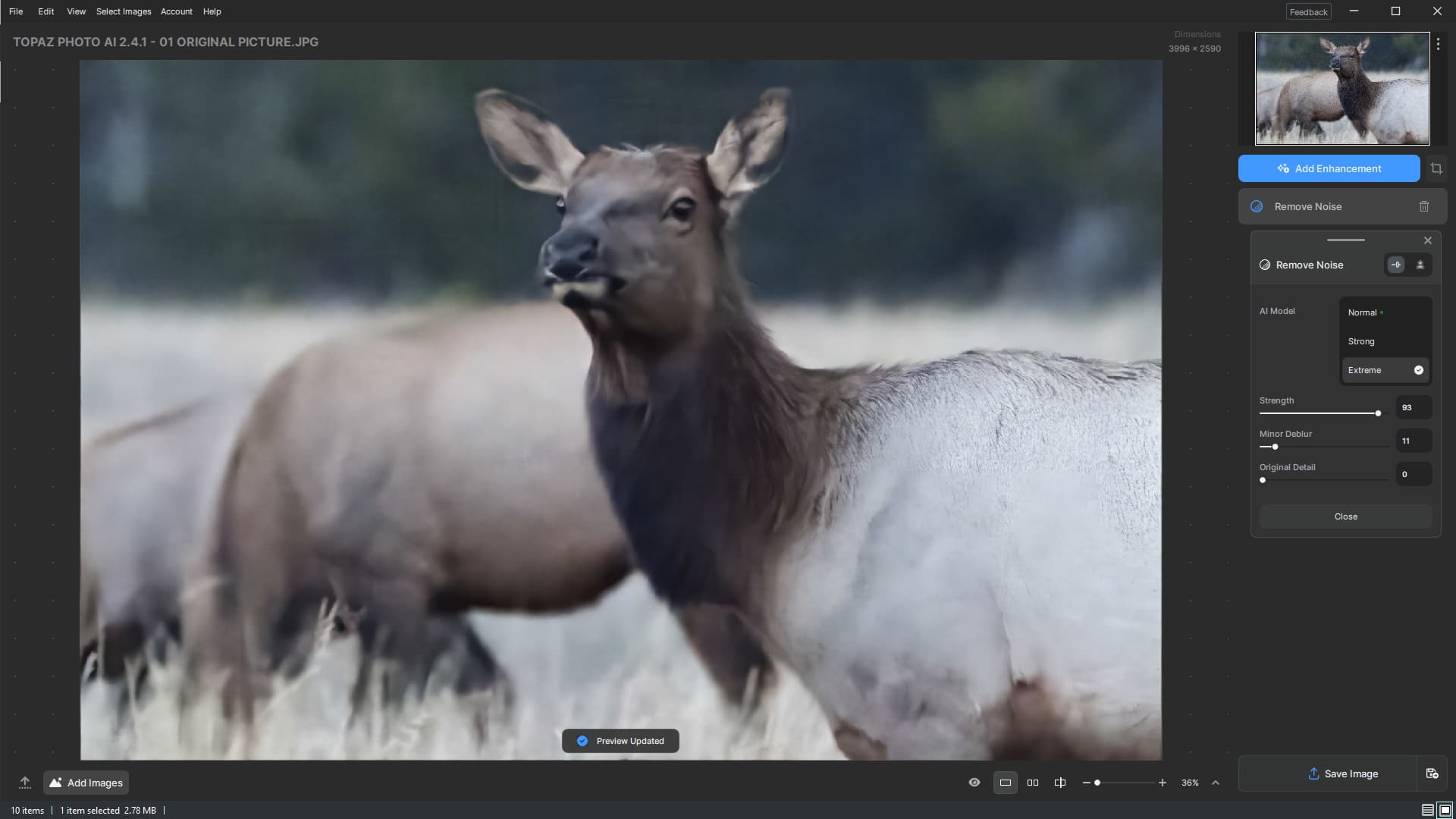
1 Like
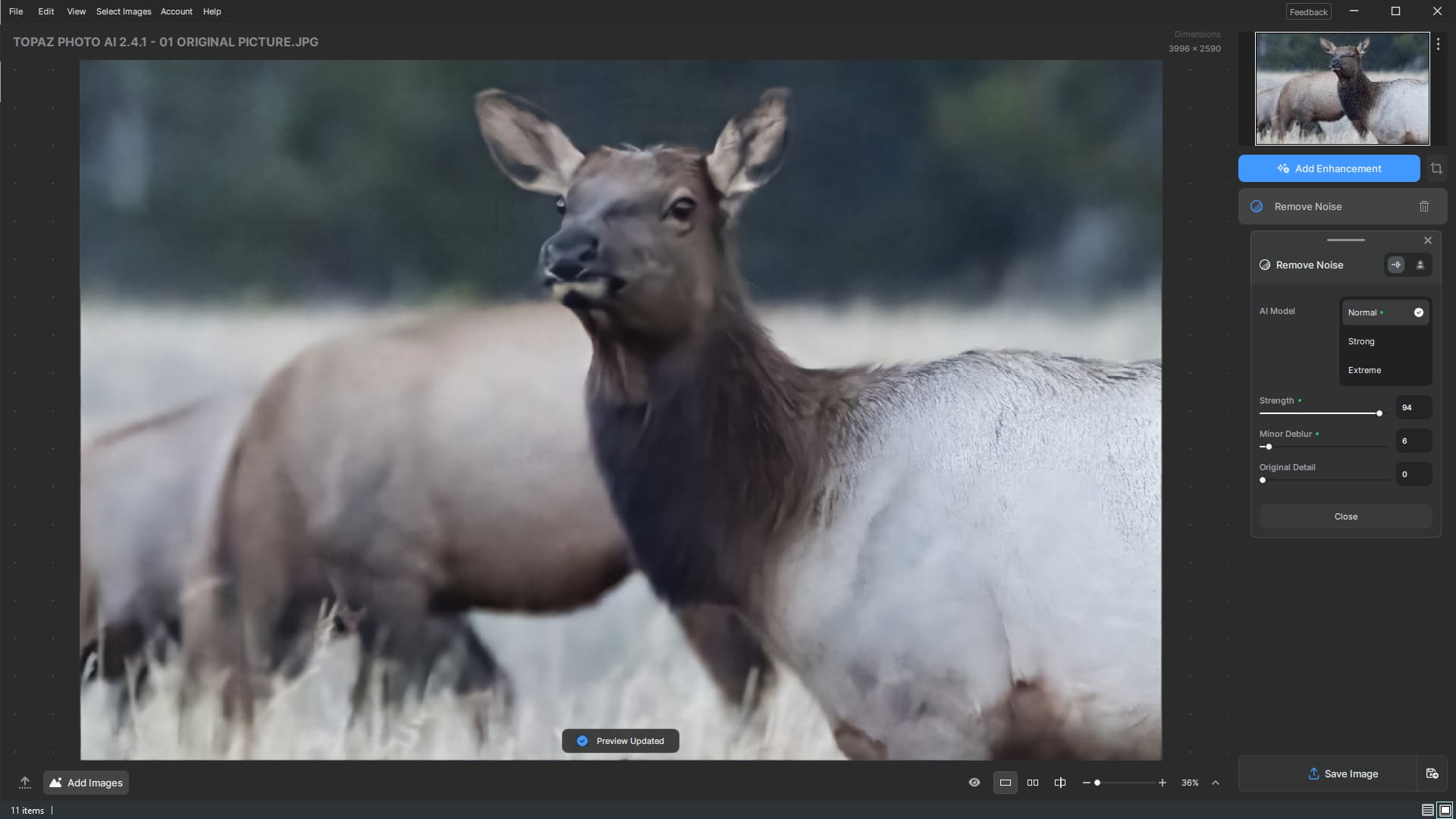
Note if you hover your mouse over the thumbnails of the pictures I’ve posted it displays the picture settings as I described in my description.
That’s great news! It was an odd sensation when it rippled or buckled.
I’ve been busy this week. But am hesitant to update given several factors… I’m still back at 2.3.2.
1- Not knowing the current state of the right settings panel, 2- ditto any processing status box still being overlaid on images (in 2.4.0 it was centered over the bottom of my images, which makes that interface design unusable for me & my workflow) & 3- I’ve seen posts with snips here in rel. 2.4.1 discussions showing devastation to originally readable text (so not only did Text Preserve not work for them, but there wasn’t any improvement/recovery either like I’d come to expect); I use that Text function fairly regularly to compensate for the effects the other tools can impose on my text elements.
These are things I’d explore/test in a beta release. But I can’t afford to keep going back & forth (installs in recent commercial versions have run for around an hour) just to test. I need a reliable version for my actual projects vs testing (I only have 1 PC & 1 monitor).
3 Likes
Why does “Upscale” take forever to finish when applying the enhancement and when saving the file?
I wouldn’t want to “upscale” a noisy out of focus image.
I’ve noticed something in TPAI v2.4 - did the generative part get a cut in options accessibility?
It’s impossible to select the ‘reach’ of the mask, or the way the tool processes (with clearing the masked image or leaving the image underneath intact) anymore. I was usually putting one-pixel masks outside the filling point, to have the AI more information about the surroundings.
Also, the ‘Undo’ button clears the last drawn mask as well, which is REALLY annoying - I’d just like to retry the fill, until I find the result I like, but I don’t want to redraw the mask again and again… 
Could you also put the ‘speedy’ zoom-in with a mouse roll back? It was so convenient to quickly do that.

2 Likes
Interesting, some people seem to indicate up-scaling was always last in PAI.
Pls. See post #44 above from Anthony. That’s what he says there.
2 Likes
I’m just interested in your experience on this. Not contesting your comment …
Do you see differences in quality if you denoise & sharpen 1st then upscale the cleaned/improved image?
Does the upscale in some way alter what you processed vs just making it larger? If yes, what are you seeing change?
Or, do you just like working on a larger image to do your processing?
If the upscaling carries your processing (denoising, sharpening & whatever other funcs. you might use in PAI) to a larger version does it still matter if the upscaling (or downscaling) is last in the processing?
Still the time-consuming user interface  I’m sticking with version 2.3.2!
5 Likes
After the most recent update, I keep getting the same error message. I have had this issue before but when I import a file from LR to Topaz AI then save it back to LR it tells me the file is corrupted or damaged.
I have uninstalled and reinstalled the program now 3 times. From my main page/log in. From the link here. I am editing on a new macbook pro m3 ultra and this is a problem I have had now twice in the last 3 months. Downloaded version is the v2.4.1 for mac from this thread.
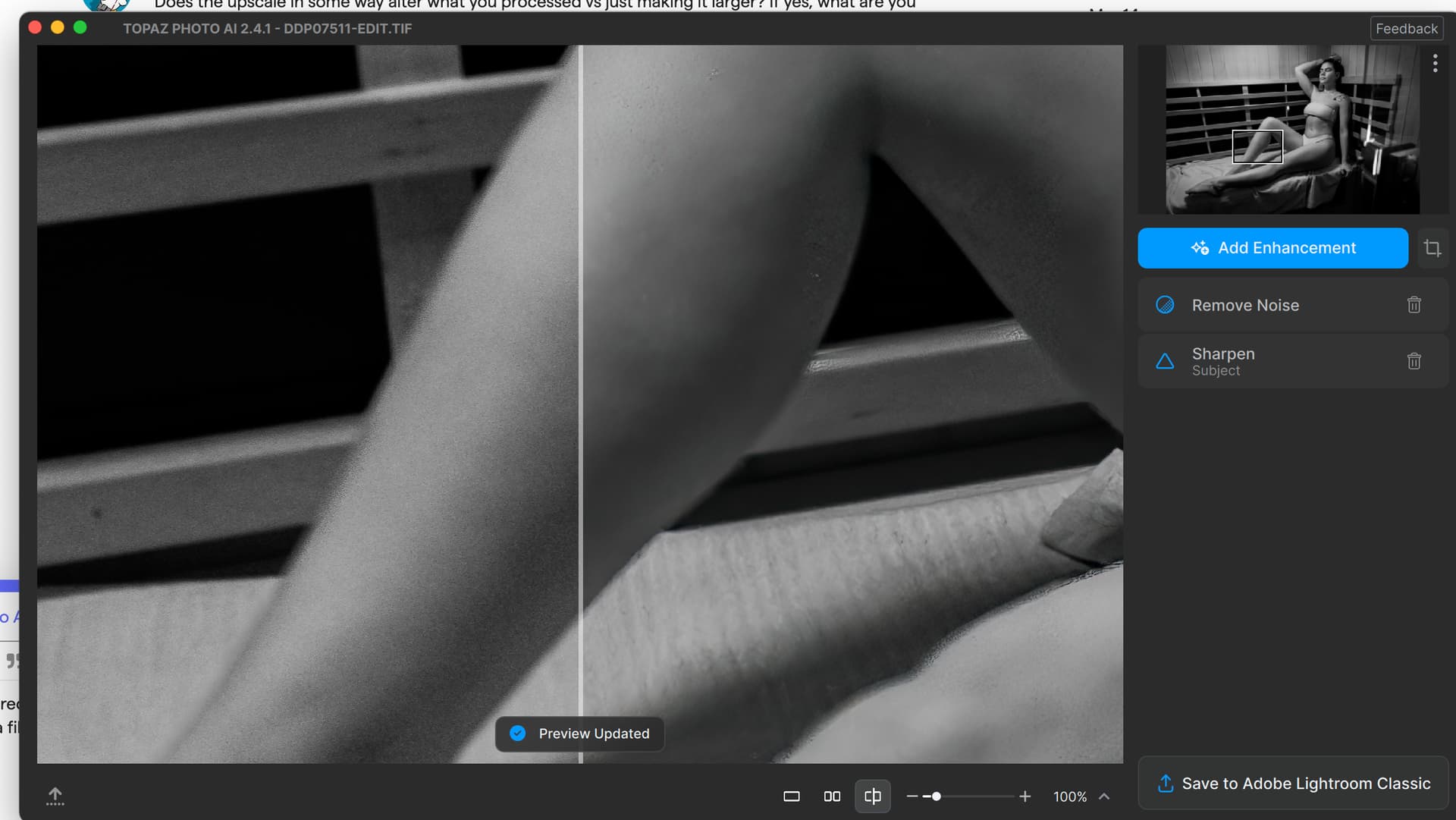

from post #44 Anthony, a Topaz software engineer, said, “Upscale is performed after all other filters in every version of Topaz Photo AI released thus far.”
My perspective on the ordering of enhancements is that crop should always be first to minimize the amount of data to be processed. (* see comment below)
Then Denoise should be used to clean up the image.
Then Upscaling should happen to improve the precision of the remaining enhancements. (* this is the heart of the current debate about sequencing control)
Then Remove to avoid further enhancing something that is going away anyway.
Then Face enhancement can happen with the now larger faces to improve the blend into the overall image.
Then Text enhancement after upscaling will have a better starting point for more accurate font matching.
Then finally Sharpening of the overall result.
Lighting and Color can really be applied anytime throughout the process, but I would probably wait until the end to see what’s really needed for the finished product.
(* I suspect their strategy behind always doing the upscale last is that it significantly reduces the time, memory, and processing power required to execute all the other enhancements.)
p.s. This is essentially the workflow sequence I employed with the individual AI products in combination with Photoshop prior to the advent of PAI.
2 Likes
