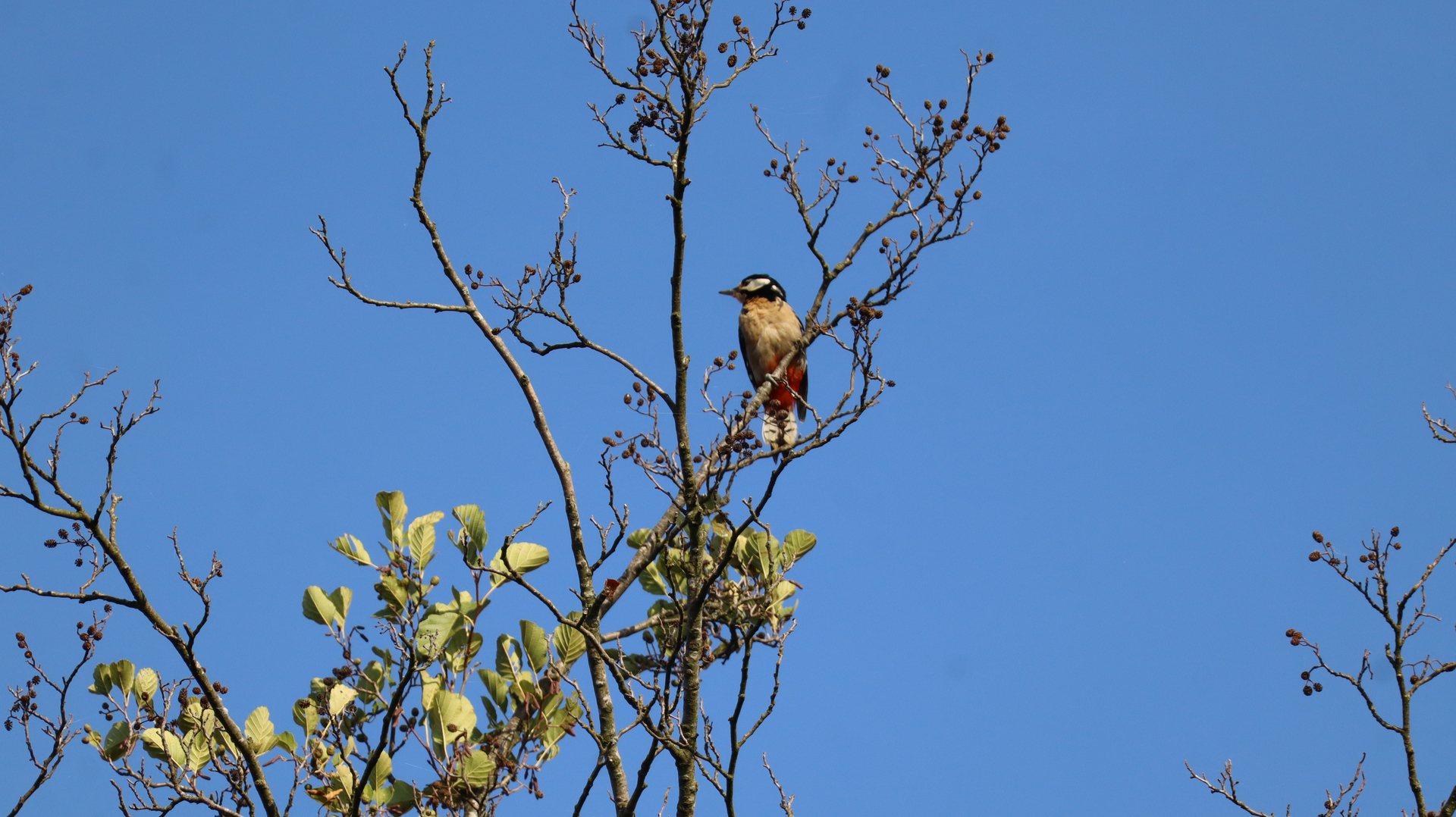
Nice, natural, feather details on the bird. Very nice colors!
Only thing I’d (personally) do differently is give him a bit more sky headroom - it feels tight to me like he should be ducking (even though he’s a bird, not duck…) his head a bit now. And, I’d explore adding a bit more space to his right (the direction he’s looking) - not lots, but his head and beak are pulling viewer attention that way and I’d be curious to see if allowing a bit more blue (for weight to counter-balance) would help a bit… I like the bits on the right frame (some folks might find as distractions, I suppose) because the shape directs attention back in toward the bird. It’s mostly the tightness (top and left frame) around the head that I’m feeling a touch claustrophobic about.
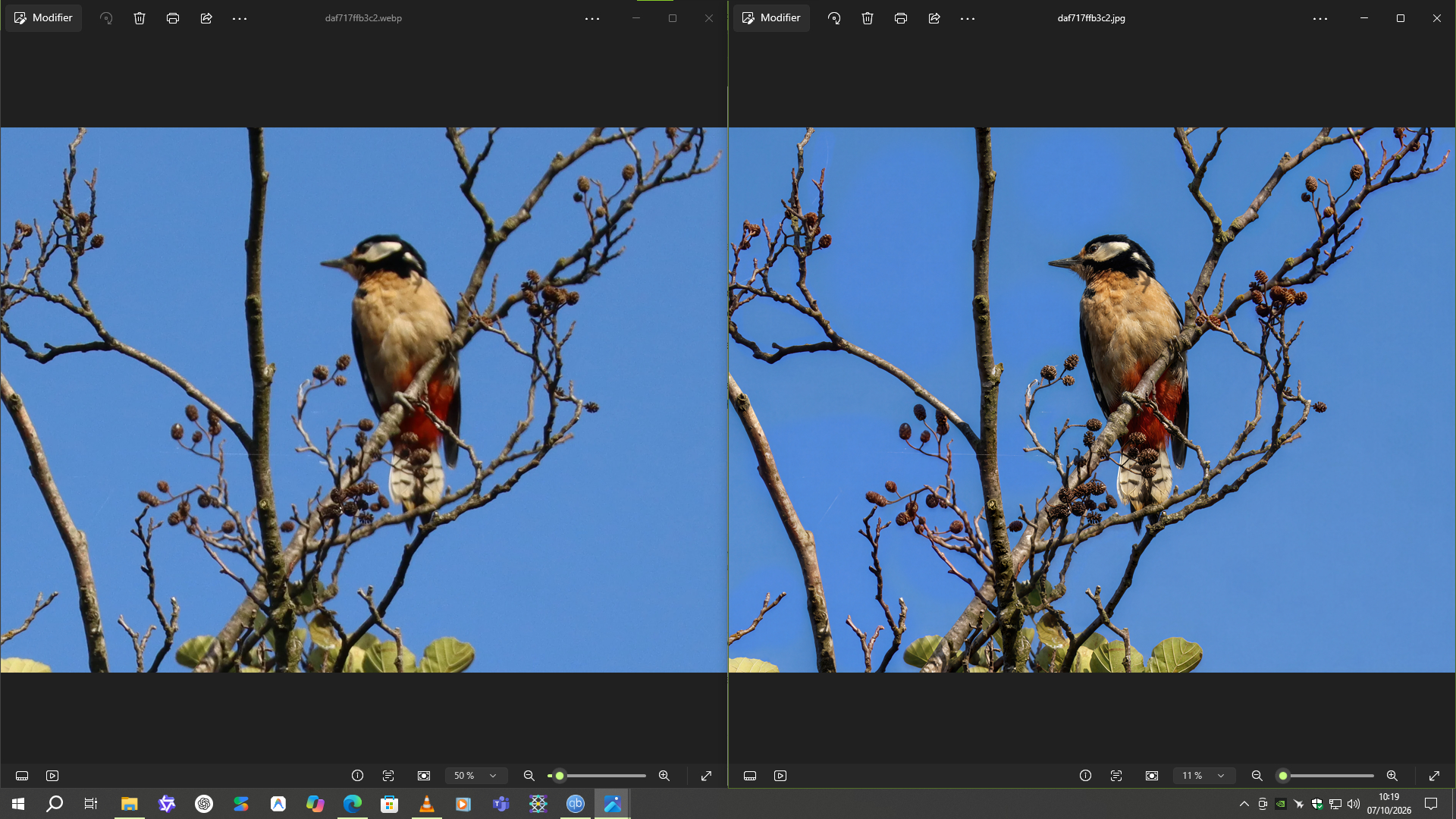
Actually, the image shown a bit further up is just a copy with a deliberate tight crop that allowed me to achieve a significant AI-driven improvement. It isn’t the final photo. You can find the final, enhanced version of the @unrelent photo via the link in my image comparison tool.
I’ve adopted a new enhancement technique: if the quality of a subject at a certain distance isn’t optimal, rather than enhancing the entire photo, it’s better to make a copy with a very tight crop on the main subject so that the AI can optimize the result more effectively. Then, we overlay this enhanced result onto the source photo, which has already been enhanced and enlarged to increase its resolution.
Personally, I would do it in Photoshop. But if you don’t have Photoshop, you can use Affinity Photo or GIMP, which are free and open-source.
Place the final version over your original. If the original isn’t at the resolution you want, you can upscale it first using Wonder 3.5 and add a touch of sharpness with Topaz Photo. Then, add the enhanced final render (specifically the one I reworked) on top. You can fine-tune the alignment by adjusting the opacity, then bring the opacity back to 100%. If the colors don’t match perfectly, you can use “Brightness/Contrast” or “Levels” adjustment layers—combined with a “Saturation” layer set to affect only the layer below rather than the entire composition (using a clipping mask). Finally, on the adjusted render layer, create a mask and use a brush to paint black along the edges to create a soft, feathered border.
Also, don’t forget that when you post a photo on this forum, the image is compressed and resized to 1920 px on the longest edge. So, you lose quite a bit of quality if your original photo was much larger.
So what seems to work the best with the Ps gen AI is not just a “tight crop” per se but putting a selection Square around the area where gen filling.
Specifically, the square shape helps keep the gen AI from distorting or moving the objects in the scene. I typically use the Rectangular Marquee tool coupled with the Shift key to create that square selection.
It’s sort of a pain to have to keep doing that for different parts of an image. But at least it does produce less distortions and position “hops” (knock on wood…). I’ve also found I need to tell it explicitly not to change any Type or Text in the scene too (not relevant for this kind of image) or else it feels like it has free rein to look elsewhere and turn English language text to what looks like Russian.
Yeah, you have to be very precise with the prompts. And yes, in Photoshop, it’s better to create a square or rectangular shape with the right aspect ratio; otherwise, it slightly distorts the area you want to enhance.
For my part, I significantly improved the bird in the tight crop using the web version of Gemini, since the cropped resolution was lower than the final rendering resolution from Nano-Banana anyway.
Good to know! I (knock on wood) usually have good luck with Nano Banana. But, you’re so right about prompts. I have to be careful about wording. I think I’ve spelled out what I want until I see some results & laugh because it produced literally what I’d stated but was no where near what I’d expected or hoped for.
You can also upload your image to Google Gemini and ask it to generate a descriptive technical prompt to improve it. Then, using the resulting prompt, you can tweak or modify details if necessary . I’m playing around with that too. And I find it pretty powerful.
My experience: For now, prompts need to be unambiguous and—how should I put it—well, not overly complex. They shouldn’t be poetic; think of a colonel barking a direct order at a private to polish the floor (short, sharp sentences). That gives you at least a (slim) chance of success.
I sometimes use imageprompt.org (it’s free for up to five prompts a day). You can get various textual prompts for the same subject there. It’s often a good idea to condense or tweak them, though it depends on the generative AI you’re using—for instance, regarding character limits (which are often around 3,000 or so). Sometimes, even the order of the colonel’s orders matters.
By the way @unrelent Here is a link to the final photo I finished the other day. It’s just compressed as a JPEG. You can always add it to your uncropped photo.
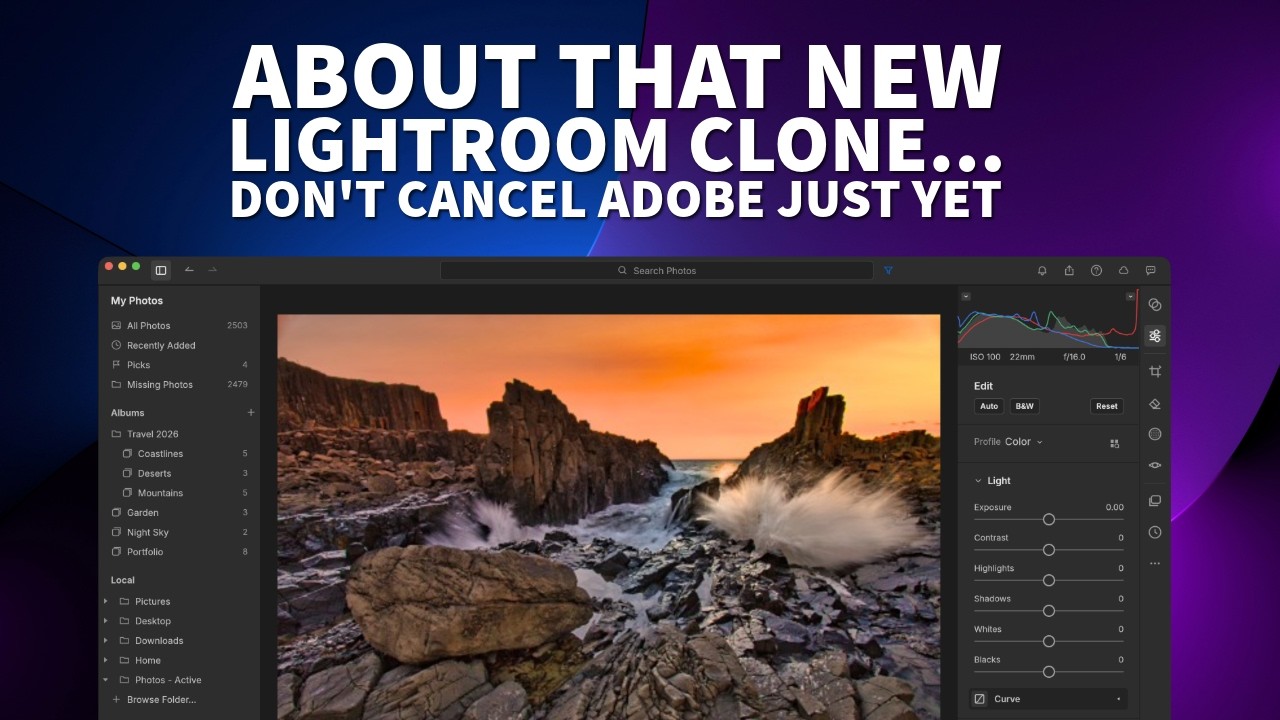
That said, I’m not going to leave Adobe. ArtCraft’s software here is in alpha, so there are still plenty of bugs. But the point is that for those who don’t use Adobe, this is an alternative .
And, Photopea is a Photoshop alternative (from a different maker) … but like LightCraft not a ‘clone’ of its imitated product. Yet, highly functional for the price differential. Really depends on the type of work one does and features one needs.
By the way, as a non-expert in graphics, I have a question: Is there a brush-like tool somewhere that would let me manually select an irregularly shaped area in a photo and enhance it—and only it—by sharpening it? (Text prompts describing what I want where are inefficient and unreliable.)
If Photoshop, you can use the Object Selection tool either as a Lasso (to draw just outside the object and Ps will create the selection that clings to the object) or a Rectangle (draw the box outside the boundaries of your desired object and it will, again, know to cling to the main object inside the selection tool).
I’d recommend always zooming in to see how accurate the auto selection is. If it’s off in places, adjustments can be made to the ‘marching ants’ selection (in or out from the edges of the object) to push it to where it’s accurate. Ps learns as you move the selection edges around where it really should be.
Once that selection is active (in Ps it’s the marching ants) then that’s like an electric fence of sorts. Any function you perform (like sharpening) will only happen inside the selection area. It’s the same as masking in TL products.
 .
.

 . I’m playing around with that too. And I find it pretty powerful.