Hi.
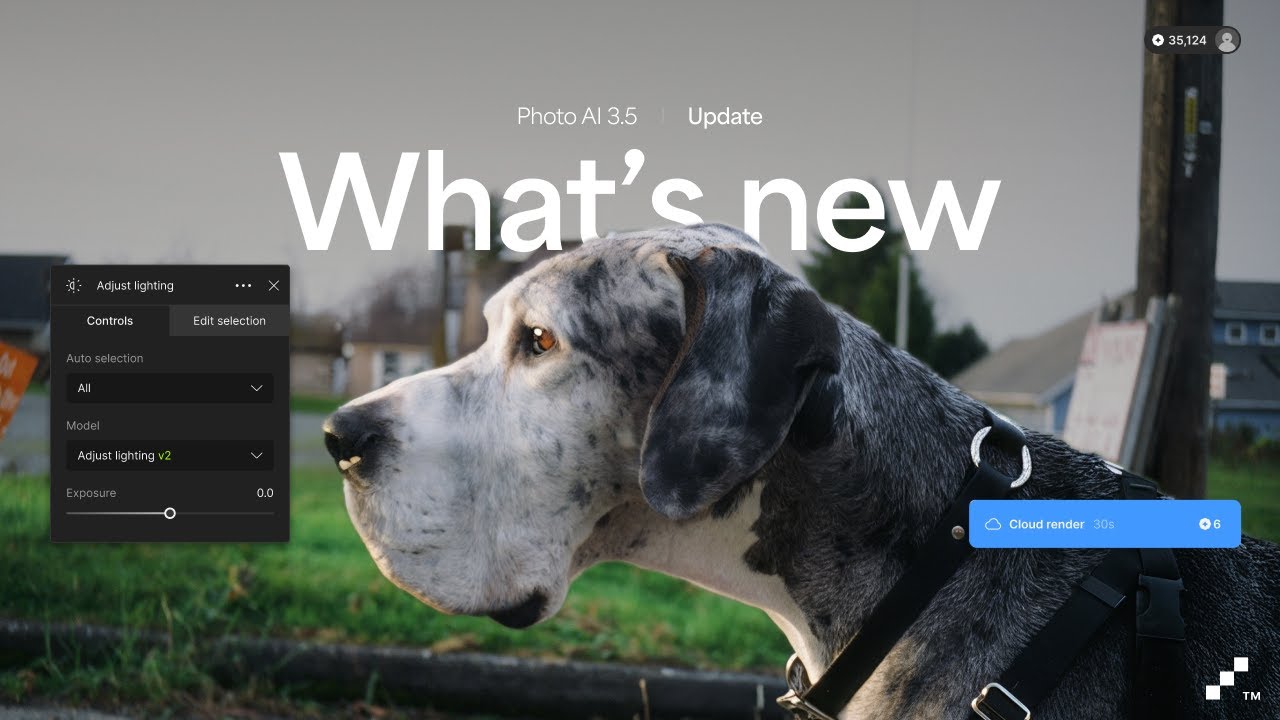
The good news, all is not lost, once you have closed the What’s New window it’s not quite gone, you can bring it back so, you don’t have to keep closing Photo AI and reopen it to bring it back
Photo AI - Standalone application
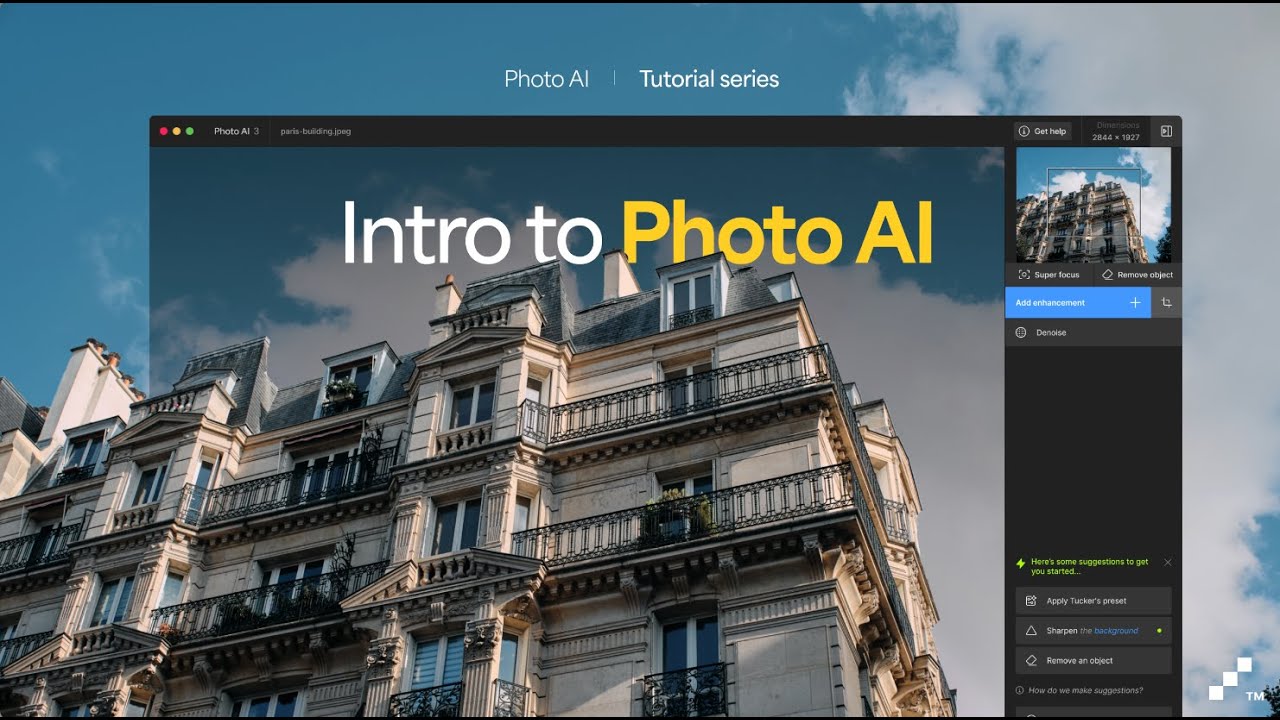
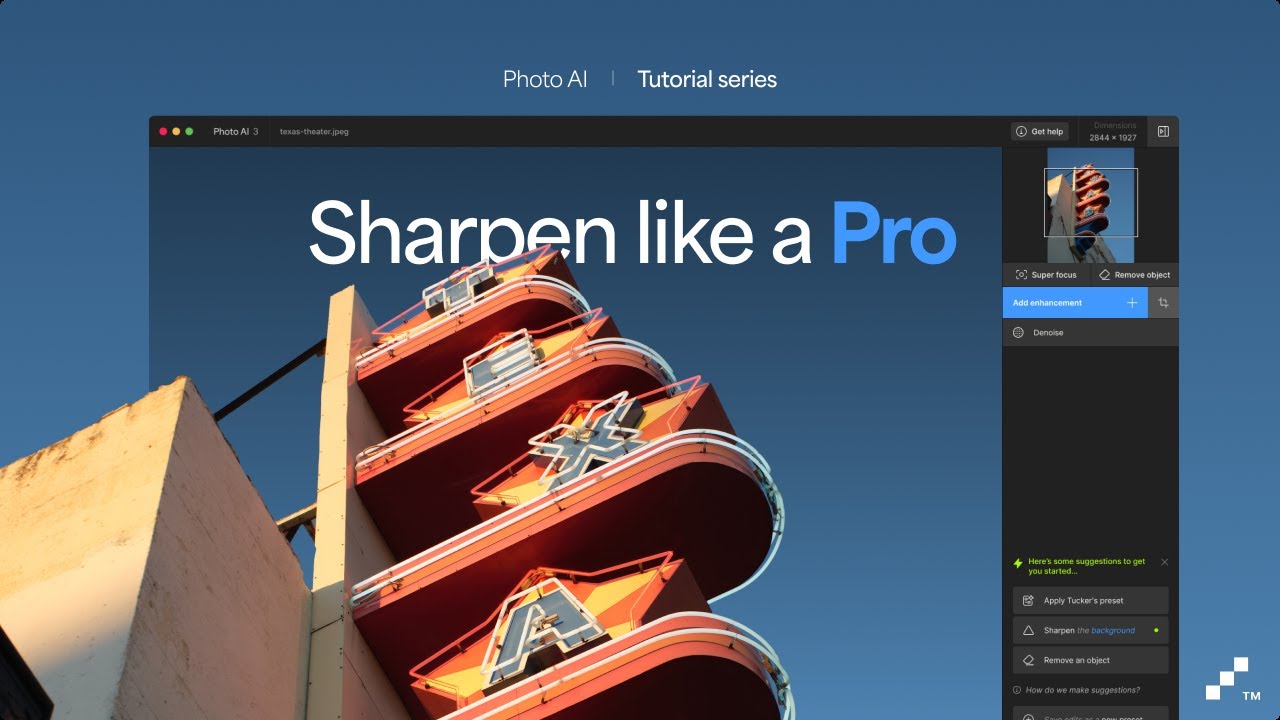
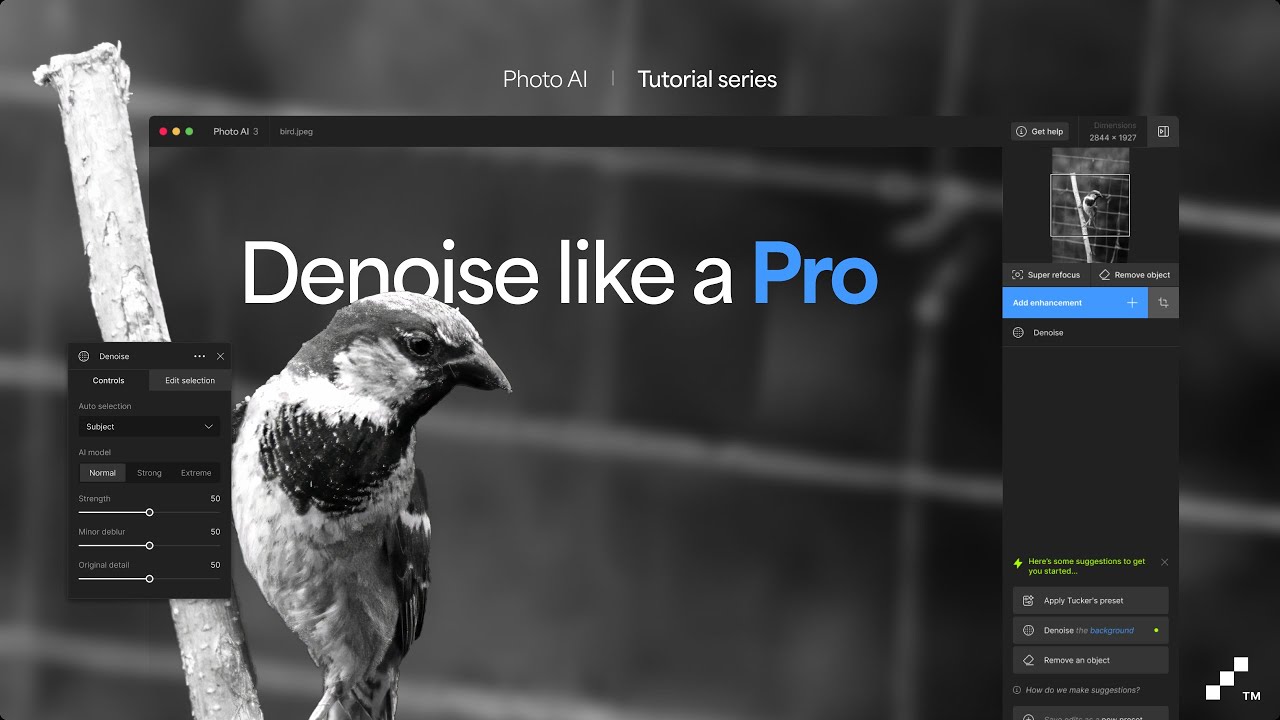
Once you’ve opened Photo AI and closed the What’s New window, to reopen it simply, goto the Sidebar Control / Settings panel, to the right of the Preview Image window you’ll see the words Get Started below the Resent images panel.
Below Get Started you’ll see two options links View Tutorials and Feature Documentation click on View Tutorials to bring back the What’s New window
The Feature Documentation link opens information about the Environments here’s the link for you
photo AI - Plugin Version
Unfortunately the What’s New window isn’t available when using Photo AI as a plugin however, you can and this is true for the Standalone version aswell if, you goto the top of the control panel above Resent you’ll see the Get Help button

Clicking on this button opens a list of three items View Tutorials, Learn about Features and Contact Support.
-
View Tutorials takes you to the Topaz YouTube channel here’s the link
https://youtube.com/@topazlabs?si=FKHash6qCASUOBGP -
Learn about Features takes you to the Enhancements Documentation page here’s the link
Enhancements | Topaz Photo AI -
Contact Support, allow you to open a support ticket.
Hope this helps, below I’ve included all the links from the What’s New window for you to explore and enjoy be sure to bookmark these for future reference
YouTube
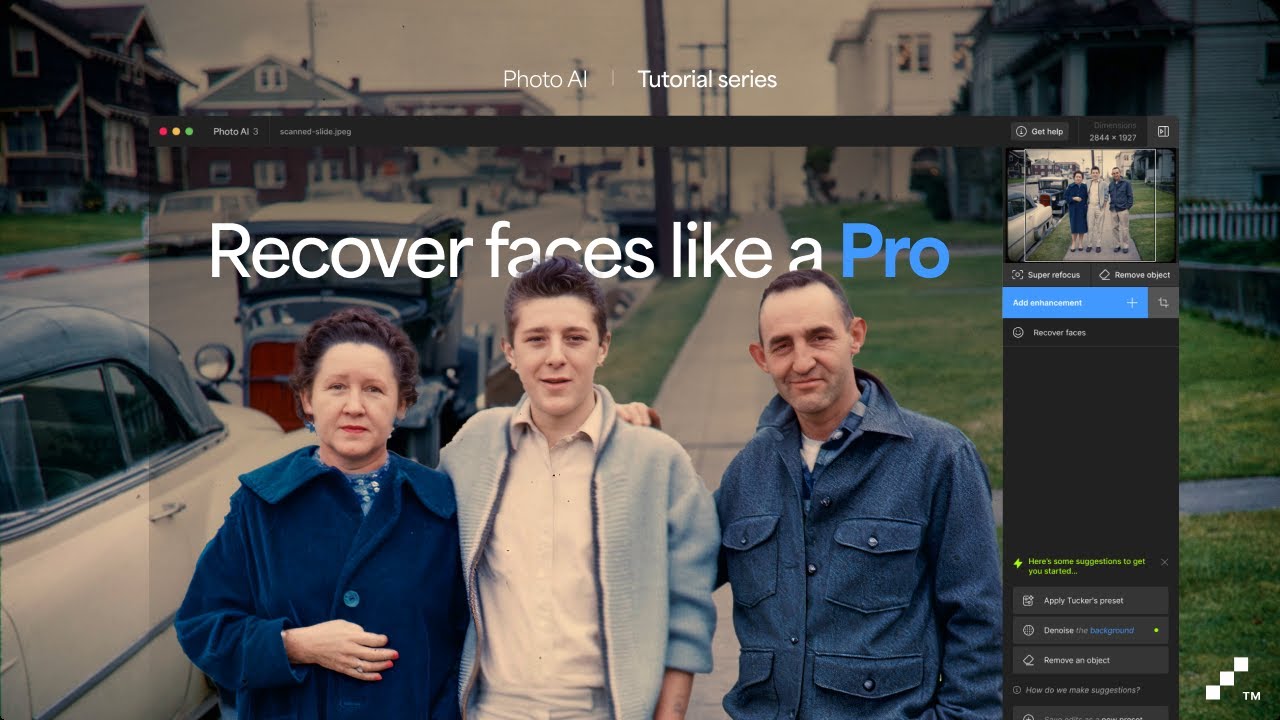
Topaz Documentation
And my personal favourite
This will provide you with all the information you need to get started with this incredible application
If there’s anything else I can help with please don’t hesitate to ask
Andy
