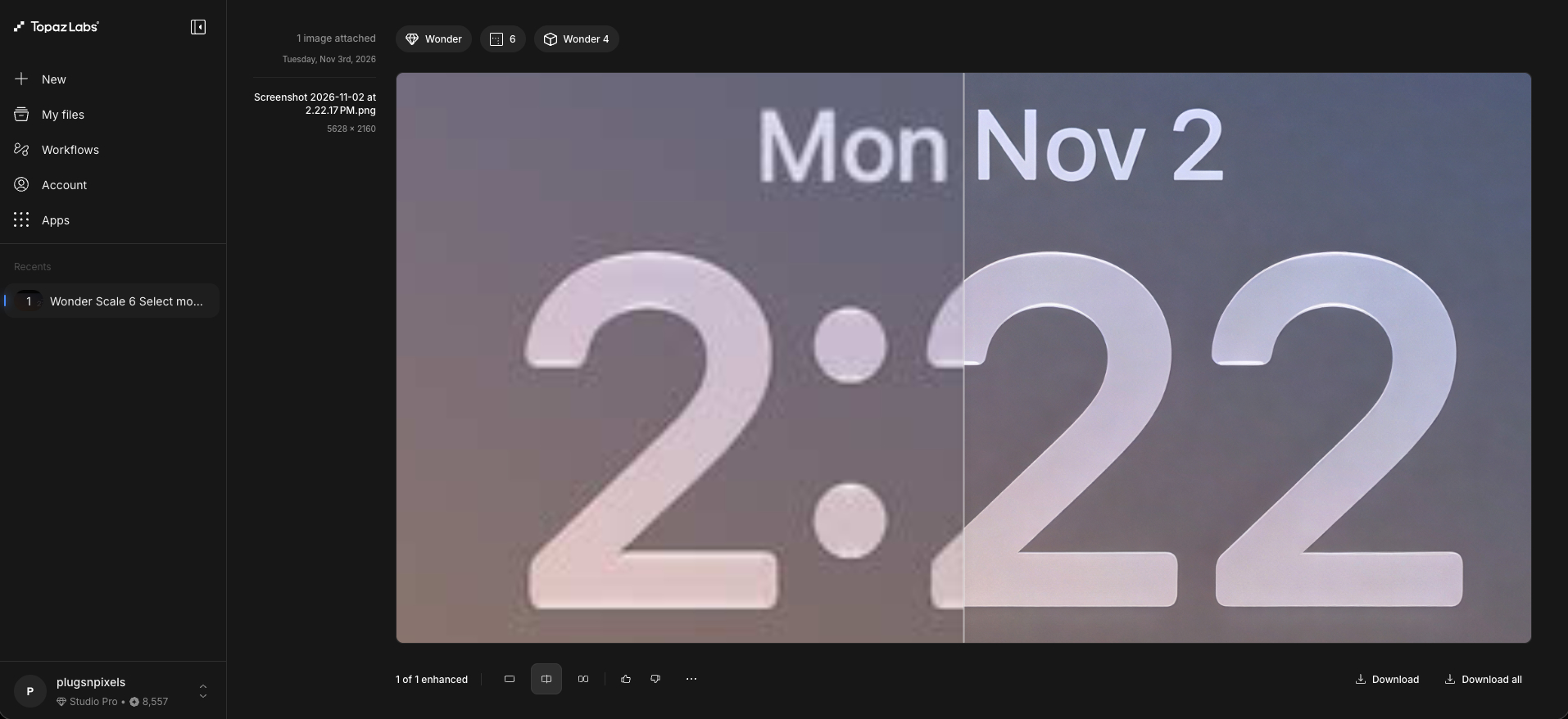
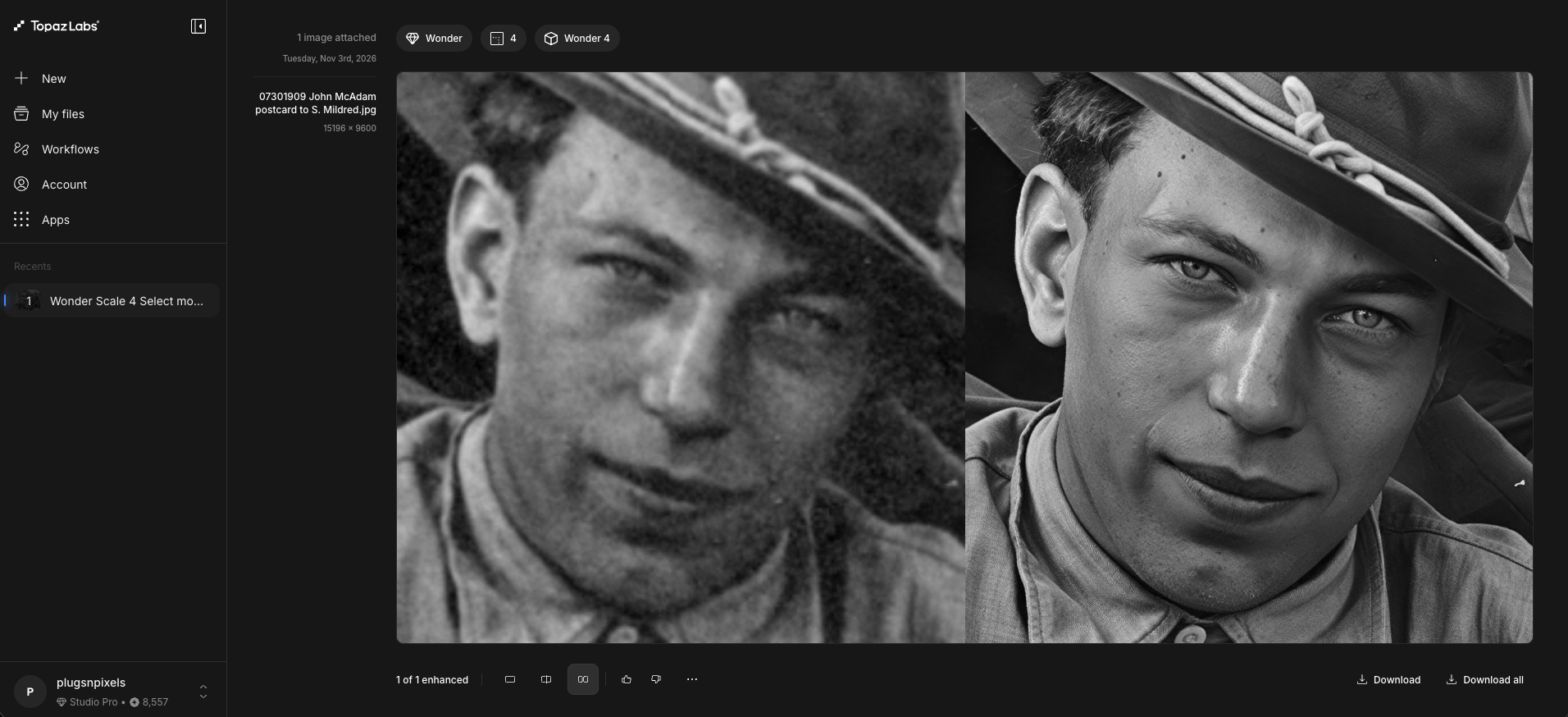
My very first quickie test, I will try others as well shortly…
4 Likes
I have a feeling that once this is released for local use, it will significantly further improve the restoration of low-resolution vintage posters. Wonder 2 and 3.5 were already good, but this is a step up.
1 Like
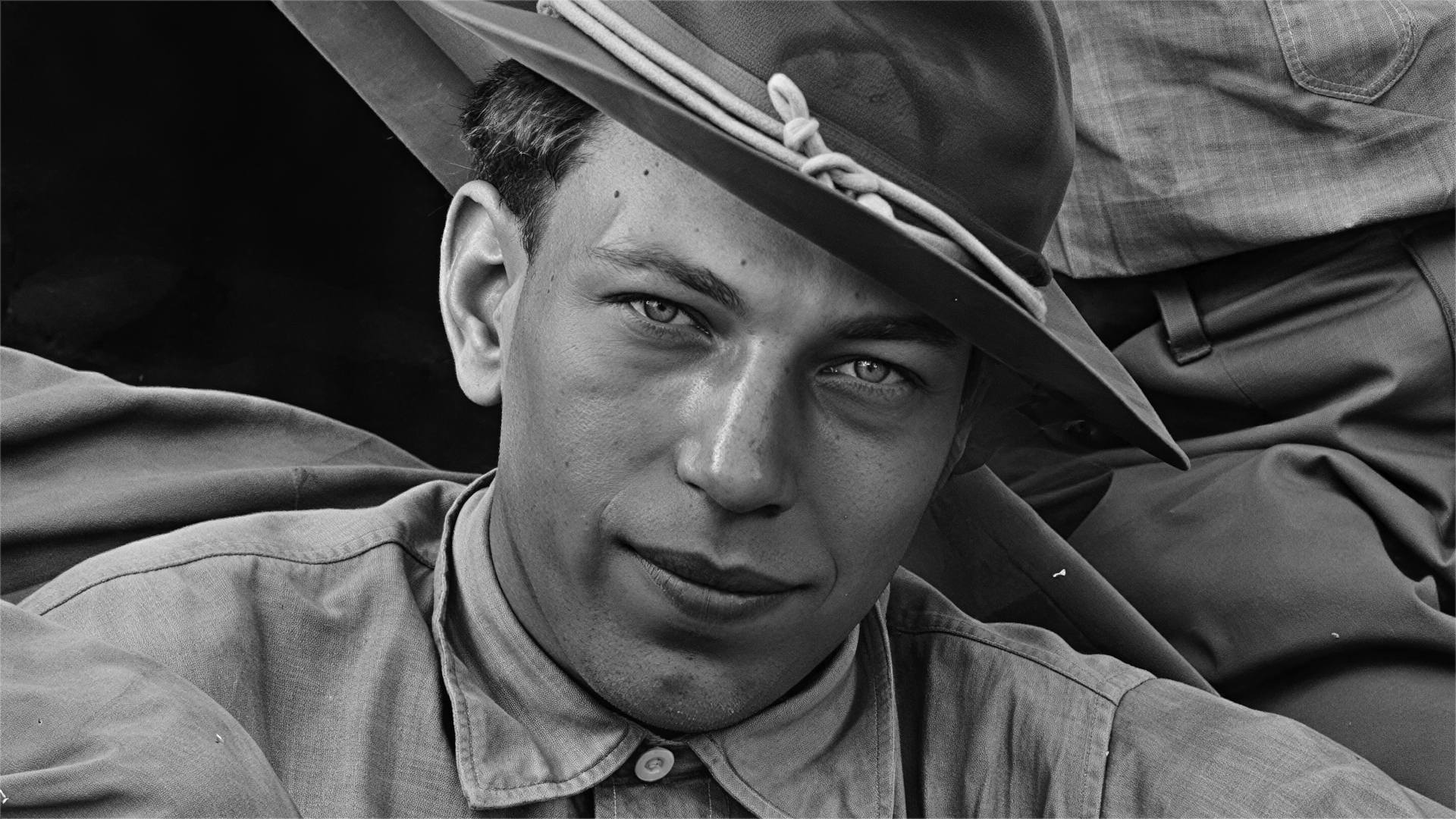
I can spot X patterns.
It seems to me its the way how Generative Networks work today - i can spot it on ChatGPT generated ads on IG too (the X Pattern) - but lets see later.
1 Like
Thanks, can you highlight them for us?
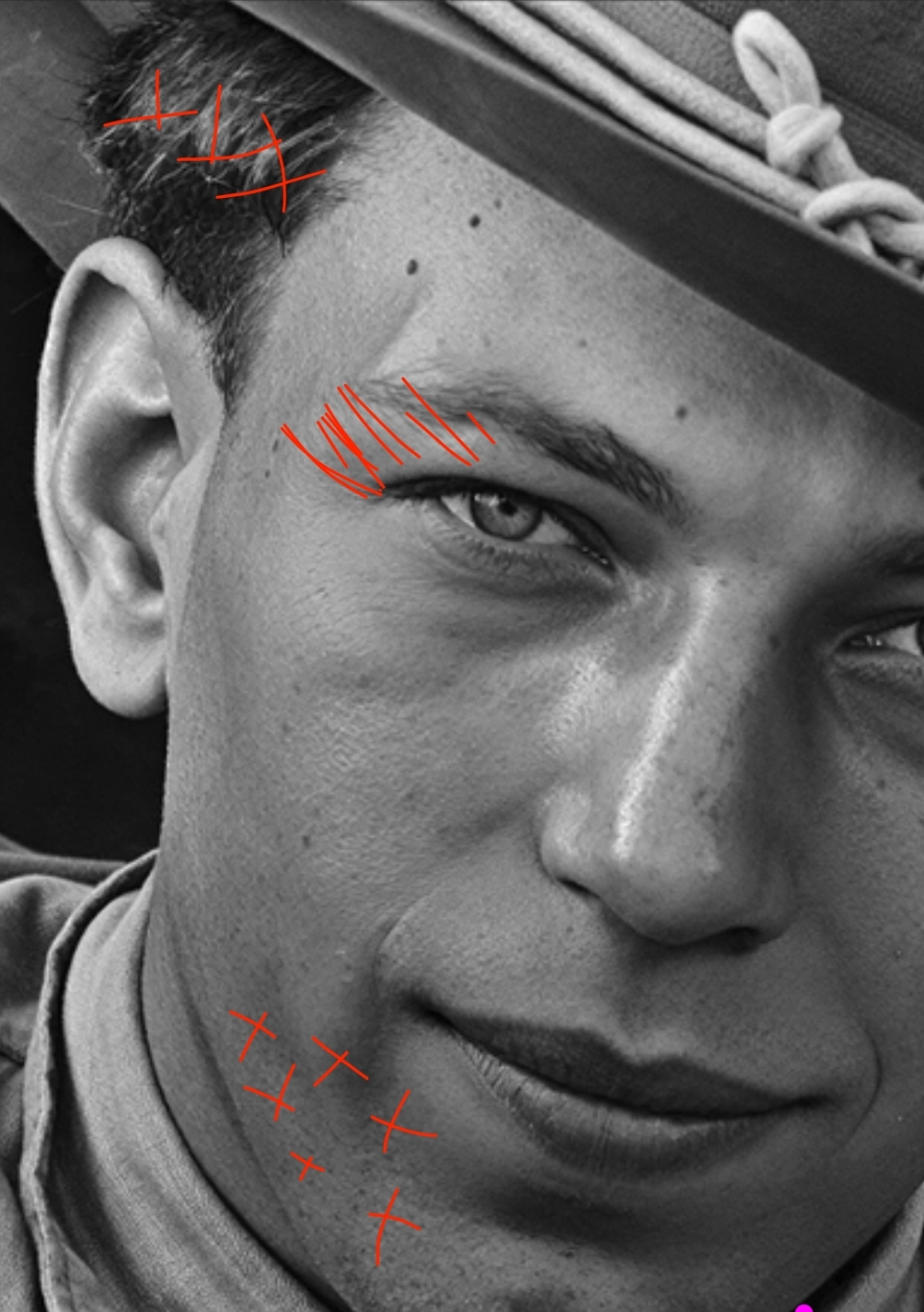
Sorry i’m not on my PC, only smartphone.
You will find stripe artifacts on the left eye, like i did mark in the image.
I see this often when ChatGPT is generating hair and its suroundings.
The X Artifacts are located in the Hair on the upper left.
And on the chin.
1 Like
Thanks, here is a 100% screenshot from the actual render, not the preview. Do you still see the X’s?
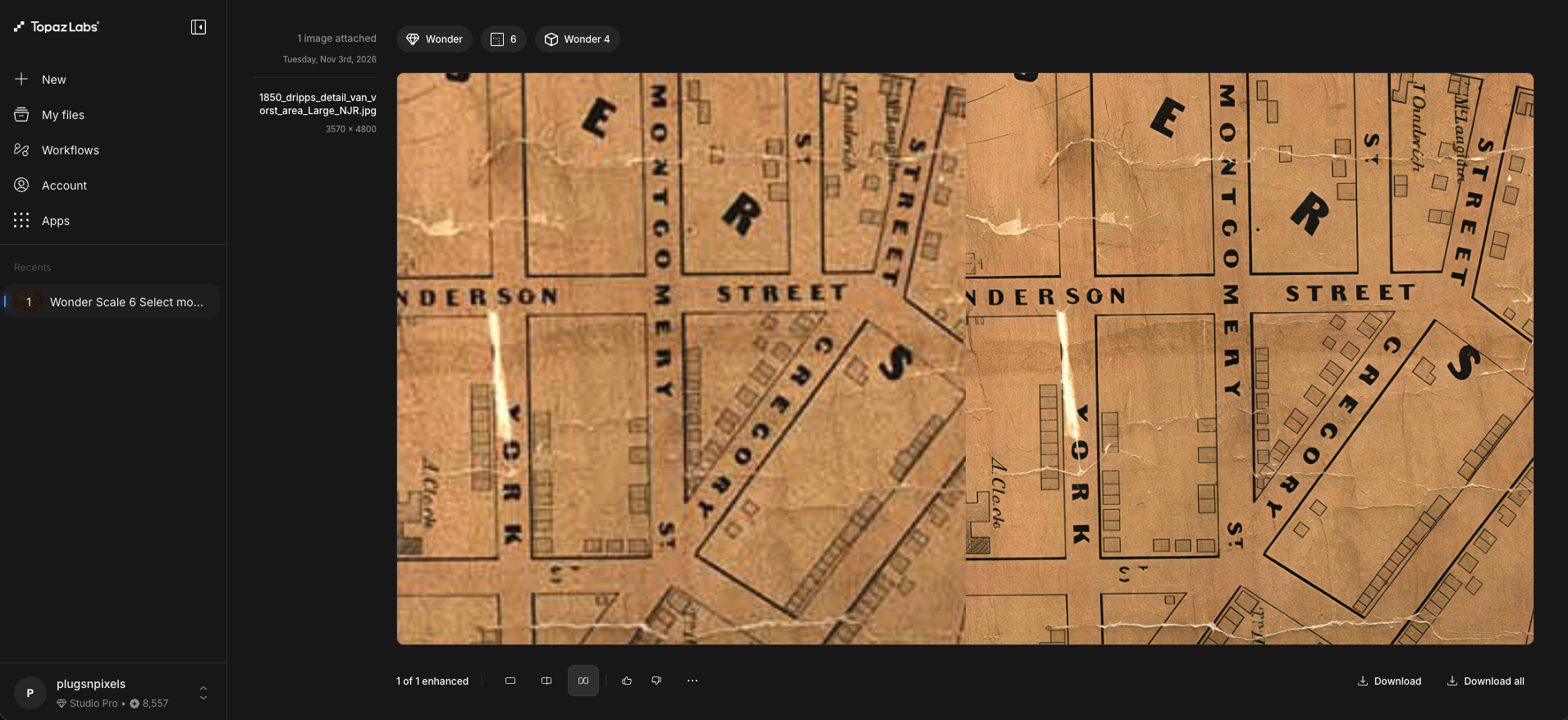
Can you share the raw before and after for the map image? The improvement is impossible… I want to see to believe it. Wow.
Sure, here it is in its original downloaded form:
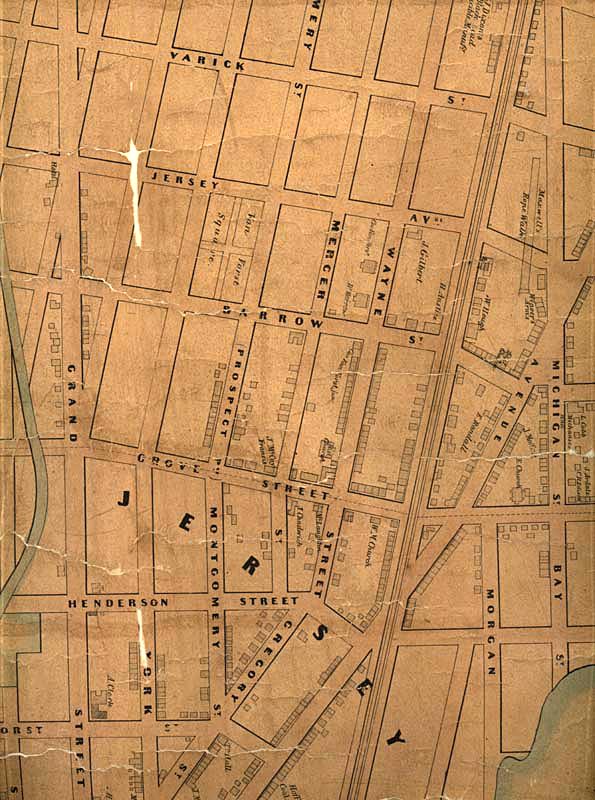
Wonder had some problems with certain smaller text but overall did a great restoration job:
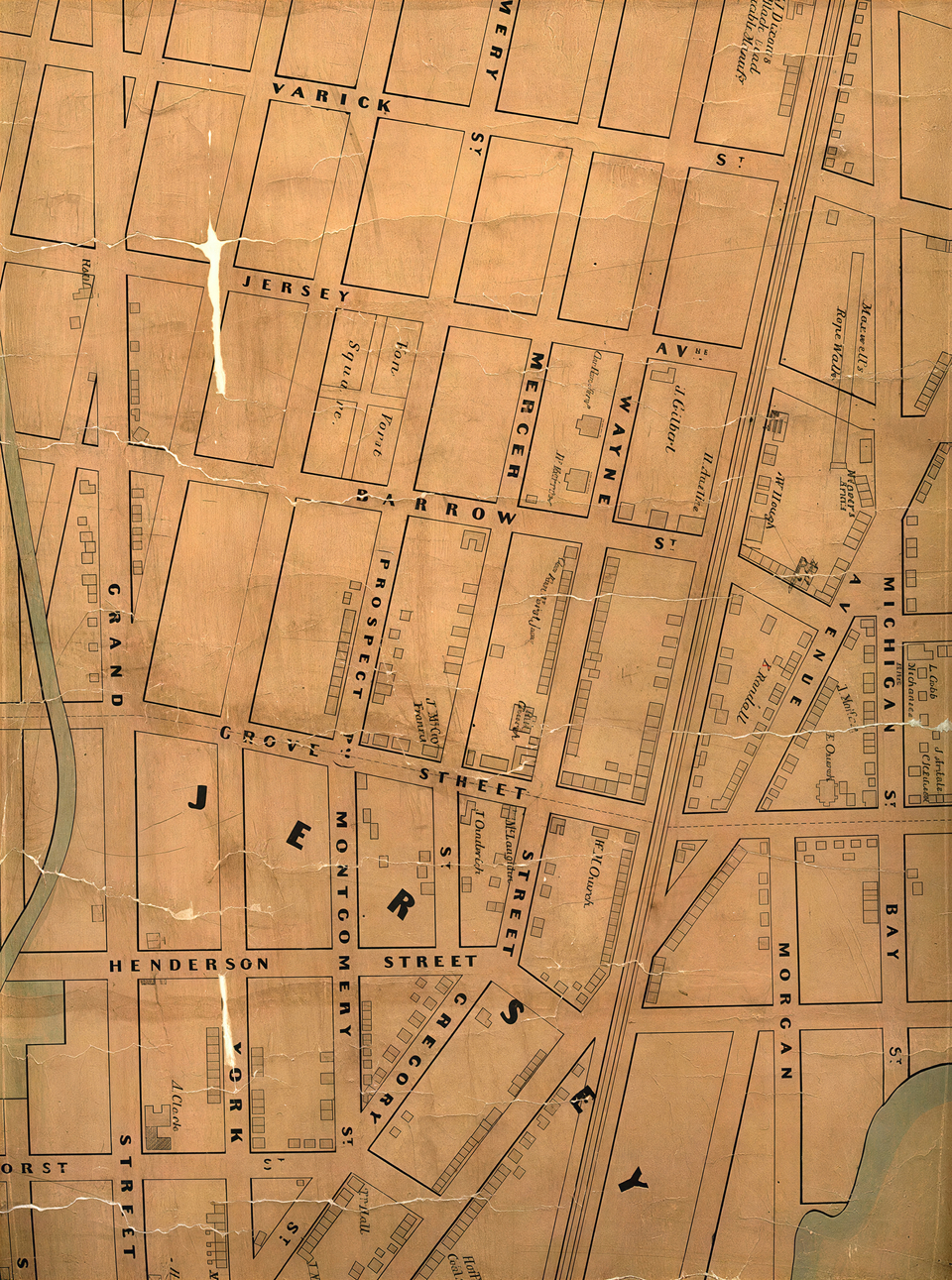
The restoration of the seams and folds in particular is wonderful! (pun intended)
Looks like it’s going to be an all-in-one type of model that does everything. Not sure if it’s good or bad for the future, but hopefully the improvements keep happening. I would at least hope that it being an MoE type of model speeds up local use significantly by activating less parameters per task.
1 Like
It’s an impressive recovery considering the very harsh state of the original1 If any patterns come up and you are looking for more realistic details, you can also, on the W4 result, hit the 3 dots, then use Create branch in the web app, then use Cretive upscaler > Realism > Subtle and it will add details (make skin details more natural etc)
The Branch! I was wondering how to add more enhancement to a result… I think this UI needs work (always have) but in a moment I’ll see about this tip.
My experience:

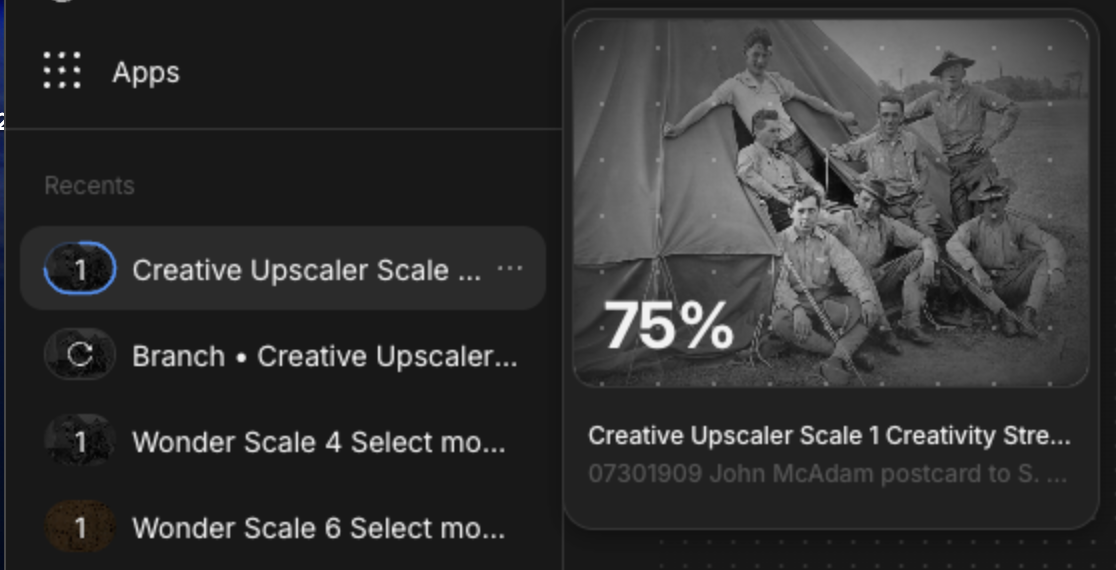
Tried twice, will not complete, fails at 75%. But at least I learned how to access additional processing!
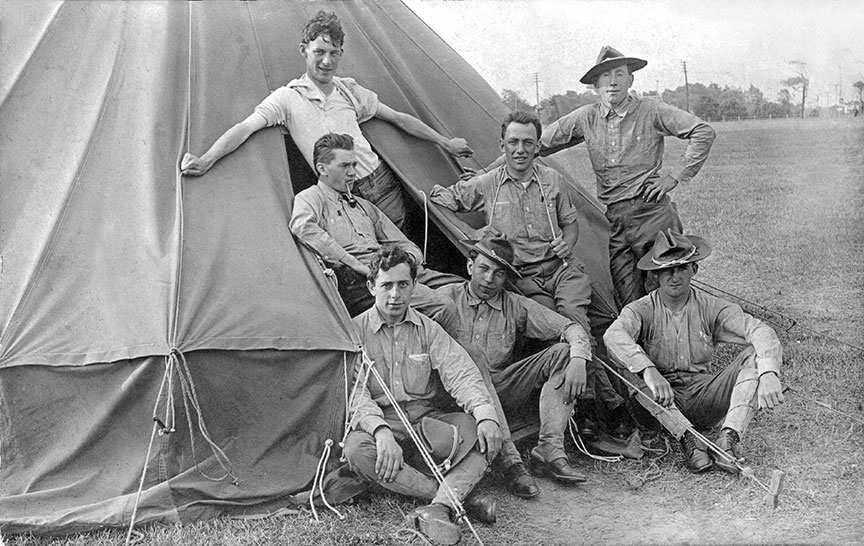
UPDATE: I had to crop the subject from the full frame and process him on his own.
Here is the full-frame, reduced (BTW, that’s my great-grandfather with the pipe and looking to the side, leaning on the tent in 1909):
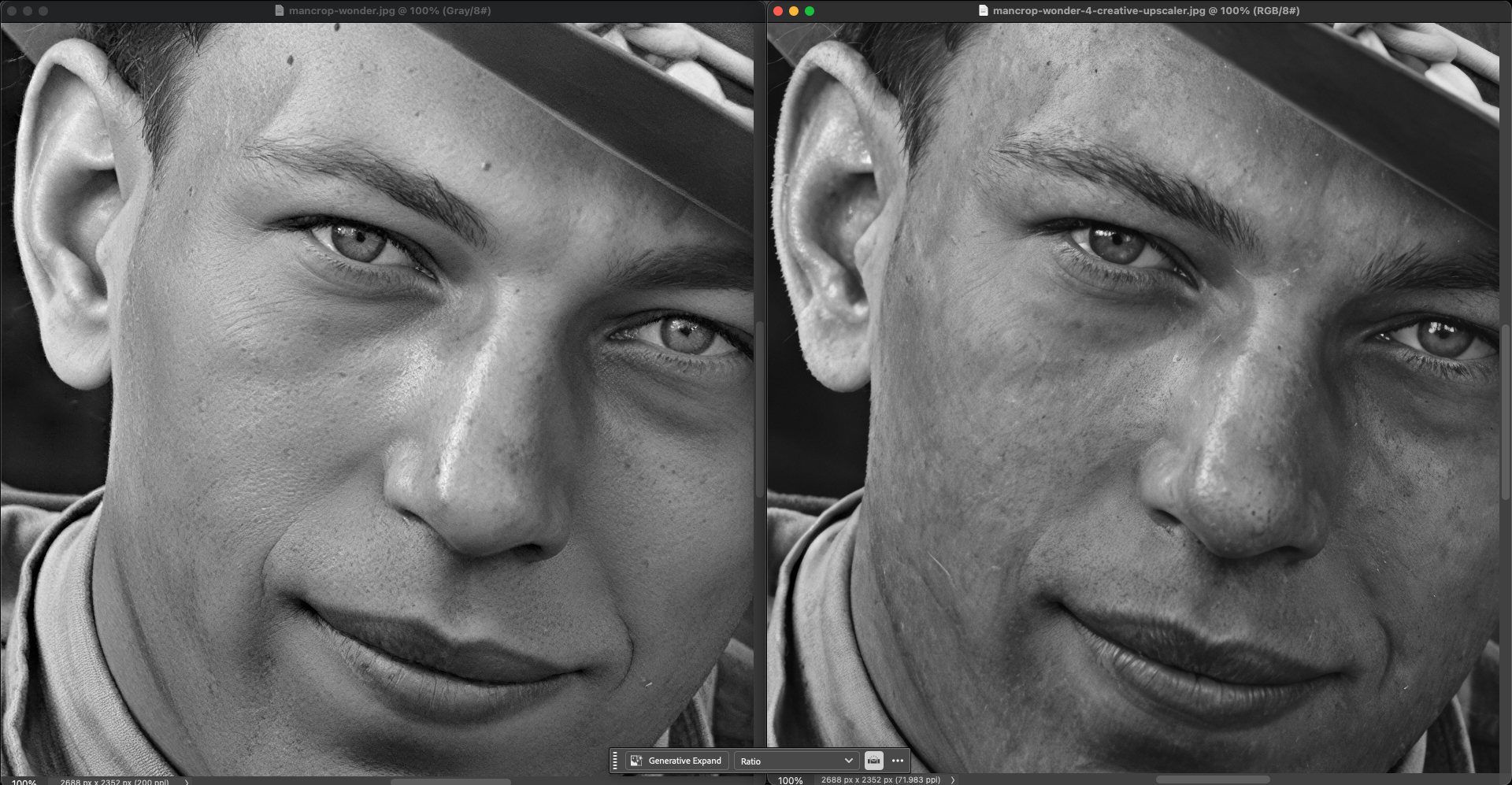
Comparison between Wonder 4 and Wonder 4 + Creative Upscaling with settings as shown above:
3 Likes
Great results for those memories!
If failed renders occur it can be a timeout with the server etc, retest the render and it should go through. If fails again, you can contact support@Topazlabs.com and the web team can have a look!
Nope, re-rendering fails again. Have them reboot the server, ha!
I am trying other enhancements to see what happens.
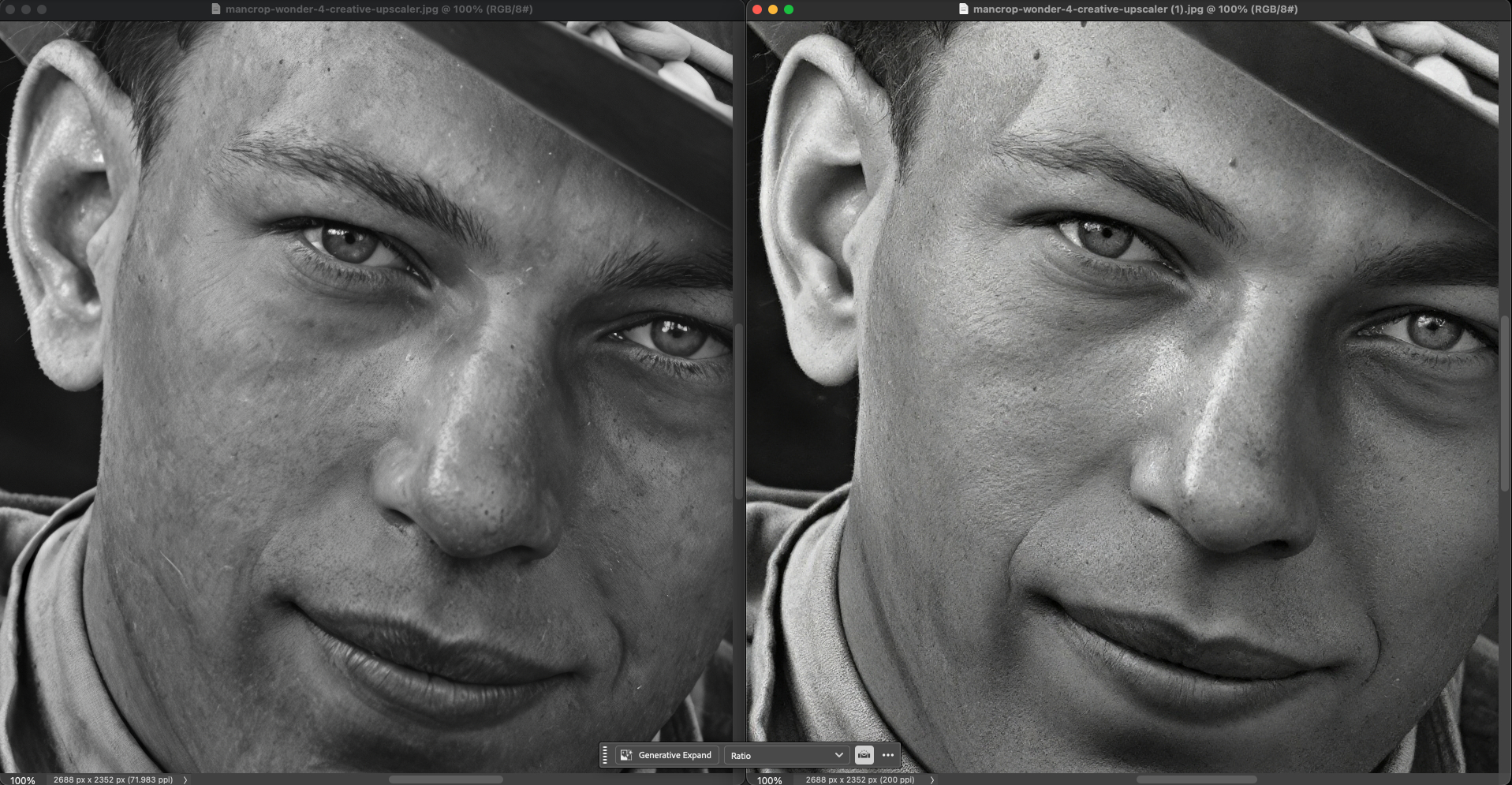
Realism vs. Bloom @ 6X, wow!
1 Like
All upscale 2x
Wonder 4 looks artifical to me here.
@Ange.topazlabs ← are there any settings for Wonder 4, like low, medium and high for W3.5?
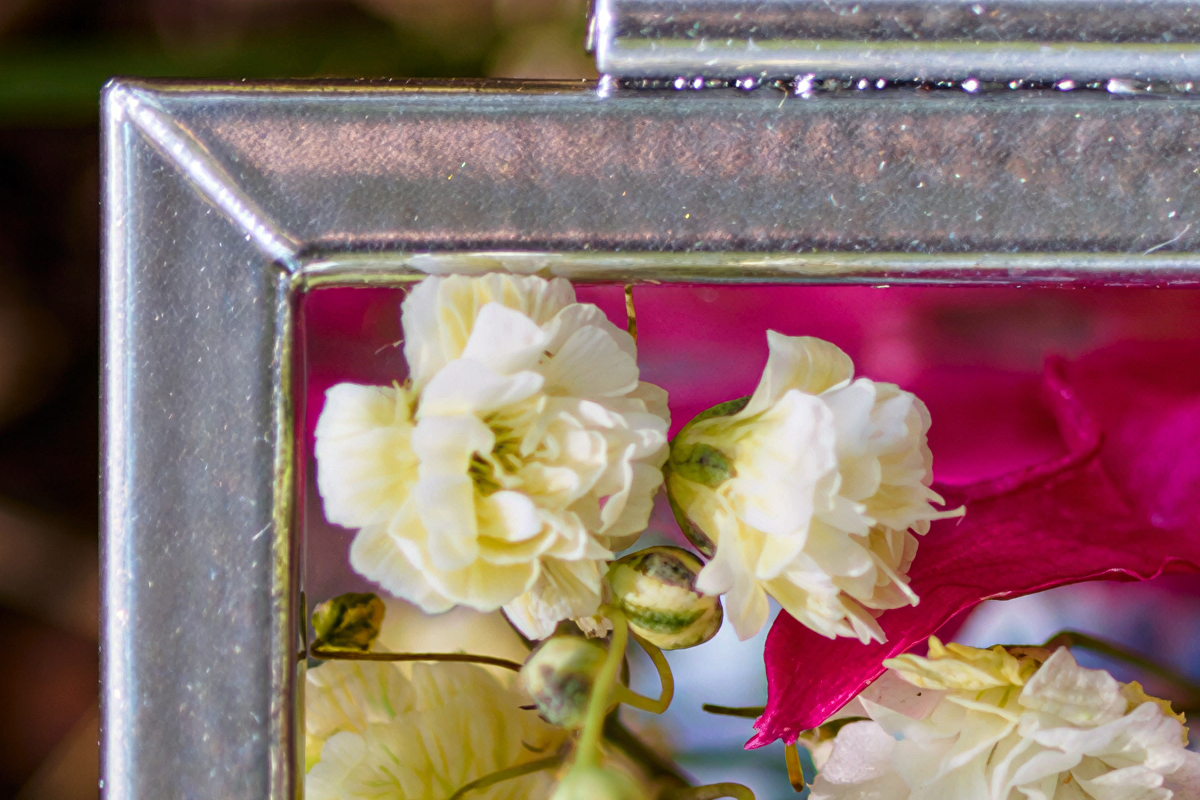
Wonder 4
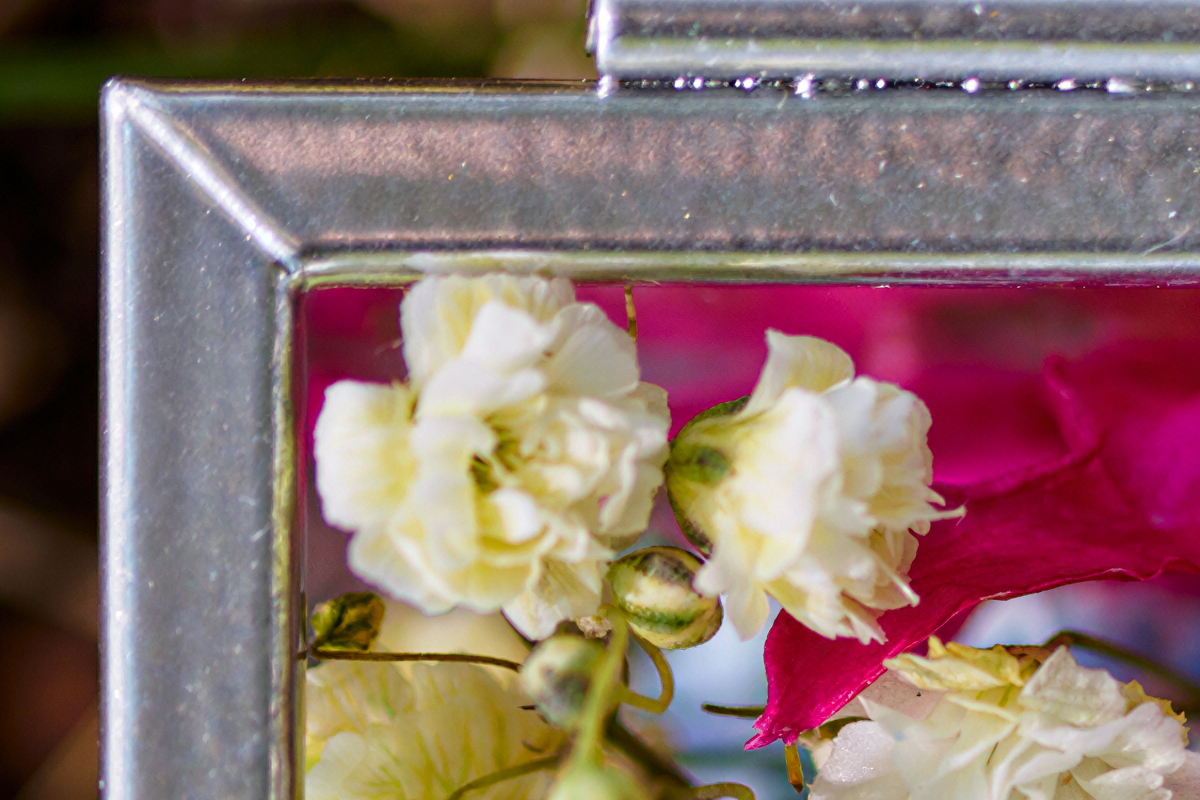
Wonder 3.5

Original - Deep Prime XD3

Bilinear & Denoise Max
1 Like
Try Ange’s trick above. Below I will post a new example.
Enlarging a crop of my great-grandfather 6X with Wonder 4 then adding 2X with Creative Upscaler>Subtle>Bloom 2!
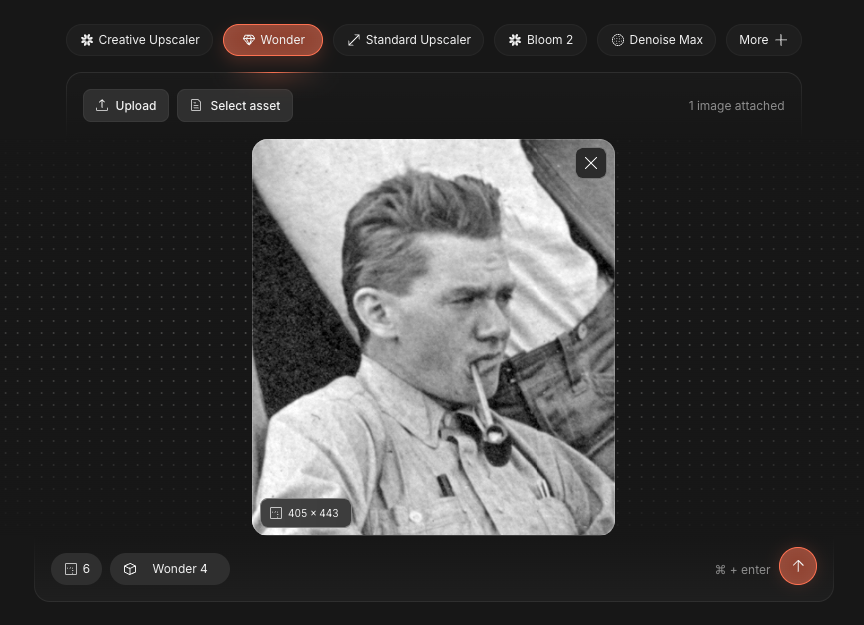
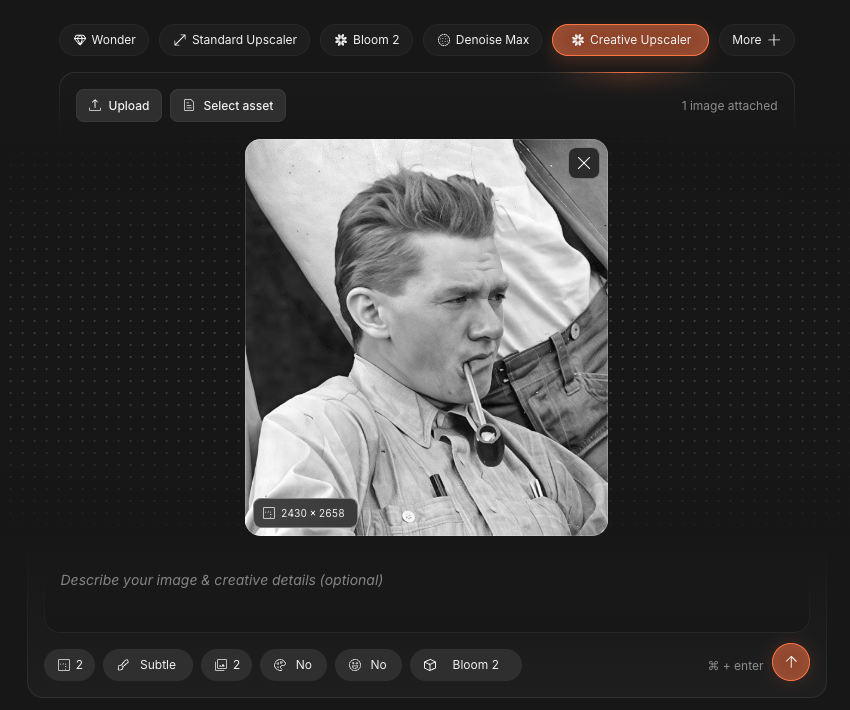
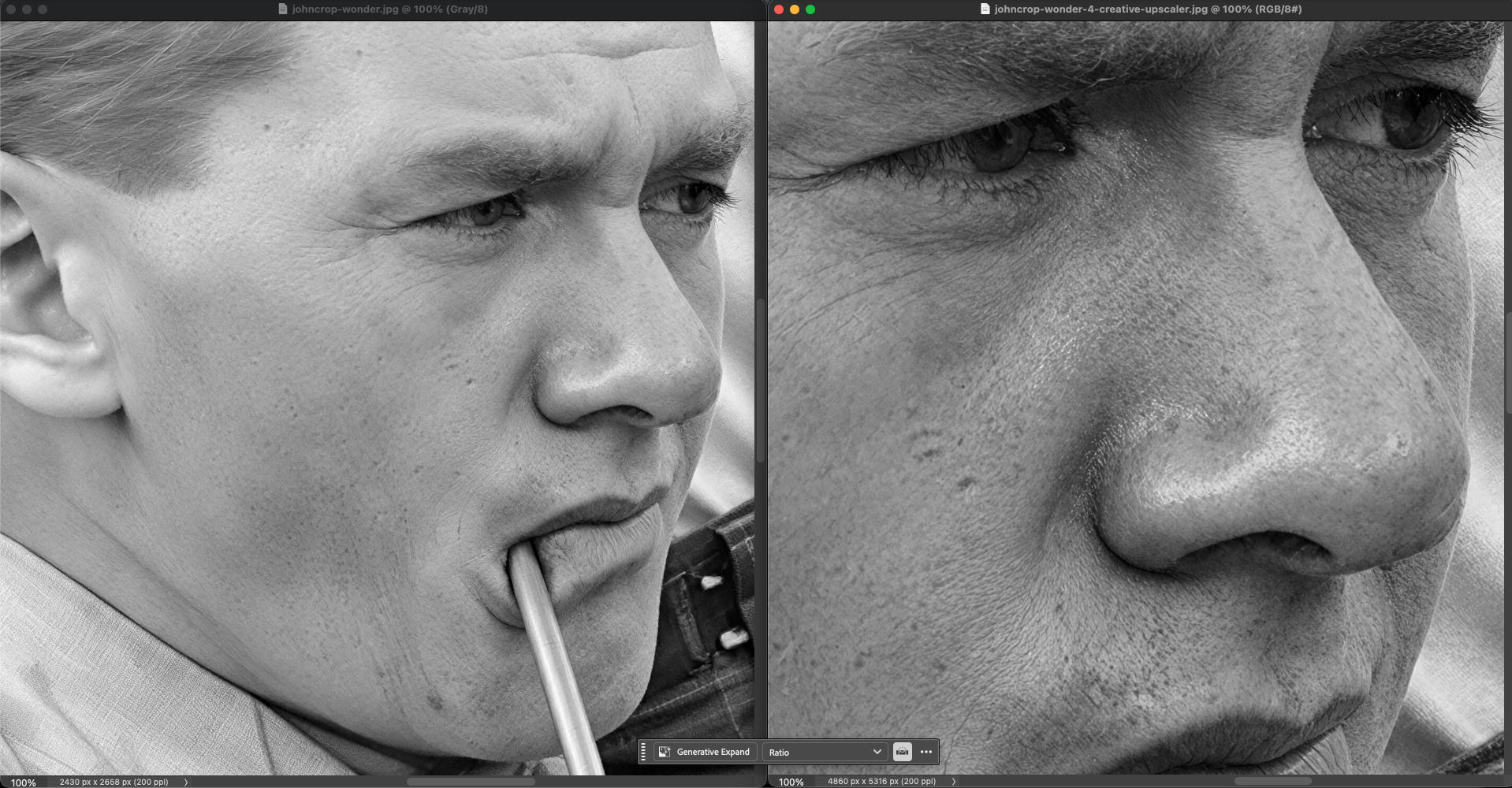
The result needed midtones popped in Levels:

1 Like
- The images in your example appear to be out of focus or have shallow DOF, but we only see a small portion of the image. You could test Super Focus instead. Seeing the full file would be useful to better understand what the image actually needs.
Denoise Max wasn’t trained for this type of recovery. We know you like using it because it’s a generative model that can give you the results you’re looking for in some cases. As we’ve mentioned during your previous tests, if using an enhancement outside its intended purpose works for you, great! But it wouldn’t be a fair comparison to compare it side by side with other enhancements that weren’t designed for that type of recovery either.
Once we see the full file, we’ll have a better idea of what would work best. As mentioned before, RAW files should start with RAW Denoise, then the next enhancement depends on the actual issue you’re trying to correct.
Regarding the texture repetition you mentioned, upscaling images where the subject is far away, like the ones @plugsnpixels shared, requires the model to generate missing texture. This can sometimes result in repetitive patterns. In those cases, a generative model like Bloom can help introduce some of the imperfections that make textures look more natural and less polished. Wonder 4 is miles away compared to the first iteration for that type of artifact.
For Wonder 4, there won’t be strength options at the moment, but I’ve passed that along to the Web team as a feature request.
@plugsnpixels - Great recovery! If you continue getting failed renders, send us the Render Debug Info at support@topazlabs.com and we can take a look. You can find it by opening the failed image and clicking Debug Info at the bottom.
1 Like
Right now, to me, i try to understand how Wonder 4 is reacting to some images.
Using Denoise MAX, I was able to match the quality of images from a 100MP medium-format camera, even though my images are only 24MP.
I do think so; after all, I’m looking for the right model for my workflow.
A post was merged into an existing topic: November Release - Topaz for Web
Personally, I prefer the one on the right, which includes the bloom enhancement unlike the “realism” version, which gives things a strange look.
